Canvas Dashboards
After logging into Rill Cloud, you should see all projects within your organization that are available and/or have been granted permissions to your user profile. Within each project, you'll then be able to access the corresponding individual dashboards that belong to a particular Rill project.
Prefer video? Check out our YouTube playlist for a quick start!
Navigating the Dashboard
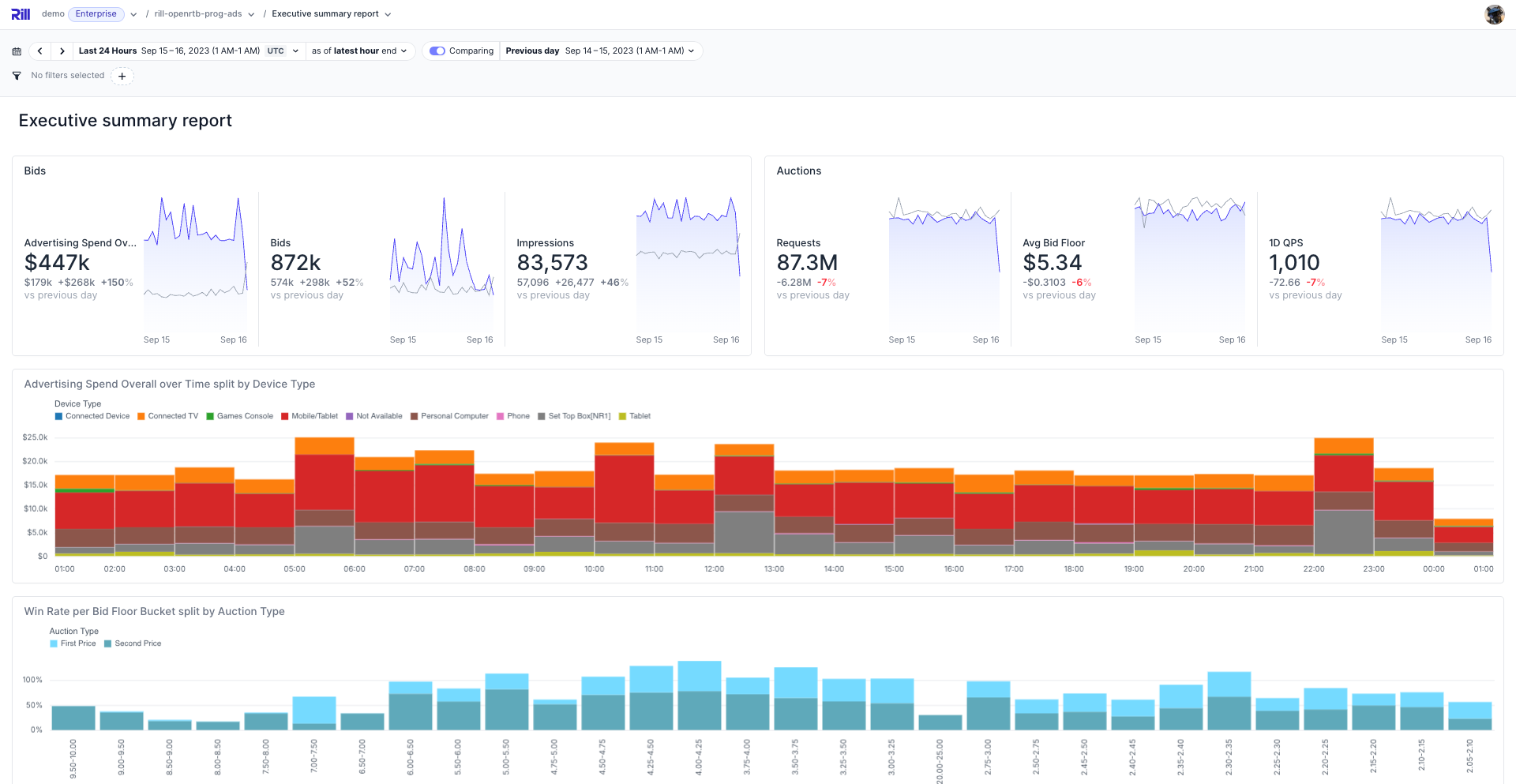
Similar to our Explore dashboards, Canvas Dashboards also include a similar navigation bar to control the dashboard components.
Navigation Bar
-
Time Selector and Time Selector Comparison: You can change the period of analysis to different ranges of time (see
redbox), either by selecting from a pre-defined period (such as last week) or choosing a custom date range. Along with this, you can enable a comparison filter to compare a range of dates with one click. -
Filtering: Underneath the time selector, you'll also be able to find your filter bar (see
orangebox) where you can add filters for metrics (e.g.campaigns>1000) or for dimensions (e.g.campaign_name = Instacart).
If your dimensions or measures have the same name in your metrics view, filters will apply to all components, regardless if it's in a different metrics view.
Component Navigation
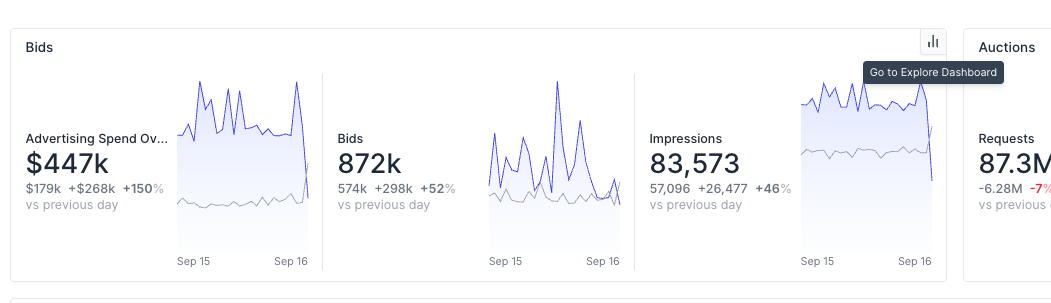
If you want to further drill into a component's data, select the top right button to take you to the equivalent Explore dashboard.
If no Explore dashboard exists, and/or you don't have permissions to view it, no button will appear and is as designed.
Maps
Map widgets plot a measure by location, as points or as shaded regions. Drag to pan, scroll or use the buttons in the top-right corner to zoom, and hover over a point or region to see its values. The map keeps your position when you change filters or the time range. To add a map to a dashboard, see Map widget.
Pin and Require Filters
Dashboard authors can keep specific filters in the filter bar, and can block a canvas until the viewer picks a value for them. This is useful when a canvas only makes sense for one region, customer, or account at a time.
| Setting | Effect for viewers |
|---|---|
| Pinned | The filter always appears in the filter bar, even when it has no value. Viewers can change its value but cannot remove the filter. |
| Required | The canvas does not load until the filter has a value. A required filter is always pinned. |
Configure Pinned and Required Filters in YAML
List dimension or measure names under filters in the canvas file:
type: canvas
display_name: "Regional bids overview"

filters:
  enable: true
  pinned:
    - device_type
  required:
    - auction_type
Because required filters are implicitly pinned, you do not need to list a name under both pinned and required.
Each name in required must be a dimension or measure on a metrics view used by the canvas's components. If it is not, the canvas fails to reconcile with an error like:
required filter "auction_type" is not a dimension or measure on any metrics view referenced by this canvas
See the filters reference for the full list of properties.
Configure Pinned and Required Filters in the Editor
When you edit a canvas in Rill Developer or in Rill Cloud, each dimension and measure filter's dropdown shows two extra controls in its top-right corner:
- The asterisk marks the filter as required.
- The pin icon pins the filter.
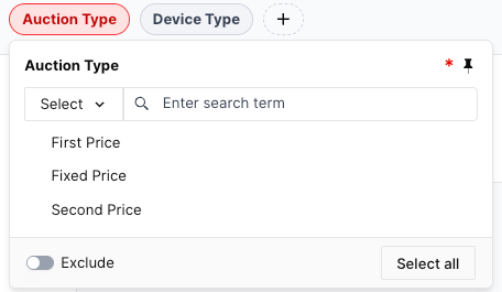
These controls change only your current editing session. To write them to the canvas file, click Save as default in the canvas editor header. This saves the pinned and required filters to filters.pinned and filters.required, and also saves the current filter values, time range and comparison setting as the canvas's defaults.
What Viewers See
Until every required filter has a value, the canvas body is replaced by a Select a value to continue message that lists the missing filters, and the missing filters are highlighted in the filter bar. Once the viewer selects a value for each one, the canvas loads. Clearing a required filter's value blocks the canvas again.
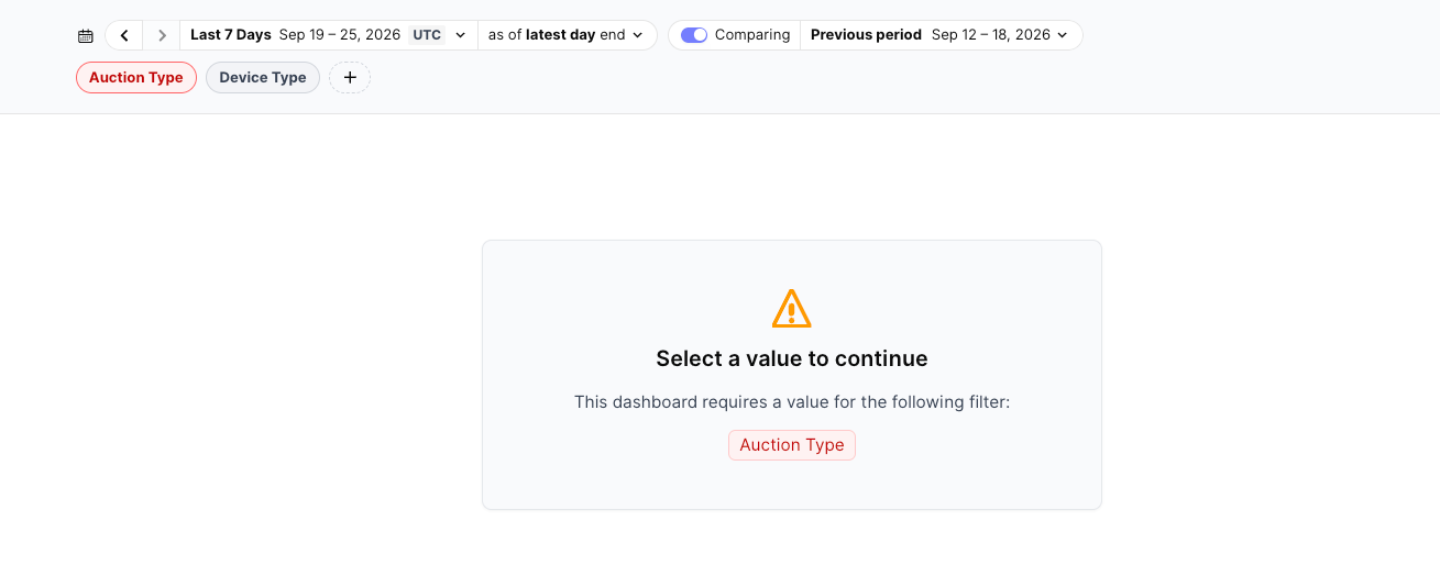
If you want the canvas to load immediately but never without a value, save a default value for the required filter. Viewers start with that value and can switch to another one, but cannot clear it without blocking the canvas.
A canvas with missing required filters has nothing to export. Set a value for every required filter before you export the canvas to PDF or schedule a PDF report of it.