Adhoc Measures
Adhoc measures let you define a new measure on the fly by combining the measures a dashboard already has, for example revenue - cost or round(revenue / orders, 2). You don't need to edit the metrics view or wait for a developer to add the measure.
An adhoc measure behaves like any other measure: it appears in the big numbers, time series charts, leaderboards, dimension tables, Time Dimension Detail, and pivot tables. It is computed by Rill on top of the aggregated values of the measures it references, so it respects your filters and time range.
Adhoc measures are ideal for one-off analysis and for sharing an idea with a colleague. If a calculation is used across many dashboards, reports, or alerts, ask your project developer to add it to the metrics view so it has a single, governed definition.
Create an adhoc measure
- Open the All Measures menu above the time series charts, and select Create adhoc measure at the bottom. In the pivot view, you can also select the + next to Measures in the sidebar.
- Enter a Name, for example
Profit Margin. This is the label shown in the dashboard. - Write the Expression. Type
@to open a picker of the dashboard's measures, then use the arrow keys and Enter, or click, to insert one. You can search the picker by display name or by measure name. You can also click a measure under Insert a measure to add it at the cursor. - Optionally, add a Description. It is shown in the measure's tooltip instead of the expression.
- Choose a Format: Humanize (the default), None, Currency (USD), Currency (EUR), or Percentage.
- Select Save.
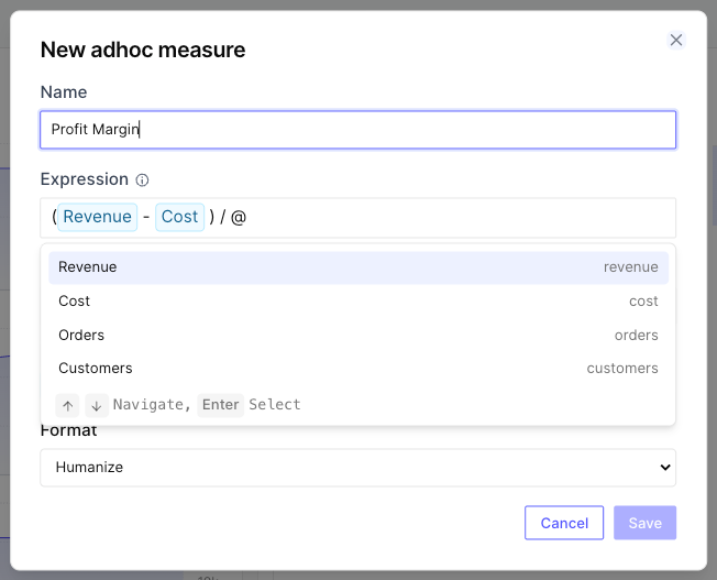
Rill validates the expression as you type and shows an error below the input if it references an unknown measure or uses unsupported syntax. The new measure is added to the dashboard's visible measures, or as a column when you create it from the pivot view.
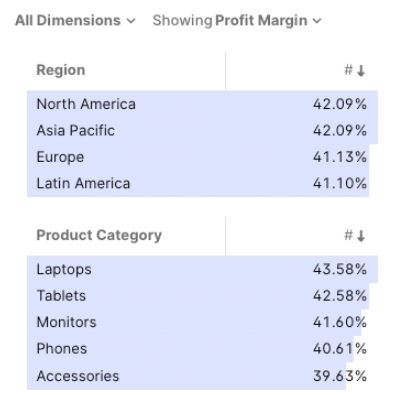
Once saved, you can select the adhoc measure anywhere you select a measure, for example in the leaderboard's Showing menu:
Write an expression
An expression combines the measures in the dashboard with numbers, arithmetic operators, and a small set of functions. The measures are already aggregated, so the expression works on their totals for each row, not on individual records.
| Use case | Expression |
|---|---|
| Difference | revenue - cost |
| Ratio | revenue / orders |
| Percentage | (revenue - cost) / revenue with the Percentage format |
| Rounding | round(revenue / orders, 2) |
| Treat a missing value as zero | coalesce(returns, 0) / orders |
| Growth over a target | revenue / 1000000 - 1 |
The Percentage format multiplies the value by 100, so write ratios as fractions, such as (revenue - cost) / revenue, instead of multiplying by 100 yourself.
Expression reference
| Element | Supported |
|---|---|
| Measure references | Measure names, such as revenue. The @ picker inserts the name for you. Names that start with a digit, contain special characters, or are SQL keywords must be double-quoted, such as "1d_qps". |
| Numbers | Integer and decimal literals, such as 100 or 0.25, and NULL |
| Operators | +, -, *, /, % (modulo), unary minus, and parentheses |
| Functions | abs, round, floor, ceil, sqrt, ln, exp, power, coalesce, nullif, greatest, least |
Division is safe: dividing by zero returns an empty (null) value instead of an error.
The following are not allowed: dimensions or column names, strings, comments, aggregate functions such as sum() or count(), CASE, casts, comparisons, and subqueries. An expression must reference at least one measure, can be at most 1,024 characters long, and can nest at most 32 levels deep.
Edit or delete an adhoc measure
Adhoc measures are marked with an ƒx icon. To change one:
- In the All Measures menu, select the pencil icon next to the measure to open Edit adhoc measure.
- In the pivot view, click the measure's chip and select Edit or Delete.
- In Time Dimension Detail, use the edit action next to the measure in the measure selector.
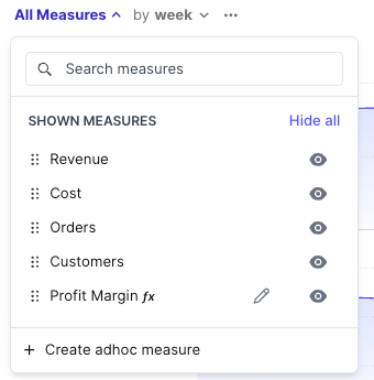
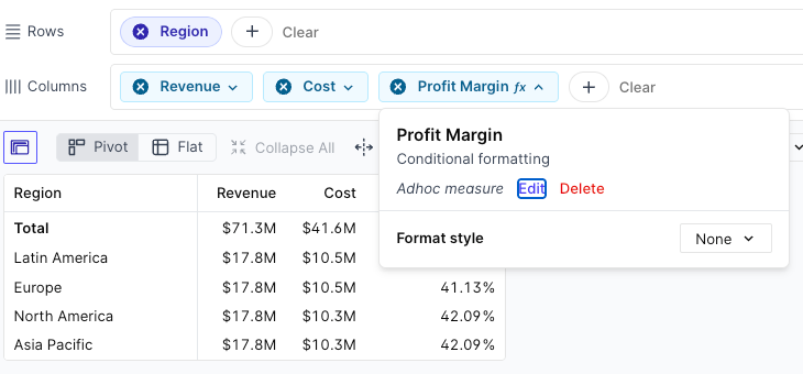
The Edit adhoc measure dialog also has a Delete button. Deleting an adhoc measure removes it from every view of the dashboard.
Share adhoc measures
Adhoc measures are saved in the dashboard URL, in the adhoc_m parameter, so they travel with the dashboard state:
- Links: When you copy the URL, anyone who opens it sees the same adhoc measures.
- Bookmarks: A bookmark restores the adhoc measures that were in use when you saved it.
The URL only includes the adhoc measures that the current view uses, such as the visible measures, the leaderboard measure, or the pivot's columns. This keeps links short.
Your browser also keeps a personal library of every adhoc measure you create for a metrics view. When you open any dashboard built on the same metrics view in that browser, your adhoc measures are available again, even if the URL doesn't include them. The library is stored only in your browser: other people see your adhoc measures only through a link or bookmark.
Limits and rules
- Up to 10 per dashboard. A dashboard can hold at most 10 adhoc measures at a time.
- Only the dashboard's measures can be referenced. An expression can reference measures that are included in the dashboard, but not dimensions or other adhoc measures.
- Some measures can't be referenced. Measures that use a window function, have required dimensions, or are time-comparison measures are not offered in the picker and can't be used in an expression. See advanced measures for how these are defined.
- Names are generated from the display name. Rill derives the measure's internal name from its display name, for example
Profit Marginbecomesprofit_margin, and adds a numeric suffix when it would collide with an existing field.
Security
Adhoc measures follow the metrics view's access policies. An expression can only reference measures you are allowed to see, and the values are computed with the same row filters that apply to you. Anyone who opens a shared link sees the result computed with their own access.
Use adhoc measures elsewhere
- Canvas dashboards: Developers can define adhoc measures on canvas tables, pivots, charts, KPIs, and leaderboards. See adhoc measures in canvas widgets.
- APIs: Custom APIs and the metrics view query APIs accept the same expressions. See adhoc measures in APIs.