Deployment Slots
Slots set the amount of compute that Rill Cloud allocates to your project's deployments. Each slot provides 1 vCPU and 4 GiB of memory per deployment. The Rill Cloud UI shows each slot as one compute unit.
Consider adding slots when your project ingests or transforms more data, or when more users query its dashboards at the same time. Consider removing slots when a deployment is consistently oversized for its workload.
Production and development slots
A project has two separate slot settings:
| Setting | Applies to | Default for new projects |
|---|---|---|
| Production slots | The production deployment of the project's primary branch | 2 |
| Development slots | Each development deployment, such as a branch deployment or a deployment used for editing in Rill Cloud | 2 |
Development slots apply to each development deployment individually. For example, with 2 development slots, a project with two branch deployments runs each of them with 2 slots.
Change slots in Rill Cloud
You need permission to manage the project to change its slots.
-
Open your project and select Status.
-
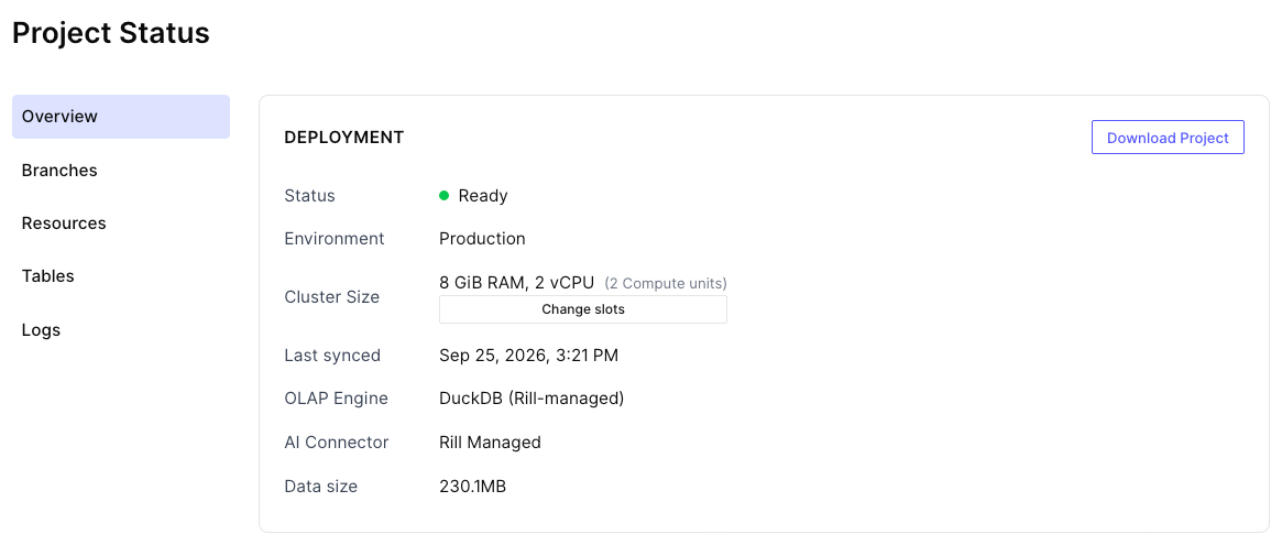
Select Branches in the left navigation. On some plans, the Deployment section of the Overview page also shows the production Cluster Size, with a Change slots button that opens the same page.
-
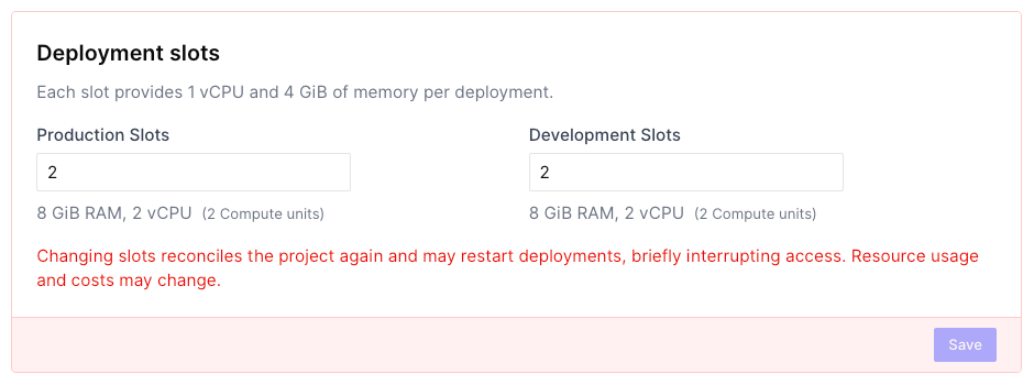
In the Deployment slots section, enter a positive whole number in Production Slots. If cloud editing is enabled for the project, you can also set Development Slots. The resulting memory and vCPU are shown under each field.
-
Select Save.
Saving new slot values reconciles the project again and can restart its deployments, which briefly interrupts access to dashboards. Only the environment you change is affected: changing only production slots restarts only the production deployment, and changing only development slots restarts only development deployments.
Change slots from the CLI
Use rill project edit with the --prod-slots and --dev-slots flags. Both values must be greater than zero.
rill project edit my-project --prod-slots 4
rill project edit my-project --dev-slots 1
The same restart behavior applies as in the UI.
Slot limits
Your organization's plan sets two slot limits:
- Slots per deployment: the most slots that any single production or development deployment can use.
- Total slots: the most slots that all projects in the organization can use combined. Both production and development slots are checked against this limit, both when you raise a project's slots and when Rill creates a new deployment, such as a branch deployment or a deployment for editing in Rill Cloud.
If a slot change or a new deployment exceeds either limit, Rill rejects it with a quota exceeded error. A rejected slot change leaves the current slots in place. To raise your limits, contact us.
Changing slots changes the resources your project uses, which can affect your costs. For details, see Billing Plans Explained.