Bookmarks & Sharing
Bookmarks are useful to return to regular analyses and filter sets commonly used for reporting or deep dives. If you have a regular view of the data, a bookmark is also a good alternative to creating an entirely new dashboard, as it contains a subset of the view while retaining all of the fields available for analysis.
Common use cases for Bookmarks include:
- Weekly/Monthly reporting
- Setting filters for specific users/use cases (e.g., teams or executives with a narrower view, an account manager's book of clients)
- Answering common troubleshooting questions by starting with a subset of problem dimensions
Prefer video? Check out our YouTube playlist for a quick start!
How to set and use Bookmarks
On the top right portion of the screen, you will see the Bookmark icon to bring up the option to save a bookmark. Clicking that icon brings up options to save the current page as your home screen, create a new bookmark page, or to see your list of bookmarks (and shared bookmarks).
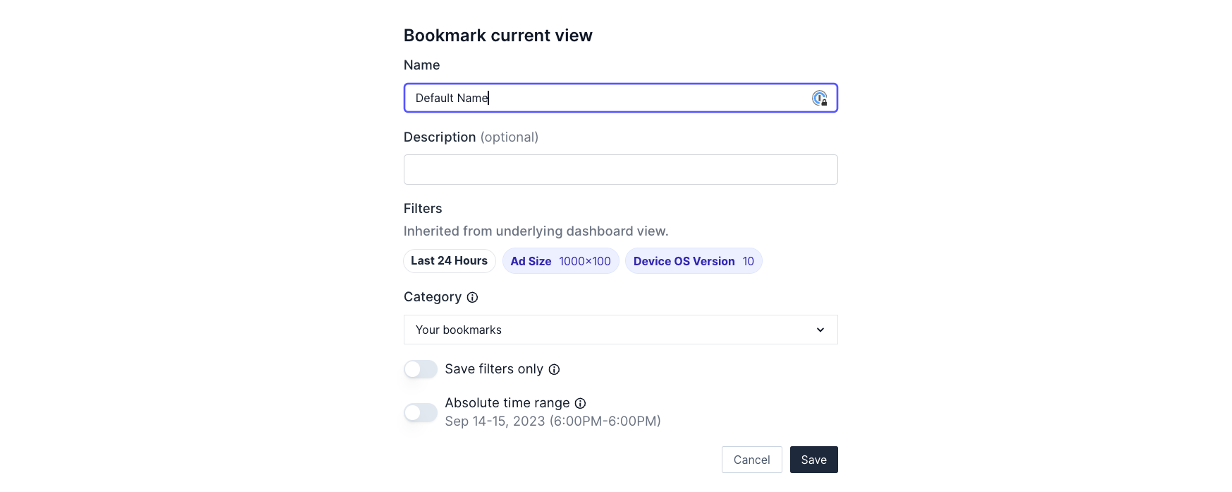
On the bookmark screen, you'll then be able to set the options related to the saved view:
- Name: Set a name and description (optional)
- Filters: All filters from your previous analysis will be carried into the bookmark. Add/remove any additional filters as necessary
- Shared or Local: Select a category (for admins who wish to make a public bookmark)
- Save Filters Only: This option will save only the filter combination to be reused later without restricting the measures and dimensions
- Absolute Dates: Use this option if you have a saved time period and return exactly to that period versus using the time period filter
Manage all bookmarks in a project
The Bookmarks tab of a project lists every bookmark you can see across all of the project's Explore and Canvas dashboards, so you don't need to open each dashboard's bookmark menu to find a saved view. Open a project in Rill Cloud and select Bookmarks in the project tabs.
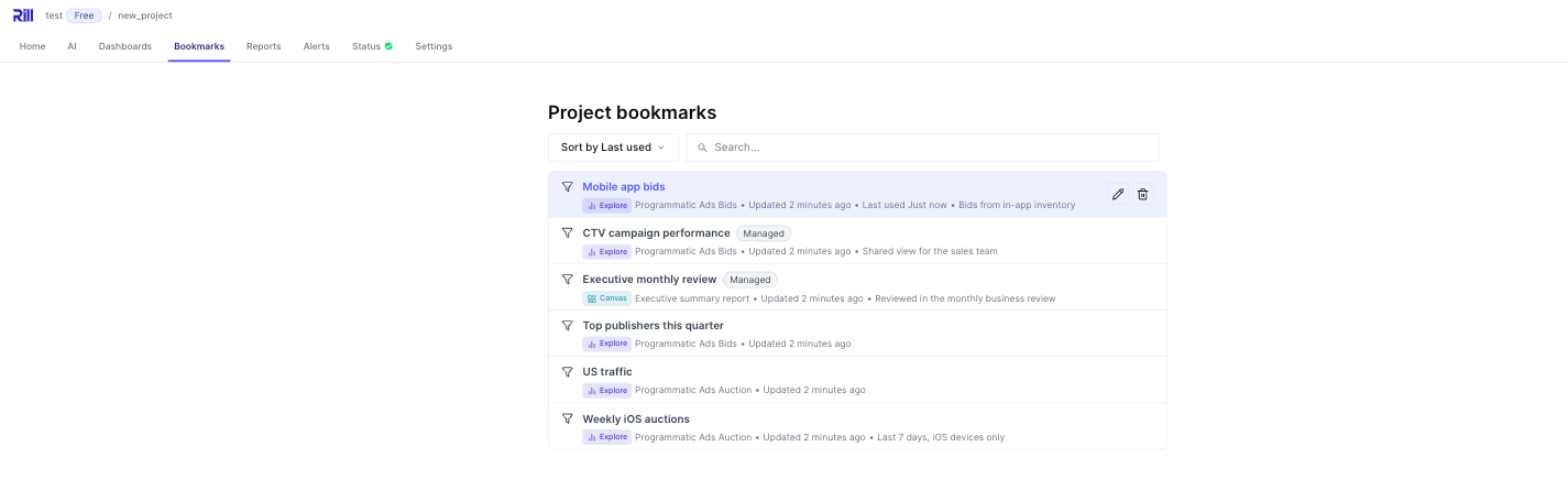
The tab lists two categories of bookmarks:
| Category | Who can see it | Shown as |
|---|---|---|
| Your bookmarks | Only you | No tag |
| Managed bookmarks | Everyone with access to the project | A Managed tag next to the name |
Each row shows the bookmark's name, the type and title of the dashboard it belongs to, when it was last updated, when you last opened it, and its description. A funnel icon marks a bookmark that saves only filters and the time range; a bookmark icon marks one that saves the full dashboard view. Select a row to open the dashboard with the bookmark applied.
Search and sort bookmarks
Use the search box to filter the list by bookmark name, description, or dashboard title or name.
Use the sort menu to change the order:
| Sort option | Order |
|---|---|
| Last used (default) | Most recently opened first. Usage is tracked per browser, so bookmarks you haven't opened in the current browser appear after the ones you have. |
| Last updated | Most recently created or edited first. |
| Name | Alphabetical by bookmark name. |
| Dashboard | Alphabetical by dashboard title. |
Edit a bookmark
- Hover over the bookmark and select the pencil icon.
- Change the Label or Description. Project admins can also change the Category to move a bookmark between Your bookmarks and Managed bookmarks.
- Select Save.
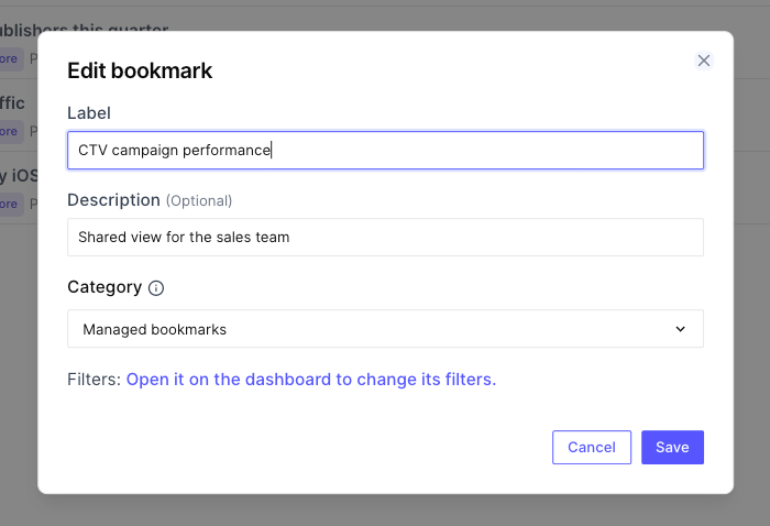
The dialog doesn't change the filters or view saved in the bookmark. To change those, select the link in the dialog to open the bookmark on its dashboard, adjust the view, and save it from the dashboard's bookmark menu.
Delete a bookmark
- Hover over the bookmark and select the trash icon.
- Confirm with Delete.
Deleting a managed bookmark removes it for everyone with access to the project. This can't be undone.
The edit and delete icons only appear on bookmarks you have permission to manage. See Bookmark permissions.
Bookmarks on the project home page
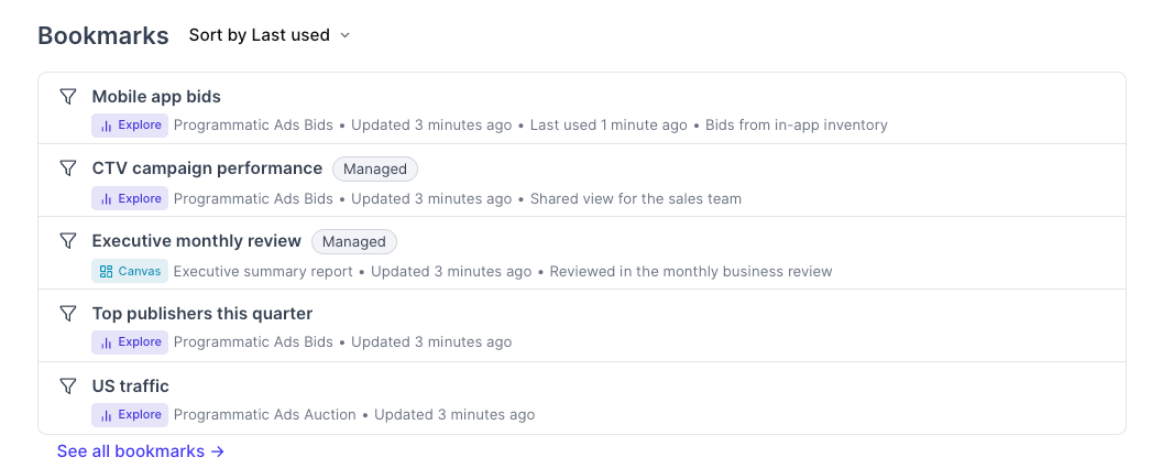
The project home page shows a Bookmarks section below the list of dashboards. It shows up to five bookmarks from the same list as the Bookmarks tab, with its own sort menu next to the heading. Select See all bookmarks to open the Bookmarks tab when you have more than five.
Bookmark permissions
| Category | Who can see it | Who can create, edit, and delete it |
|---|---|---|
| Your bookmarks | Only the user who created it | That user |
| Managed bookmarks | Everyone with access to the project | Users with manage_bookmarks (project admins by default) |
| Home bookmark | Everyone with access to the project, from the dashboard's home button | Users with manage_bookmarks (project admins by default) |
Managed bookmarks are listed for everyone with access to the project, including bookmarks for dashboards a user can't open because of security policies. A user who selects such a bookmark can't view the dashboard, but they can see the bookmark's name, description, and dashboard name. Don't put sensitive information in the names or descriptions of managed bookmarks.