Sharing Dashboards with a Public URL
Overview
Sharing your dashboard is a key way to promote collaboration with other users and allows for quick access to your dashboards. As an admin, you also have the ability to create public shareable URLs, meaning that you can generate an expirable public link to a dashboard with specific filters pre-applied. The receiver of the link will then be able to engage and interact with this dashboard as if they were logged in (with the parent filters locked).
Recipients are not required to log in to view the dashboard and will not be able to change your pre-defined filters!
How to create a public URL from the UI
After applying the filters and modifying the dashboard to your liking, please select the Share button.
If not already selected, select Create public URL.
If you want to set an expiration, please select the toggle and set the expiration.
Password protection
A public URL can optionally require a password. Anyone who opens the URL must enter the password before the dashboard loads, so a link that gets forwarded or leaked is not enough on its own.
To add a password, turn on Require password when creating the URL, then either type a password or click Generate and copy secure password, which fills in a random password and copies it to your clipboard. Passwords require at least 8 characters and can contain up to 72 UTF-8 bytes; some characters use more than one byte. After the URL is created, the password is shown once next to the URL: copy it and share it with the recipients separately from the link.
Rill stores only a hash of the password, so it cannot be shown again later. If you lose it, set a new one from the public URLs settings page (see Changing or removing the password).
What the recipient sees
As expected, when opening the public URL, the user can view the dashboard. Like a logged-in user, they are able to navigate within the dashboard and drill or slice-and-dice as needed. Unlike a logged-in user, they are not able to make any changes to the filters that you've set.
If the URL has a password, the recipient is first asked to enter it. After entering it, the dashboard stays unlocked in that browser tab for up to 24 hours (or until the URL expires), after which they are asked for the password again.
In fact, users who click on a public shareable URL cannot see the parent filters that have been applied!
How to manage public URLs
Via the UI
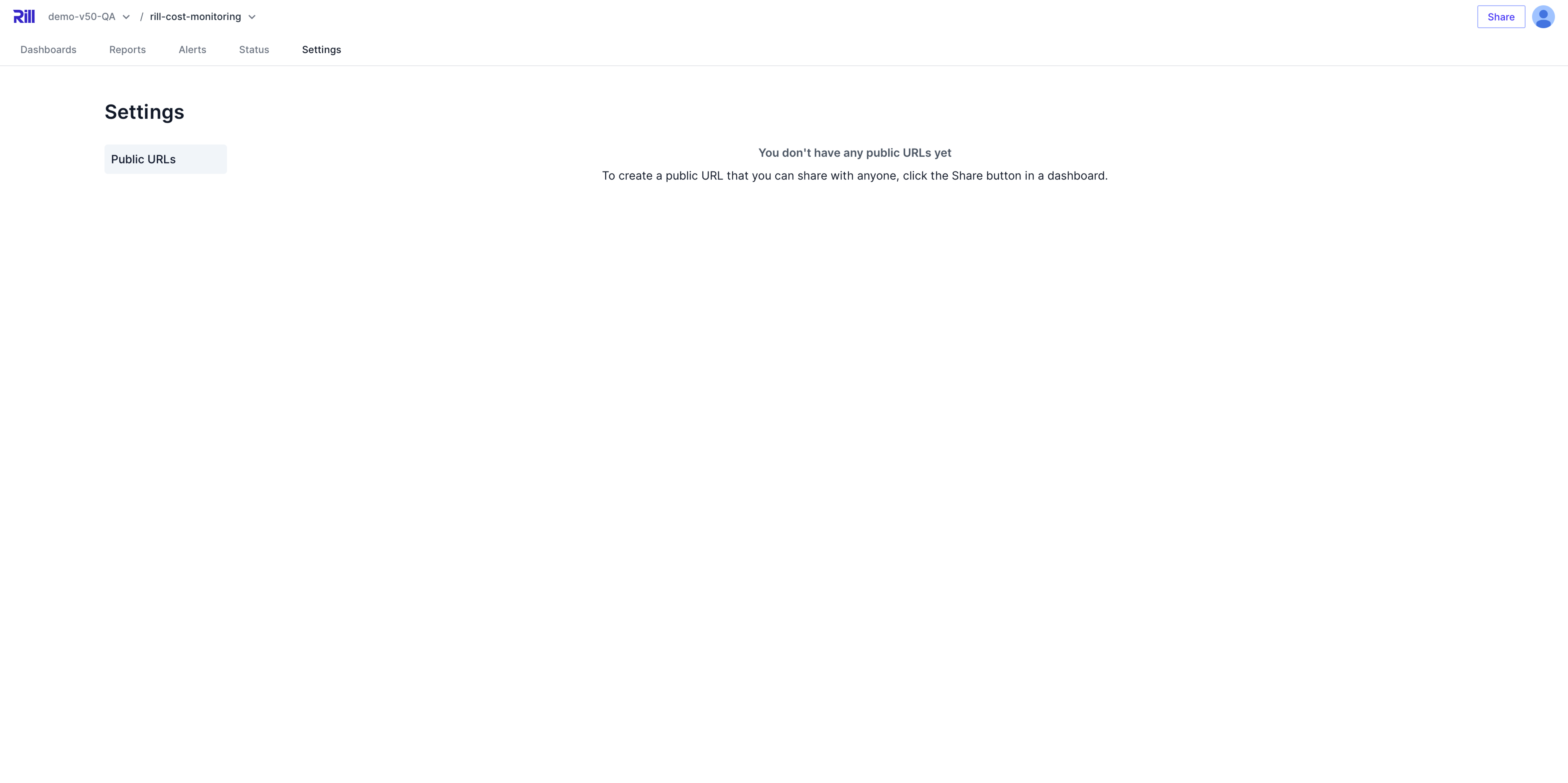
You can now manage public URLs via the UI. You will find a new "settings" tab in the Rill Cloud UI as an administrator.
Password-protected URLs are marked with a lock icon next to their label.
Changing or removing the password
Open the actions menu of a public URL in the settings page and select Edit. From there you can rename the URL, set a new password (typed or generated), add a password to a URL that didn't have one, or remove the password.
Changing or removing the password signs out everyone who has already unlocked the URL. Recipients will need the new password the next time they open it.
Via the CLI
rill public-url
Manage public URLs

Usage:
  rill public-url [command]

Available Commands:
  list        List all public URLs
  create      Create a public URL
  delete      Delete a public URL

Flags:
      --org string   Organization Name (default "Rill_Learning")

Global Flags:
      --api-token string   Token for authenticating with the cloud API
      --format string      Output format (options: "human", "json", "csv") (default "human")
  -h, --help               Print usage
      --interactive        Prompt for missing required parameters (default true)

Use "rill public-url [command] --help" for more information about a command.
Using the Rill CLI, you can list, create, or delete public URLs.
Deleting a public URL
To delete a public URL, you will need an id parameter. In order to retrieve the appropriate id, you will need to first list out the public URLs. You can do so using the command below with any flags that help you.
rill public-url list
Once you have obtained the id you can run the following:
rill public-url delete <id>
If you are interested in creating a public URL directly from the CLI, you can do so by passing the required parameters. (You can use the --help flag to see what additional flags are required.) To require a password, add the --password flag. The CLI prompts for the password with hidden input, so it is not saved in your shell history:
rill public-url create <project-name> <explore> --password
In scripts, where there is no terminal to prompt on, the password is read from standard input:
printenv PUBLIC_URL_PASSWORD | rill public-url create <project-name> <explore> --password