Environment Variables and Credentials in Rill Cloud
The credentials in deployed Rill Cloud projects can be managed on the Settings page or via the CLI. If you have yet to deploy your credentials, please follow the steps in our deploy credentials page.
Modifying Variables and Credentials via the Settings Page
Upon deployment via Rill Developer, if you have populated your .env file, the contents will be visible as seen below. If there are no environment variables defined, please run rill env push from your local CLI and Rill will automatically push the credentials in your project's .env file to Rill Cloud. If you'd like to manually add the credentials, please see our naming convention to get started.
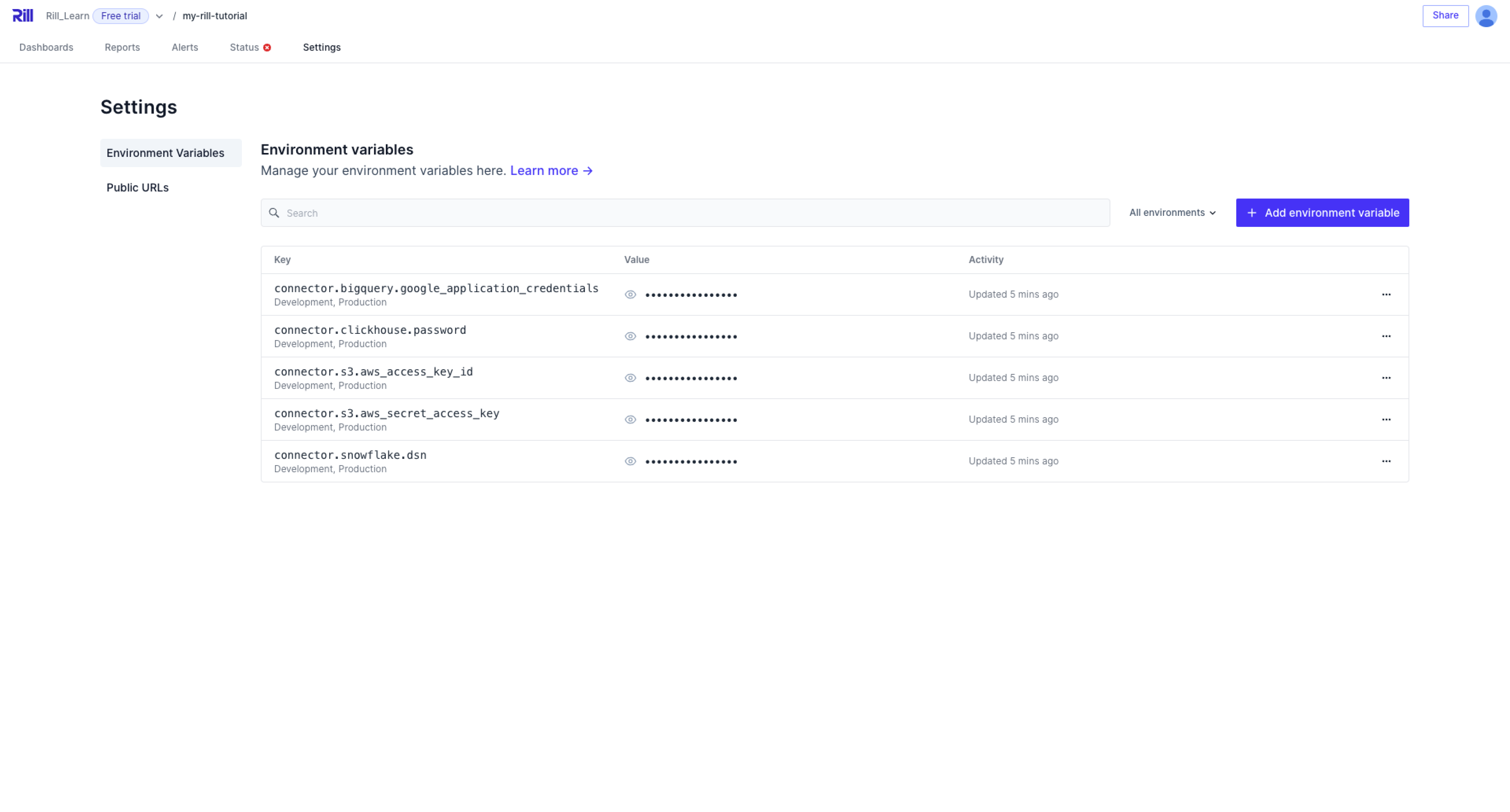
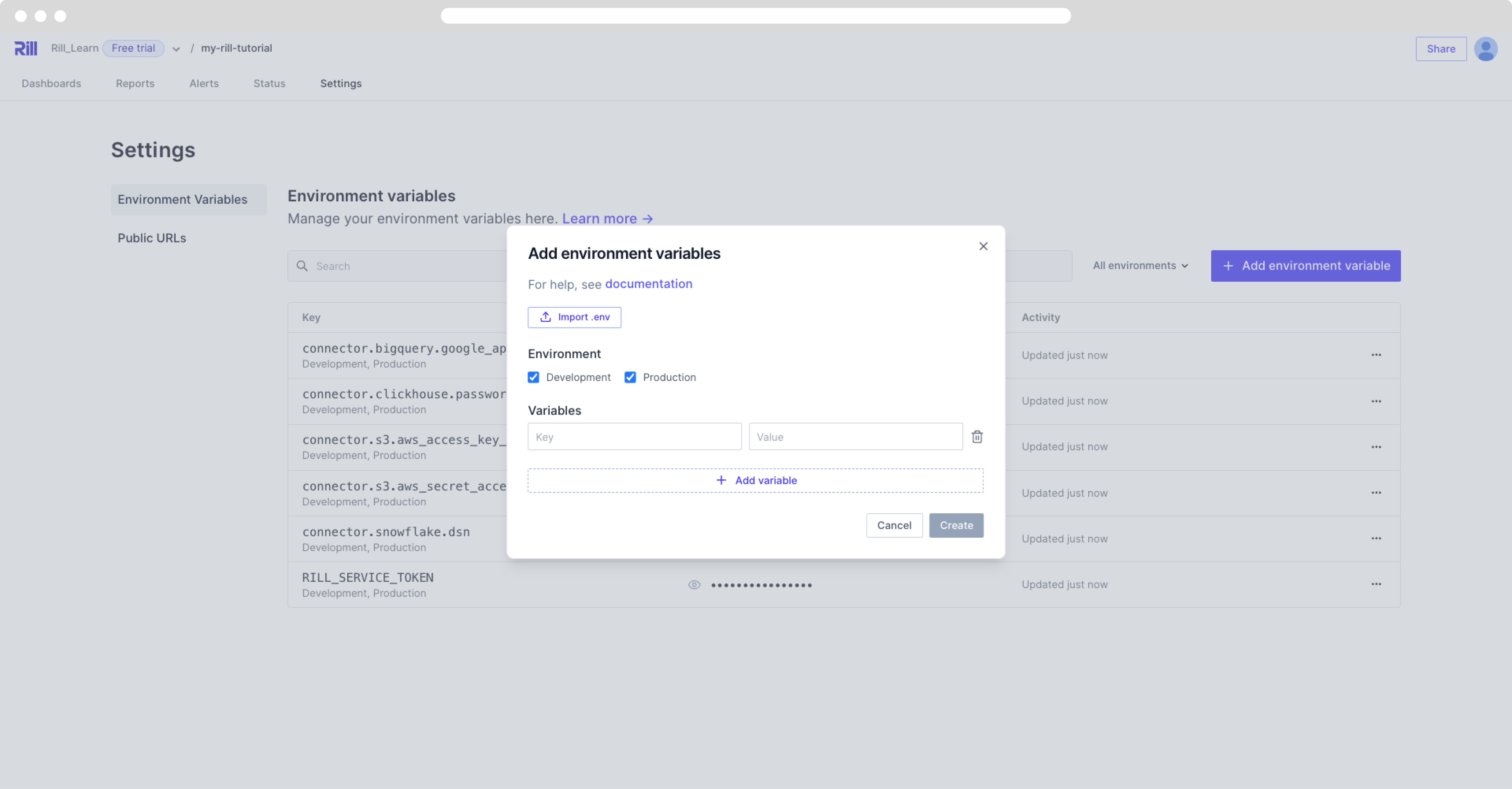
Adding and Editing Environment Variables / Importing a .env file
Once your environment variables are added to Rill Cloud, they can be modified as needed.
By default, the hidden files will not be visible in the finder window. In order to view hidden files, you will need to enable "show hidden files".
Keyboard shortcut: Command + Shift + .
Pushing and pulling credentials to / from Rill Cloud via the CLI
If you'd prefer to use the CLI to manage your credentials, this can be done by running rill env pull to pull your deployed Rill Cloud project's variables locally, or rill env push to update your Rill Cloud project's variables.
It's never a good idea to commit sensitive information to Git and goes against security best practices. Similar to credentials, if there are sensitive variables that you don't want to commit publicly to your rill.yaml configuration file (and thus potentially accessible by others), it's recommended to set them in your .env file directly and/or use rill env set via the CLI (and then optionally push / pull them as necessary).
rill env push
As a project admin, you can run rill env push from your local CLI, which will update your Rill project with the contents of your <RILL_PROJECT_HOME>/.env file.
- Rill Cloud will use the specified credentials and variables in this
.envfile for the deployed project. - Other users will also be able to use
rill env pullto retrieve these defined credentials for local use (with Rill Developer).
If a credential and/or variable has already been configured in Rill Cloud, Rill will warn you about overriding if you attempt to push a new value in your .env file. This is because overriding credentials can impact your deployed project and/or other users (if they pull these credentials locally).
rill env pull
For projects that have been deployed to Rill Cloud, an added benefit of our Rill Developer-Cloud architecture is that credentials that have been configured can be pulled locally for easier reuse (instead of having to manually reconfigure these credentials in Rill Developer). To do this, you can run rill env pull from your project's root directory to retrieve the latest credentials (after cloning the project's git repository to your local environment).
rill env pull
Updated .env file with cloud credentials from project "<Project_Name>".
Please note when you run rill env pull, Rill will automatically override any existing credentials or variables that have been configured in your project's .env file if there is a match in the key name. This may result in unexpected behavior if you are using different credentials locally.
Credentials Naming Schema
When you add a connector in Rill Developer, its credentials are saved to .env under standard names such as AWS_ACCESS_KEY_ID or SNOWFLAKE_PASSWORD. Use the same names when you add variables here by hand; the full list is in the credentials naming schema.