Custom Viz Components
A custom viz is a chart you define once and reuse across canvas dashboards. Each one is a type: component file, kept under viz/ by convention, with three parts:
- Params: the inputs a dashboard binds, such as a metrics view, a measure and a dimension.
- A query: a Metrics SQL query that selects the rows to draw.
- A chart spec: the chart type, and which field goes on which channel.
Use a custom viz when the native chart widgets don't offer the chart you need, such as a box plot, a bullet chart, a waterfall or a radar chart, or when you want one chart definition that many dashboards bind to their own metrics views and fields.
Rill compiles the chart spec to Vega-Lite with Flint, an open-source chart compiler from Microsoft, and describes each field to Flint using your metrics view: a currency measure is formatted as currency, a percentage as a percentage, and the time dimension is bucketed at the dashboard's time grain. Scales, axes, sorting, stacking, colors and layout are derived from the data. The spec stays short, and the chart keeps working when a dashboard binds it to a different metrics view or field.
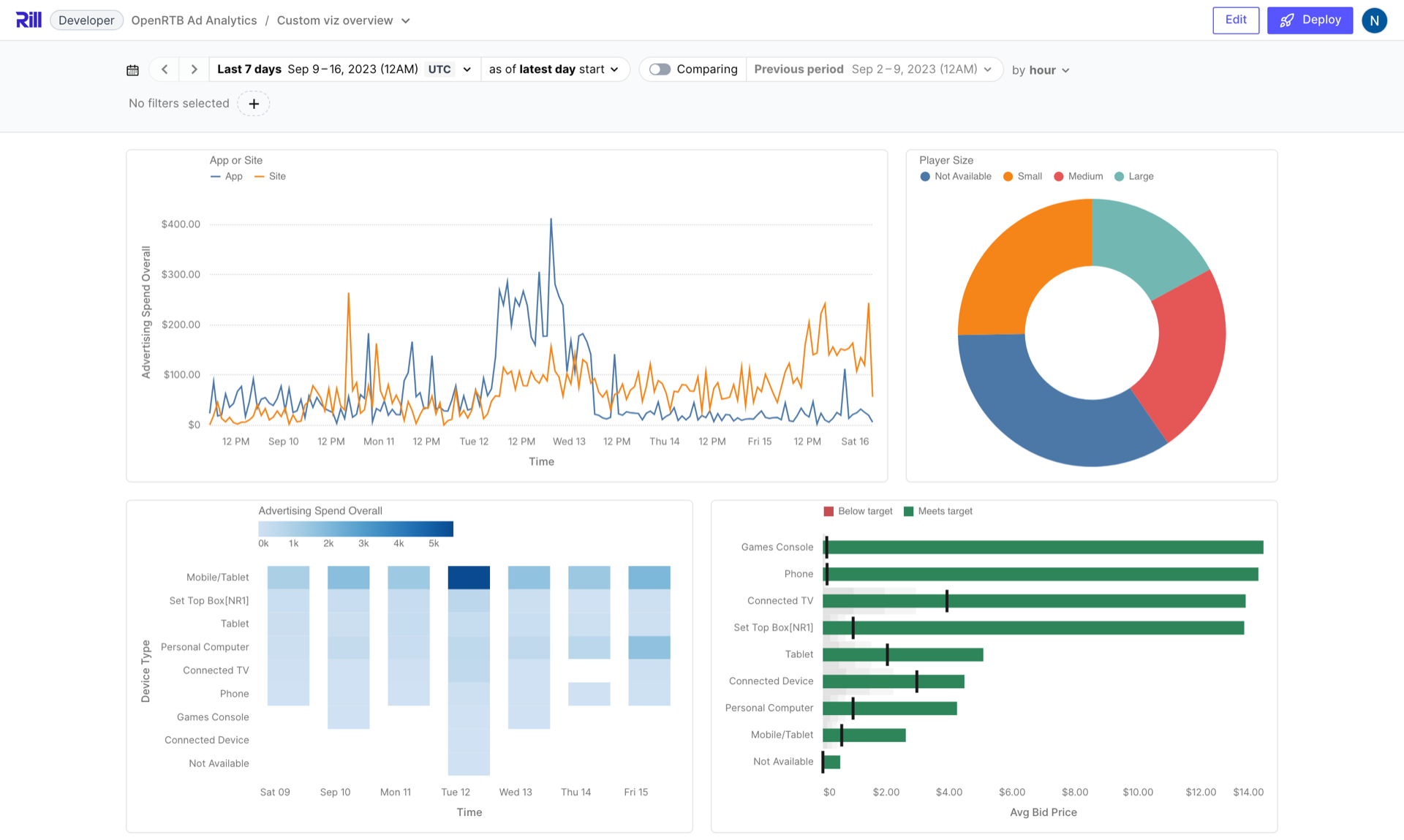
When a chart needs something the chart spec does not offer, such as a reference line, an annotation or a second axis, you can convert it to Vega-Lite and edit the spec directly.
Custom viz authoring is behind a feature flag. Enable it in rill.yaml:
features:
  custom_components: true
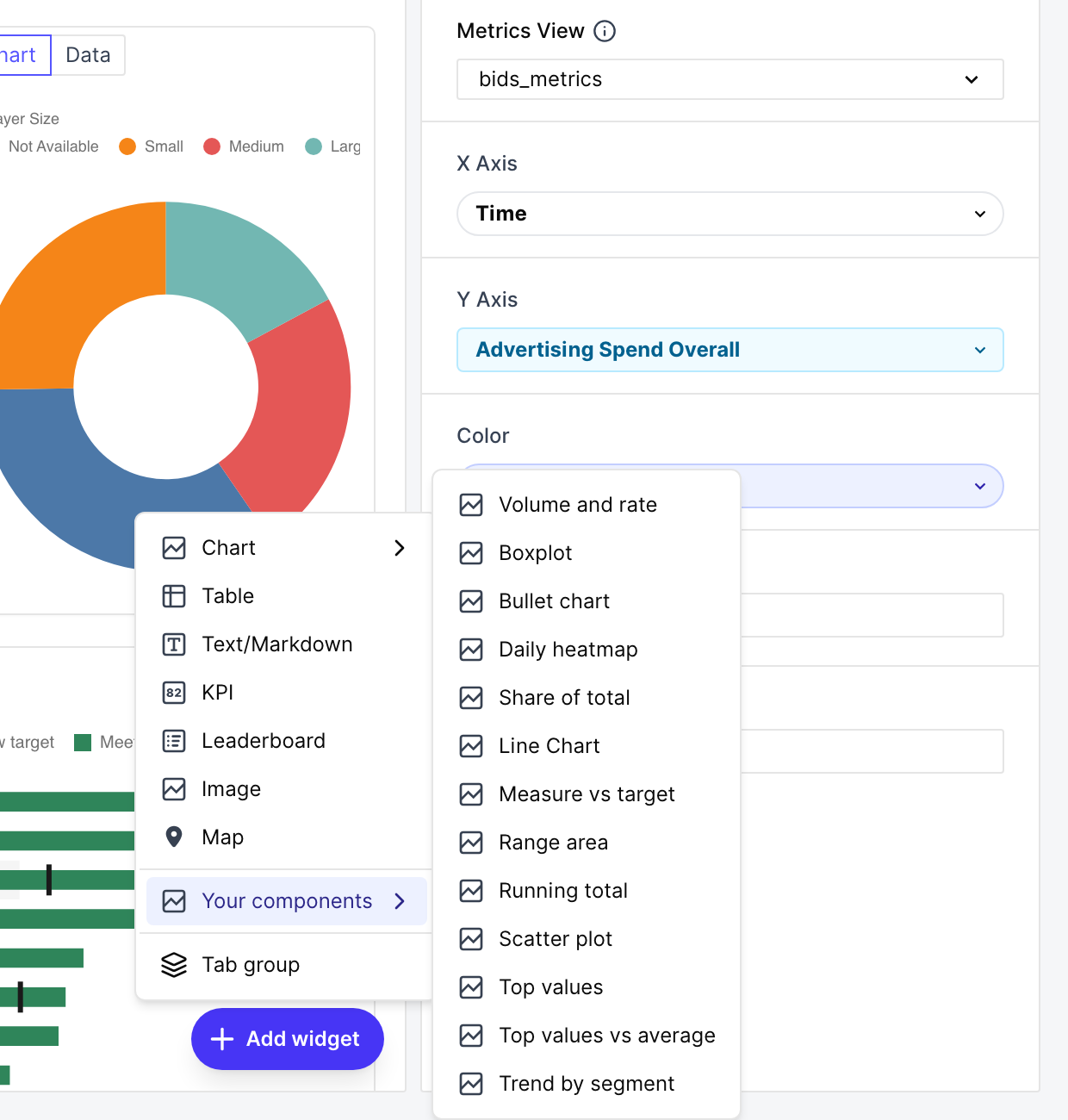
The flag adds the Custom viz entry to the Add menu, the component editor, and Your components in the canvas widget menu. Dashboards render the custom viz they reference whether or not the flag is set.
Create a Custom Viz
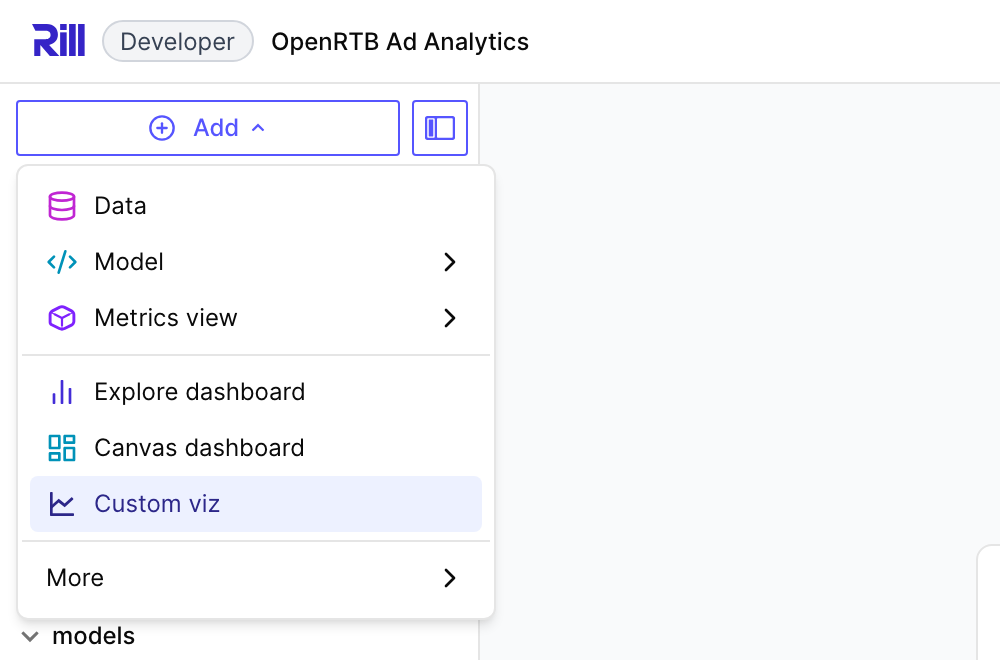
In Rill Developer, open the Add menu and choose Custom viz.
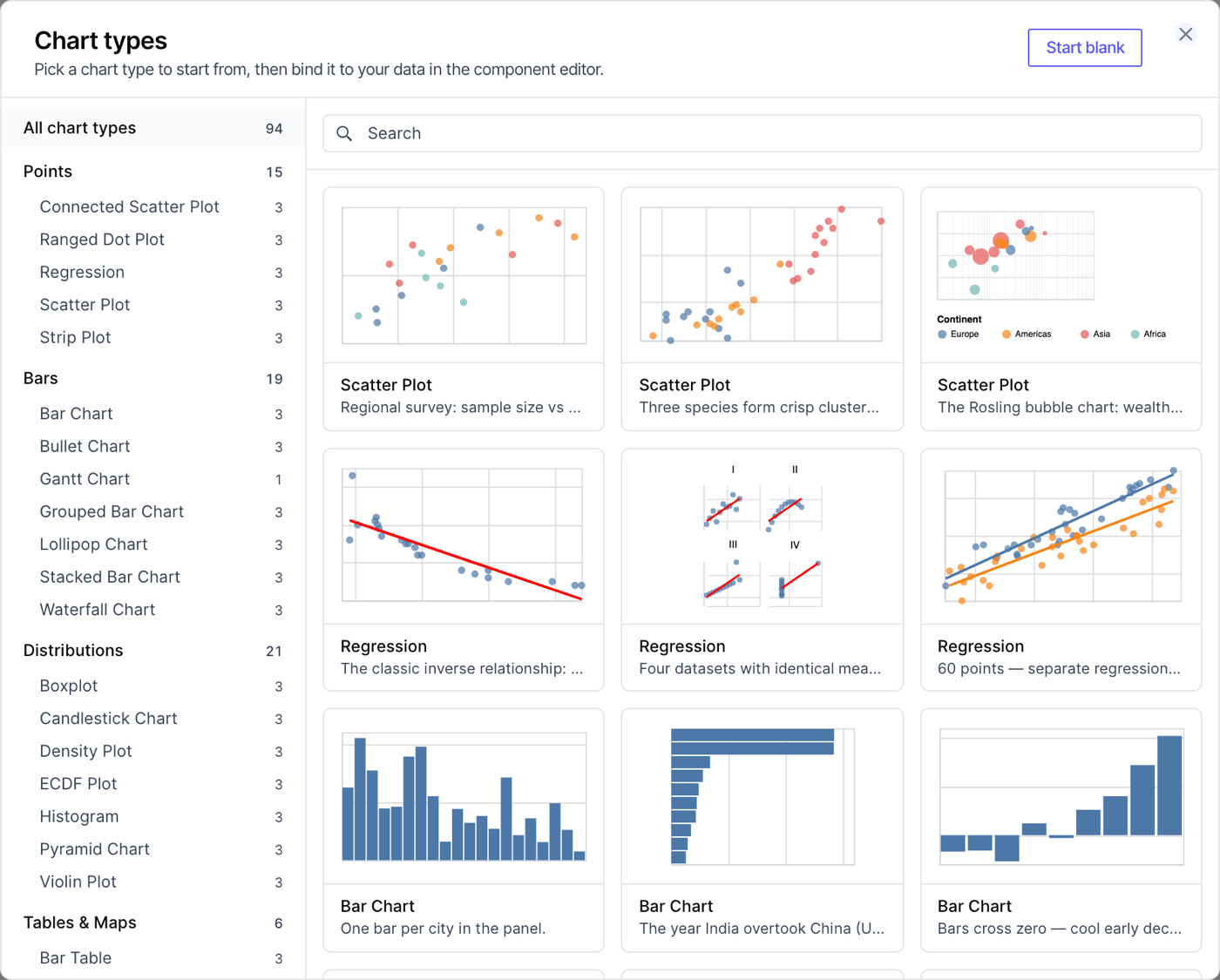
The Chart types gallery shows every chart type Rill can draw, grouped by family. Pick the example closest to the chart you want, or choose Start blank for an empty component. Chart Types describes each type and the fields it needs.
Picking a chart type writes a component to viz/ and opens it in the component editor. The editor draws a live preview against Test values, shown in the panel on the right. Rill picks them from your project, choosing for each param a field that suits the channel it is drawn on: a dimension that splits the chart into colored series, for example, gets one with 2 to 12 values. Change them to preview the chart with other fields. Test values belong to the editor; each dashboard binds its own.
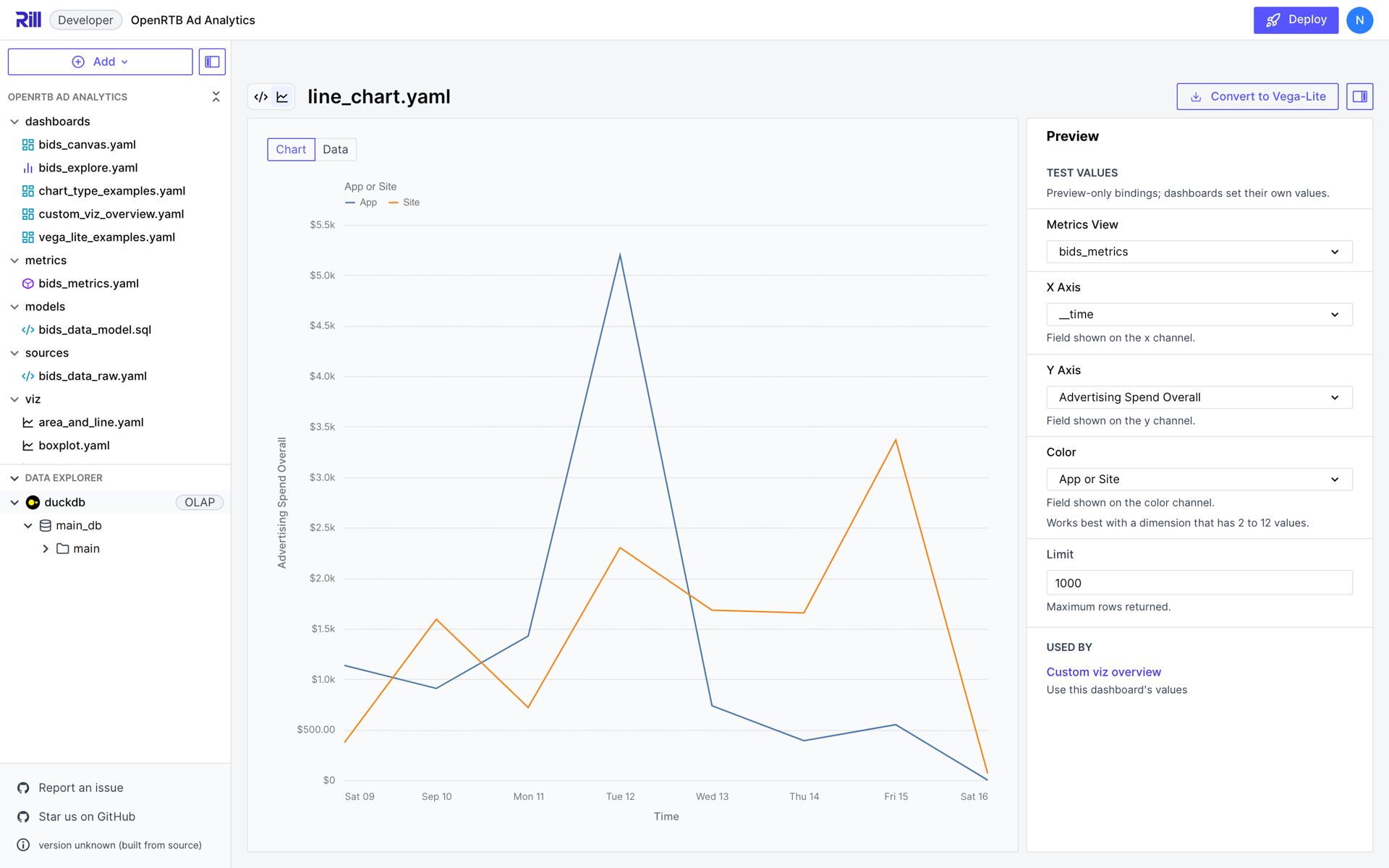
The toggle beside the file name switches between the preview and the YAML. The preview's Data tab lists the rows the query returned, and a notice above the chart tells you when the query returned as many rows as its LIMIT allows, which means some may be missing.
When the AI assistant is enabled, picking a chart type hands it to the developer agent, which writes the same params, query and chart spec and checks that the query runs against your data before the editor opens. Until then the file shows Importing example using AI…. In the editor, type a change into the box at the top of the Preview panel and press Enter to have the agent make it, and use Fix with AI when the query or the chart fails.
The Component File
This is the file the gallery writes for a multi-series Line Chart, with the query split over several lines and the description rewritten. The gallery sets display_name to the chart type and copies the caption of the example you picked into description; replace both with text that describes your chart. The canvas widget menu and inspector list the component by its display name.
# viz/line_chart.yaml
type: component
display_name: Line Chart
description: A measure over time, one line per value of a dimension.

params:
  - name: metrics_view
    type: metrics_view
    required: true
  - name: x_axis
    type: time_dimension
    required: true
    description: Field shown on the x channel.
  - name: y_axis
    type: measure
    required: true
    description: Field shown on the y channel.
  - name: color
    type: dimension
    required: true
    description: Field shown on the color channel.
  - name: limit
    type: number
    default: 1000
    description: Maximum rows returned.

custom_chart:
  metrics_sql: |
    SELECT {{ .params.x_axis }}, {{ .params.y_axis }}, {{ .params.color }}
    FROM {{ .params.metrics_view }}
    ORDER BY {{ .params.x_axis }}, {{ .params.y_axis }} DESC
    LIMIT {{ .params.limit }}
  spec:
    chartType: Line Chart
    encodings:
      x: { field: "{{ .params.x_axis }}" }
      y: { field: "{{ .params.y_axis }}" }
      color: { field: "{{ .params.color }}" }
paramsdeclares what a dashboard binds. The rest of the file refers to each param as{{ .params.<name> }}.custom_chartis the renderer. It holds the query,metrics_sql, and the chart spec,spec.- The query selects every field the chart draws. Measures arrive aggregated, grouped by the selected dimensions.
- The chart spec names the chart type and binds each channel to a param.
Params
Params are the contract between a component and the dashboards that use it. Each param has a name and a type, and optionally:
| Property | Description |
|---|---|
required | Every dashboard that uses the component must bind a value. Mutually exclusive with default. |
default | The value used when a dashboard doesn't bind one. |
description | Help text shown below the param's input in the component editor and the canvas inspector. |
options | For string and number params, the allowed values. The input becomes a dropdown. |
metrics_view | For field params, the name of the metrics_view param whose metrics view the field belongs to. Only needed when a component declares more than one metrics_view param. |
The type determines what a param binds to:
| Type | Binds | Notes |
|---|---|---|
metrics_view | The name of a metrics view | The param must be named metrics_view or end with _metrics_view. |
measure | A measure of the bound metrics view | |
dimension | A dimension of the bound metrics view | |
time_dimension | The primary time dimension, or a time-typed dimension | |
string, number, boolean | A literal value | Row limits, thresholds, chart properties. |
Inputs are labeled with the param's name in title case, so x_axis reads X Axis. Name params after their role in the chart rather than after a field, because the same component is bound to different fields. The names title, description, datum, item, event and parent are reserved.
Templating
A param's value is substituted wherever {{ .params.<name> }} appears in the renderer. Rill checks every reference against the declared params when it parses the file, so a misspelled name is reported as an error rather than drawing an empty chart.
A value that consists of a single placeholder keeps the param's type. With inner_radius declared as a number, innerRadius: "{{ .params.inner_radius }}" reaches the chart as the number 50, not the string "50". A placeholder inside a longer string, such as LIMIT {{ .params.limit }}, is substituted as text.
Field params also expose the field's metadata from the metrics view, such as {{ .fields.<name>.display_name }}. A chart spec doesn't need it, because Rill supplies titles and formats; a converted Vega-Lite spec uses it for axis titles and number formats.
Change a Component That Dashboards Use
The component editor's Used by panel lists the dashboards that use the component. Use this dashboard's values under a dashboard loads its bindings as test values, so you can preview a change against a real use.
Rill validates every use when a canvas reconciles: an unknown param, a missing required param, a value of the wrong type, or a field that doesn't exist in the bound metrics view is reported as an error on the dashboard. To change a component without breaking the dashboards that use it, add params with a default rather than required: true, and don't rename, remove or change the type of existing params. The editor warns you when a change would break the dashboards in Used by.
The Query
metrics_sql treats the metrics view as a table: you select dimensions and measures, and Rill groups and aggregates them. WHERE and HAVING filter the rows. Keep the rest of the query to SELECT, FROM, ORDER BY and LIMIT:
- Select every field the chart draws or the query orders by. Ordering by a field that isn't selected fails.
- Don't wrap measures in aggregate functions such as
SUM(); they arrive aggregated. - Don't rename fields with
AS. The chart reads each column by its field name, and Metrics SQL rejects the alias. The exception is an expression aliased back to its field's name, such as a truncated time dimension. WITH, joins, window functions andCASEare not supported, and subqueries only work inside anINfilter. The Metrics SQL reference lists the full syntax.- Order a time series by its time dimension, and anything else by its main measure descending, so that the
LIMITkeeps the rows the chart needs.
Time Dimensions
Select a time dimension as is and Rill buckets it at the dashboard's time grain, so the chart re-buckets when a viewer changes the grain. The component editor has no time controls, so its preview buckets by day.
To keep a fixed bucket regardless of the dashboard, truncate the time dimension in the query and alias it back to its own name:
SELECT date_trunc('day', {{ .params.x_axis }}) AS {{ .params.x_axis }}, {{ .params.y_axis }}, {{ .params.color }}
FROM {{ .params.metrics_view }}
The alias is required: without it, the column is named after the expression and the chart can't find it. In the dashboard at the top of this page, the heatmap is truncated this way and stays daily while the line chart above it follows the hourly grain.
Row Limits
A metrics view returns one row per combination of the selected dimensions, and a chart draws one mark per row. Size the default limit to the marks the chart needs: about 25 rows for one mark per category, 10 for pie and donut charts, about 150 when categories are split into series, 500 for a time series and 1,000 for a time series split into series. A limit that is too low for a split chart fills up on the first categories or time buckets and leaves the rest of the chart empty.
Charts that plot individual observations, such as box plots, histograms and scatter plots, need one row per observation, but a metrics view aggregates: selecting only the plotted fields returns one row per category. Gallery components for these charts declare a detail dimension param that the query selects and the chart never draws. It sets the grain of the rows, so binding it to advertiser_name gives one row, and one point, per advertiser.
The Chart Spec
spec has three keys:
| Key | Description |
|---|---|
chartType | One of the chart types, spelled exactly, such as Line Chart or Heatmap. |
encodings | A mapping from channel to field. Each value is an encoding object, or a field name as shorthand for { field: <name> }. |
chartProperties | Optional settings the chart type exposes, such as a donut's innerRadius. |
Everything else is derived: sizes, axis titles, number formats, tick counts, fonts and legends. A chart spec has no title.
Encodings
The channels are x and y; x2 and y2 for the end of a range; color, size, shape, opacity and strokeDash; detail and order; group for side-by-side bars; goal for a target; column and row for small multiples; and open, high, low and close for candlesticks. Each chart type takes a subset, listed in Chart Types.
An encoding object takes these keys:
| Key | Values | Purpose |
|---|---|---|
field | A field name, usually "{{ .params.<name> }}" | The field to draw. |
sortBy | A channel, such as x, or a field | Sort a category axis by another channel's values. |
sortOrder | ascending or descending | The direction of that sort. |
scheme | A Vega color scheme name, such as tableau10 or viridis | The colors of the color channel. |
type | quantitative, nominal, ordinal or temporal | Override how the field is encoded. |
aggregate | count, sum, average or mean | Aggregate the channel's values. |
For example, this draws horizontal bars, longest first:
spec:
  chartType: Bar Chart
  encodings:
    y: { field: "{{ .params.dimension }}", sortBy: x, sortOrder: descending }
    x: { field: "{{ .params.measure }}" }
Leave out type and aggregate unless the chart draws wrong without them. Rill already marks measures as quantitative, dimensions as nominal and time dimensions as temporal, and measures arrive aggregated; a hard-coded type can break the chart when a dashboard binds a different field.
Field Semantics
Rill tells Flint what each selected field means, based on the metrics view:
| Field | Treated as |
|---|---|
A measure formatted as currency, by format_preset or by a format_d3 with a currency symbol | An amount |
| A measure formatted as a percentage | A percentage |
A measure with the interval format preset | A duration |
| Any other measure with an integer type | A count |
| Any other measure | A number |
| A time dimension | A date at the grain it was bucketed at, from year down to day, or a timestamp below a day |
| Any other dimension | A category |
These decide zero baselines, tick spacing and the kind of color scale. Axis labels and tooltips format each measure with its own format, the same as everywhere else in Rill, and titles use display names.
Colors
Series colors come from the tableau10 scheme, and a measure bound to color is drawn with a sequential scheme such as blues. Set scheme on the color encoding to choose another. Charts drawn in a single color use the dashboard theme's primary color. To color series with the theme's palette instead, convert the component and remove the scheme.
Chart Properties
chartProperties adjusts choices a chart type exposes: line interpolation, stacking, bar corner radius, the size of a donut's hole, and so on. Chart Types lists the properties of each type. Properties a chart type doesn't have are ignored, and an invalid value falls back to the property's default with a notice above the chart.
spec:
  chartType: Line Chart
  encodings:
    x: { field: "{{ .params.x_axis }}" }
    y: { field: "{{ .params.y_axis }}" }
  chartProperties:
    interpolate: monotone
    showPoints: true
To let each dashboard choose a property, bind it to a param:
params:
  # ...
  - name: inner_radius
    type: number
    default: 50
    description: Size of the hole, as a percentage of the radius. Set to 0 for a pie.

custom_chart:
  # ...
  spec:
    chartType: Donut Chart
    encodings:
      size: { field: "{{ .params.size }}" }
      color: { field: "{{ .params.color }}" }
    chartProperties:
      innerRadius: "{{ .params.inner_radius }}"
A donut's innerRadius is a percentage of the chart's radius, so the hole keeps its proportions at any widget size.
Several Measures on One Axis
To draw several measures as series, give x or y a list of encodings:
spec:
  chartType: Line Chart
  encodings:
    x: { field: "{{ .params.x_axis }}" }
    y:
      - field: "{{ .params.first_measure }}"
      - field: "{{ .params.second_measure }}"
The measures share one axis, so pair measures of a similar scale and unit. The list can't be combined with a color encoding. Series are labeled with field names rather than display names, and values are not formatted with the measures' formats; for full control, convert the component and give each measure its own axis.
Small Multiples
Bind a dimension to column or row to draw one panel per value:
spec:
  chartType: Area Chart
  encodings:
    x: { field: "{{ .params.x_axis }}" }
    y: { field: "{{ .params.y_axis }}" }
    column: { field: "{{ .params.column }}" }
Each panel shares the widget's space, so keep the dimension to a handful of values.
Add a Custom Viz to a Canvas
In the canvas editor, open the widget menu, choose Your components, and pick the custom viz. Rill fills in the params with a metrics view and fields from your project, and the inspector shows an input for every param so you can rebind them. Edit component opens the component file; edits there apply to every dashboard that uses it.
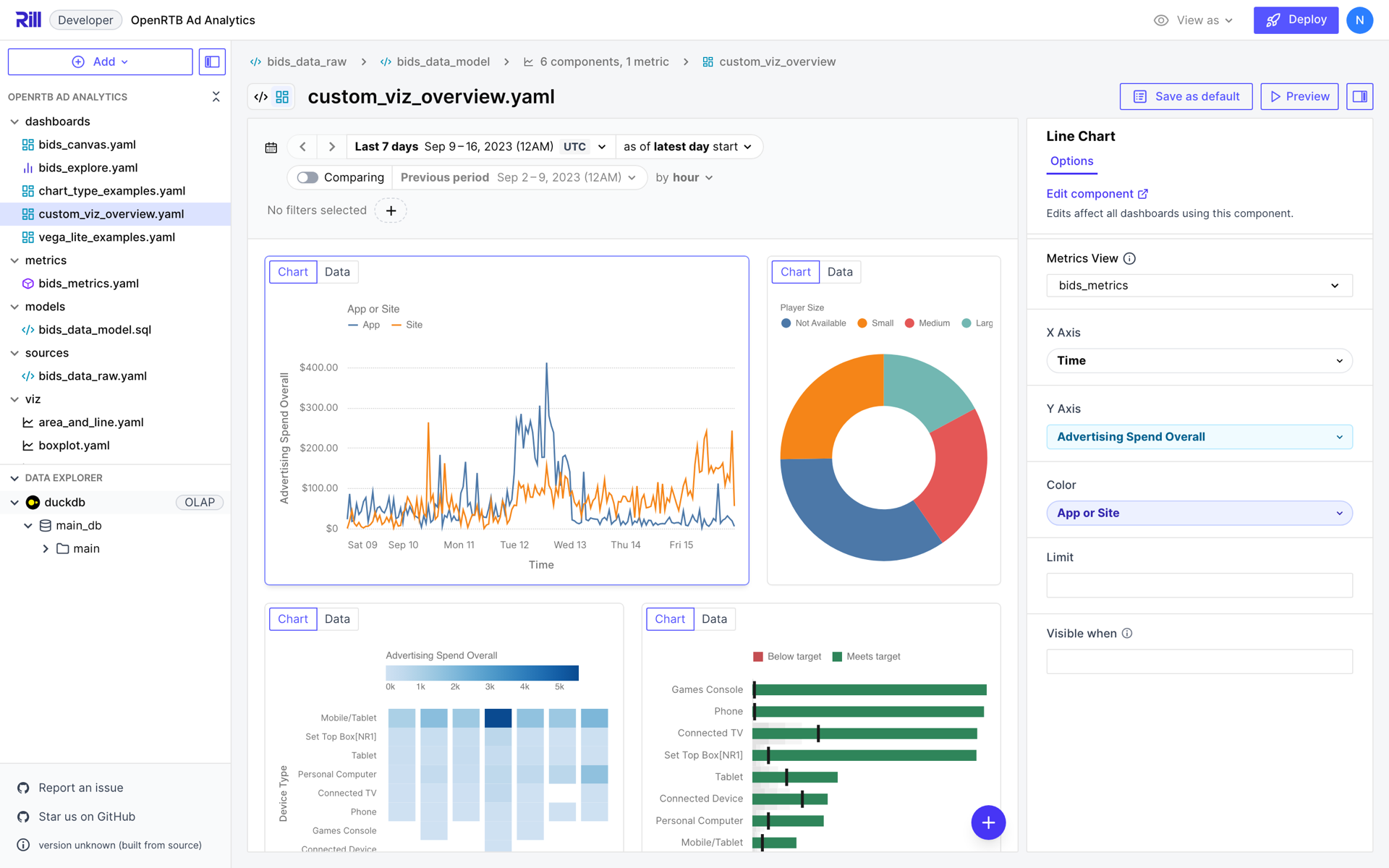
In YAML, a canvas item names the component and binds its params:
# dashboards/custom_viz_overview.yaml
type: canvas
display_name: Custom viz overview
defaults:
  time_range: 7D as of latest/D
rows:
  - items:
      - component: line_chart
        params:
          metrics_view: bids_metrics
          x_axis: __time
          y_axis: overall_spend
          color: app_or_site
        width: 8
      - component: donut_chart
        params:
          metrics_view: bids_metrics
          size: overall_spend
          color: player_size
        width: 4
    height: 360px
Bound values must be literals: strings, numbers or booleans. Params that have a default can be left out. A custom viz follows the canvas's time range, time grain and dimension filters like any other widget.
Limits
- A component runs one query, so a chart can't combine two datasets.
- When a category axis has more values than fit in the widget, the chart drops the extra rows and says so above the chart.
- A custom viz doesn't draw time comparisons.
- Custom viz components are separate from the inline
custom_chartwidget that a canvas can define in its own YAML. That widget always takes a Vega-Litevega_spec. A component file takes a chartspec, and carries avega_speconly after it has been converted.