Test Access Policies with View As
View as lets you preview a dashboard from another user's perspective without signing in as them. Use it to verify that your security policies hide the right rows, dimensions, and measures for the right people — before you deploy.
The feature lives on the dashboard preview page in three flavors:
- Rill Developer — open an explore or canvas preview and pick from any of the
mock_usersyou define inrill.yaml. This is the fastest way to iterate on a policy while you are writing it. - Rill Cloud edit session — while editing a deployed project in Rill Cloud, the same button as Rill Developer appears on the dashboard preview and reads
mock_usersfromrill.yaml. - Rill Cloud deployed dashboard — project admins can preview as any real user of the project via the avatar dropdown. Use this to reproduce what a specific teammate is seeing on production data.
View as appears on the dashboard preview itself — not on the metrics view YAML editor, model editor, or resource graph. Open a dashboard (explore or canvas) to see the button.
When to Use View As
- You added a
row_filterand want to confirm partners only see their own domain's data. - You wrote an
accessrule and want to confirm the right groups are allowed in. - You are shipping an embedded dashboard and want to preview what a specific tenant will see.
- A user reports missing data and you want to reproduce the state they see without asking them to share their screen.
- You are refactoring policies and want to smoke-test every persona in one sitting.
Rill Developer: Preview as a Mock User
Rill Developer reads a list of mock_users from your project's rill.yaml. Each mock user is a synthetic identity — an email, and any user attributes you want to test against.
1. Define mock users in rill.yaml
Add a mock_users block at the top level of rill.yaml. Every mock user must have an email; the other fields are optional and mirror the user attributes available in security expressions.
# rill.yaml
mock_users:
  - email: john@yourcompany.com
    name: John Doe
    admin: true
  - email: jane@partnercompany.com
    groups:
      - partners
  - email: anon@unknown.com
Any additional keys you add — for example region, tenant_id, or a custom variable you pass from an embed — become part of .user.<attribute> inside your security templates.
2. Open the dashboard preview and click "View as"
Once a metrics view or dashboard has a security policy defined, a View as button appears in the top-right corner of the dashboard's preview page.
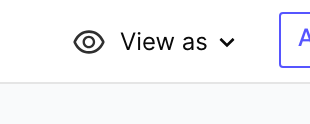
Clicking it opens a menu of every mock user in rill.yaml, plus a shortcut to add a new one.
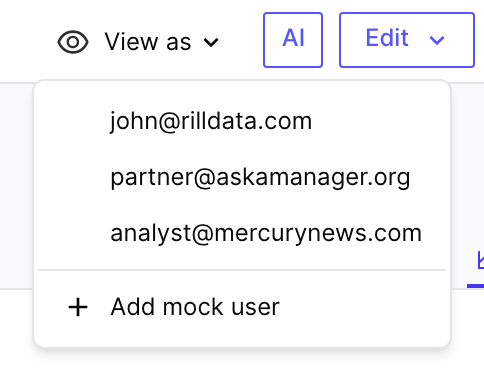
Selecting a mock user re-renders the dashboard using that user's attributes:
accessrules are re-evaluated against the mock user.row_filtertemplates are re-rendered and re-applied.include/excludelists re-run against the mock user's attributes, so hidden dimensions and measures actually disappear from the UI.
While a mock user is active, a Viewing as <email> chip replaces the button. Click the × on the chip to return to your own view.

3. Confirm the dashboard is showing a filtered subset
The chip on its own only tells you the mock user is active — the important check is that the dashboard values below it actually change. Compare the same dashboard before and after a mock user is applied:
- Before (your own view):
Requestsis 6.60M across many domains —askamanager.org,play.google.com,fubo.tv,sling.com, and so on. - After (viewing as
partner@askamanager.orgwithrow_filter: app_site_domain = '{{ .user.domain }}'):Requestsdrops to 151k, the App Site Domain leaderboard collapses to a single row (askamanager.org), and every other dimension (Pub Name, Device State, Ad Size, …) is reduced to just the values that appear inside that domain.
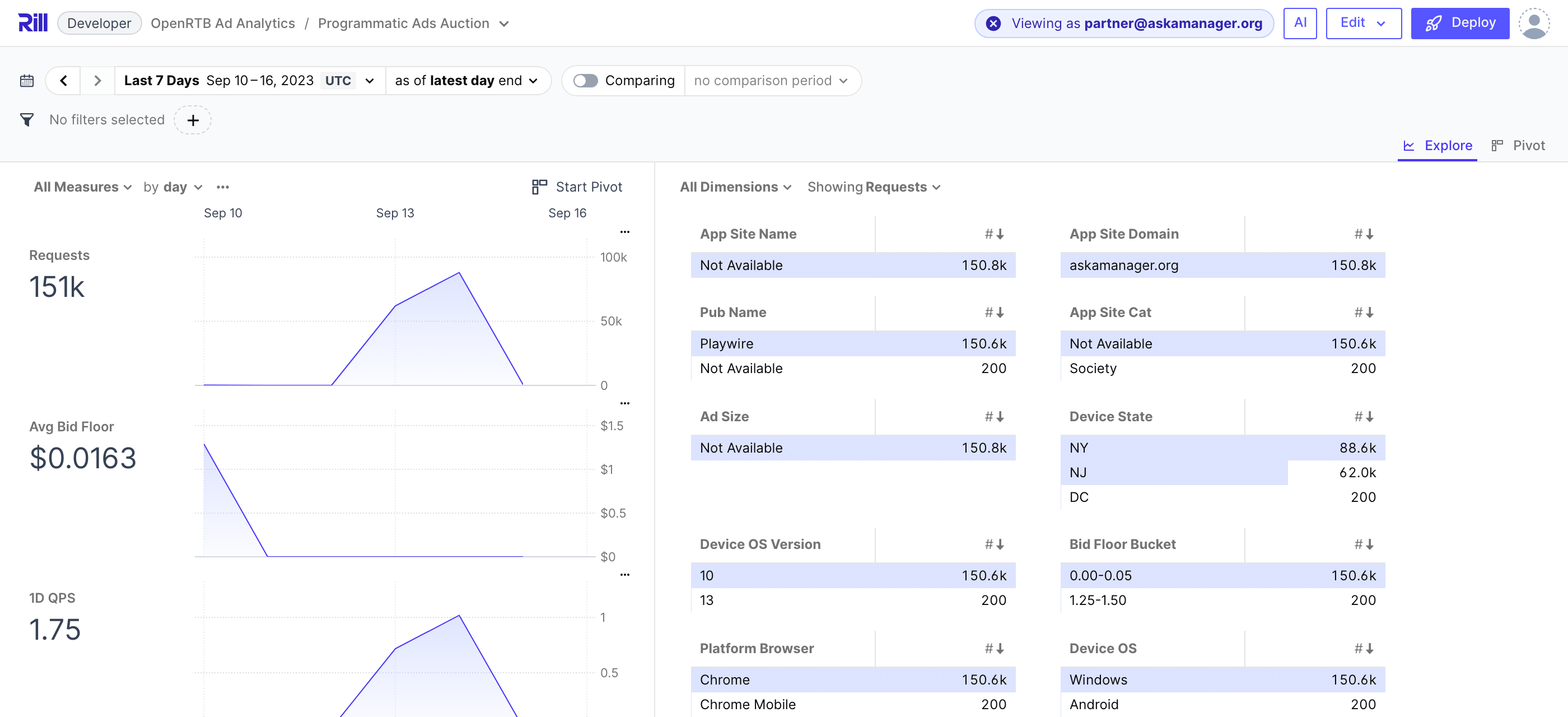
If the totals and dimension values change like this, your row filter is working. If they don't change at all, the policy is not being applied to this user — recheck the templated attribute names against the fields on the mock user.
4. Add or edit mock users from the menu
The dropdown includes an Add mock user shortcut that opens rill.yaml in the editor so you can add or tweak an entry without leaving the dashboard. Any change to rill.yaml is picked up immediately, so you can iterate on policies and mock users side-by-side.
If the dropdown shows No mock users, you have a security policy defined but no mock_users block in rill.yaml. Add one using the example above.
When you have a dashboard's YAML file open in the editor, the header shows a greyed-out View as button as a hint that the feature exists — but it's only usable on the dashboard preview itself. Click Preview in the file editor (or navigate to /explore/... or /canvas/...) to switch to the preview and use the real button.
Rill Cloud
Rill Cloud exposes View as in two places, and it's important to know which one you want.
Editing a deployed project (mock users)
When you edit a project directly on Rill Cloud (rather than in local Rill Developer), the dashboard preview shows the same View as button as Rill Developer, driven by the same mock_users from rill.yaml. Everything from the Rill Developer section above applies — including the Viewing as chip and the filtered-subset behavior. Use this while writing or debugging a policy.
Viewing a deployed dashboard (real users)
On a deployed dashboard (outside of edit mode), project admins can preview as any real user of the project via the avatar dropdown in the top-right → View as. The list shows actual project users — not the mock_users from rill.yaml — so this is what you want when you need to reproduce a specific teammate's view of production data.
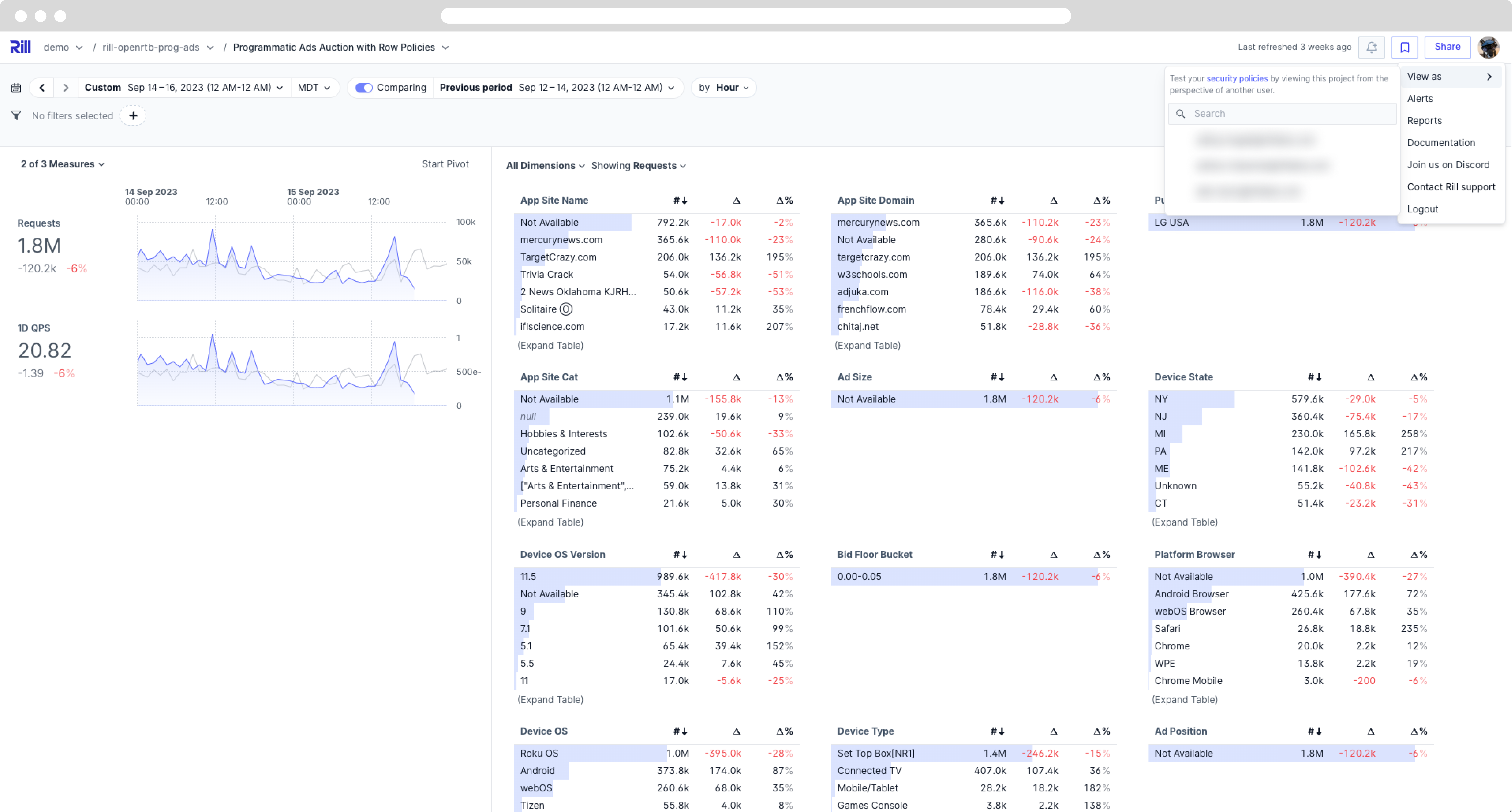
Pick a user and the dashboard reloads using that user's real attributes: email, domain, groups, admin flag, and any custom attributes attached to their account. A Viewing as <email> chip appears in the header until you click the × on it. The chip is read-only while you're inside an edit session — return to the deployed view to change or clear the impersonation.
The View as entry in the avatar dropdown only appears for users with the manage-project permission. Read-only viewers of a dashboard do not see it.
Testing Common Policies
The examples below assume the security policies from the reference are defined on your metrics view. Add matching mock users to rill.yaml and switch between them with View as to see each rule in action.
Row-level filter by domain
# metrics view
security:
  row_filter: "domain = '{{ .user.domain }}'"
# rill.yaml
mock_users:
  - email: internal@example.com   # sees all rows where domain = 'example.com'
  - email: partner@acme.com       # sees only rows where domain = 'acme.com'
  - email: partner@globex.com     # sees only rows where domain = 'globex.com'
Switching between these three users should visibly change the row counts and dimension values on the dashboard.
Group-based access
# metrics view
security:
  access: '{{ has "partners" .user.groups }}'
# rill.yaml
mock_users:
  - email: partner@acme.com
    groups:
      - partners        # can open the dashboard
  - email: someone@acme.com
    groups:
      - internal        # gets an "access denied" state
Hide sensitive columns from non-admins
# metrics view
security:
  exclude:
    - if: "{{ not .user.admin }}"
      names:
        - ssn
        - id
# rill.yaml
mock_users:
  - email: admin@example.com
    admin: true          # sees the ssn and id dimensions
  - email: analyst@example.com
                         # does not see ssn or id in the dimension list
Custom attributes for embedded dashboards
When your app passes custom attributes at embed time, mirror those attributes on a mock user so you can preview the embed locally.
# metrics view
security:
  row_filter: >
    app_site_name = '{{ .user.app_site_name }}' AND
    pub_name      = '{{ .user.pub_name }}'
# rill.yaml
mock_users:
  - email: embed@rilldata.com
    name: embed
    app_site_name: Sling
    pub_name: MobilityWare
Selecting embed@rilldata.com in the View as menu renders the dashboard exactly as your embedded frontend would render it for that tenant.
Tenant mapping through a source
For multi-tenant mapping through a lookup source, add one mock user per email that appears in the mapping file. Their tenant_id is resolved by the sub-query, not by attributes on the mock user itself, so you only need to set email.
mock_users:
  - email: john.doe@example.com   # resolves to tenant_id = 1
  - email: jane.doe@example.com   # resolves to tenant_id = 2
Troubleshooting
| Symptom | Likely cause |
|---|---|
| View as button is missing on the preview | No security policy is defined on the metrics view, dashboard, or rill.yaml defaults. The button only appears when a policy exists. |
| Dropdown says No mock users | No mock_users block in rill.yaml, or every entry is missing the required email field. |
| Button is greyed out with the tooltip Not available during editing project | You are looking at the header while editing a dashboard's YAML file, not on the dashboard preview. Click Preview in the file editor to switch to the preview and use the real button. |
| Dashboard shows the same data for every mock user | The user attribute you are referencing is not being applied — check that the template variable name matches the field on the mock user, and that the security policy uses the attribute at all. |
| View as entry is missing from the avatar dropdown on Rill Cloud | Only project admins (users with manage-project) see the entry on a deployed dashboard. Ask an admin to grant the role, or use the edit-session flow instead. |
Related
- Data Access Control — the full security-policy reference.
- Project Configuration → Testing Security — where
mock_usersfit intorill.yaml. - Embedded Dashboards — how to pass custom attributes at embed time.