Snowflake (Data Source)
Snowflake has issued a deprecation notice for single-factor password authentication. Rill supports and recommends using private key authentication to avoid any disruption of your service.
Overview
Snowflake is a cloud-based data platform designed to facilitate data warehousing, data lakes, data engineering, data science, data application development, and data sharing. It separates compute and storage, enabling users to scale up or down instantly without downtime, providing a cost-effective solution for data management. With its unique architecture and support for multi-cloud environments, including AWS, Azure, and Google Cloud Platform, Snowflake offers seamless data integration, secure data sharing across organizations, and real-time access to data insights, making it a common choice to power many business intelligence applications and use cases. You can connect to and read from Snowflake data warehouses using the Go Snowflake Driver.
Authentication Methods
To connect to Snowflake, you need to provide authentication credentials. Rill supports two methods:
- Use Keypair Authentication (recommended - required for production)
- Use Password Authentication (deprecated by Snowflake)
When you add data from Snowflake through the Rill UI, the process follows two steps:
- Configure Authentication - Set up your Snowflake connector with credentials via connection string
- Configure Data Model - Define which database, schema, table, or query to execute
This two-step flow ensures your credentials are securely stored in the connector configuration, while your data model references remain clean and portable.
Method 1: Keypair Authentication (Recommended)
Keypair authentication provides enhanced security and is the recommended method for connecting to Snowflake. This method works for both local development and Rill Cloud deployments.
Connection String Format
Use the following syntax when defining a connection string using a private key:
<username>@<account_identifier>/<database>/<schema>?warehouse=<warehouse>&role=<role>&authenticator=SNOWFLAKE_JWT&privateKey=<privateKey_url_safe>
See the Appendix for detailed instructions on generating and formatting your private key.
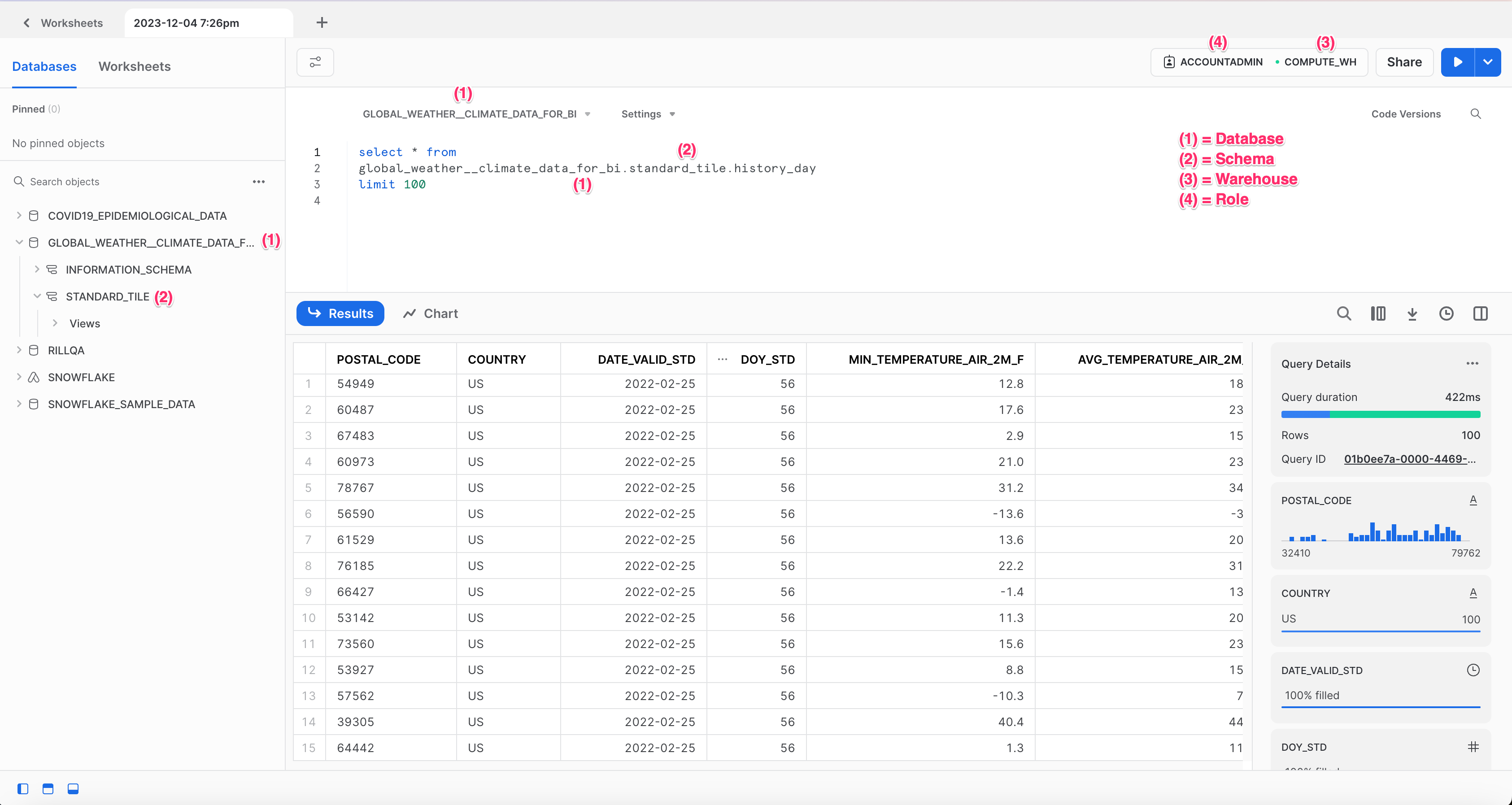
To determine your Snowflake account identifier, one easy way is to check your Snowflake account URL. The account identifier to use in your connection string should be everything before .snowflakecomputing.com!
Using the UI
- Click Add Data in your Rill project
- Select Snowflake as the data source type
- In the authentication step:
- Enter your connection string with keypair authentication
- In the data model configuration step, enter your SQL query
- Click Create to finalize
After the model YAML is generated, you can add additional model settings directly to the file.
Manual Configuration
If you prefer to configure manually:
Step 1: Create connector configuration
Create connectors/snowflake.yaml:
type: connector
driver: snowflake

dsn: "{{ .env.SNOWFLAKE_DSN }}"
Step 2: Add credentials to .env
SNOWFLAKE_DSN=myuser@myaccount/mydb/myschema?warehouse=mywh&role=myrole&authenticator=SNOWFLAKE_JWT&privateKey=<your_url_safe_private_key>
If this project has already been deployed to Rill Cloud and credentials have been set for this connector, you can use rill env pull to pull these cloud credentials locally (into your local .env file). Please note that this may override any credentials you have set locally for this source.
Then, create your first model.
Method 2: Password Authentication (Deprecated)
Snowflake has deprecated single-factor password authentication. This method may stop working in the future. We strongly recommend migrating to keypair authentication.
Connection String Format
<username>:<password>@<account_identifier>/<database>/<schema>?warehouse=<warehouse>&role=<role>
Manual Configuration
Create connectors/snowflake.yaml:
type: connector
driver: snowflake

dsn: "{{ .env.SNOWFLAKE_DSN }}"
Add credentials to .env:
SNOWFLAKE_DSN=myuser:mypassword@myaccount/mydb/myschema?warehouse=mywh&role=myrole
Then, create your first model.
Create Your First Model
Once your connector is configured using any method above, create a model to define what data to pull.
Create models/snowflake_data.yaml:
type: model
connector: snowflake
dev:
  sql: SELECT * FROM my_database.schema.my_table limit 10000

sql: SELECT * FROM my_database.schema.my_table
After creating the model, you can add additional model settings directly to the file.
Separating Dev and Prod Environments
When ingesting data locally, consider setting parameters in your connector file to limit how much data is retrieved, since costs can scale with the data source. This also helps other developers clone the project and iterate quickly by reducing ingestion time.
For more details, see our Dev/Prod setup docs.
Deploy to Rill Cloud
When deploying a project to Rill Cloud, Rill requires you to explicitly provide Snowflake credentials via the connection string as a source configuration `dsn` field with access to Snowflake used in your project. Please refer to our connector YAML reference docs for more information.
If you subsequently add sources that require new credentials (or if you simply entered the wrong credentials during the initial deploy), you can update the credentials by pushing the Deploy button to update your project or by running the following command in the CLI:
rill env pushIf you've already configured credentials locally (in your <RILL_PROJECT_DIRECTORY>/.env file), you can use rill env push to push these credentials to your Rill Cloud project. This will allow other users to retrieve and reuse the same credentials automatically by running rill env pull.
Appendix
Using Keypair Authentication
You can use keypair authentication for enhanced security when connecting to Snowflake as an alternative to password-based authentication, which Snowflake has deprecated. Per the Snowflake Go Driver specifications, this requires the following changes to the dsn:
- Remove the password
- Add
authenticator=SNOWFLAKE_JWT - Add
privateKey=<privateKey_url_safe>
<username>@<account_identifier>/<database>/<schema>?warehouse=<warehouse>&role=<role>&authenticator=SNOWFLAKE_JWT&privateKey=<privateKey_url_safe>
Generate a Private Key
Please refer to the Snowflake documentation on how to configure an unencrypted private key to use in Rill.
The Snowflake Go Driver only supports unencrypted PKCS#8 keys. Make sure to include the -nocrypt flag, as encrypted keys are not supported. You can generate one using:
# Generate a 2048-bit unencrypted PKCS#8 private key
openssl genrsa 2048 | openssl pkcs8 -topk8 -inform PEM -out rsa_key.p8 -nocrypt
Convert the Private Key to a URL-Safe Format for the DSN
After generating the private key, you need to convert it into a URL-safe Base64 format for use in the Snowflake DSN. Run the following command:
# Convert URL safe format for DSN
cat rsa_key.p8 | grep -v "\----" | tr -d '\n' | tr '+/' '-_'
Note: When copying the output, do not include the trailing % character that may appear in your terminal.
Depending on your OS version, above commands may differ slightly. Please check your OS reference manual for the correct syntax.
If using keypair authentication, consider rotating your public key regularly to ensure compliance with security and governance best practices.