# Get Started with Rill
URL: https://docs.rilldata.com/
Rill Developer users encompass the data engineers, analytics engineers, BI developers, and platform teams — all building data pipelines, defining metrics, and delivering interactive dashboards with Rill. In addition to Rill Developer for local project development, these docs cover deploying to Rill Cloud, embedding dashboards into your own applications, and integrating with external tools and APIs.
Looking to **explore dashboards and data** that your team has already set up? Head over to the [User Guide](/guide).
## Install
Install Rill using the command below, then launch your first project to explore core features hands-on. For more installation methods, see our [complete installation instructions](/developers/get-started/install).
```bash
curl https://rill.sh | sh
rill start my-rill-project
```
New to Rill? Follow the [Quickstart](/developers/get-started/quickstart) to build your first dashboard with a public dataset, the [Agentic Quickstart](/developers/get-started/ai-quickstart) to build a project with an AI coding agent, or browse our [tutorials](/developers/tutorials/).
Use [Preview Mode](/developers/build/getting-started#preview-mode) (`rill start --preview`) for a dashboard-only view with no code editor — ideal for demos, stakeholder reviews, or pairing with an AI agent that handles the code for you.
## Start Developing
Rill Developer is a local application that makes it easy to build end-to-end analytics pipelines. Connect to data sources, write SQL or YAML models for last-mile transformations, define a metrics layer with measures and dimensions, and preview interactive dashboards — all from your local machine. See the full [Build](/developers/build) docs for details.
Looking for hands-on examples? Browse our [tutorials and example projects](/developers/tutorials/) for guided walkthroughs you can clone and explore.
## Deploy to Rill Cloud
Rill Developer is great for building and testing locally, but once you're ready to share your work, deploy your project to Rill Cloud. Rill Cloud is a fully managed service where your team can explore dashboards, ask questions with AI Chat, set up alerts, and schedule reports — no local setup required for consumers.
## Integrate into your Application
Rill is designed to fit into your existing stack. Embed interactive dashboards directly into your web applications using iframes, programmatically control them with the Embed API, or build custom API endpoints to pull Rill data into external tools and workflows.
## Join the Community
Rill is open source — browse the code on [GitHub](https://github.com/rilldata/rill) or join the community on [Discord](https://discord.gg/2ubRfjC7Rh). If you're a customer, reach out directly via your dedicated Slack channel or contact support.
---
# Contact us
URL: https://docs.rilldata.com/contact/
Rill has a globally distributed team and we'd love to hear from you—whether you're a customer, prospect, or simply a Rill enthusiast. There are several ways to get in touch with the Rill team and engage with the community, which are described below.
## GitHub
Rill is part of the open source community, and you can find the source code of our Rill Developer project on GitHub [here](https://github.com/rilldata/rill). We welcome contributions, but if you simply want to report a bug, file an issue, or request a feature, you can do so on [this page](https://github.com/rilldata/rill/issues).
## Discord
Curious to see if someone else has encountered an issue before, looking for help getting started, interested in tapping into the collective knowledge of others, or simply want to engage with other members of the Rill community? Rill's community can be found on Discord, and we'd love for you to be a part of it! Please click [here](https://discord.gg/2ubRfjC7Rh) to access our dedicated Discord channel.
## Contacting Support
If you'd like to get in contact with the Rill team directly and/or contact Rill Support, there are a few different options available.
### Slack channel
If you're an active prospect or customer, you will have access to a dedicated Slack channel with the Rill team. This ensures we can provide you with individualized responses to your questions or issues, with the fastest response times from our distributed team.
:::info Interested in evaluating Rill Cloud?
Please let us know and we'd be happy to set up a Slack channel for your team!
:::
### Email
For individuals who prefer a more traditional medium, you can open a support ticket by reaching out to support@rilldata.com.
### In-app chat
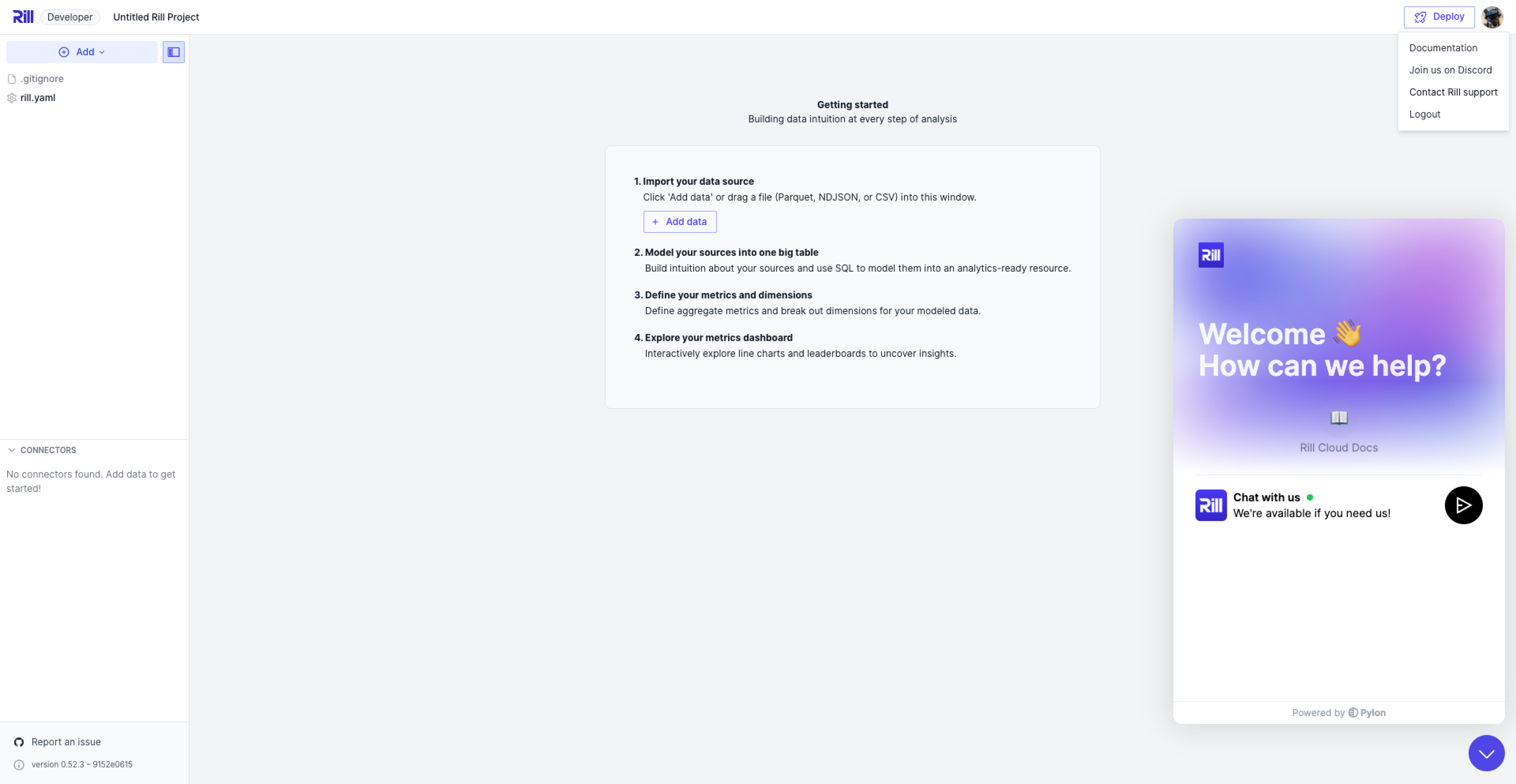
For logged-in users, Rill provides the ability to ask a question or report an issue to the Rill Support team directly from within the application via an embedded in-app chat widget. Select your user icon in the top right corner and choose "Contact Rill support"—a chat widget will appear on your screen!
---
# Rill Agent Skills
URL: https://docs.rilldata.com/developers/agent-skills/
Rill ships built-in agent skills that teach AI coding agents how to develop Rill projects. Because Rill projects are defined as YAML and SQL files, they are a natural fit for agentic development: the skills give your agent detailed knowledge of Rill's project structure, resource types, and development workflow, so it can build connectors, models, metrics views, and dashboards on your behalf.
A single command generates everything your agent needs:
```bash
rill init --agent all
```
The skills work with Claude Code and Cursor out of the box, and ship in a tool-agnostic format for `AGENTS.md`-compatible agents such as OpenAI Codex, Gemini CLI, and GitHub Copilot. Agents that also support the [Agent Skills](https://agentskills.io) convention load the detailed skills automatically; for others, the skill files are plain Markdown that you can point the agent at directly. See the [Installation guide](/developers/agent-skills/install) for setup instructions for each tool.
:::note Agent skills vs. the Rill MCP Server
Agent skills and the [Rill MCP Server](/guide/ai/mcp) are complementary. The skills teach your agent *how* to build a Rill project — resource types, YAML schemas, and best practices. The MCP server gives it *live access* to your running project — resource status, table schemas, query results, and file operations. `rill init --agent` sets up both: it generates the skill files and an MCP configuration that connects your agent to Rill Developer's local MCP server.
:::
## What you can do
With agent skills installed, your AI agent can:
- Connect to data sources like S3, GCS, BigQuery, and Snowflake
- Create and refactor SQL and YAML models, including incremental and partitioned models
- Define metrics views with measures, dimensions, and access policies
- Build explore and canvas dashboards
- Configure project-wide settings in `rill.yaml` and custom themes
- Inspect resource status, debug parse errors, and fix reconciliation failures
- Run analytical queries against your metrics views and summarize the results
## Supported tools
| Tool | Format | Generated files |
| --- | --- | --- |
| [Claude Code](/developers/agent-skills/install#claude-code) | Claude skills | `.claude/CLAUDE.md`, `.claude/skills/`, `.mcp.json` |
| [Cursor](/developers/agent-skills/install#cursor) | Cursor rules | `.cursor/rules/`, `.cursor/mcp.json` |
| [Other agents](/developers/agent-skills/install#agentsmd-compatible-agents) (Codex, Gemini CLI, Copilot, ...) | `AGENTS.md` | `AGENTS.md`, `.agents/skills/`, `.mcp.json` |
## Example prompts
Once installed, the skills activate automatically based on your request. Ask naturally:
```text
"Connect to the parquet file at gs://rilldata-public/auction_data.parquet"
"Create a model that cleans the auction data and buckets bids into price ranges"
"Create a metrics view with measures for total bids, average bid price, and win rate"
"Build an explore dashboard for the auction metrics view"
"Add a canvas dashboard with KPI cards and a time series chart"
"Why is my events model erroring?"
"What were my top domains by win rate last week?"
```
## Related
- [Agentic Quickstart](/developers/get-started/ai-quickstart) — step-by-step guide to building a project with an AI agent
- [Installing agent skills](/developers/agent-skills/install)
- [Agent skills reference](/developers/agent-skills/skills)
- [AI Configuration](/developers/build/ai-configuration) — add `ai_instructions` to improve AI responses for your project
- [Rill MCP Server](/guide/ai/mcp) — connect AI assistants to Rill Cloud projects for data analysis
---
# Installing Agent Skills
URL: https://docs.rilldata.com/developers/agent-skills/install
Rill's agent skills are bundled with the Rill CLI and generated directly into your project with `rill init --agent`. This page covers installation for each supported tool.
## Requirements
- [Rill CLI installed](/developers/get-started/install)
- An AI coding agent: [Claude Code](https://docs.anthropic.com/en/docs/claude-code/overview), [Cursor](https://www.cursor.com/), or another agent that supports the `AGENTS.md` convention
## Install with the CLI
### New project
Run `rill init` interactively and select an option at the "Agent instructions" prompt:
```bash
rill init
? Project name my-rill-project
? OLAP engine duckdb
? Agent instructions all
```
Or pass the `--agent` flag directly:
```bash
rill init my-project --agent all
```
The `all` option generates the skills in every supported format, so the project works with any agent out of the box. To generate files for a single tool only, pass `claude`, `cursor`, or `agentsmd` instead.
### Existing project
To add agent skills to an existing Rill project, run `rill init` with only the `--agent` flag:
```bash
rill init ./my-existing-project --agent all
```
The command only writes agent instruction files and MCP configuration; the rest of your project is left untouched.
:::warning Existing agent files are overwritten
If the project already has agent instruction files at the generated paths — for example `.claude/CLAUDE.md`, `.cursor/rules/AGENTS.mdc`, or an `AGENTS.md` at the project root — the command replaces them without prompting. Back up or commit any customizations first, and keep your own instructions in separate files so they survive regeneration (see [Updating agent skills](/developers/agent-skills/update)).
:::
### Options
The `--agent` flag accepts the following values:
| Option | Description |
| --- | --- |
| `claude` | Claude Code skills in `.claude/` (default) |
| `cursor` | Cursor rules in `.cursor/` |
| `agentsmd` | Tool-agnostic `AGENTS.md` format |
| `all` | All of the above |
| `none` | No agent instructions |
:::tip Commit the generated files
The generated files are plain text and designed to be committed to version control. Check them in so everyone on your team — and every agent — works from the same instructions.
:::
## Claude Code
The `all` and `claude` options generate:
- **`.claude/CLAUDE.md`** — entry point that tells Claude Code to load the Rill development skills before making changes
- **`.claude/skills/rill-*/SKILL.md`** — one skill per topic: the development workflow, data analysis, and each resource type (see the [skills reference](/developers/agent-skills/skills))
- **`.mcp.json`** — connects Claude Code to Rill Developer's local MCP server
Open Claude Code in the project directory. When prompted, trust the project's MCP configuration so Claude Code can connect to the Rill MCP server. The skills activate automatically based on your requests.
## Cursor
The `all` and `cursor` options generate:
- **`.cursor/rules/AGENTS.mdc`** — an always-applied rule that points Cursor at the Rill development instructions
- **`.cursor/rules/*.mdc`** — rules for the development workflow, data analysis, and each resource type, applied automatically based on their descriptions
- **`.cursor/mcp.json`** — connects Cursor to Rill Developer's local MCP server
Open the project in Cursor and enable the `rill-developer` MCP server when prompted.
## AGENTS.md-compatible agents
This format works with agents that follow the [AGENTS.md](https://agents.md) convention, including OpenAI Codex, Gemini CLI, and GitHub Copilot. The `all` and `agentsmd` options generate:
- **`AGENTS.md`** — entry point at the project root
- **`.agents/skills/rill-*/SKILL.md`** — one skill per topic, in the same format as the Claude Code skills
- **`.mcp.json`** — MCP server configuration for agents that support it
The entry point instructs the agent to load the `rill-development` skill by name. Agents that support the [Agent Skills](https://agentskills.io) convention resolve it from `.agents/skills/` automatically. If your agent only reads `AGENTS.md`, the skills are plain Markdown files — point the agent at `.agents/skills/rill-development/SKILL.md` directly.
## Connect the MCP server
The generated MCP configuration points at Rill Developer's local MCP server:
```json
{
"mcpServers": {
"rill-developer": {
"type": "http",
"url": "http://localhost:9009/mcp"
}
}
}
```
The server becomes available when you start Rill Developer:
```bash
rill start my-project
```
Through the MCP server, your agent can check resource status, inspect table schemas, run SQL and metrics queries, and read and write project files with immediate feedback on parse and reconcile errors.
## Next steps
- [Agentic Quickstart](/developers/get-started/ai-quickstart) — build a project end-to-end with an AI agent
- [Agent skills reference](/developers/agent-skills/skills) — what each skill covers
- [Updating agent skills](/developers/agent-skills/update) — keep the skills up to date with new Rill releases
---
# Agent Skills Reference
URL: https://docs.rilldata.com/developers/agent-skills/skills
Reference for the skills generated by `rill init --agent`. The same set of skills is generated for every tool — only the file format and location differ.
## Entry point
Each format includes an entry point that loads automatically when your agent starts working in the project:
| Format | Entry point |
| --- | --- |
| Claude Code | `.claude/CLAUDE.md` |
| Cursor | `.cursor/rules/AGENTS.mdc` (always applied) |
| `AGENTS.md` | `AGENTS.md` at the project root |
For Claude Code and `AGENTS.md`, the entry point instructs the agent to load the `rill-development` skill before making any changes, so the agent begins with an understanding of Rill's project structure and workflow. For Cursor, the development instructions live in the `development.mdc` rule instead, which Cursor applies on demand based on its description when you work on the project.
## Skills
The remaining skills activate on demand based on what you ask the agent to do:
| Skill | Description |
| --- | --- |
| `rill-development` | Overview of how to develop a Rill project: project structure, resource types, the resource DAG, and the development workflow. Loaded before any project changes. |
| `rill-analysis` | How to analyze data in a Rill project: discovering metrics views, running metrics queries, and presenting insights. |
| `rill-connector` | Detailed instructions and examples for developing connector resources, covering OLAP engines and data sources. |
| `rill-model` | Detailed instructions and examples for developing model resources, including SQL models, YAML models, incremental ingestion, and partitions. |
| `rill-metrics-view` | Detailed instructions and examples for developing metrics views, including measures, dimensions, and time series configuration. |
| `rill-explore` | Detailed instructions and examples for developing explore dashboard resources. |
| `rill-canvas` | Detailed instructions and examples for developing canvas dashboard resources and their components. |
| `rill-theme` | Detailed instructions and examples for developing theme resources. |
| `rill-rillyaml` | Detailed instructions and examples for developing the `rill.yaml` project file. |
Each resource skill embeds the complete YAML schema for its resource type, generated from the same source as the [project file reference](/reference/project-files). This lets your agent write valid configuration without guessing at property names.
## File layout
### Claude Code (`--agent claude`)
```
.claude/
├── CLAUDE.md
└── skills/
├── rill-development/SKILL.md
├── rill-analysis/SKILL.md
├── rill-connector/SKILL.md
├── rill-model/SKILL.md
├── rill-metrics-view/SKILL.md
├── rill-explore/SKILL.md
├── rill-canvas/SKILL.md
├── rill-theme/SKILL.md
└── rill-rillyaml/SKILL.md
.mcp.json
```
### Cursor (`--agent cursor`)
```
.cursor/
├── mcp.json
└── rules/
├── AGENTS.mdc
├── development.mdc
├── analysis.mdc
└── resources/
├── connector.mdc
├── model.mdc
├── metrics_view.mdc
├── explore.mdc
├── canvas.mdc
├── theme.mdc
└── rillyaml.mdc
```
`AGENTS.mdc` is marked `alwaysApply: true`; the other rules carry descriptions that let Cursor apply them automatically when relevant.
### AGENTS.md (`--agent agentsmd`)
```
AGENTS.md
.agents/
└── skills/
├── rill-development/SKILL.md
├── rill-analysis/SKILL.md
└── ... (same skills as Claude Code)
.mcp.json
```
## MCP server configuration
Every format also writes an MCP configuration that registers Rill Developer's local MCP server as `rill-developer` at `http://localhost:9009/mcp`. If the file already contains other MCP servers, the Rill entry is added alongside them. See [Connect the MCP server](/developers/agent-skills/install#connect-the-mcp-server) for details.
## Related
- [Installing agent skills](/developers/agent-skills/install)
- [Updating agent skills](/developers/agent-skills/update)
- [Project file reference](/reference/project-files)
---
# Updating Agent Skills
URL: https://docs.rilldata.com/developers/agent-skills/update
Agent skills are bundled with the Rill CLI, so each Rill release may include updated instructions that reflect new resource types, YAML properties, and best practices. The generated files in your project are a snapshot from the CLI version that created them — they do not update automatically.
## Update the skills
First, make sure you are on the latest version of Rill:
```bash
rill upgrade
```
Then re-run `rill init` in your project to regenerate the skill files:
```bash
rill init . --agent all
```
Use the same `--agent` option you installed with (`all`, `claude`, `cursor`, or `agentsmd`). The command overwrites the previously generated files with the latest versions and leaves the rest of your project untouched.
:::warning Regenerating overwrites customizations
Re-running `rill init --agent` replaces the generated files, including the entry points (`.claude/CLAUDE.md`, `.cursor/rules/AGENTS.mdc`, or `AGENTS.md`). Keep your own project-specific agent instructions in separate files — for example, a `CLAUDE.md` at the repository root for Claude Code, or additional rule files in `.cursor/rules/` — so they survive updates.
:::
## When to update
- After upgrading Rill to a new version, especially if the release notes mention new resource types or YAML properties
- If your agent generates YAML that Rill rejects — the skills embed the YAML schema for each resource type, so stale skills can produce stale configuration
## Verify the update
The generated files are plain text, so a `git diff` after regenerating shows exactly what changed. Review and commit the changes like any other update to your project.
---
# Building Your Data Analytics Pipeline in Rill
URL: https://docs.rilldata.com/developers/build/
Rill provides a comprehensive platform for building end-to-end data analytics solutions. Once you've connected to your source data or connected to your own OLAP database, you can start building with Rill. Don't forget to check out the [reference documentation!](/reference/project-files)
### What is a Rill project?
- [**Getting Started with your Rill Project**](/developers/build/getting-started) - Understand Rill project structure and configuration
### Connect to your Data
- [**Connectors Overview**](/developers/build/connectors) - Learn about connecting Rill to data sources and OLAP engines
- [**OLAP Engines**](/developers/build/connectors/olap) - Configure DuckDB, ClickHouse, Druid, or Pinot for analytics
- [**Data Sources**](/developers/build/connectors/data-source) - Connect to S3, GCS, BigQuery, Snowflake, and more
- [**Configure Local Credentials**](/developers/build/connectors/credentials) - Set up credentials for local development
- [**Dev/Prod Connectors**](/developers/build/connectors/templating) - Separate your production and development data sources
### Modeling and Last Mile ETL
- [**Models Overview**](/developers/build/models) - Overview of models available in Rill
- [**Getting Started with Models**](/developers/build/models/models-101) - What are models and important topics to remember as you create your own.
- [**Differences between SQL and YAML Models**](/developers/build/models/model-differences) - Compare SQL and YAML models and learn when to use
- [**SQL Models**](/developers/build/models/sql-models) - Transform and prepare your data
- [**Data Refresh**](/developers/build/models/data-refresh) - Schedule your data refresh
- [**YAML Models**](/developers/build/models/model-differences#yaml-models) - Incremental ingestion, data partitions, and more
- [**Additional Model Templating**](/developers/build/models/templating) - Separate your production and development settings
- [**Performance Optimization**](/developers/build/models/performance) - Optimize model performance and data refresh strategies
### Define Measures and Dimensions
- [**What are Metrics Views?**](/developers/build/metrics-view/what-are-metrics-views) - Learn about Metrics Views!
- [**Underlying Model/Table**](/developers/build/metrics-view/underlying-model) - Powering your metrics view with a `model` or `table`
- [**Time Series**](/developers/build/metrics-view/time-series) - The backbone of Rill Explore Dashboards, time
- [**Dimensions**](/developers/build/metrics-view/dimensions) - Expand your dimensions capabilities further in your metrics view
- [**Measures**](/developers/build/metrics-view/measures) - Aggregate your measures further in your metrics view
- [**Define Data Access**](/developers/build/metrics-view/security) - Define access and row access policies
### Build Visualizations
- [**Dashboards Types**](/developers/build/dashboards/dashboards-101) - What are the visualization options in Rill, and how are they different?
- [**Slice-and-Dice Dashboards**](/developers/build/dashboards/explore) - Explore and find insights in your data
- [**Traditional Visualizations**](/developers/build/dashboards/canvas) - Visualize your data with various chart types
- [**Canvas Components**](/developers/build/dashboards/canvas-widgets) - See all of our supported components!
- [**Define Dashboard Access**](/developers/build/dashboards/customization#define-dashboard-access) - Set a SQL boolean query that defines access to the dashboard
### Build Integrations with Custom APIs
- [**Custom APIs Overview**](/developers/build/custom-apis) - Create HTTP API endpoints to expose your Rill data
- [**SQL APIs**](/developers/build/custom-apis/sql) - Query models, tables, and external databases
- [**Metrics SQL APIs**](/developers/build/custom-apis/metrics-sql) - Query metrics views with automatic security inheritance
- [**Dynamic Queries & Templating**](/developers/build/custom-apis/templating) - Add parameters, user attributes, and conditional logic
- [**Security & Access Control**](/developers/build/custom-apis/security) - Multi-tenant APIs with custom attributes on tokens
### Project Settings
- [**Project Configuration**](/developers/build/project-configuration) - Configure your Rill Project and set default behavior
- [**Structure your Project**](/developers/build/structure) - Structure folder architecture in Rill
- [**Use your favorite IDE**](/developers/build/ide) - Utilize your favorite IDE to build Rill projects
- [**Debugging Rill Developer**](/developers/build/debugging/trace-viewer) - Troubleshoot dashboard access, trace your reconciled resources, and understand project logs
---
# AI Configuration
URL: https://docs.rilldata.com/developers/build/ai-configuration
# AI Configuration
Rill's AI capabilities, including [AI Chat](/guide/ai/ai-chat) and the [MCP Server](/guide/ai/mcp), rely on context to provide accurate and relevant answers. You can provide additional context using the `ai_instructions` field in your project configuration files.
LLMs give their best results when they have good context. For a conversation with Rill Data, this means things like clarifying project-specific terms, routing questions to the correct metrics view, or defining business rules. Rather than expecting the user to provide this context every time, you can add `ai_instructions` to your project. This adds the context automatically for every conversation.
There are two places to add `ai_instructions`:
1. **`rill.yaml`**: Project-wide instructions that apply to all queries across your entire project.
2. **`.yaml`**: Metrics view-specific instructions for individual dashboards.
For longer, structured guidance — such as step-by-step analysis playbooks — use [skills](#skills) instead, which the AI loads on demand.
## Automatic Context Inclusion
In addition to `ai_instructions`, Rill automatically includes the following in the AI context:
- **Measure and dimension descriptions**: Any `description` fields you add to measures and dimensions in your metrics view YAML files are automatically included in the AI context. This helps the AI understand what each metric or dimension represents without requiring you to duplicate that information in `ai_instructions`.
- **Metrics view metadata**: The metrics view name, display name, and description are included to help route questions to the correct dashboard.
This means you can document your measures and dimensions directly in your metrics view YAML, and that documentation will be available to the AI automatically.
## Project-Level Instructions ([`rill.yaml`](/developers/build/project-configuration))
Use the `ai_instructions` field in `rill.yaml` to provide information that is **unique to your project**. This helps the AI agent deliver more relevant and actionable insights tailored to your specific needs.
**What to include:**
- Guidance on which metrics views are most important or should be prioritized for your project
- Any custom business logic, definitions, or terminology unique to your data or organization
- Preferences for aggregations, filters, or dimensions that are especially relevant to your use case
- Specific business context that helps the AI understand your domain
**Example:**
Here's an example of how you might configure `ai_instructions` in your `rill.yaml` to provide project context, metrics routing, and business definitions:
```yaml
ai_instructions: |
# Project Context
This project tracks e-commerce metrics for our multi-brand retail business.
# Metrics View Routing
- For questions about overall sales, revenue, or order volume → use `company_sales_metrics`
- For questions about customer behavior, retention, or cohorts → use `customer_analytics`
- For questions about product performance or inventory → use `product_metrics`
- For questions about marketing campaigns or attribution → use `marketing_performance`
- For questions about fulfillment, shipping, or logistics → use `operations_metrics`
# Business Rules & Definitions
- "Revenue" always refers to net revenue (after returns and discounts)
- "Conversion rate" is calculated as orders/sessions, not users
- Our fiscal year starts in February, not January
- "Active customer" means a purchase within the last 90 days
- Weekend traffic patterns are anomalous due to our B2B focus
# Company Acronyms
- GMV = Gross Merchandise Value
- AOV = Average Order Value
- ROAS = Return on Ad Spend
- SKU = Stock Keeping Unit
- NDR = Net Dollar Retention
- CLTV = Customer Lifetime Value
# Known Data Quirks
- Mobile web data before March 2024 is incomplete due to tracking migration
- European region data excludes VAT (use `revenue_with_vat` dimension if needed)
- Refunds are processed with a 2-3 day delay, so recent data may shift
```
## Metrics View-Level Instructions ([`.yaml`](/developers/build/metrics-view/what-are-metrics-views))
You can provide context and instructions for AI tools interacting with a specific metrics view using the `ai_instructions` field in the metrics view's YAML file. This is useful for clarifying specific metrics, dimensions, or data quirks that apply only to that specific view.
:::tip Use descriptions for measure and dimension documentation
Instead of (or in addition to) adding definitions in `ai_instructions`, you can use the `description` key in the measure and dimension definitions in your metrics view YAML to document what each metric or dimension represents. These descriptions are automatically included in the AI context, making your metrics view self-documenting.
:::
**Example:**
```yaml
ai_instructions: |
# Analysis Guidance
- When analyzing "Revenue", always breakdown by "Region" to see currency impacts.
- For questions about user growth, prioritize the "monthly_active_users" measure over "daily_active_users".
- When comparing time periods, account for the fact that data for the "Legacy Plan" is static and will not update after Dec 2023.
# Data Context
- Mobile web data before March 2024 is incomplete due to tracking migration.
- Refunds are processed with a 2-3 day delay, so recent data may shift.
- Weekend traffic patterns are anomalous due to our B2B focus.
```
## Suggested Prompts
You can give users a few clickable starter prompts when they open the AI chat, so they do not have to begin from a blank input. Prompts are configured with the `ai_prompts` list and shown verbatim, in the order you write them:
- On an explore or canvas dashboard, the dashboard's own `ai_prompts` are shown in the dashboard chat. If the dashboard has none, the project-level prompts from `rill.yaml` are shown instead.
- In `rill.yaml`, `ai_prompts` are shown in the project-wide AI chat.
If neither is configured, no prompts are shown.
Each entry is either a prompt string or an object with a `label` (at most 40 characters, shown on the button) and a `prompt` (the full question sent to the AI). When only a string is given, the label is derived from its first words. A list can hold at most 8 prompts, all of which are shown, and prompts within a list must be distinct. When a user picks a prompt on a dashboard, their current filters and time range are sent along with it.
**Example (explore or canvas YAML):**
```yaml
ai_prompts:
- Which campaigns drove the biggest change in impressions this week?
- label: CTR outliers
prompt: Which publishers have a click-through rate far above or below the average, and why?
- label: Weekly summary
prompt: Summarize the key trends in this dashboard for the selected time range.
```
**Example (`rill.yaml`):**
```yaml
ai_prompts:
- What data is available in this project?
- label: Key metrics
prompt: Give me an overview of the key metrics across the project.
```
## Skills
Skills teach Rill's AI project-specific practices, such as analysis playbooks (e.g. how to do root-cause analysis for a revenue drop) or business glossaries. Where `ai_instructions` is best for short guidance that always applies, skills hold longer, structured instructions that the AI loads only when they are relevant to the question at hand. Skills apply both in [AI Chat](/guide/ai/ai-chat) and to external AI clients connected via the [MCP Server](/guide/ai/mcp).
Skills follow the [Agent Skills](https://agentskills.io) format: a skill is a directory containing a `SKILL.md` file with YAML front matter followed by markdown instructions. Rill loads skills from `skills//SKILL.md`, and also from `.agents/skills//SKILL.md` for compatibility with skills authored for other agent clients (note that the Rill Developer file explorer hides dot-directories, so prefer `skills/` for skills you edit in Rill). For example, `skills/revenue-rca/SKILL.md`:
```markdown
---
name: revenue-rca
description: Playbook for diagnosing revenue drops. Use when asked why revenue or bookings declined.
---
# Revenue root-cause analysis
When asked why revenue declined:
1. Establish the comparison window and compute the total change.
2. Break the change down by `channel`, then `region`, then `plan_type`.
3. Account for known seasonality: B2B traffic drops on weekends.
4. State your confidence and call out data quirks that may affect the result.
```
The `description` is required: the AI sees the list of skills with their descriptions, and uses the description to decide when to load a skill. Phrase it as "what it does + when to use it". Always include the `name`, which the Agent Skills format requires and other clients reject when missing. It must match the skill's directory name (lowercase letters, numbers and hyphens). Rill is lenient and derives it from the directory if omitted.
In addition to the standard Agent Skills fields, Rill supports these extension properties:
```markdown
---
description: Business glossary for our e-commerce metrics.
metrics_views: [orders] # Optional: the metrics views this skill is relevant to
agents: [analyst] # Optional: which agents the skill applies to; defaults to [developer]
always_apply: true # Optional: load the skill up front in every conversation instead of on demand
---
```
- **`metrics_views`** tells the AI which metrics views a skill is relevant to, so for example a marketing playbook is not used during a finance analysis. It is a relevance hint, not access control. Referencing a metrics view that doesn't exist shows an error on the skill file, and the skill is not offered to the AI until the error is fixed.
- **`agents`** selects the agents the skill applies to: `analyst` for answering questions about your data, `developer` for editing the project's files. It defaults to `[developer]`, so skills written for coding agents (such as the Rill development skills that `rill init` writes to `.agents/skills/`) are not offered to the analyst. Set `agents: [analyst]` on analysis skills.
- **`always_apply`** loads the skill up front in every conversation instead of on demand, like `ai_instructions`. Use it for short, broadly applicable guidance such as glossaries. For external MCP clients, always-apply skills are also appended to the `ai_instructions` returned by `list_metrics_views`, up to 32 KiB in total; a skill that doesn't fit must be loaded with `load_skill` and a warning is logged.
Users can also invoke a skill directly by typing `/` in [AI Chat](/guide/ai/ai-chat#using-project-skills) and picking it from a list. The AI then loads that skill before answering, instead of relying on the description to match the question. The list shows each skill's `name` and `description`, so choose a short, recognizable name and a description that reads well to people as well as to the AI. The `agents` field controls where a skill is listed:
- Skills with `analyst` are listed in the project chat, the Explore and Canvas dashboard chats, and chat in embedded dashboards.
- Skills with `developer` are listed in the developer chat in Rill Developer.
Skills with an error are not listed. In analysis chats, a skill that was already loaded earlier in the conversation is not loaded again. The developer chat loads a referenced skill on every message that references it, because the developer agent only sees the current message's tool calls. An `always_apply` skill is already loaded, so picking it has no additional effect.
Other agent clients ignore Rill's extension fields, so a Rill skill remains a valid Agent Skill and vice versa. A skill directory may also hold supporting files (such as `references/` or `scripts/`) as the format allows; Rill ignores everything in a skill directory except `SKILL.md`, so a SQL or YAML example inside a skill is not parsed as a project resource.
Skills are parsed into resources like the rest of your project: invalid skill files (e.g. a missing `description`) show an error on the file in Rill Developer. When the AI uses a skill, the chat response's activity trace shows a "Loaded skill" step, so you can verify a skill was applied and iterate on it: edit the file, ask a test question, and check the trace.
:::warning Skills are visible to all AI users
Skill contents are provided to every user who can use AI features in the project, including viewers and, on a public project, anonymous visitors. Never put secrets or sensitive data in a skill. Access to the underlying data is still governed by your metrics view security policies.
:::
## User Memory
In addition to the project-wide `ai_instructions` you write, [AI Chat](/guide/ai/ai-chat#memory) learns per-user **memories**: short preferences and clarifications a user shares in chat, such as "prefers tables over charts" or "revenue means net revenue". The two layers are complementary:
| | `ai_instructions` | User memory |
|---|---|---|
| Written by | Project authors, in YAML | The AI, from what a user says in chat (or the user, in the memory manager) |
| Applies to | Everyone using the project | One user, in one project |
| Authority | Instructions the AI follows | Background context; never overrides `ai_instructions` or system rules |
| Good for | Business definitions, routing, data quirks | Personal formatting preferences, a user's role and focus, corrections |
If several users keep teaching the AI the same thing, add it to `ai_instructions` so everyone benefits. Memory never stores data values, secrets, or anything `ai_instructions` already say.
Memory is on by default for logged-in users. To turn it off for a project, disable the `chat_memory` feature flag in `rill.yaml`:
```yaml
features:
chat_memory: false
```
Feature flags support the same templating as other project settings, so memory can also be enabled for a subset of users based on their attributes.
## Visualization Tips
When using the [Rill MCP Server](/guide/ai/mcp) with external AI clients like Claude, you can provide specific instructions on how to visualize data. Since the MCP server returns structured data, the AI client is responsible for rendering it.
:::note Visualization tips affect all AI interactions
Visualization instructions added to `rill.yaml` will affect both [Rill Chat](/guide/ai/ai-chat) responses and external AI clients via the MCP Server. If you only want visualization tips to apply to external AI clients (like Claude Desktop), consider adding them to your client-specific configuration files instead:
- **Claude Desktop**: Add to `claude_desktop_config.json` or `Claude.md` in your project
- **Cursor**: Add to `.cursorrules` or `AGENT.md` in your project
- **Other AI clients**: Check your client's documentation for where to add custom instructions
This way, visualization formatting will only apply when using external clients, while Rill Chat maintains its default formatting.
:::
You can add instructions to your `rill.yaml` to guide the AI in presenting data more effectively (note that this will affect both Rill Chat and MCP clients):
```yaml
ai_instructions: |
# Visualization Guidelines
- When presenting time series data, use sparklines or trend indicators (e.g. 📈/📉) to show direction.
- For comparisons, clearly state the percentage change and absolute difference.
- Use bar charts for categorical comparisons when there are fewer than 10 categories.
- When showing tables, always include a header row and align numeric columns to the right.
# Example Formatting
- Bar Charts using block characters:
Q1 ████████░░ 411
Q2 ██████████ 514
Q3 ██████░░░░ 300
Q4 ████████░░ 400
- Horizontal progress bars: Project Progress:
Frontend ▓▓▓▓▓▓▓▓░░ 80%
Backend ▓▓▓▓▓▓░░░░ 60%
Testing ▓▓░░░░░░░░ 20%
- Using different block densities: Trends:
Jan ▁▂▃▄▅▆▇█ High
Feb ▁▂▃▄▅░░░ Medium
Mar ▁▂░░░░░░ Low
- Sparklines with Unicode Basic sparklines:
Stock prices: ▁▂▃▅▂▇▆▃▅▇
Website traffic: ▁▁▂▃▅▄▆▇▆▅▄▂▁
CPU usage: ▂▄▆█▇▅▃▂▄▆█▇▄▂
- Trend indicators:
AAPL ▲ +2.3%
GOOG ▼ -1.2%
MSFT ► +0.5%
TSLA ▼ -3.1%
- Simple trend arrows:
Sales ↗️ (+15%)
Costs ↘️ (-8%)
Profit ⤴️ (+28%)
```
---
# Alerts as Code
URL: https://docs.rilldata.com/developers/build/alerts
## Overview
Alerts in Rill allow you to monitor your data and receive notifications when specific conditions are met. While alerts can be created through the UI, defining them as code in YAML files provides version control, reproducibility, and the ability to manage complex alerting logic programmatically.
When you create an alert via a YAML file, it appears in the UI marked as `Created through code`.
:::tip Using live connectors?
If you're using [live connectors](/developers/build/connectors/olap) (ClickHouse, Druid, Pinot, StarRocks, etc.), **alerts are your primary tool for data quality monitoring**. Since live connectors don't create local models, [data quality tests](/developers/build/models/data-quality-tests) won't run. Use alerts instead to validate your data on a schedule.
:::
## Alert Structure
An alert YAML file has the following core components:
```yaml
type: alert
display_name: My Alert Name
# A brief description of what this alert monitors
# When to check the alert
refresh:
cron: "0 * * * *" # Every hour
# What data to check
data:
sql: SELECT * FROM my_model WHERE condition_is_bad
# Where to send notifications
notify:
email:
recipients:
- team@example.com
```
## Scheduling Alerts
The [`refresh`](/reference/project-files/alerts#refresh) property defines when and how often the alert runs.
### Cron Schedule
Use standard `cron` expressions to define the schedule:
```yaml
refresh:
cron: "0 * * * *" # Every hour
time_zone: "America/New_York" # Optional timezone
```
### Interval-Based Monitoring
Use `intervals` when you need to check data across multiple time windows, such as validating metrics for each hour or day. This is useful for time-series monitoring where you want to ensure data quality across a rolling window of time periods. Interval-based monitoring is more flexible than simple cron schedules when you need to check multiple historical periods on each evaluation.
```yaml
refresh:
cron: "5 * * * *" # 5 minutes past each hour
intervals:
duration: PT1H # 1 hour intervals
limit: 24 # Check last 24 intervals
check_unclosed: false
```
## Data Sources
Alerts support multiple data source types to query your data.
### SQL Query
Execute raw SQL against your models:
```yaml
data:
sql: |
SELECT *
FROM orders
WHERE created_at < NOW() - INTERVAL '24 hours'
AND status = 'pending'
```
The alert triggers when the query returns **any rows**.
### Metrics SQL
Use `metrics_sql` when you want to query a [metrics view](/developers/build/metrics-view) using its defined dimensions and measures, rather than writing raw SQL against the underlying model. This approach leverages the metrics view's security policies and allows you to reference measures and dimensions by name. For details on the `metrics_sql` syntax, see [Metrics SQL APIs](/developers/build/custom-apis/metrics-sql).
```yaml
data:
metrics_sql: |
SELECT *
FROM sales_metrics
WHERE total_revenue < 1000
```
### Custom API
Use a custom API when you want to reuse complex query logic that's already defined as a [Custom API](/developers/build/custom-apis) in your project. This approach is useful for sharing validation logic between alerts and other integrations, or when you need to pass dynamic arguments to your alert queries.
```yaml
data:
api: my_custom_validation_api
args:
threshold: 100
date_range: "7d"
```
### Resource Status
Monitor the health of your Rill resources to catch pipeline failures and reconciliation errors. This is useful for monitoring pipeline health and catching reconciliation failures before they impact downstream processes.
```yaml
data:
resource_status:
where_error: true
```
This triggers when any resource in your project has a reconciliation error.
## Notification Configuration
Configure where and how you receive notifications when alerts trigger. You can send notifications via email, Slack, or both. Notifications are sent when the alert condition is met (when the data query returns rows), and optionally when the alert recovers or encounters evaluation errors.
### Email Notifications
```yaml
notify:
email:
recipients:
- alice@example.com
- bob@example.com
- data-team@example.com
```
### Slack Notifications
Before using Slack notifications, you must [configure the Slack integration](/developers/build/connectors/services/slack) for your project.
```yaml
notify:
slack:
channels:
- "#data-alerts"
- "#engineering"
users:
- "U1234567890" # Slack user IDs
webhooks:
- "https://hooks.slack.com/services/..."
```
### Combined Notifications
Send to multiple destinations:
```yaml
notify:
email:
recipients:
- team@example.com
slack:
channels:
- "#alerts"
```
## Alert Behavior
### Recovery Notifications
Control when you receive notifications about alert state changes. Use `on_recover` to confirm issues are resolved and get peace of mind that problems have been fixed. Use `on_error` to catch alert evaluation failures (e.g., query syntax errors) that prevent the alert from running properly.
```yaml
on_recover: true # Notify when alert recovers
on_fail: true # Notify when alert triggers (default)
on_error: false # Notify on evaluation errors
```
### Re-notification (Snooze)
Control how often you're notified for ongoing issues. This prevents alert fatigue while ensuring ongoing issues aren't forgotten. Instead of receiving notifications on every evaluation cycle, you'll only be re-notified after the specified duration if the alert is still failing.
```yaml
renotify: true
renotify_after: "24h" # Re-notify every 24 hours if still failing
```
## Working Examples
### Data Freshness Alert
This example demonstrates a data freshness check that queries the maximum timestamp from an events model and triggers when data is older than 24 hours. It uses both email and Slack notifications, includes recovery notifications to confirm when data freshness is restored, and implements re-notification every 6 hours to prevent alert fatigue while ensuring ongoing issues are tracked.
```yaml
# alerts/data_freshness.yaml
type: alert
display_name: Data Freshness Check
# Alert when event data is stale
refresh:
cron: "0 * * * *" # Check every hour
data:
sql: |
SELECT 'Data is stale' AS error_message
FROM (
SELECT MAX(event_timestamp) AS latest_event
FROM events_model
)
WHERE latest_event < NOW() - INTERVAL '24 hours'
notify:
email:
recipients:
- data-ops@example.com
slack:
channels:
- "#data-alerts"
on_recover: true
renotify: true
renotify_after: "6h"
```
### Project Health Monitor
This example monitors the overall health of your Rill project by checking for any resource reconciliation errors. It runs every 10 minutes for rapid detection of pipeline failures, uses the `resource_status` data source to automatically detect errors across all resources, and sends notifications to both Slack and email channels. Recovery notifications ensure you're alerted when issues are resolved.
```yaml
# alerts/project_health.yaml
type: alert
display_name: Project Health Monitor
# Alert when any resource has a reconciliation error
refresh:
cron: "*/10 * * * *" # Every 10 minutes
data:
resource_status:
where_error: true
notify:
slack:
channels:
- "#rill-alerts"
email:
recipients:
- platform-team@example.com
on_recover: true
```
### Interval-Based Monitoring Example
This example shows how to use interval-based monitoring to validate metrics across multiple time periods. It checks hourly aggregates for the last 24 hours, looking for any hours with zero event counts. The alert runs 5 minutes past each hour to ensure the previous hour's data is complete, and uses the `intervals` configuration to systematically check each hour in the rolling window. This pattern is ideal for time-series data quality monitoring where you need to validate multiple periods on each evaluation.
```yaml
# alerts/hourly_metrics.yaml
type: alert
display_name: Hourly Metrics Check
# Validate metrics for each hour
refresh:
cron: "5 * * * *" # 5 minutes past each hour
intervals:
duration: PT1H # 1 hour intervals
limit: 24 # Check last 24 intervals
check_unclosed: false
data:
sql: |
SELECT *
FROM hourly_aggregates
WHERE hour_start = DATE_TRUNC('hour', NOW() - INTERVAL '1 hour')
AND event_count = 0
notify:
slack:
channels:
- "#monitoring"
```
## Reference
For the complete specification of all available properties, see the [Alert YAML Reference](/reference/project-files/alerts).
:::note Advanced Properties
For advanced properties like `glob`, `for`, `watermark`, and `timeout`, see the [Alert YAML Reference](/reference/project-files/alerts).
:::
---
# Connect to your Data
URL: https://docs.rilldata.com/developers/build/connectors/
## Connection Strategies
Rill offers flexible connection strategies to fit different data architectures and requirements.
- ### _[Rill Managed OLAP + Data Ingestion (Default)](/developers/build/connectors/data-source)_:
Use Rill's embedded **ClickHouse / DuckDB** (depending on size of data) as the OLAP engine and ingest data from external sources. Full Rill functionality is available with [some caveats](/developers/build/connectors/data-source#managed-olap-engine-caveats) depending on which embedded engine you select.
:::tip Rill Defaults with DuckDB
When starting Rill for the first time, Rill will auto-populate the connector with a `duckdb.yaml`. To use ClickHouse, create a managed ClickHouse connector by selecting "Add Data", then ClickHouse, and finally "Rill-managed ClickHouse" in the UI. For more information, see [Rill Managed ClickHouse](/developers/build/connectors/olap/clickhouse#rill-managed-clickhouse).
:::
- ### _[Bring Your Own OLAP (BYO OLAP)](/developers/build/connectors/olap)_:
For large-scale datasets (100GB+) or existing [OLAP infrastructure](/developers/build/connectors/olap#what-is-olap), connect to existing **ClickHouse**, **Druid**, **Pinot**, or **MotherDuck** instances. Use Rill's "live connectors" to ingest data directly into your OLAP engines.
## OLAP Engines
### ClickHouse
### Databricks
### Druid
### DuckDB
### DuckLake
### Google BigQuery
### MotherDuck
### Pinot
### Snowflake
### StarRocks
}
content="High-performance columnar database for real-time analytics and data warehousing."
link="/developers/build/connectors/olap/clickhouse"
linkLabel="Learn more"
referenceLink="clickhouse"
/>
}
header="Databricks"
content="Lakehouse platform with native support for metrics views as a live connector."
link="/developers/build/connectors/olap/databricks"
linkLabel="Learn more"
referenceLink="databricks"
/>
}
content="Real-time analytics database designed for high-performance OLAP queries."
link="/developers/build/connectors/olap/druid"
linkLabel="Learn more"
referenceLink="druid"
/>
}
content="DuckDB is the default engine for Rill Developer."
link="/developers/build/connectors/olap/duckdb"
linkLabel="Learn more"
referenceLink="duckdb"
/>
}
content="Open lakehouse format built on DuckDB — catalog in SQL, data in Parquet."
link="/developers/build/connectors/olap/ducklake"
linkLabel="Learn more"
referenceLink="duckdb"
/>
}
content="Connect to Google BigQuery for analytics and data warehousing with service account authentication."
link="/developers/build/connectors/olap/bigquery"
linkLabel="Learn more"
referenceLink="bigquery"
/>
}
content="Cloud-native DuckDB service for scalable analytics and data processing."
link="/developers/build/connectors/olap/motherduck"
linkLabel="Learn more"
referenceLink="motherduck"
/>
}
content="Distributed OLAP datastore for real-time analytics and business intelligence."
link="/developers/build/connectors/olap/pinot"
linkLabel="Learn more"
referenceLink="pinot"
/>
}
header="Snowflake"
content="Cloud data warehouse with native support for metrics views as a live connector."
link="/developers/build/connectors/olap/snowflake"
linkLabel="Learn more"
referenceLink="snowflake"
/>
}
content="Distributed OLAP datastore for real-time analytics and business intelligence."
link="/developers/build/connectors/olap/starrocks"
linkLabel="Learn more"
referenceLink="starrocks"
/>
:::tip Missing an OLAP Engine?
Rill is continually evaluating additional OLAP engines that can be added. For a full list of OLAP engines that we support, refer to our [OLAP Engines](/developers/build/connectors/olap) page. If you don't see an OLAP engine that you'd like to use, please don't hesitate to [reach out](/contact)!
:::
## Data Warehouses
### Athena
### BigQuery
### Databricks
### Redshift
### Snowflake
}
header="Athena"
content="Connect to Amazon Athena for serverless querying of data stored in S3 using standard SQL."
link="/developers/build/connectors/data-source/athena"
linkLabel="Learn more"
referenceLink="athena"
/>
}
header="BigQuery"
content="Connect to Google BigQuery for analytics and data warehousing with service account authentication."
link="/developers/build/connectors/data-source/bigquery"
linkLabel="Learn more"
referenceLink="bigquery"
/>
}
header="Databricks"
content="Connect to Databricks SQL warehouses with personal access token authentication."
link="/developers/build/connectors/data-source/databricks"
linkLabel="Learn more"
referenceLink="databricks"
/>
}
header="Redshift"
content="Connect to Amazon Redshift data warehouse with AWS credentials and support for both provisioned and serverless clusters."
link="/developers/build/connectors/data-source/redshift"
linkLabel="Learn more"
referenceLink="redshift"
/>
}
header="Snowflake"
content="Connect to Snowflake data warehouse with support for individual credentials and JWT authentication."
link="/developers/build/connectors/data-source/snowflake"
linkLabel="Learn more"
referenceLink="snowflake"
/>
## Databases
### MySQL
### PostgreSQL
### SQLite
### Supabase
}
header="MySQL"
content="Connect to MySQL databases with support for various authentication methods and SSL connections."
link="/developers/build/connectors/data-source/mysql"
linkLabel="Learn more"
referenceLink="mysql"
/>
}
header="PostgreSQL"
content="Connect to PostgreSQL databases with support for SSL connections and various authentication methods."
link="/developers/build/connectors/data-source/postgres"
linkLabel="Learn more"
referenceLink="postgres"
/>
}
header="SQLite"
content="Connect to SQLite databases for lightweight, file-based data storage and querying."
link="/developers/build/connectors/data-source/sqlite"
linkLabel="Learn more"
/>
}
header="Supabase"
content="Connect to Supabase's managed PostgreSQL databases with SSL support and standard connection methods."
link="/developers/build/connectors/data-source/supabase"
linkLabel="Learn more"
referenceLink="supabase"
/>
## Object Storage
### Amazon S3
### Google Cloud Storage
### Microsoft Azure Blob Storage
}
header="Amazon S3"
content="Connect to Amazon S3 buckets to read data files including CSV, JSON, Parquet, and compressed formats."
link="/developers/build/connectors/data-source/s3"
linkLabel="Learn more"
referenceLink="s3"
/>
}
header="Google Cloud Storage"
content="Google Cloud Storage provides scalable object storage and data lakes."
link="/developers/build/connectors/data-source/gcs"
linkLabel="Learn more"
referenceLink="gcs"
/>
}
header="Azure"
content="Connect to Microsoft Azure Blob Storage to read data files with support for various formats."
link="/developers/build/connectors/data-source/azure"
linkLabel="Learn more"
referenceLink="azure"
/>
}
header="Delta Lake"
content="Read Delta tables directly from object storage through compatible query engines."
link="/developers/build/connectors/data-source/delta"
linkLabel="Learn more"
/>
}
header="Apache Iceberg"
content="Read Iceberg tables directly from object storage through compatible query engines."
link="/developers/build/connectors/data-source/iceberg"
linkLabel="Learn more"
/>
}
header="Amazon S3 Tables"
content="Read Iceberg tables from Amazon S3 table buckets through the built-in Iceberg catalog."
link="/developers/build/connectors/data-source/s3-tables"
linkLabel="Learn more"
/>
## Other Data Connectors
### External DuckDB
### Google Sheets
### HTTPS
### Local File
### Salesforce
}
header="DuckDB"
content="Attach your local DuckDB database to Rill's embedded database."
link="/developers/build/connectors/data-source/duckdb"
linkLabel="Learn more"
referenceLink="external-duckdb"
/>
}
header="Google Sheets"
content="Connect to public Google Sheets to read data from spreadsheets with support for multiple sheets."
link="/developers/build/connectors/data-source/googlesheets"
linkLabel="Learn more"
/>
https:// }
header="HTTPS"
content="Download data from HTTP/HTTPS URLs with support for various authentication methods."
link="/developers/build/connectors/data-source/https"
linkLabel="Learn more"
referenceLink="https"
/>
}
header="Local File"
content="Read data from local files including CSV, JSON, Parquet, and compressed formats."
link="/developers/build/connectors/data-source/local-file"
linkLabel="Learn more"
/>
}
header="Salesforce"
content="Connect to Salesforce to extract data from objects and queries using the Salesforce API."
link="/developers/build/connectors/data-source/salesforce"
linkLabel="Learn more"
/>
:::tip Missing a connector?
We're constantly adding new data connectors. If you don't see what you need, [let us know](/contact) and we'll help you get connected.
:::
## Service Integrations
### Claude
### Gemini
### OpenAI
### Slack
}
header="AI"
content="Create and define a Claude Connector with your own API key."
link="/developers/build/connectors/services/claude"
linkLabel="Learn more"
referenceLink="claude"
/>
}
header="Gemini"
content="Create and define a Gemini Connector with your own API key."
link="/developers/build/connectors/services/gemini"
linkLabel="Learn more"
referenceLink="gemini"
/>
}
header="AI"
content="Create and define an OpenAI Connector with your own API key."
link="/developers/build/connectors/services/openai"
linkLabel="Learn more"
referenceLink="openai"
/>
}
header="Slack"
content="Connect to Slack to send alerts and messages from Rill."
link="/developers/build/connectors/services/slack"
linkLabel="Learn more"
referenceLink="slack"
/>
---
# Configure Local Credentials
URL: https://docs.rilldata.com/developers/build/connectors/credentials
Rill requires credentials to connect to remote data sources such as private buckets (S3, GCS, Azure), data warehouses (Snowflake, BigQuery), OLAP engines (ClickHouse, Apache Druid), or other DuckDB sources (MotherDuck). Please refer to the appropriate [connector](/developers/build/connectors) and [OLAP engine](/developers/build/connectors/olap) page for instructions to configure credentials accordingly.
At a high level, configuring credentials and credential management in Rill can be broken down into three categories:
- Setting credentials for Rill Developer
- [Setting credentials for a Rill Cloud project](/developers/deploy/deploy-credentials)
- [Pushing and pulling credentials to / from Rill Cloud]( /guide/administration/project-settings/variables-and-credentials)
## Setting credentials for Rill Developer
When reading from a data source (or using a different OLAP engine), Rill will attempt to use credentials in the following order of priority:
:::warning **Highly Recommended: Use .env for credentials**
While Rill **can** infer credentials from your local environment (AWS CLI, Azure CLI, Google Cloud CLI), **we HIGHLY recommend explicitly configuring credentials in your `.env` file** for better security, reliability, and portability. Environment-inferred credentials may vary across different setups and may not work consistently across different environments, team members, or when deploying to Rill Cloud.
:::
1. **Credentials referenced in connection strings or DSN within YAML files (RECOMMENDED)** - The UI creates YAML configurations that reference credentials from your `.env` file using templating (see [Connector YAML](/reference/project-files/connectors) for more details)
2. **Credentials passed in as variables** - When starting Rill Developer via `rill start --env key=value` (see [passing environment variables](/developers/build/connectors/templating) for more details)
3. **Credentials configured via CLI** - For [AWS](/developers/build/connectors/data-source/s3#method-4-local-aws-credentials-local-development-only) / [Azure](/developers/build/connectors/data-source/azure#method-5-azure-cli-authentication-local-development-only) / [Google Cloud](/developers/build/connectors/data-source/gcs#method-4-local-google-cloud-cli-credentials) - **NOT RECOMMENDED for production use**
For more details, please refer to the corresponding [connector](/developers/build/connectors) or [OLAP engine](/developers/build/connectors/olap) page.
:::note Ensuring security of credentials in use
If you plan to deploy a project (to Rill Cloud), it is not recommended to pass in credentials directly through the local connection string or DSN as your credentials will then be checked in directly to your Git repository (and thus accessible by others). To ensure better security, credentials should be passed in as a variable, configured locally, or specified in the project's local `.env` file (which is part of `.gitignore` and thus won't be included).
:::
## Variables
Project variables work exactly the same way as credentials and can be defined when starting rill via `--env key=value`, set in the `.env` file in the project directory, or defined in the rill.yaml.
### Passing Environment Variables
Environment variables in your local shell are not automatically passed to Rill Developer. You can pass these to Rill Developer using the `--env` flag. This is useful for referencing existing environment variables without exposing their values in your command history or configuration files.
For example, to use the `AWS_ACCESS_KEY_ID` environment variable:
```bash
rill start --env AWS_ACCESS_KEY_ID=$AWS_ACCESS_KEY_ID
```
This will pull in the value of AWS_ACCESS_KEY_ID from your environment and make it available to your Rill project without exposing the credential value in your command or .env file. In Rill, you would reference it using: `"{{ .env.AWS_ACCESS_KEY_ID }}"`.
:::warning Development Only
Passing environment variables via rill start --env is intended for local development purposes only. These credentials are not automatically passed to Rill Cloud when you deploy your project. For production deployments, you must configure credentials separately in Rill Cloud using the project settings or rill env push.
:::
### What is a `.env` file?
A `.env` file is a plain text file that stores environment variables and credentials for your Rill project. It's located in your project's root directory and follows a simple `key=value` format.
The `.env` file serves several important purposes:
- **Security**: Keeps sensitive credentials out of your codebase and Git repository (`.env` files are automatically ignored by `.gitignore`)
- **Consistency**: Provides a standardized way to manage credentials across different environments (local development, staging, production)
- **Integration**: Works seamlessly with Rill's templating system, allowing YAML files to reference credentials using `"{{ .env.VARIABLE_NAME }}"` syntax
Example `.env` file:
```bash
# AWS S3 credentials
AWS_ACCESS_KEY_ID=AKIAIOSFODNN7EXAMPLE
AWS_SECRET_ACCESS_KEY=wJalrXUtnFEMI/K7MDENG/bPxRfiCYEXAMPLEKEY
# Google Cloud credentials
GOOGLE_APPLICATION_CREDENTIALS={"type":"service_account","project_id":"my-project"}
# Database connections
POSTGRES_PASSWORD=mypassword
SNOWFLAKE_PASSWORD=mysnowflakepassword
# Custom variables
my_custom_variable=some_value
```
When creating any connector in Rill via the UI, these will be **automatically generated** in the `.env` file.
Additional variables can then be usable and referenceable for [templating](/developers/build/connectors/templating) purposes in the local instance of your project.
### Credentials Naming Schema
When you add a connector through the Add Data form, Rill saves its secrets to `.env` and references them from the connector YAML. Everything else, such as host, port and database, is written into the connector YAML directly. The form uses these variable names:
| Connector | Property | Variable written by the Add Data form |
|-----------|----------|---------------------------------------|
| Athena, Redshift, S3 | `aws_access_key_id` | `AWS_ACCESS_KEY_ID` |
| Athena, Redshift, S3 | `aws_secret_access_key` | `AWS_SECRET_ACCESS_KEY` |
| S3 | `aws_role_arn` | `AWS_ROLE_ARN` |
| Azure | `azure_storage_connection_string` | `AZURE_STORAGE_CONNECTION_STRING` |
| Azure | `azure_storage_key` | `AZURE_STORAGE_KEY` |
| Azure | `azure_storage_sas_token` | `AZURE_STORAGE_SAS_TOKEN` |
| BigQuery, GCS | `google_application_credentials` | `GOOGLE_APPLICATION_CREDENTIALS` |
| GCS | `key_id` | `GCP_ACCESS_KEY_ID` |
| GCS | `secret` | `GCP_SECRET_ACCESS_KEY` |
| ClickHouse | `dsn`, `password` | `CLICKHOUSE_DSN`, `CLICKHOUSE_PASSWORD` |
| Druid | `dsn`, `password` | `DRUID_DSN`, `DRUID_PASSWORD` |
| Pinot | `dsn`, `password` | `PINOT_DSN`, `PINOT_PASSWORD` |
| MySQL | `dsn`, `password` | `MYSQL_DSN`, `MYSQL_PASSWORD` |
| Postgres | `dsn`, `password` | `POSTGRES_DSN`, `POSTGRES_PASSWORD` |
| Supabase | `dsn`, `password` | `SUPABASE_DSN`, `SUPABASE_PASSWORD` |
| Snowflake | `dsn`, `password`, `privateKey` | `SNOWFLAKE_DSN`, `SNOWFLAKE_PASSWORD`, `SNOWFLAKE_PRIVATE_KEY` |
| Salesforce | `password`, `key` | `SALESFORCE_PASSWORD`, `SALESFORCE_KEY` |
| MotherDuck | `token` | `MOTHERDUCK_TOKEN` |
| DuckLake | Postgres or MySQL catalog password | `DUCKLAKE_CATALOG_POSTGRES_PASSWORD`, `DUCKLAKE_CATALOG_MYSQL_PASSWORD` |
Any other secret is named after the connector and the property in capitals. For example, a Databricks connector named `databricks` stores its `token` as `DATABRICKS_TOKEN`.
#### Handling Multiple Connectors
When you create multiple connectors that use the same credential type, Rill automatically appends a numeric suffix to avoid conflicts:
```bash
# First BigQuery connector
GOOGLE_APPLICATION_CREDENTIALS={"type":"service_account",...}
# Second BigQuery connector
GOOGLE_APPLICATION_CREDENTIALS_1={"type":"service_account",...}
# Third BigQuery connector
GOOGLE_APPLICATION_CREDENTIALS_2={"type":"service_account",...}
```
This ensures each connector can reference its own credentials without overwriting existing ones.
#### Referencing Variables in YAML
Use the `{{ .env.VARIABLE_NAME }}` syntax to reference environment variables in your connector YAML files:
```yaml
google_application_credentials: "{{ .env.GOOGLE_APPLICATION_CREDENTIALS }}"
password: "{{ .env.POSTGRES_PASSWORD }}"
aws_access_key_id: "{{ .env.AWS_ACCESS_KEY_ID }}"
```
#### Case-Insensitive Variable Lookups
The `{{ env "VAR_NAME" }}` function (note: not `{{ .env.VAR_NAME }}`) provides case-insensitive variable lookups, which can be useful when variable names may have inconsistent casing:
```yaml
# All of these will match POSTGRES_PASSWORD in your .env file:
password: '{{ env "POSTGRES_PASSWORD" }}'
password: '{{ env "postgres_password" }}'
password: '{{ env "Postgres_Password" }}'
```
Note that `{{ .env.VAR_NAME }}` is **case-sensitive** — the variable name must match exactly.
:::note Legacy Naming Convention
Older projects may use the `connector..` syntax (e.g., `connector.druid.dsn`, `connector.clickhouse.dsn`). This format is still supported for backwards compatibility.
:::
:::tip Avoid committing sensitive information to Git
It's never a good idea to commit sensitive information to Git and it goes against security best practices. Similar to credentials, if there are sensitive variables that you don't want to commit publicly to your `rill.yaml` configuration file (and thus potentially accessible by others), it's recommended to set them in your `.env` file directly and/or use `rill env set` via the CLI (and then optionally push / pull them as necessary).
:::
## Cloning an Existing Project from Rill Cloud
If you cloned the project using `rill project clone ` and are an admin of that project, the credentials will be pulled automatically. Note that there are some limitations with monorepos where credentials may not be pulled correctly. In those cases, credentials are also pulled when running `rill start`, assuming you have already authenticated via the CLI with `rill login`.
For a detailed guide, see our [clone a project guide](/developers/tutorials/clone-a-project).
## Pulling Credentials and Variables from a Deployed Project on Rill Cloud
If you are making changes to an already deployed instance from Rill Cloud, it is possible to **pull** the credentials and variables from the Rill Cloud to your local instance of Rill Developer. If you've made any changes to the credentials, don't forget to run `rill env push` to push the variable changes to the project, or manually change these in the project's settings page.
### rill env pull
For projects that have been deployed to Rill Cloud, an added benefit of our Rill Developer-Cloud architecture is that credentials that have been configured can be pulled locally for easier reuse (instead of having to manually reconfigure these credentials in Rill Developer). To do this, you can run `rill env pull` from your project's root directory to retrieve the latest credentials (after cloning the project's git repository to your local environment).

:::info Overriding local credentials
Please note when you run `rill env pull`, Rill will *automatically override any existing credentials or variables* that have been configured in your project's `.env` file if there is a match in the key name. This may result in unexpected behavior if you are using different credentials locally.
:::
### rill env push
As a project admin, you can use `rill env push` to push your credentials to your Rill Cloud project.
- Rill Cloud will use the specified credentials and variables in this `.env` file for the deployed project.
- Other users will also be able to use `rill env pull` to retrieve these defined credentials for local use (with Rill Developer).
:::warning Overriding Cloud credentials
If a credential and/or variable has already been configured in Rill Cloud, Rill will warn you about overriding if you attempt to push a new value in your `.env` file. This is because overriding credentials can impact your deployed project and/or other users (if they pull these credentials locally).

:::
---
# Data Sources
URL: https://docs.rilldata.com/developers/build/connectors/data-source/
By default, Rill will use a managed embedded analytics engine (**DuckDB** or **ClickHouse**) to support data ingestion. Whether you're working with cloud data warehouses, databases, file storage, or streaming data sources, Rill provides seamless connectivity and data ingestion capabilities. Once you have connected to your data source you can create [downstream models](/developers/build/models), [metrics views](/developers/build/metrics-view) and [visualize your data](/developers/build/dashboards).
:::tip using clickhouse?
Don't forget to [create a managed ClickHouse server](/developers/build/connectors/olap/clickhouse#rill-managed-clickhouse) before getting started!
```yaml
type: connector
driver: clickhouse
managed: true
```
:::
In order to connect and browse through your data, you'll need to create a connector file. Browse through the options below for our supported connectors. Each connector is designed to handle the specific authentication and configuration requirements of your data source.
:::warning OLAP Engine Limitations
Rill supports connecting your data to both [DuckDB](/developers/build/connectors/olap/duckdb) and [ClickHouse](/developers/build/connectors/olap/clickhouse). However, there are still some features in development for managed ClickHouse. For more information see our [managed ClickHouse docs](/developers/build/connectors/olap/clickhouse#rill-managed-clickhouse). If you've still got questions, [contact our team](/contact) for more information and scheduled feature releases!
:::
## Data Warehouses
### Athena
### BigQuery
### Databricks
### Redshift
### Snowflake
}
header="Athena"
content="Connect to Amazon Athena for serverless querying of data stored in S3 using standard SQL."
link="/developers/build/connectors/data-source/athena"
linkLabel="Learn more"
referenceLink="athena"
/>
}
header="BigQuery"
content="Connect to Google BigQuery for analytics and data warehousing with service account authentication."
link="/developers/build/connectors/data-source/bigquery"
linkLabel="Learn more"
referenceLink="bigquery"
/>
}
header="Databricks"
content="Connect to Databricks SQL warehouses with personal access token authentication."
link="/developers/build/connectors/data-source/databricks"
linkLabel="Learn more"
referenceLink="databricks"
/>
}
header="Redshift"
content="Connect to Amazon Redshift data warehouse with AWS credentials and support for both provisioned and serverless clusters."
link="/developers/build/connectors/data-source/redshift"
linkLabel="Learn more"
referenceLink="redshift"
/>
}
header="Snowflake"
content="Connect to Snowflake data warehouse with support for individual credentials and JWT authentication."
link="/developers/build/connectors/data-source/snowflake"
linkLabel="Learn more"
referenceLink="snowflake"
/>
## Databases
### MySQL
### PostgreSQL
### SQLite
### Supabase
}
header="MySQL"
content="Connect to MySQL databases with support for various authentication methods and SSL connections."
link="/developers/build/connectors/data-source/mysql"
linkLabel="Learn more"
referenceLink="mysql"
/>
}
header="PostgreSQL"
content="Connect to PostgreSQL databases with support for SSL connections and various authentication methods."
link="/developers/build/connectors/data-source/postgres"
linkLabel="Learn more"
referenceLink="postgres"
/>
}
header="SQLite"
content="Connect to SQLite databases for lightweight, file-based data storage and querying."
link="/developers/build/connectors/data-source/sqlite"
linkLabel="Learn more"
/>
}
header="Supabase"
content="Connect to Supabase's managed PostgreSQL databases with SSL support and standard connection methods."
link="/developers/build/connectors/data-source/supabase"
linkLabel="Learn more"
referenceLink="supabase"
/>
## Object Storage
### Amazon S3
### Google Cloud Storage
### Microsoft Azure Blob Storage
}
header="Amazon S3"
content="Connect to Amazon S3 buckets to read data files including CSV, JSON, Parquet, and compressed formats."
link="/developers/build/connectors/data-source/s3"
linkLabel="Learn more"
referenceLink="s3"
/>
}
header="Google Cloud Storage"
content="Google Cloud Storage for scalable object storage and data lakes."
link="/developers/build/connectors/data-source/gcs"
linkLabel="Learn more"
referenceLink="gcs"
/>
}
header="Azure"
content="Connect to Microsoft Azure Blob Storage to read data files with support for various formats."
link="/developers/build/connectors/data-source/azure"
linkLabel="Learn more"
referenceLink="azure"
/>
}
header="Delta Lake"
content="Read Delta tables directly from object storage through compatible query engines."
link="/developers/build/connectors/data-source/delta"
linkLabel="Learn more"
/>
}
header="Apache Iceberg"
content="Read Iceberg tables directly from object storage through compatible query engines."
link="/developers/build/connectors/data-source/iceberg"
linkLabel="Learn more"
/>
}
header="Amazon S3 Tables"
content="Read Iceberg tables from Amazon S3 table buckets through the built-in Iceberg catalog."
link="/developers/build/connectors/data-source/s3-tables"
linkLabel="Learn more"
/>
## Other Data Connectors
### External DuckDB
### Google Sheets
### HTTPS
### Local File
### Salesforce
}
header="DuckDB"
content="Attach your local DuckDB database to Rill's embedded database."
link="/developers/build/connectors/data-source/duckdb"
linkLabel="Learn more"
referenceLink="external-duckdb"
/>
}
header="Google Sheets"
content="Connect to Google Sheets to read data from spreadsheets."
link="/developers/build/connectors/data-source/googlesheets"
linkLabel="Learn more"
/>
https:// }
header="HTTPS"
content="Download data from HTTP/HTTPS URLs with support for various authentication methods."
link="/developers/build/connectors/data-source/https"
linkLabel="Learn more"
referenceLink="https"
/>
}
header="Local File"
content="Read data from local files including CSV, JSON, Parquet, and compressed formats."
link="/developers/build/connectors/data-source/local-file"
linkLabel="Learn more"
/>
}
header="Salesforce"
content="Connect to Salesforce to extract data from objects and queries using the Salesforce API."
link="/developers/build/connectors/data-source/salesforce"
linkLabel="Learn more"
/>
## Externally Hosted Services
If you have a firewall in front of your externally hosted service, you will need to whitelist the IP addresses below. This will allow you to connect to/from your service once your project is deployed to Rill Cloud.
```
35.196.245.100
34.74.117.37
35.196.153.31
34.75.22.143
34.148.167.51
35.237.60.193
```
## Managed OLAP Engine Caveats
When deciding on which managed OLAP engine to use with Rill, you'll need to decide based on the following factors:
- **Size of data**: Consider the volume and growth rate of your datasets
- **Familiarity with respective OLAP engine features**: Assess your team's expertise with each engine's capabilities
- **Integration complexity**: Consider how well each engine integrates with your existing data infrastructure
In the case of **sub 100GB of data**, we recommend keeping the default engine, DuckDB, in order to minimize the integration complexity. The reason for this is that [DuckDB has built-in functions](https://duckdb.org/docs/stable/data/data_sources) to support the connectors listed on this page.
On the other hand, if you need to analyze **100s of GB of data**, we would recommend using Managed ClickHouse. This will add some complexity ([staging tables](/developers/build/models/staging-models)), but will in turn provide better dashboard performance.
If data leans either way, a good deciding factor for which OLAP engine to use is your **familiarity with their SQL syntax**. Whether you're [creating models](/developers/build/models/models-101#intermediate-processing) or using [arithmetic functions](/developers/build/metrics-view) in the metrics view, you'll need to utilize the engine's built-in functions.
:::note Supported Connectors
If there's a connector that you're interested in or you're looking for the list of currently supported ClickHouse connectors, [contact us](/contact)!
:::
---
# Athena
URL: https://docs.rilldata.com/developers/build/connectors/data-source/athena
{/* WARNING: There are links to this page in source code. If you move it, find and replace the links and consider adding a redirect in docusaurus.config.js. */}
## Overview
[Amazon Athena](https://docs.aws.amazon.com/athena/) is an interactive query service that makes it easy to analyze data directly in Amazon S3 using standard SQL. It is serverless, so there is no infrastructure to manage, and you pay only for the queries you run, making it cost-effective for a wide range of data analysis tasks. Athena is designed for quick, ad-hoc querying of large datasets, enabling businesses to easily integrate it into their analytics and business intelligence tools for immediate insights from their data stored in S3. Rill supports natively connecting to and reading from Athena as a source by leveraging the [AWS SDK for Go](https://aws.github.io/aws-sdk-go-v2/docs/).
## Authentication Methods
To connect to Amazon Athena, you need to provide authentication credentials. Rill supports two methods:
1. **Use Access Key/Secret Key** (recommended for production)
2. **Use Local AWS credentials** (local development only - not recommended for production)
## Method 1: Access Key and Secret Key (Recommended)
Access Key and Secret Key credentials provide the most reliable authentication for Athena. This method works for both local development and Rill Cloud deployments.
### Using the UI
1. Click **Add Data** in your Rill project
2. Select **Amazon Athena** as the data source type
3. In the authentication step:
- Enter your AWS Access Key ID
- Enter your AWS Secret Access Key
- Specify the output location (S3 bucket for query results)
- Specify the AWS region
4. In the data model configuration step, enter your SQL query
5. Click **Create** to finalize
After the model YAML is generated, you can add additional [model settings](/developers/build/models/source-models) directly to the file.
### Manual Configuration
If you prefer to configure manually:
**Step 1: Create connector configuration**
Create `connectors/athena.yaml`:
```yaml
type: connector
driver: athena
aws_access_key_id: "{{ .env.AWS_ACCESS_KEY_ID }}"
aws_secret_access_key: "{{ .env.AWS_SECRET_ACCESS_KEY }}"
output_location: "s3://my-bucket/athena-results/"
region: "us-east-1"
```
**Step 2: Add credentials to `.env`**
```bash
AWS_ACCESS_KEY_ID=AKIAIOSFODNN7EXAMPLE
AWS_SECRET_ACCESS_KEY=wJalrXUtnFEMI/K7MDENG/bPxRfiCYEXAMPLEKEY
```
Then, [create your first model](#create-your-first-model).
## Method 2: Local AWS Credentials
For local development, you can use credentials from the AWS CLI. This method is **not suitable for production** or Rill Cloud deployments.
:::warning Not recommended for production
Local AWS credentials only work for local development. If you deploy to Rill Cloud using this method, your dashboards will fail. Always use Access Key/Secret Key for production deployments.
:::
### Setup
1. Install the [AWS CLI](https://docs.aws.amazon.com/cli/latest/userguide/getting-started-install.html) if not already installed
2. Authenticate with your AWS account:
- If your organization has SSO configured, reach out to your admin for instructions on how to authenticate using `aws sso login`
- Otherwise, run `aws configure` and provide your access key, secret, and default region
3. Verify your authentication:
```bash
aws iam get-user --no-cli-pager
```
### Manual Configuration
Create `connectors/athena.yaml`:
```yaml
type: connector
driver: athena
output_location: "s3://my-bucket/athena-results/"
region: "us-east-1"
```
When no explicit credentials are provided in the connector, Rill will automatically use your local AWS CLI credentials. Then, [create your first model](#create-your-first-model).
## Create Your First Model
Once your connector is configured using any method above, create a model to define what data to pull.
Create `models/athena_data.yaml`:
```yaml
type: model
connector: athena
dev:
sql: SELECT * FROM my_database.my_table limit 10000
sql: SELECT * FROM my_database.my_table
```
After creating the model, you can add additional [model settings](/developers/build/models/source-models) directly to the file.
## Separating Dev and Prod Environments
## Deploy to Rill Cloud
## Appendix
### Athena/S3 Permissions
The Athena connector performs the following AWS queries while ingesting data from Athena:
1. Athena: [`GetWorkGroup`](https://docs.aws.amazon.com/athena/latest/APIReference/API_GetWorkGroup.html) to determine an output location if not specified explicitly.
2. S3: [`ListObjects`](https://docs.aws.amazon.com/AmazonS3/latest/API/API_ListObjects.html) to identify files unloaded by Athena.
3. S3: [`GetObject`](https://docs.aws.amazon.com/AmazonS3/latest/API/API_GetObject.html) to ingest files unloaded by Athena.
Make sure your account or service account has the corresponding permissions to perform these requests.
### How to Create an AWS Service Account
For detailed instructions on creating an AWS service account with the appropriate permissions, see the [S3 connector documentation](./s3#how-to-create-an-aws-service-account-using-the-aws-management-console).
---
# Azure Blob Storage
URL: https://docs.rilldata.com/developers/build/connectors/data-source/azure
{/* WARNING: There are links to this page in source code. If you move it, find and replace the links and consider adding a redirect in docusaurus.config.js. */}
## Overview
[Azure Blob Storage (ABS)](https://learn.microsoft.com/en-us/azure/storage/blobs/storage-blobs-introduction) is a scalable, fully managed, and highly reliable object storage solution offered by Microsoft Azure, designed to store and access data from anywhere in the world. It provides a secure and cost-effective way to store data, including common storage formats such as CSV and Parquet. Rill supports connecting to and reading from Azure Blob Storage using the following Resource URI syntax:
```bash
azure://.blob.core.windows.net//path/file.csv
```
## Authentication Methods
To connect to Azure Blob Storage, you can choose from five authentication options:
1. **Storage Account Key** (recommended for cloud deployment)
2. **Connection String** (alternative for cloud deployment)
3. **Shared Access Signature (SAS) Token** (most secure, fine-grained control)
4. **Public** (for publicly accessible containers - no authentication required)
5. **Azure CLI authentication** (local development only - not recommended for production)
When you add data from Azure Blob Storage through the Rill UI, you'll see three authentication options:
- **Storage Account Key**, **Connection String**, or **SAS Token**: The process follows two steps:
1. **Configure Authentication** - Set up your Azure connector with credentials
2. **Configure Data Model** - Define which container and objects to ingest
The UI will automatically create both the connector file and model file for you.
- **Public**: For publicly accessible containers, you skip the connector creation step and go directly to:
1. **Configure Data Model** - Define which container and objects to ingest
The UI will only create the model file (no connector file is needed).
:::note Manual Configuration Only
Azure CLI authentication is only available through manual configuration. See [Method 5: Azure CLI Authentication](#method-5-azure-cli-authentication-local-development-only) for setup instructions.
:::
## Method 1: Storage Account Key (Recommended)
Storage Account Key credentials provide reliable authentication for Azure Blob Storage. This method works for both local development and Rill Cloud deployments.
### Using the UI
1. Click **Add Data** in your Rill project
2. Select **Azure Blob Storage** as the data model type
3. In the authentication step:
- Choose **Storage Account Key**
- Enter your Storage Account name
- Enter your Storage Account Key
4. In the data model configuration step, enter your SQL query
5. Click **Create** to finalize
After the model YAML is generated, you can add additional [model settings](/developers/build/models/source-models) directly to the file.
### Manual Configuration
If you prefer to configure manually:
**Step 1: Create connector configuration**
Create `connectors/azure.yaml`:
```yaml
type: connector
driver: azure
azure_storage_account: rilltest
azure_storage_key: "{{ .env.AZURE_STORAGE_KEY }}"
```
**Step 2: Add credentials to `.env`**
```bash
AZURE_STORAGE_KEY=your_storage_account_key
```
Follow the [Azure Documentation](https://learn.microsoft.com/en-us/azure/storage/common/storage-account-keys-manage?tabs=azure-portal) to retrieve your storage account keys. Then, [create your first model](#create-your-first-model).
## Method 2: Connection String
Connection String provides an alternative authentication method for Azure Blob Storage.
### Using the UI
1. Click **Add Data** in your Rill project
2. Select **Azure Blob Storage** as the data model type
3. In the authentication step:
- Choose **Connection String**
- Enter your Connection String
4. In the data model configuration step, enter your SQL query
5. Click **Create** to finalize
After the model YAML is generated, you can add additional [model settings](/developers/build/models/source-models) directly to the file.
### Manual Configuration
**Step 1: Create connector configuration**
Create `connectors/azure_conn.yaml`:
```yaml
type: connector
driver: azure
azure_storage_connection_string: "{{ .env.AZURE_STORAGE_CONNECTION_STRING }}"
```
**Step 2: Add credentials to `.env`**
```bash
AZURE_STORAGE_CONNECTION_STRING=your_connection_string
```
Follow the [Azure Documentation](https://learn.microsoft.com/en-us/azure/storage/common/storage-account-keys-manage?tabs=azure-portal) to retrieve your connection string. Then, [create your first model](#create-your-first-model).
## Method 3: Shared Access Signature (SAS) Token
SAS tokens provide fine-grained access control with specific permissions and expiration times for secure access to your storage resources.
### Using the UI
1. Click **Add Data** in your Rill project
2. Select **Azure Blob Storage** as the data model type
3. In the authentication step:
- Choose **SAS Token**
- Enter your Storage Account name
- Enter your SAS Token
4. In the data model configuration step, enter your SQL query
5. Click **Create** to finalize
After the model YAML is generated, you can add additional [model settings](/developers/build/models/source-models) directly to the file.
### Manual Configuration
**Step 1: Create connector configuration**
Create `connectors/azure.yaml`:
```yaml
type: connector
driver: azure
azure_storage_account: rilltest
azure_storage_sas_token: "{{ .env.AZURE_STORAGE_SAS_TOKEN }}"
```
**Step 2: Add credentials to `.env`**
```bash
AZURE_STORAGE_SAS_TOKEN=your_sas_token
```
Follow the [Azure Documentation](https://learn.microsoft.com/en-us/azure/ai-services/translator/document-translation/how-to-guides/create-sas-tokens?tabs=Containers) to create your Azure SAS token. Then, [create your first model](#create-your-first-model).
## Method 4: Public Containers
For publicly accessible Azure Blob Storage containers, you don't need to create a connector. Simply use the Azure URI directly in your model configuration.
### Using the UI
1. Click **Add Data** in your Rill project
2. Select **Azure Blob Storage** as the data model type
3. In the authentication step:
- Choose **Public**
- The UI will skip connector creation and proceed directly to data model configuration
4. In the data model configuration step, enter your SQL query
5. Click **Create** to finalize
After the model YAML is generated, you can add additional [model settings](/developers/build/models/source-models) directly to the file.
### Manual Configuration
No connector configuration is needed for public containers. Proceed to [Create Your First Model](#create-your-first-model) below and omit the `create_secrets_from_connectors` line.
## Method 5: Azure CLI Authentication (Local Development Only)
For local development, you can use credentials from the Azure CLI. This method is **not suitable for production** or Rill Cloud deployments. This method is only available through manual configuration, and you don't need to create a connector file.
### Setup
1. Install the [Azure CLI](https://learn.microsoft.com/en-us/cli/azure/install-azure-cli) if not already installed
2. Authenticate with your Azure account:
```bash
az login
```
3. Verify your authentication status:
```bash
az account show
```
4. Create your model file (no connector needed)
### Manual Configuration
No connector is needed when using local credentials. Proceed to [Create Your First Model](#create-your-first-model) below and omit the `create_secrets_from_connectors` line.
Rill will automatically detect and use your local Azure CLI credentials when no connector is specified.
:::warning
This method only works for local development. Deploying to Rill Cloud with this configuration will fail because the cloud environment doesn't have access to your local credentials. Always use Storage Account Key, Connection String, or SAS tokens for production deployments.
:::
### Path Patterns
You can use wildcards to read multiple files:
```sql
-- Single file
SELECT * FROM read_parquet('azure://account.blob.core.windows.net/container/data/file.parquet')
-- All files in a directory
SELECT * FROM read_parquet('azure://account.blob.core.windows.net/container/data/*.parquet')
-- All files in nested directories
SELECT * FROM read_parquet('azure://account.blob.core.windows.net/container/data/**/*.parquet')
-- Files matching a pattern
SELECT * FROM read_parquet('azure://account.blob.core.windows.net/container/data/2024-*.parquet')
```
## Create Your First Model
After setting up your authentication above, create a model to define what data to pull.
Create `models/azure_data.yaml`:
```yaml
type: model
connector: duckdb
create_secrets_from_connectors: azure
dev:
sql: SELECT * FROM read_parquet('azure://rilltest.blob.core.windows.net/my-container/path/to/data/*.parquet')
sql: SELECT * FROM read_parquet('azure://rilltest.blob.core.windows.net/my-container/**/*.parquet')
```
- Replace `azure` in `create_secrets_from_connectors` with the name of the connector you created.
- If you're using a public container or local credentials (no connector), omit the `create_secrets_from_connectors` line.
After creating the model, you can add additional [model settings](/developers/build/models/source-models) directly to the file.
## Deploy to Rill Cloud
---
# BigQuery
URL: https://docs.rilldata.com/developers/build/connectors/data-source/bigquery
{/* WARNING: There are links to this page in source code. If you move it, find and replace the links and consider adding a redirect in docusaurus.config.js. */}
## Overview
[Google BigQuery](https://cloud.google.com/bigquery/docs) is a fully managed, serverless data warehouse that enables scalable and cost-effective analysis of large datasets using SQL-like queries. It supports a highly scalable and flexible architecture, allowing users to analyze large amounts of data in real time, making it suitable for BI/ML applications. Rill supports natively connecting to and reading from BigQuery as a source by leveraging the [BigQuery SDK](https://cloud.google.com/bigquery/docs/reference/libraries).
## Authentication Methods
To connect to Google BigQuery, you need to provide authentication credentials. Rill supports two methods:
1. **Use Service Account JSON** (recommended for production)
2. **Use Local Google Cloud CLI credentials** (local development only - not recommended for production)
## Method 1: Service Account JSON (Recommended)
Service Account JSON credentials provide the most secure and reliable authentication for BigQuery. This method works for both local development and Rill Cloud deployments.
### Using the UI
1. Click **Add Data** in your Rill project
2. Select **Google BigQuery** as the data source type
3. In the authentication step:
- Upload your JSON key file or paste its contents
- Specify your Google Cloud Project ID
4. In the data model configuration step, enter your SQL query
5. Click **Create** to finalize
After the model YAML is generated, you can add additional [model settings](/developers/build/models/source-models) directly to the file.
### Manual Configuration
If you prefer to configure manually:
**Step 1: Create connector configuration**
Create `connectors/bigquery.yaml`:
```yaml
type: connector
driver: bigquery
google_application_credentials: "{{ .env.GOOGLE_APPLICATION_CREDENTIALS }}"
project_id: "my-gcp-project"
```
**Step 2: Add credentials to `.env`**
```bash
GOOGLE_APPLICATION_CREDENTIALS=
```
Then, [create your first model](#create-your-first-model).
## Method 2: Local Google Cloud CLI Credentials
For local development, you can use credentials from the Google Cloud CLI. This method is **not suitable for production** or Rill Cloud deployments.
:::warning Not recommended for production
Local Google Cloud CLI credentials only work for local development. If you deploy to Rill Cloud using this method, your dashboards will fail. Always use Service Account JSON for production deployments.
:::
### Setup
1. Install the [Google Cloud CLI](https://cloud.google.com/sdk/docs/install-sdk) if not already installed
2. Initialize and authenticate:
```bash
gcloud init
```
3. **Important**: Set up Application Default Credentials (ADC):
```bash
gcloud auth application-default login
```
:::tip Service Accounts
If you are using a service account, run the following command instead:
```bash
gcloud auth activate-service-account --key-file=path_to_json_key_file
```
:::
### Manual Configuration
Create `connectors/bigquery.yaml`:
```yaml
type: connector
driver: bigquery
project_id: "my-gcp-project"
```
When no explicit credentials are provided in the connector, Rill will automatically use your local Google Cloud CLI credentials. Then, [create your first model](#create-your-first-model).
## Create Your First Model
Once your connector is configured using any method above, create a model to define what data to pull.
Create `models/bigquery_data.yaml`:
```yaml
type: model
connector: bigquery
dev:
sql: SELECT * FROM my_dataset.my_table limit 10000
sql: SELECT * FROM my_dataset.my_table
```
After creating the model, you can add additional [model settings](/developers/build/models/source-models) directly to the file.
## Separating Dev and Prod Environments
## Deploy to Rill Cloud
## Appendix
### How to Create a Service Account Using the Google Cloud Console
Here is a step-by-step guide on how to create a Google Cloud service account with access to BigQuery:
1. Navigate to the [Service Accounts page](https://console.cloud.google.com/iam-admin/serviceaccounts) under "IAM & Admin" in the Google Cloud Console.
2. Click the "Create Service Account" button at the top of the page.
3. In the "Create Service Account" window, enter a name for the service account, then click "Create and continue".
4. In the "Role" field, search for and select the following [BigQuery roles](https://cloud.google.com/bigquery/docs/access-control):
- [roles/bigquery.dataViewer](https://cloud.google.com/bigquery/docs/access-control#bigquery.dataViewer) (Lowest-level resources: Table, View)
- Provides the ability to read data and metadata from the project's datasets/dataset's tables/table or view.
- [roles/bigquery.readSessionUser](https://cloud.google.com/bigquery/docs/access-control#bigquery.readSessionUser) (Lowest-level resources: Project)
- Provides the ability to create and use read sessions that can be used to read data from BigQuery managed tables using the Storage API (to read data from BigQuery at high speeds). The role does not provide any other permissions related to BigQuery datasets, tables, or other resources.
- [roles/bigquery.jobUser](https://cloud.google.com/bigquery/docs/access-control#bigquery.jobUser) (Lowest-level resources: Project)
- Provides permissions to run BigQuery-specific jobs (including queries), within the project and respecting limits set by roles above.
Click "Continue", then click "Done".
**Note**: BigQuery has storage and compute [separated](https://cloud.google.com/blog/products/bigquery/separation-of-storage-and-compute-in-bigquery) from each other, so the lowest-level resource where compute-specific roles are granted is a project, while the lowest-level for data-specific roles is table/view.
5. On the "Service Accounts" page, locate the service account you just created and click on the three dots on the right-hand side. Select "Manage Keys" from the dropdown menu.
6. On the "Keys" page, click the "Add key" button and select "Create new key".
7. Choose the "JSON" key type and click "Create".
8. Download and save the JSON key file to a secure location on your computer.
:::note Permission denied?
You'll need to contact your internal cloud admin to create your Service Account JSON credentials for you.
:::
---
# Databricks (Data Source)
URL: https://docs.rilldata.com/developers/build/connectors/data-source/databricks
{/* WARNING: There are links to this page in source code. If you move it, find and replace the links and consider adding a redirect in docusaurus.config.js. */}
## Overview
[Databricks](https://docs.databricks.com) is a unified data and AI platform built on top of Apache Spark and the lakehouse architecture. Rill connects to Databricks SQL warehouses using the [Databricks SQL Go driver](https://github.com/databricks/databricks-sql-go) to ingest data into Rill's embedded engine.
## Authentication
Rill authenticates to Databricks using a [personal access token](https://docs.databricks.com/aws/en/dev-tools/auth/pat). The token must have access to the SQL warehouse and to the catalogs and schemas you intend to query.
### Using the UI
1. Click **Add Data** in your Rill project
2. Select **Databricks** as the data source type
3. In the authentication step:
- Enter the **Server hostname** of your SQL warehouse (e.g. `dbc-xxxxxxxx-xxxx.cloud.databricks.com`)
- Enter the **HTTP path** of your SQL warehouse (e.g. `/sql/1.0/warehouses/xxxxxxxxxxxxxxxx`)
- Paste your **Personal Access Token**
- Optionally specify a default **Catalog** and **Schema**
4. In the data model configuration step, enter your SQL query
5. Click **Create** to finalize
After the model YAML is generated, you can add additional [model settings](/developers/build/models/source-models) directly to the file.
### Manual Configuration
If you prefer to configure manually:
**Step 1: Create connector configuration**
Create `connectors/databricks.yaml`:
```yaml
type: connector
driver: databricks
host: "dbc-xxxxxxxx-xxxx.cloud.databricks.com"
http_path: "/sql/1.0/warehouses/xxxxxxxxxxxxxxxx"
token: "{{ .env.DATABRICKS_TOKEN }}"
catalog: "main" # optional
schema: "default" # optional
```
:::info Lakehouse//RT warehouses
Lakehouse//RT (real-time) warehouses only support the Statement Execution API (SEA)
protocol and reject the default Thrift protocol. Rill **auto-detects** this: if a
warehouse rejects Thrift, the connector transparently switches to the SEA backend — no
configuration needed. Ordinary DBSQL warehouses keep using Thrift.
:::
**Step 2: Add credentials to `.env`**
```bash
DATABRICKS_TOKEN=dapi...
```
Then, [create your first model](#create-your-first-model).
### Connection String (DSN)
For advanced configuration, you can specify a single DSN instead of the individual fields above. The DSN cannot be combined with `host`, `http_path`, `token`, `catalog`, or `schema`.
```yaml
type: connector
driver: databricks
dsn: "{{ .env.DATABRICKS_DSN }}"
```
```bash
DATABRICKS_DSN=token:dapi...@dbc-xxxxxxxx-xxxx.cloud.databricks.com:443/sql/1.0/warehouses/xxxxxxxxxxxxxxxx?catalog=main&schema=default
```
See the [Databricks SQL Go driver](https://github.com/databricks/databricks-sql-go) documentation for the full list of supported DSN parameters.
## Create Your First Model
Once your connector is configured, create a model to define what data to pull.
Create `models/databricks_data.yaml`:
```yaml
type: model
connector: databricks
dev:
sql: SELECT * FROM main.my_schema.my_table LIMIT 10000
sql: SELECT * FROM main.my_schema.my_table
```
After creating the model, you can add additional [model settings](/developers/build/models/source-models) directly to the file.
## Separating Dev and Prod Environments
## Deploy to Rill Cloud
## Appendix
### Finding your SQL Warehouse Connection Details
In the Databricks workspace:
1. Navigate to **SQL Warehouses** and select the warehouse you want to use.
2. Open the **Connection details** tab.
3. Copy the **Server hostname** and **HTTP path**.
To create a personal access token:
1. Click your profile icon and open **Settings**.
2. Go to **Developer → Access tokens** and click **Generate new token**.
3. Provide a name and lifetime, then copy the token. Databricks only shows the token once.
For service principal authentication and other auth methods, see the [Databricks SQL driver authentication docs](https://github.com/databricks/databricks-sql-go#authentication).
### Unsupported Data Types
The Databricks ingestion path streams results as Arrow and writes them to Parquet. Columns of type `TIME` are not currently supported — exclude them from your query or cast them to a different type (for example, `STRING` or `TIMESTAMP`).
:::warning Check your service principal permissions
The user or service principal associated with the personal access token needs `SELECT` on the tables being read and `USE CATALOG` / `USE SCHEMA` on the parent catalog and schema. See the [Unity Catalog privileges reference](https://docs.databricks.com/aws/en/data-governance/unity-catalog/manage-privileges/privileges) for the full list.
:::
---
# Delta Lake
URL: https://docs.rilldata.com/developers/build/connectors/data-source/delta
## Overview
[Delta Lake](https://delta.io/) is an open-source storage framework that brings ACID transactions to data lakes. Rill supports reading Delta tables directly from object storage through compatible query engine integrations. Today, this is powered by DuckDB's [Delta extension](https://duckdb.org/docs/stable/core_extensions/delta).
:::note Direct file access only
Rill reads Delta tables by scanning the table's transaction log and data files directly from object storage. Catalog-based access (e.g., through Unity Catalog) is not currently supported.
:::
## Storage Backends
Delta tables can be read from any of the following storage backends:
| Backend | URI format | Authentication |
|---|---|---|
| Amazon S3 | `s3://bucket/path/to/table` | Requires an [S3 connector](/developers/build/connectors/data-source/s3) |
| Azure Blob Storage | `azure://container/path/to/table` | Requires an [Azure connector](/developers/build/connectors/data-source/azure) |
| Local filesystem | `/path/to/table` | No authentication needed |
:::info GCS not yet supported
Google Cloud Storage is not currently supported for Delta tables. GCS support depends on the upstream DuckDB Delta extension adding it.
:::
For cloud storage backends, you must first configure the corresponding storage connector with valid credentials. Rill uses these credentials to authenticate when reading the Delta table files.
## Using the UI
1. Click **Add Data** in your Rill project
2. Select **Delta Lake** as the data source type
3. Choose your storage backend (S3, Azure, or Local)
4. Enter the path to your Delta table directory
5. Enter a model name and click **Create**
For cloud storage backends, the UI will prompt you to set up the corresponding storage connector if one doesn't already exist.
## Manual Configuration
Create a model that uses DuckDB's `delta_scan()` function to read the table.
### Reading from S3
Create `models/delta_data.yaml`:
```yaml
type: model
connector: duckdb
create_secrets_from_connectors: s3
materialize: true
sql: |
SELECT *
FROM delta_scan('s3://my-bucket/path/to/delta_table')
```
### Reading from Azure
```yaml
type: model
connector: duckdb
create_secrets_from_connectors: azure
materialize: true
sql: |
SELECT *
FROM delta_scan('azure://my-container/path/to/delta_table')
```
### Reading from local filesystem
```yaml
type: model
connector: duckdb
materialize: true
sql: |
SELECT *
FROM delta_scan('/path/to/delta_table')
```
## Deploy to Rill Cloud
Since Delta tables are read through DuckDB using your existing storage connector credentials, deploying to Rill Cloud follows the same process as the underlying storage connector:
- **S3**: Follow the [S3 deployment guide](/developers/build/connectors/data-source/s3#deploy-to-rill-cloud)
- **Azure**: Follow the [Azure deployment guide](/developers/build/connectors/data-source/azure#deploy-to-rill-cloud)
Ensure your storage connector credentials are configured in your Rill Cloud project before deploying.
## Limitations
- **Direct file access only**: Rill reads Delta transaction logs and data files directly from storage. Catalog integrations (e.g., Unity Catalog) are not supported.
- **DuckDB engine**: Delta support is currently provided through DuckDB's Delta extension. Additional engine support is planned.
- **No GCS support**: Google Cloud Storage is not yet supported by the Delta extension.
- **Read-only**: Rill reads from Delta tables but does not write to them.
- **Experimental**: The DuckDB Delta extension is currently marked as experimental.
---
# External DuckDB
URL: https://docs.rilldata.com/developers/build/connectors/data-source/duckdb
While not recommended for production use, Rill allows you to `attach` external DuckDB databases to ingest data from them as a data source. This approach has several caveats and limitations during deployment and is primarily intended for local testing scenarios.
:::warning Local Development Only
There are several limitations with deployment to Rill Cloud, so we do not recommend this method for production environments. Key limitations include:
- Moving your DuckDB file into the `data/` folder within your project directory
- A size limitation of 100MB when deploying to Rill Cloud
[Contact us](/contact) if you have questions or encounter issues with these limitations.
:::
## Attaching an External DuckDB
In the default `connectors/duckdb.yaml` file, you can use the `init_sql` parameter to execute SQL statements during database initialization, such as attaching an external database to Rill's embedded DuckDB. For more details on the YAML configuration, see the [DuckDB reference page](/reference/project-files/connectors#duckdb).
```yaml
type: connector
driver: duckdb
managed: true
init_sql:
ATTACH '/path/to/your/duckdb.db' AS external_duckdb;
INSTALL httpfs;
LOAD httpfs;
```
## Importing Data to Your External DuckDB
After establishing a connection, you can import data through the connector UI. This process will write data from your attached database to [Rill's embedded DuckDB.](/developers/build/connectors/olap/duckdb#rill-managed-duckdb)
```yaml
# Model YAML
# Reference documentation: https://docs.rilldata.com/reference/project-files/models
type: model
materialize: true
connector: duckdb
sql: SELECT * from external_duckdb.local_table
```
---
# Google Cloud Storage (GCS)
URL: https://docs.rilldata.com/developers/build/connectors/data-source/gcs
{/* WARNING: There are links to this page in source code. If you move it, find and replace the links and consider adding a redirect in docusaurus.config.js. */}
## Overview
[Google Cloud Storage (GCS)](https://cloud.google.com/storage/docs/introduction) is a scalable, fully managed, and highly reliable object storage service offered by Google Cloud, designed to store and access data from anywhere in the world. It provides a secure and cost-effective way to store data, including common data storage formats such as CSV and Parquet. You can connect to GCS using the provided [Google Cloud Storage URI](https://cloud.google.com/bigquery/docs/cloud-storage-transfer-overview#google-cloud-storage-uri) of your bucket to retrieve and read files.
## Authentication Methods
To connect to Google Cloud Storage, you can choose from four authentication options:
1. **Service Account JSON** (recommended for production)
2. **HMAC Keys** (alternative authentication method)
3. **Public** (for publicly accessible buckets - no authentication required)
4. **Local Google Cloud CLI credentials** (local development only - not recommended for production)
When you add data from GCS through the Rill UI, you'll see three authentication options:
- **Service Account JSON** or **HMAC Keys**: The process follows two steps:
1. **Configure Authentication** - Set up your GCS connector with credentials
2. **Configure Data Model** - Define which bucket and objects to ingest
The UI will automatically create both the connector file and model file for you.
- **Public**: For publicly accessible buckets, you skip the connector creation step and go directly to:
1. **Configure Data Model** - Define which bucket and objects to ingest
The UI will only create the model file (no connector file is needed).
## Method 1: Service Account JSON (Recommended)
Service Account JSON credentials provide the most secure and reliable authentication for GCS. This method works for both local development and Rill Cloud deployments.
### Using the UI
1. Click **Add Data** in your Rill project
2. Select **Google Cloud Storage (GCS)** as the data model type
3. In the authentication step:
- Choose **Service Account JSON**
- Upload your JSON key file or paste its contents
4. In the data model configuration step, enter your SQL query
5. Click **Create** to finalize
After the model YAML is generated, you can add additional [model settings](/developers/build/models/source-models) directly to the file.
### Manual Configuration
If you prefer to configure manually:
**Step 1: Create connector configuration**
Create `connectors/gcs.yaml`:
```yaml
type: connector
driver: gcs
google_application_credentials: "{{ .env.GOOGLE_APPLICATION_CREDENTIALS }}"
```
**Step 2: Add credentials to `.env`**
```bash
GOOGLE_APPLICATION_CREDENTIALS=
```
Then, [create your first model](#create-your-first-model).
## Method 2: HMAC Keys
HMAC keys provide S3-compatible authentication for GCS. This method is useful when you need compatibility with S3-style access patterns.
### Using the UI
1. Click **Add Data** in your Rill project
2. Select **Google Cloud Storage (GCS)** as the data model type
3. In the authentication step:
- Choose **HMAC Keys**
- Enter your Access Key ID
- Enter your Secret Access Key
4. In the data model configuration step, enter your SQL query
5. Click **Create** to finalize
After the model YAML is generated, you can add additional [model settings](/developers/build/models/source-models) directly to the file.
### Manual Configuration
**Step 1: Create connector configuration**
Create `connectors/gcs_hmac.yaml`:
```yaml
type: connector
driver: gcs
key_id: "{{ .env.GCP_ACCESS_KEY_ID }}"
secret: "{{ .env.GCP_SECRET_ACCESS_KEY }}"
```
**Step 2: Add credentials to `.env`**
```bash
GCP_ACCESS_KEY_ID=GOOG1234567890ABCDEFG
GCP_SECRET_ACCESS_KEY=your-secret-access-key
```
:::info
Notice that the connector uses `key_id` and `secret`. HMAC keys use S3-compatible authentication with GCS.
:::
Then, [create your first model](#create-your-first-model).
## Method 3: Public Buckets
For publicly accessible GCS buckets, you don't need to create a connector. Simply use the GCS URI directly in your model configuration.
### Using the UI
1. Click **Add Data** in your Rill project
2. Select **Google Cloud Storage (GCS)** as the data model type
3. In the authentication step:
- Choose **Public**
- The UI will skip connector creation and proceed directly to data model configuration
4. In the data model configuration step, enter your SQL query
5. Click **Create** to finalize
After the model YAML is generated, you can add additional [model settings](/developers/build/models/source-models) directly to the file.
### Manual Configuration
No connector configuration is needed for public buckets. Proceed to [Create Your First Model](#create-your-first-model) below and omit the `create_secrets_from_connectors` line.
## Method 4: Local Google Cloud CLI Credentials
For local development, you can use credentials from the Google Cloud CLI. This method is **not suitable for production** or Rill Cloud deployments. This method is only available through manual configuration, and you don't need to create a connector file.
### Setup
1. Install the [Google Cloud CLI](https://cloud.google.com/sdk/docs/install)
2. Authenticate with your Google account:
```bash
gcloud auth application-default login
```
3. Create your model file (no connector needed)
### Manual Configuration
No connector is needed when using local credentials. Proceed to [Create Your First Model](#create-your-first-model) below and omit the `create_secrets_from_connectors` line.
Rill will automatically detect and use your local Google Cloud CLI credentials when no connector is specified.
:::warning
This method only works for local development. Deploying to Rill Cloud with this configuration will fail because the cloud environment doesn't have access to your local credentials. Always use Service Account JSON or HMAC keys for production deployments.
:::
## Create Your First Model
After setting up your authentication above, create a model to define what data to pull.
Create `models/gcs_data.yaml`:
```yaml
type: model
connector: duckdb
create_secrets_from_connectors: gcs
dev:
sql: SELECT * FROM read_parquet('gs://my-bucket/path/to/data/*.parquet')
sql: SELECT * FROM read_parquet('gs://my-bucket/**/*.parquet')
```
- Replace `gcs` in `create_secrets_from_connectors` with the name of the connector you created.
- If you're using a public bucket or local credentials (no connector), omit the `create_secrets_from_connectors` line.
After creating the model, you can add additional [model settings](/developers/build/models/source-models) directly to the file.
### Reading Multiple File Types
```yaml
type: model
connector: duckdb
sql: |
-- Read Parquet files
SELECT * FROM read_parquet('gs://my-bucket/parquet-data/*.parquet')
UNION ALL
-- Read CSV files
SELECT * FROM read_csv('gs://my-bucket/csv-data/*.csv', AUTO_DETECT=TRUE)
refresh:
cron: "0 */6 * * *"
```
### Path Patterns
You can use wildcards to read multiple files:
```sql
-- Single file
SELECT * FROM read_parquet('gs://my-bucket/data/file.parquet')
-- All files in a directory
SELECT * FROM read_parquet('gs://my-bucket/data/*.parquet')
-- All files in nested directories
SELECT * FROM read_parquet('gs://my-bucket/data/**/*.parquet')
-- Files matching a pattern
SELECT * FROM read_parquet('gs://my-bucket/data/2024-*.parquet')
```
## Deploy to Rill Cloud
## Appendix
### How to create a service account using the Google Cloud Console
Here is a step-by-step guide on how to create a Google Cloud service account with read-only access to GCS:
1. Navigate to the [Service Accounts page](https://console.cloud.google.com/iam-admin/serviceaccounts) under "IAM & Admin" in the Google Cloud Console.
2. Click the "Create Service Account" button at the top of the page.
3. In the "Create Service Account" window, enter a name for the service account, then click "Create and continue".
4. In the "Role" field, search for and select the "Storage Object Viewer" role. Click "Continue", then click "Done".
- This grants the service account access to data in all buckets. To only grant access to data in a specific bucket, leave the "Role" field blank, click "Done", then follow the steps described in [Add a principal to a bucket-level policy](https://cloud.google.com/storage/docs/access-control/using-iam-permissions#bucket-add).
5. On the "Service Accounts" page, locate the service account you just created and click on the three dots on the right-hand side. Select "Manage Keys" from the dropdown menu.
6. On the "Keys" page, click the "Add key" button and select "Create new key".
7. Choose the "JSON" key type and click "Create".
8. Download and save the JSON key file to a secure location on your computer.
:::note Permission denied?
You'll need to contact your internal cloud admin to create your Service Account JSONs for you.
:::
### How to create a service account using the `gcloud` CLI
1. Open a terminal window and follow the steps on [Install the Google Cloud CLI](https://cloud.google.com/sdk/docs/install-sdk) if you haven't already done so.
2. You will need your Google Cloud project ID to complete this tutorial. Run the following command to show it:
```bash
gcloud config get project
```
3. Replace `[PROJECT_ID]` with your project ID in the following command, and run it to create a new service account (optionally also replace `rill-service-account` with a name of your choice):
```bash
gcloud iam service-accounts create rill-service-account --project [PROJECT_ID]
```
4. Grant the service account access to data in Google Cloud Storage:
- To grant access to data in all buckets, replace `[PROJECT_ID]` with your project ID in the following command, and run it:
```bash
gcloud projects add-iam-policy-binding [PROJECT_ID] \
--member="serviceAccount:rill-service-account@[PROJECT_ID].iam.gserviceaccount.com" \
--role="roles/storage.objectViewer"
```
- To only grant access to data in a specific bucket, replace `[BUCKET_NAME]` and `[PROJECT_ID]` with your details in the following command, and run it:
```bash
gcloud storage buckets add-iam-policy-binding gs://[BUCKET_NAME] \
--member="serviceAccount:rill-service-account@[PROJECT_ID].iam.gserviceaccount.com" \
--role="roles/storage.objectViewer"
```
5. Replace `[PROJECT_ID]` with your project ID in the following command, and run it to create a key file for the service account:
```bash
gcloud iam service-accounts keys create rill-service-account.json \
--iam-account rill-service-account@[PROJECT_ID].iam.gserviceaccount.com
```
6. You have now created a JSON key file named `rill-service-account.json` in your current working directory.
### How to create HMAC keys using the Google Cloud Console
1. Go to the [Google Cloud Console](https://console.cloud.google.com/)
2. Navigate to **Cloud Storage** → **Settings** → **Interoperability**
3. If not already enabled, click **Enable Interoperability Access**
4. Scroll to **Service account HMAC** section
5. Select a service account or create a new one
6. Click **Create a key for a service account**
7. Copy the **Access Key** and **Secret** - you won't be able to view the secret again
### How to create HMAC keys using the `gcloud` CLI
```bash
# Create HMAC keys for a service account
gcloud storage hmac create SERVICE_ACCOUNT_EMAIL
# List existing HMAC keys
gcloud storage hmac list
```
Replace `SERVICE_ACCOUNT_EMAIL` with your service account's email address.
:::warning
Keep your HMAC keys secure and never commit them to version control.
:::
---
# Google Sheets
URL: https://docs.rilldata.com/developers/build/connectors/data-source/googlesheets
### Google Sheets
Rill can read from any HTTP(S) URL endpoint that produces a valid data file in a supported format. For example, to bring in data from [Google Sheets](https://www.google.com/sheets/about/) as a CSV file directly into Rill as a source ([leveraging the direct download link syntax](https://www.highviewapps.com/blog/how-to-create-a-csv-or-excel-direct-download-link-in-google-sheets/)), you can create a `source_name.yaml` file in the `sources` directory of your Rill project with the following content.
:::note Prerequisite
The Google Sheet must be a public sheet with `Anyone with the link` enabled.
:::
```yaml
type: model
connector: "duckdb"
sql: "select * from read_csv_auto('https://docs.google.com/spreadsheets/d//export?format=csv&gid=', normalize_names=True)"
```
:::note Updating the URL
Make sure to replace `SPREADSHEET_ID` and `SHEET_ID` with the ID of your spreadsheet and tab, respectively (which you can obtain from the URL when Google Sheets is open).
:::
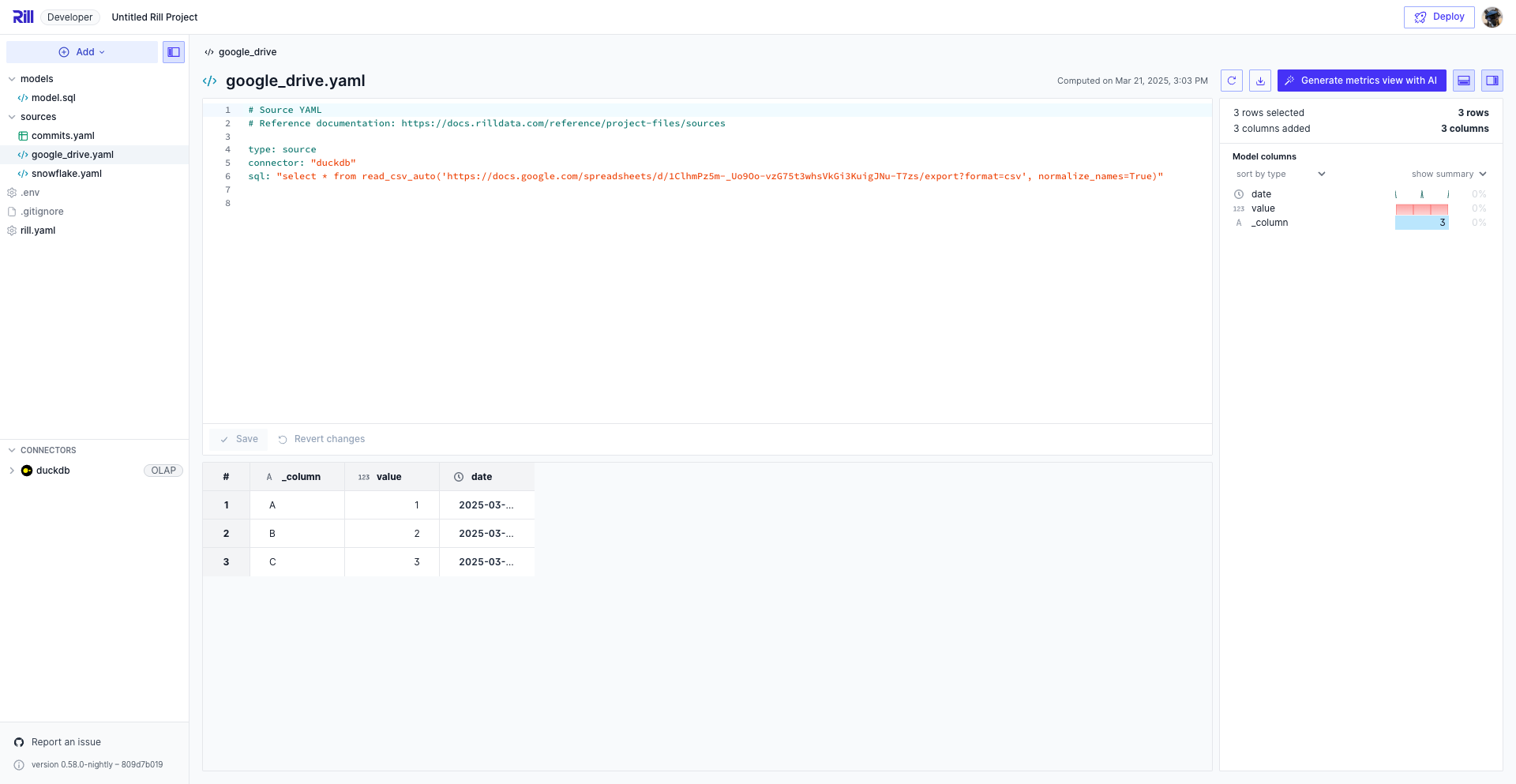
:::tip `gsheets` DuckDB Community Extension
In cases where setting the Google Sheet to `Anyone with the link` is not allowed, DuckDB has an extension that allows you to share the sheet to a Google service account. However, we have not yet implemented the DuckDB community extension in our deployment of DuckDB. Please contact us if you are interested in using this feature.
:::
---
# HTTPS
URL: https://docs.rilldata.com/developers/build/connectors/data-source/https
## Overview
The HTTPS connector allows you to import data from remote sources accessible via HTTP or HTTPS URLs into your Rill project. This includes publicly accessible files hosted on web servers, CDNs, or cloud storage services—perfect for working with datasets that are regularly updated or shared publicly.
## Authentication Methods
To connect to data via HTTPS, you need to choose an authentication approach. Rill supports two methods:
1. **Use Authenticated Endpoints** (for private APIs or protected resources)
2. **Use Public URLs** (for publicly accessible files without authentication)
## Method 1: Authenticated Endpoints (Recommended for Protected Resources)
If your endpoint requires authentication, create an HTTPS connector with your credentials. This method works for both local development and Rill Cloud deployments.
### Using the UI
1. Click **Add Data** in your Rill project
2. Select **HTTPS** as the data source type
3. In the authentication step:
- Configure authentication headers (e.g., Bearer token)
4. In the data model configuration step, enter the full URL to your data
5. Click **Create** to finalize
After the model YAML is generated, you can add additional [model settings](/developers/build/models/source-models) directly to the file.
### Manual Configuration
If you prefer to configure manually:
**Step 1: Create connector configuration**
Create `connectors/https.yaml`:
```yaml
type: connector
driver: https
headers:
Authorization: "Bearer {{ .env.HTTPS_TOKEN }}"
```
**Step 2: Add credentials to `.env`**
```bash
HTTPS_TOKEN=your_api_token_here
```
Then, [create your first model](#create-your-first-model).
## Method 2: Public URLs
For publicly accessible files that don't require authentication, you can use the HTTPS connector directly without credentials.
### Using the UI
1. Click **Add Data** in your Rill project
2. Select **HTTPS** as the data source type
3. In the authentication step, skip or leave authentication blank
4. In the data model configuration step, enter the full public URL
5. Click **Create** to finalize
### Manual Configuration
For public URLs, you can create a simple connector or use the built-in `https` connector:
Create `connectors/public_https.yaml`:
```yaml
type: connector
driver: https
```
Then, [create your first model](#create-your-first-model).
## Create Your First Model
Once your connector is configured using any method above, create a model to define what data to pull.
Create `models/https_data.yaml`:
```yaml
type: model
connector: https
path: https://api.endpoint.com/v1/data/export.csv
```
After creating the model, you can add additional [model settings](/developers/build/models/source-models) directly to the file.
## Supported URL Types
The HTTPS connector supports various remote data sources:
- **Public HTTP/HTTPS URLs**: Direct links to CSV, JSON, Parquet, and other data files
- **Cloud Storage URLs**: Public links to files in Google Cloud Storage, Amazon S3, or other cloud providers
- **API Endpoints**: REST APIs that return data in supported formats
## Separating Dev and Prod Environments
## Deploy to Rill Cloud
## Best Practices
- **Use HTTPS URLs**: Prefer secure HTTPS connections over HTTP when possible
- **Check File Accessibility**: Ensure your URLs are publicly accessible or properly authenticated
- **Monitor File Size**: Large files may take longer to download and process
- **Regular Updates**: Set up automated refreshes for frequently updated datasets
## Reference
For advanced configuration options and properties, see the [Connector YAML Reference](/reference/project-files/connectors#https).
---
# Apache Iceberg
URL: https://docs.rilldata.com/developers/build/connectors/data-source/iceberg
## Overview
[Apache Iceberg](https://iceberg.apache.org/) is an open table format for large analytic datasets. Rill supports reading Iceberg tables directly from object storage through compatible query engine integrations. Today, this is powered by DuckDB's native [Iceberg extension](https://duckdb.org/docs/extensions/iceberg/overview.html).
:::note Direct file access only
Rill reads Iceberg tables by scanning the table's metadata and data files directly from object storage. Catalog-based access (e.g., through a Hive Metastore, AWS Glue, or REST catalog) is not currently supported.
For Amazon S3 table buckets, see [Amazon S3 Tables](/developers/build/connectors/data-source/s3-tables).
:::
## Storage Backends
Iceberg tables can be read from any of the following storage backends:
| Backend | URI format | Authentication |
|---|---|---|
| Amazon S3 | `s3://bucket/path/to/table` | Requires an [S3 connector](/developers/build/connectors/data-source/s3) |
| Google Cloud Storage | `gs://bucket/path/to/table` | Requires a [GCS connector](/developers/build/connectors/data-source/gcs) with HMAC keys |
| Azure Blob Storage | `azure://container/path/to/table` | Requires an [Azure connector](/developers/build/connectors/data-source/azure) |
| Local filesystem | `/path/to/table` | No authentication needed |
For cloud storage backends, you must first configure the corresponding storage connector with valid credentials. Rill uses these credentials to authenticate when reading the Iceberg table files.
## Using the UI
1. Click **Add Data** in your Rill project
2. Select **Apache Iceberg** as the data source type
3. Choose your storage backend (S3, GCS, Azure, or Local)
4. Enter the path to your Iceberg table directory
5. Optionally configure advanced parameters (allow moved paths, snapshot version)
6. Enter a model name and click **Create**
For cloud storage backends, the UI will prompt you to set up the corresponding storage connector if one doesn't already exist.
## Manual Configuration
Create a model that uses DuckDB's `iceberg_scan()` function to read the table.
### Reading from S3
Create `models/iceberg_data.yaml`:
```yaml
type: model
connector: duckdb
create_secrets_from_connectors: s3
materialize: true
sql: |
SELECT *
FROM iceberg_scan('s3://my-bucket/path/to/iceberg_table')
```
### Reading from GCS
:::info HMAC keys required
DuckDB's `iceberg_scan()` authenticates to GCS using HMAC keys, not JSON service account credentials. When configuring your [GCS connector](/developers/build/connectors/data-source/gcs), use the `key_id` and `secret` (HMAC) properties instead of `google_application_credentials`.
:::
```yaml
type: model
connector: duckdb
create_secrets_from_connectors: gcs
materialize: true
sql: |
SELECT *
FROM iceberg_scan('gs://my-bucket/path/to/iceberg_table')
```
### Reading from Azure
```yaml
type: model
connector: duckdb
create_secrets_from_connectors: azure
materialize: true
sql: |
SELECT *
FROM iceberg_scan('azure://my-container/path/to/iceberg_table')
```
### Reading from local filesystem
```yaml
type: model
connector: duckdb
materialize: true
sql: |
SELECT *
FROM iceberg_scan('/path/to/iceberg_table')
```
## Optional Parameters
The `iceberg_scan()` function accepts additional parameters:
| Parameter | Type | Description |
|---|---|---|
| `allow_moved_paths` | boolean | Allow reading tables where data files have been moved from their original location. Defaults to `true` in the UI. |
| `version` | string | Read a specific Iceberg snapshot version instead of the latest. |
Example with optional parameters:
```sql
SELECT *
FROM iceberg_scan('s3://my-bucket/path/to/iceberg_table',
allow_moved_paths = true,
version = '2')
```
## Deploy to Rill Cloud
Since Iceberg tables are read through DuckDB using your existing storage connector credentials, deploying to Rill Cloud follows the same process as the underlying storage connector:
- **S3**: Follow the [S3 deployment guide](/developers/build/connectors/data-source/s3#deploy-to-rill-cloud)
- **GCS**: Follow the [GCS deployment guide](/developers/build/connectors/data-source/gcs#deploy-to-rill-cloud)
- **Azure**: Follow the [Azure deployment guide](/developers/build/connectors/data-source/azure#deploy-to-rill-cloud)
Ensure your storage connector credentials are configured in your Rill Cloud project before deploying.
## Limitations
- **Direct file access only**: Rill reads Iceberg metadata and data files directly from storage. Catalog integrations (Hive Metastore, AWS Glue, REST catalog) are not supported.
- **DuckDB engine**: Iceberg support is currently provided through DuckDB's Iceberg extension. Additional engine support (e.g., ClickHouse) is planned.
- **GCS requires HMAC keys**: DuckDB's `iceberg_scan()` only supports HMAC authentication for GCS, not JSON service account credentials.
- **Read-only**: Rill reads from Iceberg tables but does not write to them.
---
# Kafka
URL: https://docs.rilldata.com/developers/build/connectors/data-source/kafka
:::warning For Customers with Druid/ClickHouse Engines Only
Note: The setup instructions below are for customers using Rill's hosted OLAP solution.
:::
## Setup Instructions
Follow the instructions below to grant Rill access to your Apache Kafka Cluster and the data on a given topic within the cluster. Providing access to a cloud-provided service, such as Confluent Cloud, is easier because all of the connection and security is already taken care of for you. If you are using a self-managed cluster, ensure security and encryption are configured accordingly.
The following scenarios are covered. Apache Kafka is designed to work within almost any enterprise environment, allowing for a variety of unique configurations. Work with your engineering team and Rill Data to ensure your configuration and setup are performant and secure.
* Confluent Cloud
* Private Kafka Cluster
* VPC Kafka Peering
* Public Kafka Cluster
* AWS Kinesis
### Confluent Cloud
Confluent Cloud is inherently secure and accessible. Communication with Confluent Cloud can be set up in a few minutes. The main consideration is to determine the level of accessibility for the credentials you will be using from the Rill platform to access the Confluent Cloud Cluster.
The concepts here apply to other Apache Kafka SaaS offerings, even though the means to access them might be different. Please reach out if you have any questions about integrating with your Apache Kafka SaaS provider.
### Credentials
The first step is to create a security key you can use from Rill Data to access your Kafka cluster. Select a granular access key to reduce exposure. You can use an existing key or an actual account when creating the client API access.
#### Create Key and Secret
Select "+ Add Key" from the "Cloud API Keys" menu option and create a non-admin account. Create a service account unique to accessing data from Rill Data and be sure to download and secure the client key and secret for use from Rill Data Druid Ingestion.
It is recommended to create a unique service account so your access control can be uniquely established for access from Rill Data into your Confluent Cloud Kafka Cluster.
If you fail to download or lose the key/secret, a new key/secret will need to be generated.
#### Create Cluster API Access
Rill Data manages the Kafka topic offset internally, so the Apache Kafka connection only needs topic read access.
The best way to provide Rill access to your cluster is through granular access with the above service account.
Ideally, using a topic-name prefix is preferred, as it minimizes the number of ACL rules you need to create and manage for the API access key/secret.
#### Data Ingestion
The key aspects for Confluent Cloud ingestion are establishing the bootstrap server, customer properties for access, and the topic to consume from.
- Bootstrap servers: *Cluster's Broker and Port*
- Topic: *The Kafka Topic*
- Consumer properties: *At minimum, the properties needed to access the cluster with key/secret*
- Where should the data be sampled from? *Start of stream* or *End of stream*
*See **ioConfig** example shown from a complete ingestion specification for pulling data from Kafka. Insert the **key** and **secret** into the JAAS config.*
```json
"ioConfig": {
"type": "kafka",
"consumerProperties": {
"bootstrap.servers": "{{ CLUSTER_HOSTNAME }}:9092",
"security.protocol": "SASL_SSL",
"sasl.jaas.config": "org.apache.kafka.common.security.plain.PlainLoginModule required username='{{ CLIENT_KEY }}' password='{{ CLIENT_SECRET }}';",
"sasl.mechanism": "PLAIN"
},
"topic": "rilldata-sourcedata",
"inputFormat": {
"type": "json"
},
"useEarliestOffset": true
}
```
### Private Kafka Cluster
When connecting to a private Apache Kafka Cluster, accessibility and security are the most significant configuration areas. Rill Data connects directly to the Kafka Cluster as a Kafka client and will access your cluster as any other consumer client.
* For Apache Kafka to be highly performant, the client API communicates directly to the active Kafka broker for a given partition.
* Configure your cluster so the brokers are each individually accessible from the Rill services.
* Apache Kafka has the server property **advertised.listeners** to ensure that the client has the correct information to communicate with an individual broker.
When configuring your Kafka Cluster, ensure it can be accessed from Rill by establishing a VPC. An example setup is shown via AWS Private Link below. AWS Private Link allows exposure of the Kafka brokers over a Network Load Balancer using VPC Endpoints. The network packets always remain within the AWS Network.
#### AWS Private Link
Kafka **EXTERNAL** advertised listeners should match the DNS name configured.
Network Load Balancer will expose all the brokers with different ports. Each broker can have an incremented port for **EXTERNAL** access, e.g., 9092, 9093, and 9094.
```shell
listener.security.protocol.map=EXTERNAL:PLAINTEXT,PLAINTEXT:PLAINTEXT
advertised.listeners=PLAINTEXT://:9092,EXTERNAL://${PRIVATE_DNS_NAME}:${INCREMENTED_PORT}
## Eg:
# Broker #1
# advertised.listeners=PLAINTEXT://:9092,EXTERNAL://private-kafka.rilldata.com:19092
# Broker #2
# advertised.listeners=PLAINTEXT://:9092,EXTERNAL://private-kafka.rilldata.com:19093
# Broker #3
# advertised.listeners=PLAINTEXT://:9092,EXTERNAL://private-kafka.rilldata.com:19094
```
#### AWS Private Link using CloudFormation
1. Open AWS CloudFormation to create a new Stack.
2. Use the Amazon S3 URL: https://s3.amazonaws.com/cf-templates.rilldata.com/rilldata-private-link.yaml
3. Specify stack details:
* **Stack Name**: `rilldata-privatelink`
* **AccountId**: Rill Data AWS Account ID.
* **NlbArn**: ARN of the Network Load Balancer (Internal) through which we can share the internal Endpoints
4. Click Next, then Next again, acknowledge the capabilities, and create the stack.
5. You can check the events and it should create the resources for you.
6. Share the outputs with Rill Data.
We would be using the following CloudFormation Template.
```yaml title="YAML"
AWSTemplateFormatVersion: 2010-09-09
Metadata:
License: Apache-2.0
Description: 'AWS CloudFormation Template for creating a Private Link for a given Network Load Balancer'
Parameters:
NlbArn:
Type: String
Description: ARN of the Network Load Balancer
Default: arn:aws:elasticloadbalancing:us-east-1:248432388601:loadbalancer/net/kafka-broker/de46ce872b289b14
AccountId:
Type: String
Description: ID of the account to share the private link with.
Default: 417306524257
Resources:
EndpointService:
Type: AWS::EC2::VPCEndpointService
Properties:
AcceptanceRequired: True
NetworkLoadBalancerArns:
- !Ref NlbArn
EndpointServicePermissions:
Type: AWS::EC2::VPCEndpointServicePermissions
Properties:
AllowedPrincipals:
- !Join
- ''
- - 'arn:aws:iam::'
- !Ref AccountId
- ':root'
ServiceId: !Ref EndpointService
Outputs:
PrivateLinkServiceId:
Value: !Ref EndpointService
Description: Service ID of the Private Link
```
### VPC Peering
* Since the cluster is private, setting up SSL may not be needed -- as it would depend on your corporate policies.
* Authentication: create a user to be used for consuming
* Authorization: allow the user to consume from a specific topic
* Do VPC network peering
* Make sure every broker’s advertised endpoint is accessible from a consumer.
* Set up the consumer by storing the user’s credentials into the consumer’s configuration file.
### Public Kafka Cluster
By default, there is no encryption, authentication, or ACLs (access control list) configured. Any client can communicate to Kafka brokers via the PLAINTEXT port.
:::danger Kafka Security
It is critical that access via this port is restricted to trusted clients only. Network segmentation and/or authorization ACLs can be used to restrict access to trusted IPs in such cases.
:::
If neither is used, the cluster is wide open and can be accessed by anyone.
* **Enable SSL encryption**: SSL uses private-key/certificate pairs which are used during the SSL handshake process.
* **Authentication & Authorization**: Create a user to be used for consuming and allow the user to consume from a specific topic.
* Make sure every broker’s advertised endpoint is accessible from a consumer.
* Set up the consumer by adding the broker’s certificate into a trust store and storing the user’s credentials into the consumer’s configuration file.
### AWS Kinesis
We can provide access to the Kinesis stream through an IAM Role which will be assumed by the Rill Data AWS Account to gain access.
:::info Rill Data AWS Account
arn:aws:iam::248432388601:root
:::
#### Using CloudFormation Console
1. Open AWS CloudFormation to create a new Stack.
2. Use the Amazon S3 URL: `https://s3.amazonaws.com/cf-templates.rilldata.com/rilldata-kinesis-access.yaml`
3. Specify Stack Details:
* **Stack Name**: `rilldata-kinesis-access`
* **KinesisARN**: Name of the bucket we want to provide access to.
4. Click Next, then Next again, acknowledge the capabilities, and create the stack.
5. You can check the events and it should create the resources for you.
6. Share the outputs with Rill Data.
##### CloudFormation Template Reference
We would be using the following CloudFormation Template.
```yaml
AWSTemplateFormatVersion: '2010-09-09'
Metadata:
License: Apache-2.0
Description: 'AWS CloudFormation Template for providing Rill Data Access to Kinesis. It creates a
Role that can be assumed by the Rill Data AWS Account. The Role has an IAM policy associated with it.'
Parameters:
KinesisARN:
Type: String
Description: Kinesis Stream ARN
NamePrefix:
Type: String
Description: Name prefix for the IAM Policy and IAM Role.
Default: rilldata
Resources:
KinesisRole:
Type: AWS::IAM::Role
Properties:
Description: 'Rill Data Access to the Kinesis. Managed by: CloudFormation'
AssumeRolePolicyDocument:
Version: '2012-10-17'
Statement:
- Effect: Allow
Principal:
AWS:
- 'arn:aws:iam::248432388601:root'
Action:
- 'sts:AssumeRole'
Policies:
- PolicyName: !Join
- ''
- - !Ref NamePrefix
- 'KinesisAccessPolicy'
PolicyDocument:
Statement:
- Effect: Allow
Action:
- "kinesis:Describe*"
- "kinesis:List*"
- "kinesis:Get*"
Resource:
- !Ref KinesisARN
RoleName: !Join
- '-'
- - !Ref NamePrefix
- kinesis-access
Tags:
- Key: Accessor
Value: RillData
- Key: ManagedBy
Value: CloudFormation
Outputs:
RoleName:
Value: !GetAtt [KinesisRole, Arn]
Description: Kinesis Access Role Arn, to be shared with Rill Data
```
## References
### SSL Encryption
SSL uses private-key/certificate pairs which are used during the SSL handshake process.
* Each broker needs its own private-key/certificate pair, and the client uses the certificate to authenticate the broker.
* Each logical client needs a private-key/certificate pair if client authentication is enabled, and the broker uses the certificate to authenticate the client.
```shell
# Configure the password, truststore, and keystore
# Since this stores passwords directly in the broker configuration file,
# it is important to restrict access to these files via file system permissions.
ssl.truststore.location=/var/ssl/private/kafka.server.truststore.jks
ssl.truststore.password=test1234
ssl.keystore.location=/var/ssl/private/kafka.server.keystore.jks
ssl.keystore.password=test1234
ssl.key.password=test1234
# Enable SSL for inter-broker communication, add the following to the broker properties file (it defaults to PLAINTEXT):
security.inter.broker.protocol=SSL
```
### Authorization
Kafka supports client authentication via SASL. SASL authentication can be enabled concurrently with SSL encryption. The supported SASL mechanisms are:
* GSSAPI (Kerberos)
* OAUTHBEARER
* SCRAM
* PLAIN
* Delegation Tokens
#### JAAS configurations
Kafka uses the Java Authentication and Authorization Service (JAAS) for SASL configuration.
Provide JAAS configurations for all SASL authentication mechanisms. Brokers can configure JAAS by passing a static JAAS configuration file into the JVM using the java.security.auth.login.config property at runtime.
```shell
export KAFKA_OPTS="-Djava.security.auth.login.config=/etc/kafka/kafka_server_jaas.conf"
bin/kafka-server-start etc/kafka/server.properties
```
Brokers can also configure JAAS using the broker configuration property sasl.jaas.config.
Prefix the property name with the listener prefix, including the SASL mechanism, i.e., listener.name.```listenerName```.```saslMechanism``````.sasl.jaas.config.
Specify one login module in the config value. To configure multiple mechanisms on a listener, you must provide a separate config for each mechanism using the listener and mechanism prefix.
```shell
listener.name.sasl_ssl.scram-sha-256.sasl.jaas.config=org.apache.kafka.common.security.scram.ScramLoginModule required \
username="admin" \
password="admin-secret";
listener.name.sasl_ssl.plain.sasl.jaas.config=org.apache.kafka.common.security.plain.PlainLoginModule required \
username="admin" \
password="admin-secret" \
user_admin="admin-secret" \
user_alice="alice-secret";
```
This is the preferred method of configuring JAAS for brokers.
### Authorization using ACLs
Kafka ships with a pluggable, out-of-the-box Authorizer implementation that uses ZooKeeper to store all the ACLs. It is important to set ACLs because otherwise access to resources is limited to super users when an Authorizer is configured. The default behavior is that if a resource has no associated ACLs, then no one is allowed to access the resource, except super users.
#### Broker Configuration
##### Authorizer
To enable ACLs, you must configure an Authorizer. Kafka provides a simple authorizer implementation, and to use it, you can add the following to server.properties:
```
authorizer.class.name=kafka.security.auth.SimpleAclAuthorizer
```
##### Super Users
By default, if no resource patterns match a specific resource, then the resource has no associated ACLs, and therefore no one other than super users are allowed to access the resource. If you want to change that behavior, you can include the following in server.properties:
```
allow.everyone.if.no.acl.found=true
super.users=User:Bob;User:Alice
```
---
# Local File
URL: https://docs.rilldata.com/developers/build/connectors/data-source/local-file
Import data from files stored on your local machine into your Rill project.
## Overview
The Local File connector allows you to import data from CSV, JSON, Parquet, and other supported file formats directly from your local filesystem. This is perfect for working with local datasets, exports, or files you've downloaded.
## Adding a Local File Source
### Option 1: Using the Rill UI
1. In the left navigation pane, click the **"+"** button next to **Sources**
2. Select **"Local File"** from the connector options
3. Navigate to and select your file, or drag and drop it directly onto the Rill interface
### Option 2: Using Code
Create a YAML configuration file in your project's `sources` directory:
```yaml
# Model YAML
# Reference documentation: https://docs.rilldata.com/reference/project-files/models
type: model
materialize: true
connector: duckdb
sql: "select * from read_csv('data/your_file_name.csv', auto_detect=true, ignore_errors=1, header=true)
```
**Important:** When using relative paths, they should be relative to your Rill project root (where `rill.yaml` is located), not the `sources` directory.
## Importing Multiple Files
Use glob patterns to import data from multiple files at once:
```yaml
type: source
connector: local_file
path: /path/to/data/*.csv
```
**Examples:**
- `data/*.csv` - All CSV files in the data directory
- `exports/2024-*.parquet` - All Parquet files from 2024
- `logs/**/*.json` - All JSON files in logs and subdirectories
For detailed glob pattern syntax, refer to the [DuckDB multiple files documentation](https://duckdb.org/docs/stable/data/multiple_files/overview.html).
## Supported File Formats
The Local File connector supports various file formats including:
- CSV
- JSON
- Parquet
:::warning File Size Limits
When ingesting the Data into Rill, you'll notice a new `/data` folder path with a copy of the CSV file. This is designed so that when you publish to Rill Cloud, the file will also be included. Note that there is a 100MB limit to each unique file. Files over 100MB will not be deployed with your project.
:::
---
# MySQL
URL: https://docs.rilldata.com/developers/build/connectors/data-source/mysql
{/* WARNING: There are links to this page in source code. If you move it, find and replace the links and consider adding a redirect in docusaurus.config.js. */}
## Overview
[MySQL](https://dev.mysql.com/doc/refman/8.0/en/introduction.html) is an open-source relational database management system (RDBMS) known for its reliability, performance, and ease of use. It is widely used for a variety of applications, from small to large enterprise projects, supporting structured data storage, retrieval, and management with SQL queries. MySQL offers a comprehensive ecosystem with support for advanced features such as replication, transactions, and full-text indexing, making it a versatile choice for integrating with BI tools. You can connect to and read from MySQL databases directly.
## Authentication Methods
To connect to MySQL, you need to provide database connection credentials. Rill supports connecting via individual parameters (host, port, user, password, database).
### Connection String Format
When connecting to MySQL, you can also specify an appropriate Data Source Name (DSN) using the following syntax:
```bash
://:@:/
```
- **scheme**: The transport protocol to use. Use `mysql` for classic MySQL protocol connections and `mysqlx` for X Protocol connections.
- **user** and **password**: Should correspond to the user credentials that Rill will use to connect to MySQL.
- **host** and **port**: Should correspond to the IP address/hostname and port (default 3306) of your MySQL database.
- **database**: Should correspond to the database in MySQL that you are using.
For more details, see the [MySQL documentation on DSN formats](https://dev.mysql.com/doc/refman/8.4/en/connecting-using-uri-or-key-value-pairs.html#connecting-using-uri).
## Method 1: Connection Credentials
### Using the UI
1. Click **Add Data** in your Rill project
2. Select **MySQL** as the data source type
3. In the authentication step:
- Enter your MySQL host and port
- Enter your database name
- Enter your username and password
- Configure SSL mode if needed
4. In the data model configuration step, enter your SQL query
5. Click **Create** to finalize
After the model YAML is generated, you can add additional [model settings](/developers/build/models/source-models) directly to the file.
### Manual Configuration
If you prefer to configure manually:
**Step 1: Create connector configuration**
Create `connectors/mysql.yaml`:
```yaml
type: connector
driver: mysql
host: "localhost"
port: 3306
database: "mydatabase"
user: "myusername"
password: "{{ .env.MYSQL_PASSWORD }}"
ssl_mode: "DISABLED"
```
**Step 2: Add credentials to `.env`**
```bash
MYSQL_PASSWORD=your-secure-password
```
Then, [create your first model](#create-your-first-model).
## Create Your First Model
Once your connector is configured, create a model to define what data to pull.
Create `models/mysql_data.yaml`:
```yaml
type: model
connector: mysql
dev:
sql: SELECT * FROM my_table limit 10000
sql: SELECT * FROM my_table
```
After creating the model, you can add additional [model settings](/developers/build/models/source-models) directly to the file.
## Separating Dev and Prod Environments
## Deploy to Rill Cloud
---
# PostgreSQL
URL: https://docs.rilldata.com/developers/build/connectors/data-source/postgres
{/* WARNING: There are links to this page in source code. If you move it, find and replace the links and consider adding a redirect in docusaurus.config.js. */}
## Overview
[PostgreSQL](https://www.postgresql.org/docs/current/intro-whatis.html) is an open-source object-relational database system known for its reliability, feature robustness, and performance. With support for advanced data types, full ACID compliance for transactional integrity, and an extensible architecture, PostgreSQL provides a highly scalable environment for managing diverse datasets, ranging from small applications to large-scale data warehouses. Its extensive SQL compliance, support for various programming languages, and strong community backing make it a versatile choice for a wide range of business intelligence and analytical applications. You can connect to and read from PostgreSQL databases using either a [supported connection string](https://www.postgresql.org/docs/current/libpq-connect.html#LIBPQ-CONNSTRING) or [connection URI syntax](https://www.postgresql.org/docs/current/libpq-connect.html#LIBPQ-CONNSTRING-URIS).
## Authentication Methods
To connect to PostgreSQL, you need to provide database connection credentials. Rill supports two approaches:
1. **Use Individual Parameters** (recommended for clarity)
2. **Use Connection String/URI** (alternative format)
## Method 1: Individual Parameters (Recommended)
Using individual parameters provides clear, readable configuration for your PostgreSQL connection.
### Using the UI
1. Click **Add Data** in your Rill project
2. Select **PostgreSQL** as the data source type
3. In the authentication step:
- Enter your host (e.g., `localhost` or your database server address)
- Enter the port (default: `5432`)
- Enter your database name
- Enter your username
- Enter your password
4. In the data model configuration step, enter your SQL query
5. Click **Create** to finalize
After the model YAML is generated, you can add additional [model settings](/developers/build/models/source-models) directly to the file.
### Manual Configuration
If you prefer to configure manually:
**Step 1: Create connector configuration**
Create `connectors/postgres.yaml`:
```yaml
type: connector
driver: postgres
host: "localhost"
port: "5432"
user: "postgres"
password: "{{ .env.POSTGRES_PASSWORD }}"
dbname: "my_database"
```
**Step 2: Add credentials to `.env`**
```bash
POSTGRES_PASSWORD=your_password_here
```
Then, [create your first model](#create-your-first-model).
## Method 2: Connection String/URI
You can also use a connection string or URI format to configure your PostgreSQL connection.
### Connection String Format
```bash
host=localhost port=5432 dbname=postgres_db user=postgres_user password=postgres_pass
```
### Connection URI Format
```bash
postgresql://postgres_user:postgres_pass@localhost:5432/postgres_db
```
### Manual Configuration
**Step 1: Create connector configuration**
Create `connectors/postgres.yaml`:
```yaml
type: connector
driver: postgres
dsn: "{{ .env.POSTGRES_DSN }}"
```
**Step 2: Add credentials to `.env`**
```bash
POSTGRES_DSN=postgresql://postgres_user:postgres_pass@localhost:5432/postgres_db
```
Then, [create your first model](#create-your-first-model).
## Create Your First Model
Once your connector is configured using any method above, create a model to define what data to pull.
Create `models/postgres_data.yaml`:
```yaml
type: model
connector: postgres
dev:
sql: SELECT * FROM my_table limit 10000
sql: SELECT * FROM my_table
```
After creating the model, you can add additional [model settings](/developers/build/models/source-models) directly to the file.
## Separating Dev and Prod Environments
## Deploy to Rill Cloud
---
# Amazon Redshift
URL: https://docs.rilldata.com/developers/build/connectors/data-source/redshift
{/* WARNING: There are links to this page in source code. If you move it, find and replace the links and consider adding a redirect in docusaurus.config.js. */}
## Overview
[Amazon Redshift](https://docs.aws.amazon.com/redshift/) is a fully managed, petabyte-scale data warehouse service in the cloud, offering fast query and I/O performance for data analysis applications. It enables users to run complex analytical queries against structured data using SQL, ETL processes, and BI tools, leveraging massively parallel processing (MPP) to efficiently handle large volumes of data. Redshift's architecture is designed for high performance on large datasets, supporting data warehousing and analytics of all sizes, making it a pivotal component in a modern data-driven decision-making ecosystem. By leveraging the AWS SDK for Go and utilizing intermediary Parquet files in S3 (to ensure performance), you can connect to and read from Redshift data warehouses.
## Authentication Methods
To connect to Amazon Redshift, you need to provide authentication credentials. Rill supports two methods:
1. **Use Access Key/Secret Key** (recommended for production)
2. **Use Local AWS credentials** (local development only - not recommended for production)
## Method 1: Access Key and Secret Key (Recommended)
Access Key and Secret Key credentials provide the most reliable authentication for Redshift. This method works for both local development and Rill Cloud deployments.
### Using the UI
1. Click **Add Data** in your Rill project
2. Select **Amazon Redshift** as the data source type
3. In the authentication step:
- Enter your AWS Access Key ID
- Enter your AWS Secret Access Key
- Specify your database name
- Specify the workgroup (for Serverless) or cluster identifier
4. In the data model configuration step, enter your SQL query
5. Click **Create** to finalize
After the model YAML is generated, you can add additional [model settings](/developers/build/models/source-models) directly to the file.
### Manual Configuration
If you prefer to configure manually:
**Step 1: Create connector configuration**
Create `connectors/redshift.yaml`:
```yaml
type: connector
driver: redshift
aws_access_key_id: "{{ .env.AWS_ACCESS_KEY_ID }}"
aws_secret_access_key: "{{ .env.AWS_SECRET_ACCESS_KEY }}"
database: "dev"
```
**Step 2: Add credentials to `.env`**
```bash
AWS_ACCESS_KEY_ID=AKIAIOSFODNN7EXAMPLE
AWS_SECRET_ACCESS_KEY=wJalrXUtnFEMI/K7MDENG/bPxRfiCYEXAMPLEKEY
```
Then, [create your first model](#create-your-first-model).
## Method 2: Local AWS Credentials
For local development, you can use credentials from the AWS CLI. This method is **not suitable for production** or Rill Cloud deployments.
:::warning Not recommended for production
Local AWS credentials only work for local development. If you deploy to Rill Cloud using this method, your dashboards will fail. Always use Access Key/Secret Key for production deployments.
:::
### Setup
1. Install the [AWS CLI](https://docs.aws.amazon.com/cli/latest/userguide/getting-started-install.html) if not already installed
2. Authenticate with your AWS account:
- If your organization has SSO configured, reach out to your admin for instructions on how to authenticate using `aws sso login`
- Otherwise, run `aws configure` and provide your access key, secret, and default region
3. Verify your authentication:
```bash
aws iam get-user --no-cli-pager
```
### Manual Configuration
Create `connectors/redshift.yaml`:
```yaml
type: connector
driver: redshift
database: "dev"
```
When no explicit credentials are provided in the connector, Rill will automatically use your local AWS CLI credentials. Then, [create your first model](#create-your-first-model).
## Create Your First Model
Once your connector is configured using any method above, create a model to define what data to pull.
Create `models/redshift_data.yaml`:
```yaml
type: model
connector: redshift
dev:
sql: SELECT * FROM my_schema.my_table limit 10000
sql: SELECT * FROM my_schema.my_table
```
After creating the model, you can add additional [model settings](/developers/build/models/source-models) directly to the file.
## Separating Dev and Prod Environments
## Deploy to Rill Cloud
## Appendix
:::warning Check your service account permissions
Your account or service account will need to have the **appropriate permissions** necessary to perform these requests.
:::
### Redshift Serverless Permissions
When using **Redshift Serverless**, make sure to associate an [IAM role (that has S3 access)](https://docs.aws.amazon.com/redshift/latest/mgmt/serverless-iam.html) with the Serverless namespace or the Redshift cluster.
:::info What happens when Rill is reading from Redshift Serverless?
Our Redshift connector will place temporary files in Parquet format in S3 to help accelerate the extraction process (maximizing performance). To provide more details, the Redshift connector will execute the following queries/requests while ingesting data from Redshift:
1. Redshift Serverless: [`GetCredentials`](https://docs.aws.amazon.com/redshift-data/latest/APIReference/API_ExecuteStatement.html) if you are using a _Workgroup_ name to connect.
2. Redshift Data API: [`DescribeStatement`, `ExecuteStatement`](https://docs.aws.amazon.com/redshift-data/latest/APIReference/API_ExecuteStatement.html) to unload data to S3.
3. S3: [`ListObjects`](https://docs.aws.amazon.com/AmazonS3/latest/API/API_ListObjects.html) to identify files unloaded by Redshift.
4. S3: [`GetObject`](https://docs.aws.amazon.com/AmazonS3/latest/API/API_GetObject.html) to ingest files unloaded by Redshift.
:::
### Redshift Cluster Permissions
Similarly, when using **Redshift Cluster**, make sure to associate an [IAM role (that has S3 access)](https://docs.aws.amazon.com/redshift/latest/mgmt/redshift-iam-authentication-access-control.html) with the appropriate Redshift cluster.
:::info What happens when Rill is reading from a Redshift Cluster?
Our Redshift connector will place temporary files in Parquet format in S3 to help accelerate the extraction process (maximizing performance). To provide more details, the Redshift connector will execute the following queries/requests while ingesting data from Redshift:
1. Redshift: [`GetClusterCredentialsWithIAM`](https://docs.aws.amazon.com/redshift-data/latest/APIReference/API_ExecuteStatement.html) if you are using a _Cluster Identifier_ to connect.
2. Redshift Data API: [`DescribeStatement`, `ExecuteStatement`](https://docs.aws.amazon.com/redshift-data/latest/APIReference/API_ExecuteStatement.html) to unload data to S3.
3. S3: [`ListObjects`](https://docs.aws.amazon.com/AmazonS3/latest/API/API_ListObjects.html) to identify files unloaded by Redshift.
4. S3: [`GetObject`](https://docs.aws.amazon.com/AmazonS3/latest/API/API_GetObject.html) to ingest files unloaded by Redshift.
:::
### How to Create an AWS Service Account
For detailed instructions on creating an AWS service account with the appropriate permissions, see the [S3 connector documentation](./s3#how-to-create-an-aws-service-account-using-the-aws-management-console).
---
# Amazon S3
URL: https://docs.rilldata.com/developers/build/connectors/data-source/s3
{/* WARNING: There are links to this page in source code. If you move it, find and replace the links and consider adding a redirect in docusaurus.config.js. */}
## Overview
[Amazon S3](https://docs.aws.amazon.com/AmazonS3/latest/userguide/Welcome.html) is a scalable, fully managed, and highly reliable object storage solution offered by AWS, designed to store and access data from anywhere in the world. It provides a secure and cost-effective way to store data, including common storage formats such as CSV and Parquet. Rill natively supports connecting to S3 using the provided [S3 URI](https://repost.aws/questions/QUFXlwQxxJQQyg9PMn2b6nTg/what-is-s3-uri-in-simple-storage-service) of your bucket to retrieve and read files.
## Authentication Methods
To connect to Amazon S3, you can choose from four authentication options:
1. **Access Key/Secret Key** (recommended for cloud deployment)
2. **IAM Role Assumption** (enhanced security with temporary credentials)
3. **Public** (for publicly accessible buckets - no authentication required)
4. **Local AWS credentials** (local development only - not recommended for production)
:::info S3-Compatible Storage
You can also connect to S3-compatible storage services by specifying a custom endpoint in your connector configuration.
:::
When you add data from S3 through the Rill UI, you'll see two authentication options:
- **Access Key/Secret Key**: The process follows two steps:
1. **Configure Authentication** - Set up your S3 connector with credentials
2. **Configure Data Model** - Define which bucket and objects to ingest
The UI will automatically create both the connector file and model file for you.
- **Public**: For publicly accessible buckets, you skip the connector creation step and go directly to:
1. **Configure Data Model** - Define which bucket and objects to ingest
The UI will only create the model file (no connector file is needed).
:::note Manual Configuration Only
IAM Role Assumption and Local AWS credentials are only available through manual configuration. See [Method 2: IAM Role Assumption](#method-2-iam-role-assumption) and [Method 4: Local AWS Credentials](#method-4-local-aws-credentials-local-development-only) for setup instructions.
:::
## Method 1: Access Key/Secret Key (Recommended)
Access Key/Secret Key credentials provide reliable authentication for S3. This method works for both local development and Rill Cloud deployments.
### Using the UI
1. Click **Add Data** in your Rill project
2. Select **Amazon S3** as the data model type
3. In the authentication step:
- Choose **Access Key/Secret Key**
- Enter your Access Key ID
- Enter your Secret Access Key
4. In the data model configuration step, enter your SQL query
5. Click **Create** to finalize
After the model YAML is generated, you can add additional [model settings](/developers/build/models/source-models) directly to the file.
### Manual Configuration
If you prefer to configure manually:
**Step 1: Create connector configuration**
Create `connectors/s3.yaml`:
```yaml
type: connector
driver: s3
aws_access_key_id: "{{ .env.AWS_ACCESS_KEY_ID }}"
aws_secret_access_key: "{{ .env.AWS_SECRET_ACCESS_KEY }}"
```
**Step 2: Add credentials to `.env`**
```bash
AWS_ACCESS_KEY_ID=your_access_key_id
AWS_SECRET_ACCESS_KEY=your_secret_access_key
```
Then, [create your first model](#create-your-first-model).
## Method 2: IAM Role Assumption
Rill supports AWS IAM role assumption for enhanced security. This method allows Rill to temporarily assume an IAM role to access S3 resources. This method is only available through manual configuration.
### Benefits of Using IAM Roles
- **Temporary Credentials**: No need to manage long-lived access keys.
- **Enhanced Security**: Follows the principle of least privilege.
- **Cross-Account Access**: Access S3 resources in different AWS accounts.
- **Centralized Control**: Manage permissions through IAM roles and policies.
### Manual Configuration
**Step 1: Create connector configuration**
Create `connectors/s3_role.yaml`:
```yaml
type: connector
driver: s3
aws_role_arn: "{{ .env.AWS_ROLE_ARN }}"
aws_external_id: "{{ .env.AWS_EXTERNAL_ID }}"
```
**Step 2: Add credentials to `.env`**
```bash
AWS_ROLE_ARN=arn:aws:iam::123456789012:role/RillDataAccess
AWS_EXTERNAL_ID=your_external_id
```
Then, [create your first model](#create-your-first-model).
## Method 3: Public Buckets
For publicly accessible S3 buckets, you don't need to create a connector. Simply use the S3 URI directly in your model configuration.
### Using the UI
1. Click **Add Data** in your Rill project
2. Select **Amazon S3** as the data model type
3. In the authentication step:
- Choose **Public**
- The UI will skip connector creation and proceed directly to data model configuration
4. In the data model configuration step, enter your SQL query
5. Click **Create** to finalize
After the model YAML is generated, you can add additional [model settings](/developers/build/models/source-models) directly to the file.
### Manual Configuration
No connector configuration is needed for public buckets. Proceed to [Create Your First Model](#create-your-first-model) below and omit the `create_secrets_from_connectors` line.
:::warning Public Access Only
This method only works with publicly accessible buckets. Most production S3 buckets are private and require authentication.
:::
## Method 4: Local AWS Credentials (Local Development Only)
For local development, you can use credentials from the AWS CLI. This method is **not suitable for production** or Rill Cloud deployments. This method is only available through manual configuration, and you don't need to create a connector file.
### Setup
1. Install the [AWS CLI](https://docs.aws.amazon.com/cli/latest/userguide/getting-started-install.html) if not already installed
2. Authenticate with your AWS account:
- If your organization has SSO configured, reach out to your admin for instructions on how to authenticate using `aws sso login`
- If your organization does not have SSO configured, follow the steps described under [How to create an AWS service account using the AWS Management Console](#how-to-create-an-aws-service-account-using-the-aws-management-console), then run `aws configure`
3. Create your model file (no connector needed)
### Manual Configuration
No connector is needed when using local credentials. Proceed to [Create Your First Model](#create-your-first-model) below and omit the `create_secrets_from_connectors` line.
Rill will automatically detect and use your local AWS CLI credentials when no connector is specified.
:::warning
This method only works for local development. Deploying to Rill Cloud with this configuration will fail because the cloud environment doesn't have access to your local credentials. Always use Access Key/Secret Key or IAM Role Assumption for production deployments.
:::
### Path Patterns
You can use wildcards to read multiple files:
```sql
-- Single file
SELECT * FROM read_parquet('s3://my-bucket/data/file.parquet')
-- All files in a directory
SELECT * FROM read_parquet('s3://my-bucket/data/*.parquet')
-- All files in nested directories
SELECT * FROM read_parquet('s3://my-bucket/data/**/*.parquet')
-- Files matching a pattern
SELECT * FROM read_parquet('s3://my-bucket/data/2024-*.parquet')
```
## Create Your First Model
After setting up your authentication above, create a model to define what data to pull.
Create `models/s3_data.yaml`:
```yaml
type: model
connector: duckdb
create_secrets_from_connectors: s3
dev:
sql: SELECT * FROM read_parquet('s3://my-bucket/path/to/data/*.parquet')
sql: SELECT * FROM read_parquet('s3://my-bucket/**/*.parquet')
```
- Replace `s3` in `create_secrets_from_connectors` with the name of the connector you created.
- If you're using a public bucket or local credentials (no connector), omit the `create_secrets_from_connectors` line.
After creating the model, you can add additional [model settings](/developers/build/models/source-models) directly to the file.
## Deploy to Rill Cloud
## Appendix
### How to create an AWS service account using the AWS Management Console
Here is a step-by-step guide on how to create an AWS service account with read-only access to S3:
1. Log in to the AWS Management Console and navigate to the [IAM dashboard](https://console.aws.amazon.com/iam).
2. In the sidebar, select "Users" and click the "Add users" button.
3. Enter a username for the service account and click "Next".
4. Select "Attach policies directly" and grant the service account read access to data in S3:
- To grant access to data in all buckets, search for the "AmazonS3ReadOnlyAccess" policy. Check the box next to the policy to select it.
- To only grant access to data in a specific bucket, follow these steps:
1. Click the "Create policy" button in the top right corner of the "Permissions policies" box.
2. Select the "JSON" tab in the top right corner of the "Policy editor".
3. Paste the following policy and replace `[BUCKET_NAME]` with the name of your bucket:
```json
{
"Version": "2012-10-17",
"Statement": [
{
"Effect": "Allow",
"Action": [
"s3:GetObject",
"s3:ListBucket"
],
"Resource": [
"arn:aws:s3:::[BUCKET_NAME]",
"arn:aws:s3:::[BUCKET_NAME]/*"
]
}
]
}
```
4. Click "Next".
5. Give the policy a name and click "Create policy".
6. Go back to the service account creation flow. Click the refresh button next to the "Create policy" button.
7. Search for the policy you just created. Check the box next to the policy to select it.
5. After attaching a policy, click "Next". Then, under "Set permissions boundaries and tags", click the "Create user" button.
6. On the "Users" page, navigate to the newly created user and go to the "Security credentials" tab.
7. Under the "Access keys" section, click "Create access key".
8. On the "Access key best practices & alternatives" screen, select "Third-party service", confirm the checkbox, and click "Next".
9. On the "Set description tag" screen, optionally enter a description, and click "Create access key".
10. Note down the "Access key" and "Secret access key" values for the service account. (Hint: Click the ❐ icon next to the secrets to copy them to the clipboard.)
### How to create an AWS service account using the `aws` CLI
Here is a step-by-step guide on how to create an AWS service account with read-only access to S3 using the AWS CLI:
1. Open a terminal window and [install the AWS CLI](https://docs.aws.amazon.com/cli/latest/userguide/getting-started-install.html) if it is not already installed on your system.
2. Run the following command to create a new user (optionally replace `rill-service-account` with a name of your choice):
```bash
aws iam create-user --no-cli-pager --user-name rill-service-account
```
3. Grant the user read access to data in S3:
- To grant access to data in all buckets, run the following command:
```bash
aws iam attach-user-policy \
--policy-arn arn:aws:iam::aws:policy/AmazonS3ReadOnlyAccess \
--user-name rill-service-account
```
- To only grant access to data in a specific bucket:
1. Create a custom policy by running the following command, replacing `[POLICY_NAME]` with a custom name and `[BUCKET_NAME]` with the bucket name:
```bash
aws iam create-policy \
--policy-name [POLICY_NAME] \
--policy-document \
'{
"Version": "2012-10-17",
"Statement": [
{
"Effect": "Allow",
"Action": [
"s3:GetObject",
"s3:ListBucket"
],
"Resource": [
"arn:aws:s3:::[BUCKET_NAME]",
"arn:aws:s3:::[BUCKET_NAME]/*"
]
}
]
}'
```
2. Attach the custom policy to the user by running the following command, replacing `[POLICY_NAME]` with the custom name set in the previous step:
```bash
aws iam attach-user-policy \
--policy-arn arn:aws:iam::aws:policy/[POLICY_NAME] \
--user-name rill-service-account
```
4. Run the following command to create an access key pair for the user:
```bash
aws iam create-access-key --user-name rill-service-account
```
5. Note down the `AccessKeyId` and `SecretAccessKey` values in the returned JSON object. Press "q" to exit the page.
### How to create an IAM role for cross-account access with Rill-provided AWS account
To set up an IAM role that grants Rill's AWS account access to your S3 buckets:
1. Log in to the AWS Management Console of your account that owns the S3 bucket (your resource account).
2. Navigate to the [IAM dashboard](https://console.aws.amazon.com/iam).
3. In the sidebar, select "Roles" and click the "Create role" button.
4. For trust relationship, select "AWS account" and choose "Another AWS account".
5. Enter Rill's AWS account ID that was provided to you by your Rill representative.
6. Select "Require external ID" and enter the External ID provided by Rill. This helps prevent the confused deputy problem.
7. Click "Next: Permissions".
8. Attach policies that grant the necessary S3 access permissions:
- For read-only access to all buckets, select "AmazonS3ReadOnlyAccess"
- For more restricted access, create a custom policy similar to the one described in the previous sections, limiting access to specific buckets.
9. Click "Next: Tags", add optional tags if desired, and then click "Next: Review".
10. Give the role a descriptive name (e.g., "RillDataAccess") and an optional description.
11. Click "Create role".
12. After creating the role, click on it to view its details.
13. Note the "Role ARN" value which looks like: `arn:aws:iam::123456789012:role/RillDataAccess`
14. Share this Role ARN with your Rill representative to complete the setup. Rill will configure their systems to assume this role when accessing your data.
---
# Amazon S3 Tables
URL: https://docs.rilldata.com/developers/build/connectors/data-source/s3-tables
## Overview
[Amazon S3 Tables](https://docs.aws.amazon.com/AmazonS3/latest/userguide/s3-tables.html) store tabular data in [Apache Iceberg](/developers/build/connectors/data-source/iceberg) format inside S3 table buckets, with a built-in Iceberg REST catalog. Rill reads S3 Tables through DuckDB's [Iceberg extension](https://duckdb.org/docs/extensions/iceberg/amazon_s3_tables.html) by attaching the table bucket as a catalog.
:::note Use the catalog, not `iceberg_scan()`
S3 table buckets do not write a `version-hint` file and do not allow listing objects, so `iceberg_scan()` only works when given the exact path of the current `metadata.json` file. That path changes on every write, and S3 Tables maintenance eventually deletes old metadata. Attaching the table bucket always reads the latest snapshot.
:::
## Prerequisites
- The ARN of your table bucket, e.g. `arn:aws:s3tables:us-east-1:123456789012:bucket/my-table-bucket`.
- AWS credentials with read access to the table bucket:
```json
{
"Version": "2012-10-17",
"Statement": [{
"Effect": "Allow",
"Action": [
"s3tables:GetTableBucket",
"s3tables:ListNamespaces",
"s3tables:GetNamespace",
"s3tables:ListTables",
"s3tables:GetTable",
"s3tables:GetTableMetadataLocation",
"s3tables:GetTableData"
],
"Resource": [
"arn:aws:s3tables:us-east-1:123456789012:bucket/my-table-bucket",
"arn:aws:s3tables:us-east-1:123456789012:bucket/my-table-bucket/table/*"
]
}]
}
```
## Manual Configuration
Create an [S3 connector](/developers/build/connectors/data-source/s3) in `connectors/s3.yaml`, setting `region` to the table bucket's region:
```yaml
type: connector
driver: s3
aws_access_key_id: '{{ .env.aws_access_key_id }}'
aws_secret_access_key: '{{ .env.aws_secret_access_key }}'
region: us-east-1
```
Then create a model that attaches the table bucket in `pre_exec` and selects from a table using `..
`. `create_secrets_from_connectors` creates a DuckDB secret from the S3 connector before `pre_exec` runs.
Create `models/s3tables_orders.yaml`:
```yaml
type: model
connector: duckdb
materialize: true
create_secrets_from_connectors: s3
pre_exec: |
INSTALL aws; LOAD aws; INSTALL iceberg; LOAD iceberg;
ATTACH OR REPLACE 'arn:aws:s3tables:us-east-1:123456789012:bucket/my-table-bucket' AS s3t (
TYPE iceberg,
ENDPOINT_TYPE s3_tables
)
sql: SELECT * FROM s3t.my_namespace.orders
```
Finally, add the credentials to your project's `.env` file:
```bash
aws_access_key_id=...
aws_secret_access_key=...
```
## Deploy to Rill Cloud
Push the credentials in your `.env` file to your Rill Cloud project:
```bash
rill env push
```
## Limitations
- **DuckDB engine**: S3 Tables support is provided through DuckDB's Iceberg extension.
- **Read-only**: Rill reads from S3 Tables but does not write to them.
---
# Salesforce
URL: https://docs.rilldata.com/developers/build/connectors/data-source/salesforce
## Overview
[Salesforce](https://www.salesforce.com/) is a leading cloud-based Customer Relationship Management (CRM) platform designed to help businesses connect with and understand their customers better. It offers a comprehensive suite of applications focused on sales, customer service, marketing automation, analytics, and application development. Salesforce enables organizations of all sizes to build stronger relationships with their customers through personalized experiences, streamlined communication, and predictive insights. Rill can ingest data from Salesforce as a source by utilizing the Bulk API, which requires a Salesforce username and password (and, in some cases, a token, depending on the org configuration) to authenticate against a Salesforce org.
## Local credentials
When using Rill Developer on your local machine, you will need to provide your credentials via a connector file. We would recommend not using plain text to create your file and instead use the `.env` file. For more details on your connector, see [connector YAML](/reference/project-files/connectors) for more details.
:::tip Updating the project environmental variable
If you've already deployed to Rill Cloud, you can either [push/pull the credential]( /guide/administration/project-settings/variables-and-credentials#pushing-and-pulling-credentials-to--from-rill-cloud-via-the-cli) from the CLI with:
```
rill env push
rill env pull
```
:::
Alternatively, you can include the credentials directly in the underlying source YAML by adding the `username` and `password` parameters. For example, your source YAML may contain the following properties (these can also be configured through the UI during source creation):
```yaml
type: "model"
connector: "salesforce"
endpoint: "login.salesforce.com"
username: "user@example.com"
password: "MyPasswordMyToken"
soql: "SELECT Id, Name, CreatedDate FROM Opportunity"
sobject: "Opportunity"
```
:::tip Did you know?
If this project has already been deployed to Rill Cloud and credentials have been set for this source, you can use `rill env pull` to [pull these cloud credentials](/developers/build/connectors/credentials/#rill-env-pull) locally (into your local `.env` file). Please note that this may override any credentials you have set locally for this source.
:::
## Deploy to Rill Cloud
When deploying a project to Rill Cloud, Rill requires you to explicitly provide Salesforce credentials used in your project. Please refer to our [connector YAML reference docs](/reference/project-files/connectors) for more information.
If you subsequently add sources that require new credentials (or if you simply entered the wrong credentials during the initial deploy), you can update the credentials by pushing the `Deploy` button to update your project or by running the following command in the CLI:
```
rill env push
```
:::note
Leave the `key` and `client_id` fields blank unless you are using JWT (described in the next section [below](#jwt)).
:::
### JWT
Authentication using JWT instead of a password is also supported. Set `client_id` to the **Client Id** (also known as the _Consumer Key_) of the Connected App to use, and set `key` to contain the PEM-formatted private key to use for signing.
---
# Snowflake (Data Source)
URL: https://docs.rilldata.com/developers/build/connectors/data-source/snowflake
{/* WARNING: There are links to this page in source code. If you move it, find and replace the links and consider adding a redirect in docusaurus.config.js. */}
:::info Deprecation of password authentication
Snowflake has issued a [deprecation notice](https://www.snowflake.com/en/blog/blocking-single-factor-password-authentification/) for single-factor password authentication. Rill supports and recommends using private key authentication to avoid any disruption of your service.
:::
## Overview
[Snowflake](https://docs.snowflake.com/en/user-guide-intro) is a cloud-based data platform designed to facilitate data warehousing, data lakes, data engineering, data science, data application development, and data sharing. It separates compute and storage, enabling users to scale up or down instantly without downtime, providing a cost-effective solution for data management. With its unique architecture and support for multi-cloud environments, including AWS, Azure, and Google Cloud Platform, Snowflake offers seamless data integration, secure data sharing across organizations, and real-time access to data insights, making it a common choice to power many business intelligence applications and use cases. You can connect to and read from Snowflake data warehouses using the [Go Snowflake Driver](https://pkg.go.dev/github.com/snowflakedb/gosnowflake).
## Authentication Methods
To connect to Snowflake, you need to provide authentication credentials. Rill supports two methods:
1. **Use Keypair Authentication** (recommended - required for production)
2. **Use Password Authentication** (deprecated by Snowflake)
## Method 1: Keypair Authentication (Recommended)
Keypair authentication provides enhanced security and is the recommended method for connecting to Snowflake. This method works for both local development and Rill Cloud deployments.
### Connection String Format
Use the following syntax when defining a connection string using a private key:
```sql
@//?warehouse=&role=&authenticator=SNOWFLAKE_JWT&privateKey=
```
See the [Appendix](#using-keypair-authentication) for detailed instructions on generating and formatting your private key.
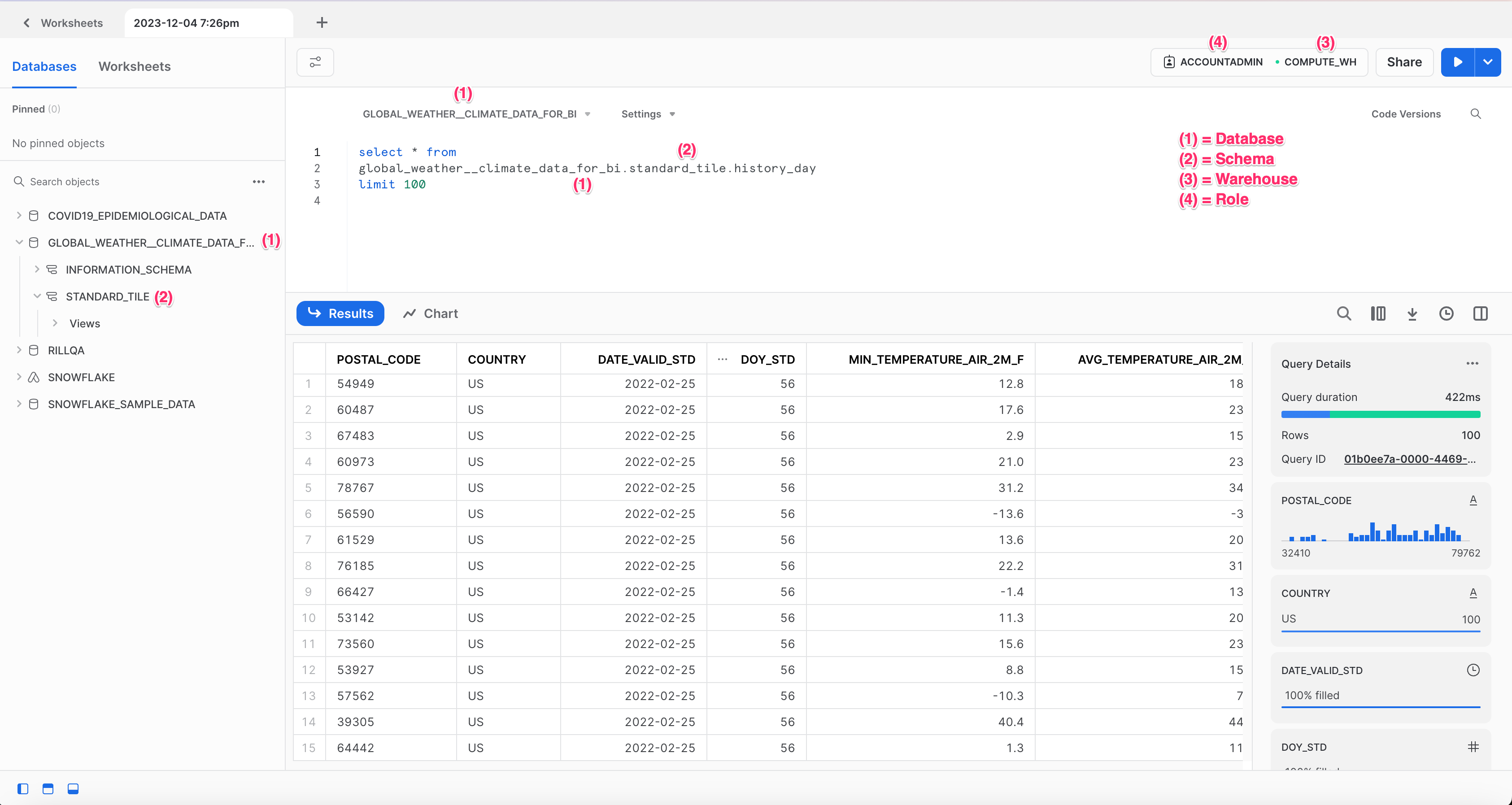
:::info Finding the Snowflake account identifier
To determine your [Snowflake account identifier](https://docs.snowflake.com/en/user-guide/admin-account-identifier), one easy way is to check your Snowflake account URL. The account identifier to use in your connection string should be everything before `.snowflakecomputing.com`!
:::
### Using the UI
1. Click **Add Data** in your Rill project
2. Select **Snowflake** as the data source type
3. In the authentication step:
- Enter your connection string with keypair authentication
4. In the data model configuration step, enter your SQL query
5. Click **Create** to finalize
After the model YAML is generated, you can add additional [model settings](/developers/build/models/source-models) directly to the file.
### Manual Configuration
If you prefer to configure manually:
**Step 1: Create connector configuration**
Create `connectors/snowflake.yaml`:
```yaml
type: connector
driver: snowflake
dsn: "{{ .env.SNOWFLAKE_DSN }}"
```
**Step 2: Add credentials to `.env`**
```bash
SNOWFLAKE_DSN=myuser@myaccount/mydb/myschema?warehouse=mywh&role=myrole&authenticator=SNOWFLAKE_JWT&privateKey=
```
Then, [create your first model](#create-your-first-model).
## Method 2: Password Authentication (Deprecated)
:::warning Deprecated by Snowflake
Snowflake has deprecated single-factor password authentication. This method may stop working in the future. We strongly recommend migrating to keypair authentication.
:::
### Connection String Format
```sql
:@//?warehouse=&role=
```
### Manual Configuration
Create `connectors/snowflake.yaml`:
```yaml
type: connector
driver: snowflake
dsn: "{{ .env.SNOWFLAKE_DSN }}"
```
Add credentials to `.env`:
```bash
SNOWFLAKE_DSN=myuser:mypassword@myaccount/mydb/myschema?warehouse=mywh&role=myrole
```
Then, [create your first model](#create-your-first-model).
## Create Your First Model
Once your connector is configured using any method above, create a model to define what data to pull.
Create `models/snowflake_data.yaml`:
```yaml
type: model
connector: snowflake
dev:
sql: SELECT * FROM my_database.schema.my_table limit 10000
sql: SELECT * FROM my_database.schema.my_table
```
After creating the model, you can add additional [model settings](/developers/build/models/source-models) directly to the file.
## Separating Dev and Prod Environments
## Deploy to Rill Cloud
## Appendix
### Using Keypair Authentication
You can use keypair authentication for enhanced security when connecting to Snowflake as an alternative to password-based authentication, which Snowflake has deprecated. Per the [Snowflake Go Driver](https://github.com/snowflakedb/gosnowflake) specifications, this requires the following changes to the dsn:
- Remove the password
- Add `authenticator=SNOWFLAKE_JWT`
- Add `privateKey=`
```sql
@//?warehouse=&role=&authenticator=SNOWFLAKE_JWT&privateKey=
```
#### Generate a Private Key
Please refer to the [Snowflake documentation](https://docs.snowflake.com/en/guide/key-pair-auth) on how to configure an unencrypted private key to use in Rill.
The Snowflake Go Driver only supports **unencrypted PKCS#8 keys**. Make sure to include the `-nocrypt` flag, as encrypted keys are not supported. You can generate one using:
```bash
# Generate a 2048-bit unencrypted PKCS#8 private key
openssl genrsa 2048 | openssl pkcs8 -topk8 -inform PEM -out rsa_key.p8 -nocrypt
```
#### Convert the Private Key to a URL-Safe Format for the DSN
After generating the private key, you need to convert it into a URL-safe Base64 format for use in the Snowflake DSN. Run the following command:
```bash
# Convert URL safe format for DSN
cat rsa_key.p8 | grep -v "\----" | tr -d '\n' | tr '+/' '-_'
```
> Note: When copying the output, do not include the trailing % character that may appear in your terminal.
:::info Check your OS version
Depending on your OS version, above commands may differ slightly. Please check your OS reference manual for the correct syntax.
:::
:::tip Best Practices
If using keypair authentication, consider rotating your public key regularly to ensure compliance with security and governance best practices.
:::
---
# SQLite
URL: https://docs.rilldata.com/developers/build/connectors/data-source/sqlite
## Overview
[SQLite](https://www.sqlite.org/about.html) is a lightweight, self-contained SQL database engine renowned for its reliability, speed, and full-featured, serverless architecture. SQLite is primarily known as an in-process database and is widely used in embedded systems, mobile applications, and various small-to-medium-sized applications due to its simplicity, zero-configuration, and single-file database format. SQLite supports standard SQL syntax and includes features such as transactions and atomic commit and rollback, making it a practical choice for applications requiring a compact, efficient data management system. Rill supports connecting to and reading from a SQLite database as a source through the [DuckDB SQLite extension](https://duckdb.org/docs/extensions/sqlite.html).
## Connect to SQLite
SQLite databases are read through DuckDB's [SQLite extension](https://duckdb.org/docs/extensions/sqlite.html) using the `sqlite_scan()` function. No separate connector is needed.
Create a model file (e.g., `models/my_sqlite_data.yaml`):
```yaml
type: model
connector: duckdb
materialize: true
sql: |
SELECT *
FROM sqlite_scan('data/mydatabase.db', 'my_table')
```
:::tip
If you plan to deploy the project to Rill Cloud, place the SQLite database file in a `data` folder in your Rill project directory and use the relative path (e.g., `data/mydatabase.db`).
:::
## Deploy to Rill Cloud
Once a project with a SQLite source has been deployed using `rill deploy`, Rill Cloud will need to be able to access and retrieve the underlying database file. In most cases, this means that the corresponding SQLite database file should be included within a directory in your Git repository, which will allow you to specify a relative path in your source definition (from the project root).
:::warning When Using An External SQLite Database
If the SQLite database file is external to your Rill project directory, you will still be able to use the fully qualified path to read this SQLite database _locally_ using Rill Developer. However, when deployed to Rill Cloud, this source will throw an **error**.
:::
---
# Supabase
URL: https://docs.rilldata.com/developers/build/connectors/data-source/supabase
## Overview
[Supabase](https://supabase.com) is an open-source Firebase alternative built on top of PostgreSQL. It provides a fully managed Postgres database with additional features like authentication, real-time subscriptions, and storage. Since Supabase uses PostgreSQL under the hood, you can connect to it using standard PostgreSQL connection methods. Rill supports connecting to Supabase databases using either individual connection parameters or a [connection string/URI](https://www.postgresql.org/docs/current/libpq-connect.html#LIBPQ-CONNSTRING-URIS).
## Authentication Methods
To connect to Supabase, you need your database connection credentials. You can find these in your Supabase project dashboard under **Settings > Database**.
1. **Use Individual Parameters** (recommended for clarity)
2. **Use Connection String/URI** (alternative format)
## Method 1: Individual Parameters (Recommended)
Using individual parameters provides clear, readable configuration for your Supabase connection.
### Using the UI
1. Click **Add Data** in your Rill project
2. Select **Supabase** as the data source type
3. In the authentication step:
- Enter your host (e.g., `aws-0-us-east-1.pooler.supabase.com`)
- Enter the port (default: `5432`)
- Enter your database name (default: `postgres`)
- Enter your username (e.g., `postgres.[your-project-ref]`)
- Enter your password
4. In the data model configuration step, enter your SQL query
5. Click **Create** to finalize
After the model YAML is generated, you can add additional [model settings](/developers/build/models/source-models) directly to the file.
### Manual Configuration
If you prefer to configure manually:
**Step 1: Create connector configuration**
Create `connectors/supabase.yaml`:
```yaml
type: connector
driver: postgres
host: "aws-0-us-east-1.pooler.supabase.com"
port: "5432"
user: "postgres.[your-project-ref]"
password: "{{ .env.SUPABASE_PASSWORD }}"
dbname: "postgres"
sslmode: "require"
```
**Step 2: Add credentials to `.env`**
```bash
SUPABASE_PASSWORD=your_password_here
```
Then, [create your first model](#create-your-first-model).
## Method 2: Connection String/URI
You can also use a connection string or URI format to configure your Supabase connection. You can find your connection string in the Supabase dashboard under **Settings > Database > Connection string**.
### Connection URI Format
```bash
postgresql://postgres.[your-project-ref]:[password]@aws-0-[region].pooler.supabase.com:5432/postgres
```
### Manual Configuration
**Step 1: Create connector configuration**
Create `connectors/supabase.yaml`:
```yaml
type: connector
driver: postgres
dsn: "{{ .env.SUPABASE_DSN }}"
```
**Step 2: Add credentials to `.env`**
```bash
SUPABASE_DSN=postgresql://postgres.[your-project-ref]:[password]@aws-0-[region].pooler.supabase.com:5432/postgres
```
Then, [create your first model](#create-your-first-model).
## Create Your First Model
Once your connector is configured using any method above, create a model to define what data to pull.
Create `models/supabase_data.yaml`:
```yaml
type: model
connector: supabase
dev:
sql: SELECT * FROM my_table limit 10000
sql: SELECT * FROM my_table
```
After creating the model, you can add additional [model settings](/developers/build/models/source-models) directly to the file.
## Separating Dev and Prod Environments
## Deploy to Rill Cloud
---
# Bring Your Own OLAP Engine (Live Connector)
URL: https://docs.rilldata.com/developers/build/connectors/olap/
Rill supports connecting directly to your own OLAP engine via a "live connector". In this mode, no data is ingested into Rill, and all compute is pushed down to the OLAP engine. Use this mode if you've already handled all of your modeling upstream and want to use Rill as your visual application layer.
:::tip Models on Live Connectors
Rill also offers the ability to ingest and create tables directly from a [data source](/developers/build/connectors/data-source) to your OLAP engine via the live connector, however you'll need to consider a few topics.
- **Use a test database** to avoid accidentally overwriting production data
- **Incremental processing and related queries are not supported**
- **Feature availability may vary** between different OLAP engines
:::
In order to connect Rill to your OLAP engine:
1. Create the connector via the UI.
2. [Create the YAML](/reference/project-files/connectors#olap-engines) and set the [default OLAP engine](/reference/project-files/rill-yaml#configuring-the-default-olap-engine) via the rill.yaml file.
:::note `olap_connector` in rill.yaml
When setting the OLAP Engine via the UI, the `olap_connector` key will automatically update the rill.yaml.
:::
## OLAP Engines
Rill supports the use of several different OLAP engines to power your dashboards, including:
### ClickHouse
### Databricks
### Druid
### DuckDB
### DuckLake
### Google BigQuery
### MotherDuck
### Pinot
### Snowflake
### StarRocks
}
content="High-performance columnar database for real-time analytics and data warehousing."
link="/developers/build/connectors/olap/clickhouse"
linkLabel="Learn more"
referenceLink="clickhouse"
/>
}
content="Lakehouse platform with native support for metrics views as a live connector."
link="/developers/build/connectors/olap/databricks"
linkLabel="Learn more"
referenceLink="databricks"
/>
}
content="Real-time analytics database designed for high-performance OLAP queries."
link="/developers/build/connectors/olap/druid"
linkLabel="Learn more"
referenceLink="druid"
/>
}
content="Add extra parameters to Rill's embedded DuckDB or connect your own."
link="/developers/build/connectors/olap/duckdb"
linkLabel="Learn more"
referenceLink="duckdb"
/>
}
content="Open lakehouse format built on DuckDB — catalog in SQL, data in Parquet."
link="/developers/build/connectors/olap/ducklake"
linkLabel="Learn more"
referenceLink="duckdb"
/>
}
content="Serverless cloud data warehouse with native support for metrics views as a live connector."
link="/developers/build/connectors/olap/bigquery"
linkLabel="Learn more"
referenceLink="bigquery"
/>
}
content="Cloud-native DuckDB service for scalable analytics and data processing."
link="/developers/build/connectors/olap/motherduck"
linkLabel="Learn more"
referenceLink="motherduck"
/>
}
content="Distributed OLAP datastore for real-time analytics and business intelligence."
link="/developers/build/connectors/olap/pinot"
linkLabel="Learn more"
referenceLink="pinot"
/>
}
content="Cloud data warehouse with native support for metrics views as a live connector."
link="/developers/build/connectors/olap/snowflake"
linkLabel="Learn more"
referenceLink="snowflake"
/>
}
content="Distributed OLAP datastore for real-time analytics and business intelligence."
link="/developers/build/connectors/olap/starrocks"
linkLabel="Learn more"
referenceLink="starrocks"
/>
:::note Additional OLAP Engines
Rill is continually evaluating additional OLAP engines that can be added. For a full list of OLAP engines that we support, refer to our [OLAP Engines](/developers/build/connectors/olap) page. If you don't see an OLAP engine that you'd like to use, please don't hesitate to [reach out](/contact)!
:::
## Multiple OLAP Engines in a Single Project
Rill supports the use of multiple OLAP engines in a single project with some limitations. For more detailed information, see our reference on [multiple OLAP engines](/developers/build/connectors/olap/multiple-olap). The basic use cases for multiple engines in a single project are:
1. Using Rill on top of already created and optimized tables from different OLAP sources.
2. Separating data based on size, as performance on different engines differs based on the size of the data.
## Externally Hosted Services
If you have a firewall in front of your externally hosted service, you will need to whitelist the IP addresses below. This will allow you to connect to/from your service once your project is deployed to Rill Cloud.
```
35.196.245.100
34.74.117.37
35.196.153.31
34.75.22.143
34.148.167.51
35.237.60.193
```
## What is OLAP?
OLAP (or Online Analytical Processing) is a computational approach designed to enable rapid, multidimensional analysis of large volumes of data. With OLAP, data is typically organized into cubes instead of traditional two-dimensional tables, which can facilitate complex queries and data analysis in a way that is significantly more efficient and user-friendly for analytical tasks. In particular, OLAP databases can be especially well suited for BI use cases that require deep, multidimensional analysis or real-time / user-facing analytics and applications. Additionally, many modern OLAP databases are optimized to ingest large volumes of data, execute low-latency queries with high throughput, and process billions of rows quickly with an emphasis on speed and efficiency in data retrieval.
Unlike traditional relational databases or data warehouses that are optimized for transaction processing (with a focus on CRUD operations), OLAP databases are designed for query speed and complex analysis. Rather than storing data in a row-oriented manner, optimizing for transactional efficiency and operational queries, most OLAP databases are columnar and use pre-aggregated multidimensional cubes to speed up analytical queries. This allows a broad range of ad hoc queries and analysis to be performed without needing predefined schemas that are tailored to specific queries, and it's this flexibility that enables the highly interactive slice-and-dice exploration of data that powers Rill dashboards. This paradigm allows OLAP to be particularly well-suited for organizations and teams that want to dive deep into and understand their data to support decision-making processes, where speed and flexibility in the actual data analysis are important.
:::info Want to see OLAP in action?
Check [here](https://www.rilldata.com/case-studies) to see examples of use cases that can be powered by OLAP.
:::
### External OLAP tables
Rill supports creating and powering dashboards using existing tables from alternative [OLAP engines](/developers/build/connectors/olap) that have been configured in a particular project. These tables are not managed by Rill—hence, external—but allow users to bring in separate tables or datasets that might already exist in another preferred OLAP database of choice. This prevents the need to unnecessarily ingest this data into Rill, especially if the table is already optimized for use by this other OLAP engine, and allows Rill to connect to the data directly (and submit analytical queries).
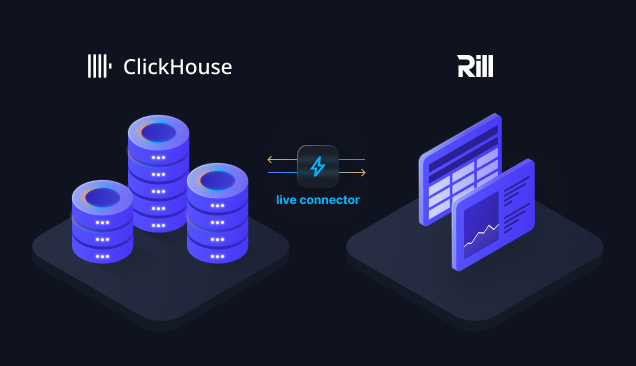
## Performance Tips
### Data Lifecycle Management
One common way to decrease overall data size and improve query performance (by scanning less data) is to roll up your data to higher time grains historically. Typically, this means taking hourly data and rolling up to daily data when the additional level of granularity is no longer necessary for business needs. Databases like Apache Druid have these lifecycle tools built in, or reach out to Rill with questions.
A couple of considerations when rolling data from lower to higher time grains:
- Daily data loses time zone querying as everything is rolled up to a single time zone (usually UTC)
- Consider hashed compaction when going from hourly to daily to reduce data size even further
- Watch out for rolling up metrics. Some metrics should be summed—but others (like a bid floor or campaign budget) should stay unique and be rolled up as a max
### Dimension Stripping
Dimension stripping is another tool to reduce data size by removing high cardinality fields that are not required for analysis. While this can be done upfront in the dataset, another practice would be to drop these fields at certain intervals when they no longer add business value. Most frequently, we see a couple of decision points where these fields are dropped:
- After a day to first week, dropping user level details no longer needed for monitoring
- After a week to multiple weeks, dropping "double click" level details that aren't needed for reporting (e.g., the minor release number on an Operating System field)
- After a month to months, dropping fields no longer interesting for analysis
### Sampling & Datasketches
There are times when you may look at sampling data feeds to trade data accuracy for lower costs and faster query speeds. Sampling involves sending only a percentage of your data, then extrapolating the values to get an estimate. Rill does not recommend sampling your primary KPIs, any records that require a join, or are tied to revenue. This filtered data should be decided in random fashion to not skew or bias the results. Please note, tracking uniques is not recommended if you choose to sample.
If looking to track uniques, but with smaller datasets and significantly improved performance, you can load unique values (IP addresses, user IDs, URLs, etc.) with [datasketches](https://datasketches.apache.org). There are multiple types of datasketches supported depending on your engine. At a high level, datasketches use algorithms to approximate unique values. Common use cases for datasketches include count distincts (campaign reach, unique visitors) and quantiles (time spent, frequency). Check out the [Apache Datasketches](https://datasketches.apache.org/docs/Architecture/MajorSketchFamilies.html) site for more details on methodology and use cases.
### Lookups
While joins can kill the performance of [OLAP engines](/developers/build/connectors/olap), lookups (key-value pairs) are common to reduce data size and improve query speeds. Lookups can be done during ingestion time (a static lookup to enrich the source data) or at query time (dynamic lookups).
**Static Lookups**
Static lookups are lookups that are ingested at processing time. When a record is being processed, if a match is found between the record and lookup's key, the lookup's corresponding value at that moment in time is extracted and carbon-copied into Druid for the records it processed.
Static lookups are best suited for:
- Dimensions with values that require a historical record for how they have changed over time
- Values that are never expected to change (leverage Dynamic Lookups if the values are expected to change)
- Extremely large lookups (hundreds of thousands of records or >50MB lookup file) to improve query performance
Customers typically store lookup values in S3 or GCS, and the lookup file is then updated by customers as needed and consumed by ETL logic.
**Dynamic Lookups**
Since static lookups transform and store the data permanently, any changes to the mapping would require reprocessing the entire dataset to ensure consistency. To address the case when values in a lookup are expected to change with time, we developed dynamic lookups. Dynamic lookups, also known as Query Time Lookups, are lookups that are retrieved at query time, as opposed to being used at ingestion time.
Benefits of dynamic lookups include:
- Historical continuity for dimensions that change frequently without reprocessing the entire dataset
- Time savings, because there is no dataset reprocessing required to complete the update
- Dynamic lookups are kept separate from the dataset. Thus, any human errors introduced in the lookup do not impact the underlying dataset
- Ability for users to create new dimension tables from metadata associated with a dimension table. For example, account ownership can change during the course of a quarter. In such cases, a dynamic lookup can be updated on the fly to reflect the most current changes
---
# Google BigQuery
URL: https://docs.rilldata.com/developers/build/connectors/olap/bigquery
[Google BigQuery](https://cloud.google.com/bigquery/docs) is a fully managed, serverless data warehouse that enables scalable and cost-effective analysis of large datasets. Rill supports connecting to BigQuery as a live connector, allowing you to build metrics views and dashboards directly on top of existing BigQuery tables — no data movement required.
:::tip BigQuery as a Live Connector vs. Data Source Connector
Rill supports BigQuery in two distinct modes:
- **OLAP (Live Connector)** — Rill queries BigQuery directly at dashboard load time. No data is ingested into Rill. Use this when your data is already modeled and optimized in BigQuery and you want Rill as a visual layer on top. Set `olap_connector: bigquery` in `rill.yaml`.
- **Data Source Connector** — Rill extracts data from BigQuery and ingests it into its embedded engine (DuckDB or ClickHouse). Use this when you want Rill to manage the data pipeline, apply transformations via SQL models, or combine BigQuery data with other sources. See the [BigQuery data source docs](/developers/build/connectors/data-source/bigquery).
In general, use the live connector if your BigQuery tables are already production-ready and large. Use data source ingestion if you need to transform, join, or enrich the data before building dashboards.
:::
## Connect to BigQuery
After selecting "Add Data", select BigQuery and fill in your connection parameters. This will automatically create the `bigquery.yaml` file in your `connectors` directory and populate the `.env` file with your credentials.
For more information on supported parameters, see our [BigQuery connector YAML reference docs](/reference/project-files/connectors#bigquery).
```yaml
type: connector
driver: bigquery
project_id: "my-gcp-project"
google_application_credentials: "{{ .env.GOOGLE_APPLICATION_CREDENTIALS }}"
```
:::tip Creating a Service Account
For production use, authenticate with a Google Cloud service account JSON key. The service account needs the `roles/bigquery.dataViewer`, `roles/bigquery.readSessionUser`, and `roles/bigquery.jobUser` roles. See [the appendix in the BigQuery data source docs](/developers/build/connectors/data-source/bigquery#how-to-create-a-service-account-using-the-google-cloud-console) for a step-by-step guide.
:::
### Application Default Credentials (Local Development)
For local development, you can omit `google_application_credentials` and Rill will use your local Google Cloud CLI credentials:
```bash
gcloud auth application-default login
```
```yaml
type: connector
driver: bigquery
project_id: "my-gcp-project"
```
:::warning Not suitable for Rill Cloud
Application Default Credentials only work locally. When deploying to Rill Cloud, always provide a service account JSON via `google_application_credentials`.
:::
### Controlling Query Costs
BigQuery bills based on bytes scanned. On the on-demand pricing model, we recommend setting `max_bytes_billed` on the connector to cap the amount scanned per dashboard query. Queries that exceed the limit fail with an error instead of running.
```yaml
type: connector
driver: bigquery
project_id: "my-gcp-project"
google_application_credentials: "{{ .env.GOOGLE_APPLICATION_CREDENTIALS }}"
max_bytes_billed: 100000000000 # 100 GB
```
`max_bytes_billed` only applies to live connector dashboard queries. It is not enforced when ingesting data via the BigQuery data source connector. The default value of `0` disables the limit.
## Build a Metrics View on BigQuery
Once connected, set BigQuery as the OLAP connector in your `rill.yaml`:
```yaml
olap_connector: bigquery
```
Then create a metrics view that references a BigQuery table:
```yaml
type: metrics_view
connector: bigquery
database: my-gcp-project # BigQuery project (optional; defaults to the connector's project_id)
database_schema: my_dataset # BigQuery dataset
model: my_table
timeseries: created_at
dimensions:
- column: region
- column: category
measures:
- name: total_revenue
expression: SUM(revenue)
```
In BigQuery terminology, `database` maps to the **project**, `database_schema` maps to the **dataset**, and `model` maps to the **table**. Measure expressions must use [BigQuery SQL](https://cloud.google.com/bigquery/docs/reference/standard-sql/query-syntax) syntax.
:::note
Rill supports metrics views directly on BigQuery as a live connector. Incremental models and partitioned ingestion are not supported in live connector mode.
:::
To reduce bytes scanned on dashboards with repeat traffic, see [Caching query results](/developers/build/metrics-view/underlying-model#caching-query-results) on live connectors. Caching pairs well with [`max_bytes_billed`](#controlling-query-costs) — use both to cap per-query cost and reduce overall query volume.
---
# ClickHouse
URL: https://docs.rilldata.com/developers/build/connectors/olap/clickhouse
[ClickHouse](https://clickhouse.com/docs/en/intro) is an open-source, column-oriented OLAP database management system known for its ability to perform real-time analytical queries on large-scale datasets. Its architecture is optimized for high performance, leveraging columnar storage and advanced compression techniques to speed up data reads and significantly reduce storage costs. ClickHouse's efficiency in query execution, scalability, and ability to handle even petabytes of data make it an excellent choice for real-time analytic use cases.
Rill supports connecting to an existing ClickHouse cluster via a "live connector" and using it as an OLAP engine built against [external tables](/developers/build/connectors/olap#external-olap-tables) to power Rill dashboards. This is particularly useful when working with extremely large datasets (hundreds of GBs or even TB+ in size).
:::note Supported Versions
Rill supports connecting to ClickHouse v22.7 or newer versions.
:::
## Connect to ClickHouse
When using ClickHouse for local development, you can connect via connection parameters or by using the DSN. Both local instances of ClickHouse and ClickHouse Cloud are supported.
After selecting "Add Data", select ClickHouse and fill in your connection parameters. This will automatically create the `clickhouse.yaml` file in your `connectors` directory and populate the `.env` file with `CLICKHOUSE_PASSWORD` or `CLICKHOUSE_DSN` depending on which you select in the UI.
For more information on supported parameters, see our [ClickHouse connector YAML reference docs](/reference/project-files/connectors#clickhouse).
```yaml
type: connector
driver: clickhouse
host:
port:
username:
password: "{{ .env.CLICKHOUSE_PASSWORD }}"
ssl: true # required for ClickHouse Cloud
```
After creating the connector, you can edit the `.env` file manually in the project directory, or the connectors/clickhouse.yaml file.
:::tip Getting DSN errors in dashboards after setting `.env`?
If you are facing issues related to DSN connection errors in your dashboards even after setting the connection string via the project's `.env` file, try restarting Rill using the `rill start --reset` command.
:::
### Connection String (DSN)
Rill is able to connect to ClickHouse using the [ClickHouse Go Driver](https://clickhouse.com/docs/en/integrations/go). An appropriate connection string (DSN) will need to be set through the `CLICKHOUSE_DSN` property in Rill.
```bash
CLICKHOUSE_DSN="clickhouse://:?username=&password="
```
Once the file is created, it will be added directly to the `.env` file in the project directory. To make changes to this connector, modify `CLICKHOUSE_DSN`.
```yaml
type: connector
driver: clickhouse
dsn: "{{ .env.CLICKHOUSE_DSN }}"
```
:::info Check your port
In most situations, the default port is 9440 for TLS and 9000 when not using TLS. However, it is worth double-checking the port that your ClickHouse instance is configured to use when setting up your connection string.
:::
:::note DSN properties
For more information about available DSN properties and setting an appropriate connection string, please refer to ClickHouse's [documentation](https://github.com/ClickHouse/clickhouse-go?tab=readme-ov-file#dsn).
:::
## Connect to ClickHouse Cloud
If you are connecting to an existing [ClickHouse Cloud](https://clickhouse.com/cloud) instance, you can retrieve connection details about your instance by clicking on the `Connect` tab from within the admin settings navigation page. This will provide relevant information, such as the hostname, port, and username being used for your instance that you can then use to construct your DSN.
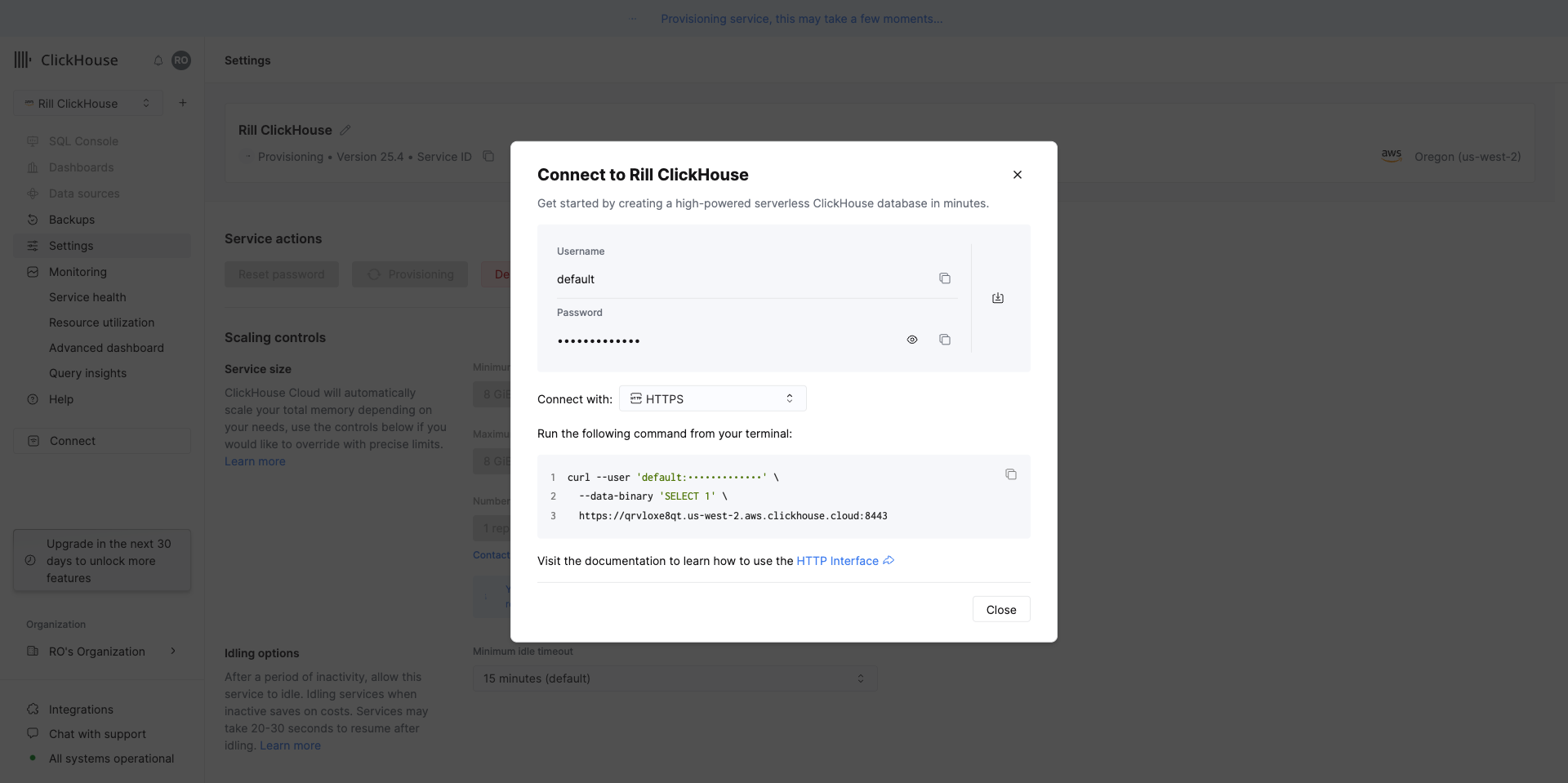
Using the information in the ClickHouse UI, populate the parameters of your connection.
### Connection String (DSN)
Because ClickHouse Cloud requires a secure connection over [https](https://github.com/ClickHouse/clickhouse-go?tab=readme-ov-file#http-support-experimental), you will need to pass in `secure=true` and `skip_verify=true` as additional URL parameters as part of your https URL (for your DSN).
```yaml
https://:?username=&password=&secure=true&skip_verify=true
```
:::info Need help connecting to ClickHouse?
If you would like to connect Rill to an existing ClickHouse instance, please don't hesitate to [contact us](/contact). We'd love to help!
:::
## Rill Managed ClickHouse
By setting `managed: true` in your ClickHouse connector, you will enable an embedded ClickHouse server to spin up with Rill. This will allow you to import data directly into this ClickHouse server without having to worry about managing an external database.
```yaml
type: connector
driver: clickhouse
managed: true
```
Data ingestion features are not yet available in the UI, please refer to our [model documentation](/reference/project-files/models) on how to ingest data into ClickHouse. For a guide, see [ingesting data directly into ClickHouse](/developers/tutorials/rill-clickhouse/r_ch_ingest).
## Read Only Connector
You can configure your ClickHouse connector to operate in read-only mode by adding a mode parameter. This provides an additional security layer by ensuring your connector can only read data and cannot perform write operations.
```yaml
mode: read # readwrite
```
## Configuring Rill Cloud
When deploying a ClickHouse-backed project to Rill Cloud, you have the following options to pass the appropriate connection string to Rill Cloud:
1. If you have followed the UI to create your ClickHouse connector, the password or DSN should already exist in the .env file. During the deployment process, this `.env` file is automatically pushed with the deployment.
2. If `CLICKHOUSE_DSN` has already been set in your project `.env`, you can push and update these variables directly in your cloud deployment by using the `rill env push` command.
:::warning Local ClickHouse Server
If you are developing on a locally running ClickHouse server, this will not be deployed with your project. You will either need to use ClickHouse Cloud or Managed ClickHouse.
:::
## Setting the Default OLAP Connection
Creating a connection to an OLAP engine will automatically add the `olap_connector` property in your project's [rill.yaml](/reference/project-files/rill-yaml) and change the default OLAP engine to ClickHouse. Once this is changed, you'll notice that some of the UI features are removed as we currently do not support modeling and direct source ingestion in ClickHouse. However, this is behind a feature flag, [contact us](/contact) for more information!
```yaml
olap_connector: clickhouse
```
:::info Interested in using multiple OLAP engines in the same project?
Please see our [Using Multiple OLAP Engines](/developers/build/connectors/olap/multiple-olap) page.
:::
## Reading from Multiple Schemas
Rill supports reading from multiple schemas in ClickHouse from within the same project in Rill Developer, and all accessible tables (given the permission set of the underlying user) should automatically be listed in the lower left-hand tab, which can then be used to [create dashboards](/developers/build/dashboards).
## Caching Query Results
To reduce load on dashboards with repeat traffic, see [Caching query results](/developers/build/metrics-view/underlying-model#caching-query-results).
## Additional Notes
- At the moment, we do not officially support modeling with ClickHouse; however, this is available via a feature flag. If this is something you're interested in, please [contact us](/contact).
- For dashboards powered by ClickHouse, [measure definitions](/developers/build/metrics-view/#measures) are required to follow standard [ClickHouse SQL](https://clickhouse.com/docs/en/sql-reference) syntax.
- Because string columns in ClickHouse can theoretically contain [arbitrary binary data](https://github.com/ClickHouse/ClickHouse/issues/2976#issuecomment-416694860), if your column contains invalid UTF-8 characters, you may want to first cast the column by applying the `toValidUTF8` function ([see ClickHouse documentation](https://clickhouse.com/docs/en/sql-reference/functions/string-functions#tovalidutf8)) before reading the table into Rill to avoid any downstream issues.
---
# Databricks (OLAP Engine)
URL: https://docs.rilldata.com/developers/build/connectors/olap/databricks
[Databricks](https://docs.databricks.com) is a unified data and AI platform built on top of Apache Spark and the lakehouse architecture, with Unity Catalog for governance and Databricks SQL for analytics. Rill supports connecting to Databricks as a live connector, allowing you to build metrics views and dashboards directly on top of existing Databricks tables — no data movement required.
:::tip Databricks as a Live Connector vs. Data Source Connector
Rill supports Databricks in two distinct modes:
- **OLAP (Live Connector)** — Rill queries Databricks directly at dashboard load time. No data is ingested into Rill. Use this when your data is already modeled and optimized in Databricks and you want Rill as a visual layer on top. Set `olap_connector: databricks` in `rill.yaml`.
- **Data Source Connector** — Rill extracts data from Databricks and ingests it into its embedded engine (DuckDB). Use this when you want Rill to manage the data pipeline, apply transformations via SQL models, or combine Databricks data with other sources. See the [Databricks data source docs](/developers/build/connectors/data-source/databricks).
In general, use the live connector if your Databricks tables are already production-ready and large. Use data source ingestion if you need to transform, join, or enrich the data before building dashboards.
:::
## Connect to Databricks
After selecting "Add Data", select Databricks and fill in your connection parameters. This will automatically create the `databricks.yaml` file in your `connectors` directory and populate the `.env` file with your credentials.
For more information on supported parameters, see our [Databricks connector YAML reference docs](/reference/project-files/connectors#databricks).
```yaml
type: connector
driver: databricks
host: "dbc-xxxxxxxx-xxxx.cloud.databricks.com"
http_path: "/sql/1.0/warehouses/xxxxxxxxxxxxxxxx"
token: "{{ .env.DATABRICKS_TOKEN }}"
catalog: "main" # optional
schema: "default" # optional
```
:::tip Finding your connection parameters
In the Databricks workspace, navigate to **SQL Warehouses**, select the warehouse you want to use, and open the **Connection details** tab. The **Server hostname** is your `host`, the **HTTP path** is your `http_path`, and you can generate a personal access token under **User Settings → Developer → Access tokens**.
:::
### Connection String (DSN)
For advanced configuration, you can specify a single DSN instead of the individual fields above. The DSN cannot be combined with `host`, `http_path`, `token`, `catalog`, or `schema`.
```yaml
type: connector
driver: databricks
dsn: "{{ .env.DATABRICKS_DSN }}"
```
```bash
# .env
DATABRICKS_DSN=token:dapi...@dbc-xxxxxxxx-xxxx.cloud.databricks.com:443/sql/1.0/warehouses/xxxxxxxxxxxxxxxx?catalog=main&schema=default
```
See the [Databricks SQL Go driver](https://github.com/databricks/databricks-sql-go) documentation for the full list of supported DSN parameters.
## Build a Metrics View on Databricks
Once connected, set Databricks as the OLAP connector in your `rill.yaml`:
```yaml
olap_connector: databricks
```
Then create a metrics view that references a Databricks table:
```yaml
type: metrics_view
connector: databricks
database: main # Unity Catalog (optional; defaults to the connector's catalog)
database_schema: my_schema # Schema within the catalog
model: my_table
timeseries: created_at
dimensions:
- column: region
- column: category
measures:
- name: total_revenue
expression: SUM(revenue)
```
In Databricks terminology, `database` maps to the **catalog**, `database_schema` maps to the **schema**, and `model` maps to the **table**. Measure expressions must use [Databricks SQL](https://docs.databricks.com/aws/en/sql/language-manual/) syntax.
:::note
Rill supports metrics views directly on Databricks as a live connector. Incremental models and partitioned ingestion are not supported in live connector mode.
:::
To reduce SQL warehouse spend on dashboards with repeat traffic, see [Caching query results](/developers/build/metrics-view/underlying-model#caching-query-results) on live connectors.
To attribute SQL warehouse usage to Rill users, add [`query_attributes`](/developers/build/metrics-view/query-attributes#databricks-query-tags) to your metrics view. Rill sends them as Databricks query tags, recorded in `system.query.history`.
:::note
Query tags are a Databricks Public Preview feature. On a workspace that does not support them, every query of a metrics view with `query_attributes` fails with `Configuration query_tags is not available`. Remove `query_attributes` to resolve the error.
:::
---
# Druid
URL: https://docs.rilldata.com/developers/build/connectors/olap/druid
[Apache Druid](https://druid.apache.org/docs/latest/design/) is an open-source, high-performance OLAP engine designed for real-time analytics on large datasets. It excels in analytical workloads due to its columnar storage format, which enables fast data aggregation, querying, and filtering. Druid is particularly well-suited for use cases that require interactive exploration of large-scale data, real-time data ingestion, and fast query responses, making it a popular choice for applications in business intelligence, user behavior analytics, and financial analysis.
Rill supports connecting to an existing Druid cluster via a "live connector" and using it as an OLAP engine built against [external tables](/developers/build/connectors/olap#external-olap-tables) to power Rill dashboards. This is particularly useful when working with extremely large datasets (hundreds of GBs or even TB+ in size).
## Configuring Rill Developer with Druid
When using Rill for local development, there are a few options to configure Rill to enable Druid as an OLAP engine:
1. Connect to an OLAP engine via Add Data. This will automatically create the `druid.yaml` file in your `connectors` directory and populate the `.env` file with `DRUID_PASSWORD` or `DRUID_DSN` depending on which you select in the UI.
For more information on supported parameters, see our [Druid connector YAML reference docs](/reference/project-files/connectors#druid).
```yaml
type: connector
driver: druid
host:
port:
username:
password: "{{ .env.DRUID_PASSWORD }}"
ssl: true
# or
dsn: "{{ .env.DRUID_DSN }}"
```
2. You can manually set `DRUID_DSN` in your project's `.env` file or try pulling existing credentials locally using `rill env pull` if the project has already been deployed to Rill Cloud.
:::tip Getting DSN errors in dashboards after setting `.env`?
If you are facing issues related to DSN connection errors in your dashboards even after setting the connection string via the project's `.env` file, try restarting Rill using the `rill start --reset` command.
:::
## Connection String (DSN)
Rill connects to Druid using the [HTTP API](https://druid.apache.org/docs/latest/api-reference/sql-api) and requires a connection string of the following format: `http://:@:/druid/v2/sql`. If `user` or `password` contain special characters, they should be URL encoded (i.e., `p@ssword` -> `p%40ssword`). This should be set in the `DRUID_DSN` property in Rill.
As an example, this typically looks like:
```bash
DRUID_DSN="https://user:password@localhost:8888/druid/v2/sql"
```
:::info Need help connecting to Druid?
If you would like to connect Rill to an existing Druid instance, please don't hesitate to [contact us](/contact). We'd love to help!
:::
## Setting the Default OLAP Connection
When connecting to Druid via the UI, the default OLAP connection will be automatically added to your rill.yaml. This will change the way the UI behaves, such as adding new data sources, as this is not supported with a Druid-backed Rill project.
```yaml
olap_connector: druid
```
:::note
For more information about available properties in `rill.yaml`, see our [project YAML](/reference/project-files/rill-yaml) documentation.
:::
:::info Interested in using multiple OLAP engines in the same project?
Please see our [Using Multiple OLAP Engines](/developers/build/connectors/olap/multiple-olap) page.
:::
## Configuring Rill Cloud
When deploying a Druid-backed project to Rill Cloud, you have the following options to pass the appropriate connection string to Rill Cloud:
1. If you have followed the UI to create your Druid connector, the password or DSN should already exist in the .env file. During the deployment process, this `.env` file is automatically pushed with the deployment.
2. If `DRUID_DSN` has already been set in your project `.env`, you can push and update these variables directly in your cloud deployment by using the `rill env push` command.
## Supported Versions
Rill supports connecting to Druid v28.0 or newer versions.
## Caching Query Results
To reduce broker load on dashboards with repeat traffic, see [Caching query results](/developers/build/metrics-view/underlying-model#caching-query-results) on live connectors.
## Additional Notes
- At the moment, we do not support modeling with Druid. If this is something you're interested in, please [contact us](/contact).
- For dashboards powered by Druid, [measure definitions](/developers/build/metrics-view/#measures) are required to follow standard [Druid SQL](https://druid.apache.org/docs/latest/querying/sql/) syntax.
---
# DuckDB
URL: https://docs.rilldata.com/developers/build/connectors/olap/duckdb
[DuckDB](https://duckdb.org/why_duckdb.html) is an in-memory, columnar SQL database designed for analytical (OLAP) workloads, offering high-speed data processing and analysis. Its columnar storage model and vectorized query execution make it highly efficient for OLAP tasks, enabling fast aggregation, filtering, and joins on large datasets.
## Rill Managed DuckDB
By default, Rill includes DuckDB as an embedded OLAP engine that ingests data from [data sources](/developers/build/connectors) and powers your dashboards. When you start a new project, you'll see a `connectors/duckdb.yaml` file alongside other project files. No additional configuration is needed to use DuckDB with Rill Developer or Rill Cloud.
```yaml
type: connector
driver: duckdb
managed: true
```
:::tip Performance Considerations
DuckDB is an excellent analytical engine but can face performance challenges as data size grows significantly. As a general guideline, we recommend keeping your data size in DuckDB **under 50GB** along with other [performance recommendations](/developers/tutorials/performance). For larger datasets, Rill still provides excellent performance but may require additional backend optimizations. [Contact us](/contact) if you need assistance with large-scale deployments.
:::
## Live Connect to External DuckDB
Rill also supports connecting to external DuckDB database files as a "live connector". This allows you to leverage existing DuckDB databases within Rill to create metrics views and dashboards.
:::warning Local Development Only
This setup is designed for local development and testing only. It will not deploy to Rill Cloud under most circumstances because:
- Rill Cloud can only access files within your project directory
- If your DuckDB file is outside the project folder, it cannot be bundled for deployment
- Files larger than 100MB will fail to deploy due to upload size limits
For production deployments, consider using our [external DuckDB data source](/developers/build/connectors/data-source/duckdb) to ingest your data instead.
:::
### Configuration
Using the UI, select the DuckDB icon under the OLAP section to add a new DuckDB connector. Any existing connectors with data models will need to be refreshed to ingest the data into your external DuckDB.
```yaml
type: connector
driver: duckdb
path: '/path/to/main.db'
```
### Setting the Default OLAP Connection
Creating a connection to MotherDuck will automatically add the `olap_connector` property in your project's [rill.yaml](/reference/project-files/rill-yaml) and change the default OLAP engine to `duckdb`.
```yaml
olap_connector: duckdb
```
## Using DuckDB Extensions
DuckDB supports a wide variety of extensions that can enhance its functionality. To use extensions with Rill's embedded DuckDB, configure them in your connector:
```yaml
# connectors/duckdb.yaml
type: connector
driver: duckdb
init_sql: |
INSTALL httpfs;
LOAD httpfs;
INSTALL spatial;
LOAD spatial;
```
### Popular Extensions
For a complete list of available extensions, see the [DuckDB Extensions documentation](https://duckdb.org/docs/extensions/overview).
## Multiple OLAP Engines
While not recommended, Rill supports using multiple OLAP engines in a single project. For more information, see [Using Multiple OLAP Engines](/developers/build/connectors/olap/multiple-olap).
## Additional Notes
- For dashboards powered by DuckDB, [measure definitions](/developers/build/metrics-view/#measures) are required to follow standard [DuckDB SQL](https://duckdb.org/docs/sql/introduction) syntax.
- There is a known issue around creating a DuckDB source via the UI; you will need to create the YAML file manually.
---
# DuckLake
URL: https://docs.rilldata.com/developers/build/connectors/olap/ducklake
[DuckLake](https://ducklake.select/) is an open lakehouse format built on DuckDB. A DuckLake keeps table data as Parquet files in object storage (local, S3, GCS, or Azure) while the catalog (schemas, snapshots, statistics) lives in a separate database — DuckDB, SQLite, PostgreSQL, or MySQL. Rill connects to DuckLake through the DuckDB driver and uses it as a live OLAP engine, so no data is ingested into Rill and all queries are pushed down to DuckDB against your lake.
:::note DuckLake uses the DuckDB Driver
DuckLake connectors use `driver: duckdb` under the hood. The difference from a standard DuckDB connector is the `attach` clause, which points DuckDB at your DuckLake catalog and data path.
:::
## Configuring Rill Developer with DuckLake
Create the connector via **Add Data → DuckLake** in the UI. Rill will generate a `connectors/ducklake.yaml` file and set DuckLake as the default OLAP engine in `rill.yaml`.
```yaml
type: connector
driver: duckdb
attach: "'ducklake:metadata.ducklake' (DATA_PATH 'data/')"
```
The `attach` clause is passed directly to DuckDB's `ATTACH` statement. It must begin with the `ducklake:` metadata backend and should include a `DATA_PATH` pointing at the directory (local or object storage) that holds your Parquet files.
### Supported Metadata Backends
DuckLake can store its catalog in any of the following:
- **DuckDB** — `'ducklake:metadata.ducklake'`
- **SQLite** — `'ducklake:sqlite:metadata.sqlite'`
- **PostgreSQL** — `'ducklake:postgres:dbname=ducklake host=...'`
- **MySQL** — `'ducklake:mysql:host=... user=... database=ducklake'`
For cloud-hosted catalogs, credentials for the metadata database can be injected via environment variables, e.g. `host={{ .env.DUCKLAKE_PG_HOST }}`.
### Supported Data Paths
The `DATA_PATH` in your `attach` clause can point at either local storage or any object store supported by DuckDB:
- Local filesystem — `DATA_PATH 'data/'`
- S3 — `DATA_PATH 's3://my-bucket/ducklake/'`
- GCS — `DATA_PATH 'gs://my-bucket/ducklake/'`
- Azure Blob Storage — `DATA_PATH 'azure://my-container/ducklake/'`
See the [DuckLake docs](https://ducklake.select/docs/stable/duckdb/usage/connecting) for the full ATTACH syntax.
### Setting the Default OLAP Connection
Creating a DuckLake connector automatically sets `olap_connector` in your project's [rill.yaml](/reference/project-files/rill-yaml) to the new connector.
```yaml
olap_connector: ducklake
```
## Advanced Options
The `attach` clause is passed through to DuckDB and accepts the full set of DuckLake ATTACH options — see the [DuckLake ATTACH reference](https://ducklake.select/docs/stable/duckdb/usage/connecting) for the complete list.
Example with multiple options:
```yaml
type: connector
driver: duckdb
attach: "'ducklake:metadata.ducklake' (DATA_PATH 's3://my-bucket/ducklake/', OVERRIDE_DATA_PATH true, SNAPSHOT_VERSION '42')"
```
## Trying DuckLake Without Your Own Data
If you want to see DuckLake in action before pointing Rill at your own catalog, DuckDB hosts a public `lineitem` table from TPC-H (scale factor 3) as a read-only DuckLake. Load it in the [DuckDB browser visualizer](https://duckdb.org/visualizer/#resource_path=https%3A%2F%2Fblobs.duckdb.org%2Fdatalake%2Ftpch-sf3.ducklake&resource_type=ducklake&table_name=lineitem) to confirm the catalog is reachable, then point Rill at the same resource:
```yaml
type: connector
driver: duckdb
attach: "'ducklake:https://blobs.duckdb.org/datalake/tpch-sf3.ducklake'"
```
## Configuring Rill Cloud
When deploying a DuckLake-backed project to Rill Cloud:
1. Any secrets referenced in the `attach` clause (e.g. S3 credentials, Postgres passwords) should be set via `{{ .env.KEY_NAME }}` in your YAML and managed with the project `.env` file.
2. Use `rill env push` to sync local environment variables to your cloud deployment.
3. The `DATA_PATH` must be reachable from Rill Cloud — local filesystem paths will not deploy.
## Additional Notes
- DuckLake uses the same SQL dialect as DuckDB, so all standard DuckDB functions are available. [Measure definitions](/developers/build/metrics-view/#measures) should follow standard [DuckDB SQL](https://duckdb.org/docs/sql/introduction) syntax.
- Rill opens DuckLake in read-only mode by default. To allow Rill to create or modify tables in the lake, enable write mode in the connector advanced options.
- Combine DuckLake with [multiple OLAP engines](/developers/build/connectors/olap/multiple-olap) to power different dashboards from different catalogs in the same project.
:::info Need help connecting to DuckLake?
If you would like to connect Rill to DuckLake or need assistance with setup, please don't hesitate to [contact us](/contact). We'd love to help!
:::
---
# MotherDuck
URL: https://docs.rilldata.com/developers/build/connectors/olap/motherduck
[MotherDuck](https://motherduck.com/) is a cloud-native DuckDB service that provides scalable analytics and data processing capabilities. Built on the same core engine as DuckDB, MotherDuck offers the familiar SQL interface and performance characteristics while adding cloud-native features like serverless compute, automatic scaling, and collaborative data sharing.
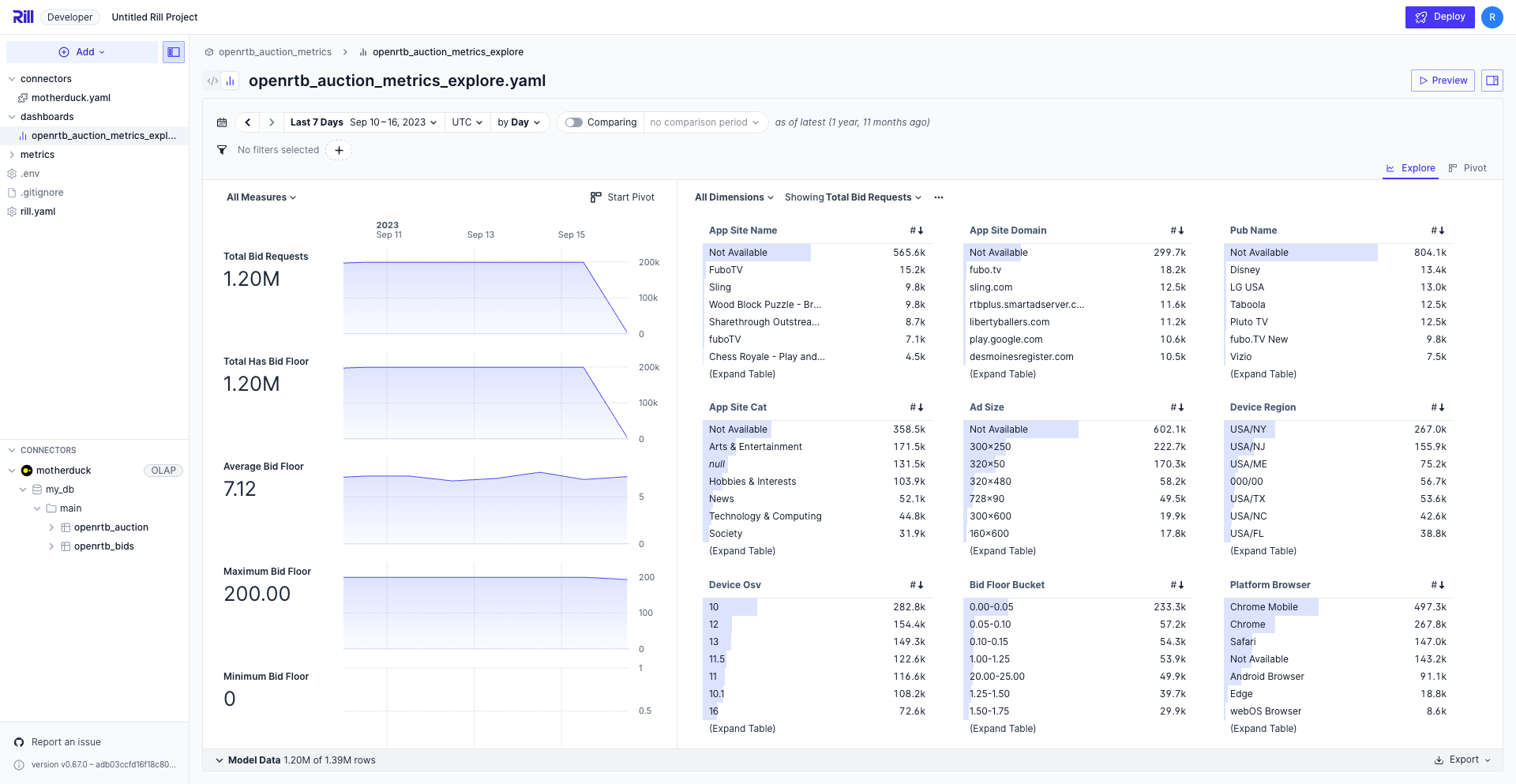
Rill supports connecting to MotherDuck and using it as an OLAP engine to power dashboards. This is particularly useful when you want the performance and SQL compatibility of DuckDB with the scalability and collaboration features of a cloud service.
:::note Supported Versions
Rill supports connecting to MotherDuck using the latest DuckDB-compatible drivers and protocols.
:::
## Getting Your MotherDuck Access Token
To connect to MotherDuck, you'll need an access token from your MotherDuck account:
1. Log in to your [MotherDuck account](https://motherduck.com/)
2. Navigate to the **Settings** section
3. Go to **Access Tokens**
4. Create a new access token or copy an existing one
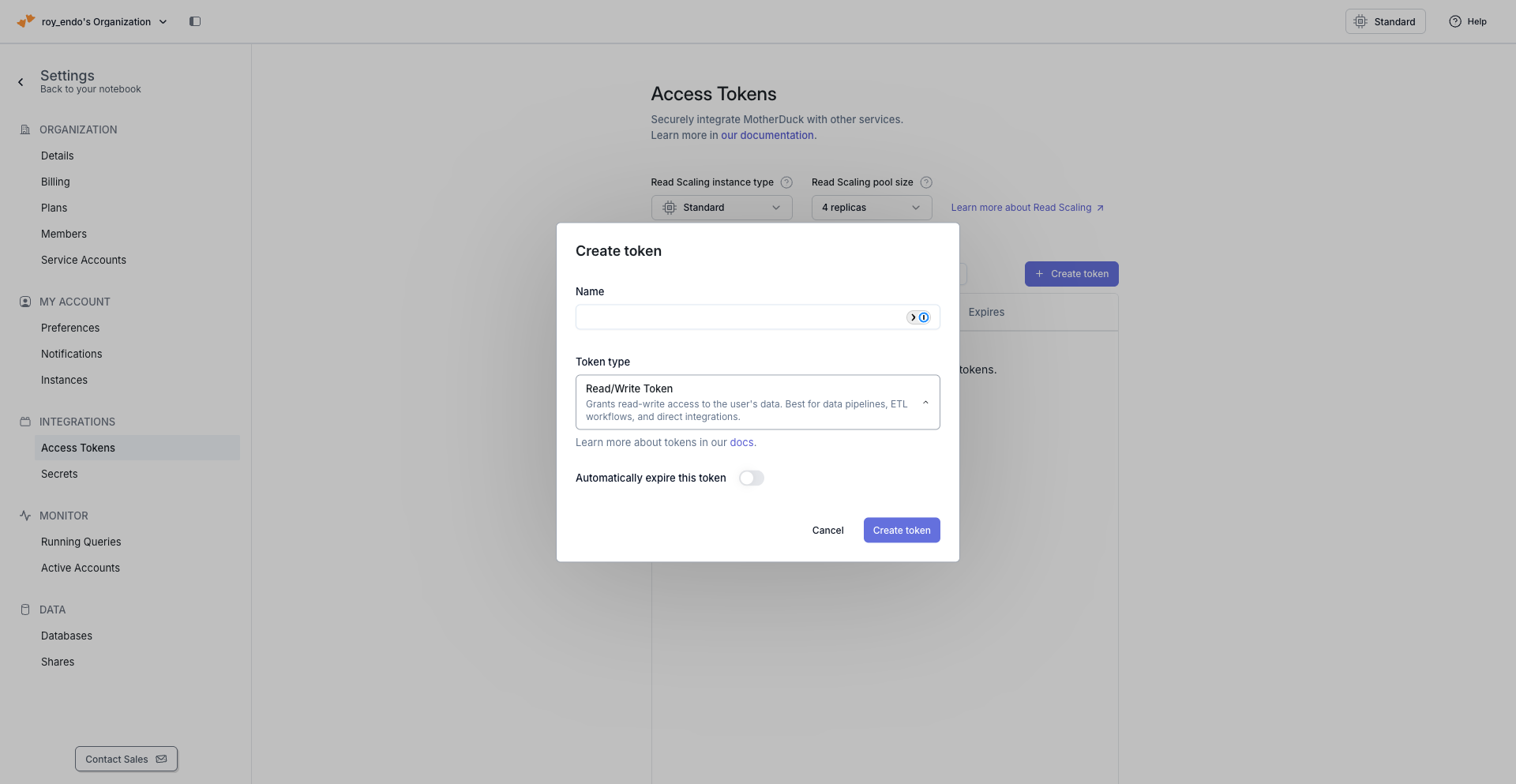
:::warning Keep Your Token Secure
Your MotherDuck access token provides access to your data. Keep it secure and never commit it directly to version control. Always use environment variables or secure credential management.
:::
## Configuring Rill Developer with MotherDuck
Connect to your OLAP engine via Add Data. This will automatically create the motherduck.yaml file in your connectors folder and populate the .env file with `MOTHERDUCK_TOKEN`.
For more information on supported parameters, see our [MotherDuck connector YAML reference docs](/reference/project-files/connectors#motherduck).
```yaml
type: connector
driver: duckdb
token: "{{ .env.MOTHERDUCK_TOKEN }}"
path: "md:my_database"
schema_name: "my_schema"
```
### Setting the Default OLAP Connection
Creating a connection to MotherDuck will automatically add the `olap_connector` property in your project's [rill.yaml](/reference/project-files/rill-yaml) and change the default OLAP engine to `motherduck`.
```yaml
olap_connector: motherduck
```
:::info Interested in using multiple OLAP engines in the same project?
Please see our [Using Multiple OLAP Engines](/developers/build/connectors/olap/multiple-olap) page.
:::
## Configuring Rill Cloud
When deploying a MotherDuck-backed project to Rill Cloud, you have the following options to pass the appropriate access token:
1. If you have followed the UI to create your MotherDuck connector, the token should already exist in the `.env` file. During the deployment process, this `.env` file is automatically pushed with the deployment.
2. If `motherduck_token` has already been set in your project `.env`, you can push and update these variables directly in your cloud deployment by using the `rill env push` command.
## Caching Query Results
To increase performance on dashboards with repeat traffic, see [Caching query results](/developers/build/metrics-view/underlying-model#caching-query-results) on live connectors.
## Additional Notes
- MotherDuck uses the same SQL syntax as DuckDB, so all standard DuckDB functions and features are available
- For dashboards powered by MotherDuck, [measure definitions](/developers/build/metrics-view/#measures) should follow standard [DuckDB SQL](https://duckdb.org/docs/sql/introduction) syntax
:::info Need help connecting to MotherDuck?
If you would like to connect Rill to MotherDuck or need assistance with setup, please don't hesitate to [contact us](/contact). We'd love to help!
:::
---
# Using Multiple OLAP Engines
URL: https://docs.rilldata.com/developers/build/connectors/olap/multiple-olap
If you have access to another OLAP engine (such as [ClickHouse](/developers/build/connectors/olap/clickhouse) or [Druid](/developers/build/connectors/olap/druid), you have the option to either:
- Create dedicated projects that are powered by one specific OLAP engine (default)
- Use different OLAP engines _in the same project_ to power separate dashboards
On this page, we will walk through how to configure the latter.
### Why Multiple OLAP Engines?
There could be reasons why you wish to configure multiple OLAP engines within the same project:
- You have data sources that differ greatly in size but which you want to use within the same project. As a rule of thumb, DuckDB handles datasets _up to 50GB quite well_ and is performant. For much larger datasets, you may want a more enterprise-grade OLAP engine powering specific dashboards.
- You have existing datasets/tables from other OLAP stores that you wish to use in Rill, which may already be optimized, and which you do not want to separately ingest into Rill. Instead, you would like to create dashboards off these tables directly and have the OLAP engine power them.
:::info Don't see an OLAP engine?
If there's an OLAP engine you're interested in that isn't available, please don't hesitate to [contact us](/contact). We'd love to hear from you and learn more!
:::
## Enabling Multiple OLAP Engines
To configure multiple OLAP engines, you'll want to leave the default OLAP engine as [DuckDB](/developers/build/connectors/olap/duckdb) in your project and configure dashboards that are powered by other OLAP engines individually (more on this below).
### Setting up your OLAP Engine connection string (DSN)
Before getting started, you'll need to first configure the appropriate connection string for each OLAP engine that you plan to use in Rill. Besides the built-in DuckDB OLAP engine, each OLAP engine should have its own `connector..dsn` variable that needs to be configured.
**For Rill Developer:**
- You can set these variables in your project's `.env` file or try pulling existing credentials locally using `rill env pull` if the project has already been deployed to Rill Cloud.
:::tip Getting DSN errors in dashboards after setting `.env`?
There might be instances where you've configured the project's `.env` file with the appropriate connection DSN strings but dashboards are still throwing errors. In these situations, try restarting Rill using the `rill start --reset` command.
:::
**For Rill Cloud:**
- Add the required `connector..dsn` parameters to your project's `.env`, and you can push these updated variables to your deployed project directly using `rill env push`.
### Configuring DuckDB as the default OLAP engine
Not much needs to be done here as _DuckDB is the inherent default OLAP engine_ that is used by Rill. However, in case a different `olap_connector` is set in the project's `rill.yaml` file, this property should either be removed and/or set back to `duckdb`.
```yaml
olap_connector: duckdb
```
:::note rill.yaml
For more information about available configurations for `rill.yaml`, please see our [Project YAML](/reference/project-files/rill-yaml) reference documentation.
:::
### Setting the OLAP Engine in the metrics view YAML
For each metrics view that is using a separate OLAP engine (other than the default), you'll want to set the `connector` and `table` properties in the underlying [metrics view YAML](/reference/project-files/metrics-views) configuration to the OLAP engine and corresponding [external table](/developers/build/connectors/olap#external-olap-tables) that exists in your OLAP store, respectively.
```yaml
type: metrics_view
display_name:
connector:
table:
...
```
---
# Pinot
URL: https://docs.rilldata.com/developers/build/connectors/olap/pinot
[Apache Pinot](https://docs.pinot.apache.org/) is a real-time distributed OLAP datastore purpose-built for low-latency, high-throughput analytics, and is perfect for user-facing analytical workloads.
Rill supports connecting to an existing Pinot cluster via a "live connector" and using it as an OLAP engine built against [external tables](/developers/build/connectors/olap#external-olap-tables) to power Rill dashboards. This is particularly useful when working with extremely large datasets (hundreds of GBs or even TB+ in size).
## Configuring Rill Developer with Pinot
When using Rill for local development, there are a few options to configure Rill to enable Pinot as an OLAP engine:
1. Connect to an OLAP engine via Add Data. This will automatically create the `pinot.yaml` file in your `connectors` directory and populate the `.env` file with `PINOT_PASSWORD` or `PINOT_DSN` depending on which you select in the UI.
For more information on supported parameters, see our [Pinot connector YAML reference docs](/reference/project-files/connectors#pinot).
```yaml
type: connector
driver: pinot
dsn: "{{ .env.PINOT_DSN }}"
```
1. You can set `PINOT_DSN` in your project's `.env` file or try pulling existing credentials locally using `rill env pull` if the project has already been deployed to Rill Cloud.
:::tip Getting DSN errors in dashboards after setting `.env`?
If you are facing issues related to DSN connection errors in your dashboards even after setting the connection string via the project's `.env` file, try restarting Rill using the `rill start --reset` command.
:::
## Connection String (DSN)
Rill connects to Pinot using the [Pinot Golang Client](https://docs.pinot.apache.org/users/clients/golang) and requires a connection string of the following format: `http://:@:?controller=:`. If `user` or `password` contain special characters, they should be URL encoded (i.e., `p@ssword` -> `p%40ssword`). This should be set in the `PINOT_DSN` property in Rill.
As an example, this typically looks like:
```bash
PINOT_DSN="http(s)://username:password@localhost:8000?controller=localhost:9000"
```
:::info Need help connecting to Pinot?
If you would like to connect Rill to an existing Pinot instance, please don't hesitate to [contact us](/contact). We'd love to help!
:::
## Setting the Default OLAP Connection
You'll also need to update the `olap_connector` property in your project's `rill.yaml` to change the default OLAP engine to Pinot:
```yaml
olap_connector: pinot
```
:::info Interested in using multiple OLAP engines in the same project?
Please see our [Using Multiple OLAP Engines](/developers/build/connectors/olap/multiple-olap) page.
:::
## Configuring Rill Cloud
When deploying a Pinot-backed project to Rill Cloud, you have the following options to pass the appropriate connection string to Rill Cloud:
1. If you have followed the UI to create your Pinot connector, the password or DSN should already exist in the .env file. During the deployment process, this `.env` file is automatically pushed with the deployment.
2. If `PINOT_DSN` has already been set in your project `.env`, you can push and update these variables directly in your cloud deployment by using the `rill env push` command.
## Support for Multi-Valued Dimensions
Multi-valued dimensions need to be defined in the dashboard YAML as expressions using the `arrayToMv` function. For example, if `RandomAirports` is a multi-valued column in a Pinot table, then the dimension definition will look like:
```yaml
- display_name: RandomAirports
expression: arrayToMv(RandomAirports)
name: RandomAirports
description: "Random Airports"
```
Refer to the [Dashboard YAML](/reference/project-files/explore-dashboards) reference page for all dimension properties in detail.
:::note
Pinot does not support the unnest function, so don't set the `unnest` property to true in the dimension definition of the dashboard YAML.
:::
## Caching Query Results
To reduce broker load on dashboards with repeat traffic, see [Caching query results](/developers/build/metrics-view/underlying-model#caching-query-results) on live connectors.
## Additional Notes
- At the moment, we do not support modeling with Pinot. If this is something you're interested in, please [contact us](/contact).
- For dashboards powered by Pinot, [measure definitions](/developers/build/metrics-view/#measures) are required to follow [Pinot SQL](https://docs.pinot.apache.org/users/user-guide-query/querying-pinot) syntax.
---
# Snowflake (OLAP Engine)
URL: https://docs.rilldata.com/developers/build/connectors/olap/snowflake
[Snowflake](https://docs.snowflake.com) is a cloud data platform known for its scalability, ease of use, and separation of storage and compute. Rill supports connecting to Snowflake as a live connector, allowing you to build metrics views and dashboards directly on top of existing Snowflake tables — no data movement required.
:::tip Snowflake as a Live Connector vs. Data Source Connector
Rill supports Snowflake in two distinct modes:
- **OLAP (Live Connector)** — Rill queries Snowflake directly at dashboard load time. No data is ingested into Rill. Use this when your data is already modeled and optimized in Snowflake and you want Rill as a visual layer on top. Set `olap_connector: snowflake` in `rill.yaml`.
- **Data Source Connector** — Rill extracts data from Snowflake and ingests it into its embedded engine (DuckDB or ClickHouse). Use this when you want Rill to manage the data pipeline, apply transformations via SQL models, or combine Snowflake data with other sources. See the [Snowflake data source docs](/developers/build/connectors/data-source/snowflake).
In general, use the live connector if your Snowflake tables are already production-ready and large. Use data source ingestion if you need to transform, join, or enrich the data before building dashboards.
:::
## Connect to Snowflake
After selecting "Add Data", select Snowflake and fill in your connection parameters. This will automatically create the `snowflake.yaml` file in your `connectors` directory and populate the `.env` file with your credentials.
For more information on supported parameters, see our [Snowflake connector YAML reference docs](/reference/project-files/connectors#snowflake).
```yaml
type: connector
driver: snowflake
dsn: "{{ .env.SNOWFLAKE_DSN }}"
```
:::tip Finding your account identifier
Your account identifier appears in your Snowflake URL — it's everything before `.snowflakecomputing.com`. For example, if your URL is `https://xy12345.us-east-1.snowflakecomputing.com`, your account identifier is `xy12345.us-east-1`.
:::
### Key-Pair Authentication (Recommended)
For production use, Snowflake recommends key-pair authentication over passwords. Generate an unencrypted PKCS#8 private key and base64-encode it:
```bash
# Generate a 2048-bit unencrypted PKCS#8 private key
openssl genrsa 2048 | openssl pkcs8 -topk8 -nocrypt -out rsa_key.p8
# Base64 URL-encode for use in Rill
base64 -w 0 rsa_key.p8
```
Then set the encoded key in your connector:
```yaml
type: connector
driver: snowflake
account: ""
user: ""
private_key: "{{ .env.SNOWFLAKE_PRIVATE_KEY }}"
```
See [Snowflake's key-pair authentication docs](https://docs.snowflake.com/en/guide/key-pair-auth) for full setup instructions.
## Build a Metrics View on Snowflake
Once connected, set Snowflake as the OLAP connector in your `rill.yaml`:
```yaml
olap_connector: snowflake
```
Then create a metrics view that references a Snowflake table:
```yaml
type: metrics_view
connector: snowflake
database: MY_DATABASE
database_schema: MY_SCHEMA
model: MY_TABLE
timeseries: created_at
dimensions:
- column: region
- column: category
measures:
- name: total_revenue
expression: SUM(revenue)
```
:::note
Rill supports metrics views directly on Snowflake as a live connector. Incremental models and partitioned ingestion are not supported in live connector mode.
:::
To reduce warehouse spend on dashboards with repeat traffic, see [Caching query results](/developers/build/metrics-view/underlying-model#caching-query-results) on live connectors.
---
# StarRocks
URL: https://docs.rilldata.com/developers/build/connectors/olap/starrocks
[StarRocks](https://www.starrocks.io/) is an open-source, high-performance analytical database designed for real-time, multi-dimensional analytics on large-scale data. It supports both primary key and aggregate data models, making it suitable for a variety of analytical workloads including real-time dashboards, ad-hoc queries, and complex analytical tasks.
:::note Supported Versions
Rill supports connecting to StarRocks 4.0 or newer versions.
:::
:::info
Rill supports connecting to an existing StarRocks cluster via a read-only OLAP connector and using it to power Rill dashboards with [external tables](/developers/build/connectors/olap#external-olap-tables).
:::
## Connect to StarRocks
When using StarRocks for local development, you can connect via connection parameters or by using a DSN.
After selecting "Add Data", select StarRocks and fill in your connection parameters. This will automatically create the `starrocks.yaml` file in your `connectors` directory and populate the `.env` file with `STARROCKS_PASSWORD`.
### Connection Parameters
```yaml
type: connector
driver: starrocks
host:
port: 9030
username:
password: "{{ .env.STARROCKS_PASSWORD }}"
catalog: default_catalog
database:
ssl: false
```
### Connection String (DSN)
Rill can also connect to StarRocks using a DSN connection string. StarRocks uses MySQL protocol, so the connection string must follow the MySQL DSN format:
```yaml
type: connector
driver: starrocks
dsn: "{{ .env.STARROCKS_DSN }}"
```
#### Using default_catalog
For `default_catalog`, you can specify database directly in the DSN path (MySQL-style):
```
user:password@tcp(host:9030)/my_database?parseTime=true
```
#### Using external catalogs with DSN
For external catalogs (Iceberg, Hive, etc.), set `catalog` and `database` as separate properties (do not include database in DSN):
```yaml
type: connector
driver: starrocks
dsn: "user:password@tcp(host:9030)/?parseTime=true"
catalog: iceberg_catalog
database: my_database
```
If `catalog` is not specified, it defaults to `default_catalog`.
:::warning DSN Format
Only MySQL-style DSN format is supported. The `starrocks://` URL scheme is **not** supported. When using DSN, do not set `host`, `port`, `username`, `password` separately — these must be included in the DSN string.
:::
## Configuration Properties
| Property | Description | Default |
| ------------- | --------------------------------------------------------------------- | -------------------- |
| `host` | StarRocks FE (Frontend) server hostname | Required (if no DSN) |
| `port` | MySQL protocol port of StarRocks FE | `9030` |
| `username` | Username for authentication | `root` |
| `password` | Password for authentication | - |
| `catalog` | StarRocks catalog name (for external catalogs like Iceberg, Hive) | `default_catalog` |
| `database` | StarRocks database name | - |
| `ssl` | Enable SSL/TLS encryption | `false` |
| `dsn` | MySQL-format connection string (alternative to individual parameters) | - |
| `log_queries` | Enable logging of all SQL queries (useful for debugging) | `false` |
## External Catalogs
StarRocks supports external catalogs for querying data in Hive, Iceberg, Delta Lake, and other external data sources. To use an external catalog:
1. Set the `catalog` property to your external catalog name (e.g., `iceberg_catalog`)
2. Set the `database` property to the database within that catalog
```yaml
type: connector
driver: starrocks
host: starrocks-fe.example.com
port: 9030
username: analyst
password: "{{ .env.STARROCKS_PASSWORD }}"
catalog: iceberg_catalog
database: my_database
```
## Naming Mapping
StarRocks uses a three-level hierarchy: Catalog > Database > Table. In Rill's API:
| Rill Parameter | StarRocks Concept | Example |
| ---------------- | ----------------- | ------------------------------------ |
| `database` | Catalog | `default_catalog`, `iceberg_catalog` |
| `databaseSchema` | Database | `my_database` |
| `table` | Table | `my_table` |
## Creating Metrics Views
When creating metrics views against StarRocks tables, use the `table` property with `database_schema` to reference your data:
```yaml
type: metrics_view
display_name: My Dashboard
table: my_table
database_schema: my_database
timeseries: timestamp
dimensions:
- name: category
column: category
measures:
- name: total_count
expression: COUNT(*)
```
## Troubleshooting
### Connection Issues
If you encounter connection issues:
1. Verify the FE node hostname and port (default: 9030)
2. Check that your user has appropriate permissions
3. Ensure network connectivity to the StarRocks FE node
4. For SSL connections, verify SSL is enabled on the StarRocks server
### Timezone Handling
All timestamp values are returned in UTC. The driver parses DATETIME values from StarRocks as UTC time.
## Known Limitations
- **Read-only connector**: StarRocks is a read-only OLAP connector. Model creation and execution is not supported.
:::info Need help connecting to StarRocks?
If you would like to connect Rill to an existing StarRocks instance, please don't hesitate to [contact us](/contact). We'd love to help!
:::
---
# Service Integrations
URL: https://docs.rilldata.com/developers/build/connectors/services/
Service Integrations extend Rill's capabilities by connecting to third-party services. Unlike data connectors that import data into Rill, these integrations enable features like AI-powered analytics and notifications.
## AI Integrations
### Claude
### Gemini
### OpenAI
}
header="AI"
content="Create and define a Claude Connector with your own API key."
link="/developers/build/connectors/services/claude"
linkLabel="Learn more"
referenceLink="claude"
/>
}
header="Gemini"
content="Create and define a Gemini Connector with your own API key."
link="/developers/build/connectors/services/gemini"
linkLabel="Learn more"
referenceLink="gemini"
/>
}
header="AI"
content="Create and define an OpenAI Connector with your own API key."
link="/developers/build/connectors/services/openai"
linkLabel="Learn more"
referenceLink="openai"
/>
## Notifications
### Slack
}
header="Slack"
content="Connect to Slack to send alerts and messages from Rill."
link="/developers/build/connectors/services/slack"
linkLabel="Learn more"
referenceLink="slack"
/>
---
# Claude
URL: https://docs.rilldata.com/developers/build/connectors/services/claude
[Claude](https://www.anthropic.com/claude) is Anthropic's AI assistant, designed to be helpful, harmless, and honest. Rill supports connecting to Claude using your own API key and configuration parameters to enable AI-powered conversations and data analysis features.
## API Key
Rill will use your configured Claude connector if available, or fall back to its built-in LLM service if no custom configuration is provided. Once configured, your API key will be used for AI features in both Rill Developer and Rill Cloud, including the AI Agent builder. You can configure your API key in your project's `.env` file and reference the [credentials in a connector YAML](/reference/project-files/connectors#claude).
### Claude API Key
To configure Claude access, you'll need to obtain an API key and configure it in your project.
1. **Obtain your Claude API key** from the [Anthropic Console](https://console.anthropic.com/settings/keys).
2. **Create the connector YAML:**
Create `connectors/claude.yaml` in your project:
```yaml
type: connector
driver: claude
api_key: "{{ .env.CLAUDE_API_KEY }}"
```
3. **Set up environment variable:**
If configuring manually, ensure your project's `.env` file contains the key before starting Rill:
```env
claude_api_key=sk-ant-...
```
4. **Configure Claude as the default AI connector:**
Add the following to your `rill.yaml` to use Claude as the AI provider for your project:
```yaml
ai_connector: claude
```
For details on managing credentials across environments, see [Configure Local Credentials](/developers/build/connectors/credentials).
## Configuration Options
For additional configuration options (model, temperature, token limits, etc.), see the [Claude connector reference](/reference/project-files/connectors#claude).
## Deploy to Rill Cloud
Rill requires you to explicitly provide a Claude API key to use the Claude connector. See the [connector reference](/reference/project-files/connectors#claude) for details.
For details on pushing and pulling credentials between environments, see [Configure Local Credentials](/developers/build/connectors/credentials#rill-env-push).
---
# Gemini
URL: https://docs.rilldata.com/developers/build/connectors/services/gemini
[Gemini](https://ai.google.dev/) is Google's family of AI models, designed for a wide range of reasoning, coding, and multimodal tasks. Rill supports connecting to Gemini using your own API key and configuration parameters to enable AI-powered conversations and data analysis features.
## API Key
Rill will use your configured Gemini connector if available, or fall back to its built-in LLM service if no custom configuration is provided. Once configured, your API key will be used for AI features in both Rill Developer and Rill Cloud, including the AI Agent builder. You can configure your API key in your project's `.env` file and reference the [credentials in a connector YAML](/reference/project-files/connectors#gemini).
### Gemini API Key
To configure Gemini access, you'll need to obtain an API key and configure it in your project.
1. **Obtain your Gemini API key** from [Google AI Studio](https://aistudio.google.com/apikey).
2. **Create the connector YAML:**
Create `connectors/gemini.yaml` in your project:
```yaml
type: connector
driver: gemini
api_key: "{{ .env.gemini_api_key }}"
```
3. **Set up environment variable:**
If configuring manually, ensure your project's `.env` file contains the key before starting Rill:
```env
gemini_api_key=AI...
```
4. **Configure Gemini as the default AI connector:**
Add the following to your `rill.yaml` to use Gemini as the AI provider for your project:
```yaml
ai_connector: gemini
```
For details on managing credentials across environments, see [Configure Local Credentials](/developers/build/connectors/credentials).
## Configuration Options
For additional configuration options (model, temperature, token limits, etc.), see the [Gemini connector reference](/reference/project-files/connectors#gemini).
## Deploy to Rill Cloud
Rill requires you to explicitly provide a Gemini API key to use the Gemini connector. See the [connector reference](/reference/project-files/connectors#gemini) for details.
For details on pushing and pulling credentials between environments, see [Configure Local Credentials](/developers/build/connectors/credentials#rill-env-push).
---
# OpenAI
URL: https://docs.rilldata.com/developers/build/connectors/services/openai
[OpenAI](https://openai.com/) provides powerful AI services including language models, embeddings, and other machine learning capabilities. Rill supports connecting to OpenAI services using your own API key and configuration parameters to enable AI-powered conversations and data analysis features.
## API Key
Rill will use your configured OpenAI connector if available, or fall back to its built-in LLM service if no custom configuration is provided. Once configured, your API key will be used for AI features in both Rill Developer and Rill Cloud, including the AI Agent builder. You can configure your API key in your project's `.env` file and reference the [credentials in a connector YAML](/reference/project-files/connectors#openai).
### OpenAI API Key
To configure OpenAI access, you'll need to obtain an API key and configure it in your project.
1. **Obtain your OpenAI API key** from the [OpenAI Platform](https://platform.openai.com/api-keys).
2. **Create the connector YAML:**
Create `connectors/openai.yaml` in your project:
```yaml
type: connector
driver: openai
api_key: "{{ .env.OPENAI_API_KEY }}"
```
3. **Set up environment variable:**
If configuring manually, ensure your project's `.env` file contains the key before starting Rill:
```env
OPENAI_API_KEY=sk-...
```
4. **Configure OpenAI as the default AI connector:**
Add the following to your `rill.yaml` to use OpenAI as the AI provider for your project:
```yaml
ai_connector: openai
```
For details on managing credentials across environments, see [Configure Local Credentials](/developers/build/connectors/credentials).
## Configuration Options
For additional configuration options (model, base URL, API type, etc.), see the [OpenAI connector reference](/reference/project-files/connectors#openai).
## Deploy to Rill Cloud
Rill requires you to explicitly provide an OpenAI API key to use the OpenAI connector. See the [connector reference](/reference/project-files/connectors#openai) for details.
For details on pushing and pulling credentials between environments, see [Configure Local Credentials](/developers/build/connectors/credentials#rill-env-push).
---
# Slack Integration
URL: https://docs.rilldata.com/developers/build/connectors/services/slack
## Overview
[Slack](https://slack.com/) is a popular messaging platform that allows teams to communicate and collaborate in real-time.
Rill supports sending notifications to Slack channels using the [Slack API](https://api.slack.com/).
This can be useful for sending alerts and reports to your team members.
## Setting up the Slack integration
Rill Cloud can send alert notifications to channels and/or as direct messages. This will require a Slack application to first be created and configured in your workspace with the necessary [permission scopes](https://api.slack.com/scopes). To set up your Slack application, follow the steps provided in the [Slack documentation](https://api.slack.com/start/quickstart) and configure your app within the appropriate permissions depending on the notification type that you wish to use (see below).
### Slack channels
Sending notifications to a specific channel (public or private) requires the [`chat:write`](https://api.slack.com/scopes/chat:write) scope.
:::info
The application will also need to be added to the channel for the notification to be sent.
:::
### Direct messages
Sending notifications via a direct message requires the [`chat:write`](https://api.slack.com/scopes/chat:write), [`users:read`](https://api.slack.com/scopes/users:read), and [`users:read.email`](https://api.slack.com/scopes/users:read.email) scopes.
:::tip
The last two scopes are required to find the user's ID by email.
:::
## Enabling the Slack integration in your project
Once the Slack integration has been set up, the Slack destination will need to be enabled on a per-project basis (note - alerts can only be configured on projects deployed to Rill Cloud). This requires the `SLACK_BOT_TOKEN` connector variable to be set, which can be configured in Rill in a manner very similar to [setting credentials](/developers/deploy/deploy-credentials) for other connectors. Please use one of the available options below.
### Creating a Slack.yaml connector
Please refer to our [connector YAML reference documentation](/reference/project-files/connectors#slack) for more details.
### Updating the `.env` file directly
Within your project's `.env` file (i.e. `/.env`), you can set this connector variable with the Slack Bot User OAuth Token:
```shell
SLACK_BOT_TOKEN=
```
Afterward, if the project has already been deployed to Rill Cloud, you can `rill env push` to update your cloud deployment accordingly.
### Using the `rill env set` command
Another option to set this connector variable within your project is to use the `rill env set` command, i.e.:
```shell
rill env set SLACK_BOT_TOKEN
```
Afterward, if the project has already been deployed to Rill Cloud, you can `rill env push` to update your cloud deployment accordingly.
### Enabling the Slack connector through `rill.yaml`
You can enable the Slack "connector" within your project by updating your project's `rill.yaml` file with the following configuration:
```yaml
# Rest of your rill.yaml contents
connectors:
- name: slack
type: slack
```
## Deploy to Rill Cloud
When deploying a project to Rill Cloud, Rill requires you to explicitly provide Slack credentials used in your project. Please refer to our [connector YAML reference docs](/reference/project-files/connectors#slack) for more information.
If you subsequently add sources that require new credentials (or if you simply entered the wrong credentials during the initial deploy), you can update the credentials by pushing the `Deploy` button to update your project or by running the following command in the CLI:
```
rill env push
```
---
# Development/Production Connector Environments
URL: https://docs.rilldata.com/developers/build/connectors/templating
Templating serves several important purposes in your data workflow:
- **Cost Management**: Avoid running expensive queries on production data during development
- **Environment Separation**: Keep development and production data sources completely separate
- **Testing Safety**: Test your models and transformations without affecting production data
:::note Rill Developer defaults to 'dev'
Unless explicitly defined, Rill Developer will use a `dev` environment. If you want to emulate production locally, you can do so via `rill start --environment prod`.
:::
## Setting Up Environment Variables
You can set up environment variables in several locations in Rill. Please review our [configure local credentials documentation](/developers/build/connectors/credentials#setting-credentials-for-rill-developer) for more information.
## Referencing Environment Variables
Reference environment variables in your YAML files using the `{{ .env.VARIABLE_NAME }}` syntax:
```yaml
password: "{{ .env.POSTGRES_PASSWORD }}"
google_application_credentials: "{{ .env.GOOGLE_APPLICATION_CREDENTIALS }}"
aws_access_key_id: "{{ .env.AWS_ACCESS_KEY_ID }}"
```
:::tip Case-Insensitive Lookups
The `'{{ env "VAR_NAME" }}'` function provides case-insensitive variable lookups, so `'{{ env "my_var" }}'` will match `MY_VAR` in your `.env` file.
**Note:** If your `.env` file contains multiple variables that differ only by case (e.g., both `my_var` and `MY_VAR`), the behavior is undefined. Avoid defining variables with the same name in different cases.
:::
## Environment-Specific Connectors
The most common use case for connector templating is defining separate databases for your development and production operations. This approach gives you the freedom to experiment, test, and iterate on your models without the risk of accidentally modifying or corrupting your production data.
### Example: ClickHouse Connector with Environment Separation
Here's how you can configure a ClickHouse connector to use different environments:
```yaml
type: connector
driver: clickhouse
dev:
dsn: "clickhouse://user:password@localhost:9000/dev_database" # ClickHouse connection DSN
# Production environment configuration
prod:
host: "{{ .env.CLICKHOUSE_HOST }}"
port: "{{ .env.CLICKHOUSE_PORT }}"
database: "{{ .env.CLICKHOUSE_DATABASE }}"
username: "{{ .env.CLICKHOUSE_USERNAME }}"
password: "{{ .env.CLICKHOUSE_PASSWORD }}"
ssl: true
cluster: "{{ .env.CLICKHOUSE_CLUSTER }}"
```
In this example:
- **Development**: Uses a managed ClickHouse instance that Rill starts locally
- **Production**: Connects to your existing ClickHouse cluster using environment variables for secure configuration
:::warning Managing development and production credentials
Some connectors will reference two unique databases and require two unique credentials for development and production. In this case, you can either define a unique environmental variable for both and reference them separately in the connector.
For example:
```yaml
"{{ .env.DEV_CLICKHOUSE_USERNAME }}"
"{{ .env.PROD_CLICKHOUSE_USERNAME }}"
```
Or, by creating a separate connector altogether.
```yaml
# /connectors/dev_clickhouse.yaml
# /connectors/prod_clickhouse.yaml
```
:::
## Environment-Specific Data Source Location
Rill allows you to configure different data source locations for different environments (development, staging, production) using templating. This enables you to work with development datasets locally while pointing to production data sources in cloud deployments.
```yaml
type: connector
driver: bigquery
dev:
project_id: rilldata_dev
project_id: rilldata
google_application_credentials: "{{ .env.GOOGLE_APPLICATION_CREDENTIALS }}"
```
```yaml
type: connector
driver: postgres
dev:
dsn: "postgres://user:password@localhost:5432/dev_database"
dsn: "postgres://user:password@localhost:5432/database"
```
## Additional Resources
- [Performance Optimization Guide](/developers/tutorials/performance)
- [Official docs](https://pkg.go.dev/text/template) (Go)
- [Learn Go Template Syntax](https://developer.hashicorp.com/nomad/tutorials/templates/go-template-syntax) (HashiCorp)
- [Sprig Function Documentation](http://masterminds.github.io/sprig/)
---
# Custom APIs
URL: https://docs.rilldata.com/developers/build/custom-apis/
Rill lets you create custom API endpoints that return data from your project as JSON over HTTP. Define a YAML file, write a SQL query, and you have an API — no backend code required.
Custom APIs are ideal for:
- **Powering internal tools** — feed Rill data into dashboards, Slack bots, or scripts
- **Building customer-facing integrations** — expose filtered data to external applications
- **Automating workflows** — pull data into CI/CD pipelines, scheduled jobs, or ETL processes
- **Multi-tenant data access** — serve different data to different customers using [custom attributes](/developers/build/custom-apis/security)
## API types
Rill supports two types of custom APIs:
| Type | Best for | Query target |
|------|----------|-------------|
| [**SQL API**](/developers/build/custom-apis/sql) | Querying models, tables, or external databases directly | Any model, table, or external connector (DuckDB, BigQuery, Snowflake, etc.) |
| [**Metrics SQL API**](/developers/build/custom-apis/metrics-sql) | Querying metrics views using dimension and measure names | Metrics views (inherits security policies automatically) |
## Your first custom API
### 1. Create an API file
Create a YAML file in your project's `apis/` directory. For example, `apis/top-publishers.yaml`:
```yaml
type: api
sql: |
SELECT publisher, COUNT(*) as total_records
FROM ad_bids
GROUP BY publisher
ORDER BY total_records DESC
LIMIT 10
```
### 2. Test it locally
With Rill Developer running (`rill start`), call your API at:
```bash
curl "http://localhost:9009/v1/instances/default/api/top-publishers"
```
You'll get a JSON response:
```json
[
{"publisher": "Facebook", "total_records": 15234},
{"publisher": "Google", "total_records": 12876},
{"publisher": "Microsoft", "total_records": 9541}
]
```
:::note
Local development does not require authentication. When deployed to Rill Cloud, all API calls require a bearer token.
:::
### 3. Deploy and call from Rill Cloud
After deploying your project, call the API with authentication:
```bash
curl "https://api.rilldata.com/v1/organizations//projects//runtime/api/top-publishers" \
-H "Authorization: Bearer "
```
To test against the deployment for a specific branch (e.g. a dev/preview deployment), insert `/branch/` before `/runtime`:
```bash
curl "https://api.rilldata.com/v1/orgs//projects//branch//runtime/api/top-publishers" \
-H "Authorization: Bearer "
```
See [Calling APIs](/developers/build/custom-apis/calling) for full details on authentication and calling APIs.
## Make it dynamic
Add [templating](/developers/build/custom-apis/templating) to make your API accept parameters:
```yaml
type: api
sql: |
SELECT publisher, COUNT(*) as total_records
FROM ad_bids
WHERE domain = '{{ .args.domain }}'
GROUP BY publisher
ORDER BY total_records DESC
LIMIT {{ default 10 .args.limit }}
```
Call it with query parameters:
```bash
curl "http://localhost:9009/v1/instances/default/api/top-publishers?domain=google.com&limit=5"
```
## Add access control
Use [security rules](/developers/build/custom-apis/security) to control who can access your API and what data they see:
```yaml
type: api
sql: |
SELECT publisher, domain, COUNT(*) as total_records
FROM ad_bids
WHERE customer_id = '{{ .user.customer_id }}'
GROUP BY publisher, domain
security:
access: true
```
Each customer sees only their own data, based on the [custom attributes](/developers/build/custom-apis/security#custom-attributes-on-service-tokens) in their token.
## Next steps
- [**Templating**](/developers/build/custom-apis/templating) — Dynamic arguments, user attributes, and conditional logic
- [**Security & Access Control**](/developers/build/custom-apis/security) — Custom attributes, multi-tenant patterns, and access rules
- [**OpenAPI Documentation**](/developers/build/custom-apis/openapi) — Document your APIs with OpenAPI specs
- [**Calling APIs**](/developers/build/custom-apis/calling) — HTTP endpoints, authentication, and client generation
---
# Adhoc Measures in APIs
URL: https://docs.rilldata.com/developers/build/custom-apis/adhoc-measures
An adhoc measure is a measure you define in the query itself, by combining the metrics view's existing measures with an arithmetic expression such as `revenue - cost`. It is the API counterpart of the [adhoc measures](/guide/dashboards/explore/adhoc-measures) that users create in Explore dashboards. Use one when a client needs a derived value that isn't worth adding to the [metrics view](/developers/build/metrics-view).
An adhoc measure uses the `expression` compute:
| Field | Description |
|-------|-------------|
| `expression` | Required. An arithmetic expression over the metrics view's measure names. See the [expression reference](/guide/dashboards/explore/adhoc-measures#expression-reference). |
| `display_name` | Optional. The label used in exports and result metadata. |
The measure's `name` is the column name in the result. It must not match a dimension or measure in the metrics view.
## In a custom API
A custom API defined with a `metrics` query can include adhoc measures next to regular ones. This API returns revenue and profit margin by region:
```yaml
# apis/margin_by_region.yaml
type: api
metrics:
metrics_view: sales_metrics
dimensions:
- name: region
measures:
- name: revenue
- name: margin_pct
compute:
expression:
expression: round((revenue - cost) / revenue * 100, 1)
display_name: Margin %
sort:
- name: margin_pct
desc: true
```
```json
[
{"region": "US", "revenue": 100, "margin_pct": 40},
{"region": "DK", "revenue": 50, "margin_pct": 10}
]
```
You can sort on an adhoc measure by its `name`, like any other measure. See [Calling APIs](/developers/build/custom-apis/calling) for how to call the endpoint.
## In the metrics view query APIs
The runtime's `MetricsViewAggregation` API accepts the same compute. In the REST API, the `expression` object goes directly on the measure:
```bash
curl -X POST "http://localhost:9009/v1/instances/default/queries/metrics-views/sales_metrics/aggregation" \
-H "Content-Type: application/json" \
-d '{
"dimensions": [{"name": "region"}],
"measures": [
{"name": "revenue"},
{"name": "margin_pct", "expression": {"expression": "(revenue - cost) / revenue", "displayName": "Margin %"}}
],
"sort": [{"name": "margin_pct", "desc": true}]
}'
```
The `MetricsViewTimeSeries` API takes adhoc measures in `ephemeralMeasures`, alongside or instead of `measureNames`. Only the `expression` compute is supported there:
```bash
curl -X POST "http://localhost:9009/v1/instances/default/queries/metrics-views/sales_metrics/timeseries" \
-H "Content-Type: application/json" \
-d '{
"measureNames": ["revenue"],
"ephemeralMeasures": [
{"name": "avg_order_value", "expression": {"expression": "round(revenue / orders, 2)"}}
],
"timeGranularity": "TIME_GRAIN_DAY"
}'
```
## Validation and security
Rill parses the expression before it runs the query and returns an error when the expression is invalid, for example when it references an unknown measure or uses an aggregate function such as `sum()`. It never passes your expression text to the database: it generates the SQL from the parsed expression, and division by zero returns `null`.
Referenced measures are subject to the metrics view's [security policies](/developers/build/metrics-view/security). A caller can only reference measures they have access to, and row filters apply to the result as they do for any other query.
---
# Calling Custom APIs
URL: https://docs.rilldata.com/developers/build/custom-apis/calling
Custom APIs are exposed as HTTP endpoints that return JSON. You can call them from any language or tool that supports HTTP requests.
## API endpoints
### Rill Cloud
```
https://api.rilldata.com/v1/organizations//projects//runtime/api/
```
This targets the project's production deployment. To call the API on the deployment for a specific branch (e.g. a dev/preview deployment), insert `/branch/` before `/runtime`:
```
https://api.rilldata.com/v1/orgs//projects//branch//runtime/api/
```
### Local development
```
http://localhost:9009/v1/instances/default/api/
```
Where `` is the name of your API file without the `.yaml` extension (e.g., `my-api.yaml` → `my-api`).
## Making requests
Custom APIs accept both GET and POST requests.
### GET with query parameters
```bash
curl "https://api.rilldata.com/v1/organizations//projects//runtime/api/my-api?domain=google.com&limit=10" \
-H "Authorization: Bearer "
```
### POST with JSON body
```bash
curl -X POST "https://api.rilldata.com/v1/organizations//projects//runtime/api/my-api" \
-H "Authorization: Bearer " \
-H "Content-Type: application/json" \
-d '{"domain": "google.com", "limit": 10}'
```
Both methods produce the same result. If you provide both query parameters and a JSON body, query parameters take precedence.
### Response format
APIs return a JSON array of objects:
```json
[
{"publisher": "Facebook", "domain": "google.com", "total": 15234},
{"publisher": "Google", "domain": "google.com", "total": 12876}
]
```
## Testing locally
Local development does not require authentication:
```bash
# GET request
curl "http://localhost:9009/v1/instances/default/api/my-api?domain=google.com"
# POST request
curl -X POST http://localhost:9009/v1/instances/default/api/my-api \
-H "Content-Type: application/json" \
-d '{"domain": "google.com"}'
```
:::note
User attributes (`{{ .user.* }}`) are not available during local testing since no authentication token is provided. To test with user attributes, deploy to Rill Cloud and use a service token with [custom attributes](/developers/build/custom-apis/security#custom-attributes-on-service-tokens).
:::
## Authentication
Rill Cloud APIs require a bearer token in the `Authorization` header.
### For development and testing
Create a [user token](/guide/administration/access-tokens/user-tokens) (inherits your personal permissions):
```bash
rill token issue --display-name "API Testing"
# Returns: rill_usr_...
curl "https://api.rilldata.com/v1/organizations//projects//runtime/api/my-api" \
-H "Authorization: Bearer rill_usr_..."
```
### For production systems
Create a [service token](/guide/administration/access-tokens/service-tokens) with optional custom attributes:
```bash
rill service create my-api-service \
--project my-project \
--project-role viewer \
--attributes '{"customer_id": "acme-corp"}'
# Returns: rill_svc_...
```
Custom attributes on the token are available in your API templates as `{{ .user.customer_id }}`. See [Security & Access Control](/developers/build/custom-apis/security) for details on how to use custom attributes to build multi-tenant APIs.
:::note
If you need short-lived tokens with custom attributes for end users, use the [ephemeral token feature](/developers/build/custom-apis/security#issuing-ephemeral-tokens) instead of creating a service token per user.
:::
:::tip Token Documentation
For full guidance on token types, roles, and management:
- **[User Tokens](/guide/administration/access-tokens/user-tokens)** — Personal access tokens for development
- **[Service Tokens](/guide/administration/access-tokens/service-tokens)** — Long-lived tokens for production systems
- **[Roles and Permissions](/guide/administration/users-and-access/roles-permissions)** — Understand access levels
:::
## OpenAPI schema
Rill automatically generates an OpenAPI spec for your project. Download it to generate typed clients:
```bash
# From Rill Cloud
curl "https://api.rilldata.com/v1/organizations//projects//runtime/api/openapi" \
-H "Authorization: Bearer " \
-o openapi.json
# Locally
curl http://localhost:9009/v1/instances/default/api/openapi -o openapi.json
```
See [OpenAPI Documentation](/developers/build/custom-apis/openapi) for how to add request and response schemas to your API definitions.
---
# Metrics SQL APIs
URL: https://docs.rilldata.com/developers/build/custom-apis/metrics-sql
Metrics SQL APIs let you query [metrics views](/developers/build/metrics-view) using the dimension and measure names you've already defined. Instead of writing raw SQL against underlying tables, you write queries using your metrics view's semantic layer — and security policies are inherited automatically.
## Basic syntax
Create a YAML file in your project's `apis/` directory:
```yaml
type: api
metrics_sql: SELECT publisher, domain, total_records FROM ad_bids_metrics
```
## How Metrics SQL works
Metrics SQL transforms your query by replacing dimension and measure names with their underlying expressions. Consider this metrics view:
```yaml
# metrics/ad_bids_metrics.yaml
type: metrics_view
display_name: Ad Bids
model: ad_bids
timeseries: timestamp
dimensions:
- name: publisher
expression: toUpper(publisher)
- name: domain
column: domain
measures:
- name: total_records
expression: COUNT(*)
- name: avg_bid_price
expression: AVG(bid_price)
```
When you write:
```sql
SELECT publisher, domain, total_records FROM ad_bids_metrics
```
Rill translates this to:
```sql
SELECT toUpper(publisher) AS publisher, domain AS domain, COUNT(*) AS total_records
FROM ad_bids
GROUP BY publisher, domain
```
This means you write simple queries using business-friendly names, while Rill handles the underlying SQL complexity.
## Why use Metrics SQL over raw SQL?
| Benefit | Description |
|---------|-------------|
| **Reuse definitions** | Query using dimension/measure names defined once in your metrics view |
| **Automatic security** | Row-level security policies from the metrics view are applied automatically |
| **Simpler queries** | No need to remember complex expressions — just use names like `total_records` |
| **Consistency** | All APIs and dashboards use the same metric definitions |
## Examples
### Filtering with WHERE
```yaml
type: api
metrics_sql: |
SELECT publisher, total_records
FROM ad_bids_metrics
WHERE domain = 'google.com'
ORDER BY total_records DESC
LIMIT 10
```
### Aggregation with HAVING
```yaml
type: api
metrics_sql: |
SELECT publisher, total_records, avg_bid_price
FROM ad_bids_metrics
HAVING total_records > 1000
ORDER BY avg_bid_price DESC
```
### Pagination
```yaml
type: api
metrics_sql: |
SELECT publisher, domain, total_records
FROM ad_bids_metrics
ORDER BY total_records DESC
LIMIT 20 OFFSET 40
```
## Security inheritance
When you use Metrics SQL, any [security policies](/developers/build/metrics-view/security) defined on the metrics view are automatically enforced. For example, if your metrics view has:
```yaml
# In your metrics view
security:
access: true
row_filter: "domain = '{{ .user.domain }}'"
```
Then a Metrics SQL API querying this view will automatically filter rows based on the user's domain — no additional configuration needed in the API definition.
This is one of the key advantages of Metrics SQL over raw SQL APIs. See [Security & Access Control](/developers/build/custom-apis/security) for more on how security works with custom APIs.
## Supported SQL features
For a full reference on supported SQL syntax (SELECT, WHERE, HAVING, ORDER BY, LIMIT, OFFSET) and current limitations, see the [Metrics SQL language reference](/developers/build/metrics-view/metrics-sql).
## Adding dynamic behavior
Metrics SQL APIs support the same [templating](/developers/build/custom-apis/templating) as SQL APIs:
```yaml
type: api
metrics_sql: |
SELECT publisher, total_records
FROM ad_bids_metrics
{{ if hasKey .args "domain" }}
WHERE domain = '{{ .args.domain }}'
{{ end }}
ORDER BY total_records DESC
LIMIT {{ default 25 .args.limit }}
```
See [Dynamic Queries with Templating](/developers/build/custom-apis/templating) for the full guide.
---
# OpenAPI Documentation
URL: https://docs.rilldata.com/developers/build/custom-apis/openapi
Rill automatically generates an OpenAPI specification for your project that combines built-in APIs with your custom API definitions. You can add request and response schemas to your APIs for better documentation and typed client generation.
## Adding an OpenAPI spec to your API
Add an `openapi` block to your API definition with `request_schema` and `response_schema`:
```yaml
type: api
sql: |
SELECT publisher, COUNT(*) as total_records
FROM ad_bids
WHERE domain = '{{ .args.domain }}'
{{ if hasKey .args "publisher" }}
AND publisher = '{{ .args.publisher }}'
{{ end }}
ORDER BY total_records DESC
LIMIT {{ default 25 .args.limit }}
OFFSET {{ default 0 .args.offset }}
openapi:
summary: Get ad bid statistics by publisher, filtered by domain
request_schema:
type: object
required:
- domain
properties:
domain:
type: string
description: Domain to filter results by
publisher:
type: string
description: Optional publisher filter
limit:
type: integer
description: Number of results to return (default 25)
offset:
type: integer
description: Offset for pagination (default 0)
response_schema:
type: object
properties:
publisher:
type: string
description: Publisher name
total_records:
type: integer
description: Total number of ad bid records
```
### OpenAPI fields
| Field | Description |
|-------|-------------|
| `openapi.summary` | Short description of what the API does (appears in OpenAPI docs) |
| `openapi.request_schema` | JSON Schema describing the request parameters |
| `openapi.response_schema` | JSON Schema describing a single row in the response array |
Schemas follow the [JSON Schema](https://json-schema.org/) format. You can use `type`, `required`, `properties`, `description`, and other standard JSON Schema keywords.
## Downloading the OpenAPI spec
### Locally
```bash
curl http://localhost:9009/v1/instances/default/api/openapi -o openapi.json
```
### From Rill Cloud
```bash
curl "https://api.rilldata.com/v1/organizations//projects//runtime/api/openapi" \
-H "Authorization: Bearer " \
-o openapi.json
```
To download the spec for the deployment of a specific branch (e.g. a dev/preview deployment), insert `/branch/` before `/runtime`:
```bash
curl "https://api.rilldata.com/v1/orgs//projects//branch//runtime/api/openapi" \
-H "Authorization: Bearer " \
-o openapi.json
```
The generated spec includes all your custom APIs with their schemas, plus Rill's built-in API endpoints.
## Generating typed clients
Use the downloaded OpenAPI spec with any code generation tool to create typed clients for your language:
**JavaScript/TypeScript** (using [openapi-typescript](https://github.com/openapi-ts/openapi-typescript)):
```bash
npx openapi-typescript openapi.json -o ./src/api-types.ts
```
**Python** (using [openapi-python-client](https://github.com/openapi-generators/openapi-python-client)):
```bash
openapi-python-client generate --path openapi.json
```
**Go** (using [oapi-codegen](https://github.com/oapi-codegen/oapi-codegen)):
```bash
oapi-codegen -package api openapi.json > api/client.go
```
## Full example
Here's a complete API with OpenAPI documentation, templating, and security:
```yaml
type: api
metrics_sql: |
SELECT publisher, domain, total_records, avg_bid_price
FROM ad_bids_metrics
WHERE domain = '{{ .args.domain }}'
{{ if hasKey .args "publisher" }}
AND publisher = '{{ .args.publisher }}'
{{ end }}
ORDER BY total_records DESC
LIMIT {{ default 25 .args.limit }}
OFFSET {{ default 0 .args.offset }}
security:
access: true
openapi:
summary: Query ad bid metrics by domain with optional publisher filter
request_schema:
type: object
required:
- domain
properties:
domain:
type: string
description: Domain to filter metrics by (e.g., "google.com")
publisher:
type: string
description: Optional publisher to filter by (e.g., "Facebook")
limit:
type: integer
description: Max results to return (default 25, max 1000)
offset:
type: integer
description: Pagination offset (default 0)
response_schema:
type: object
properties:
publisher:
type: string
description: Publisher name
domain:
type: string
description: Domain name
total_records:
type: integer
description: Total number of records
avg_bid_price:
type: number
description: Average bid price in USD
```
---
# Security & Access Control
URL: https://docs.rilldata.com/developers/build/custom-apis/security
Rill's custom APIs support fine-grained access control through security rules and custom attributes on tokens. You can restrict who can call an API, and filter the data each caller sees — all without writing backend code.
## API access rules
Control who can access an API using the `security` block:
### Allow all authenticated users
```yaml
type: api
sql: SELECT publisher, COUNT(*) as total FROM ad_bids GROUP BY publisher
security:
access: true
```
### Restrict to admins only
```yaml
type: api
sql: |
SELECT publisher, SUM(revenue) as total_revenue
FROM ad_bids
GROUP BY publisher
security:
access: "{{ .user.admin }}"
```
Only users with admin permissions on the project can call this API. Non-admins receive a 403 Forbidden response.
### Restrict by custom attribute
```yaml
type: api
sql: SELECT * FROM internal_reports
security:
access: "{{ eq .user.tier \"enterprise\" }}"
```
Only users whose token has `tier: "enterprise"` can access this endpoint.
## Custom attributes on service tokens
Custom attributes are key-value pairs you attach to [service tokens](/guide/administration/access-tokens/service-tokens). When a service token is used to call an API, its attributes are available in templates as `{{ .user. }}`.
### Creating a service token with attributes
```bash
rill service create acme-api \
--project my-project \
--project-role viewer \
--attributes '{"customer_id": "acme-corp", "region": "us-west", "tier": "premium"}'
```
This creates a token with three custom attributes: `customer_id`, `region`, and `tier`.
### Updating attributes on an existing service
```bash
rill service edit acme-api \
--attributes '{"customer_id": "acme-corp", "region": "eu-central", "tier": "enterprise"}'
```
### Common attribute patterns
| Attribute | Use case |
|-----------|----------|
| `customer_id` | Multi-tenant data isolation |
| `region` | Geographic data filtering |
| `department` | Departmental access control |
| `tier` | Feature gating (free, premium, enterprise) |
| `environment` | Environment-specific data (production, staging) |
## How attributes flow through the system
When an API is called with a service token, here's what happens:
```
1. Service token created with attributes: {"customer_id": "acme"}
↓
2. API call with bearer token
↓
3. Rill extracts attributes from the token into JWT claims
↓
4. Template engine makes attributes available as {{ .user.customer_id }}
↓
5. SQL query is rendered with the actual values
↓
6. Query executes and returns filtered results
```
## End-to-end example: multi-tenant API
This walkthrough shows how to build an API that serves different data to different customers.
### Step 1: Create the API
Create `apis/customer-orders.yaml`:
```yaml
type: api
sql: |
SELECT
order_id,
product_name,
quantity,
total_price,
order_date
FROM orders
WHERE customer_id = '{{ .user.customer_id }}'
ORDER BY order_date DESC
LIMIT {{ default 50 .args.limit }}
OFFSET {{ default 0 .args.offset }}
security:
access: true
```
### Step 2: Create service tokens for each customer
```bash
# Token for Acme Corp
rill service create acme-api \
--project my-project \
--project-role viewer \
--attributes '{"customer_id": "acme-corp"}'
# Returns: rill_svc_abc123...
# Token for Globex Inc
rill service create globex-api \
--project my-project \
--project-role viewer \
--attributes '{"customer_id": "globex-inc"}'
# Returns: rill_svc_def456...
```
### Step 3: Call the API
**Acme sees only their orders:**
```bash
curl "https://api.rilldata.com/v1/organizations/my-org/projects/my-project/runtime/api/customer-orders" \
-H "Authorization: Bearer rill_svc_abc123..."
```
```json
[
{"order_id": "A-1001", "product_name": "Widget Pro", "quantity": 50, "total_price": 2500, "order_date": "2025-01-15"},
{"order_id": "A-1002", "product_name": "Gadget Plus", "quantity": 25, "total_price": 1250, "order_date": "2025-01-14"}
]
```
**Globex sees only their orders:**
```bash
curl "https://api.rilldata.com/v1/organizations/my-org/projects/my-project/runtime/api/customer-orders" \
-H "Authorization: Bearer rill_svc_def456..."
```
```json
[
{"order_id": "G-2001", "product_name": "Sprocket X", "quantity": 100, "total_price": 5000, "order_date": "2025-01-16"},
{"order_id": "G-2002", "product_name": "Bolt Kit", "quantity": 200, "total_price": 800, "order_date": "2025-01-13"}
]
```
Same API, same endpoint — different data based on the token's `customer_id` attribute.
## Admin vs non-admin patterns
Use `{{ .user.admin }}` to expose different data or behavior based on the user's role:
### Show extra columns for admins
```yaml
type: api
sql: |
SELECT
publisher,
domain,
COUNT(*) as impressions
{{ if .user.admin }}
, SUM(revenue) as total_revenue
, AVG(cost_per_click) as avg_cpc
{{ end }}
FROM ad_bids
GROUP BY publisher, domain
ORDER BY impressions DESC
LIMIT 50
```
### Remove filters for admins
```yaml
type: api
sql: |
SELECT publisher, domain, COUNT(*) as total
FROM ad_bids
WHERE 1=1
{{ if (not .user.admin) }}
AND customer_id = '{{ .user.customer_id }}'
{{ end }}
GROUP BY publisher, domain
```
Admins see all data across all customers; non-admins see only their customer's data.
## Metrics SQL security inheritance
When using [Metrics SQL APIs](/developers/build/custom-apis/metrics-sql), security policies defined on the metrics view are automatically enforced. You don't need to add a `security` block to the API — it inherits the metrics view's policies:
```yaml
# metrics/ad_bids_metrics.yaml
type: metrics_view
model: ad_bids
security:
access: true
row_filter: "customer_id = '{{ .user.customer_id }}'"
```
```yaml
# apis/customer-metrics.yaml
type: api
metrics_sql: |
SELECT publisher, total_records
FROM ad_bids_metrics
ORDER BY total_records DESC
```
The `row_filter` from the metrics view is automatically applied — each customer only sees their own data, even though the API definition doesn't mention security at all.
## Skipping nested security
By default, when an API queries a metrics view, Rill enforces the security policies on both the API itself and the underlying metrics view. In some cases, you may want the API to handle all access control itself and skip checks on nested resources:
```yaml
type: api
sql: |
SELECT * FROM sensitive_model
WHERE access_level <= {{ .user.access_level }}
security:
access: true
skip_nested_security: true
```
Use `skip_nested_security: true` when your API already handles all necessary access control in its own query logic.
## Issuing ephemeral tokens
For applications that need to issue short-lived tokens to end users (e.g., for embedded dashboards or temporary API access), service tokens can issue ephemeral tokens with custom user attributes:
```bash
curl -X POST "https://api.rilldata.com/v1/orgs//projects//credentials" \
-H "Authorization: Bearer " \
-H "Content-Type: application/json" \
-d '{
"attributes": {
"email": "user@acme.com",
"customer_id": "acme-corp",
"department": "engineering"
},
"ttl_seconds": 3600
}'
```
The response contains a short-lived JWT that can be used to call APIs with those attributes. See [Service Tokens](/guide/administration/access-tokens/service-tokens#issuing-ephemeral-tokens) for details.
---
# SQL APIs
URL: https://docs.rilldata.com/developers/build/custom-apis/sql
SQL APIs let you write SQL queries and expose them as HTTP endpoints. By default, queries execute against your project's default [OLAP connector](/developers/build/connectors/olap) (e.g., DuckDB, ClickHouse). You can also query external databases like BigQuery, Snowflake, and Postgres by specifying a different `connector`.
## Basic syntax
Create a YAML file in your project's `apis/` directory:
```yaml
type: api
sql: SELECT publisher, domain, bid_price FROM ad_bids LIMIT 100
```
This queries your default OLAP connector and returns the results as JSON.
### Multi-line queries
For longer queries, use YAML multi-line syntax:
```yaml
type: api
sql: |
SELECT
publisher,
domain,
COUNT(*) as impressions,
AVG(bid_price) as avg_bid
FROM ad_bids
WHERE timestamp >= '2024-01-01'
GROUP BY publisher, domain
ORDER BY impressions DESC
LIMIT 50
```
## Querying models and tables
By default, SQL APIs execute against your project's default [OLAP connector](/developers/build/connectors/olap). You can query any [model](/developers/build/models) or source table:
```yaml
# Query a model
type: api
sql: SELECT * FROM my_model WHERE status = 'active' LIMIT 100
```
```yaml
# Query with joins across models
type: api
sql: |
SELECT
o.order_id,
o.total,
c.name as customer_name
FROM orders o
JOIN customers c ON o.customer_id = c.id
ORDER BY o.total DESC
LIMIT 25
```
## Querying external databases
You can query external databases directly by specifying a `connector`. This lets you access data in real-time without ingesting it into Rill.
### Data warehouses
**Athena:**
```yaml
type: api
connector: athena
sql: SELECT * FROM s3_data_table WHERE event_date >= '2024-01-01' LIMIT 100
```
**BigQuery:**
```yaml
type: api
connector: bigquery
sql: SELECT * FROM `my-project.my_dataset.my_table` WHERE region = 'us' LIMIT 100
```
**Redshift:**
```yaml
type: api
connector: redshift
sql: SELECT * FROM transactions WHERE transaction_date >= '2024-01-01' LIMIT 100
```
**Snowflake:**
```yaml
type: api
connector: snowflake
sql: SELECT * FROM my_database.my_schema.events WHERE created_at >= '2024-01-01' LIMIT 100
```
### Databases
**MySQL:**
```yaml
type: api
connector: mysql
sql: SELECT * FROM orders WHERE order_date >= '2025-01-01' LIMIT 100
```
**Postgres:**
```yaml
type: api
connector: postgres
sql: SELECT * FROM events WHERE created_at >= '2025-01-01' LIMIT 100
```
:::warning External database costs
Queries to external connectors execute directly on your data source and incur costs based on your provider's billing model:
- **Athena / BigQuery** — charged per TB of data scanned
- **Redshift / Snowflake** — charged for compute time
- **MySQL / Postgres** — may incur costs based on instance compute and IOPS
To minimize costs: use `LIMIT` clauses, apply filters to reduce data scanned, and consider materializing frequently accessed queries as [models](/developers/build/models) in DuckDB.
:::
## When to use external connectors vs your OLAP engine
| Factor | OLAP engine (default) | External connector |
|--------|-------------------|--------------------|
| **Query speed** | Fast — data is local | Depends on source (network + query time) |
| **Data freshness** | As of last refresh | Real-time from the source |
| **Cost** | No additional cost | Per-query costs from your provider |
| **Best for** | Low-latency APIs, pre-modeled data | Real-time access, ad-hoc queries |
**Use your OLAP engine** when you need fast, low-cost queries against data already modeled in Rill. Your data refreshes on a schedule and is optimized for analytical queries.
**Use external connectors** when you need real-time access to the latest data, your data lives in the source database, or you're building internal tools where query costs are acceptable.
## Adding dynamic behavior
SQL APIs support [templating](/developers/build/custom-apis/templating) for dynamic arguments, user attributes, and conditional logic:
```yaml
type: api
sql: |
SELECT publisher, COUNT(*) as total
FROM ad_bids
WHERE domain = '{{ .args.domain }}'
{{ if .user.admin }}
AND internal_flag IS NOT NULL
{{ end }}
GROUP BY publisher
LIMIT {{ default 100 .args.limit }}
```
See [Dynamic Queries with Templating](/developers/build/custom-apis/templating) for the full guide.
---
# Dynamic Queries with Templating
URL: https://docs.rilldata.com/developers/build/custom-apis/templating
Rill's custom APIs support Go-style templating to make your SQL queries dynamic. You can accept parameters from API callers, reference user attributes from authentication tokens, and use conditional logic to build flexible endpoints.
Templating works with both [SQL APIs](/developers/build/custom-apis/sql) and [Metrics SQL APIs](/developers/build/custom-apis/metrics-sql).
## Template context reference
Every template has access to the following context:
| Variable | Type | Description |
|----------|------|-------------|
| `{{ .args. }}` | `any` | Runtime arguments passed via query parameters or POST body |
| `{{ .user.email }}` | `string` | Authenticated user's email address |
| `{{ .user.domain }}` | `string` | Email domain of the authenticated user |
| `{{ .user.name }}` | `string` | Display name of the authenticated user |
| `{{ .user.admin }}` | `bool` | Whether the user has admin permissions on the project |
| `{{ .user.groups }}` | `[]string` | User groups the authenticated user belongs to |
| `{{ .user. }}` | `any` | Custom attributes from service tokens (e.g., `customer_id`, `region`) |
| `{{ .export }}` | `bool` | `true` when the API is being resolved for export (CSV, Excel, Parquet) |
:::note
When testing locally (`localhost:9009`), `.user` attributes are not available since no authentication is required. To test with user attributes, deploy to Rill Cloud and use a service token with [custom attributes](/developers/build/custom-apis/security#custom-attributes-on-service-tokens).
:::
## Dynamic arguments
Pass arguments to your API via query parameters (GET) or JSON body (POST). Reference them with `{{ .args. }}`:
```yaml
type: api
sql: |
SELECT publisher, domain, COUNT(*) as total
FROM ad_bids
WHERE domain = '{{ .args.domain }}'
GROUP BY publisher, domain
```
**Calling the API:**
```bash
# Via query parameter
curl "http://localhost:9009/v1/instances/default/api/my-api?domain=google.com"
# Via POST body
curl -X POST http://localhost:9009/v1/instances/default/api/my-api \
-H "Content-Type: application/json" \
-d '{"domain": "google.com"}'
```
### Multiple arguments
```yaml
type: api
sql: |
SELECT publisher, domain, COUNT(*) as total
FROM ad_bids
WHERE domain = '{{ .args.domain }}'
AND publisher = '{{ .args.publisher }}'
GROUP BY publisher, domain
```
```bash
curl "http://localhost:9009/v1/instances/default/api/my-api?domain=google.com&publisher=Facebook"
```
## User attributes
Reference the authenticated user's attributes with `{{ .user. }}`. These come from the user's identity (for user tokens) or from custom attributes (for service tokens).
### Built-in attributes
```yaml
type: api
sql: |
SELECT *
FROM reports
WHERE owner_email = '{{ .user.email }}'
LIMIT 50
```
### Custom attributes from service tokens
[Service tokens with custom attributes](/developers/build/custom-apis/security#custom-attributes-on-service-tokens) are available in templates as `{{ .user. }}`:
```yaml
type: api
sql: |
SELECT order_id, product, total
FROM orders
WHERE customer_id = '{{ .user.customer_id }}'
AND region = '{{ .user.region }}'
```
See [Security & Access Control](/developers/build/custom-apis/security) for creating tokens and a full multi-tenant walkthrough.
## Conditional logic
Use Go template `{{ if }}` / `{{ else }}` / `{{ end }}` blocks to conditionally include SQL:
### Admin-only columns
```yaml
type: api
sql: |
SELECT
publisher,
COUNT(*) as total_records
{{ if .user.admin }}
, SUM(revenue) as total_revenue
, AVG(bid_price) as avg_bid
{{ end }}
FROM ad_bids
GROUP BY publisher
ORDER BY total_records DESC
```
Admins see revenue and bid data; non-admins see only publisher and record count.
### Admin-only filters
```yaml
type: api
sql: |
SELECT publisher, domain, COUNT(*) as total
FROM ad_bids
WHERE timestamp >= '{{ .args.start_date }}'
{{ if (not .user.admin) }}
AND domain = '{{ .user.domain }}'
{{ end }}
GROUP BY publisher, domain
```
Non-admins see only data for their domain; admins see everything.
## Optional parameters
Use the `hasKey` function to check whether an argument was provided, making parameters optional:
```yaml
type: api
sql: |
SELECT publisher, COUNT(*) as total_records
FROM ad_bids
WHERE 1=1
{{ if hasKey .args "publisher" }}
AND publisher = '{{ .args.publisher }}'
{{ end }}
{{ if hasKey .args "domain" }}
AND domain = '{{ .args.domain }}'
{{ end }}
GROUP BY publisher
ORDER BY total_records DESC
```
**Without parameters** — returns all publishers:
```bash
curl "http://localhost:9009/v1/instances/default/api/my-api"
```
**With one parameter** — filters by publisher:
```bash
curl "http://localhost:9009/v1/instances/default/api/my-api?publisher=Google"
```
**With both** — filters by publisher and domain:
```bash
curl "http://localhost:9009/v1/instances/default/api/my-api?publisher=Google&domain=news.google.com"
```
## Pagination pattern
Build paginated APIs using `LIMIT` and `OFFSET` with the `default` function for sensible defaults:
```yaml
type: api
sql: |
SELECT publisher, domain, bid_price, timestamp
FROM ad_bids
ORDER BY timestamp DESC
LIMIT {{ default 25 .args.limit }}
OFFSET {{ default 0 .args.offset }}
```
**Page 1 (first 25 results):**
```bash
curl "http://localhost:9009/v1/instances/default/api/my-api"
```
**Page 2:**
```bash
curl "http://localhost:9009/v1/instances/default/api/my-api?offset=25"
```
**Custom page size:**
```bash
curl "http://localhost:9009/v1/instances/default/api/my-api?limit=10&offset=20"
```
## Sprig utility functions
Rill uses standard Go templating together with [Sprig](http://masterminds.github.io/sprig/), which provides many utility functions. Commonly used ones:
| Function | Example | Description |
|----------|---------|-------------|
| `default` | `{{ default 100 .args.limit }}` | Use a default value if the argument is empty |
| `hasKey` | `{{ if hasKey .args "name" }}` | Check if an argument was provided |
| `lower` | `{{ lower .args.status }}` | Convert to lowercase |
| `upper` | `{{ upper .args.code }}` | Convert to uppercase |
| `trim` | `{{ trim .args.name }}` | Trim whitespace |
| `ne` | `{{ if (ne .user.domain "") }}` | Not equal comparison |
| `eq` | `{{ if (eq .user.region "us") }}` | Equal comparison |
### Example: combining multiple patterns
Here's a real-world example combining optional params, defaults, user attributes, and conditionals:
```yaml
type: api
sql: |
SELECT
publisher,
domain,
COUNT(*) as impressions,
AVG(bid_price) as avg_bid
{{ if .user.admin }}
, SUM(revenue) as total_revenue
{{ end }}
FROM ad_bids
WHERE 1=1
{{ if hasKey .args "publisher" }}
AND publisher = '{{ .args.publisher }}'
{{ end }}
{{ if hasKey .args "start_date" }}
AND timestamp >= '{{ .args.start_date }}'
{{ end }}
{{ if (not .user.admin) }}
AND domain = '{{ .user.domain }}'
{{ end }}
GROUP BY publisher, domain
ORDER BY impressions DESC
LIMIT {{ default 50 .args.limit }}
OFFSET {{ default 0 .args.offset }}
```
This single endpoint handles:
- Optional filtering by publisher and date range
- Admin users see revenue; non-admins don't
- Non-admin users are scoped to their domain
- Pagination with sensible defaults
---
# Create Dashboards
URL: https://docs.rilldata.com/developers/build/dashboards/
Rill provides powerful dashboard capabilities to visualize and explore your data.
- [**Dashboard Overview**](/developers/build/dashboards/dashboards-101) - Compare Explore vs Canvas dashboards and choose the right one for your needs
- [**Create an Explore Dashboard**](/developers/build/dashboards/explore) - Interactive, slice-and-dice interfaces for dynamic data exploration and analysis. Built on top of a single metrics view, they provide real-time filtering, drilling, and comparison capabilities.
- [**Create a Canvas Dashboard**](/developers/build/dashboards/canvas) - Traditional dashboards that can be built on multiple metrics views, allowing you to consolidate key measures in a single view.
- [**Canvas Widgets**](/developers/build/dashboards/canvas-widgets) - Browse all available widgets
- [**Customization & Themes**](/developers/build/dashboards/customization) - Customize your dashboard's available dimensions and measures, and create default views for your viewers.
---
# Build Canvas Dashboards
URL: https://docs.rilldata.com/developers/build/dashboards/canvas
While Rill's signature **[Explore dashboards](/developers/build/dashboards/explore)** let you slice, dice, and interact with your data in our suggested layout, **Canvas dashboards** let you define your own visualizations and arrange them into your preferred layout.
Canvas dashboards are built using various components that can display data, create visualizations, and add rich content from independent metrics views. You can create components dynamically through the visual Canvas Dashboard interface or define them in individual YAML files.
## Available Components
Canvas dashboards support five main types of components:
- **[Data components](/developers/build/dashboards/canvas-widgets/data)** - Display structured data and key metrics (KPIs, leaderboards, tables)
- **[Chart components](/developers/build/dashboards/canvas-widgets/chart)** - Create rich visualizations (bar charts, line charts, heat maps, etc.)
- **[Map components](/developers/build/dashboards/canvas-widgets/map)** - Plot measures by location as points or shaded regions
- **[Custom viz components](/developers/build/dashboards/canvas-widgets/custom-viz)** - Reusable charts with params, built from 32 chart types or a Vega-Lite spec
- **[Miscellaneous components](/developers/build/dashboards/canvas-widgets/misc)** - Add text, images, and other content
Each component page shows both the visual result and the corresponding YAML code, making it easy to understand how to implement them in your own dashboards.
For a complete overview of all available components, see our [**Canvas components**](/developers/build/dashboards/canvas-widgets) reference.
## Creating a Canvas Dashboard
### A Visual Editing Experience
To modify any single widget, click to select it and use the right-hand panel to change its associated properties. Click outside the widget to view global properties associated with the overall Canvas.
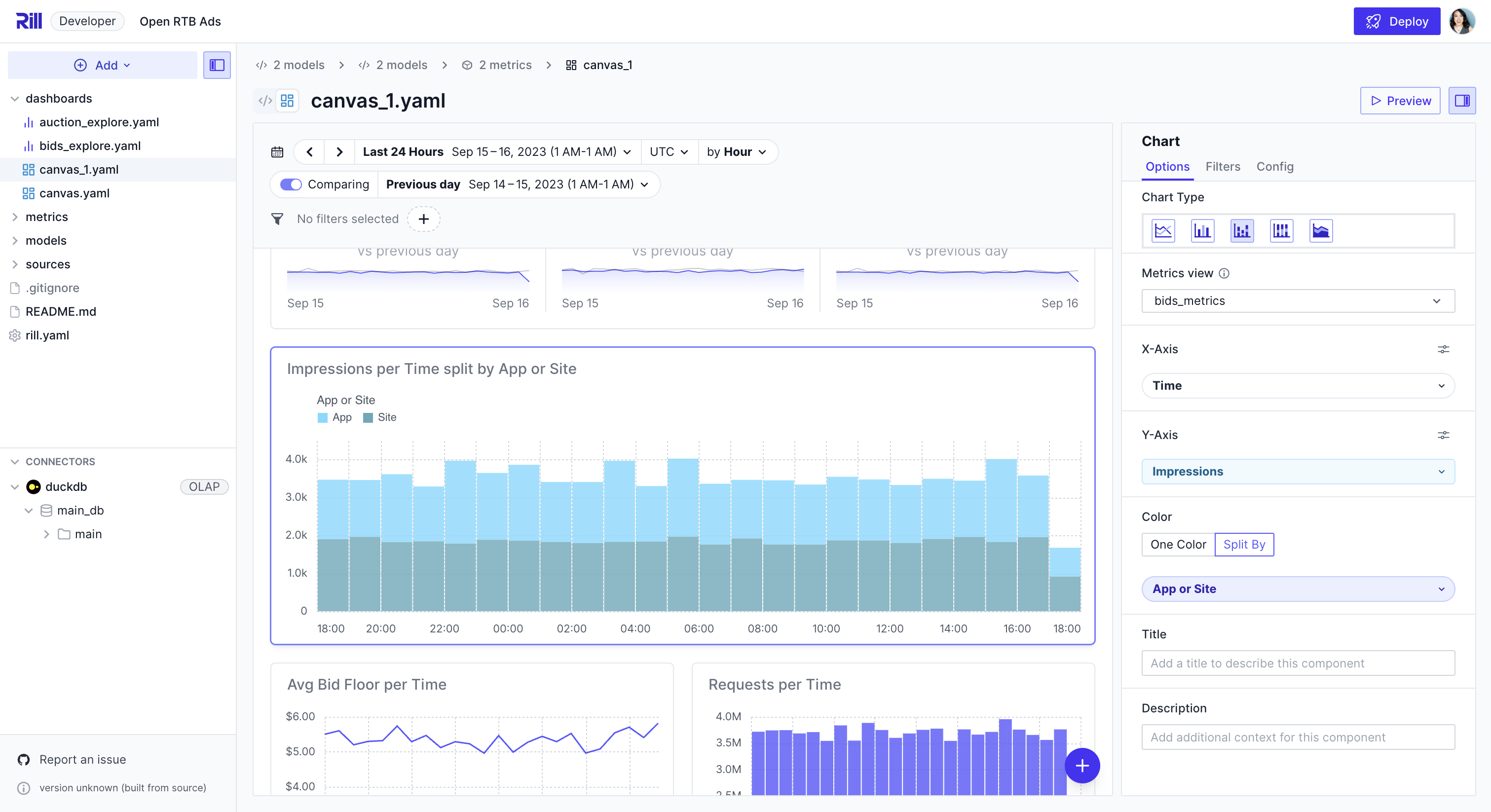
### Filters
Optionally toggle on the **global filter bar** under Canvas properties to give dashboard viewers access to the same time and dimension filters available on Explore dashboards.
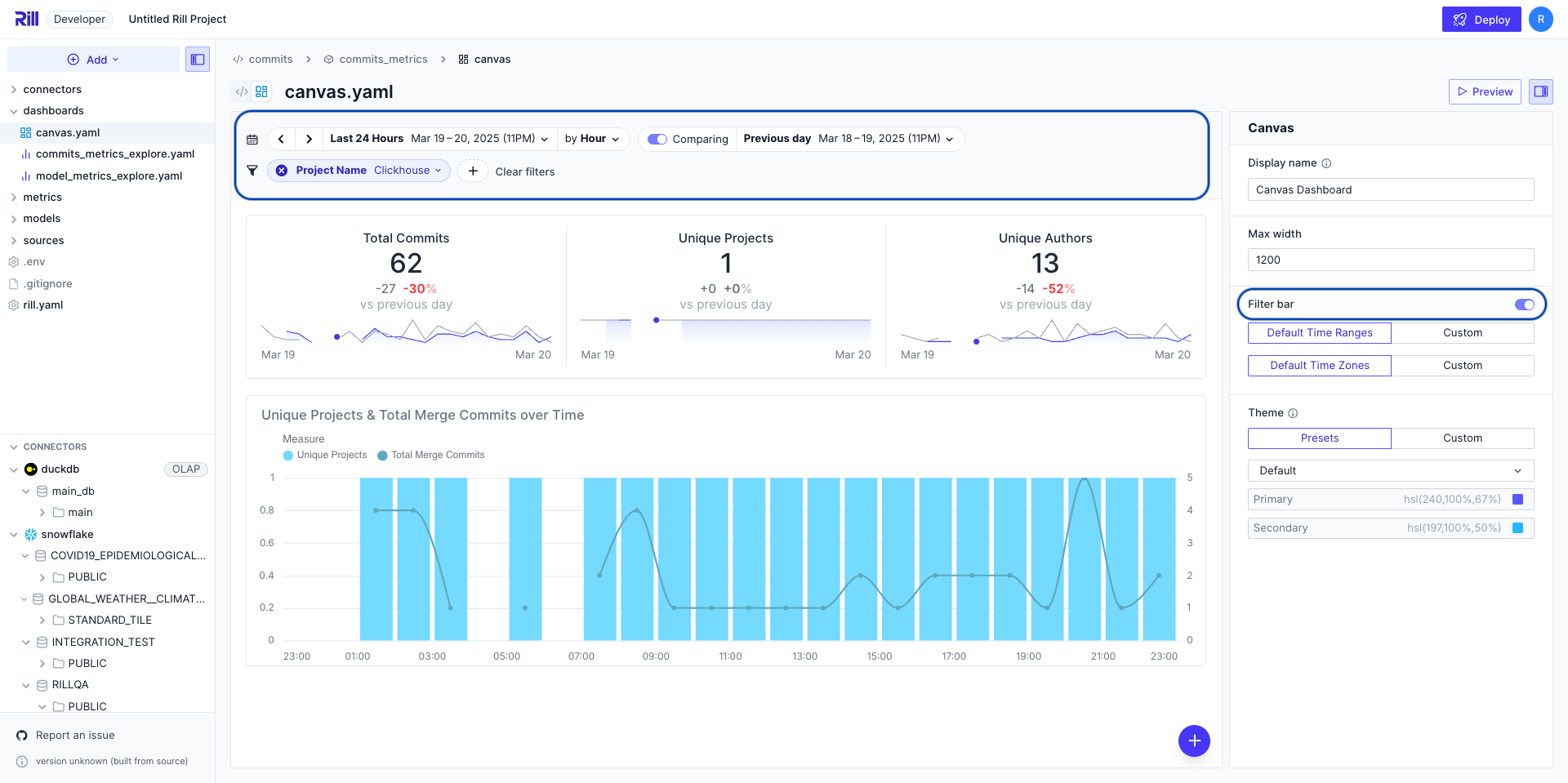
**Local filters** for a single KPI, Chart, or Table can be separated from the global filters via the "Filters" tab in the properties panel, where you can set filters that are local to just that widget.
Local filters are shown as chips in the widget's header. To keep the filter but hide the chips from viewers, turn off **Show filters on component** in the same "Filters" tab (or set `hide_local_filters: true` in YAML).
To keep a filter in the global filter bar at all times, or to block the canvas until viewers select a value for it, use `filters.pinned` and `filters.required`. See [Pin and require filters](/guide/dashboards/canvas#pin-and-require-filters).
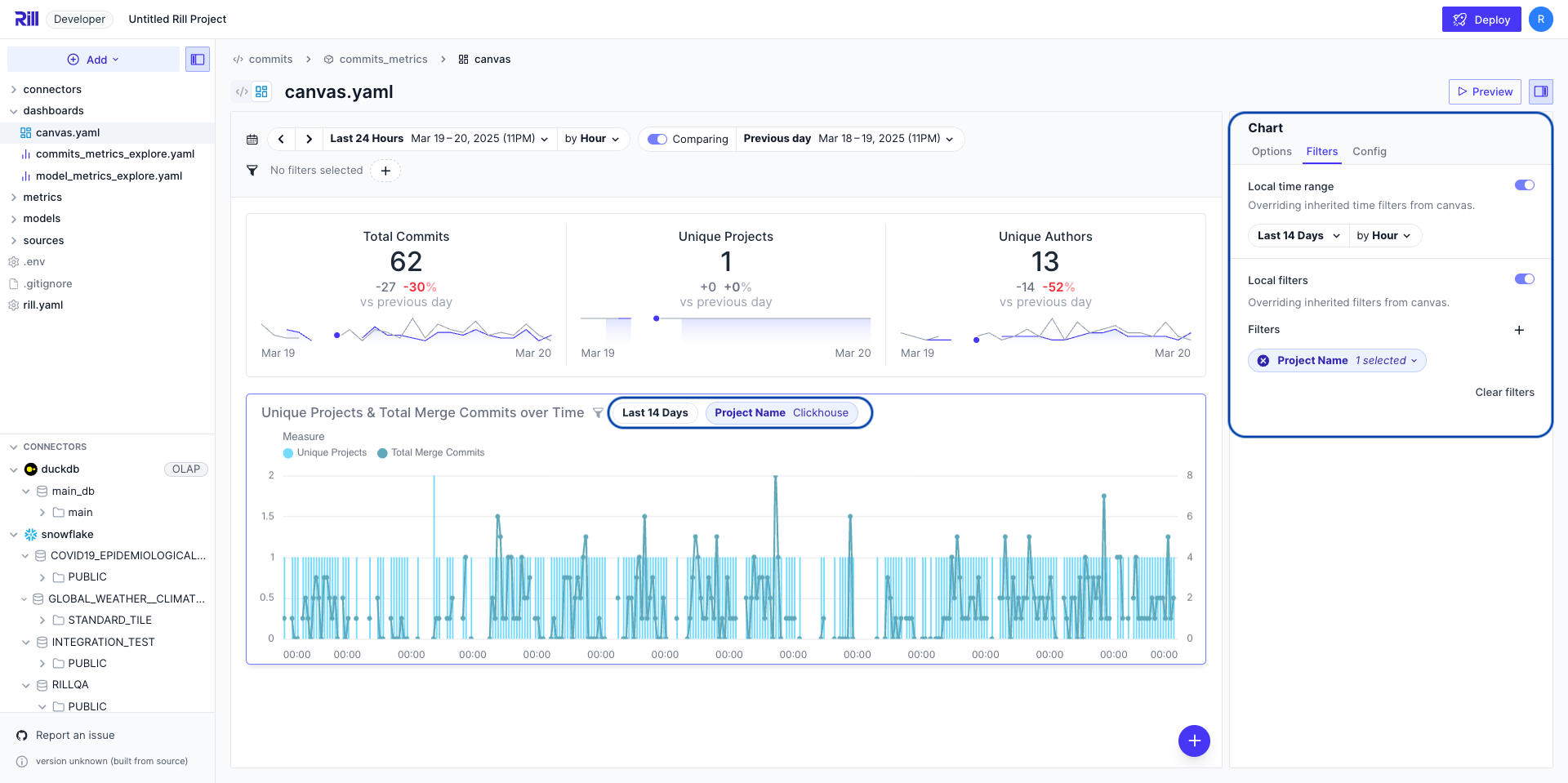
### Making changes to the YAML
While we encourage creating Canvas dashboards via the visual editing experience described above, you can always edit the YAML file directly using the code view by toggling the switch next to the filename at the top of the page. Please see our [customization page](/developers/build/dashboards/customization) and [reference documentation](/reference/project-files/canvas-dashboards) for more information.
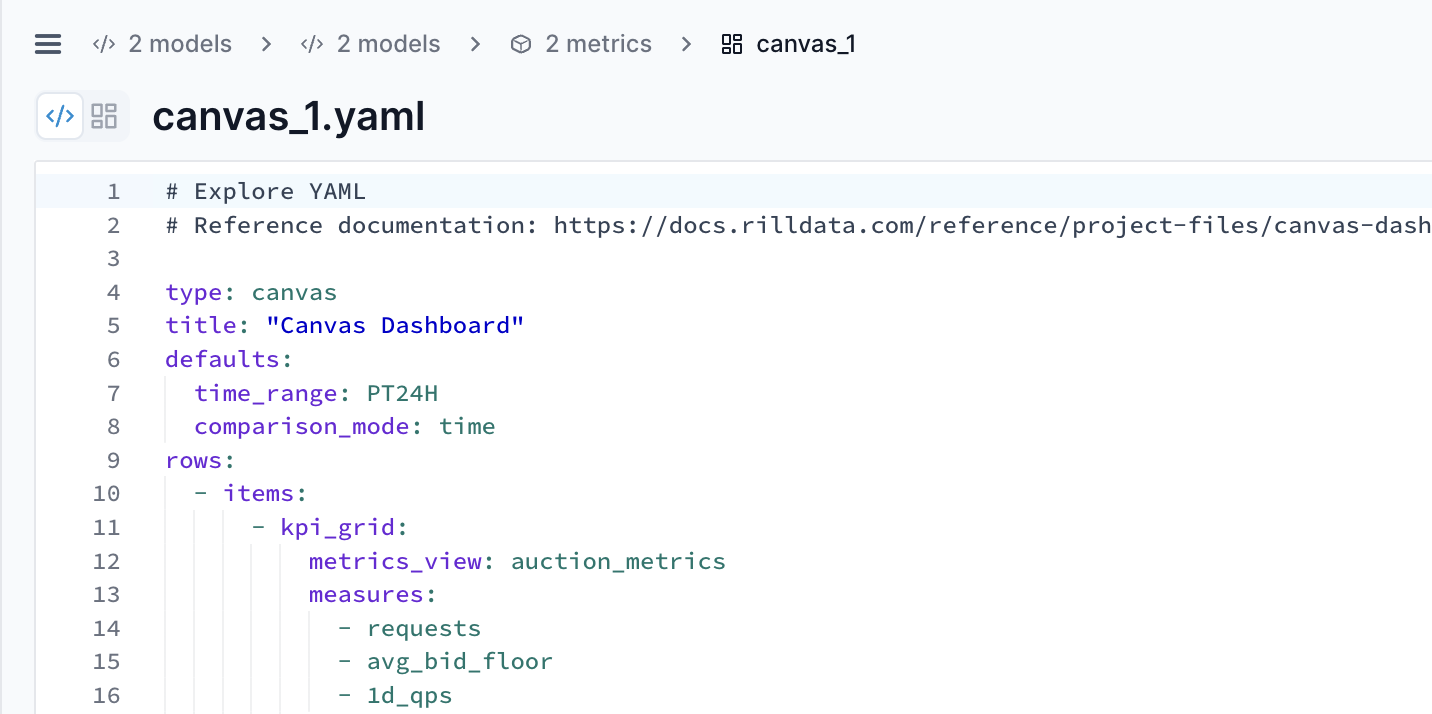
:::tip Customize default time ranges
Set project-wide default time ranges and available options for all canvas dashboards.
[Learn more about canvas defaults →](/developers/build/project-configuration#canvas-defaults)
:::
## Default Filters
Dashboard creators can configure default filters to establish a consistent starting point for viewers. Filters are defined as Metrics SQL WHERE expressions, keyed by the metrics view name they apply to.
```yaml
defaults:
filters:
# Key is the metrics view name; value is a Metrics SQL WHERE expression
my_metrics_view: "country IN ('US', 'CA') AND revenue > 1000"
another_metrics_view: "status = 'active'"
```
This lets you pre-filter data across one or more metrics views used in the canvas, ensuring users begin their analysis with the most relevant context.
For detailed YAML configurations, see the [`defaults`](/reference/project-files/canvas-dashboards#defaults) section in our reference documentation.
## Show Content to Some Viewers Only
Add an `if` condition to a row, tab group, tab or component to show it only to some viewers. One canvas can then serve several audiences, such as finance and sales teams, or the basic and premium tiers of an embedded dashboard.
```yaml
rows:
# Everyone sees the KPIs
- items:
- kpi_grid:
metrics_view: orders
measures: [total_revenue, order_count]
# Only members of the finance group see this row
- if: '{{ has "finance" .user.groups }}'
items:
- width: 8
line_chart:
metrics_view: orders
x: { field: order_date, type: temporal }
y: { field: gross_margin, type: quantitative }
# Only admins in the finance group see this table
- width: 4
if: '{{ .user.admin }}'
table:
metrics_view: costs
columns: [cost_center, total_cost]
- name: deep_dives
tabs:
- label: Pipeline
if: '{{ has "sales" .user.groups }}'
rows: # ...
- label: Cohorts
# `plan` is a custom attribute, e.g. passed by an embedding app
if: '{{ eq .user.plan "premium" }}'
rows: # ...
```
Conditions use the same templating and [user attributes](/developers/build/metrics-view/security#user-attributes) as security policies. A few things to know:
- An element shows only when its own condition and the conditions of the rows, tabs and groups containing it are all true.
- Built-in attributes (`name`, `email`, `domain`, `groups`, `admin` and `embed`) always resolve, even for an [embedded dashboard](/developers/embed/iframe) that only passes custom attributes. A condition that references a custom attribute the viewer doesn't have is false. To treat a missing attribute as a value instead, use `get`, as in `'{{ ne (get .user "plan") "premium" }}'`.
- When components are hidden, the rest of the row widens to fill it, and rows and tabs left empty disappear.
- Hidden content is removed before the dashboard reaches the viewer, including its components and the conditions themselves. In an embedded dashboard or a public URL that's restricted to the canvas, the viewer also can't query the metrics views that only hidden content uses.
- Hiding content doesn't restrict data elsewhere: a viewer with access to a metrics view can still query it, for example in an Explore dashboard. To restrict data, add a [security policy](/developers/build/metrics-view/security) to the metrics view.
- Public URLs and scheduled reports that run as their creator show what the creator can see.
To check what each audience sees, add [mock users](/developers/build/metrics-view/view-as-user) with their attributes to `rill.yaml` and use **View as** in the dashboard preview. In the visual editor, components that are only shown to some viewers have an indicator, and you can set a component's condition in its **Visible when** field.
## Example Canvas Dashboards
Here are a few deployed examples of Canvas dashboards that you can check out!
- **[E-commerce demo dashboard](https://ui.rilldata.com/demo/ezcommerce-demo/canvas/canvas)**
- **[Programmatic advertising demo dashboard](https://ui.rilldata.com/demo/rill-openrtb-prog-ads/canvas/executive_overview)**
- **[New York City demo dashboard](https://ui.rilldata.com/demo/nyc-canvas-jam/canvas/scorecard%20canvas)**
- **[NYC party demo dashboard 🎉](https://ui.rilldata.com/demo/nyc-canvas-jam/canvas/Leaderboard)**
---
# All Canvas Widgets
URL: https://docs.rilldata.com/developers/build/dashboards/canvas-widgets/
Rill Canvas dashboards are built using a variety of widgets that can display data, create visualizations, and add rich content. Each component can be created dynamically through the visual Canvas dashboard editor or defined in individual YAML files. For more information, refer to our [Components reference doc](/reference/project-files/component).
## Data
### KPI
### Leaderboard
### Pivot / Table
}
/>
}
/>
}
/>
## Chart
### Bar
### Line
### Stacked Area
### Stacked Bar
### Stacked Bar Normalized
### Donut
### Funnel
### Heat Map
### Combo
### Scatter Plot
}
/>
}
/>
}
/>
}
/>
}
/>
}
/>
}
/>
}
/>
}
/>
}
/>
## Map
### Point and Region Maps
}
/>
## Custom Viz
### Reusable Charts
}
/>
## Miscellaneous
### Markdown Text
### Image
### Component
}
/>
}
/>
}
/>
---
# Chart Widgets
URL: https://docs.rilldata.com/developers/build/dashboards/canvas-widgets/chart
Chart widgets in Rill Canvas allow you to visualize your data in various formats. You can create charts dynamically in the Canvas Dashboard or through individual component files. For more information, refer to our [Components reference doc](/reference/project-files/component).
## Bar Chart
Bar charts are ideal for comparing values across different categories.
### Horizontal Bar Chart
`x` and `y` always name the field drawn on that axis. To draw the bars from left to right, which works well for long category labels or many categories, put the measure on `x` and the dimension on `y`. Sort values refer to axes, so `sort: -x` on `y` orders the categories by the measure. The same layout works for `stacked_bar` and `stacked_bar_normalized`; line and area charts always keep the dimension on `x`.
```yaml
- bar_chart:
metrics_view: bids_metrics
color: primary
x:
field: total_bids
type: quantitative
zeroBasedOrigin: true
y:
field: advertiser_name
limit: 20
type: nominal
sort: -x
```
### Axis label orientation
Category labels on the x-axis are laid out automatically: they stay upright when they fit, tilt to 45° when they do not, and only turn vertical when the chart is too narrow for angled text. Long labels are shortened with an ellipsis; hovering a bar shows the full value in its tooltip. To force an orientation, choose **Label orientation** in the field settings or set `labelAngle` on the `x` field to `0` (horizontal), `-45` (angled) or `-90` (vertical).
## Line Chart
Line charts are perfect for showing trends over time.
## Stacked Area Chart
Area charts show the magnitude of change over time with filled areas.
## Stacked Bar Chart
Stacked bar charts show multiple data series stacked on top of each other.
## Stacked Bar Normalized
Normalized stacked bars show proportions instead of absolute values.
## Donut Chart
Donut charts display data as segments of a circle with a hollow center.
## Funnel Chart
Funnel charts show the flow through a process with decreasing/increasing values at each stage.
## Heat Map
Heat maps visualize data density using color intensity across two dimensions.
## Combo Chart
Combo charts combine different chart types (like bars and lines) in a single visualization.
## Scatter Plot
Scatter plots visualize the relationship between two measures, with each point representing a data value. Points can be colored by a dimension and optionally sized by a measure. Scatter plots support interactive zooming and panning.
**Interactive Controls:**
- **Shift + Drag**: Pan the plot
- **Scroll Wheel**: Zoom in/out
- **Double-click**: Reset zoom and pan to default view
---
# Custom Viz Components
URL: https://docs.rilldata.com/developers/build/dashboards/canvas-widgets/custom-viz/
A custom viz is a chart you define once and reuse across canvas dashboards. Each one is a `type: component` file, kept under `viz/` by convention, with three parts:
- **Params**: the inputs a dashboard binds, such as a metrics view, a measure and a dimension.
- **A query**: a [Metrics SQL](/developers/build/metrics-view/metrics-sql) query that selects the rows to draw.
- **A chart spec**: the chart type, and which field goes on which channel.
Use a custom viz when the native [chart widgets](/developers/build/dashboards/canvas-widgets/chart) don't offer the chart you need, such as a box plot, a bullet chart, a waterfall or a radar chart, or when you want one chart definition that many dashboards bind to their own metrics views and fields.
Rill compiles the chart spec to Vega-Lite with [Flint](https://github.com/microsoft/flint-chart), an open-source chart compiler from Microsoft, and describes each field to Flint using your metrics view: a currency measure is formatted as currency, a percentage as a percentage, and the time dimension is bucketed at the dashboard's time grain. Scales, axes, sorting, stacking, colors and layout are derived from the data. The spec stays short, and the chart keeps working when a dashboard binds it to a different metrics view or field.
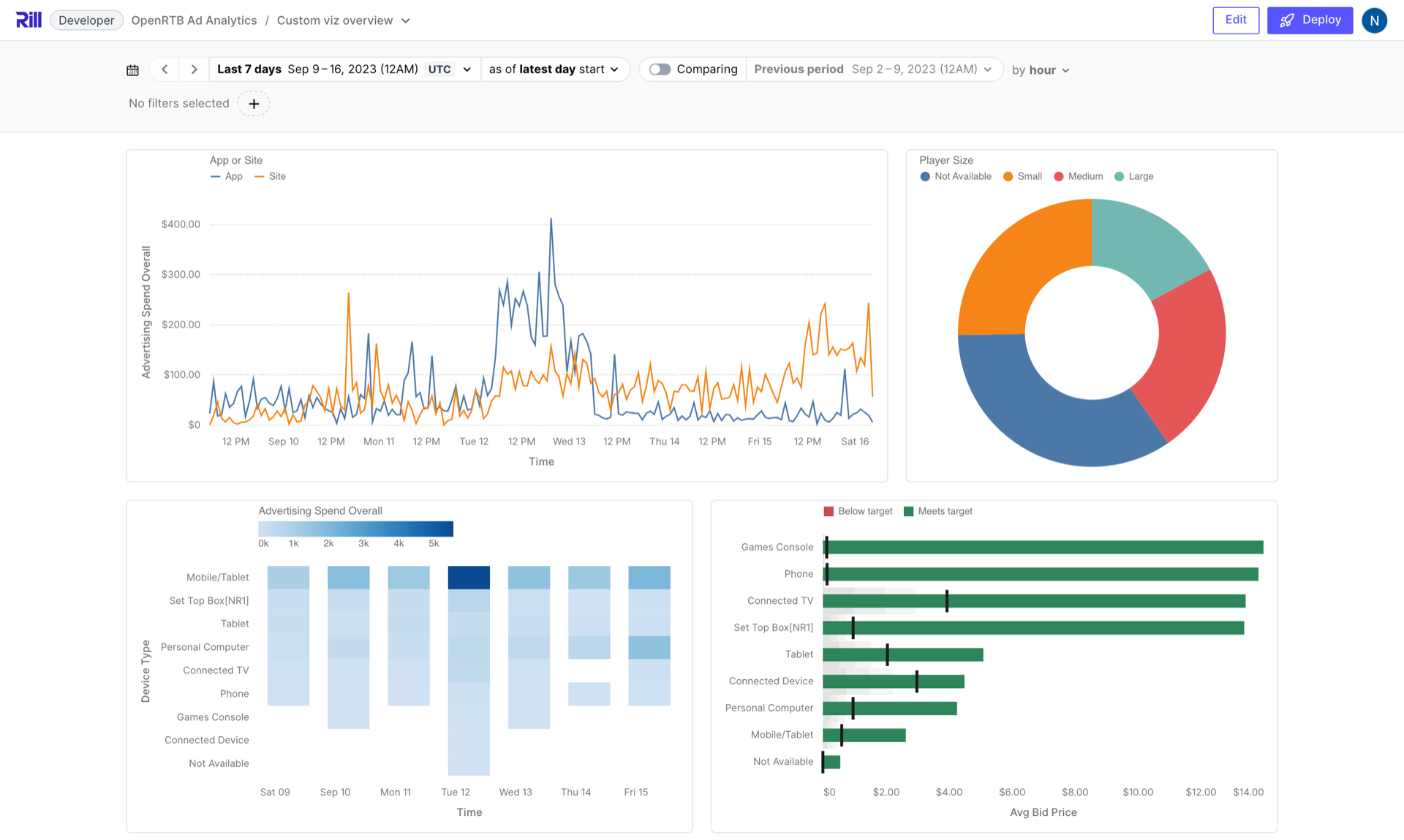
When a chart needs something the chart spec does not offer, such as a reference line, an annotation or a second axis, you can [convert it to Vega-Lite](/developers/build/dashboards/canvas-widgets/custom-viz/vega-lite) and edit the spec directly.
:::note Feature flag
Custom viz authoring is behind a feature flag. Enable it in `rill.yaml`:
```yaml
features:
custom_components: true
```
The flag adds the **Custom viz** entry to the **Add** menu, the component editor, and **Your components** in the canvas widget menu. Dashboards render the custom viz they reference whether or not the flag is set.
:::
## Create a Custom Viz
In Rill Developer, open the **Add** menu and choose **Custom viz**.
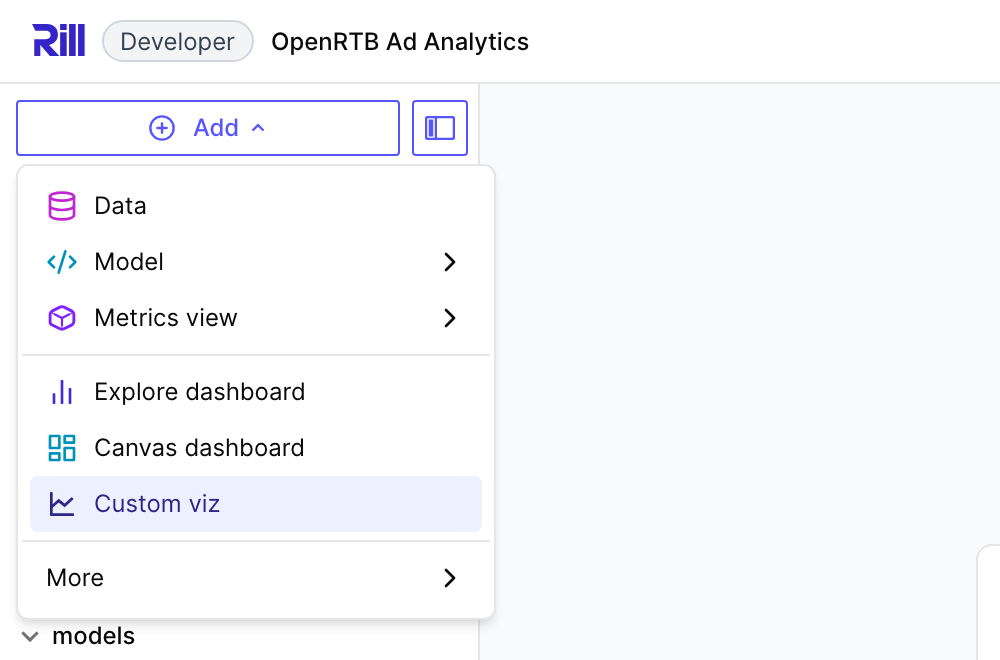
The **Chart types** gallery shows every chart type Rill can draw, grouped by family. Pick the example closest to the chart you want, or choose **Start blank** for an empty component. [Chart Types](/developers/build/dashboards/canvas-widgets/custom-viz/chart-types) describes each type and the fields it needs.
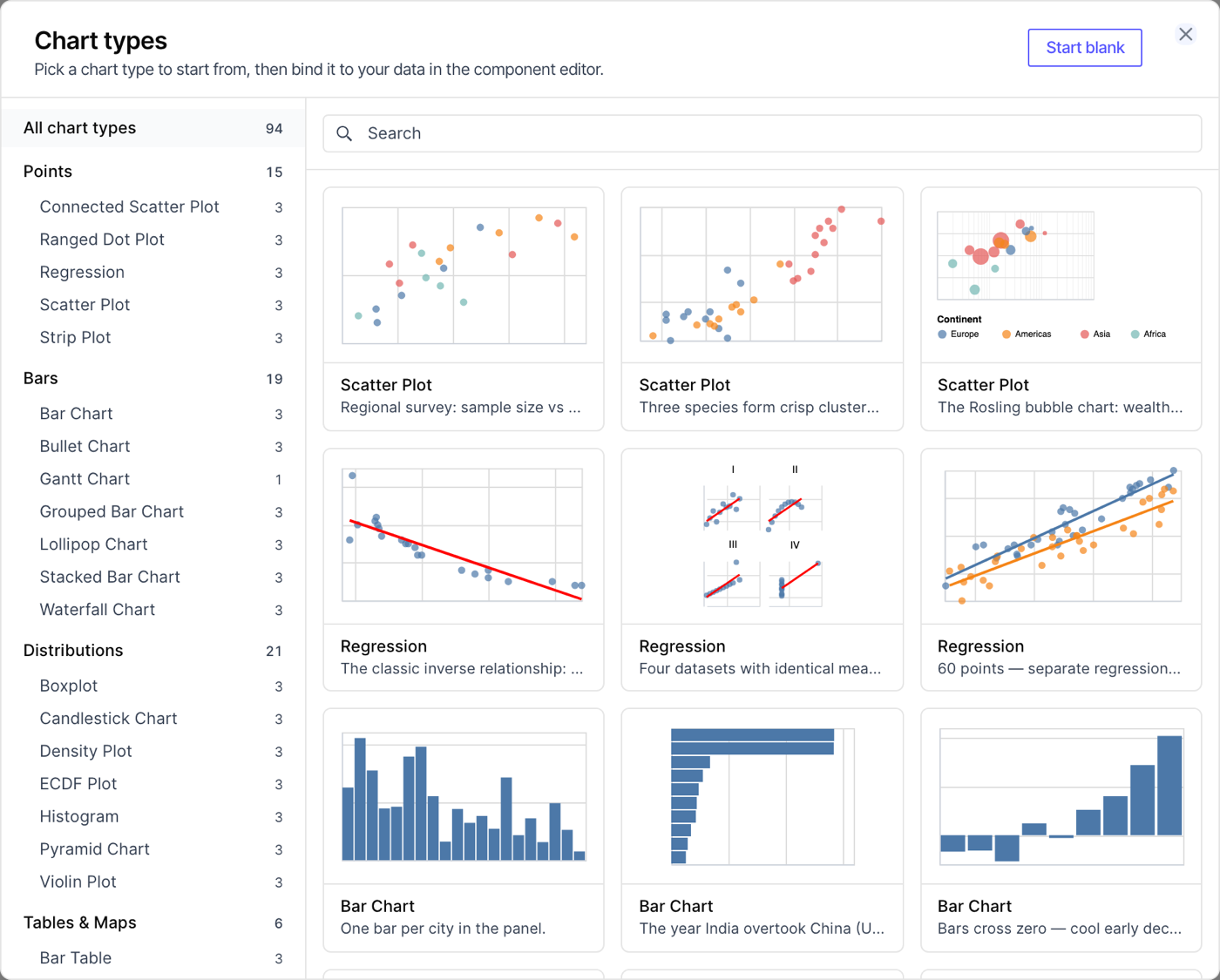
Picking a chart type writes a component to `viz/` and opens it in the component editor. The editor draws a live preview against **Test values**, shown in the panel on the right. Rill picks them from your project, choosing for each param a field that suits the channel it is drawn on: a dimension that splits the chart into colored series, for example, gets one with 2 to 12 values. Change them to preview the chart with other fields. Test values belong to the editor; each dashboard binds its own.
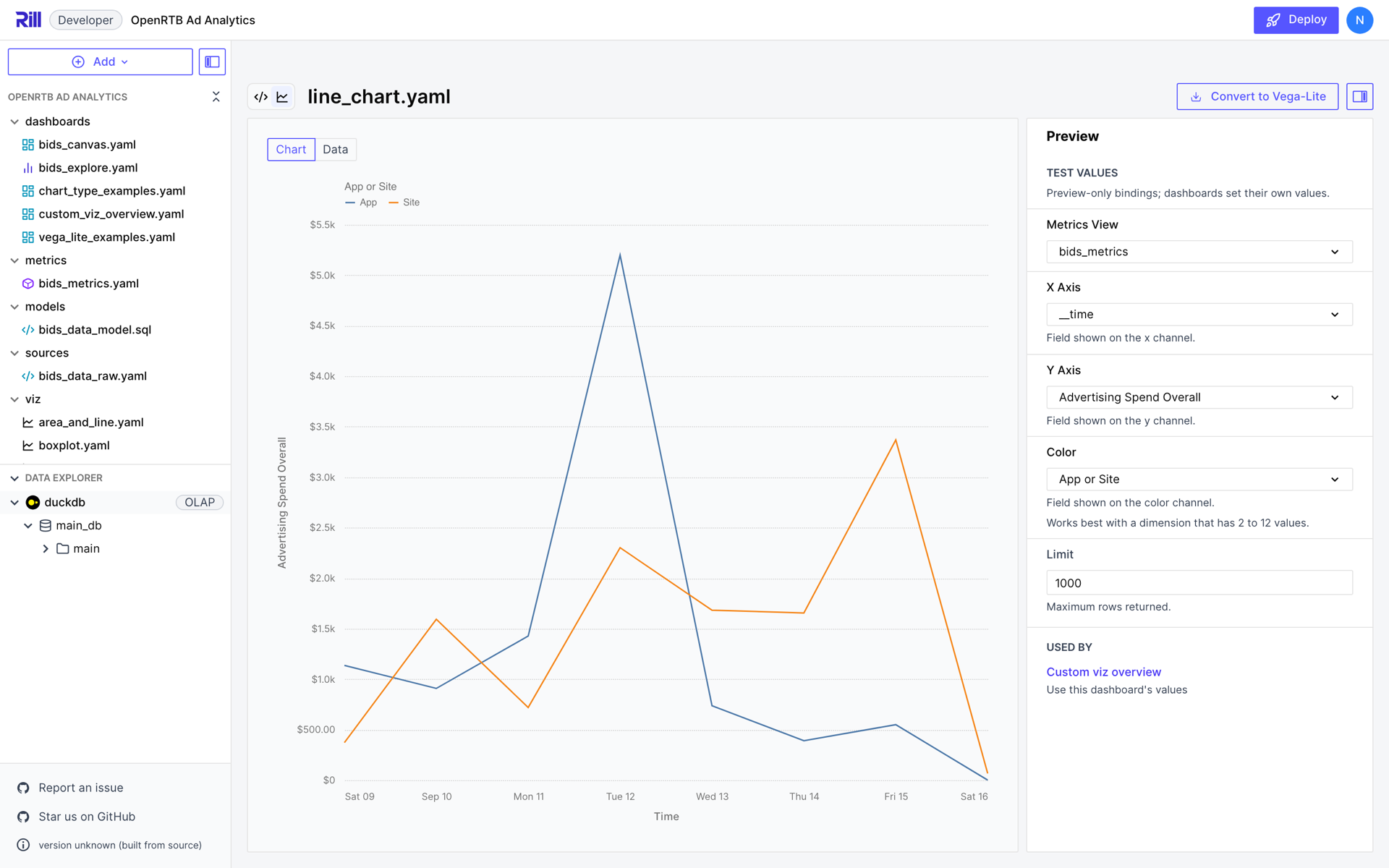
The toggle beside the file name switches between the preview and the YAML. The preview's **Data** tab lists the rows the query returned, and a notice above the chart tells you when the query returned as many rows as its `LIMIT` allows, which means some may be missing.
:::tip Working with the AI assistant
When the AI assistant is enabled, picking a chart type hands it to the developer agent, which writes the same params, query and chart spec and checks that the query runs against your data before the editor opens. Until then the file shows **Importing example using AI…**. In the editor, type a change into the box at the top of the **Preview** panel and press Enter to have the agent make it, and use **Fix with AI** when the query or the chart fails.
:::
## The Component File
This is the file the gallery writes for a multi-series **Line Chart**, with the query split over several lines and the `description` rewritten. The gallery sets `display_name` to the chart type and copies the caption of the example you picked into `description`; replace both with text that describes your chart. The canvas widget menu and inspector list the component by its display name.
```yaml
# viz/line_chart.yaml
type: component
display_name: Line Chart
description: A measure over time, one line per value of a dimension.
params:
- name: metrics_view
type: metrics_view
required: true
- name: x_axis
type: time_dimension
required: true
description: Field shown on the x channel.
- name: y_axis
type: measure
required: true
description: Field shown on the y channel.
- name: color
type: dimension
required: true
description: Field shown on the color channel.
- name: limit
type: number
default: 1000
description: Maximum rows returned.
custom_chart:
metrics_sql: |
SELECT {{ .params.x_axis }}, {{ .params.y_axis }}, {{ .params.color }}
FROM {{ .params.metrics_view }}
ORDER BY {{ .params.x_axis }}, {{ .params.y_axis }} DESC
LIMIT {{ .params.limit }}
spec:
chartType: Line Chart
encodings:
x: { field: "{{ .params.x_axis }}" }
y: { field: "{{ .params.y_axis }}" }
color: { field: "{{ .params.color }}" }
```
- `params` declares what a dashboard binds. The rest of the file refers to each param as `{{ .params. }}`.
- `custom_chart` is the renderer. It holds the query, `metrics_sql`, and the chart spec, `spec`.
- The query selects every field the chart draws. Measures arrive aggregated, grouped by the selected dimensions.
- The chart spec names the chart type and binds each channel to a param.
## Params
Params are the contract between a component and the dashboards that use it. Each param has a `name` and a `type`, and optionally:
| Property | Description |
|---|---|
| `required` | Every dashboard that uses the component must bind a value. Mutually exclusive with `default`. |
| `default` | The value used when a dashboard doesn't bind one. |
| `description` | Help text shown below the param's input in the component editor and the canvas inspector. |
| `options` | For `string` and `number` params, the allowed values. The input becomes a dropdown. |
| `metrics_view` | For field params, the name of the `metrics_view` param whose metrics view the field belongs to. Only needed when a component declares more than one `metrics_view` param. |
The type determines what a param binds to:
| Type | Binds | Notes |
|---|---|---|
| `metrics_view` | The name of a metrics view | The param must be named `metrics_view` or end with `_metrics_view`. |
| `measure` | A measure of the bound metrics view | |
| `dimension` | A dimension of the bound metrics view | |
| `time_dimension` | The primary time dimension, or a time-typed dimension | |
| `string`, `number`, `boolean` | A literal value | Row limits, thresholds, chart properties. |
Inputs are labeled with the param's name in title case, so `x_axis` reads **X Axis**. Name params after their role in the chart rather than after a field, because the same component is bound to different fields. The names `title`, `description`, `datum`, `item`, `event` and `parent` are reserved.
### Templating
A param's value is substituted wherever `{{ .params. }}` appears in the renderer. Rill checks every reference against the declared params when it parses the file, so a misspelled name is reported as an error rather than drawing an empty chart.
A value that consists of a single placeholder keeps the param's type. With `inner_radius` declared as a `number`, `innerRadius: "{{ .params.inner_radius }}"` reaches the chart as the number `50`, not the string `"50"`. A placeholder inside a longer string, such as `LIMIT {{ .params.limit }}`, is substituted as text.
Field params also expose the field's metadata from the metrics view, such as `{{ .fields..display_name }}`. A chart spec doesn't need it, because Rill supplies titles and formats; a [converted Vega-Lite spec](/developers/build/dashboards/canvas-widgets/custom-viz/vega-lite#templating) uses it for axis titles and number formats.
### Change a Component That Dashboards Use
The component editor's **Used by** panel lists the dashboards that use the component. **Use this dashboard's values** under a dashboard loads its bindings as test values, so you can preview a change against a real use.
Rill validates every use when a canvas reconciles: an unknown param, a missing required param, a value of the wrong type, or a field that doesn't exist in the bound metrics view is reported as an error on the dashboard. To change a component without breaking the dashboards that use it, add params with a `default` rather than `required: true`, and don't rename, remove or change the type of existing params. The editor warns you when a change would break the dashboards in **Used by**.
## The Query
`metrics_sql` treats the metrics view as a table: you select dimensions and measures, and Rill groups and aggregates them. `WHERE` and `HAVING` filter the rows. Keep the rest of the query to `SELECT`, `FROM`, `ORDER BY` and `LIMIT`:
- Select every field the chart draws or the query orders by. Ordering by a field that isn't selected fails.
- Don't wrap measures in aggregate functions such as `SUM()`; they arrive aggregated.
- Don't rename fields with `AS`. The chart reads each column by its field name, and Metrics SQL rejects the alias. The exception is an expression aliased back to its field's name, such as a [truncated time dimension](#time-dimensions).
- `WITH`, joins, window functions and `CASE` are not supported, and subqueries only work inside an `IN` filter. The [Metrics SQL reference](/developers/build/metrics-view/metrics-sql) lists the full syntax.
- Order a time series by its time dimension, and anything else by its main measure descending, so that the `LIMIT` keeps the rows the chart needs.
### Time Dimensions
Select a time dimension as is and Rill buckets it at the dashboard's time grain, so the chart re-buckets when a viewer changes the grain. The component editor has no time controls, so its preview buckets by day.
To keep a fixed bucket regardless of the dashboard, truncate the time dimension in the query and alias it back to its own name:
```sql
SELECT date_trunc('day', {{ .params.x_axis }}) AS {{ .params.x_axis }}, {{ .params.y_axis }}, {{ .params.color }}
FROM {{ .params.metrics_view }}
```
The alias is required: without it, the column is named after the expression and the chart can't find it. In the dashboard at the top of this page, the heatmap is truncated this way and stays daily while the line chart above it follows the hourly grain.
### Row Limits
A metrics view returns one row per combination of the selected dimensions, and a chart draws one mark per row. Size the default `limit` to the marks the chart needs: about 25 rows for one mark per category, 10 for pie and donut charts, about 150 when categories are split into series, 500 for a time series and 1,000 for a time series split into series. A limit that is too low for a split chart fills up on the first categories or time buckets and leaves the rest of the chart empty.
Charts that plot individual observations, such as box plots, histograms and scatter plots, need one row per observation, but a metrics view aggregates: selecting only the plotted fields returns one row per category. Gallery components for these charts declare a `detail` dimension param that the query selects and the chart never draws. It sets the grain of the rows, so binding it to `advertiser_name` gives one row, and one point, per advertiser.
## The Chart Spec
`spec` has three keys:
| Key | Description |
|---|---|
| `chartType` | One of the [chart types](/developers/build/dashboards/canvas-widgets/custom-viz/chart-types), spelled exactly, such as `Line Chart` or `Heatmap`. |
| `encodings` | A mapping from channel to field. Each value is an encoding object, or a field name as shorthand for `{ field: }`. |
| `chartProperties` | Optional settings the chart type exposes, such as a donut's `innerRadius`. |
Everything else is derived: sizes, axis titles, number formats, tick counts, fonts and legends. A chart spec has no title.
### Encodings
The channels are `x` and `y`; `x2` and `y2` for the end of a range; `color`, `size`, `shape`, `opacity` and `strokeDash`; `detail` and `order`; `group` for side-by-side bars; `goal` for a target; `column` and `row` for small multiples; and `open`, `high`, `low` and `close` for candlesticks. Each chart type takes a subset, listed in [Chart Types](/developers/build/dashboards/canvas-widgets/custom-viz/chart-types).
An encoding object takes these keys:
| Key | Values | Purpose |
|---|---|---|
| `field` | A field name, usually `"{{ .params. }}"` | The field to draw. |
| `sortBy` | A channel, such as `x`, or a field | Sort a category axis by another channel's values. |
| `sortOrder` | `ascending` or `descending` | The direction of that sort. |
| `scheme` | A [Vega color scheme](https://vega.github.io/vega/docs/schemes/) name, such as `tableau10` or `viridis` | The colors of the `color` channel. |
| `type` | `quantitative`, `nominal`, `ordinal` or `temporal` | Override how the field is encoded. |
| `aggregate` | `count`, `sum`, `average` or `mean` | Aggregate the channel's values. |
For example, this draws horizontal bars, longest first:
```yaml
spec:
chartType: Bar Chart
encodings:
y: { field: "{{ .params.dimension }}", sortBy: x, sortOrder: descending }
x: { field: "{{ .params.measure }}" }
```
Leave out `type` and `aggregate` unless the chart draws wrong without them. Rill already marks measures as quantitative, dimensions as nominal and time dimensions as temporal, and measures arrive aggregated; a hard-coded type can break the chart when a dashboard binds a different field.
### Field Semantics
Rill tells Flint what each selected field means, based on the metrics view:
| Field | Treated as |
|---|---|
| A measure formatted as currency, by `format_preset` or by a `format_d3` with a currency symbol | An amount |
| A measure formatted as a percentage | A percentage |
| A measure with the `interval` format preset | A duration |
| Any other measure with an integer type | A count |
| Any other measure | A number |
| A time dimension | A date at the grain it was bucketed at, from year down to day, or a timestamp below a day |
| Any other dimension | A category |
These decide zero baselines, tick spacing and the kind of color scale. Axis labels and tooltips format each measure with its own format, the same as everywhere else in Rill, and titles use display names.
### Colors
Series colors come from the `tableau10` scheme, and a measure bound to `color` is drawn with a sequential scheme such as `blues`. Set `scheme` on the `color` encoding to choose another. Charts drawn in a single color use the dashboard theme's primary color. To color series with the [theme's palette](/developers/build/dashboards/customization#changing-themes--colors) instead, [convert the component](/developers/build/dashboards/canvas-widgets/custom-viz/vega-lite#use-the-theme-palette) and remove the scheme.
### Chart Properties
`chartProperties` adjusts choices a chart type exposes: line interpolation, stacking, bar corner radius, the size of a donut's hole, and so on. [Chart Types](/developers/build/dashboards/canvas-widgets/custom-viz/chart-types) lists the properties of each type. Properties a chart type doesn't have are ignored, and an invalid value falls back to the property's default with a notice above the chart.
```yaml
spec:
chartType: Line Chart
encodings:
x: { field: "{{ .params.x_axis }}" }
y: { field: "{{ .params.y_axis }}" }
chartProperties:
interpolate: monotone
showPoints: true
```
To let each dashboard choose a property, bind it to a param:
```yaml
params:
# ...
- name: inner_radius
type: number
default: 50
description: Size of the hole, as a percentage of the radius. Set to 0 for a pie.
custom_chart:
# ...
spec:
chartType: Donut Chart
encodings:
size: { field: "{{ .params.size }}" }
color: { field: "{{ .params.color }}" }
chartProperties:
innerRadius: "{{ .params.inner_radius }}"
```
A donut's `innerRadius` is a percentage of the chart's radius, so the hole keeps its proportions at any widget size.
### Several Measures on One Axis
To draw several measures as series, give `x` or `y` a list of encodings:
```yaml
spec:
chartType: Line Chart
encodings:
x: { field: "{{ .params.x_axis }}" }
y:
- field: "{{ .params.first_measure }}"
- field: "{{ .params.second_measure }}"
```
The measures share one axis, so pair measures of a similar scale and unit. The list can't be combined with a `color` encoding. Series are labeled with field names rather than display names, and values are not formatted with the measures' formats; for full control, convert the component and [give each measure its own axis](/developers/build/dashboards/canvas-widgets/custom-viz/vega-lite#a-second-axis).
### Small Multiples
Bind a dimension to `column` or `row` to draw one panel per value:
```yaml
spec:
chartType: Area Chart
encodings:
x: { field: "{{ .params.x_axis }}" }
y: { field: "{{ .params.y_axis }}" }
column: { field: "{{ .params.column }}" }
```
Each panel shares the widget's space, so keep the dimension to a handful of values.
## Add a Custom Viz to a Canvas
In the canvas editor, open the widget menu, choose **Your components**, and pick the custom viz. Rill fills in the params with a metrics view and fields from your project, and the inspector shows an input for every param so you can rebind them. **Edit component** opens the component file; edits there apply to every dashboard that uses it.
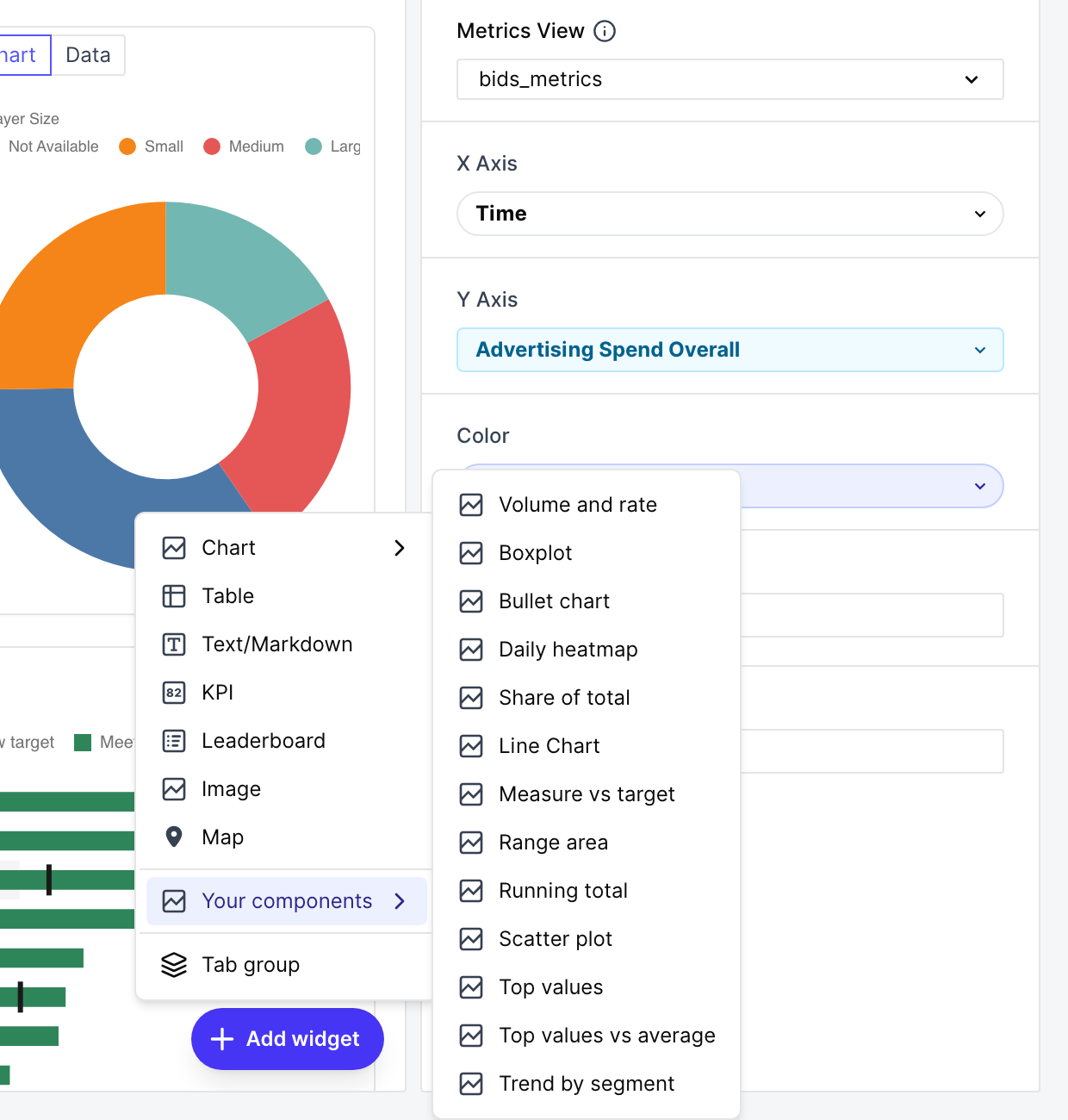
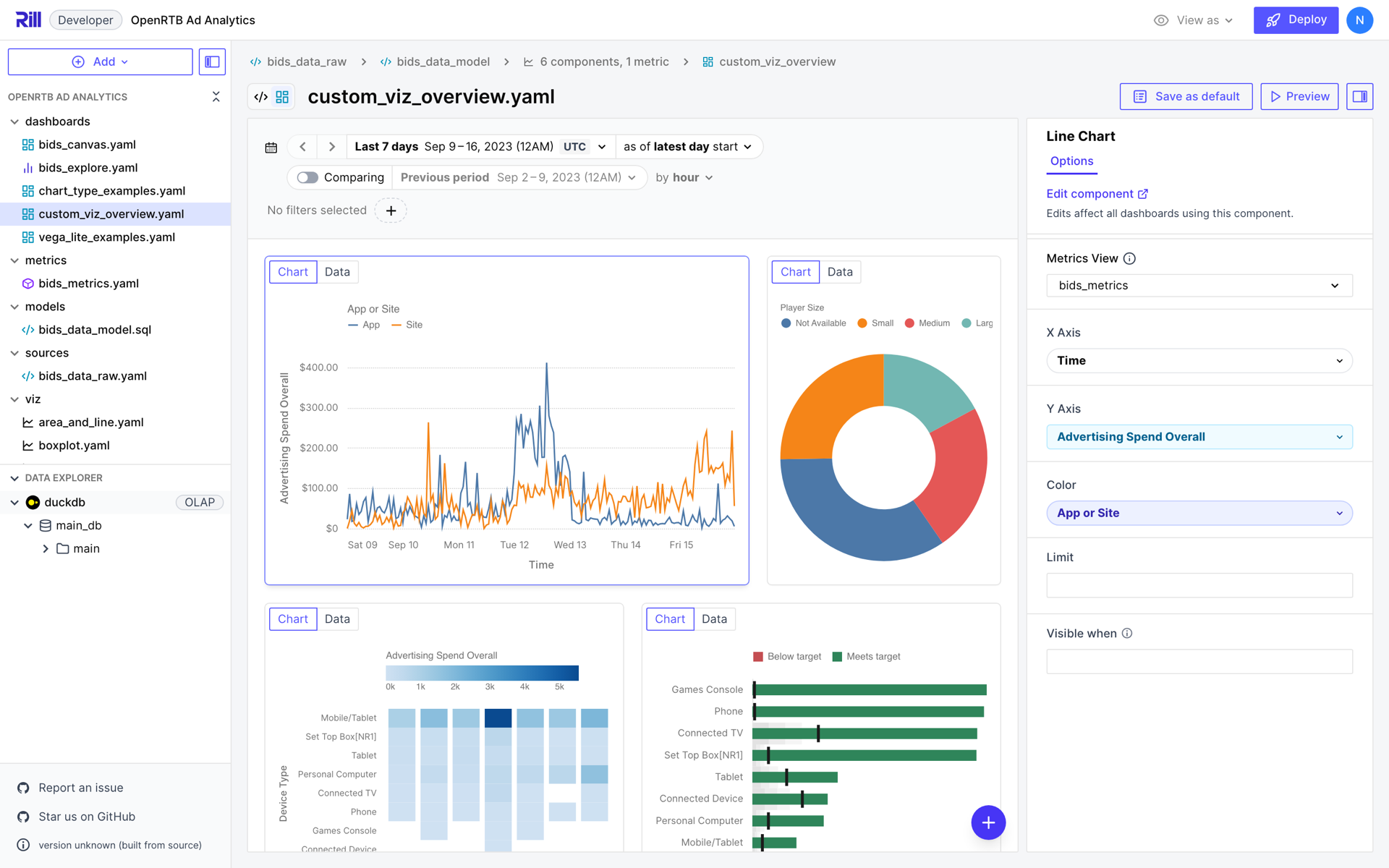
In YAML, a canvas item names the component and binds its params:
```yaml
# dashboards/custom_viz_overview.yaml
type: canvas
display_name: Custom viz overview
defaults:
time_range: 7D as of latest/D
rows:
- items:
- component: line_chart
params:
metrics_view: bids_metrics
x_axis: __time
y_axis: overall_spend
color: app_or_site
width: 8
- component: donut_chart
params:
metrics_view: bids_metrics
size: overall_spend
color: player_size
width: 4
height: 360px
```
Bound values must be literals: strings, numbers or booleans. Params that have a default can be left out. A custom viz follows the canvas's time range, time grain and dimension filters like any other widget.
## Limits
- A component runs one query, so a chart can't combine two datasets.
- When a category axis has more values than fit in the widget, the chart drops the extra rows and says so above the chart.
- A custom viz doesn't draw time comparisons.
- Custom viz components are separate from the inline `custom_chart` widget that a canvas can define in its own YAML. That widget always takes a Vega-Lite `vega_spec`. A component file takes a chart `spec`, and carries a `vega_spec` only after it has been converted.
---
# Custom Viz Chart Types
URL: https://docs.rilldata.com/developers/build/dashboards/canvas-widgets/custom-viz/chart-types
The chart spec of a [custom viz](/developers/build/dashboards/canvas-widgets/custom-viz) can draw 32 chart types, in the six families of the **Chart types** gallery. This page lists, for each type, what it is for, the channels it takes and the `chartProperties` it accepts. Channels in **bold** are required; the rest are optional.
## The Gallery
**Add → Custom viz** opens a gallery of up to three examples per chart type, each with a different channel layout: a scatter plot with and without bubble sizes, a line chart with and without series. The thumbnails are drawn from sample data that ships with Flint. Filter by family or chart type in the sidebar, or search by name.
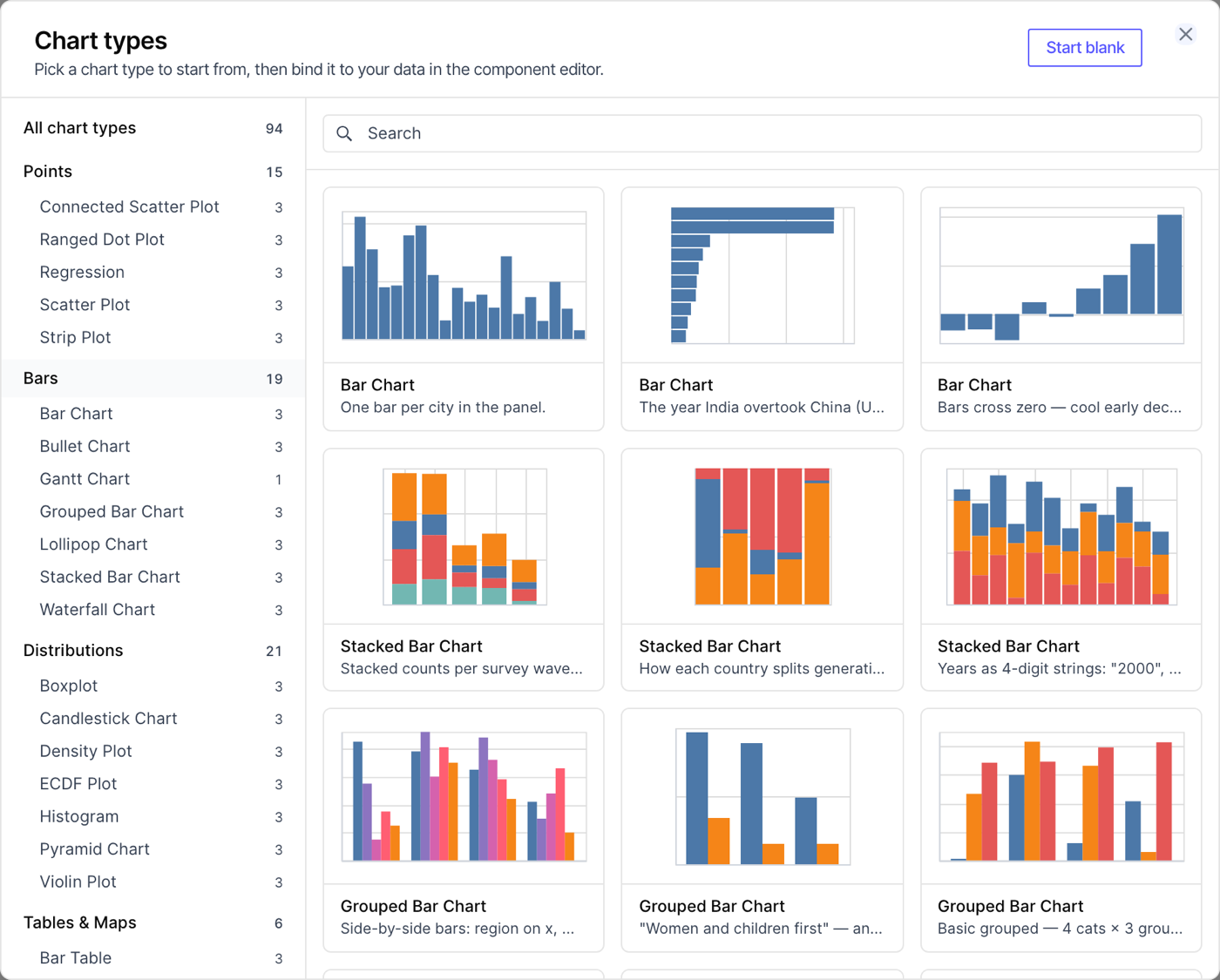
Picking an example writes a component with the same layout. Only the chart type, the channels and any chart properties carry over, never the sample data. The component declares:
- a required `metrics_view` param;
- one required param per channel, named for the channel's role (`x_axis`, `y_axis`, `x_axis_end`, `color`, `size`, `group`, `goal`, and so on) and typed `measure`, `dimension` or `time_dimension` to match the field the example draws there;
- for charts that plot individual observations, a required `detail` dimension, described in [Row Limits](/developers/build/dashboards/canvas-widgets/custom-viz#row-limits);
- a `limit` param, with a default suited to how many marks the chart draws;
- a `metrics_sql` query that selects those fields, ordered by time for a time series and by the measure otherwise.
The examples below are bound to the `bids_metrics` metrics view of the [OpenRTB example project](https://github.com/rilldata/rill-examples/tree/main/rill-openrtb-prog-ads). Each shows the component's `custom_chart` block; the params it references are declared as described above.
## Points
Charts that draw a point per row: scatter plots and their variants for the relationship between two measures, and dot and strip plots for values per category. Scatter plots, regressions and strip plots plot individual observations, so their components select a `detail` dimension that sets what each point represents.
| Chart type | Use it for | Channels | Chart properties |
|---|---|---|---|
| Scatter Plot | The relationship between two measures | **x**, **y**, color, size, shape, opacity, column, row | `opacity` |
| Regression | A scatter plot with a fitted trend line | **x**, **y**, color, size, column, row | `regressionMethod`, `polyOrder` |
| Connected Scatter Plot | How two measures move together over time | **x**, **y**, order, color, detail, column, row | |
| Ranged Dot Plot | The gap between two values per category, drawn as a dumbbell | **x**, **y**, **color** | |
| Strip Plot | The spread of individual values per category | **x**, **y**, color, size, column, row | `stepWidth`, `pointSize`, `opacity` |
- **Regression**: `regressionMethod` is `linear` (the default), `log`, `exp`, `pow`, `quad` or `poly`; `polyOrder` sets the degree of a `poly` fit, from 2 to 10.
- **Connected Scatter Plot**: `order` is the sequence the points are connected in, usually a time dimension.
- **Ranged Dot Plot**: bind `color` to a dimension with exactly two values, one for each end of the dumbbell.
- **Strip Plot**: `stepWidth` sets the jitter spread, from 10 to 100.
A bubble chart of advertisers: average bid price against win rate, sized by impressions and colored by creative type, with `detail` bound to `advertiser_name` so each point is one advertiser.
## Bars
Charts that compare a measure across categories. Put the category on `x` and the measure on `y` for vertical bars, or the other way around for horizontal bars.
| Chart type | Use it for | Channels | Chart properties |
|---|---|---|---|
| Bar Chart | Comparing a measure across categories | **x**, **y**, color, opacity, column, row | `cornerRadius` |
| Grouped Bar Chart | Side-by-side bars for a second category | **x**, **y**, **group**, column, row | `dodge` |
| Stacked Bar Chart | The parts that make up each bar | **x**, **y**, **color**, column, row | `stackMode` |
| Lollipop Chart | A lighter alternative to a bar chart | **x**, **y**, color, column, row | `dotSize` |
| Waterfall Chart | How a sequence of increases and decreases adds up | **x**, **y**, color, column, row | `totals`, `cornerRadius`, `showTextLabels` |
| Gantt Chart | Intervals on a shared axis | **y**, **x**, **x2**, color, detail, column, row | `taskHeight`, `cornerRadius`, `intervalLabels` |
| Bullet Chart | A measure against a target | **y**, **x**, **goal**, color, column, row | |
- **Grouped Bar Chart**: the second category goes on `group`, not `color`. `dodge` is `auto` (the default), `local` or `global`.
- **Stacked Bar Chart**: `stackMode: normalize` stacks to 100%, and `center` centers each stack.
- **Waterfall Chart**: each row is one step, and the bars float at the running total. `totals` decides which bars are drawn from zero as totals: `auto` (the default), `none`, `first`, `last` or `both`. Leave `color` unbound; increases and decreases are colored by sign.
- **Gantt Chart**: `x` is where an interval starts and `x2` where it ends.
- **Bullet Chart**: the `goal` measure is drawn as a tick on each bar, and each bar is colored by whether it reaches its goal.
A bullet chart of average bid price by device type, with the average bid floor as the target.
## Distributions
Charts that summarize how values are spread. Histograms, density plots, ECDF plots, box plots and violin plots summarize individual observations, so their components select a `detail` dimension.
| Chart type | Use it for | Channels | Chart properties |
|---|---|---|---|
| Histogram | The distribution of a measure, in bins | **x**, color, column, row | `binCount` |
| Density Plot | The distribution of a measure, as a smooth curve | **x**, color, column, row | `bandwidth` |
| ECDF Plot | The share of values at or below each value | **x**, color, detail, column, row | `showPoints` |
| Boxplot | Medians, quartiles and outliers per category | **x**, **y**, color, opacity, column, row | `whiskerMethod`, `showOutliers`, `dodge` |
| Violin Plot | The shape of a distribution per category | **x**, **y**, color, row | `bandwidth` |
| Pyramid Chart | Two groups compared side by side across categories | **x**, **y**, **color** | |
| Candlestick Chart | Open, high, low and close over time | **x**, **open**, **high**, **low**, **close**, column, row | |
- **Histogram**: `binCount` caps the number of bins, from 5 to 50.
- **Density Plot** and **Violin Plot**: `bandwidth` sets the smoothing, from 0.05 to 2; leave it unset to pick one from the data.
- **Boxplot**: `whiskerMethod` is `iqr` (1.5 times the interquartile range, the default) or `minmax`.
- **Pyramid Chart**: bind `color` to a dimension with exactly two values, one for each side.
The spread of average bid price across advertisers, per device type, with `detail` bound to `advertiser_name`.
## Tables & Maps
Grids that show a measure for each combination of two categories, or rank categories in a compact table. Maps are not offered here; use the [Map widget](/developers/build/dashboards/canvas-widgets/map) instead.
| Chart type | Use it for | Channels | Chart properties |
|---|---|---|---|
| Heatmap | A measure across two categories, or a category over time | **x**, **y**, **color**, column, row | `showTextLabels` |
| Bar Table | A ranked list with inline bars and values | **y**, **x**, color, column, row | `maxRows`, `showPercent` |
- **Heatmap**: the measure goes on `color`.
- **Bar Table**: `maxRows` caps the rows shown, from 5 to 100, and `showPercent` adds each row's share of the total.
Daily spend by device type. The query truncates the time dimension to a day, so the heatmap stays daily whatever the dashboard's time grain.
## Lines & Areas
Charts that follow a measure along an ordered axis, usually time.
| Chart type | Use it for | Channels | Chart properties |
|---|---|---|---|
| Line Chart | A measure over time, optionally split into series | **x**, **y**, color, strokeDash, detail, opacity, column, row | `interpolate`, `showPoints` |
| Sparkline | Compact trend lines, one row per series | **x**, **y**, color, detail, column, row | `interpolate`, `baseline`, `trendWidth` |
| Bump Chart | How the rank of each series changes over time | **x**, **y**, color, detail, column, row | |
| Slope Chart | Change between two periods, one line per category | **x**, **y**, color, detail, column, row | |
| Area Chart | A measure over time, stacked by series | **x**, **y**, color, opacity, column, row | `interpolate`, `opacity`, `stackMode` |
| Streamgraph | Stacked series around a center line | **x**, **y**, **color**, column, row | `interpolate` |
| Range Area Chart | A band between a low and a high measure | **x**, **y**, **y2**, color, column, row | `interpolate`, `opacity` |
- `interpolate` is `linear` (the default), `monotone`, `step`, `step-before`, `step-after`, `basis`, `cardinal` or `catmull-rom`.
- **Sparkline**: `baseline` draws a reference line in each row at the `mean` (the default), `median` or `zero`, or `none`; `trendWidth` sets the width of each line in pixels.
- **Bump Chart**: `y` must already hold ranks, with 1 as the best. The chart reverses the axis to put rank 1 on top but doesn't rank values itself, and Metrics SQL can't compute ranks.
- **Slope Chart**: bind `x` to a dimension with exactly two values, the two periods.
- **Area Chart**: `stackMode` is `normalize` for 100% stacks, `center`, or `layered` to overlap the series instead of stacking them.
The band between the average bid floor and the average bid price, by day.
## Circular
Charts drawn around a center. Pie and donut charts read best with a handful of slices; components from the gallery default to 10 rows.
| Chart type | Use it for | Channels | Chart properties |
|---|---|---|---|
| Pie Chart | Shares of a total | **size**, **color**, column, row | `innerRadius`, `sortSlices` |
| Donut Chart | Shares of a total, with a hole in the middle | **size**, **color**, column, row | `innerRadius`, `sortSlices` |
| Rose Chart | A measure per category, as wedges of varying length | **x**, **y**, color, column, row | `alignment`, `padAngle`, `sortSlices` |
| Radar Chart | Several measures or categories compared as a polygon | **x**, **y**, color, column, row | `filled`, `fillOpacity`, `strokeWidth` |
- **Pie Chart** and **Donut Chart**: the measure goes on `size` and the category on `color`. `innerRadius` is the size of the hole as a percentage of the radius, from 0 to 100; a `Pie Chart` with an `innerRadius` above 0 is a donut. `sortSlices` is `none` (the default), `descending` or `ascending`.
- **Rose Chart**: `padAngle` sets the gap between wedges, from 0 to 0.1, and `alignment` is `left` or `center`.
- **Radar Chart**: `filled` (on by default) fills each polygon, with `fillOpacity` from 0 to 0.5; `strokeWidth` sets the line width.
Share of spend by player size.
## Properties Shared Across Chart Types
These properties are shared by many chart types; a chart type that doesn't support one ignores it. Set them only to override what Rill derives.
| Property | Values | Effect |
|---|---|---|
| `logScale_x`, `logScale_y` | `true` or `false` | Use a logarithmic scale on the axis. |
| `includeZero_x`, `includeZero_y` | `true` or `false` | Force the axis to include zero, or not. |
| `independentYAxis` | `true` or `false` | With small multiples, give each panel its own y scale. |
| `xAxisType`, `yAxisType` | `temporal` or `nominal` | Draw a time axis as discrete bands, or the reverse. Bar, lollipop, line, area and heatmap charts. |
---
# Customize a Custom Viz with Vega-Lite
URL: https://docs.rilldata.com/developers/build/dashboards/canvas-widgets/custom-viz/vega-lite
A chart spec draws the [chart types](/developers/build/dashboards/canvas-widgets/custom-viz/chart-types) Flint knows, with the encodings and properties each one exposes. For anything beyond that, such as a reference line, an annotation, a second axis, a computed series, an interaction, or exact control over an axis, a legend or the colors, convert the component to [Vega-Lite](https://vega.github.io/vega-lite/) and edit the spec directly.
Converting replaces the chart spec with the Vega-Lite it compiles to. It is a one-way change, and it gives up what makes a chart spec adapt: Rill no longer derives scales, axes, formats, sorting, stacking and layout from the data, and the Vega-Lite reflects the data it was compiled against. Check first whether a different chart type, `sortBy`, `scheme` or a chart property does what you need.
## Convert a Component
1. Open the component in the component editor, and set **Test values** that represent how dashboards use it. **Use this dashboard's values** in the **Used by** panel loads a dashboard's bindings. Rill compiles the chart against these values, so their data shapes the Vega-Lite it writes.
2. Click **Convert to Vega-Lite** and confirm.
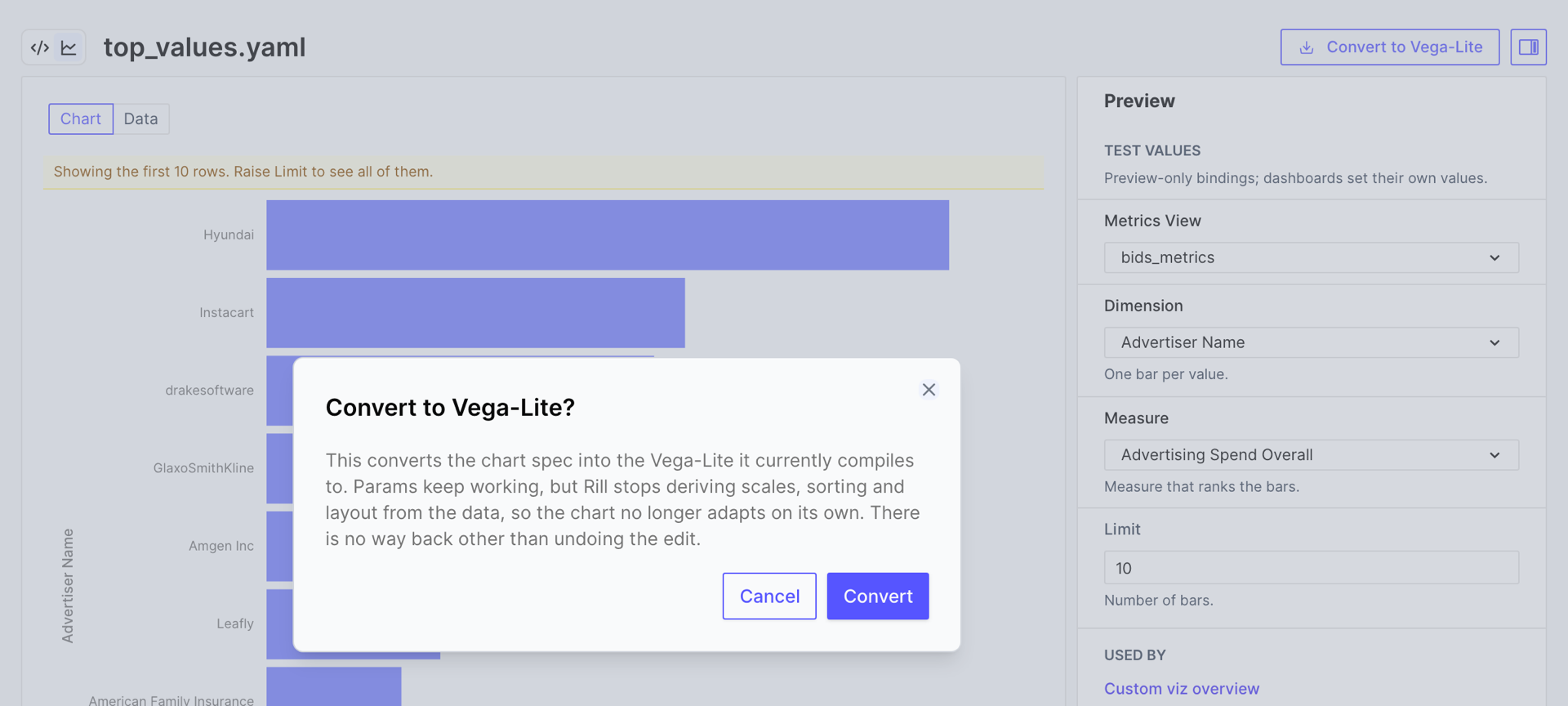
Rill replaces `spec` with `vega_spec`. The params and the query don't change, so every dashboard that uses the component keeps working, and the chart looks the same until you edit it. Once a component has a `vega_spec`, the button is no longer shown. To return to the chart spec, undo the edit or restore the file from version control.
## What Converting Writes
Converting a ranked bar chart, bound in the editor to `advertiser_name` and `overall_spend`:
```yaml
custom_chart:
metrics_sql: |
SELECT {{ .params.dimension }}, {{ .params.measure }}
FROM {{ .params.metrics_view }}
ORDER BY {{ .params.measure }} DESC
LIMIT {{ .params.limit }}
spec:
chartType: Bar Chart
encodings:
y: { field: "{{ .params.dimension }}", sortBy: x, sortOrder: descending }
x: { field: "{{ .params.measure }}" }
```
writes:
```yaml
custom_chart:
metrics_sql: |
SELECT {{ .params.dimension }}, {{ .params.measure }}
FROM {{ .params.metrics_view }}
ORDER BY {{ .params.measure }} DESC
LIMIT {{ .params.limit }}
vega_spec: |-
{
"$schema": "https://vega.github.io/schema/vega-lite/v5.json",
"width": "container",
"height": "container",
"autosize": {
"type": "fit",
"contains": "padding"
},
"data": {
"name": "query1"
},
"mark": "bar",
"encoding": {
"x": {
"field": "{{ .params.measure }}",
"type": "quantitative",
"title": "{{ .fields.measure.display_name }}",
"scale": {
"zero": true
},
"axis": {
"formatType": "{{ .fields.measure.format_type }}"
},
"formatType": "{{ .fields.measure.format_type }}"
},
"y": {
"field": "{{ .params.dimension }}",
"type": "nominal",
"sort": "-x",
"title": "{{ .fields.dimension.display_name }}"
}
},
"config": {
"axisX": {
"labelLimit": 100,
"labelFontSize": 10,
"titleFontSize": 11
},
"axisY": {
"labelFontSize": 10,
"titleFontSize": 11
},
"legend": {
"labelFontSize": 10,
"titleFontSize": 11
},
"facet": {
"spacing": 32
},
"mark": {
"tooltip": true
}
}
}
```
The compiled spec contained the test values: field names, display names and formatter names. Rill turns each back into a template reference before writing the file, so the spec keeps working for every binding:
| In the compiled spec | Written as |
|---|---|
| A field name, in an encoding, a transform or a `datum` expression | `{{ .params. }}` |
| A field's display name, as an axis, legend or tooltip title | `{{ .fields..display_name }}` |
| A measure's formatter, in `formatType` | `{{ .fields..format_type }}` |
The `config` block holds the label sizes and spacing the chart was compiled with, and `"tooltip": true` adds a tooltip for every encoded field.
## Rules for a Component's Vega-Lite
These apply to every `vega_spec` in a component file, converted or written by hand:
- **Data**: read the query result from `"data": { "name": "query1" }`. A component runs one query, so there is no other dataset; don't inline `values` or load a `url`.
- **Size**: keep `"width": "container"`, `"height": "container"` and `"autosize": { "type": "fit", "contains": "padding" }` so the chart fills its widget. Without `autosize`, only the width is fitted, and axes and legends can run past the bottom of the widget. Vega-Lite can't size faceted or concatenated views to a container; give their panels fixed sizes.
- **Types**: set `type` on every encoding. Nothing is derived any more, and a missing type can draw the wrong scale.
- **Time**: encode a time dimension as `temporal`. The query still buckets it at the dashboard's time grain, as described in [Time Dimensions](/developers/build/dashboards/canvas-widgets/custom-viz#time-dimensions). Vega-Lite labels times in the viewer's browser time zone; on a dashboard that uses UTC, add `"scale": { "type": "utc" }` to the encoding so the labels match the buckets for every viewer.
- **Bindings**: template field names, titles and formats instead of writing them literally, so the component keeps working when a dashboard binds other fields.
A component can't have both `spec` and `vega_spec`; Rill reports an error when it parses the file.
## Templating
| Reference | Value |
|---|---|
| `{{ .params. }}` | The value bound to any param. |
| `{{ .fields..name }}` | The field name, the same as `{{ .params. }}`. |
| `{{ .fields..display_name }}` | The field's display name from the metrics view; `Time` for the primary time dimension. |
| `{{ .fields..format_type }}` | The name of the formatter Rill registers for a measure, for use as `formatType`. |
| `{{ .fields..format_d3 }}` | The measure's `format_d3`, if it sets one. |
| `{{ .fields..format_preset }}` | The measure's `format_preset`, if it sets one. |
| `{{ .fields..type }}` | The param's type: `measure`, `dimension` or `time_dimension`. |
`.fields` exists for `measure`, `dimension` and `time_dimension` params. Rill rejects a reference to `.fields` on another type of param, or to a property not listed here, when it parses the file.
Values are JSON-escaped when they are substituted into `vega_spec`, so a display name or string param containing a quote or backslash is safe inside any JSON string. Keep every placeholder inside a JSON string, such as `"title": "{{ .fields.measure.display_name }}"`; a string param cannot carry a JSON fragment to splice in as structure.
Format values with `"formatType": "{{ .fields..format_type }}"` rather than a `format` string. It formats a measure the way Rill formats it everywhere else, including currency, percentage and interval presets. Set it on an axis, on a `tooltip` or `text` encoding, or on a field you compute from the measure, such as a running total. The formatter is also a function you can call in an expression, as the [reference line](#a-reference-line) example does to format its label.
### Scalar Params in Expressions
`string`, `number` and `boolean` params are also added to the spec's top-level `params`, so Vega expressions, predicates and conditions can read them by name: a `number` param named `target` is available as `target`. If the spec already declares a top-level param with that name, Rill sets only its `value`.
## Examples
The examples below are converted components bound to the `bids_metrics` metrics view, each shown as its `vega_spec`. Each names the params its spec references, and its query selects those fields as described in [The Query](/developers/build/dashboards/canvas-widgets/custom-viz#the-query). The [Vega-Lite example gallery](https://vega.github.io/vega-lite/examples/) has many more patterns to adapt: replace the example's `data` with `{ "name": "query1" }`, its field names with param references, and its size settings with the container settings above.
### A Reference Line
Bars ranked by a measure, with a dashed line at their average. This is the converted bar chart above, with the same `dimension` and `measure` params and query. The second layer aggregates the rows to their mean and builds the label by calling the measure's formatter, so the average reads `$1.3k` for a currency measure and `12%` for a percentage.
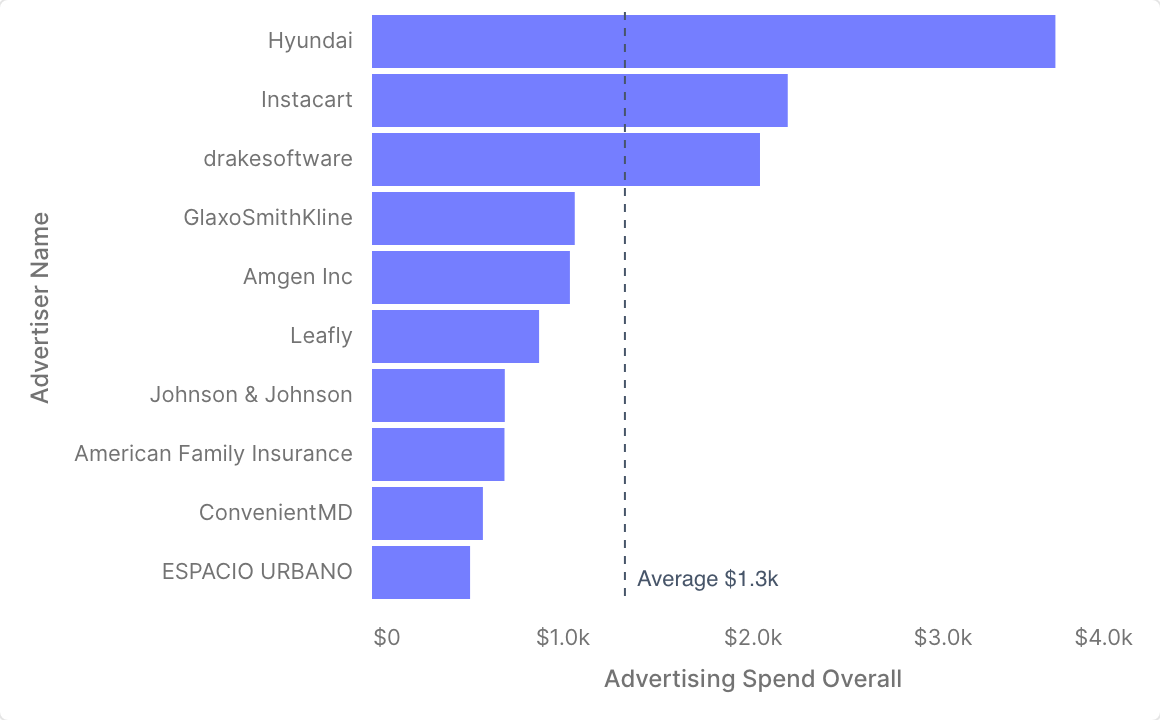
```yaml
vega_spec: |
{
"$schema": "https://vega.github.io/schema/vega-lite/v5.json",
"width": "container",
"height": "container",
"autosize": { "type": "fit", "contains": "padding" },
"data": { "name": "query1" },
"layer": [
{
"mark": "bar",
"encoding": {
"y": {
"field": "{{ .params.dimension }}",
"type": "nominal",
"sort": "-x",
"title": "{{ .fields.dimension.display_name }}"
},
"x": {
"field": "{{ .params.measure }}",
"type": "quantitative",
"title": "{{ .fields.measure.display_name }}",
"axis": { "formatType": "{{ .fields.measure.format_type }}" }
},
"tooltip": [
{ "field": "{{ .params.dimension }}", "title": "{{ .fields.dimension.display_name }}" },
{
"field": "{{ .params.measure }}",
"type": "quantitative",
"title": "{{ .fields.measure.display_name }}",
"formatType": "{{ .fields.measure.format_type }}"
}
]
}
},
{
"transform": [
{ "aggregate": [{ "op": "mean", "field": "{{ .params.measure }}", "as": "average" }] },
{ "calculate": "'Average ' + {{ .fields.measure.format_type }}(datum.average)", "as": "label" }
],
"encoding": { "x": { "field": "average", "type": "quantitative" } },
"layer": [
{ "mark": { "type": "rule", "strokeDash": [4, 4], "color": "#475569" } },
{
"mark": { "type": "text", "align": "left", "baseline": "bottom", "dx": 6, "dy": -6, "color": "#475569" },
"encoding": { "y": { "value": "height" }, "text": { "field": "label" } }
}
]
}
]
}
```
The `y` encoding sits in the bar layer only. Placed at the top level, the rule layer would inherit it and draw one line per bar.
### Highlight Values That Meet a Target
Bars that reach a target in one color and the rest in grey, with the target drawn as a line. The target is a `number` param, so each dashboard sets its own:
```yaml
params:
# metrics_view, dimension, measure and limit as before
- name: target
type: number
default: 0
description: Bars at or above this value are highlighted.
```
The color condition and the line read the param by name, `target`, because Rill adds scalar params to the spec's `params`. The chart below binds `avg_bid_price` with a target of `5`.
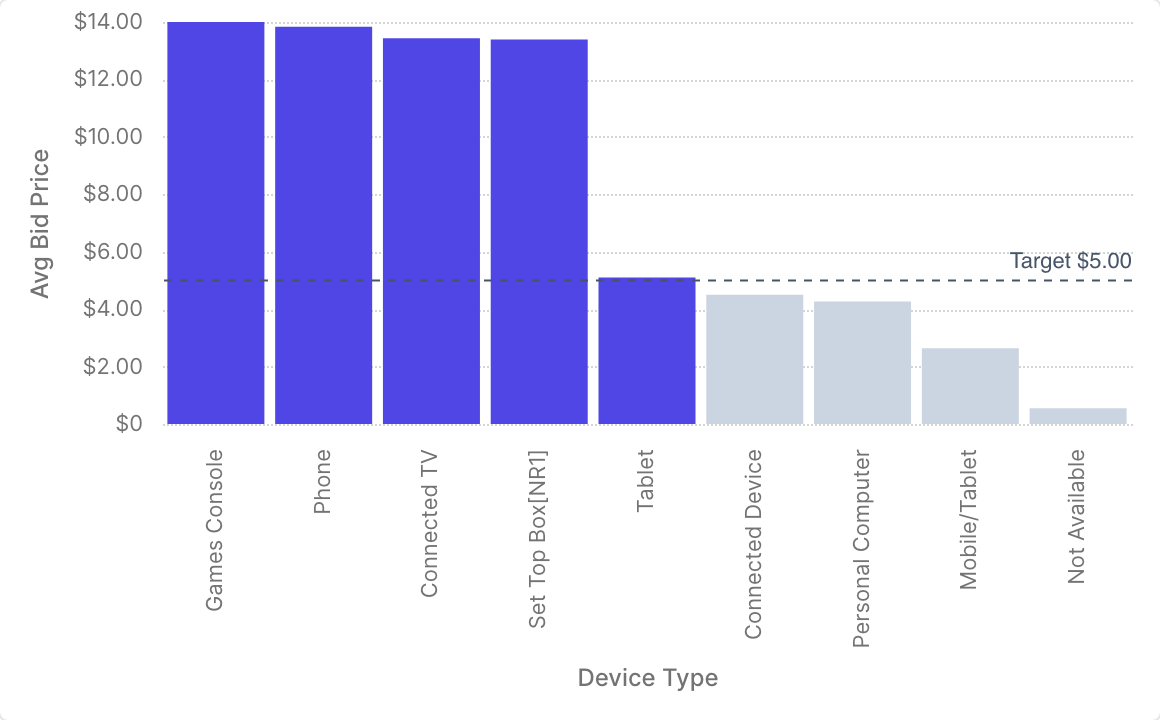
```yaml
vega_spec: |
{
"$schema": "https://vega.github.io/schema/vega-lite/v5.json",
"width": "container",
"height": "container",
"autosize": { "type": "fit", "contains": "padding" },
"data": { "name": "query1" },
"layer": [
{
"mark": "bar",
"encoding": {
"x": {
"field": "{{ .params.dimension }}",
"type": "nominal",
"sort": "-y",
"title": "{{ .fields.dimension.display_name }}"
},
"y": {
"field": "{{ .params.measure }}",
"type": "quantitative",
"title": "{{ .fields.measure.display_name }}",
"axis": { "formatType": "{{ .fields.measure.format_type }}" }
},
"color": {
"condition": { "test": "datum['{{ .params.measure }}'] >= target", "value": "#4f46e5" },
"value": "#cbd5e1"
},
"tooltip": [
{ "field": "{{ .params.dimension }}", "title": "{{ .fields.dimension.display_name }}" },
{
"field": "{{ .params.measure }}",
"type": "quantitative",
"title": "{{ .fields.measure.display_name }}",
"formatType": "{{ .fields.measure.format_type }}"
}
]
}
},
{
"transform": [
{ "aggregate": [{ "op": "count", "as": "rows" }] },
{ "calculate": "target", "as": "target_value" },
{ "calculate": "'Target ' + {{ .fields.measure.format_type }}(target)", "as": "label" }
],
"encoding": { "y": { "field": "target_value", "type": "quantitative" } },
"layer": [
{ "mark": { "type": "rule", "strokeDash": [4, 4], "color": "#475569" } },
{
"mark": { "type": "text", "align": "right", "baseline": "bottom", "dy": -4, "color": "#475569" },
"encoding": { "x": { "value": "width" }, "text": { "field": "label" } }
}
]
}
]
}
```
The `aggregate` transform reduces the rows to one, so the line and its label are drawn once.
### A Second Axis
A volume measure as an area on the left axis and a rate as a line on the right. The params are a time dimension, `x_axis`, and two measures, `area_measure` and `line_measure`. `resolve` gives each layer its own y scale, and each axis title takes the color of its series. The time axis is formatted explicitly, with one tick per day.
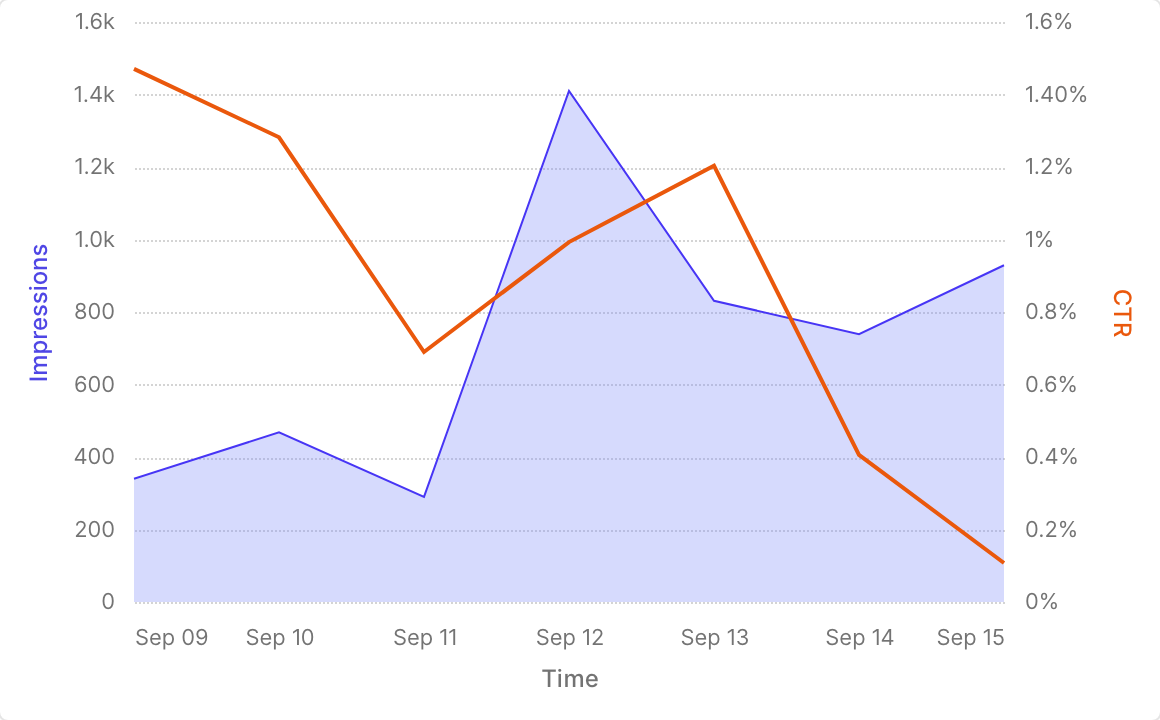
```yaml
vega_spec: |
{
"$schema": "https://vega.github.io/schema/vega-lite/v5.json",
"width": "container",
"height": "container",
"autosize": { "type": "fit", "contains": "padding" },
"data": { "name": "query1" },
"encoding": {
"x": {
"field": "{{ .params.x_axis }}",
"type": "temporal",
"title": "{{ .fields.x_axis.display_name }}",
"axis": { "format": "%b %d", "tickCount": "day" }
},
"tooltip": [
{ "field": "{{ .params.x_axis }}", "type": "temporal", "title": "{{ .fields.x_axis.display_name }}" },
{
"field": "{{ .params.area_measure }}",
"type": "quantitative",
"title": "{{ .fields.area_measure.display_name }}",
"formatType": "{{ .fields.area_measure.format_type }}"
},
{
"field": "{{ .params.line_measure }}",
"type": "quantitative",
"title": "{{ .fields.line_measure.display_name }}",
"formatType": "{{ .fields.line_measure.format_type }}"
}
]
},
"layer": [
{
"mark": { "type": "area", "color": "#818cf8", "opacity": 0.4 },
"encoding": {
"y": {
"field": "{{ .params.area_measure }}",
"type": "quantitative",
"title": "{{ .fields.area_measure.display_name }}",
"axis": { "formatType": "{{ .fields.area_measure.format_type }}", "titleColor": "#4f46e5" }
}
}
},
{
"mark": { "type": "line", "color": "#ea580c", "strokeWidth": 2 },
"encoding": {
"y": {
"field": "{{ .params.line_measure }}",
"type": "quantitative",
"title": "{{ .fields.line_measure.display_name }}",
"axis": {
"orient": "right",
"grid": false,
"formatType": "{{ .fields.line_measure.format_type }}",
"titleColor": "#ea580c"
}
}
}
}
],
"resolve": { "scale": { "y": "independent" } }
}
```
The query selects the time dimension and both measures, ordered by time. A daily tick suits ranges of a few weeks; for longer ranges, use a coarser `tickCount`, such as `week` or `month`.
### A Running Total
The cumulative sum of a measure over time, from `x_axis` and `measure` params and a query that selects both, ordered by time. Metrics SQL can't compute values across rows, but a Vega-Lite `window` transform can, over the rows the query returns. The same approach gives moving averages, ranks and shares of a total.
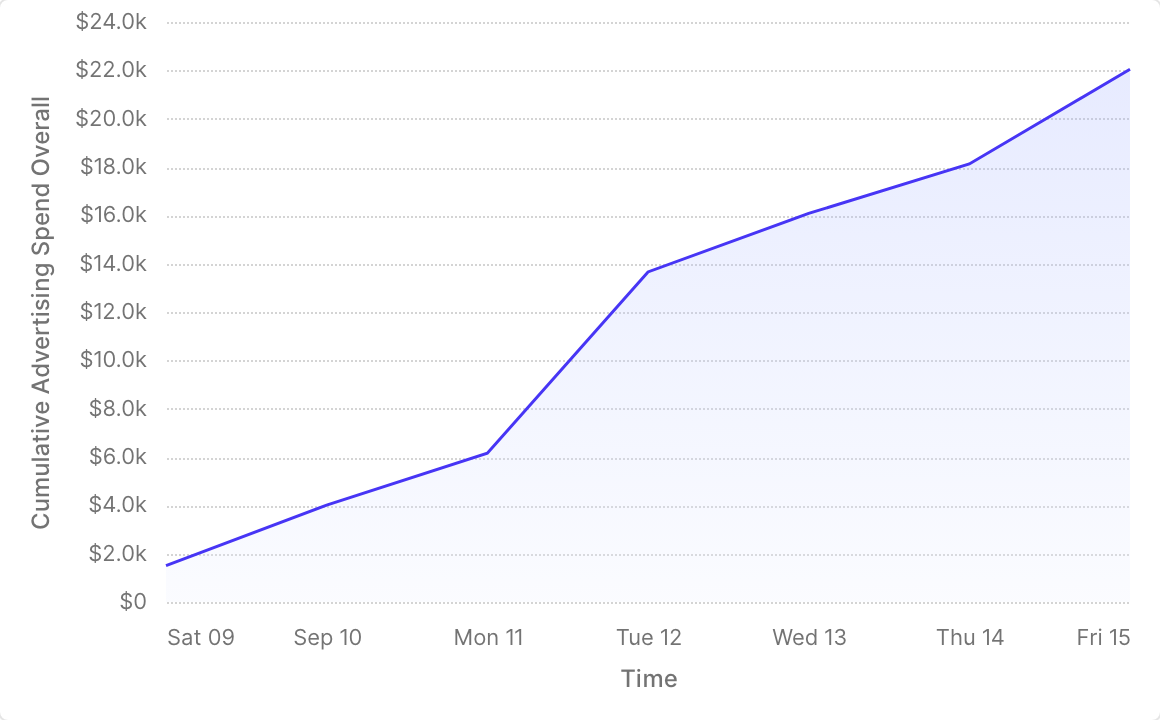
```yaml
vega_spec: |
{
"$schema": "https://vega.github.io/schema/vega-lite/v5.json",
"width": "container",
"height": "container",
"autosize": { "type": "fit", "contains": "padding" },
"data": { "name": "query1" },
"transform": [
{
"window": [{ "op": "sum", "field": "{{ .params.measure }}", "as": "running_total" }],
"sort": [{ "field": "{{ .params.x_axis }}" }]
}
],
"mark": { "type": "area", "line": true, "opacity": 0.3 },
"encoding": {
"x": {
"field": "{{ .params.x_axis }}",
"type": "temporal",
"title": "{{ .fields.x_axis.display_name }}"
},
"y": {
"field": "running_total",
"type": "quantitative",
"title": "Cumulative {{ .fields.measure.display_name }}",
"axis": { "formatType": "{{ .fields.measure.format_type }}" }
},
"tooltip": [
{ "field": "{{ .params.x_axis }}", "type": "temporal", "title": "{{ .fields.x_axis.display_name }}" },
{
"field": "{{ .params.measure }}",
"type": "quantitative",
"title": "{{ .fields.measure.display_name }}",
"formatType": "{{ .fields.measure.format_type }}"
},
{
"field": "running_total",
"type": "quantitative",
"title": "Cumulative",
"formatType": "{{ .fields.measure.format_type }}"
}
]
}
}
```
The running total is computed in the browser, over the rows within the query's `LIMIT` and the dashboard's time range. It starts at zero at the beginning of the time range, not at the beginning of the data.
### Use the Theme Palette
A converted chart that splits into series keeps the scheme Flint chose on its `color` encoding:
```json
"color": {
"field": "{{ .params.color }}",
"type": "nominal",
"sort": null,
"scale": { "scheme": "tableau10" },
"title": "{{ .fields.color.display_name }}"
}
```
Remove the `scale` and the series take the qualitative colors of the dashboard's [theme](/developers/build/dashboards/customization#changing-themes--colors) instead.
### Highlight a Series from the Legend
A point selection bound to the legend: clicking a legend entry highlights its series and fades the others. This is the gallery's multi-series line chart after converting, with the same `x_axis`, `y_axis` and `color` params. It has no `scale` on `color`, so it also uses the theme's palette, and its time axis is formatted as in [A Second Axis](#a-second-axis).
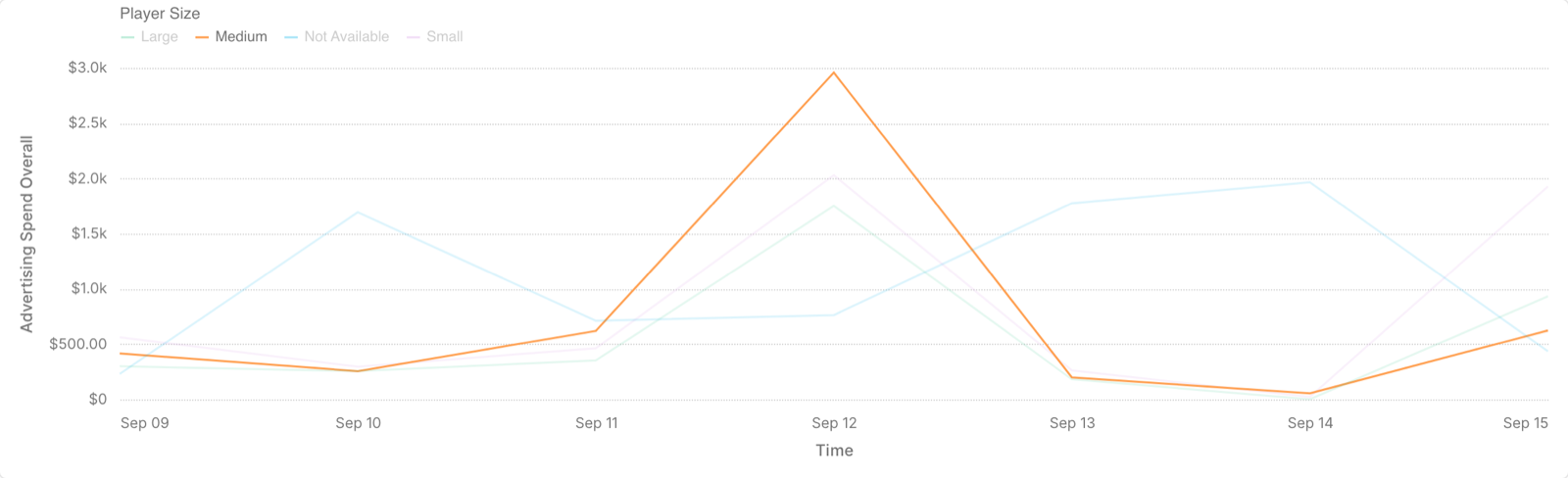
```yaml
vega_spec: |
{
"$schema": "https://vega.github.io/schema/vega-lite/v5.json",
"width": "container",
"height": "container",
"autosize": { "type": "fit", "contains": "padding" },
"data": { "name": "query1" },
"params": [
{
"name": "segment",
"select": { "type": "point", "fields": ["{{ .params.color }}"] },
"bind": "legend"
}
],
"mark": "line",
"encoding": {
"color": {
"field": "{{ .params.color }}",
"type": "nominal",
"title": "{{ .fields.color.display_name }}"
},
"opacity": {
"condition": { "param": "segment", "value": 1 },
"value": 0.15
},
"x": {
"field": "{{ .params.x_axis }}",
"type": "temporal",
"title": "{{ .fields.x_axis.display_name }}",
"axis": { "format": "%b %d", "tickCount": "day" }
},
"y": {
"field": "{{ .params.y_axis }}",
"type": "quantitative",
"title": "{{ .fields.y_axis.display_name }}",
"axis": { "formatType": "{{ .fields.y_axis.format_type }}" }
},
"tooltip": [
{ "field": "{{ .params.x_axis }}", "type": "temporal", "title": "{{ .fields.x_axis.display_name }}" },
{ "field": "{{ .params.color }}", "title": "{{ .fields.color.display_name }}" },
{
"field": "{{ .params.y_axis }}",
"type": "quantitative",
"title": "{{ .fields.y_axis.display_name }}",
"formatType": "{{ .fields.y_axis.format_type }}"
}
]
}
}
```
The selection lives in the chart only. It doesn't filter the dashboard or other widgets.
---
# Data Widgets
URL: https://docs.rilldata.com/developers/build/dashboards/canvas-widgets/data
Data widgets in Rill Canvas allow you to display raw data in various formats. These widgets are perfect for showing detailed information, metrics, and tabular data. For more information, refer to our [Components reference doc](/reference/project-files/component).
## KPI Grid
KPI grids display key performance indicators in a compact grid format with comparison capabilities. You can select up to 10 concurrent measures to display in a single widget
Widgets follow the canvas time range and time comparison by default. Override either one with `time_filters`, which takes the same `tr` and `compare_tr` parameters as an explore URL. `tr=inherit` keeps the canvas time range, and once `tr` is set a missing `compare_tr` turns delta and comparison off for that widget only. `compare_tr=inherit` follows the canvas comparison, and a comparison range such as `rill-PW` (previous week) or `rill-PY` (previous year) compares the widget against its own previous period. This works on KPI grids, tables, pivots, leaderboards, and time-series charts.
The aggregation grain works the same way with `grain`. Time-series charts and KPI sparklines bucket by the grain chosen in the canvas filter bar, and `grain=week` on its own keeps the canvas time range while bucketing that widget by week. A grain the time range cannot hold, such as `grain=month` on a seven day range, falls back to the canvas grain. Tables and pivots pick their grain through their time dimension instead.
```yaml
- kpi_grid:
metrics_view: auction_metrics
measures:
- requests
# Canvas time range, comparison off
time_filters: tr=inherit
- line_chart:
metrics_view: auction_metrics
x: __time
y: requests
# Canvas time range, bucketed by week
time_filters: grain=week
```
## Leaderboard
Leaderboards show ranked data with the top performers highlighted.
## Pivot/Table
Tables display detailed data in a structured format with customizable columns.
### Column widths, styling, and sort
Every entry of a table's `columns` (and of a pivot's `measures`, `row_dimensions`, and `col_dimensions`) is either a field name or an object with the name plus presentation overrides for that column. Component-level properties control fitting, wrapping, and the initial sort.
```yaml
- table:
metrics_view: auction_metrics
fit_to_width: true
wrap_headers: true
sort_by: requests
sort_dir: desc
columns:
- name: app_site_domain
width: 260
wrap: true
label: Domain
- pub_name
- name: requests
width: 120
format_d3: ".3s"
align: center
delta:
width: 80 # the Δ column shown while the widget compares
- name: avg_bid_floor
format_preset: currency_usd
```
| Property | Description |
|----------|-------------|
| `fit_to_width` | When the columns overflow the widget, every column without a configured `width` shrinks (down to its minimum) so the table fits instead of scrolling. Columns the viewer resizes keep their width. Defaults to `false`. |
| `wrap` | Wrap the text of dimension cells over `wrap_lines` lines instead of truncating it. Measure cells never wrap. Defaults to `false`. |
| `wrap_headers` | Wrap header labels over `wrap_lines` lines instead of truncating them. Defaults to `false`. |
| `wrap_lines` | Lines per row, and per header row, when wrapping is on. Rows keep a uniform height; longer text is clipped with an ellipsis and the full value stays available in the hover tooltip. `1` to `5`, defaults to `2`. |
| `sort_by` | Initial sort. In a `table` any column; in a `pivot` a measure (rows are ordered by its row total) or a row dimension. Viewers can still click a header to re-sort. |
| `sort_comparison` | `delta` or `percent_change`: sort on the measure's comparison column instead of its value. Only for measures of the metrics view, and only while the widget shows a time comparison; otherwise the measure's value is sorted. Clicking a Δ or Δ% header in the editor writes it. |
| `sort_dir` | `asc` or `desc`. Defaults to `desc` for measures and `asc` for dimensions. |
Per-column overrides on an entry:
| Key | Description |
|-----|-------------|
| `name` | Required. The dimension, measure, adhoc measure, or encoded time column, exactly as you would write the plain string. |
| `width` | Pixel width. Measures accept `60` to `300`, dimensions and time columns `100` to `600`. A column with a configured width is pinned: stretching and `fit_to_width` leave it alone. |
| `wrap` | Overrides the component-level `wrap` for one dimension column. |
| `align` | `left`, `center`, or `right` for the header and cells of table columns and measures. Measures default to `right`, dimensions to `left`. Row dimensions and column dimensions do not take it. |
| `label` | Header text, replacing the display name from the metrics view. In a pivot it also renames the field in the merged row-header label and the column-dimension group header. |
| `format_preset` | Number format for a measure in this widget only: `humanize`, `none`, `currency_usd`, `currency_eur`, `percentage`, or `interval_ms`. Mutually exclusive with `format_d3`. |
| `format_d3` | A [d3 format](https://d3js.org/d3-format) string for a measure in this widget only, such as `.3s` for three significant digits or `,.2f`. Mutually exclusive with `format_preset`. |
| `delta`, `percent_change` | Overrides for the measure's Δ and Δ% comparison columns, which appear while the widget shows a time comparison: an object with `width` (`60` to `300`). Only on measures of the metrics view, as adhoc measures have no comparison columns. Dragging a Δ or Δ% column edge in the editor writes it. |
In a pivot, only measures and the first row dimension render a column of their own. A measure's `width` applies to its column under every column-dimension value, and the first row dimension's `width` and `wrap` apply to the merged row-header column; row dimensions after the first take only `name` and `label`, and row dimensions never take `align`. Entries in `col_dimensions` are header groups spanning their measure columns, so they accept only `name` and `label`; to make a pivoted group wider, widen its measures. Sorting by a measure orders the rows by that measure's row total.
In the canvas editor, the widget's sidebar has switches for fitting and wrapping and a sort selector, and each field chip opens a column settings menu with the label, width, wrapping, alignment, and number format. Dragging a column edge in the editor writes the width to the YAML, and clicking a header writes the sort. Viewers of the published dashboard can still resize and re-sort; their changes are not saved.
## Adhoc measures
Tables, pivots, KPIs, KPI grids, leaderboards, and charts can define their own [adhoc measures](/guide/dashboards/explore/adhoc-measures) with `adhoc_measures`. An adhoc measure combines the metrics view's measures with an arithmetic expression, and you reference it by `name` wherever the widget accepts a measure.
```yaml
- pivot:
metrics_view: sales_metrics
row_dimensions:
- region
measures:
- revenue
- margin_pct
adhoc_measures:
- name: margin_pct
display_name: Margin %
expression: (revenue - cost) / revenue
format_preset: percentage
```
In the canvas editor, select **Create adhoc measure** at the bottom of a widget's measure selector to open the same dialog as in Explore dashboards. Rill writes the definition to the widget's `adhoc_measures`, and the measure selector shows an edit action next to it.
| Property | Description |
|----------|-------------|
| `name` | Required. The name you reference in `measures`, `columns`, or a chart field. It must start with a letter, contain only letters, numbers, and underscores, and not match a dimension or measure in the metrics view. |
| `expression` | Required. An arithmetic expression over the metrics view's measure names. See the [expression reference](/guide/dashboards/explore/adhoc-measures#expression-reference). |
| `display_name` | The label shown in the widget. Defaults to `name`. |
| `format_preset` | One of `humanize` (default), `none`, `currency_usd`, `currency_eur`, or `percentage`. |
| `description` | Text shown in the measure's tooltip instead of the expression. |
Adhoc measures belong to a single widget: to use the same calculation in two widgets, define it in both. When you write `adhoc_measures` by hand, follow the same rules as the editor:
- Reference only measures that don't use a window function, don't have required dimensions, and aren't time-comparison measures.
- Don't end a `name` with a comparison suffix, such as `_prev`, `_delta`, `_delta_perc`, or `_percent_of_total`, and don't include `_rill_` in it.
- Define at most 10 adhoc measures per widget.
For a calculation that many widgets or dashboards share, add a measure to the [metrics view](/developers/build/metrics-view) instead.
## Exact values
Measures that define an [`exact_expression`](/developers/build/metrics-view/measures/exact-measures) are approximate by default and show a `≈` chip next to their name in KPIs, tables, pivots and leaderboards. A chart shows one chip next to its title that covers every measure of the chart. Viewers click a chip to compute that measure, or that chart, exactly in that widget (in a leaderboard widget, in that one leaderboard) until they change the time range, comparison, grain, timezone, filters or tab. Other widgets keep their approximate values until their own chip is clicked. The selection is not part of the URL, so links and scheduled reports of the canvas open approximate. See [Exact values](/guide/dashboards/explore/exact-measures) in the guide for the chip states.
## Navigation
All Data widgets also provide a button to "Go to explore" that can navigate to the Explore dashboard if available.
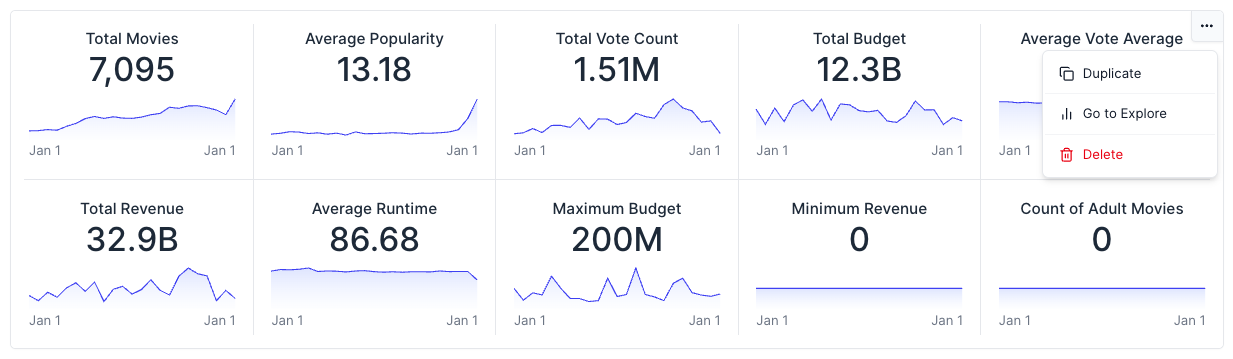
---
# Map Widget
URL: https://docs.rilldata.com/developers/build/dashboards/canvas-widgets/map
The map widget plots a metrics view on an interactive basemap. Use it to show how a measure is distributed geographically: stores, sensors, or customers as points, or states, countries, or sales territories as shaded regions. For more information, refer to our [Components reference doc](/reference/project-files/component#map).
Each map needs a **geo dimension** that holds a location for every row, and a **color measure**. Points can also be sized by a second measure.
## Prepare geographic data
The geo dimension must contain one of the following values in every row. Coordinates are always longitude first, then latitude, in degrees (WGS84).
| Format | Example | Draws |
|--------|---------|-------|
| GeoJSON geometry string | `{"type":"Point","coordinates":[-122.42,37.77]}` | `Point`, `MultiPoint`, `Polygon`, and `MultiPolygon` geometries |
| GeoJSON `Feature` string | `{"type":"Feature","geometry":{...},"properties":{}}` | The feature's geometry. Its properties are ignored. |
| DuckDB `POINT_2D` column | `ST_Point2D(-122.42, 37.77)` | A point |
| DuckDB `POLYGON_2D` column | A polygon made of `[longitude, latitude]` rings | A polygon |
Rows with an empty value, a string that isn't valid GeoJSON, or a line geometry aren't drawn.
:::tip Use the spatial extension
Rill loads the [DuckDB spatial extension](https://duckdb.org/docs/extensions/spatial/overview) by default, so functions such as `ST_Point`, `ST_AsGeoJSON`, and `ST_Read` work in any DuckDB model without extra setup.
:::
### Points from latitude and longitude columns
Convert latitude and longitude columns to a GeoJSON string in your model. Note that `ST_Point` takes longitude first. Cast the result to `VARCHAR` so it is stored as a string.
```sql
-- models/store_sales.sql
SELECT
city,
state,
ST_AsGeoJSON(ST_Point(longitude, latitude))::VARCHAR AS location,
orders,
revenue
FROM stores
```
Alternatively, `ST_Point2D(longitude, latitude) AS location` stores a DuckDB `POINT_2D` value, which Rill detects as a geo dimension automatically.
### Regions from a GeoJSON file
To shade regions, load their boundaries as polygons. The following model reads a GeoJSON `FeatureCollection` file from your project's `data` folder and returns one row per feature, with the feature's geometry as a GeoJSON string:
```sql
-- models/state_population.sql
SELECT
feature.properties.name AS state,
to_json(feature.geometry)::VARCHAR AS boundary,
feature.properties.density AS population_density
FROM (
SELECT unnest(features) AS feature
FROM read_json('data/us-states.geojson')
)
```
Relative paths in `read_json` resolve from your project root. For other spatial formats, such as shapefiles, `ST_Read` returns each shape in a `geom` column that you can convert with `ST_AsGeoJSON(geom)::VARCHAR`.
To color regions by data from another model, join your facts to the boundaries on a shared key, such as a state or country code.
### Mark the dimension as a geo dimension
In the metrics view, set `type: geo` on the dimension that holds the location. The visual editor only offers geo dimensions in the map's **Geo dimension** selector. Columns of type DuckDB `POINT_2D` or `POLYGON_2D`, or ClickHouse `Point` or `Polygon`, are detected as geo dimensions without setting the type.
```yaml
# metrics/store_sales_metrics.yaml
type: metrics_view
model: store_sales
dimensions:
- name: location
display_name: Location
column: location
type: geo
- name: city
display_name: City
column: city
measures:
- name: total_revenue
display_name: Revenue
expression: SUM(revenue)
format_preset: currency_usd
- name: total_orders
display_name: Orders
expression: SUM(orders)
```
See [Metrics view YAML](/reference/project-files/metrics-views) for all dimension properties.
## Add a map to a canvas
1. In your canvas dashboard, click **Add widget** and select **Map**.
2. Choose a **Metrics view**. The map selects the first geo dimension and the first measure of the metrics view.
3. Under **Geo dimension**, pick the dimension that holds the locations.
4. Under **Color**, pick the measure and a color scheme or gradient.
5. Optionally, add a **Size measure** and a **Tooltip dimension**.
The map draws as soon as it has a metrics view, a geo dimension, and a color measure. You can also define the widget directly in the canvas YAML, as in the examples on this page.
## Point maps
When the geo dimension holds points, each row is drawn as a circle. The color measure sets its color, and the optional `size_measure` scales its radius from 4 to 20 pixels between the smallest and largest value. Without a size measure, every point has the same size.
Use a point map for locations such as stores, venues, or devices. Nearby points can overlap at low zoom levels; zoom in to separate them.
## Region (choropleth) maps
When the geo dimension holds polygons, each region is filled with the color of its measure value and outlined in the theme's primary color. The map switches to region mode automatically based on the data, and hides the **Size measure** setting, which only applies to points.
Colors are spread linearly between the lowest and highest value on the map. If a few regions have much larger values than the rest, most regions end up in the same color. In the example above, the measure is `LN(AVG(population_density))` for that reason; a log-scaled or ratio measure (such as a per-capita value) often spreads colors more evenly.
## Properties
| Property | Required | Description |
|----------|----------|-------------|
| `metrics_view` | Yes | Metrics view to query. |
| `geo_dimension.field` | Yes | Dimension that holds each row's location. See [Prepare geographic data](#prepare-geographic-data). |
| `color.measure` | Yes | Measure that sets the color of each point or region. |
| `color.colorRange` | No | Color scale. Defaults to the `tealblues` scheme. See [Colors](#colors). |
| `size_measure.field` | No | Measure that scales the radius of each point. Points only. |
| `tooltip_dimension.field` | No | Dimension shown as the heading of the hover tooltip, such as a city or state name. |
| `initial_view` | No | `longitude`, `latitude`, and optional `zoom` the map opens with. See [Set the initial view](#set-the-initial-view). |
| `title`, `description` | No | Title and description shown in the widget header. |
| `time_filters`, `dimension_filters` | No | Filters that apply to this widget only, as on other [canvas widgets](/developers/build/dashboards/canvas#filters). |
The `type` values under `geo_dimension`, `size_measure`, and `tooltip_dimension` (`nominal` or `quantitative`) are written by the visual editor. You can include them as shown in the examples.
### Colors
`colorRange` takes one of two forms:
```yaml
# A named color scheme
color:
measure: total_revenue
colorRange:
mode: scheme
scheme: viridis
# A gradient between two colors
color:
measure: total_revenue
colorRange:
mode: gradient
start: "#dbeafe"
end: primary
```
Available schemes are `tealblues`, `viridis`, `magma`, `inferno`, `plasma`, `cividis`, `blues`, `teals`, `greens`, `greys`, `oranges`, `purples`, `reds`, `turbo`, and `spectral`, plus `sequential` and `diverging`, which use the palettes of your [dashboard theme](/developers/build/dashboards/customization). Gradient `start` and `end` accept a hex color, or `primary` and `secondary` for the theme colors.
### Set the initial view
By default, the map zooms to fit all of its data the first time it loads. To open the map on a fixed area instead, set `initial_view`:
```yaml
initial_view:
longitude: -98.5
latitude: 39.5
zoom: 3
```
`zoom` ranges from `0`, which shows the whole world, to about `22`, which shows individual buildings. When `initial_view` is set, the map never zooms to fit the data.
## Interacting with a map
- **Pan and zoom:** Drag to pan, scroll or pinch to zoom, and use the zoom and compass buttons in the top-right corner. A scale bar is shown in the bottom-left corner.
- **Tooltips:** Hover over a point or region to see its tooltip dimension value, the color measure, and the size measure.
- **Filters:** The map follows the canvas time range and filters. Changing a filter updates the data without moving the map, so the area you zoomed into stays in view.
- **Dark mode:** The basemap switches between a light and a dark style with the dashboard's theme mode.
## Limitations
- Coordinates must be longitude and latitude in degrees. Projected coordinates, such as meters in a local coordinate system, aren't supported. Reproject them in your model first, for example with DuckDB's `ST_Transform`.
- Line geometries (`LineString`, `MultiLineString`) aren't drawn.
- The map loads up to 5,000 rows, one for each combination of geo dimension and tooltip dimension values. Choose a tooltip dimension that has one value per location, and aggregate very large point sets, for example to a grid or to regions, before mapping them.
- The basemap is loaded from [Mapbox](https://www.mapbox.com/) in the viewer's browser, so viewers need access to `api.mapbox.com`.
:::note Self-hosted builds
Rill includes a Mapbox access token for the basemap. If you build the Rill frontend yourself and want to use your own Mapbox account, set `RILL_UI_PUBLIC_MAPBOX_ACCESS_TOKEN` to a public (`pk.`) Mapbox token when you build it. The value is embedded in the frontend bundle at build time, so setting it on a running server has no effect.
:::
---
# Miscellaneous Widgets
URL: https://docs.rilldata.com/developers/build/dashboards/canvas-widgets/misc
Miscellaneous widgets in Rill Canvas provide additional functionality for text, images, and other non-data elements. These widgets help enhance your dashboards with rich content. For more information, refer to our [Components reference doc](/reference/project-files/component).
## Text/Markdown
Text widgets allow you to add formatted text, markdown content, and documentation directly to your dashboards. You can also use `metrics_sql` and `metrics_sql_rows` to display data from Metrics SQL queries.
### Dynamic Markdown
The `metrics_sql` template function allows you to execute a Metrics SQL query and display the results as formatted text in your dashboard. This is useful for displaying aggregated data or custom metrics.
The `metrics_sql_rows` template function allows you to execute a Metrics SQL query and iterate over the results, displaying each row with custom formatting. This is useful for displaying multiple data points in a structured format.
Use `metrics_sql_rows` to get query results and then iterate over them using Go template syntax. You can access columns using dot notation (`.column_name`) or by assigning a variable name in the range:
{{ $row.publisher }}
Domain: {{ $row.adomain }}
Total: {{ $row.total_bids }}
{{ end }}
width: 6`}
codeLanguage="yaml"
/>
Alternatively, you can use dot notation directly without assigning a variable:
```yaml
- markdown:
content: |-
{{ $rows := metrics_sql_rows "SELECT publisher, total_records FROM ad_bids_metrics LIMIT 5" }}
{{ range $rows }}
{{ .publisher }}: {{ .total_records }}
{{ end }}
```
The `metrics_sql_rows` function returns an array of rows that you can iterate over with `{{ range }}`. Access columns using either `{{ $row.column_name }}` (when using named variables) or `{{ .column_name }}` (when using dot notation).
For more information on Metrics SQL syntax and capabilities, see the [Metrics SQL API documentation](/developers/build/metrics-view/metrics-sql).
## Image
Image widgets let you embed images, logos, and visual elements into your dashboards. Put files in your public/ folder and reference them directly in the `url` as `public/image.png`.
To show a different image when the dashboard is viewed in dark mode, set `dark_url`. When `dark_url` is not set, `url` is used in both modes.
```yaml
- image:
url: public/logo-light.png
dark_url: public/logo-dark.png
width: 6
```
## Component
Reference a reusable component created outside of the canvas dashboard.
To reuse one chart with different metrics views and fields, define it as a [custom viz](/developers/build/dashboards/canvas-widgets/custom-viz): a component that declares params, which each canvas item binds.
```yaml
- component: bullet_chart
params:
metrics_view: bids_metrics
y_axis: device_type
x_axis: avg_bid_price
goal: avg_bid_floor
width: 6
```
---
# Customization & Themes
URL: https://docs.rilldata.com/developers/build/dashboards/customization
Below are some common customizations and dashboard configurations available for end users.
:::info Dashboard properties
For a full list of available dashboard properties and configurations, please see our [Dashboard YAML](/reference/project-files/explore-dashboards) reference page.
:::
## Define Dashboard Access
Along with [metrics views security policies](/developers/build/metrics-view/security), you can set access on the dashboard level. Access policies will be combined with metrics view policies using a logical AND, so if a user doesn’t pass both, they won’t get access to the dashboard. Only the `access` key can be set in the dashboard.
```yaml
security:
access: "{{ .user.admin }} OR '{{ .user.domain }}' == 'example.com'"
```
## Setting Default Views for Dashboards
### Default Time Range
Default time range controls the data analyzed on initial page load. Setting the default time range improves user experience by setting it to the most frequently used period— in particular, avoiding `all time` if you have a large data source but only analyze more recent data.
The value must be either a valid [ISO 8601 duration](https://en.wikipedia.org/wiki/ISO_8601#Durations) (for example, `PT12H` for 12 hours, `P1M` for 1 month, or `P26W` for 26 weeks) or one of the [Rill ISO 8601 extensions](/reference/time-syntax/rill-iso-extensions#extensions).
### Default Dimensions
For dashboards with wide tables, setting default dimensions is a good way to make sure that users can focus on the primary analyses and ensure a positive first experience. Each dimension listed under the `dimensions` setting will appear on the screen, while the remainder of the dimensions will be hidden (and still available for selection under filters). Common use cases for setting default fields include simplifying dashboards on initial load, narrowing the dashboard to the most used fields, and avoiding high cardinality fields (that may take longer to load, but are used less often, so this improves performance). An example addition to the `dashboard.yaml` file is below.
```yaml
defaults:
dimensions:
- column1
- column2
```
:::warning Column vs. Name Usage
The `column` property is used by default from the column name in your underlying source. If you decide to use the `name` property, you'd replace the column above with the field name.
:::
### Default Measures
A list of measures that should be visible by default. Operates the same as the `default_dimensions` configuration. When selecting measures, by default, consider hiding more computationally intensive measures like `count distinct` or other complicated expressions to improve performance.
```yaml
defaults:
measures:
- measure_1
- measure_1
```
### Default Comparison Modes
It is also possible to set up a default comparison mode for your dashboard. In Rill, we support both [time comparison](/guide/dashboards/time-series#time-comparisons) and [dimension comparison.](/guide/dashboards/filters#filter-by-dimensions) Note that only one of these comparisons can be set as default.
```yaml
defaults:
comparison_mode: time
# comparison_mode: dimension
# comparison_dimension: action
```
## Time Ranges
One of the more important configurations, available time ranges allow you to change the defaults in the time dropdown for periods to select. Updating this list allows users to quickly change between the most common analyses, like day over day, recent weeks, or period to date. The range must be a valid [ISO 8601 duration](https://en.wikipedia.org/wiki/ISO_8601#Durations) or one of the [Rill ISO 8601 extensions](/reference/time-syntax/rill-iso-extensions#extensions).
```yaml
time_ranges:
- PT15M
- PT1H
- P7D
- P4W
- rill-TD ## Today
- rill-WTD ## Week-To-date
```
## Time Zones
Rill will automatically select several time zones that should be pinned to the top of the time zone selector. It should be a list of [IANA time zone identifiers](https://en.wikipedia.org/wiki/List_of_tz_database_time_zones). You can add or remove relevant time zones for your team from this list.
```yaml
time_zones:
- America/Los_Angeles
- America/Chicago
- America/New_York
- Europe/London
- Europe/Paris
- Asia/Jerusalem
- Europe/Moscow
- Asia/Kolkata
- Asia/Shanghai
- Asia/Tokyo
- Australia/Sydney
```
## Changing Themes & Colors
In your Rill project directory, create a `.yaml` file in any directory. Rill will automatically ingest the theme next time you run `rill start` or deploy to Rill Cloud and change the color scheme of your dashboard. All properties in the file are optional—any values you omit will fall back to Rill's standard theme defaults.
First, create the YAML file as below. You can define separate color schemes for light and dark modes:
```yaml
type: theme
light:
primary: "#4F46E5" # Indigo-600
secondary: "#8B5CF6" # Purple-500
variables:
# Sequential palette - for ordered data that progresses from low to high
color-sequential-1: "hsl(211deg 79% 94%)"
color-sequential-2: "hsl(211deg 63% 86%)"
color-sequential-3: "hsl(211deg 75% 77%)"
color-sequential-4: "hsl(210deg 73% 64%)"
color-sequential-5: "hsl(208deg 76% 51%)"
color-sequential-6: "hsl(210deg 100% 43%)"
color-sequential-7: "hsl(212deg 100% 36%)"
color-sequential-8: "hsl(214deg 100% 29%)"
color-sequential-9: "hsl(217deg 100% 22%)"
# Diverging palette - for data that diverges from a critical midpoint
color-diverging-1: "hsl(353deg 87% 48%)"
color-diverging-2: "hsl(12deg 100% 62%)"
color-diverging-3: "hsl(27deg 100% 70%)"
color-diverging-4: "hsl(40deg 96% 82%)"
color-diverging-5: "hsl(59deg 48% 94%)"
color-diverging-6: "hsl(194deg 100% 86%)"
color-diverging-7: "hsl(199deg 91% 73%)"
color-diverging-8: "hsl(202deg 83% 57%)"
color-diverging-9: "hsl(207deg 100% 44%)"
color-diverging-10: "hsl(217deg 100% 39%)"
color-diverging-11: "hsl(237deg 69% 34%)"
# Qualitative palette - for categorical data (showing first 12 of 24)
color-qualitative-1: "hsl(156deg 56% 52%)"
color-qualitative-2: "hsl(27deg 100% 65%)"
color-qualitative-3: "hsl(195deg 100% 46%)"
color-qualitative-4: "hsl(289deg 61% 76%)"
color-qualitative-5: "hsl(109deg 56% 64%)"
color-qualitative-6: "hsl(41deg 83% 69%)"
color-qualitative-7: "hsl(349deg 76% 71%)"
color-qualitative-8: "hsl(217deg 49% 61%)"
color-qualitative-9: "hsl(165deg 100% 36%)"
color-qualitative-10: "hsl(16deg 95% 70%)"
color-qualitative-11: "hsl(236deg 65% 74%)"
color-qualitative-12: "hsl(75deg 43% 66%)"
# ... up to color-qualitative-24
dark:
primary: "#818CF8" # Indigo-400
secondary: "#A78BFA" # Purple-400
variables:
# Sequential palette - adjusted for dark backgrounds
color-sequential-1: "hsl(210deg 20% 25%)"
color-sequential-2: "hsl(210deg 25% 30%)"
color-sequential-3: "hsl(210deg 30% 35%)"
color-sequential-4: "hsl(210deg 35% 40%)"
color-sequential-5: "hsl(210deg 40% 45%)"
color-sequential-6: "hsl(210deg 45% 50%)"
color-sequential-7: "hsl(210deg 50% 55%)"
color-sequential-8: "hsl(210deg 55% 60%)"
color-sequential-9: "hsl(210deg 60% 65%)"
# ... (diverging and qualitative palettes also available)
```
The `light` and `dark` properties allow you to customize:
- **primary**: Primary color used for charts, buttons, and interactive elements
- **secondary**: Secondary color (used for loading spinners and accents)
- **variables**: Custom CSS variables for complete control over color palettes
- **Sequential palette** (color-sequential-1 through 9): For ordered data progressions
- **Diverging palette** (color-diverging-1 through 11): For data diverging from a midpoint
- **Qualitative palette** (color-qualitative-1 through 24): For categorical data
Colors can be specified using:
- Hex values (with or without the '#' character, e.g., `4F46E5`. `"#4F46E5"`)
- Named colors (e.g., `plum`, `violet`)
- HSL format (e.g., `hsl(180, 100%, 50%)`)
Once you have created that file, update the `dashboard.yaml` with the following configuration (we typically add this at the top along with time zones, time series and other configurations):
`theme: `
:::info Theme properties
For more details about configuring themes, you can refer to our [Theme YAML](/reference/project-files/themes) reference page.
:::
## Example
```yaml
# Explore YAML
# Reference documentation: https://docs.rilldata.com/reference/project-files/explores
type: explore
display_name: "Programmatic Ads Auction"
metrics_view: auction_metrics
dimensions:
expr: "*"
measures:
- requests
- avg_bid_floor
- 1d_qps
defaults:
measures:
- avg_bid_floor
- requests
dimensions:
- app_site_cat
- app_site_domain
- app_site_name
- pub_name
comparison_mode: time
time_range: P7D
time_ranges:
- rill-TD
- rill-WTD
- rill-MTD
- rill-QTD
- rill-YTD
- rill-PDC
- rill-PWC
- rill-PMC
- rill-PQC
- rill-PYC
theme:
light:
primary: "#14B8A6" # Teal-500
secondary: "#10B981" # Emerald-500
variables:
color-sequential-1: "hsl(180deg 80% 95%)"
color-sequential-5: "hsl(180deg 80% 50%)"
color-sequential-9: "hsl(180deg 80% 25%)"
dark:
primary: "#2DD4BF" # Teal-400
secondary: "#34D399" # Emerald-400
security:
access: "{{ .user.admin }} OR '{{ .user.domain }}' == 'example.com'" # only access can be set on dashboard level, see metric view for detailed access policies '{{ .user.domain }}' == 'example.com'" # only access can be set on dashboard level, see metric view for detailed access policies
```
---
# Dashboards in Rill
URL: https://docs.rilldata.com/developers/build/dashboards/dashboards-101
Rill offers two distinct dashboard experiences, each optimized for different use cases and user needs. While both are used to visualize your data, the key difference lies in how they handle [**metrics views**](/developers/build/metrics-view) - the data sources that power your dashboards.
- **Explore Dashboards** - Standardized _opinionated_ dashboards with consistent data components, visualizations, and layout structure that promote slice-and-dice discovery and interactive data exploration. These are built over a **single metrics view** using the [One Big Table approach](/developers/build/models/models-101#one-big-table-and-dashboarding).
- **Canvas Dashboards** - Traditional dashboards that allow users to customize visualizations and layout according to their specific requirements utilizing **multiple metrics views**.
## Explore Dashboards
**[Explore dashboards](/developers/build/dashboards/explore)** are designed for interactive data exploration and analysis. They provide a powerful "slice and dice" experience focused on a single metrics view. Some key features of our Explore dashboards include:
- [Pivot Tables](/guide/dashboards/explore/pivot)
- [Time Dimension Detail](/guide/dashboards/explore/tdd)
- [Leaderboards](/guide/dashboards/explore/multi-metrics)
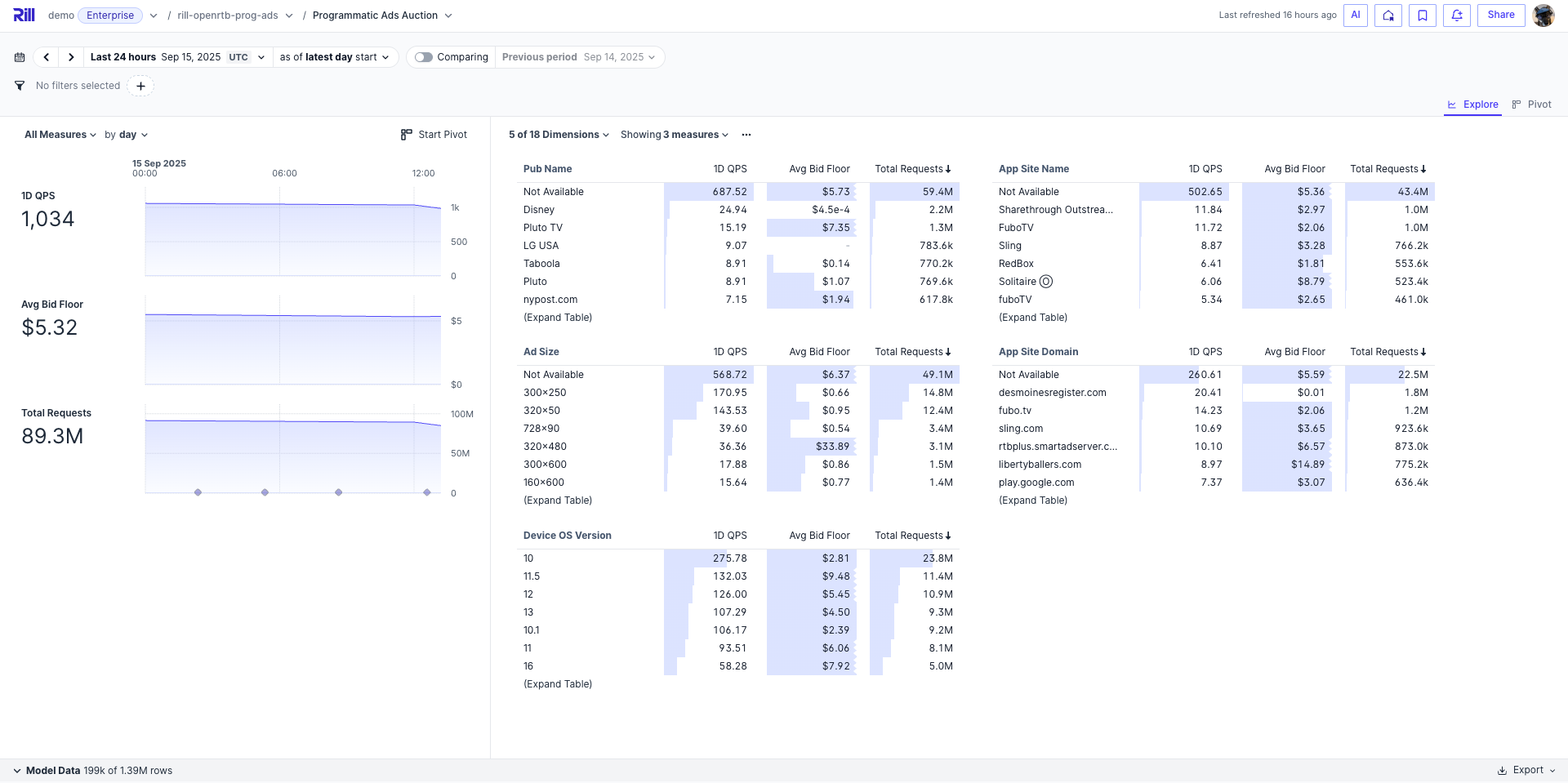
### Live Demo
See both dashboard types in action with our interactive demos:
- **[Programmatic Advertising Explore Dashboard](https://ui.rilldata.com/demo/rill-openrtb-prog-ads/explore/auction_explore?tr=-24h+to+ref+as+of+latest%2FD&tz=UTC&grain=day&measures=1d_qps%2Cavg_bid_floor%2Crequests&dims=pub_name%2Capp_site_name%2Cad_size%2Capp_site_domain%2Cdevice_osv&leaderboard_measures=1d_qps%2Cavg_bid_floor%2Crequests)** - Real-time bidding and auction data exploration
- **[Mobile App Engagement Explore Dashboard](https://ui.rilldata.com/demo/rill-app-engagement/explore/mobile_events_explore)** - Mobile app user behavior and engagement metrics
- **[GitHub Analytics Explore Dashboard](https://ui.rilldata.com/demo/rill-github-analytics/explore/rill_commits_explore?tr=P12M&grain=week&dims=username%2Cfile_path%2Cfilename%2Cfile_extension%2Cfirst_directory%2Csecond_directory%2Cprevious_file_path%2Cis_merge_commit)** - Code repository and commit analysis
- **[E-commerce Explore Dashboard](https://ui.rilldata.com/demo/ezcommerce-demo/explore/data_metrics_explore)** - Interactive exploration of sales data
## Canvas Dashboards
**[Canvas dashboards](/developers/build/dashboards/canvas)** provide a traditional dashboard experience where you can combine multiple metrics views and create custom layouts. See our [list of components](/developers/build/dashboards/canvas-widgets) to start creating your custom dashboard.
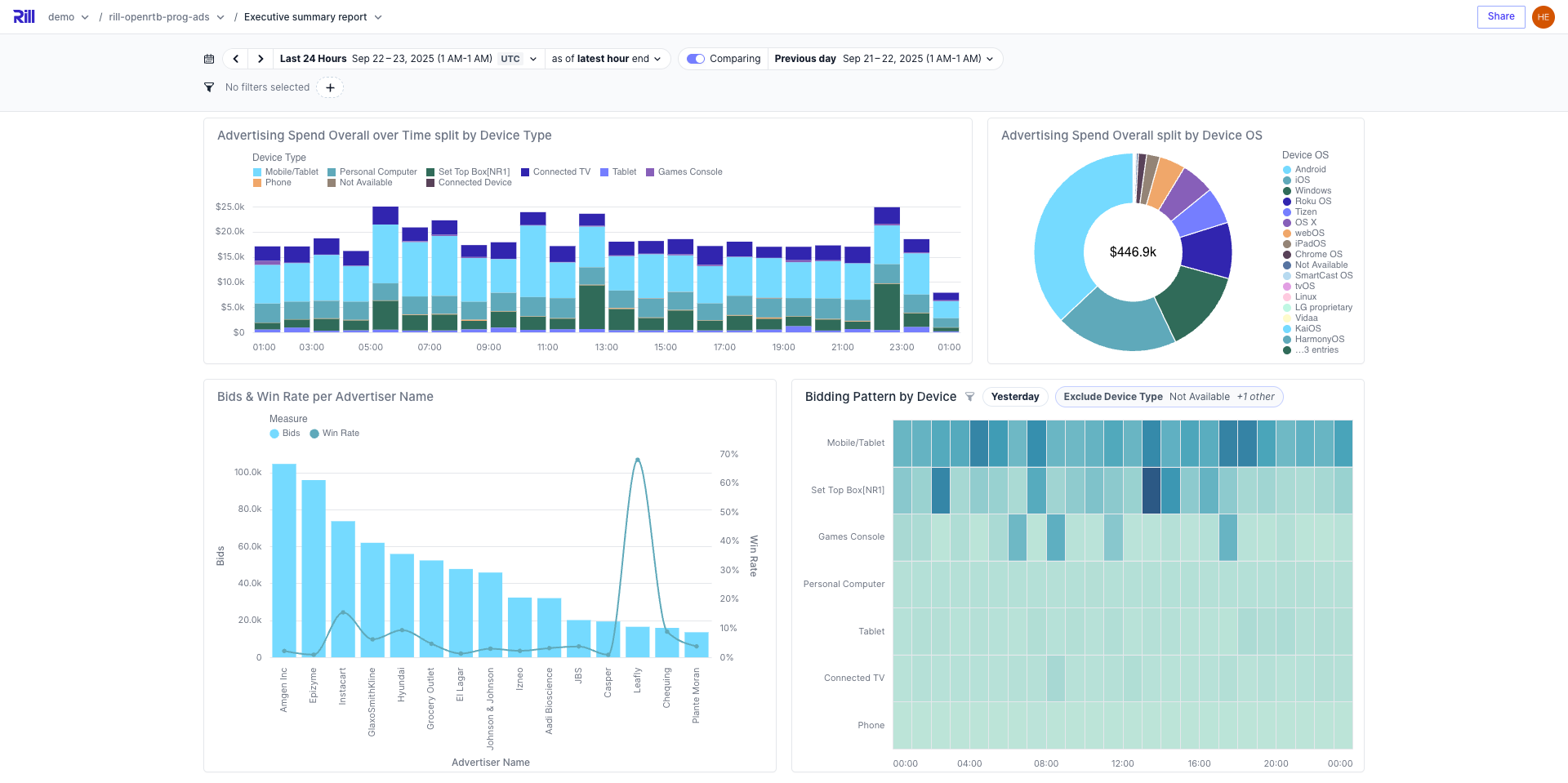
### Live Demo
See both dashboard types in action with our interactive demos:
- **[E-commerce demo dashboard](https://ui.rilldata.com/demo/ezcommerce-demo/canvas/canvas)** - Sales analytics and revenue tracking with multiple visualizations
- **[Programmatic advertising demo dashboard](https://ui.rilldata.com/demo/rill-openrtb-prog-ads/canvas/executive_overview)** - Real-time bidding metrics and campaign performance analysis
- **[New York City demo dashboard](https://ui.rilldata.com/demo/nyc-canvas-jam/canvas/scorecard%20canvas)** - Urban analytics and city performance metrics
- **[NYC party demo dashboard 🎉](https://ui.rilldata.com/demo/nyc-canvas-jam/canvas/Leaderboard)** - Fun leaderboard showcasing various data insights
## Key Features
Both dashboard types share common capabilities that make them powerful for data analysis:
- **Time filtering and comparisons** - Navigate through time periods and compare different time ranges
- **Dimension filtering** - Filter data by specific dimensions and values
## Learn More About Using Dashboards
For comprehensive guidance on using dashboards as an analyst, see our [Analyst's Guide to Dashboards](/guide/dashboards/explore), which covers:
- [Dashboard navigation and interface](/guide/dashboards/explore)
- [Filtering and comparisons](/guide/dashboards/filters)
- [Pivot tables](/guide/dashboards/explore/pivot)
- [Time dimension details](/guide/dashboards/explore/tdd)
- [Bookmarks and sharing](/guide/dashboards/bookmarks)
- [Alerts and notifications](/guide/alerts)
---
# Explore Dashboards
URL: https://docs.rilldata.com/developers/build/dashboards/explore
Explore dashboards are interactive, slice-and-dice interfaces that transform your metrics view data into powerful visualizations for data exploration and analysis. Built on top of a single metrics view, they provide an intuitive way for users to interact with your data through real-time filtering, drilling, and comparison capabilities.
## Creating an Explore Dashboard in Rill Developer
### Using the Code Editor
In the Explore dashboard YAML, you can define dashboard level parameters to customize the capabilities. For a full list, see our [explore dashboard reference](/reference/project-files/explore-dashboards) doc.
* _**metrics_view**_ - A single metrics view that powers the dashboard
* _**measures**_ - `*` Which measures to include or exclude from the metrics view; using a wildcard will include all.
* _**dimensions**_ - `*` Which dimensions to include or exclude from the metrics view; using a wildcard will include all.
In some cases, a specific dashboard will not need to include all of the underlying metrics view's measures and/or dimensions. In this case, you can use the `measures` and `dimensions` parameters to filter these out. Rill supports providing a single value, list, or regex to filter out unnecessary measures and dimensions.
```yaml
type: explore
title: Title of your Explore Dashboard
description: a description for your explore dashboard
metrics_view: my_metricsview
dimensions:
expr: "^public_.*$"
measures:
- total_downloads
- total_impressions
defaults:
comparison_mode: time
time_range: P3M
measures:
- total_downloads
- total_impressions
dimensions:
- show_name
- season
- program_name
```
:::tip Customize default time ranges
Set project-wide default time ranges and available options for all explore dashboards.
[Learn more about dashboard defaults →](/developers/build/project-configuration#explore-defaults)
:::
### Using AI
In various locations throughout the platform, you have the opportunity to fast-track your dashboard creation via AI. This feature [creates the underlying metrics view with AI](/developers/build/metrics-view/what-are-metrics-views#creating-a-metrics-view-with-ai) and generates your explore.yaml similar to the example above with the required components.
**Directly from your connector's tables:**
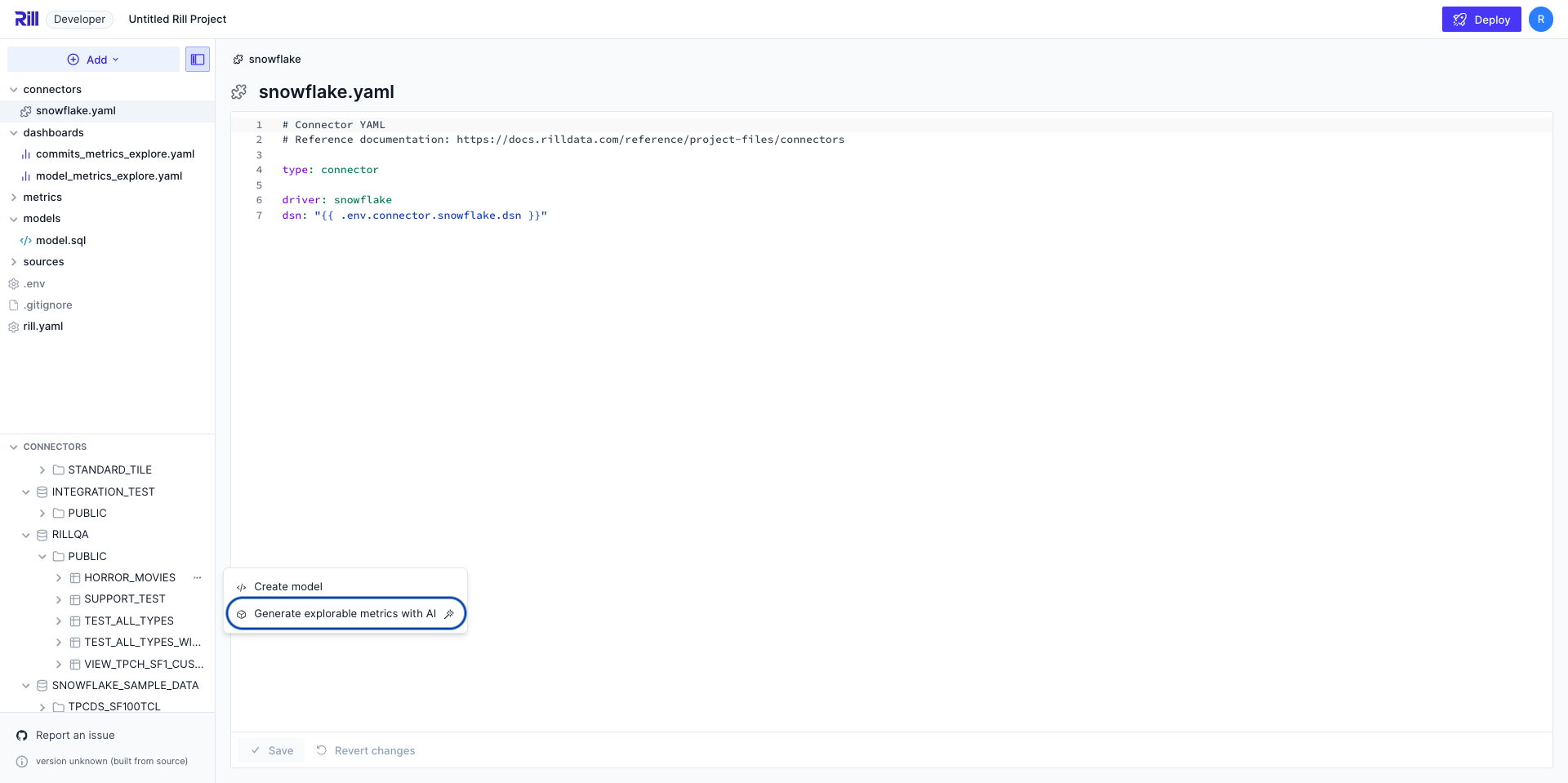
**From an ingested model:**
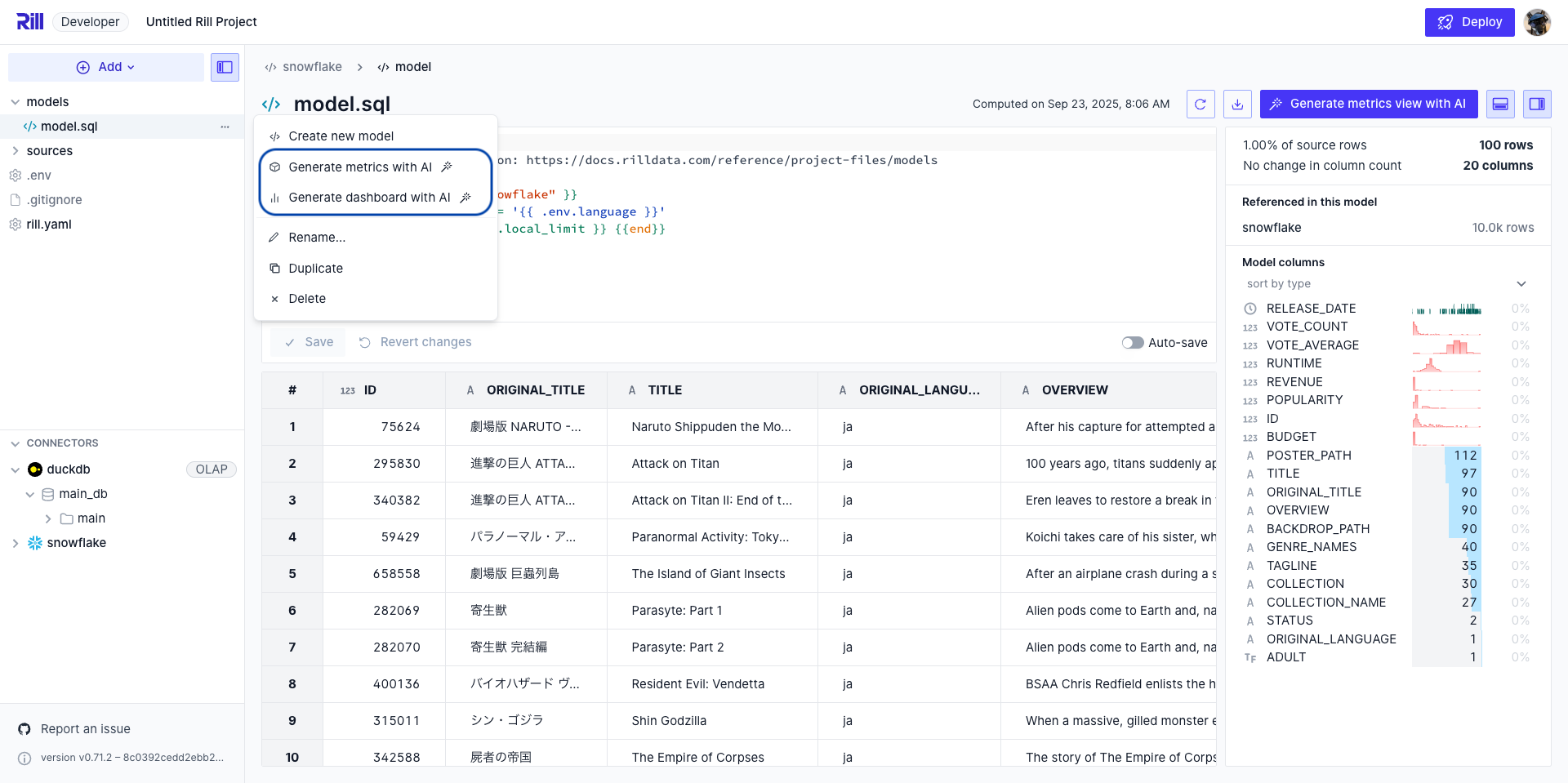
## Preview a Dashboard in Rill Developer
Once a dashboard is ready to preview, before [deploying to Rill Cloud](/developers/deploy/deploy-dashboard), you can preview the dashboard in Rill Developer.
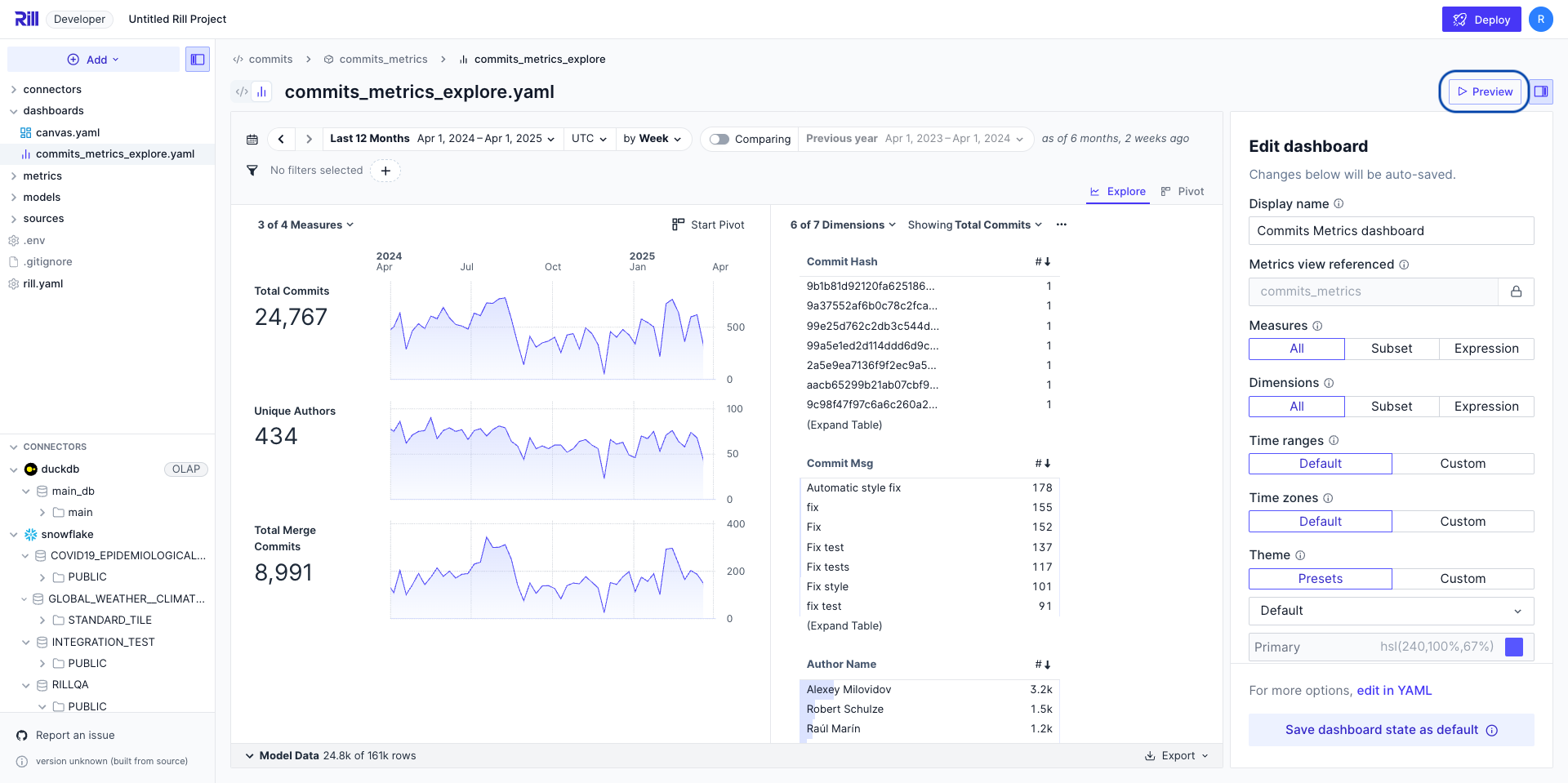
### Setting Up Dashboard Access
If you are setting up [dashboard policies](/developers/build/dashboards/customization#define-dashboard-access), it is recommended to preview and test the dashboard before deploying. This option will be available for testing if you have set up access policies at the [project level](/developers/build/project-configuration#testing-security), [metrics view level](/developers/build/metrics-view/security), or [dashboard level](/developers/build/dashboards/customization#define-dashboard-access).
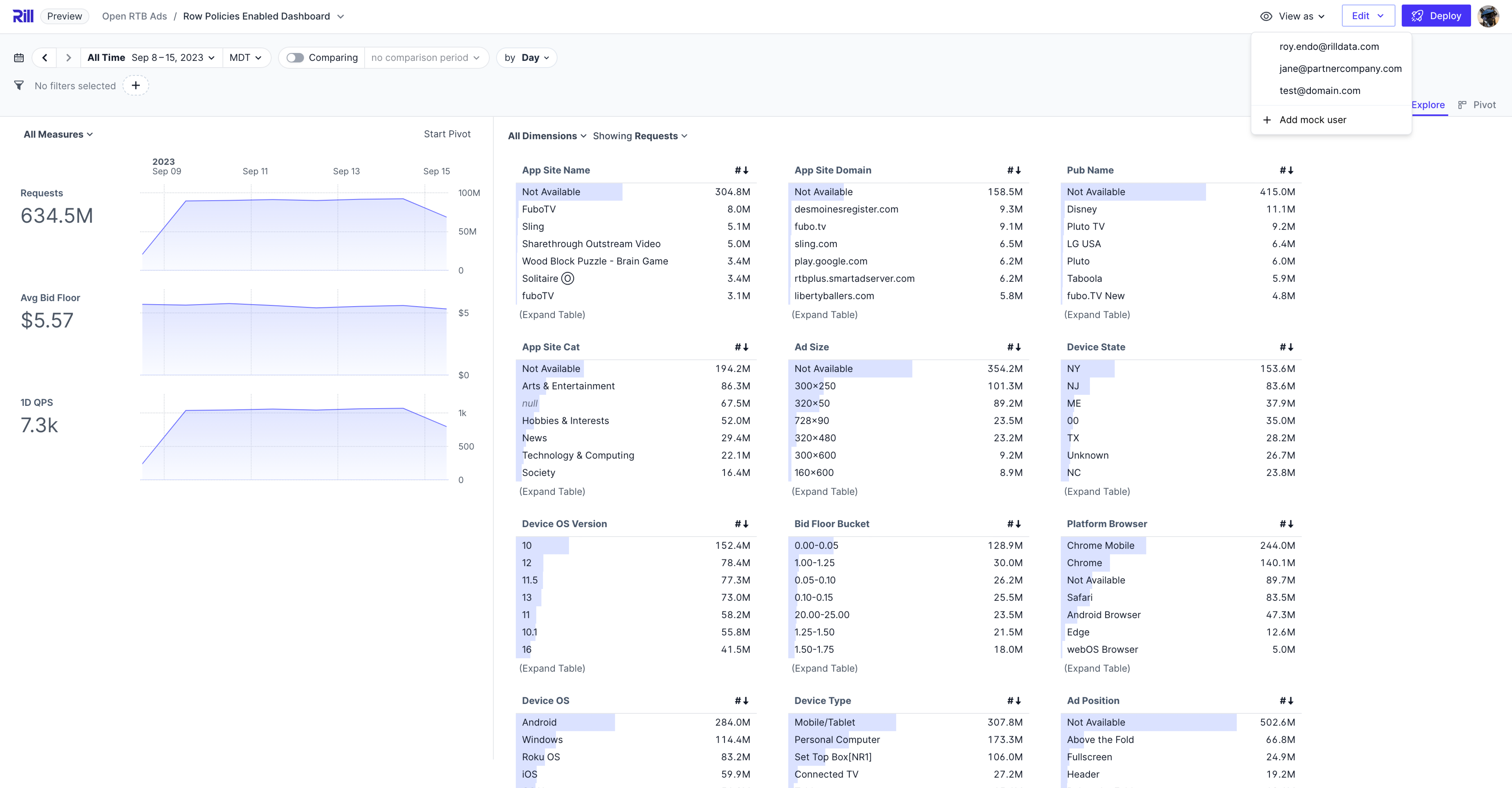
---
# Debugging Rill Projects
URL: https://docs.rilldata.com/developers/build/debugging/
When building Rill projects, you'll encounter various debugging scenarios—from understanding project logs to tracing resource reconciliation. This section covers the tools and techniques available for troubleshooting your Rill projects.
- **[Understanding Project Logs](#understanding-project-logs)** - Learn the basics of reading and interpreting logs
- **[Troubleshooting Common Errors](#troubleshooting-common-errors)** - Resolve common error patterns
- **[Advanced Debugging Techniques](#advanced-debugging-techniques)** - Use debug flags, trace viewer, and cloud logs
## Understanding Project Logs
Whether you start Rill from the terminal or your favorite IDE, the terminal window will output the project logs. From reconciling items to partition ingestion and beyond, browsing the project logs is a great place to start when troubleshooting errors or slow-loading models.
### Log Format
Rill logs follow a structured JSON format. Here are some common log entries:
```bash
Reconciled resource {"name": "commits__ (copy)_metrics_explore", "type": "Explore", "elapsed": "1ms"}
Executed model partition {"model": "CH_incremental_commits_directory", "key": "55454ed4ad31cd3266988fe523103637", "data": {"path":"github-analytics/Clickhouse/2025/08","uri":"gs://rilldata-public/github-analytics/Clickhouse/2025/08"}, "elapsed": "283.188333ms"}
Executed model partition {"model": "staging_to_CH", "key": "0030406e528b3799c8cbad6bfe609e83", "trace_id": "3073a89ac5cee9e7e3433ce0a34d291a", "span_id": "c3cb402d7b4af9b6", "data": {"day":"2022-12-20T00:00:00Z"}}
```
### Generic Logging
- **`name`** – Filename or YAML-defined name of the Rill object.
- **`type`** – Resource type (e.g., `Connector`, `Model`, `MetricsView`, `Explore`, `API`, `Alert`, `Theme`, `Component`, `Canvas`).
- **`elapsed`** – Time taken to reconcile, execute, or otherwise process the resource.
- **`error`** – Error message generated during reconciliation or execution.
- **`dependency_error`** – Boolean flag indicating that the resource failed due to another resource's error.
- **`deleted`** – Boolean flag indicating that the resource was deleted.
- **`path`** – Filesystem path to the resource YAML file.
- **`logger_name`** – Name of the logger emitting the message.
- **`message`** – Log message content.
### Partitioning
- **`model`** – Name of the model associated with a partition operation.
- **`partitions`** – Number of partitions resolved for a model.
- **`key`** – Partition key (usually an MD5-like hash).
- **`data`** – Partition-specific metadata or parameters.
### Embedded ClickHouse
- **`addr`** – Host and port address for the embedded ClickHouse server.
- **`sql`** – SQL statement executed by ClickHouse during query execution.
### Debug
- **`sql`** – SQL statement executed by DuckDB during model evaluation or metrics computation.
- **`args`** – SQL query parameters (if any).
- **`trace_id`** – Unique trace identifier for the operation (used for distributed tracing).
- **`span_id`** – Unique span identifier within the trace.
### Logging Examples
#### Simple: Project Creation
When you first initialize a Rill project, you'll see Rill reconcile a resource "duckdb" of type "Connector". This is expected as we explicitly create this file to initialize a connection to our embedded DuckDB.
```bash
Rill will create project files in "~/Desktop/GitHub/testing-folder/dsn". Do you want to continue? Yes
INFO Serving Rill on: http://localhost:9009
INFO Reconciling resource {"name": "duckdb", "type": "Connector"}
INFO Reconciled resource {"name": "duckdb", "type": "Connector", "elapsed": "90ms"}
```
#### Simple: Connecting to a Data Source
When connecting to a data source via a connector, you'll see a "Connector" being reconciled. In the case of any errors, you'll see this in both the UI and the logs.
```bash
INFO Reconciling resource {"name": "gcs", "type": "Connector"}
INFO Reconciled resource {"name": "gcs", "type": "Connector", "elapsed": "39ms"}
WARN Reconcile failed {"name": "gcs", "type": "Connector", "elapsed": "1ms", "error": "failed to resolve templated property \"google_application_credentials\": template: :1:6: executing \"\" at <.env.GOOGLE_APPLICATION_CREDENTIALS>: map has no entry for key \"GOOGLE_APPLICATION_CREDENTIALS\""}
```
Once connected, you'll likely create a model and see this also reconciling in the logs. Similar to the above, if there are any issues, you'll see it both in the logs and UI.
```bash
INFO Reconciling resource {"name": "commits__", "type": "Model"}
INFO Reconciled resource {"name": "commits__", "type": "Model", "elapsed": "944ms"}
# or
WARN Reconcile failed {"name": "commits__", "type": "Model", "elapsed": "682ms", "error": "blob (key \"github-analytics/Clickhouse/2025/06/commits_2025_0.parquet\") (code=Unknown): storage: object doesn't exist: googleapi: Error 404: No such object: rilldata-public/github-analytics/Clickhouse/2025/06/commits_2025_0.parquet, notFound", "errorVerbose": "blob (key \"github-analytics/Clickhouse/2025/06/commits_2025_0.parquet\") (code=Unknown):\n gocloud.dev/blob.(*Bucket).Attributes\n /Users/runner/go/pkg/mod/gocloud.dev@v0.36.0/blob/blob.go:913\n - storage: object doesn't exist: googleapi: Error 404: No such object: rilldata-public/github-analytics/Clickhouse/2025/06/commits_2025_0.parquet, notFound"}
```
#### Intermediate: Creating Rill Objects
The next section of logs shows the creation of a metrics view and explore dashboard. You'll see some errors thrown in the metrics view that get resolved in Rill Developer.
```bash
INFO Reconciling resource {"name": "commits___metrics", "type": "MetricsView"}
WARN Reconcile failed {"name": "commits___metrics", "type": "MetricsView", "elapsed": "15ms", "error": "measure \"earliest_commit_date_measure\" is of type CODE_TIMESTAMP, but must be a numeric type\nmeasure \"latest_commit_date_measure\" is of type CODE_TIMESTAMP, but must be a numeric type"}
INFO Reconciling resource {"name": "commits___metrics", "type": "MetricsView"}
WARN Reconcile failed {"name": "commits___metrics", "type": "MetricsView", "elapsed": "21ms", "error": "measure \"earliest_commit_date_measure\" is of type CODE_TIMESTAMP, but must be a numeric type"}
INFO Reconciling resource {"name": "commits___metrics", "type": "MetricsView"}
INFO Reconciled resource {"name": "commits___metrics", "type": "MetricsView", "elapsed": "15ms"}
INFO Reconciling resource {"name": "commits___metrics_explore", "type": "Explore"}
INFO Reconciled resource {"name": "commits___metrics_explore", "type": "Explore", "elapsed": "1ms"}
```
#### Advanced: Dependency Errors
When a resource fails, dependent resources will also fail with a `dependency_error` flag. This helps you trace the root cause of cascading failures. In the example below, the `orders` model fails, which causes `orders_customers_model` to fail with a dependency error, which in turn causes `orders_customers_metrics` and `orders_customers_explore` to fail.
```bash
INFO Reconciling resource {"name": "duckdb", "type": "Connector"}
INFO Reconciling resource {"name": "gcs", "type": "Connector"}
INFO Reconciling resource {"name": "orders", "type": "Model"}
INFO Reconciling resource {"name": "customers", "type": "Model"}
INFO Reconciled resource {"name": "gcs", "type": "Connector", "elapsed": "1ms"}
INFO Reconciled resource {"name": "duckdb", "type": "Connector", "elapsed": "96ms"}
INFO Reconciled resource {"name": "customers", "type": "Model", "elapsed": "10.8s"}
WARN Reconcile failed {"name": "orders", "type": "Model", "elapsed": "17.5s", "error": "failed to create model: Cannot open file \"/path/to/project/tmp/default/duckdb/orders/data.db.wal\": No such file or directory"}
INFO Reconciling resource {"name": "orders_customers_model", "type": "Model"}
INFO Reconciled resource {"name": "orders_customers_model", "type": "Model", "error": "dependency error: resource \"orders\" (rill.runtime.v1.Model) has an error", "dependency_error": true}
INFO Reconciling resource {"name": "orders_customers_metrics", "type": "MetricsView"}
WARN Reconcile failed {"name": "orders_customers_metrics", "type": "MetricsView", "elapsed": "11ms", "error": "table \"orders_customers_model\" does not exist"}
INFO Reconciling resource {"name": "orders_customers_explore", "type": "Explore"}
INFO Reconciled resource {"name": "orders_customers_explore", "type": "Explore", "error": "dependency error: resource \"orders_customers_metrics\" (rill.runtime.v1.MetricsView) has an error", "dependency_error": true}
```
#### Advanced: Partitioned Models
The main takeaway for partitioned models is that you'll be able to see the number of partitions that Rill will start ingesting. This is especially important when creating [dev/prod](/developers/build/connectors/templating) environments and you're trying to avoid ingesting large amounts of data locally.
```bash
Resolved model partitions {"model": "staging_to_CH", "partitions": 16}
INFO Executed model partition {"model": "staging_to_CH", "key": "0030406e528b3799c8cbad6bfe609e83", "data": {"day":"2022-12-20T00:00:00Z"}}
```
## Troubleshooting Common Errors
When debugging errors, start by checking the project logs and understanding the error messages. Here are common error patterns and how to resolve them:
### Model Errors
Model errors typically occur when there are issues with credentials, data processing, SQL syntax, or data type mismatches. Common error messages and their solutions:
- **`Failed to connect to ...`**: Issue with your connector. Check your credentials and [firewall settings](/developers/build/connectors/data-source#externally-hosted-services) if using externally hosted services
- **`Table with name ... does not exist!`**: Verify the table exists by running `rill query --sql "select * from {table_name} limit 1"` or checking your data source
- **`IO Error: No files found that match the pattern...`**: Check that your cloud storage folder path is correct and files exist
- **`some partitions have errors`**: Run `rill project refresh --model {model_name} --errored-partitions` to refresh errored partitions
- **`Out of Memory Error: ...`**: Contact [support](/contact) for assistance with memory issues
### Metrics View and Dashboard Errors
Metrics view and dashboard errors often stem from issues with the underlying models or configuration problems:
- **Model Dependencies:** Dashboards failing because their underlying models have errors. Check the [dependency errors](/developers/build/debugging#model-errors) section above
- **Missing Dimensions/Measures:** References to fields that don't exist in the underlying model. Verify that measures and dimensions in your metrics YAML match existing columns in your data
- **Type Mismatches:** Measures must be numeric types. Check that timestamp fields aren't being used as measures
### Checking Resource Status
To understand what's failing in your project:
1. **Check project logs** - Review the terminal output or use `rill project logs` for Rill Cloud projects
2. **Use the Trace Viewer** - Visualize resource reconciliation and trace execution paths
3. **Check resource status** - Use the `Status` tab in Rill Developer or [`rill project status`](/reference/cli/project/status) CLI command
:::tip Check upstream dependencies
The surfaced error might not be the root cause. A dashboard error could stem from an underlying model timeout. Always trace errors to their source by checking dependent resources.
:::
## Advanced Debugging Techniques
When standard logs aren't providing enough detail, Rill offers several advanced debugging options to help you diagnose issues more effectively.
### Using Debug and Verbose Flags
Rill Developer provides two flags for increasing log verbosity:
**`--verbose`**: Sets the log level to debug, showing more detailed information about what Rill is doing internally. This includes:
- More granular resource reconciliation steps
- Additional context about operations
- Extended error details
**`--debug`**: Collects additional debug information beyond just log verbosity. This flag enables:
- Enhanced debugging metadata
- More detailed trace information
- Additional diagnostic data useful for troubleshooting complex issues
```bash
# Increase log verbosity
rill start --verbose
# Collect additional debug info
rill start --debug
# Combine both for maximum detail
rill start --debug --verbose
```
:::tip When to use each flag
- Use `--verbose` when you need more detail about what Rill is doing but don't need deep debugging info
- Use `--debug` when troubleshooting complex issues that require additional diagnostic data
- Use both together when you need the most comprehensive debugging information
:::
### Log Format Options
By default, Rill outputs logs in a human-readable console format. For programmatic processing or filtering, you can output logs in JSON format:
```bash
rill start --log-format json
```
JSON format is useful when:
- Parsing logs with scripts or tools
- Filtering logs programmatically
- Integrating with log aggregation systems
### Viewing Rill Cloud Logs
For projects deployed to Rill Cloud, you can view logs directly from the CLI:
```bash
# View recent logs
rill project logs
# Follow logs in real-time (like tail -f)
rill project logs --follow
# Show only the last N lines
rill project logs --tail 100
# Filter by log level
rill project logs --level DEBUG
```
The `rill project logs` command provides the same structured log output you see in Rill Developer, making it easy to debug issues in production deployments.
### Checking Project Status
Use the `rill project status` command to get a quick overview of your project's health:
```bash
# Check status of a deployed project
rill project status
# Check status of locally running project
rill project status --local
```
This command shows:
- Resource reconciliation status
- Error states for individual resources
- Dependency relationships
- Overall project health
### Trace Viewer
For complex debugging scenarios involving multiple resources and dependencies, use the [Trace Viewer](/developers/build/debugging/trace-viewer) to visualize resource reconciliation and trace execution paths across your project. The Trace Viewer helps you:
- Understand resource dependency chains
- Identify bottlenecks in reconciliation
- Visualize execution flows
- Debug cascading failures
To use the Trace Viewer, start Rill with the `--debug` flag:
```bash
rill start --debug
```
Then access the Trace Viewer through the Rill Developer UI to see a visual representation of your project's resource reconciliation.
---
# Trace Viewer in Rill Developer
URL: https://docs.rilldata.com/developers/build/debugging/trace-viewer
Rill Developer provides a built-in trace viewer, enabling users to visually inspect operations performed when reconciling resources or fetching data for dashboards. This helps in diagnosing performance and operational issues.
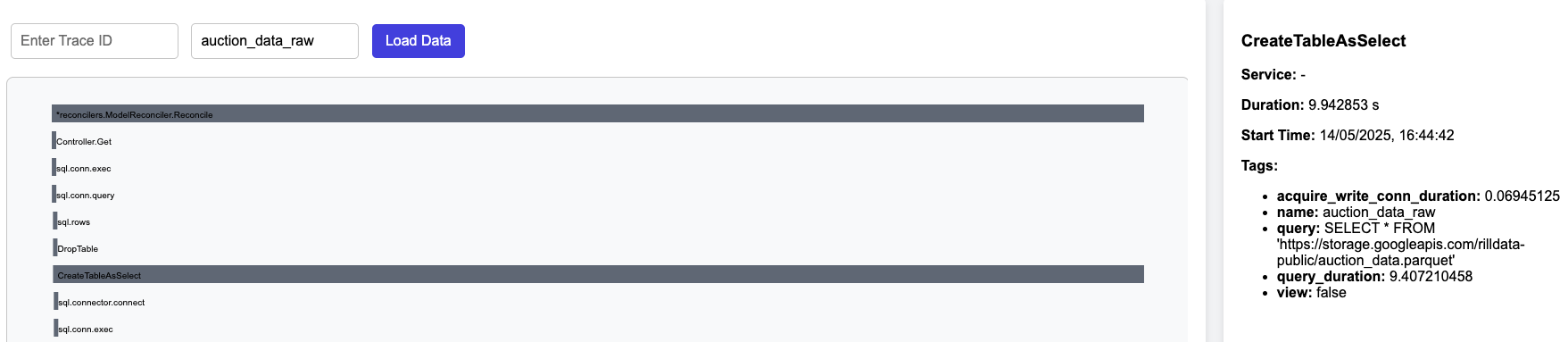
## How to Use the Trace Viewer
### Step 1: Start Rill Developer with Debug Mode
Launch Rill Developer with the debug flag enabled:
```bash
rill start --debug
```
### Step 2: Access the Trace Viewer
Open your web browser and navigate to:
```
http://localhost:9009/traces
```
### Step 3: Visualize Traces
There are two ways to visualize traces:
- **By Trace ID:** Enter a specific Trace ID to inspect a particular operation.
- **By Resource Reconciliation:** Browse operations associated with reconciling specific resources.
For example, to view the operations performed during the reconciliation of the `bids` model, enter `bids` in the resource name field.
## Understanding the Trace Graph
- **Horizontal Bars:** Each horizontal bar represents a distinct operation performed by Rill.
- **Bar Length:** The length of each bar indicates the duration of the operation.
- **Operation Details:** Click on any bar to view detailed tags and metadata in the pane on the right.
- **Nested Operations:** Operations may trigger other sub-operations, displayed as nested bars beneath the parent operation.
- **Parallel Operations:** Bars displayed side by side indicate operations executed concurrently.
## Retrieving the Trace ID for Dashboard Data Fetch
To find the Trace ID associated with fetching data for a dashboard:
1. **Open Browser Developer Tools:** Use your browser's developer tools (usually `F12` or `Cmd+Option+I`).
2. **Inspect API Requests:** Select the API call you're interested in from the network tab.
3. **Find `X-trace-id`:** Check the response headers to locate the `X-trace-id`.
4. **Use Trace ID:** Enter this Trace ID into the trace viewer to inspect the operation details.

## Inner Workings
- The Trace Viewer UI uses OpenTelemetry (OTEL) traces.
- Traces are captured in JSON format and stored locally.
- The UI retrieves and filters traces based on query parameters and trace type.
---
# Your First Rill Project
URL: https://docs.rilldata.com/developers/build/getting-started
# Your First Rill Project
When you create a new Rill project, you're setting up a complete data pipeline that transforms raw data into interactive dashboards. This guide explains what happens during project initialization and introduces you to the key files you'll work with.
## What Happens When You Create a Rill Project?
A Rill project consists of several data assets that work together to create a dashboard. The data pipeline begins with [connecting](/developers/build/connectors) to your data sources, transforms raw data through [models](/developers/build/models), defines metrics and dimensions in [metrics views](/developers/build/metrics-view), and results in interactive [dashboards](/developers/build/dashboards) for data analysis.
When you create a new Rill project, the following files are automatically generated:
- **`rill.yaml`** - Central configuration hub for your entire project
- **`connectors/.yaml`** - Connector configuration files for the project's default OLAP engine (e.g., `duckdb.yaml`, `clickhouse.yaml`)
- **`.gitignore`** - Git ignore rules for the project
## Initial Project Files
These are the foundational files that Rill creates for you. As you build your project, you'll add many more files including sources, models, metrics views, and dashboards.
### `rill.yaml`
The central configuration file that controls project-wide settings. You rarely need to modify `rill.yaml` when starting out - the defaults work great! This file enables you to set [project-wide defaults](/developers/build/project-configuration#model-defaults), [configure variables](/developers/build/project-configuration#variable-management), define [connector settings](/developers/build/project-configuration#olap-connector), create [test users](/developers/build/project-configuration#testing-security), and establish [security policies](/developers/build/project-configuration#metrics-views-security-policy).
### `connectors/.yaml`
Configuration for your default OLAP engine (DuckDB, ClickHouse, Druid, or Pinot). When starting a blank project, this always defaults to `duckdb.yaml`. This file defines how Rill connects to your analytical database.
Connectors enable Rill to connect to various data sources and OLAP engines. You can configure [data source connectors](/developers/build/connectors/data-source) (like S3, GCS, BigQuery, Snowflake) to ingest data, and [OLAP connectors](/developers/build/connectors/olap) to power your analytics. See our [connectors documentation](/developers/build/connectors) for the full list of supported connections.
### `.gitignore`
Specifies which files and directories should be ignored by Git version control. Rill automatically generates this file with appropriate rules to exclude sensitive files like `.env`, temporary files, and build artifacts from being committed to your repository.
## Preview Mode
Preview mode starts Rill Developer with a dashboard-only interface — no file editor, no code. It's designed for sharing a local Rill instance with stakeholders who don't need the development environment.
```bash
rill start my-project --preview
```
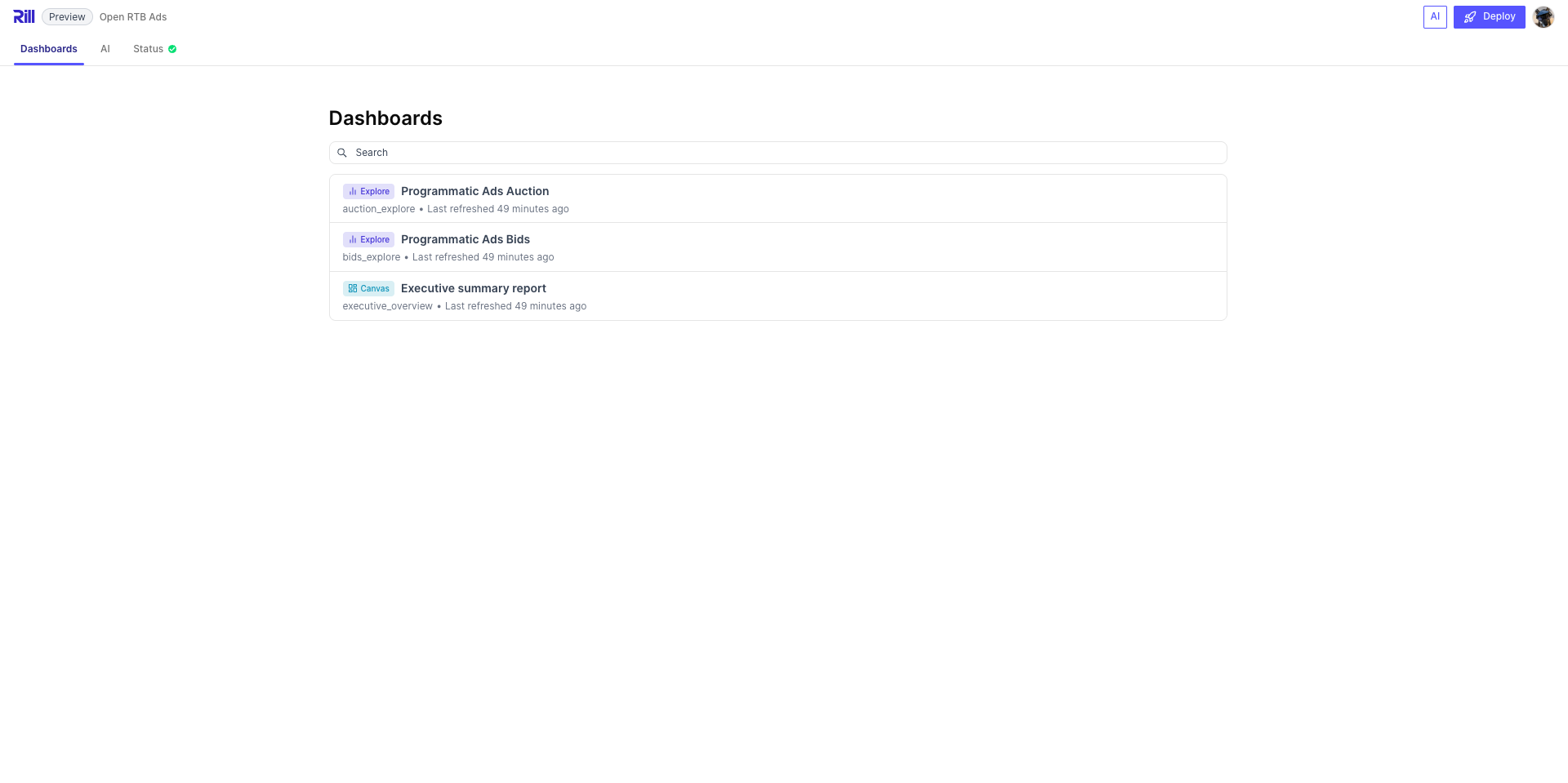
Preview mode sets the application to **read-only**, so dashboards cannot be modified through the UI.
:::tip
For a full team deployment with authentication and access controls, [deploy to Rill Cloud](/developers/deploy/deploy-dashboard).
:::
## Next Steps
Now that you understand the basics, you can:
1. **[Connect to your data](/developers/build/connectors)** - Set up connections to your data sources
1. **[Create your first model](/developers/build/models)** - Transform your raw data
2. **[Build a metrics view](/developers/build/metrics-view)** - Define your metrics and dimensions
3. **[Create a dashboard](/developers/build/dashboards)** - Visualize your data
4. **[Deploy to Rill Cloud](/developers/deploy)** - Deploy your project to Rill Cloud
When you need more control over your project configuration, see our [project configuration guide](/developers/build/project-configuration) for advanced settings and customization options.
---
# Build Rill Projects with Your Favorite IDE
URL: https://docs.rilldata.com/developers/build/ide/
## Use Any IDE for Rill Development
Rill projects are just files and folders that you can edit with any code editor or IDE. Whether you prefer VS Code, IntelliJ, Vim, or any other editor, you can create and modify Rill projects directly from your favorite development environment.
### How It Works
Rill projects consist of:
- **SQL files** (`.sql`) for models and metrics views
- **YAML files** (`.yml`) for project configuration
- **Data files** in various formats
You can edit these files in any IDE, and Rill will automatically detect changes and provide real-time feedback.
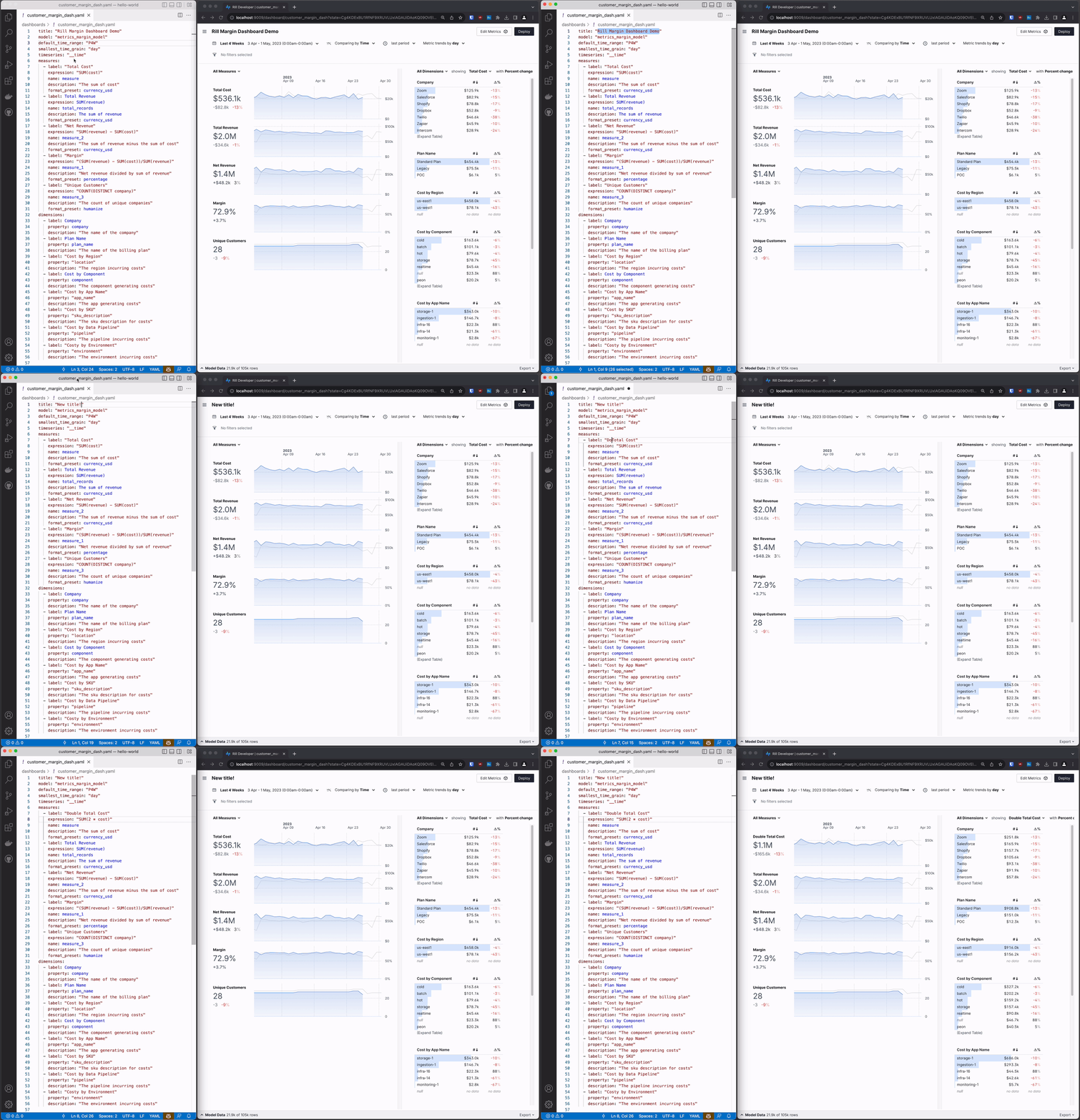
## Using AI Agents to Build Rill Projects
Rill ships built-in [agent skills](/developers/agent-skills) that teach AI coding agents like **Claude Code** and **Cursor** how to build Rill projects. A single `rill init` command scaffolds everything your agent needs — resource schemas, best practices, and development conventions.
```bash
# Add agent skills for Claude Code, Cursor, and AGENTS.md-compatible tools
rill init --agent all
```
See the [Agent Skills documentation](/developers/agent-skills) for installation instructions for each tool, or the [Agentic Quickstart](/developers/get-started/ai-quickstart) for a full walkthrough.
---
# Create Metrics Views
URL: https://docs.rilldata.com/developers/build/metrics-view/
Metrics Views are a key part of defining your measures and dimensions.
### Metrics 101
- [**What are Metrics Views?**](/developers/build/metrics-view/what-are-metrics-views) - Define your time series, measures, and dimensions using your OLAP engine aggregate functions
- [**Underlying Model/Table**](/developers/build/metrics-view/underlying-model) - When to use `model` or `table` in a metrics view
- [**Time Series**](/developers/build/metrics-view/time-series) - What is a time series column and how to use it in your metrics view
- [**Derived Metrics Views**](/developers/build/metrics-view/derived-metrics-views) - Create focused subsets by inheriting from a parent metrics view
### Dimensions
- [**Dimensions**](/developers/build/metrics-view/dimensions) - Categorize and segment your data for analysis and filtering
- [**Navigatable Dimensions**](/developers/build/metrics-view/dimensions/dimension-uri) - Generate navigable URIs for your dimension values
- [**Unnesting Arrays**](/developers/build/metrics-view/dimensions/unnesting) - Work with array data by expanding nested structures
- [**Time Dimensions**](/developers/build/metrics-view/dimensions/time-dimensions) - Add multiple time-based dimensions for filtering across different date columns
- [**Lookup Dimensions**](/developers/build/metrics-view/dimensions/lookup) - Create dimensions that reference data from other sources
### Measures
- [**Measures**](/developers/build/metrics-view/measures) - Define calculated metrics and aggregations for your data analysis
- [**Format Measures**](/developers/build/metrics-view/measures/measures-formatting) - Learn how to format and display your metrics effectively
- [**Case Statements and Filters**](/developers/build/metrics-view/measures/case-statements) - Use conditional logic and filtering in your measures
- [**Referencing Measures**](/developers/build/metrics-view/measures/referencing) - Reference and combine existing measures in your calculations
- [**Quantiles**](/developers/build/metrics-view/measures/quantiles) - Calculate percentiles and quantiles for statistical analysis
- [**Fixed Measures**](/developers/build/metrics-view/measures/fixed-measures) - Create measures with fixed values and constants
- [**Window Functions**](/developers/build/metrics-view/measures/windows) - Apply window functions for advanced analytical operations
### Performance
- [**Rollups**](/developers/build/metrics-view/rollups) - Accelerate queries by routing to pre-aggregated rollup tables
### Security
- [**Data Access Policies**](/developers/build/metrics-view/security) - Control access to your metrics data with role-based permissions
---
# Annotations
URL: https://docs.rilldata.com/developers/build/metrics-view/annotations
Annotations allow you to enrich your metrics view with external data sources or context that isn't directly part of the primary model. This is often used to overlay events, holidays, or deployment markers onto your time series charts.
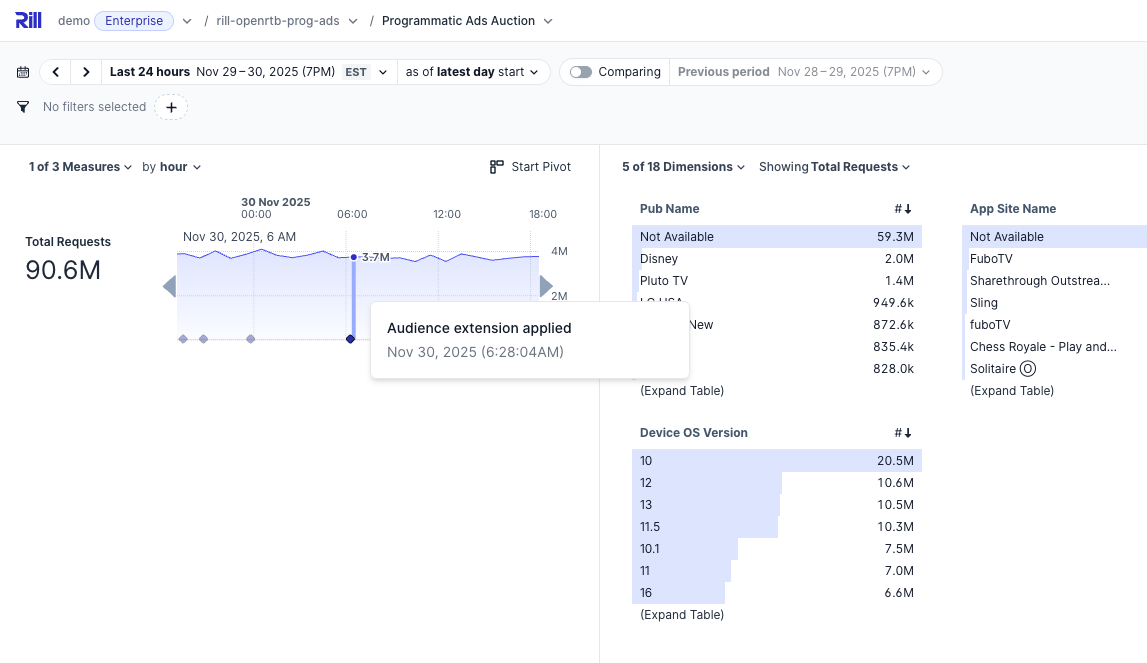
## Requirements
The underlying table or model used for annotations must strictly follow this schema:
1. **`time` column (Required)**: Used to position the annotation on the time series chart.
2. **`description` column (Required)**: The text displayed when hovering over the annotation.
3. **`time_end` column (Optional)**: Timestamp - If present, defines the end time for a range-based annotation.
4. **`duration` column (Optional)**: String/Enum - If present, defines the granularity (e.g., 'day', 'hour', 'minute').selected dashboard time grain. It also forces `time` and `time_end` in the UI to be truncated to the selected grain.
## Configuring Annotations
To add an annotation, you need to define a reference to a `table` or `model` in your metrics view YAML.
```yaml
annotations:
- model: annotations_auction
name: auction_annotations
measures: ['requests']
```
### Configuration Properties
- **`model`** or **`table`**: Reference to the data source containing the annotation data.
- **`name`**: A unique identifier for the annotation set.
- **`measures`** (optional): A list of measures to display these annotations alongside. If not specified, the annotation will appear for all measures.
### Visual Appearance
Annotations appear as markers or ranges on the time series charts in your dashboard.
- **Point Annotations**: Events with a single `time` timestamp appear as point markers.
- **Range Annotations**: Events with both `time` and `time_end` timestamps appear as shaded regions spanning the duration. A range annotation is shown whenever it overlaps the selected time range, even if it starts before or ends after it. A row with an empty `time_end` is shown as a point annotation.
- **Hover Details**: Hovering over an annotation marker reveals the text from the `description` column.
:::info
Refer to the [`annotations` section](/reference/project-files/metrics-views#annotations) in Metrics View YAML reference for more details on how to implement annotations.
:::
---
# Derived Metrics Views
URL: https://docs.rilldata.com/developers/build/metrics-view/derived-metrics-views
A derived metrics view inherits its dimensions, measures, and data source configuration from an existing parent metrics view. It can only expose a subset of the parent's dimensions and measures — it cannot define new ones. This lets you create focused views for specific teams or use cases without duplicating definitions. The parent metrics view should contain the superset of all dimensions and measures that any derived view might need.
## Basic Example
Given a parent metrics view `ad_bids.yaml`:
```yaml
version: 1
type: metrics_view
model: ad_bids_model
timeseries: timestamp
smallest_time_grain: hour
dimensions:
- column: domain
- column: city
- column: country
- column: device
measures:
- name: total_bids
expression: count(*)
- name: total_revenue
expression: sum(bid_price)
- name: avg_bid
expression: avg(bid_price)
```
A derived metrics view `ad_bids_summary.yaml` that inherits everything:
```yaml
type: metrics_view
parent: ad_bids
```
This creates a metrics view with the same dimensions, measures, timeseries, and data source as `ad_bids`. An explore dashboard is automatically emitted for it.
## Selecting Dimensions and Measures
Use `parent_dimensions` and `parent_measures` to control which fields are inherited. When omitted, all fields are inherited (equivalent to `'*'`).
### Select All (Wildcard)
```yaml
type: metrics_view
parent: ad_bids
parent_dimensions: '*'
parent_measures: '*'
```
### Select by Name
```yaml
type: metrics_view
parent: ad_bids
parent_dimensions:
- domain
- country
parent_measures:
- total_bids
- total_revenue
```
### Exclude Specific Fields
Use `exclude` to inherit everything except specific fields:
```yaml
type: metrics_view
parent: ad_bids
parent_dimensions:
exclude:
- city
parent_measures:
exclude:
- avg_bid
```
### Select by Regex
```yaml
type: metrics_view
parent: ad_bids
parent_dimensions:
regex: "^(domain|country)$"
parent_measures:
regex: "^total_.*"
```
### Select by DuckDB Expression
```yaml
type: metrics_view
parent: ad_bids
parent_dimensions:
expr: "* EXCLUDE (city)"
```
## Overriding Inherited Properties
A derived metrics view can override certain properties from the parent. Properties you set on the child take precedence; properties you omit are inherited.
### Overridable Properties
| Property | Behavior |
|---|---|
| `display_name` | Child's value if set, otherwise defaults to the resource name (not inherited from parent) |
| `description` | Child's value if set, otherwise empty (not inherited from parent) |
| `timeseries` | Child's value if set, otherwise parent's |
| `smallest_time_grain` | Child's value if set, otherwise parent's. Must be >= parent's grain |
| `first_day_of_week` | Child's value if set, otherwise parent's |
| `first_month_of_year` | Child's value if set, otherwise parent's |
| `watermark` | Child's value if set, otherwise parent's |
| `ai_instructions` | Child's value if set, otherwise parent's |
### Always Inherited (Cannot Override)
These properties are always taken from the parent:
- `model` / `table` (data source)
- `connector`, `database`, `database_schema`
- Cache settings (`cache.enabled`, `cache.key_sql`, `cache.key_ttl`)
### Example: Override Time Grain
The parent uses hourly data, but this derived view restricts to daily granularity:
```yaml
type: metrics_view
parent: ad_bids
display_name: Ad Bids Daily Summary
smallest_time_grain: day
parent_dimensions:
- domain
- country
parent_measures: '*'
```
:::info
When overriding `smallest_time_grain`, the value must be equal to or coarser than the parent's grain. For example, if the parent uses `hour`, the child can use `day` but not `minute`.
:::
## Dimensions and Measures
A derived metrics view can only inherit dimensions and measures from its parent — it cannot define its own `dimensions` or `measures` directly. The parent metrics view must contain the superset of all dimensions and measures that any derived view might need. Use `parent_dimensions` and `parent_measures` to select which subset to expose.
:::caution
Setting `dimensions` or `measures` on a derived metrics view will produce a validation error. All dimensions and measures must be defined on the parent.
:::
## Security Rules
All security rules from the parent are inherited by the derived metrics view. The only exception is the `access` rule: if the derived view defines its own `access` rule, the parent's `access` rule is skipped. All other parent rules (`row_filter`, `field_access`, `include`, `exclude`) are always appended to the child's rules regardless.
This means a derived view can narrow who has access (by overriding `access`), and can add additional row filters or field restrictions on top of whatever the parent already enforces.
```yaml
type: metrics_view
parent: ad_bids
parent_dimensions: '*'
parent_measures: '*'
security:
access: "'{{ .user.domain }}' = 'partner.com'"
row_filter: "country = 'US'"
```
In this example, the child overrides the parent's `access` rule with its own, but the parent's `row_filter`, `include`, `exclude`, and `field_access` rules are still inherited and appended to the child's rules. The child also adds its own `row_filter` on top of the parent's.
## Inline Explore Configuration
By default, a derived metrics view automatically emits an explore dashboard. You can customize it using the `explore` key, or disable it entirely.
:::note
Auto-emission of the explore dashboard only happens when the YAML file does not set `version` (or sets `version: 0`). If `version: 1` is set, no explore is emitted automatically — you must either define one inline with the `explore` key or create a separate explore file.
:::
### Default Behavior
When no `explore` key is specified and `version` is not set, an explore dashboard is created with all inherited dimensions and measures.
### Custom Explore
```yaml
type: metrics_view
parent: ad_bids
parent_dimensions: '*'
parent_measures: '*'
explore:
display_name: Ad Bids Partner View
time_ranges:
- P7D
- P30D
- range: P90D
comparison_offsets:
- P90D
defaults:
dimensions:
- domain
measures:
- total_bids
- total_revenue
time_range: P7D
comparison_mode: time
```
### Disable Explore
```yaml
type: metrics_view
parent: ad_bids
parent_dimensions: '*'
parent_measures: '*'
explore:
skip: true
```
### Explore Options
The inline `explore` key supports the same configuration as a standalone [explore dashboard](/reference/project-files/explore-dashboards):
| Property | Description |
|---|---|
| `skip` | Set to `true` to disable the explore dashboard |
| `name` | Custom name for the explore resource |
| `display_name` | Display name shown in the UI |
| `description` | Description for the explore |
| `banner` | Custom banner at the header of the explore |
| `theme` | Theme name or inline theme object |
| `time_ranges` | Available time range selections |
| `time_zones` | Pinned time zones (IANA identifiers) |
| `lock_time_zone` | Lock to the first time zone in `time_zones` |
| `allow_custom_time_range` | Allow custom time range selection (default: `true`) |
| `defaults` | Default UI state: `dimensions`, `measures`, `time_range`, `comparison_mode`, `comparison_dimension` |
| `embeds` | Embed configuration, e.g. `hide_pivot: true` |
## Complete Example
A parent metrics view and two derived views for different teams:
**`metrics/ad_bids.yaml`** — the shared parent:
```yaml
version: 1
type: metrics_view
model: ad_bids_model
timeseries: timestamp
smallest_time_grain: hour
dimensions:
- column: domain
- column: city
- column: country
- column: device
- column: publisher
measures:
- name: total_bids
expression: count(*)
- name: total_revenue
expression: sum(bid_price)
- name: avg_bid
expression: avg(bid_price)
- name: unique_domains
expression: count(distinct domain)
security:
access: true
row_filter: "bid_price > 0"
```
**`metrics/ad_bids_sales.yaml`** — for the sales team:
```yaml
type: metrics_view
parent: ad_bids
display_name: Ad Bids - Sales
parent_dimensions:
- domain
- country
parent_measures:
- total_revenue
- avg_bid
smallest_time_grain: day
explore:
display_name: Sales Dashboard
defaults:
time_range: P30D
measures:
- total_revenue
```
**`metrics/ad_bids_engineering.yaml`** — for the engineering team:
```yaml
type: metrics_view
parent: ad_bids
display_name: Ad Bids - Engineering
parent_dimensions: '*'
parent_measures:
exclude:
- avg_bid
security:
access: "'{{ .user.department }}' = 'engineering'"
explore:
defaults:
time_range: P7D
comparison_mode: time
```
## Validation Rules
The parser enforces these constraints on derived metrics views:
- `parent` must reference an existing metrics view with a valid state.
- `dimensions` and `measures` cannot be defined on a derived view — use `parent_dimensions` and `parent_measures` to select from the parent instead.
- `model`, `table`, `database`, `database_schema`, and cache settings cannot be set on a derived view (they come from the parent).
- `parent_dimensions` and `parent_measures` can only be used when `parent` is set.
- `smallest_time_grain`, if specified, must be coarser than or equal to the parent's grain.
- Deprecated top-level explore fields (`default_time_range`, `available_time_zones`, etc.) cannot be used; use the `explore` key instead.
---
# Define Your Dimensions
URL: https://docs.rilldata.com/developers/build/metrics-view/dimensions/
Dimensions are fundamental components of metrics views that enable data segmentation, filtering, and analysis. They represent categorical or descriptive attributes of your data that allow you to break down measures into meaningful segments.
Dimensions are the "who," "what,", and "where" of your data. They provide context and categorization for your measures, enabling you to:
- **Segment data**: Break down metrics by categories like region, product type, or customer segment
- **Filter analysis**: Focus on specific subsets of your data
- **Enable drill-downs**: Navigate from high-level summaries to detailed breakdowns
- **Create comparisons**: Analyze performance across different groups
Explore these advanced capabilities to enhance your dimensions:
- [**Time Dimensions**](/developers/build/metrics-view/dimensions/time-dimensions) - Add multiple time-based dimensions for filtering across different date columns
- [**Clickable Dimension URI**](/developers/build/metrics-view/dimensions/dimension-uri) - Generate navigable URIs for your dimension values
- [**Unnesting Arrays**](/developers/build/metrics-view/dimensions/unnesting) - Work with array data by expanding nested structures
- [**Lookup Dimensions**](/developers/build/metrics-view/dimensions/lookup) - Create dimensions that reference data from other sources
---
# Clickable Dimension Links
URL: https://docs.rilldata.com/developers/build/metrics-view/dimensions/dimension-uri
You can make dimension values clickable by adding a `uri` parameter to your dimension configuration. This enables users to click directly on dimension values in the dashboard to navigate to external URLs, making your dashboards more interactive and useful for data exploration.
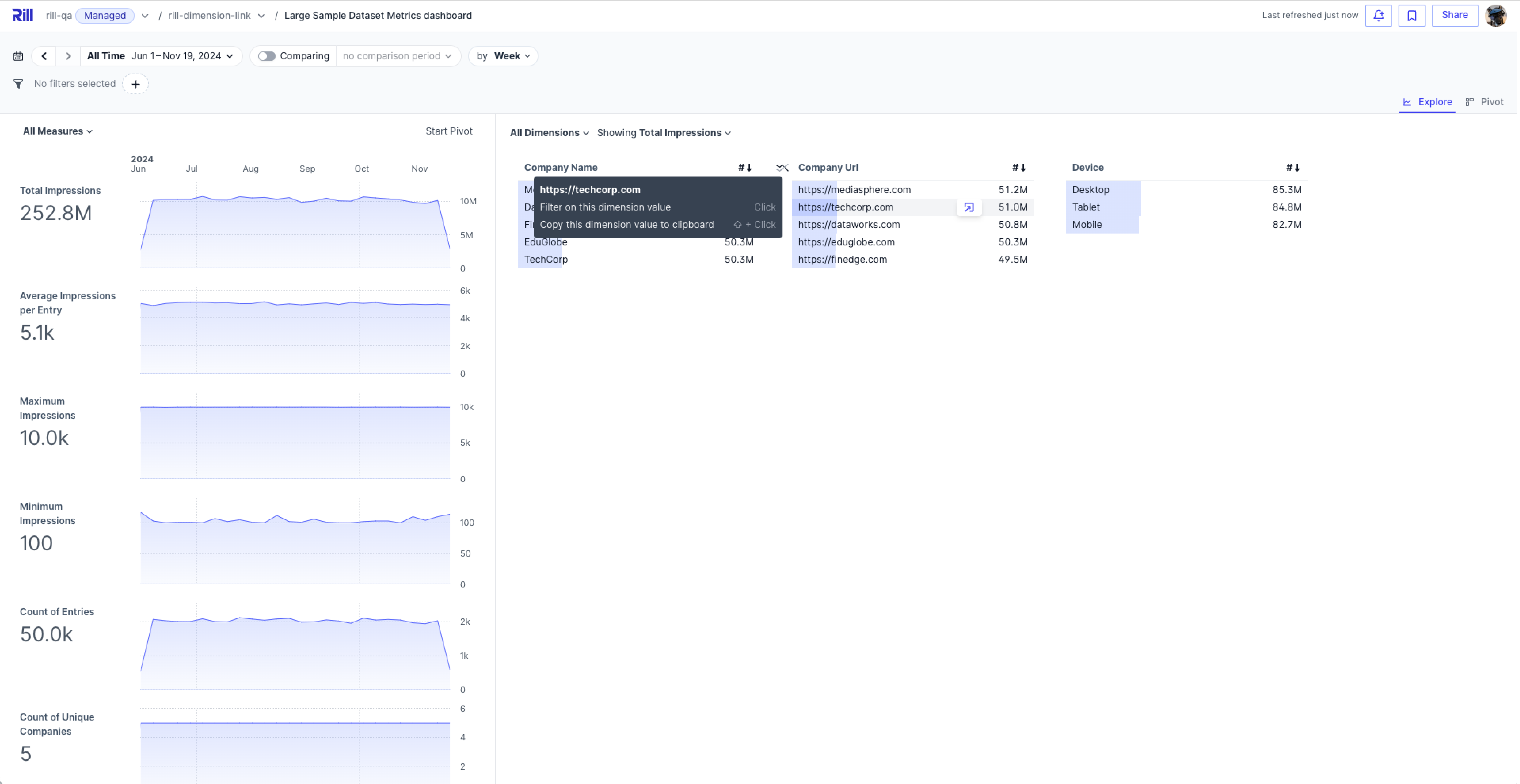
## Simple Setup: Column Already Contains URLs
If your column values are already URLs, simply add `uri: true` to the dimension:
```yaml
dimensions:
- display_name: Company URL
column: company_url
uri: true
```
## Advanced Setup: Dynamic URL Generation
For more advanced use cases, you can dynamically create URLs using expressions. The dimension displays the generated URL and uses it as the clickable link:
```yaml
dimensions:
- name: profile_url
display_name: Bluesky Profile Link
expression: CONCAT('https://bsky.app/profile/', profile_id)
uri: true
```
---
# Query-Time Dimension Joins
URL: https://docs.rilldata.com/developers/build/metrics-view/dimensions/lookup
Query-time joins or more simply, lookup dimensions, provide a powerful way to incorporate reference tables into your dashboard without requiring upstream SQL transformations. This feature enables data enrichment with reference information at query time, eliminating the need for complex ETL processes.
:::note
The lookup function is dependent on the type of [OLAP engine](/developers/build/connectors/olap) that you are using for your project.
:::
## ClickHouse Lookups
ClickHouse provides powerful dictionary functions for lookup operations through `dictGet` functions. The table needs to be defined as a dictionary.
### Using `expression`
You can use `dictGet` directly in a dimension's `expression`:
```yaml
dimensions:
- name: user_email
display_name: "User Email"
# Query-time lookup in the 'users' dictionary
expression: dictGet('users', 'email', user_id)
description: "User email from users dictionary"
- name: product_category
display_name: "Product Category"
expression: dictGet('products', 'category', product_id)
description: "Product category information"
# With default fallback
- name: user_email_safe
display_name: "User Email (Safe)"
expression: dictGetOrDefault('users', 'email', user_id, 'unknown@example.com')
description: "User email with fallback for missing users"
# Multiple attributes from same dictionary
- name: user_full_name
display_name: "User Full Name"
expression: concat(dictGet('users', 'first_name', user_id), ' ', dictGet('users', 'last_name', user_id))
description: "Concatenated full name from user dictionary"
```
This approach is straightforward but has a performance drawback: when filtering by a lookup dimension, ClickHouse must evaluate `dictGet` for every row before applying the filter, which prevents it from using indexes on the key column.
### Using `lookup_*` properties
The `lookup_*` properties provide a declarative way to define lookup dimensions. Rill automatically rewrites filter queries to use an optimized subquery pattern, enabling ClickHouse to leverage indexes on key columns.
```yaml
dimensions:
- name: country_name
display_name: "Country"
# column in the fact table to match with the dictionary key
column: country_code
lookup_table: country_dict
lookup_key_column: code
lookup_value_column: name
# With a default value for missing keys
- name: region
display_name: "Region"
# column in the fact table to match with the dictionary key
column: country_code
lookup_table: country_dict
lookup_key_column: code
lookup_value_column: region
lookup_default_expression: "'Unknown'"
```
The properties are:
- **`lookup_table`** — the dictionary name. Use `database.dictionary_name` if the dictionary is in a non-default database (e.g. `mydb.my_dict`).
- **`lookup_key_column`** — the primary key column in the dictionary that matches the fact table's `column`.
- **`lookup_value_column`** — the attribute column in the dictionary to display.
- **`lookup_default_expression`** _(optional)_ — a SQL expression used as a fallback when no match is found (maps to `dictGetOrDefault`).
#### How the query optimization works
When you filter on a lookup dimension defined with `expression: dictGet(...)`, the generated query looks like:
```sql
SELECT ... FROM fact_table
WHERE dictGet('dict', 'name', publisher_id) IN ('Alice', 'Bob')
```
ClickHouse must call `dictGet` on every row to evaluate the filter, making it unable to use the index on `publisher_id`.
With `lookup_*` properties, Rill rewrites the filter to a subquery pattern:
```sql
SELECT ... FROM fact_table
WHERE publisher_id IN (
SELECT code FROM dict WHERE name IN ('Alice', 'Bob')
)
```
This allows ClickHouse to first resolve the small set of matching keys from the dictionary, then use the index on `publisher_id` to efficiently scan only the relevant rows in the fact table.
#### Keys missing from the dictionary
Keys in the fact table that are missing from the dictionary are not covered by the subquery. For filters to return correct results for these rows, Rill needs to know what value they resolve to. So when using the `lookup_*` properties, either:
- **Make the `lookup_value_column` attribute `Nullable`** in the dictionary definition, without a `DEFAULT`. Missing keys then resolve to `NULL`.
- **Set `lookup_default_expression`.** Missing keys then resolve to that expression, whatever the dictionary's own default is.
```sql
CREATE DICTIONARY country_dict (
code String,
name Nullable(String)
)
PRIMARY KEY code
...
```
:::warning
If the attribute is not `Nullable` and no `lookup_default_expression` is set, missing keys resolve to the attribute's default value, such as an empty string or `0`. Filters that select that value don't match rows with missing keys. Dictionaries that Rill creates from a model with `type: DICTIONARY` infer the attribute types from the model's query, which are not `Nullable` unless the query returns nullable columns (for example using `toNullable(name)`) or you specify `columns` yourself.
:::
Filters that match the value of missing keys, such as selecting the null value or excluding other values, are applied to the `dictGet` expression instead of the subquery and read the whole fact table. With a `lookup_default_expression`, other filters additionally check the default value, so the index optimization is kept whenever the filter does not match the default.
#### Grouping by the key first with `lookup_group_by_key`
When you group by a lookup dimension, the generated query calls `dictGet` on every row before grouping:
```sql
SELECT dictGet('dict', 'name', publisher_id) AS publisher, sum(impressions)
FROM fact_table
GROUP BY publisher
```
With `lookup_group_by_key: true`, Rill groups by the key first, resolves the name once per key, and regroups by name. The measures are re-aggregated with ClickHouse's `-State` and `-Merge` combinators, so the results are identical, including when several keys share the same name:
```yaml
dimensions:
- name: publisher
column: publisher_id
lookup_table: dict
lookup_key_column: id
lookup_value_column: name
lookup_group_by_key: true
```
```sql
SELECT dictGet('dict', 'name', t.publisher_id) AS publisher, sumMerge(t.impressions) AS impressions
FROM (
SELECT publisher_id, sumState(impressions) AS impressions
FROM fact_table
GROUP BY publisher_id
) t
GROUP BY publisher
```
Enable it per dimension for keys with few distinct values compared to the number of rows, such as advertisers, campaigns or properties: the fewer keys, the larger the gain. Leave it off for keys with millions of values, such as users or households, where grouping by key first uses more memory and is no faster.
Distinct counts, such as `count(DISTINCT user_id)` or `uniq(user_id)`, can sometimes get slower. For example, to count distinct users for 3 categories that cover 2,000 publishers, ClickHouse first builds a list of users per publisher and then merges the 2,000 lists into 3, so a user seen on 500 publishers is stored 500 times instead of once. Compare query times with and without `lookup_group_by_key` on your data before enabling it.
Keep in mind:
- A `lookup_default_expression` may only reference constants and the key column.
- Any aggregate function works, including combinators (`sumIf`) and parametric functions (`quantile(0.5)(x)`). `count(DISTINCT x)` is evaluated as `uniqExact`, ClickHouse's default implementation of it, even on servers that override `count_distinct_implementation`. Measures with a `window`, and measures whose expression Rill cannot split into aggregate calls, fall back to the single-pass query for that request.
- Approximate aggregates such as `uniq` or `quantileTDigest` can return slightly different values, as they already do between runs.
:::tip Optimizing GROUP BY with INJECTIVE
If the key-to-value mapping in your dictionary is 1:1 (e.g. every `code` maps to exactly one `name`), you can alternatively mark the attribute columns as `INJECTIVE` in the ClickHouse dictionary definition. This tells ClickHouse that the mapping preserves uniqueness, allowing it to optimize `GROUP BY` queries by grouping on the key column instead of evaluating `dictGet` for every group. Unlike `lookup_group_by_key`, it does not merge keys that share a value, so only use it for dictionaries that are truly 1:1.
:::
## Druid Lookups
For those looking to add ID to name mappings with Druid (as an OLAP engine), you can utilize expressions in your **Dimension** settings. Simply use the `lookup` function and provide the name of the lookup and ID, i.e. `lookup(city_id, 'cities')`. Be sure to include the lookup table name in single quotes.
```yaml
dimensions:
- name: city_name
display_name: "Cities"
expression: lookup(city_id, 'cities')
description: "City names from lookup table"
```
## DuckDB/MotherDuck Lookups
Unfortunately, DuckDB does not have a dimension lookup **function** and instead relies on upstream modeling to join the lookup table and create a [one big table](/developers/build/models/models-101#one-big-table-and-dashboarding) for dashboarding. Take a look through [DuckDB docs](https://duckdb.org/docs/stable/sql/introduction) for further information!
```sql
SELECT
o.*,
u.user_name
FROM orders o
LEFT JOIN users u ON u.email = o.email;
```
Alternatively, you can use DuckDB's `map` function to create a lookup table by mapping values from one column to another. This approach creates an in-memory mapping that can be referenced without using a joining SQL:
```yaml
- expression: (SELECT map(list(email), list(user_name)) FROM users_dataset)[email]
name: user_name
```
## Performance Implications
While joins can kill the performance of [OLAP engines](/developers/build/connectors/olap), lookups (key-value pairs) are common to reduce data size and improve query speeds. Lookups can be done during ingestion time (a static lookup to enrich the source data) or at query time (dynamic lookups).
**Static Lookups**
Static lookups are lookups that are ingested at processing time. When a record is being processed, if a match is found between the record and lookup's key, the lookup's corresponding value at that moment in time is extracted and carbon-copied into your OLAP engine for the records it processed.
Static lookups are best suited for:
- Dimensions with values that require a historical record for how they have changed over time
- Values that are never expected to change (leverage Dynamic Lookups if the values are expected to change)
- Extremely large lookups (hundreds of thousands of records or >50MB lookup file) to improve query performance
Customers typically store lookup values in S3 or GCS, and the lookup file is then updated by customers as needed and consumed by ETL logic.
**Dynamic Lookups**
Since static lookups transform and store the data permanently, any changes to the mapping would require reprocessing the entire dataset to ensure consistency. To address the case when values in a lookup are expected to change with time, we developed dynamic lookups. Dynamic lookups, also known as Query Time Lookups, are lookups that are retrieved at query time, as opposed to being used at ingestion time.
Benefits of dynamic lookups include:
- Historical continuity for dimensions that change frequently without reprocessing the entire dataset
- Time savings, because there is no dataset reprocessing required to complete the update
- Dynamic lookups are kept separate from the dataset. Thus, any human errors introduced in the lookup do not impact the underlying dataset
- Ability for users to create new dimension tables from metadata associated with a dimension table. For example, account ownership can change during the course of a quarter. In such cases, a dynamic lookup ensures that the most current ownership information is always available without requiring data reprocessing.
---
# Time Dimensions
URL: https://docs.rilldata.com/developers/build/metrics-view/dimensions/time-dimensions
While every metrics view has a primary `timeseries` column that powers the main time series chart, you can define additional time dimensions using `type: time`. This enables users to filter and analyze data across multiple temporal columns.
## When to Use Time Dimensions
Time dimensions are useful when your data contains multiple date or timestamp columns that users may want to filter by:
- **Order date vs. Ship date**: Filter orders by when they were placed or when they were shipped
- **Created vs. Updated timestamps**: Analyze records by creation date or last modification
- **Event time vs. Processing time**: Distinguish between when events occurred and when they were recorded
- **Multiple business dates**: Handle scenarios like invoice date, due date, and payment date
## Adding a Time Dimension
To create a time dimension, add `type: time` to your dimension definition:
```yaml
version: 1
type: metrics_view
model: orders_model
timeseries: order_date # Primary time series for charts
dimensions:
- name: order_date
display_name: Order Date
column: order_date
type: time
- name: ship_date
display_name: Ship Date
column: ship_date
type: time
- name: customer_region
column: region
```
## Time Dimension vs. Timeseries
Understanding the difference between these two concepts is important:
| Feature | `timeseries` (top-level) | `type: time` (dimension) |
|---------|--------------------------|--------------------------|
| Purpose | Powers main time series chart | Enables time-based filtering |
| Chart display | Shows trends over time | Used in filter panel |
| Required | No (but recommended) | No |
| Multiple allowed | No (one per metrics view) | Yes |
The primary `timeseries` column determines which dates appear on the x-axis of your time series visualizations. Time dimensions provide additional temporal filtering options in the dashboard filter panel.
## Full Example
Here's a complete example with multiple time dimensions:
```yaml
version: 1
type: metrics_view
model: sales_model
timeseries: transaction_date
dimensions:
# Time dimensions
- name: transaction_date
display_name: Transaction Date
column: transaction_date
type: time
- name: fulfillment_date
display_name: Fulfillment Date
column: fulfillment_date
type: time
- name: return_date
display_name: Return Date
column: return_date
type: time
# Categorical dimensions
- name: product_category
display_name: Product Category
column: category
- name: store_location
display_name: Store Location
column: store_id
measures:
- name: total_sales
display_name: Total Sales
expression: SUM(amount)
- name: order_count
display_name: Order Count
expression: COUNT(*)
```
## Using Expressions
You can also create time dimensions using expressions to transform or derive time values:
```yaml
dimensions:
- name: order_month
display_name: Order Month
expression: DATE_TRUNC('month', order_date)
type: time
- name: fiscal_quarter_start
display_name: Fiscal Quarter Start
expression: DATE_TRUNC('quarter', order_date + INTERVAL '3 months') - INTERVAL '3 months'
type: time
```
:::tip
Time dimensions work with columns of type `TIMESTAMP`, `TIME`, or `DATE`. If your source data stores dates in a different format (like strings), use an expression to convert them to a proper date type.
:::
---
# Unnest Dimensions
URL: https://docs.rilldata.com/developers/build/metrics-view/dimensions/unnesting
For multi-value fields, you can set the `unnest` property within the dimension. If `true`, this property allows a multi-valued dimension to be unnested (such as lists), and filters will automatically switch to "contains" instead of exact match.
## Example
In this example, the data contains an array column that has the value `['deal_one', 'deal_two', 'deal_three']`. Setting the unnest property enables the user to filter on each value in the array. Measures split by unnested values are non-additive, so that in this example the “Total Impressions” measure is applied equally across each value. Totals in Pivot Tables and the Time Dimension Detail view are calculated correctly, avoiding issues with double counted values when splitting multi-value dimensions.
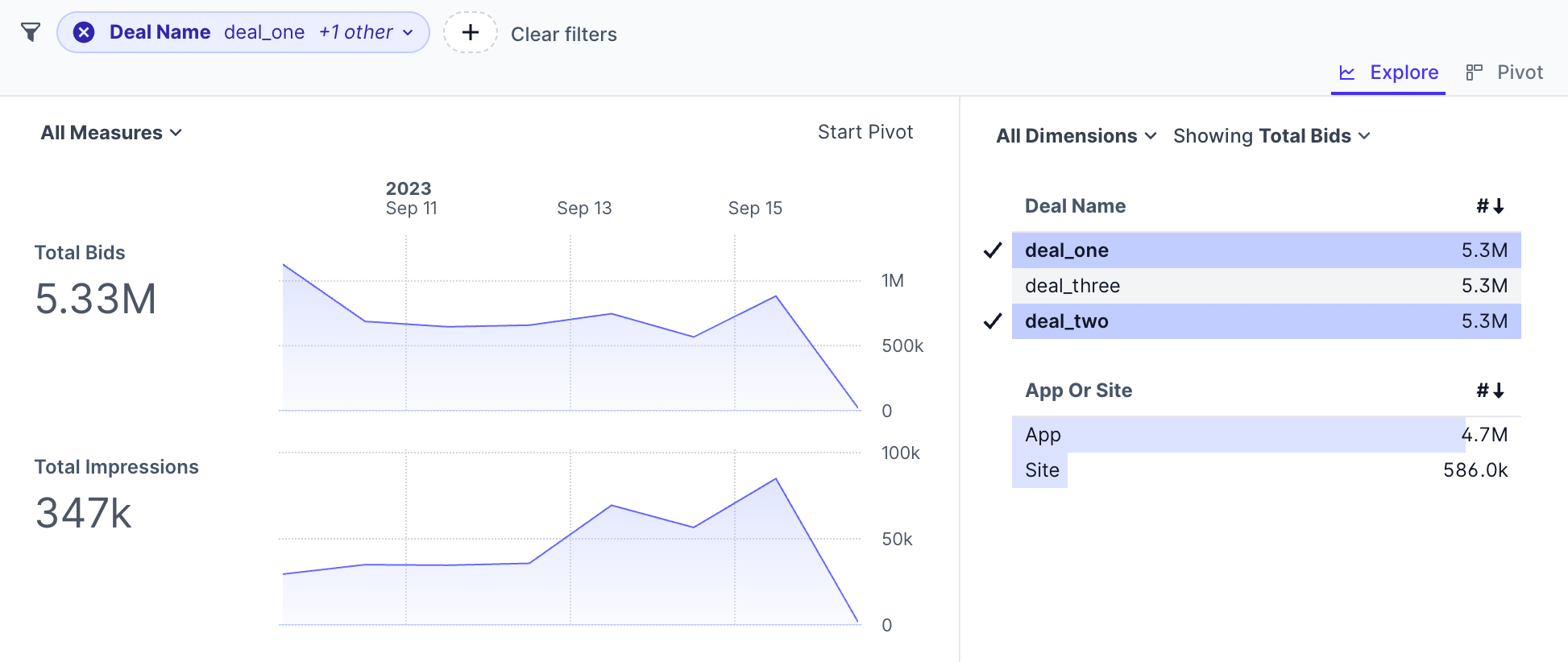
```yaml
- display_name: "Deal Name"
column: deal_name
description: "Unnested Column"
unnest: true
```
In another example, we are provided with a directory_path column that gives us information on which path was edited. Using DuckDB's `regexp_split_to_array`, we have converted the string into an array. Using `unnest`, we can see which top directories are being updated more than others.
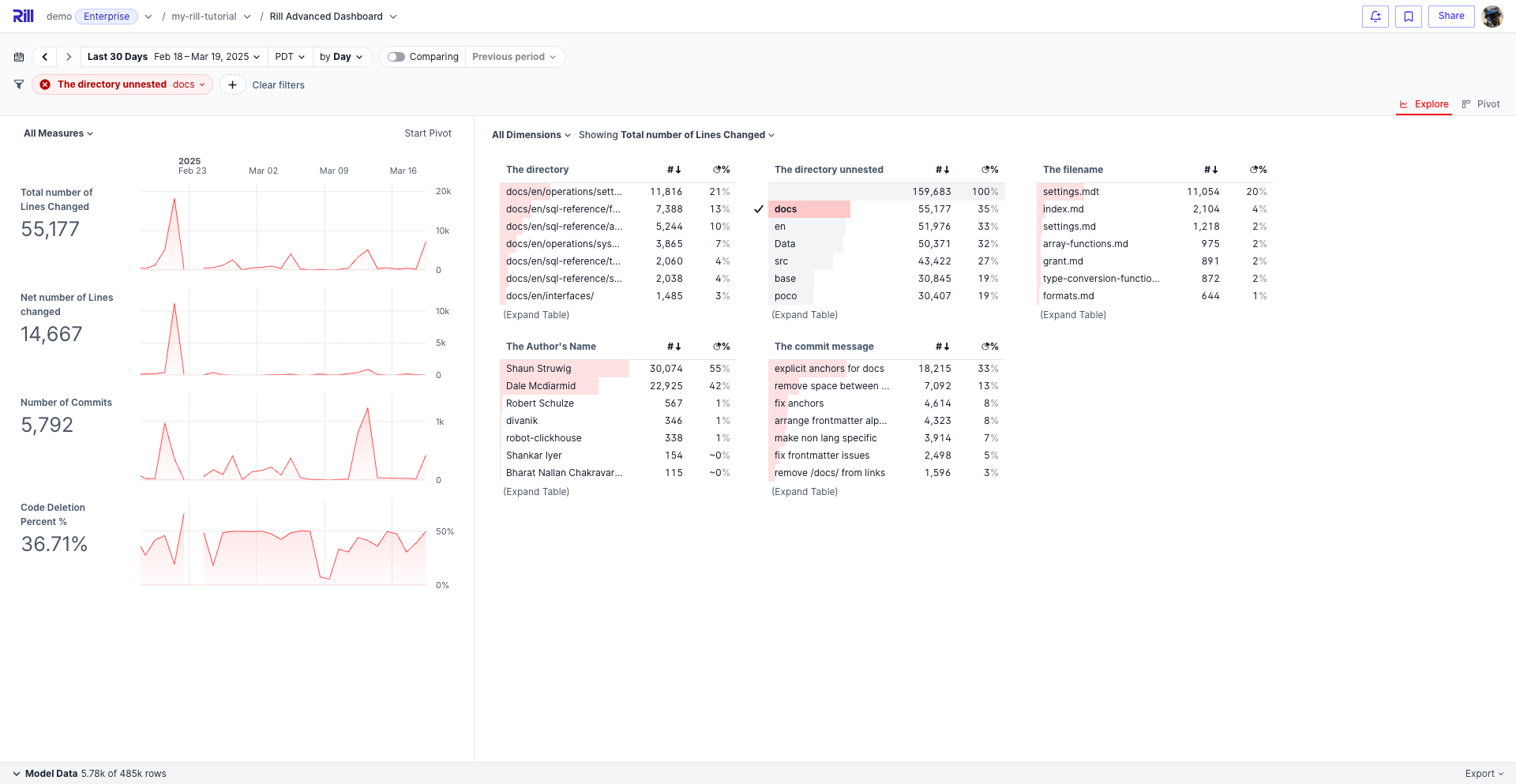
```yaml
- expression: regexp_split_to_array(directory_path, '/')
display_name: "The directory unnested"
description: "The directory path"
name: directory_path_unnested
unnest: true
```
## Demo
[See this project live in our demo!](https://ui.rilldata.com/demo/my-rill-tutorial/explore/advanced_explore?f=directory_path_unnested+IN+%28%27docs%27%29)
---
# Define Your Measures
URL: https://docs.rilldata.com/developers/build/metrics-view/measures/
Measures are the quantitative metrics that power your dashboards and reports. They represent numeric calculations derived from your underlying data through SQL aggregation functions and expressions. These measures transform raw data into meaningful business insights, such as total revenue, average order value, or customer count.
Measures are the "how much" and "how many" of your data. They provide the numerical foundation for your analysis, enabling you to:
- **Quantify performance**: Track key business metrics like revenue, growth, and efficiency
- **Support decision-making**: Provide concrete numbers for business decisions
## Supported SQL Functions
* Standard SQL [numeric](https://www.w3schools.com/sql/sql_operators.asp) operators and functions
* Common SQL [aggregates](https://www.w3schools.com/sql/sql_aggregate_functions.asp): `AVG`, `COUNT`, `MAX`, `MIN`, `SUM`, `STDDEV`, `VARIANCE`
* Advanced aggregates (engine-dependent): `APPROX_COUNT_DISTINCT`, `APPROX_QUANTILE`, `STDDEV_POP`, `STDDEV_SAMP`, `VAR_POP`, `VAR_SAMP`
* [Filtered aggregates](https://www.postgresql.org/docs/current/sql-expressions.html#SYNTAX-AGGREGATES) can be used to filter the set of rows fed to the aggregate functions (syntax may vary by engine)
:::info Engine-specific SQL dialects
Different OLAP engines support varying SQL dialects and functions. While standard SQL functions work across engines, some advanced features may be engine-specific. For engine-specific documentation, see:
- **DuckDB**: [DuckDB SQL documentation](https://duckdb.org/docs/sql/introduction.html)
- **ClickHouse**: [ClickHouse SQL documentation](https://clickhouse.com/docs/en/sql-reference)
- **Druid**: [Druid SQL documentation](https://druid.apache.org/docs/latest/querying/sql.html)
- **Pinot**: [Pinot SQL documentation](https://docs.pinot.apache.org/users/user-guide-query/pinot-query-language)
:::
As an example, if you have a table of sales events with the sales price and customer ID, you could calculate the following measures with these aggregates and expressions:
* Number of sales: `COUNT(*)`
* Total revenue: `SUM(sales_price)`
* Revenue per customer: `CAST(SUM(sales_price) AS FLOAT)/CAST(COUNT(DISTINCT customer_id) AS FLOAT)`
* Number of orders with order value more than $100: `COUNT(*) FILTER (WHERE order_val > 100)` (syntax may vary by engine)
Explore these advanced capabilities to enhance your measures:
- **[Measure Formatting](/developers/build/metrics-view/measures/measures-formatting)** - Learn how to format and display your measures effectively
- **[Case Statements and Filters](/developers/build/metrics-view/measures/case-statements)** - Use conditional logic and filtering in your measures
- **[Referencing Measures](/developers/build/metrics-view/measures/referencing)** - Reference and combine existing measures in your calculations
- **[Quantiles](/developers/build/metrics-view/measures/quantiles)** - Calculate percentiles and quantiles for statistical analysis
- **[Approximate and Exact](/developers/build/metrics-view/measures/exact-measures)** - Serve fast approximate aggregates by default and let viewers switch to exact values on demand
- **[Fixed Measures](/developers/build/metrics-view/measures/fixed-measures)** - Create measures with fixed values and constants
- **[Window Functions](/developers/build/metrics-view/measures/windows)** - Apply window functions for advanced analytical operations
---
# Case Statements and Filters
URL: https://docs.rilldata.com/developers/build/metrics-view/measures/case-statements
One of the most common advanced measure expressions is the use of [`case`](https://duckdb.org/docs/stable/sql/expressions/case.html) statements and [`filters`](https://duckdb.org/docs/stable/sql/query_syntax/filter.html) to filter or apply logic to part of the result set. Use cases for case statements include filtered sums (e.g., only sum if a flag is true) and bucketing data (e.g., if between threshold x and y, then apply an aggregate). While similar, case statements give you a bit more flexibility as they allow you to set a custom value depending on the case. See below for some examples!
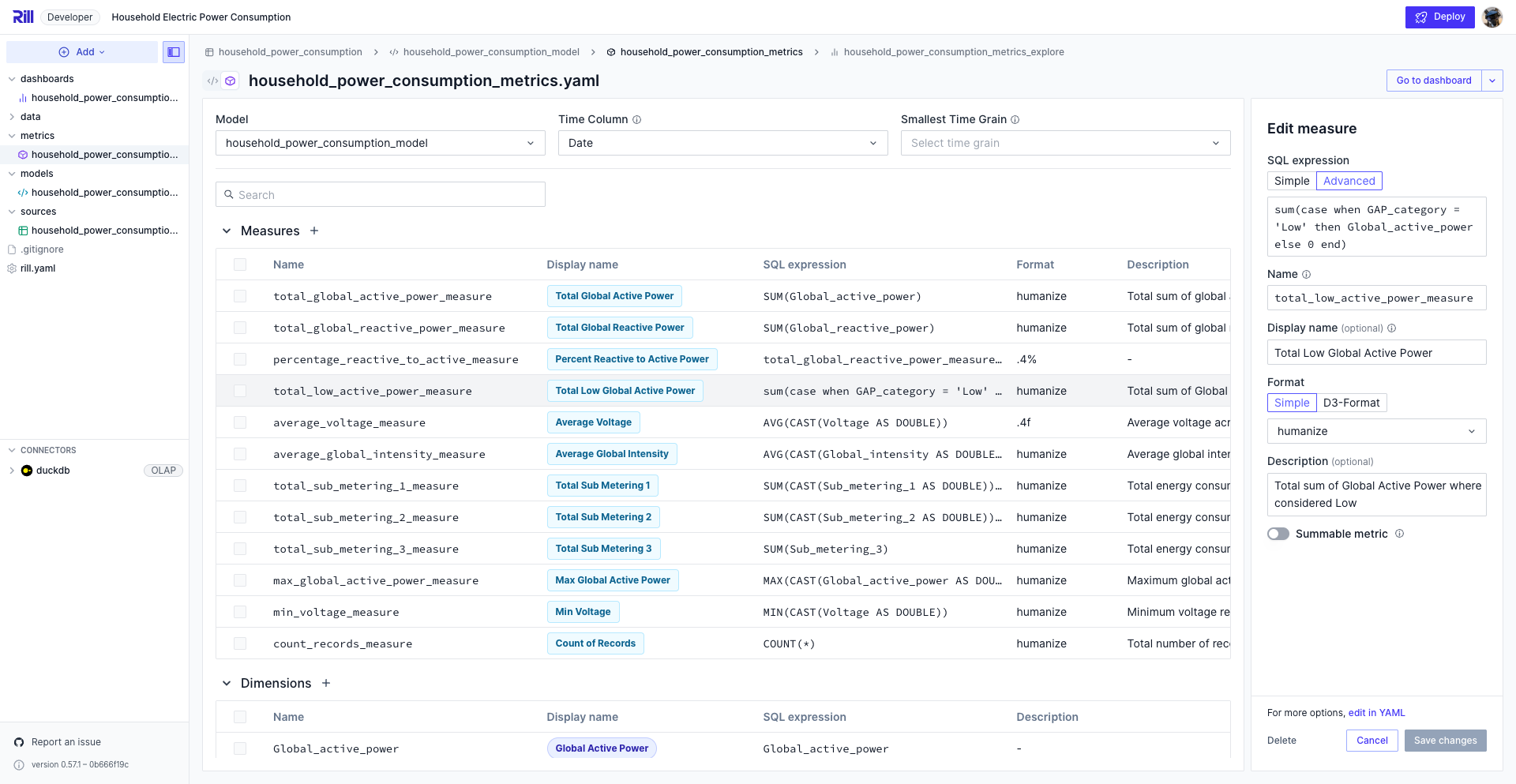
Please review the reference documentation, [here.](/reference/project-files/metrics-views)
## Examples
### Case Statements
The following expression sums of the values of Global_active_power only when considered to be a lower value.
```yaml
- name: total_low_active_power_measure
display_name: Total Low Global Active Power
description: Total sum of Global Active Power where considered Low
expression: SUM(CASE WHEN GAP_category = 'Low' THEN Global_active_power ELSE 0 END)
format_preset: humanize
valid_percent_of_total: true
```
The following expression only considers the total value of users who are identified.
```yaml
- name: total_value_for_identified_users
display_name: Total Value for Identified Users
description: Total Sum of Value for Identified Users
expression: SUM(CASE WHEN user_id != '' OR user_id IS NOT NULL THEN value ELSE 0 END)
format_preset: humanize
valid_percent_of_total: true
```
The following expression modifies the value of the column based on the value of column XX
```yaml
- name: modify_value
display_name: Arithmetic on Value
description: Arithmetic on Value based on XX
expression: |
SUM(
CASE
WHEN XX = 'multiply_10' THEN Value * 10
WHEN XX = 'multiply_2' THEN Value * 2
WHEN XX = 'divide_5' THEN Value / 5
END
)
format_preset: humanize
valid_percent_of_total: true
```
### Filters
Similar to the above case statements, you can use the filter expression to filter the data on a specific column's value. However, in the example where we are explicitly changing the value in the CASE statement, this is not possible using only a filter.
```yaml
- name: total_low_active_power_measure
display_name: Total Low Global Active Power
description: Total sum of Global Active Power where considered Low
expression: sum(Global_active_power) FILTER (WHERE GAP_category = 'Low')
format_preset: humanize
valid_percent_of_total: true
```
```yaml
- name: total_value_for_identified_users
display_name: Total Value for Identified Users
description: Total Sum of Value for Identified Users
expression: SUM(value) FILTER (WHERE user_id != '' OR user_id IS NOT NULL)
format_preset: humanize
valid_percent_of_total: true
```
## Demo
[See this project live in our demo!](https://ui.rilldata.com/demo/rill-kaggle-elec-consumption/explore/household_power_consumption_metrics_explore)
---
# Approximate and Exact Measures
URL: https://docs.rilldata.com/developers/build/metrics-view/measures/exact-measures
Distinct counts, quantiles and other sketch-based aggregates come in two flavours in every OLAP engine: a fast approximate form and a much slower exact form. An approximate distinct count keeps a small HyperLogLog sketch per group and is usually within one or two percent of the truth; the exact form holds every distinct value per group, so on large tables it can be ten to a hundred times slower and cannot be served from [rollups](/developers/build/metrics-view/rollups).
A measure can define both. `expression` stays the default and is treated as approximate, and `exact_expression` is used only when a viewer or a query explicitly asks for exact values.
```yaml
measures:
- name: unique_users
display_name: Unique Users
expression: uniqCombined64(user_id) # fast, approximate default
exact_expression: uniqExact(user_id) # used only when exact values are requested
format_preset: humanize
- name: p95_latency
display_name: P95 Latency
expression: quantileTDigest(0.95)(latency_ms)
exact_expression: quantileExact(0.95)(latency_ms)
format_preset: interval_ms
- name: revenue_per_user
display_name: Revenue per User
requires: [total_revenue, unique_users]
expression: total_revenue / unique_users # uses unique_users as the query computes it
format_preset: currency_usd
```
## How it behaves
- Both expressions share every other setting of the measure: `treat_nulls_as`, formatting, tags and security policies. Only the SQL differs. Setting `exact_expression` without `expression` is an error, and only simple measures can define it: a measure with `requires` or `per` (a derived measure), a measure with a `window`, and an ad hoc measure defined in a dashboard have no exact variant.
- Dashboards show the approximate value by default and mark measures that have an exact variant with a small `≈` chip. Clicking the chip computes that measure exactly for the current filters and time range, in the leaderboard, table or chart the chip sits in; see [Exact values in Explore](/guide/dashboards/explore/exact-measures).
- A derived measure such as `revenue_per_user` above is calculated from the other measures as the query computes them: in a table where `unique_users` is exact, the ratio uses the exact count. It shows no chip of its own. Precision is resolved once per query: a measure requested exactly anywhere in a query, including inside a measure filter, is computed exactly everywhere in it.
- Measures without an `exact_expression` are unchanged. Rill does not know whether a lone `expression` is approximate, so they show no chip.
- Queries that compute a measure exactly never use rollups, because exact aggregates cannot be derived from pre-aggregated rows.
- Rill validates `exact_expression` like `expression` when the metrics view reconciles, and the exact variant must produce a numeric type.
## Engine functions
| Engine | Approximate | Exact |
|--------|-------------|-------|
| ClickHouse | `uniq(x)`, `uniqCombined64(x)`, `quantileTDigest(p)(x)` | `uniqExact(x)`, `quantileExact(p)(x)` |
| DuckDB | `approx_count_distinct(x)`, `approx_quantile(x, p)` | `count(DISTINCT x)`, `quantile_cont(x, p)` |
| Druid | `APPROX_COUNT_DISTINCT_DS_HLL(x)` | `COUNT(DISTINCT x)` |
| Pinot | `DISTINCTCOUNTHLL(x)` | `DISTINCTCOUNT(x)` |
:::caution Druid
Druid treats `COUNT(DISTINCT x)` as approximate unless the connection sets the query context `useApproximateCountDistinct=false`, and in exact mode older Druid versions allow only one distinct count per query. A query that computes two measures exactly can fail; the dashboard shows the error on the measure's chip.
:::
## Requesting exact values from the API
Every measure in a [metrics API](/developers/build/metrics-view/metrics-sql) aggregation request accepts `exact: true`:
```json
{
"metrics_view": "events",
"measures": [
{ "name": "unique_users", "exact": true },
{ "name": "total_revenue" }
]
}
```
The flag is a no-op for measures without an `exact_expression`. The [AI tools](/guide/ai/mcp) use the same flag when a user asks for exact or reconciled numbers. Scheduled reports and alerts do not set it unless the stored query does.
## Disabling exact queries
Set `rill.metrics.exact_measures: false` in the `variables` of `rill.yaml` to make any query that would compute a measure with its `exact_expression` fail with an error, including queries that request it only inside a measure filter. Use it as a kill switch when exact aggregations put too much load on the database; approximate queries keep working, and so does a flag on a measure without an `exact_expression`.
---
# Fixed Measures
URL: https://docs.rilldata.com/developers/build/metrics-view/measures/fixed-measures
Some measures may be at a different level of granularity where a sum across the measure is no longer accurate. As an example, perhaps you have a campaign with a daily budget of $5000 across five line items. Summing the `daily_budget` column would give an inaccurate total of $25,000 budget per day. For those familiar with Tableau, this is referred to as a `FIXED metric`.
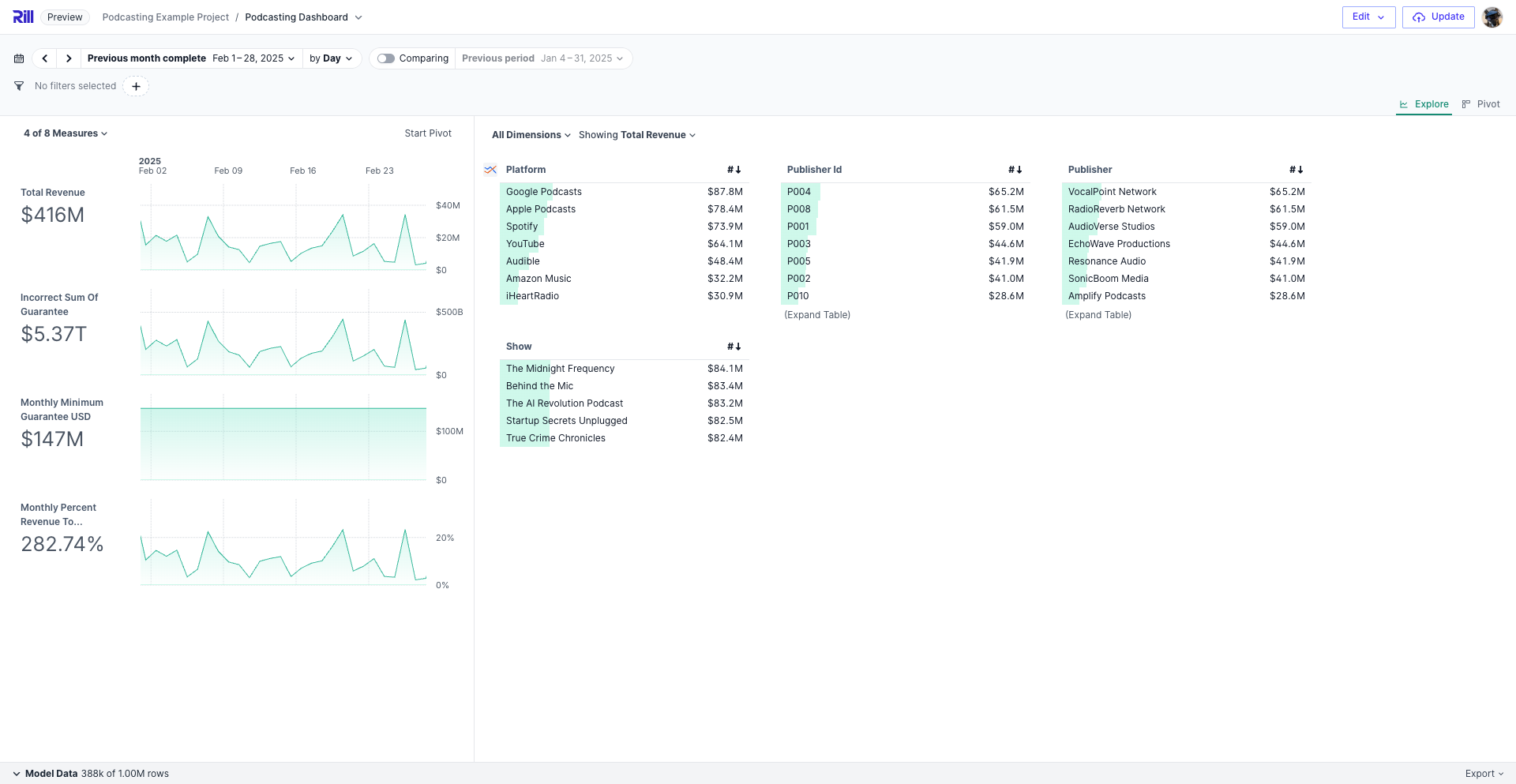
To create the correct value, you can utilize DuckDB's unnest functionality. In the example below, you would be pulling a single value of `daily_budget` based on `campaign_id` to get the sum of budget for the day by campaign ids. Note that you can use multiple keys if your granularity is defined by multiple dimensions.
```yaml
expression: |
select
sum(a.val) as value
from
( select unnest(
list(distinct {
key: campaign_id,
val: daily_budget
})
) a
)
```
:::note
The syntax for fixed metrics is specific to DuckDB as an OLAP engine as it requires DuckDB-specific commands. However, you can create a similar SQL expression using a different OLAP engine, too!
:::
Please review the reference documentation, [here.](/reference/project-files/metrics-views)
## Example
In the following example, each publishing company has a monthly minimum guarantee. As you'll see in the measure, `incorrect_sum_of_guarantee`, you'll get an incorrect value as this will sum multiple values as there are multiple shows and days per publisher. Another workaround would be to use MIN, MAX, or AVG, but when selecting multiple publishers, the values will not be accurate.
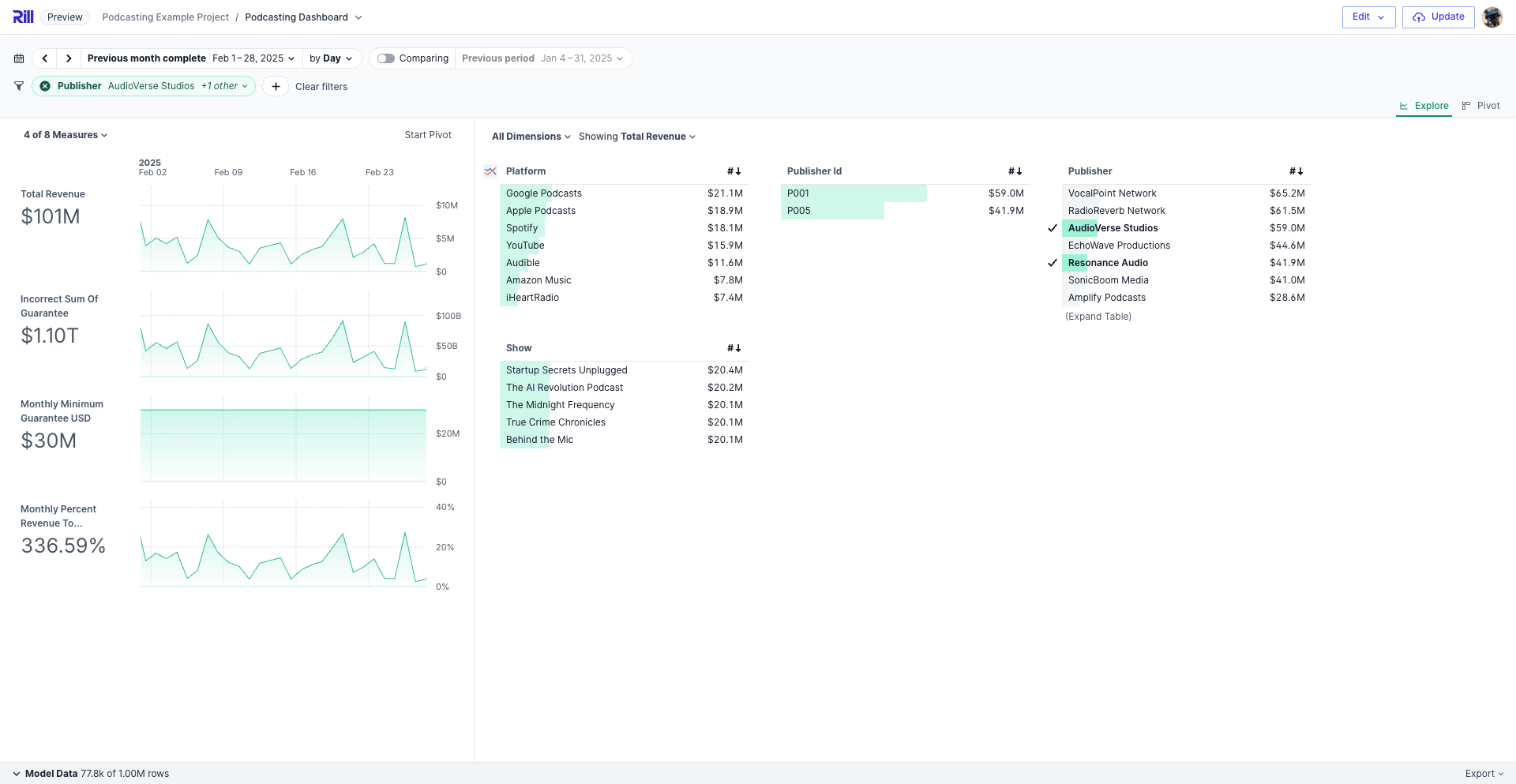
```yaml
- name: incorrect_sum_of_guarantee
expression: sum(min_guarantee_usd)
format_preset: currency_usd
valid_percent_of_total: false
- name: guarantee_usd_measure_monthly
display_name: Monthly Minimum Guarantee USD
description: Total minimum guarantee in USD recorded in the dataset.
expression: >
SELECT SUM(a.val) AS value
FROM (
SELECT unnest(
list(distinct {
key: publisher_id,
month: date_trunc('month', date),
val: min_guarantee_usd
})
) a
)
format_preset: currency_usd
valid_percent_of_total: false
```
## Demo
[See this project live in our demo!](https://ui.rilldata.com/demo/sample-podcast-project/explore/podcast_explore)
---
# Formatting your Measures
URL: https://docs.rilldata.com/developers/build/metrics-view/measures/measures-formatting
When creating your measures in Rill, you have the option to pick from a preset of formats that we provide to you or use the [d3-format](https://d3js.org/d3-format) parameter to format your data in any way you like. An explicit `format_d3` is applied everywhere the measure is displayed — the big number, tooltips, the dimension leaderboard, TDD, and pivot tables — except chart axis labels, which stay abbreviated to keep them compact.
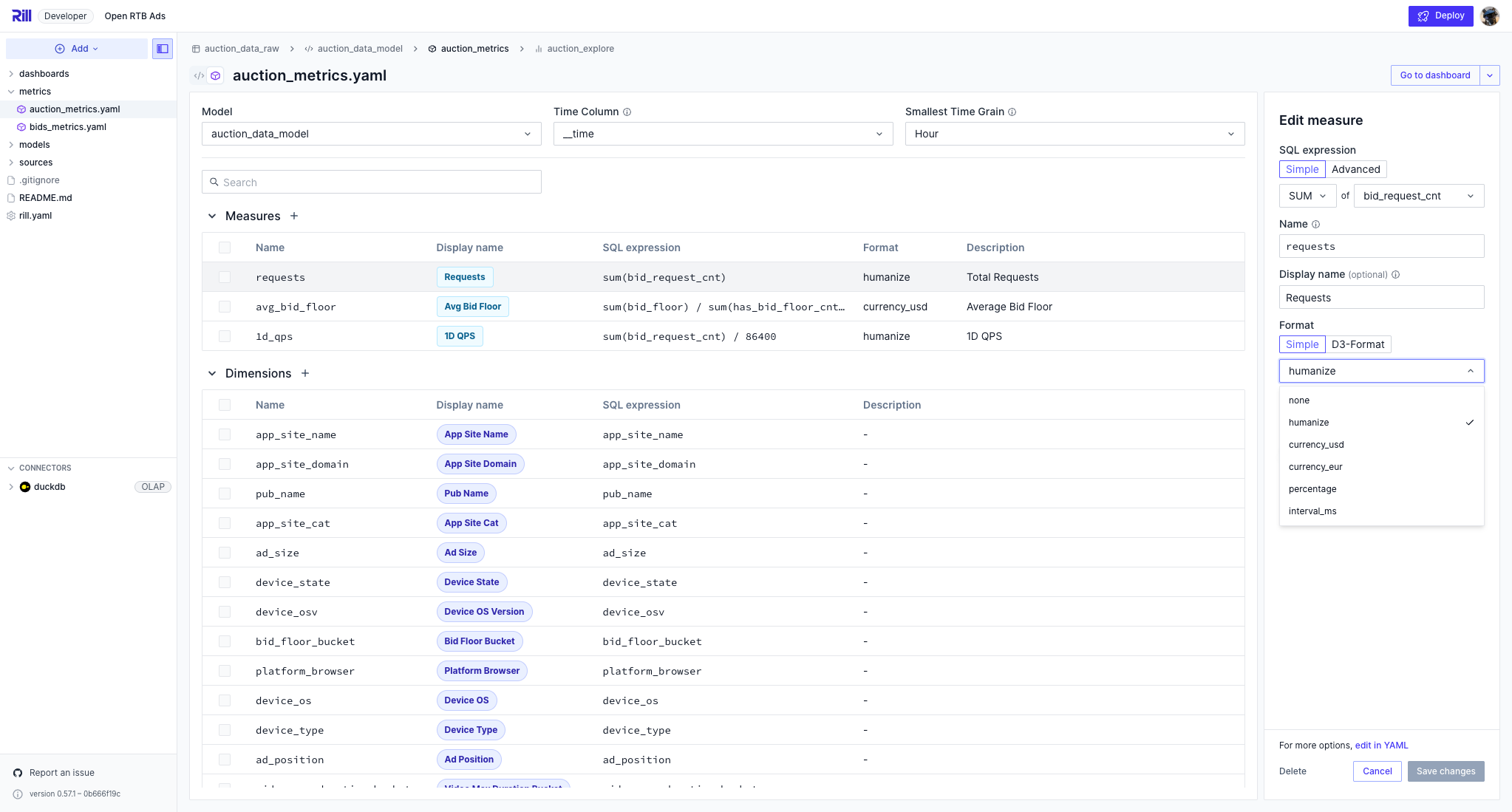
Using `format_d3` to control the format of a measure in the metrics view allows for further customization.
:::tip Invalid format Strings
If an invalid format string is supplied, measures will be formatted with `format_preset: humanize`. Measures cannot have both `format_preset` and `format_d3` entries. If neither `format_preset` nor `format_d3` is supplied, measures will be formatted with the `humanize` preset.
:::
Please review the reference documentation, [here.](/reference/project-files/metrics-views)
## Customization
For further customization of your measures, you can switch to the YAML view and, with our [metrics view reference documentation](/reference/project-files/metrics-views), use the [format_d3_locale](https://d3js.org/d3-format#formatLocale) parameter to create specific formatting.
```yaml
format_d3:
format_d3_locale:
grouping:
currency:
```
## Examples
Measures with an explicit `format_d3` follow that format exactly in the big number, tooltips, the dimension leaderboard, TDD, and pivot tables. Chart axis labels are the one exception: they remain abbreviated so they fit in the available space. Measures using a `format_preset` continue to show an abbreviated (humanized) big number, since presets do not specify an exact precision.
If you have any questions, please review our [reference documentation.](/reference/project-files/metrics-views)
### Format a measure to include specific amount of decimals
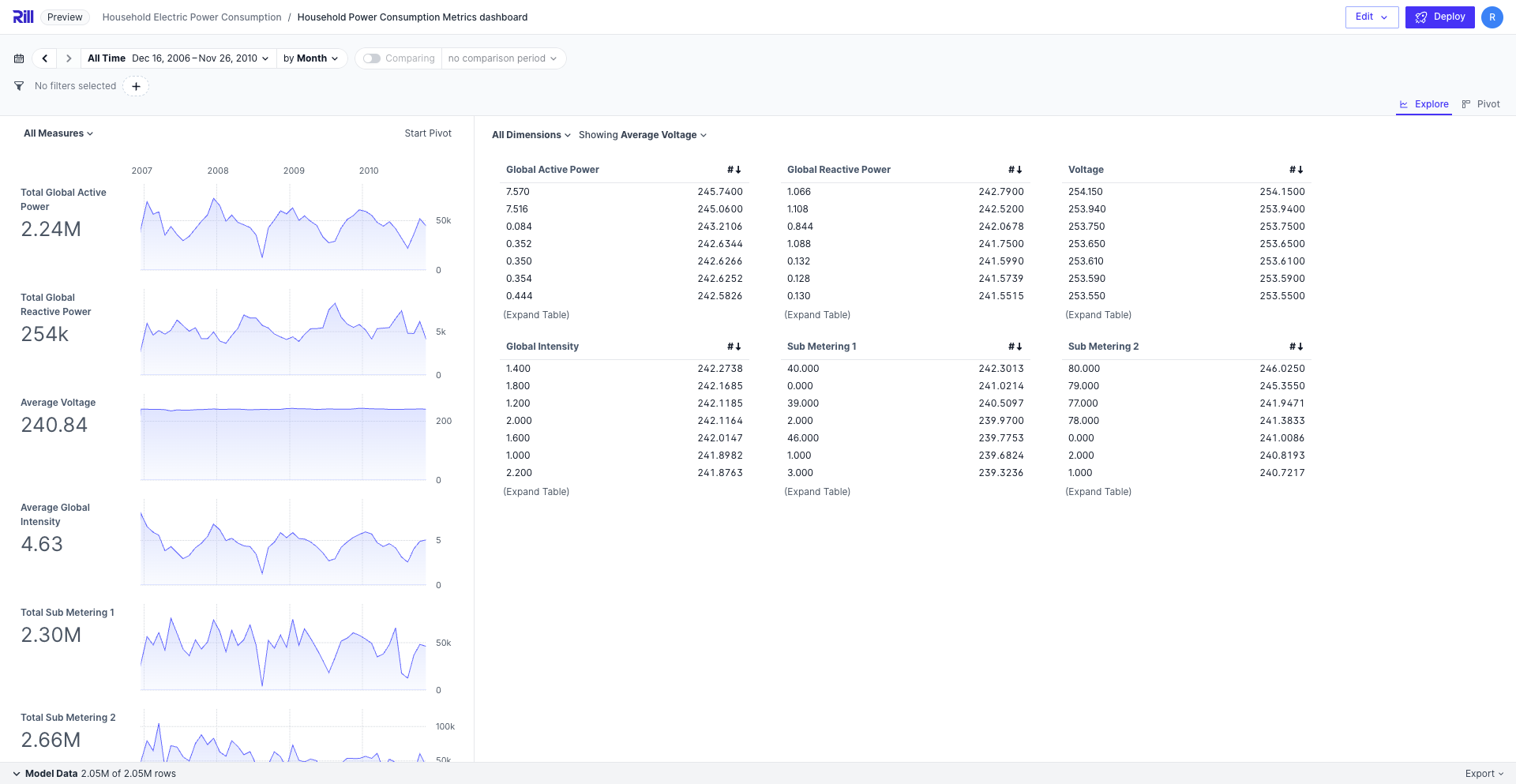
In the case that you need to view more granular values of your data, you can set the decimal places to whatever value you need. In the above example, we are setting the average voltage measure to 4 decimal places to get a more accurate representation for each dimension.
```yaml
format_d3: ".4f"
```
### Format currency with different ',' locations. IE: Indian Rupee
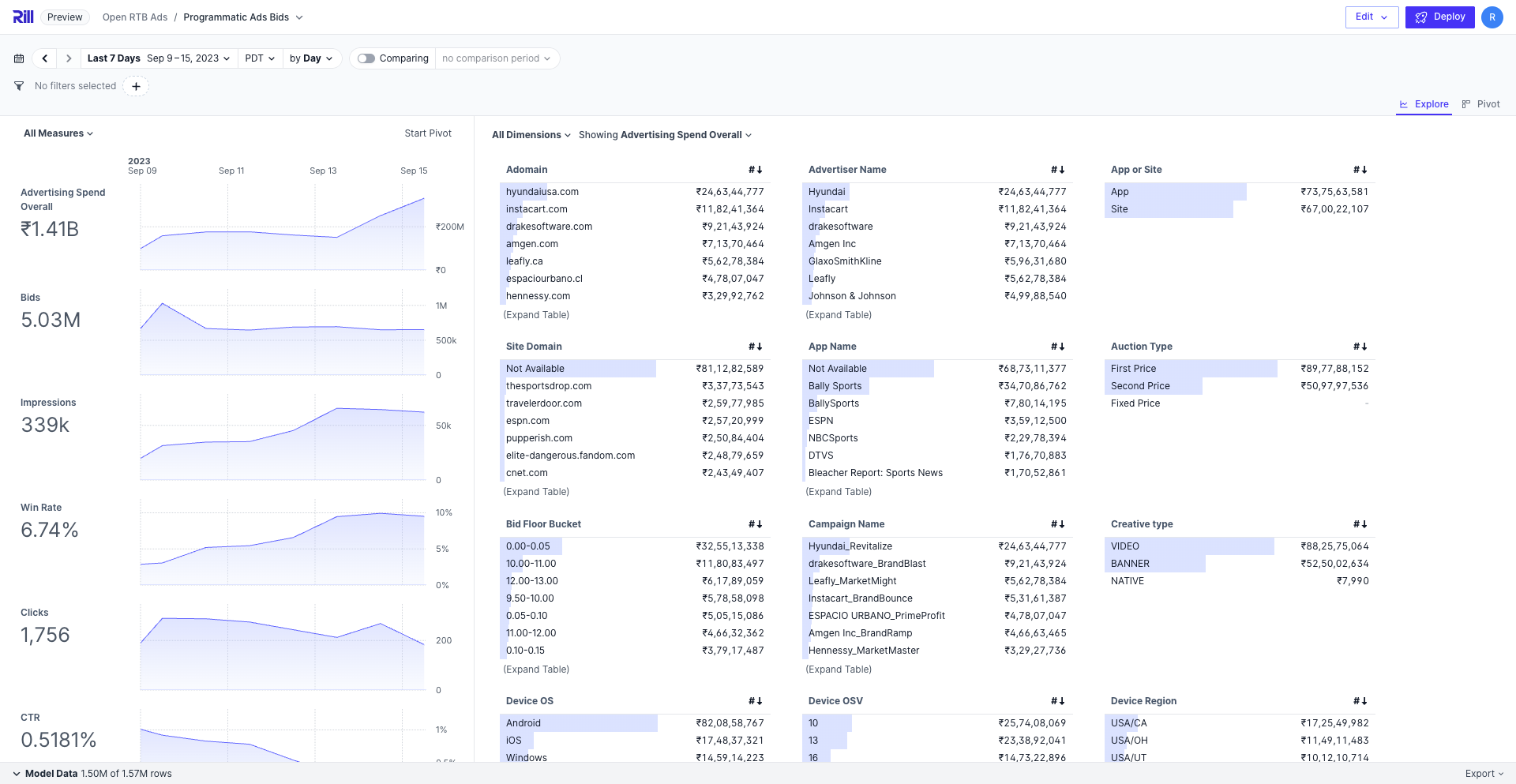
```yaml
format_d3: "$,"
format_d3_locale:
grouping: [3, 2, 2]
currency: ["₹", ""]
```
As Indian Rupees are formatted in a different way than USD and EUR, you'll need to use the `format_d3_locale` parameter to set the exact grouping and currency. Likewise, if the currency symbol is written after the numeric value, you can set the currency to `["", "$"]`.
### Percentages
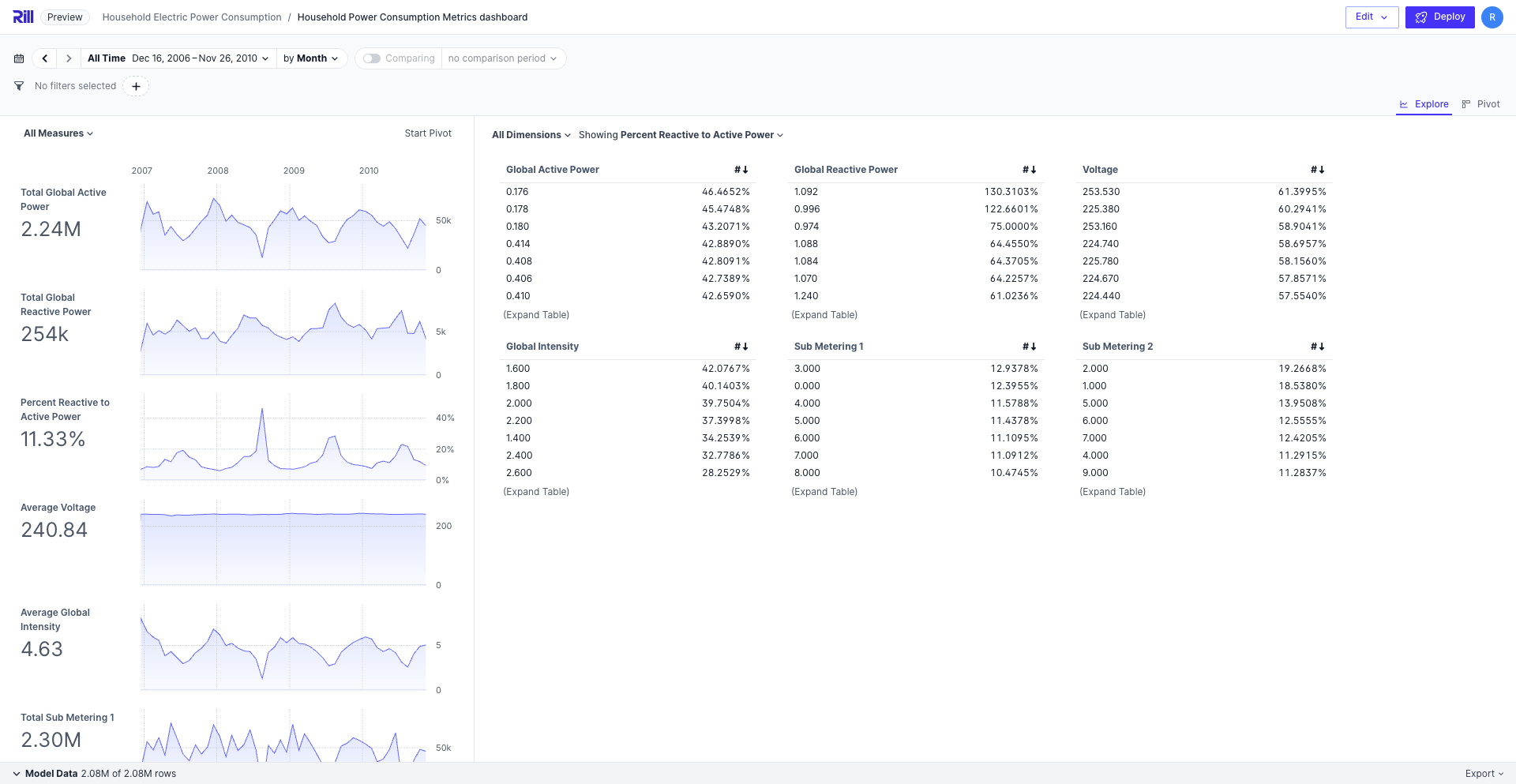
```yaml
format_d3: '.4%'
```
While our `format_preset: percentage` will automatically apply `.2%`, you can manually set the value in format_d3 if you are looking for a more specific measure format.
## Demo
[See this project live in our demo!](https://ui.rilldata.com/demo/rill-kaggle-elec-consumption/explore/household_power_consumption_metrics_explore)
---
# Quantiles
URL: https://docs.rilldata.com/developers/build/metrics-view/measures/quantiles
In addition to common aggregates, you may wish to look at the value of a measure within a certain band or quantile. In the example below, we can measure the P95 of a given measure using `QUANTILE_CONT`.
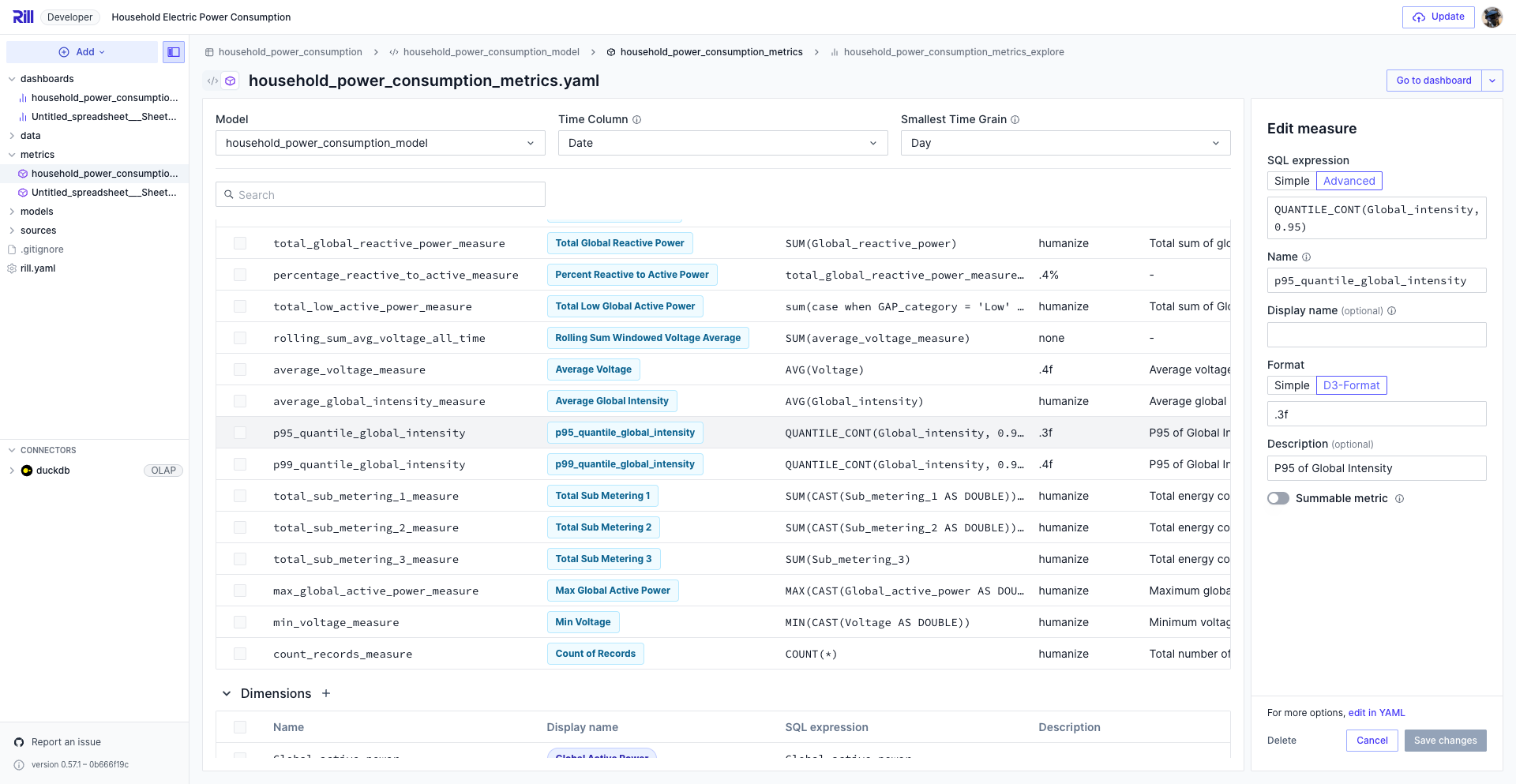
Using [DuckDB aggregate function](https://duckdb.org/docs/stable/sql/functions/aggregates.html#quantile_contx-pos), you can easily calculate various quantiles.
:::tip Not on DuckDB?
If you are using a different OLAP engine to power your dashboard, simply use the correct function for quantile calculation.
E.g.: [ClickHouse quantile](https://clickhouse.com/docs/sql-reference/aggregate-functions/reference/quantile), [Pinot percentile](https://docs.pinot.apache.org/configuration-reference/functions/percentile)
:::
Please review the reference documentation, [here.](/reference/project-files/metrics-views)
## Examples
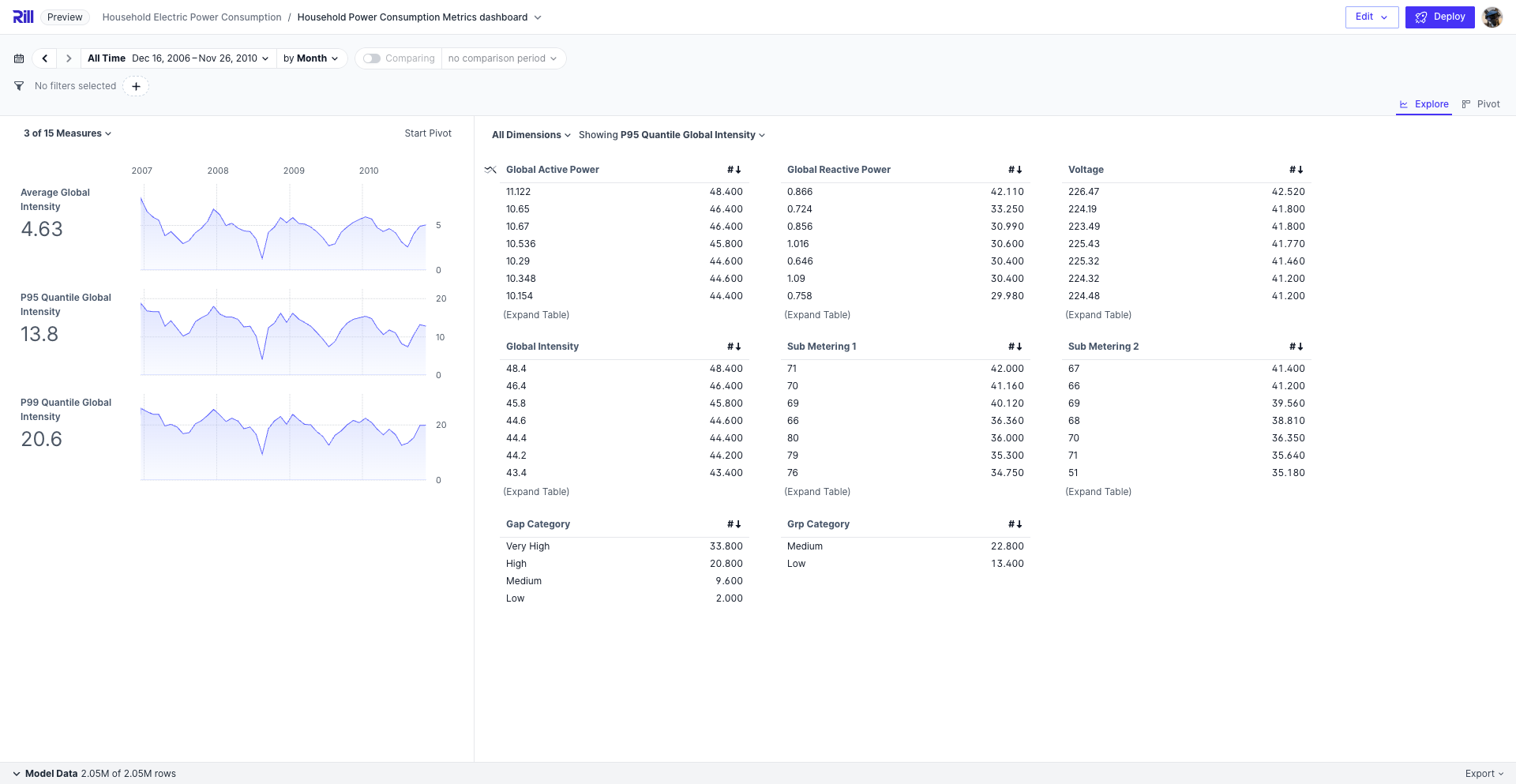
In this example we see the values of P95 and P99 are calculated using the following expressions:
```yaml
- name: p95_quantile_global_intensity
expression: QUANTILE_CONT(Global_intensity, 0.95)
format_d3: ".3f"
description: P95 of Global Intensity
- name: p99_quantile_global_intensity
expression: QUANTILE_CONT(Global_intensity, 0.99)
format_d3: ".4f"
description: P99 of Global Intensity
```
## Demo
[See this project live in our demo!](https://ui.rilldata.com/demo/rill-kaggle-elec-consumption/explore/household_power_consumption_metrics_explore)
---
# Referencing Measures
URL: https://docs.rilldata.com/developers/build/metrics-view/measures/referencing
Within a metrics view, it is possible for a measure to reference another by using the `requires` array parameter. By doing this, you can easily aggregate already existing measures to simplify the expressions. For example, get a percentage of two already summed values.
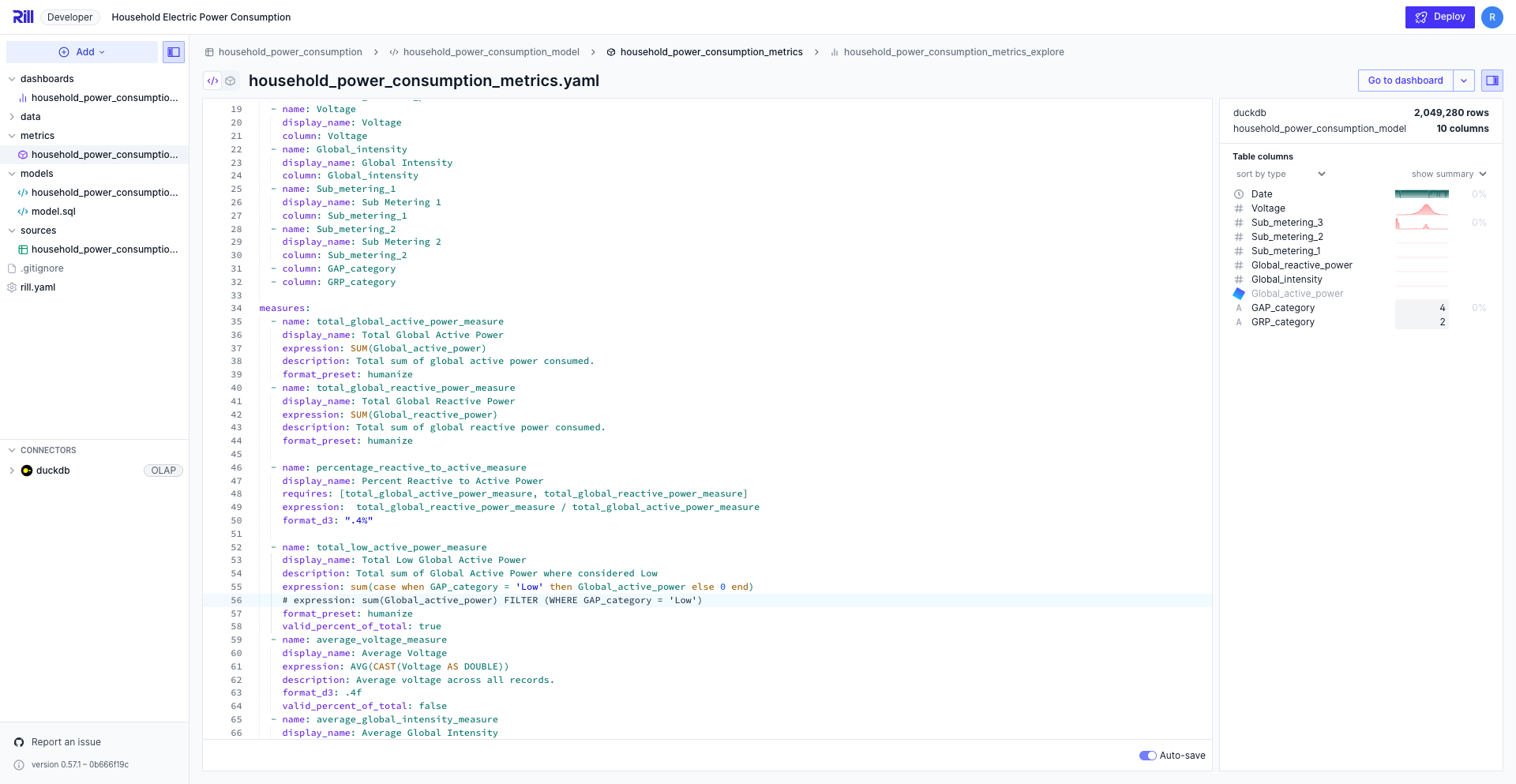
Please review the reference documentation, [here.](/reference/project-files/metrics-views)
## Examples
### Simple Aggregation
In the following example, `percentage_reactive_to_active_measure` uses the already defined measures `total_global_active_power_measure` and `total_global_reactive_power_measure` to calculate the percentage without having to recalculate the sum of the respective columns.
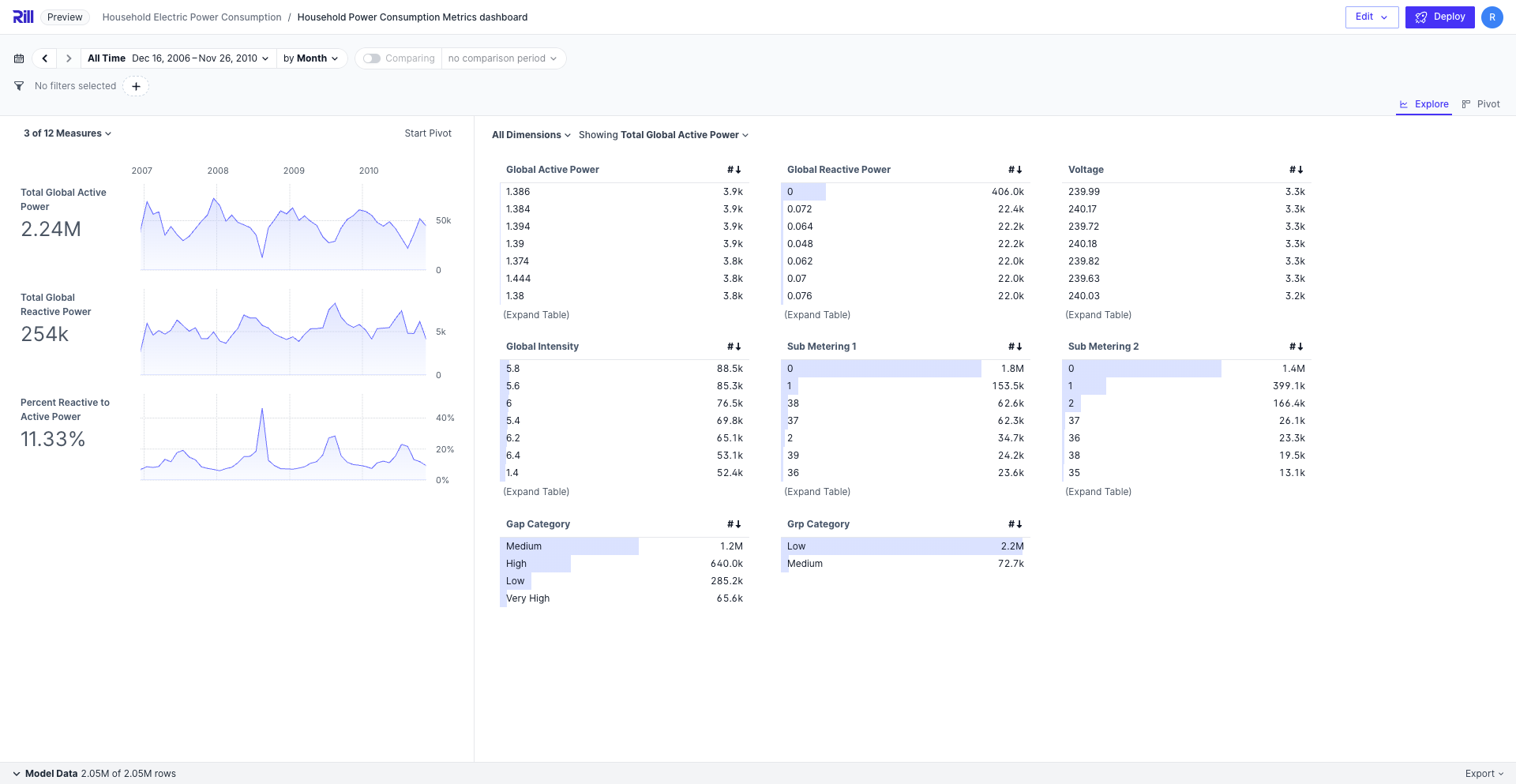
```yaml
- name: percentage_reactive_to_active_measure
display_name: Percent Reactive to Active Power
requires: [total_global_active_power_measure, total_global_reactive_power_measure]
expression: total_global_reactive_power_measure / total_global_active_power_measure
format_preset: percentage
```
### Window Function
If you are using a [window function](./windows), you'll need to define the measure that you are building the window for. In this example, we are getting the rolling sum of average voltage measurements for all time— that's a lot of volts! You can modify the frame to include fewer rows based on the order column.
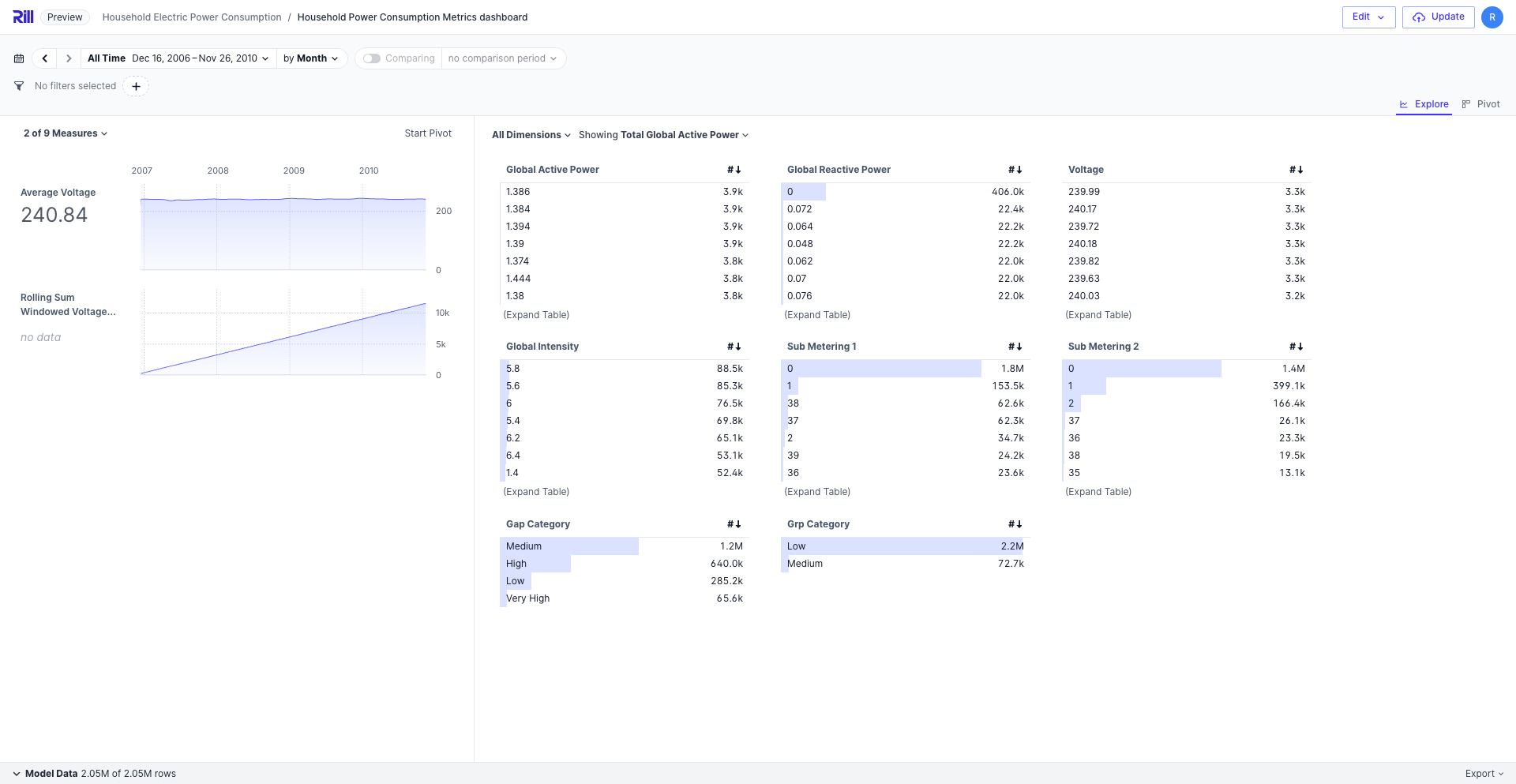
```yaml
- name: rolling_sum_avg_voltage_all_time
display_name: Rolling Sum Windowed Voltage Average
expression: SUM(average_voltage_measure)
requires: [average_voltage_measure]
window:
order: Date
frame: RANGE BETWEEN UNBOUNDED PRECEDING AND CURRENT ROW
treat_nulls_as: -1
```
## Demo
[See this project live in our demo!](https://ui.rilldata.com/demo/rill-kaggle-elec-consumption/explore/household_power_consumption_metrics_explore)
---
# Window Functions
URL: https://docs.rilldata.com/developers/build/metrics-view/measures/windows
In addition to standard metrics, it is possible to define running window calculations on your data, whether you are looking to monitor a cumulative trend, smooth out fluctuations, etc. You'll need to navigate to the Code view in order to create a windowed measure.
Please review the reference documentation, [here.](/reference/project-files/metrics-views)
## Example
In the example below, bids is another measure defined in the metrics view, and we are getting the previous week and current date's values and averaging them. This allows us to remove any short-term trends to detect real patterns. You'll need to add the [`requires`](./referencing) array parameter to reference another measure.

```yaml
- name: bids_7day_rolling_avg
display_name: 7 Day Bid rolling avg
expression: AVG(total_bids)
requires: [total_bids]
window:
order: "__time"
frame: RANGE BETWEEN INTERVAL 6 DAY PRECEDING AND CURRENT ROW
```
Another example is using a rolling sum with no bounding preceding rows, also known as your whole data. This will be a cumulative sum of all of your measure's data; in this case, it is the average voltage measure.

```yaml
- name: rolling_sum_avg_voltage_all_time
display_name: Rolling Sum Windowed Voltage Average
expression: SUM(average_voltage_measure)
requires: [average_voltage_measure]
window:
order: Date
frame: RANGE BETWEEN UNBOUNDED PRECEDING AND CURRENT ROW
```
## Demo
[See this project live in our demo!](https://ui.rilldata.com/demo/rill-kaggle-elec-consumption/explore/household_power_consumption_metrics_explore)
---
# Metrics SQL
URL: https://docs.rilldata.com/developers/build/metrics-view/metrics-sql
You can write a SQL query referring to metrics definitions and dimensions defined in a metrics view.
It should have the following structure:
```yaml
type: api
metrics_sql: SELECT publisher, domain, total_records FROM ad_bids_metrics
```
## Querying Fundamentals
Metrics SQL transforms queries that reference `dimensions` and `measures` within a `metrics view` into their corresponding database columns or expressions. This transformation is based on the mappings defined in a metrics view YAML configuration, enabling reuse of dimension or measure definitions. Additionally, any security policies defined in the metrics view are also inherited.
## Example: Crafting a Metrics SQL Query
Consider a metrics view configured as follows:
```yaml
#metrics/ad_bids_metrics.yaml
type: metrics_view
title: Ad Bids
model: ad_bids
timeseries: timestamp
dimensions:
- name: publisher
expression: toUpper(publisher)
- name: domain
column: domain
measures:
- name: total_records
display_name: Total records
expression: COUNT(*)
```
To query this view, a user might write a Metrics SQL query like:
```sql
SELECT publisher, domain, total_records FROM ad_bids_metrics
```
This Metrics SQL is internally translated to a standard SQL query as follows:
```sql
SELECT toUpper(publisher) AS publisher, domain AS domain, COUNT(*) AS total_records FROM ad_bids_metrics GROUP BY publisher, domain
```
## Security and Compliance
Queries executed via Metrics SQL are subject to the security policies and access controls defined in the metrics view YAML configuration, ensuring data security and compliance.
## Supported SQL Features
### SELECT
Reference dimensions and measures by name. The `date_trunc` function can be used to group a time dimension by a specific grain (and optionally aliased with `AS`):
```sql
SELECT date_trunc('MONTH', timestamp) AS month, publisher, total_records FROM ad_bids_metrics
```
Supported grains: `SECOND`, `MINUTE`, `HOUR`, `DAY`, `WEEK`, `MONTH`, `QUARTER`, `YEAR`.
### FROM
A single metrics view name. Joins and subqueries in the FROM clause are not supported.
### WHERE and HAVING
`WHERE` filters on dimensions; `HAVING` filters on aggregated measures. Both support the same operators and functions.
### ORDER BY, LIMIT, OFFSET
Standard SQL sorting and pagination clauses are supported:
```sql
SELECT publisher, total_records FROM ad_bids_metrics
ORDER BY total_records DESC
LIMIT 20 OFFSET 40
```
## Operators
The following operators are supported in `WHERE` and `HAVING` clauses:
| Operator |
|----------|
| `=`, `!=`, `<`, `<=`, `>`, `>=` |
| `AND`, `OR`, `(` `)` |
| `IN (...)`, `NOT IN (...)` |
| `LIKE`, `NOT LIKE` (case-insensitive, `%` wildcard) |
| `BETWEEN ... AND ...` |
| `IS NULL`, `IS NOT NULL` |
| `IS TRUE`, `IS FALSE`, `IS NOT TRUE`, `IS NOT FALSE` |
```sql
SELECT publisher, total_records FROM ad_bids_metrics
WHERE (publisher IS NOT NULL AND domain LIKE '%google%')
OR publisher IN ('Yahoo', 'Microsoft')
```
## Functions
### Time range functions
`time_range_start` and `time_range_end` resolve a Rill time expression against the metrics view's watermark and time range. They must be compared against the time dimension:
```sql
SELECT publisher, total_records FROM ad_bids_metrics
WHERE timestamp > time_range_start('7D as of watermark/D+1D')
AND timestamp <= time_range_end('7D as of watermark/D+1D')
```
### Interval arithmetic
Add or subtract an interval from a timestamp literal using `INTERVAL amount UNIT` syntax. Supported units: `SECOND`, `MINUTE`, `HOUR`, `DAY`, `WEEK`, `MONTH`, `YEAR`.
```sql
SELECT publisher, total_records FROM ad_bids_metrics
WHERE timestamp > '2024-07-30' - INTERVAL 90 DAY
```
### now()
Returns the current timestamp:
```sql
SELECT publisher, total_records FROM ad_bids_metrics
WHERE timestamp > now() - INTERVAL 7 DAY
```
### CAST
Casting to `DATETIME` or `TIMESTAMP` is supported (other target types are not):
```sql
SELECT publisher, total_records FROM ad_bids_metrics
WHERE timestamp > CAST('2024-01-01' AS TIMESTAMP)
```
## Subqueries
Subqueries are supported inside `IN` expressions. The subquery must select exactly one dimension from the same metrics view and can include its own `WHERE` and `HAVING` clauses:
```sql
SELECT publisher, total_records FROM ad_bids_metrics
WHERE publisher IN (
SELECT publisher FROM ad_bids_metrics
HAVING total_records > 100
)
```
Subqueries do not support `ORDER BY`, `LIMIT`, `DISTINCT`, window functions, joins, or CTEs.
## Limitations
- Only one metrics view can be queried per statement (no joins).
- `SELECT *` is not supported; list dimensions and measures explicitly.
- `GROUP BY` is implicit based on selected dimensions and cannot be specified manually.
- Aggregate functions like `COUNT()` or `SUM()` cannot be used directly; reference predefined measures instead.
- Set operations (`UNION`, `INTERSECT`, `EXCEPT`) and CTEs (`WITH`) are not supported.
:::warning
The Metrics SQL feature is currently evolving. We are dedicated to enhancing the syntax by introducing additional SQL features, while striving to maintain support for existing syntax. However, please be advised that backward compatibility cannot be guaranteed at all times. Additionally, users should be aware that there may be untested edge cases in the current implementation. We appreciate your understanding as we work to refine and improve this feature.
:::
## Using Metrics SQL in custom APIs
To expose Metrics SQL queries as HTTP API endpoints, see the [Metrics SQL APIs](/developers/build/custom-apis/metrics-sql) guide. You can also add [dynamic templating](/developers/build/custom-apis/templating), [security rules](/developers/build/custom-apis/security), and [OpenAPI documentation](/developers/build/custom-apis/openapi) to your Metrics SQL APIs.
---
# Query Attributes
URL: https://docs.rilldata.com/developers/build/metrics-view/query-attributes
Query attributes are key-value pairs that Rill attaches to every query a metrics view sends to its OLAP engine. Use them to attribute warehouse cost to users or teams, or to audit who ran which query, from your engine's own query history.
Query attributes apply to every query Rill runs against the metrics view: explore and canvas dashboards, alerts, reports, APIs, and AI chat. They are delivered only to engines that support them; see [Delivery by OLAP engine](#delivery-by-olap-engine).
## Configuring Query Attributes
Add a `query_attributes` map to your metrics view YAML. Values are strings and support [templating](/developers/build/connectors/templating) with [user attributes](/developers/build/metrics-view/security#user-attributes) and environment variables:
```yaml
# metrics/orders.yaml
type: metrics_view
model: orders
timeseries: order_date
dimensions:
- column: region
measures:
- name: total_revenue
expression: SUM(revenue)
query_attributes:
rill_user: '{{ .user.email }}'
rill_department: '{{ .user.department | default "unknown" }}'
rill_project: '{{ .env.project_name }}'
```
Rill resolves the templates for each query, using the attributes of the user who issued it. With the example above, a query from `jane@example.com` in the `sales` department is sent with `rill_user = jane@example.com` and `rill_department = sales`.
The following rules apply:
- Keys may contain only letters, digits, underscores (`_`), hyphens (`-`), and dots (`.`). Rill reports any other key as a parse error on the metrics view.
- A template that fails to resolve, for example because it references an environment variable that is not defined, fails the query.
- A user attribute that is not set resolves to the literal text ``. Use `default` to provide a fallback, as in `rill_department` above. This also applies when Rill validates the metrics view, which runs without a user.
:::tip
Custom attributes passed from an [embedded dashboard](/developers/embed/iframe) are available as `.user.`, so you can tag queries with your application's own tenant or customer ID.
:::
## Delivery by OLAP Engine
Each OLAP engine receives query attributes in its own way, and only some engines receive them at all:
| OLAP engine | How attributes are sent | Where to find them |
|---|---|---|
| ClickHouse | Appended to the query as `SETTINGS key = 'value'` | The query text and the `Settings` column of `system.query_log` |
| Druid | Added to the [query context](https://druid.apache.org/docs/latest/querying/query-context/) | Druid request logs |
| Databricks | Sent as [query tags](#databricks-query-tags) | The `query_tags` column of `system.query.history` |
| DuckDB, MotherDuck, DuckLake, Snowflake, BigQuery, Pinot, StarRocks, Redshift, Athena, Postgres, MySQL | Not sent | Not applicable |
### ClickHouse
ClickHouse only accepts settings it knows about. A key that is not a built-in ClickHouse setting must start with a prefix listed in the server's [`custom_settings_prefixes`](https://clickhouse.com/docs/operations/server-configuration-parameters/settings#custom_settings_prefixes) configuration, such as `custom_`. Otherwise, ClickHouse rejects the query.
```yaml
query_attributes:
custom_rill_user: '{{ .user.email }}'
```
If the ClickHouse user Rill connects with is in read-only mode and cannot change settings, Rill does not send query attributes.
### Druid
Rill merges query attributes into the Druid query context. Keys that Rill sets itself (`sqlQueryId`, `enableTimeBoundaryPlanning`, `useCache`, `populateCache`, and `priority`) cannot be overridden and are skipped.
### Databricks Query Tags
Rill sends query attributes to Databricks as [query tags](https://docs.databricks.com/aws/en/sql/user/queries/query-tags), attached to each statement. They are recorded in the `query_tags` column (a `map`) of the [`system.query.history`](https://docs.databricks.com/aws/en/admin/system-tables/query-history) system table, which you can query to break down SQL warehouse usage:
```sql
SELECT
query_tags['rill_user'] AS rill_user,
COUNT(*) AS queries,
SUM(total_duration_ms) AS total_duration_ms
FROM system.query.history
WHERE query_tags['rill_user'] IS NOT NULL
GROUP BY 1
ORDER BY total_duration_ms DESC
```
Databricks applies its own limits to query tags: at most 20 tags per query, keys and values of at most 128 characters, and keys that do not contain `,`, `:`, `-`, `/`, `=`, or `.`. Use underscores in your keys, as in the examples on this page.
Query tags are a Databricks Public Preview feature. If your workspace does not support them, Databricks rejects every query that carries tags, and the metrics view fails to reconcile with this error:
```
[CONFIG_NOT_AVAILABLE.WITHOUT_SUGGESTION] Configuration query_tags is not available.
```
Rill does not retry the query without tags. To fix the error, remove `query_attributes` from the metrics view, or contact your Databricks account team to get access to the query tags preview for your workspace.
:::info
Refer to the [`query_attributes` property](/reference/project-files/metrics-views#query_attributes) in the metrics view YAML reference.
:::
---
# Rollups
URL: https://docs.rilldata.com/developers/build/metrics-view/rollups
Rollups let a metrics view be backed by one or more pre-aggregated tables in addition to the base table. When a query's time grain, dimensions, measures, time range, and filters all match a rollup, Rill transparently rewrites the query to read from the rollup table instead of the base.
## Defining a Rollup
A rollup is defined as a separate table in the external olap engine or as a model that pre-aggregates the base model, plus a `rollups` entry in the metrics view YAML that points to it. The rollup model must produce columns with the same names as the base model's time dimension, the dimensions you list, and the measure expression inputs.
The simplest case — a daily rollup of an hourly fact table:
```yaml
# metrics_views/events.yaml
type: metrics_view
version: 1
model: events
timeseries: timestamp
dimensions:
- name: publisher
column: publisher
- name: domain
column: domain
- name: country
column: country
measures:
- name: total_impressions
expression: SUM("impressions")
- name: total_clicks
expression: SUM("clicks")
rollups:
- model: events_daily
time_grain: day
dimensions: [publisher, domain]
measures: [total_impressions, total_clicks]
```
Note that the rollup omits `country`. Queries that group by or filter on `country` will fall back to the base table; queries on `publisher` and/or `domain` at day grain or coarser will use the rollup.
### Multiple Rollups
You can define several rollups at different grains. Rill will pick the most efficient one that can answer a given query:
```yaml
rollups:
- model: events_daily
time_grain: day
dimensions: [publisher, domain]
measures: [total_impressions, total_clicks]
- model: events_monthly
time_grain: month
dimensions: [publisher, domain]
measures: [total_impressions, total_clicks]
```
A query at month grain over the full year will be served from `events_monthly`; a query at day grain over a single month will be served from `events_daily`.
### Field Selectors
`dimensions` and `measures` accept the standard field-selector forms — an explicit list, a wildcard, a regex, or an exclusion, if not defined then all dimensions and measures are included. For example, this rollup includes all dimensions and all measures except `total_clicks` measure:
```yaml
rollups:
- model: events_daily
time_grain: day
measures:
exclude: [total_clicks] # all measures except total_clicks
```
### Declaring Coverage with `data_time_range`
By default, Rill discovers a rollup's time coverage at query time by running `SELECT min(time), max(time)` against the rollup table. If you'd rather declare coverage statically — to skip the probe, or to scope a rollup to a specific window — set `data_time_range` on the rollup. The value is a [rilltime expression](/reference/time-syntax):
```yaml
rollups:
- model: events_hourly
time_grain: hour
data_time_range: -1Y to now # rolling last 12 months
dimensions: [publisher, domain]
measures: [total_impressions]
- model: events_daily_archive
time_grain: day
data_time_range: -5Y to -1Y # 1 to 5 years ago
dimensions: [publisher, domain]
measures: [total_impressions]
```
A query for last week routes to `events_hourly`; a query 18 months back routes to `events_daily_archive`; a query reaching past 5 years falls back to the base.
You can declare coverage on the metrics view itself the same way — this skips the probe on the base table:
```yaml
data_time_range: -5Y to now
```
When `data_time_range` is set, the rilltime expression is resolved against fixed anchors: `now`/`latest`/`watermark` all resolve to the current wallclock. The start must be bounded — `inf` and `earliest` are rejected, because they resolve start time to the zero time value, which the system treats as "no data". To declare full historical coverage, either omit `data_time_range` so the bounds are probed from the table, or use a concrete early bound such as `-100Y to now`. Mixing declared and undeclared rollups in the same metrics view is fine — each table independently decides whether to probe or to use its declaration.
### Selection Priority and Definition Order
When two rollups have the same time grain and both could answer a query, the **first one declared in the YAML wins**. This is the lever for priority-style routing: list narrower / fewer-row rollups first.
```yaml
rollups:
# Same grain, different dimension sets. Priority is declared by order.
- model: events_daily_narrow # selected for queries that only need publisher
time_grain: day
dimensions: [publisher]
measures: [total_impressions]
- model: events_daily_wide # selected when publisher + domain are queried
time_grain: day
dimensions: [publisher, domain]
measures: [total_impressions]
- model: events_daily_wider # selected when publisher + domain + country are queried
time_grain: day
dimensions: [publisher, domain, country]
measures: [total_impressions]
```
A query on `publisher` alone is eligible against all three — `events_daily_narrow` wins because it's listed first. A query on `publisher` + `domain` knocks `events_daily_narrow` out of eligibility, so `events_daily_wide` wins.
### Configuration Reference
- **`model`** (required) — The pre-aggregated table or model.
- **`time_grain`** (required) — Grain of the rollup. One of `millisecond`, `second`, `minute`, `hour`, `day`, `week`, `month`, `quarter`, `year`.
- **`time_zone`** (optional) — IANA timezone the rollup was bucketed in (e.g. `America/New_York`). For day and coarser grains, queries are routed to the rollup only if their timezone matches.
- **`database`**, **`database_schema`** (optional) — Override the OLAP database and schema for the rollup table.
- **`dimensions`** (optional) — Field selector for which base-view dimensions are present in the rollup. Defaults to all.
- **`measures`** (optional) — Field selector for which base-view measures are present in the rollup. Defaults to all.
- **`data_time_range`** (optional) — Rilltime expression describing the rollup's time coverage. When set, Rill skips the OLAP `min/max` probe for this rollup and uses the declared bounds for coverage checks.
A metrics view must define a `timeseries` to use rollups. The metrics view itself also accepts a top-level `data_time_range` to declare the base table's coverage. The full schema is documented in the [metrics view reference](/reference/project-files/metrics-views#rollups).
## How Rollup Selection Works
For each query, Rill walks through three phases: a quick disqualification, a per-rollup eligibility check, and a selection step among the eligible rollups.
### 1. Quick Disqualification
The whole rollup system is skipped — and the base table is used — when:
- The query asks for raw rows rather than aggregates.
- The query has a comparison time range. (Time comparison queries always read the base table.)
- The query's time range is on a time dimension that isn't the metrics view's primary `timeseries`.
### 2. Eligibility
A rollup is eligible for a given query only if **all** of the following hold:
1. **Grain derivable.** The query's time grain can be aggregated up from the rollup's grain. For example, a `month` query can be derived from a `day` rollup, but a `week` query cannot be derived from a `month` rollup, and a `month` query cannot be derived from a `week` rollup. Sub-day grains form one chain (`ms → s → min → hour → day`); calendar grains form another (`day → month → quarter → year`); `week` sits on its own branch and can only be derived from `day` or finer.
2. **Timezone matches** (day grain and coarser). The query's timezone must equal the rollup's `time_zone`. UTC variants (`""`, `"UTC"`, `"Etc/UTC"`) are treated as equivalent. Sub-day grains are timezone-agnostic, so this check is skipped for them.
3. **Start aligned.** The query's time-range start must fall exactly on a rollup-grain boundary in the rollup's timezone. A query starting at `2024-01-01 12:00` cannot use a daily rollup, because the noon boundary doesn't line up with a day bucket.
4. **All queried dimensions present.** Every dimension in the query (group-by, time floor, or WHERE filter) must be in the rollup's `dimensions` list. The primary time dimension is always considered present.
5. **All queried measures present.** Every measure named in the query must be in the rollup's `measures` list. Computed measures like `COUNT(*)` or `COUNT(DISTINCT …)` are rejected outright — they would produce wrong results when applied on top of pre-aggregated rows.
### 3. Time Coverage
For each eligible rollup, Rill checks that the rollup actually contains data for the requested range:
- **With a time range.** The query range is first clamped to the base table's `[min, max]` (so a query that extends past the base data isn't penalized for the rollup also stopping there). The rollup must then cover the clamped start and end.
- **Without a time range** ("all data"). The rollup must cover the base table's full `[min, max]`.
- **End alignment.** If the base table has data beyond the query's end time, the end must also be aligned to the rollup grain. Otherwise, the last rollup bucket would pull in data from outside the requested range. Queries whose end falls past the latest base data don't need to be end-aligned, because there is no extra data to pull in.
### 4. Selection
Among rollups that pass eligibility and coverage:
1. Prefer the **coarsest grain** — it has fewer rows to scan.
2. On a tie, prefer the rollup **declared earlier** in the `rollups` list — this is the lever for explicit priority among same-grain rollups.
The base table is used if no rollup is eligible.
## Limitations and Edge Cases
- **Time grain must be derivable.** `week` and the calendar grains (`month`, `quarter`, `year`) live on separate branches. A weekly rollup cannot answer monthly queries, and a monthly rollup cannot answer weekly queries. Define rollups at the grain you actually query.
- **Day-and-above rollups are timezone-specific.** A rollup bucketed in UTC cannot serve a dashboard query in `America/New_York`, because the day boundaries are different. If your users query in multiple timezones, either materialize a rollup per timezone or keep the rollup at hour grain (which is timezone-agnostic).
- **Misaligned starts disqualify the rollup.** A query starting mid-bucket (e.g. `2024-01-01 12:00` against a daily rollup) silently falls back to the base table. Dashboard time-range pickers typically snap to grain boundaries; ad-hoc API queries may not.
- **Computed measures fall back.** `count` and `count_distinct` measures bypass rollups even if the rollup looks otherwise suitable, because counting pre-aggregated rows is not the same as counting raw rows. Define an explicit `SUM(...)` measure on a pre-aggregated counter column in the rollup if you want this case to route.
- **Derived measures fall back.** A measure of type `derived` (one with `requires` or `per`) cannot match a rollup's measure list — only `simple` measures can. The base table is used.
- **Rollups require a `timeseries`.** Metrics views without a primary time dimension cannot define rollups.
- **Filters on missing dimensions disqualify the rollup.** A WHERE clause on `country` will skip a rollup that doesn't include `country`, even if the query's group-by columns are all in the rollup.
- **The rollup is responsible for being correct.** Rill does not validate that the rollup's measure values are consistent with the base — it trusts the model. If the rollup model uses the wrong aggregation (e.g. `AVG` where the base measure is `SUM`), queries routed to it will return wrong numbers.
- **Rollups are assumed to be roughly caught up with the base table.** Coverage is measured against the base table's latest timestamp. A rollup that lags behind the base will be silently skipped for any query that reaches the tail of the data — including common "last 24 hours" queries and queries without a time range — even if it has the right grain, dimensions, and measures. Refresh rollups in step with the base model so selection actually happens.
- **Rollups must not extend beyond the base table.** Routing assumes the rollup's max timestamp is no later than the base's. A rollup that gets ahead of the base (e.g. ingested through a separate path) may return incorrect results at the tail of the data.
:::info
The full configuration schema is in the [metrics view reference](/reference/project-files/metrics-views#rollups).
:::
---
# Who Can Access Your Data
URL: https://docs.rilldata.com/developers/build/metrics-view/security
Rill supports **granular access policies** that let you control:
- **Who can access your data**
- **What rows they can see**
- **Which dimensions and measures are visible**
Policies are based on user attributes such as **email address**, **domain**, or **custom attributes**. This avoids dashboard sprawl — instead of creating multiple dashboards for each audience, you can build _**one dashboard**_ and tailor it for many teams and use cases.
## How Does It Work?
Access policies are defined in the **metrics view** and/or **[dashboard YAML](/developers/build/dashboards/customization#define-dashboard-access)**.
There are three types of rules:
**General Access:** (`access`) A boolean expression deciding if a user can access the metrics view
```yaml
security:
access: "{{ .user.admin }} OR '{{ .user.domain }}' == 'example.com'"
```
:::info Dashboard access
`access` can be set on both the dashboard YAML and metrics view YAML and policies are combined using logical AND operations. If no policies are defined on the dashboard, they are derived from the metrics view. For most set-ups, setting the access on the metrics view is sufficient.
:::
**Row-level access** (`row_filter`) – a SQL expression that will be injected into the WHERE clause of all dashboard queries to restrict access to a subset of rows
```yaml
security:
row_filter: region = '{{ .user.region }}'
```
**Column-level access** (`include` or `exclude`) – lists of boolean expressions that determine which dimension and measure names will be available to the user
```yaml
security:
exclude:
- if: "'{{ .user.domain }}' != 'example.com'"
names:
- ssn
- id
```
When a user loads a dashboard, the policies are resolved in two phases:
1. The templating engine first replaces expressions like `{{ .user.domain }}` with actual values ([Templating reference](/developers/build/connectors/templating))
2. The resulting expression is then evaluated contextually:
- The `access` and `if` values are evaluated as SQL expressions and resolved to a `true` or `false` value
- The `row_filter` value is injected into the `WHERE` clause of the SQL queries used to render the dashboard
:::info What about MCP, and APIs?
Metrics views limit data access for all requests, including MCP integrations and custom APIs. When creating a token or copying from the AI tab, the user's attributes (such as email, domain, groups, and custom attributes) are automatically included in the request context. This ensures that the same security policies that apply to dashboard users also apply to programmatic access, maintaining consistent data governance across all access methods.
For more details, see [Service Tokens](/guide/administration/access-tokens/service-tokens).
:::
Typical use cases include:
- [**Granting or Restricting Access**](#restrict-data-access-to-users-matching-specific-criteria) to data and, as a result, dashboards
- [**Hiding specific dimensions and measures**](#conditionally-hide-a-dashboard-dimension-or-measure) from specific groups of users, creating a tailored dashboard experience
- [**Restricting Access to Internal users**](#hide-dimensions-or-measures-for-members-of-a-certain-group) of your organization, allowing specific dashboards to be viewed by internal users only
- [**Partner-filtered Dashboards**](#show-only-data-from-the-users-own-domain) where external users can only access the subset of their data
- [**Embedded**](#advanced-example-custom-attributes-embed-dashboards) use cases, passing custom attributes to Rill
:::tip Project Access Required
Access Policies assume that the user already has access to the project in Rill Cloud. For more information on user management, see our [User Management](/guide/administration/users-and-access/user-management) and [Project Management](/guide/administration/project-settings) documentation.
:::
## Creating Access Policies
There are two locations that control data access in Rill.
### Project Level Defaults
By default, when a user is granted access to your project, they have access to all metrics views and, if there is [no dashboard policy](/developers/build/dashboards/customization#define-dashboard-access), all dashboards. While this is the default behavior, it can be easily changed in the project's `rill.yaml`. This will lock down all metrics views and block all users who are not Rill Administrators or do not have 'example.com' as their domain.
:::tip Set project-wide security defaults
Configure default security policies for all metrics views and dashboards in your project.
[Learn more about security defaults →](/developers/build/project-configuration#metrics-views-security-policy)
:::
```yaml
metrics_views:
security:
access: "{{ .user.admin }} OR '{{ .user.domain }}' == 'example.com'"
row_filter: "partner_id IN (SELECT id FROM mapping WHERE partner_domain = '{{ .user.domain }}') OR '{{ .user.domain }}' = 'example.com'"
exclude:
- if: "'{{ .user.domain }}' != 'example.com'"
names:
- ssn
- id
```
### Object Specific Policies
You can define policies directly in a specific metrics view or dashboard YAML to override the project-level defaults.
```yaml
security:
access: '{{ has "partners" .user.groups }}'
row_filter: "domain = '{{ .user.domain }}'"
exclude:
- if: "'{{ .user.domain }}' != 'example.com'"
names:
- ssn
- id
```
:::tip Access Policy Behavior
When combining access policies from project defaults and object-specific policies, remember that the object level policies will overwrite the project level ones. Dashboard and metrics view policies are combined using logical AND operations.
:::
## Dashboard Access
Dashboards also have an `access` key that can add additional security to the metrics view. Both [explore](/developers/build/dashboards/customization#define-dashboard-access) and [canvas](/developers/build/dashboards/customization#define-dashboard-access) dashboards can set the following:
```yaml
security:
access: "'{{ .user.domain }}' == 'example.com'"
```
This will logically AND with your metrics view's access so ensure that a user who needs access to the dashboard passes **both** conditions.
:::tip complicated set-ups
Access Policies can get quite complicated as your use case grows and having to navigate multiple files to figure out why a user is able to or unable to access certain dashboards.
A few recommendations:
1. Only change project level access if absolutely necessary. (They get overwritten by object level security)
2. Dashboard access can be derived from the metrics view, only add extra policies on the dashboard if absolutely necessary as this gets combined with the metrics view using logical AND operations anyway.
3. Solve project access issues higher up in the [user](/guide/administration/users-and-access/user-management) / [usergroup](/guide/administration/users-and-access/usergroup-management) settings, and keep default project security rules.
:::
### Canvas dashboards and restricted data
A canvas adapts to each viewer's metrics view policies, so one canvas can serve users with different access:
- Components built on a metrics view the viewer can't access are removed from their canvas.
- Dimensions and measures excluded for the viewer are removed from tables, pivots, KPI grids and leaderboards. A chart whose x or y field is excluded is removed.
- A component whose own filters use an excluded field is removed rather than shown unfiltered, and so is a custom chart whose query uses an excluded field.
- Rows and tabs left empty disappear, and the remaining components in a row widen to fill it.
For example, with this policy, a pivot that lists five measures shows four to anyone outside the `finance` group:
```yaml
security:
access: true
exclude:
- if: 'NOT {{ has "finance" .user.groups }}'
names: [gross_margin]
```
If a policy can't be evaluated for a viewer, Rill treats the metrics view as inaccessible to them. This can happen when the policy references an attribute that an [embedded dashboard](/developers/embed/iframe) doesn't pass, such as `'{{ .user.admin }}'` for an embed that only sends custom attributes. Write conditions that also hold when the attribute is missing, such as `'{{ eq .user.admin true }}'`.
## User Attributes
- `.user.email` – the current user's email address, for example john.doe@example.com (string)
- `.user.domain` – the domain of the current user's email address, for example example.com (string)
- `.user.name` - the current user's name, for example John Doe (string)
- `.user.admin`– a boolean value indicating whether the current user is an org or project admin, for example true (bool)
- `.user.groups` - a list of user groups the user belongs to in the project's org (list of strings), e.g. ["marketing","sales","finance"]
- `.user.attribute` - where `attribute` is a custom variable that you can pass via an embedded dashboard from your application
Note: Rill requires users to confirm their email address before letting them interact with the platform, so a user cannot fake an email address or email domain.
## Testing Policies with View As
Once you've written a policy, preview a dashboard from another user's perspective to confirm it does what you expect:
- In **Rill Developer** (or a [Rill Cloud edit session](/developers/deploy/cloud-editing#test-security-policies-with-view-as)), add `mock_users` to `rill.yaml` and pick one from the **View as** button in the top-right of the dashboard preview.
- On a **deployed Rill Cloud dashboard**, project admins can preview as any real project user from the avatar dropdown → **View as**.
See the [View as User guide](/developers/build/metrics-view/view-as-user) for the full workflow, screenshots, and example policies you can test.
### Rill Cloud
On a deployed dashboard, project admins can preview as any real project user via the avatar dropdown → **View as**. The full walkthrough lives in [Rill Cloud: View as User](/developers/build/metrics-view/view-as-user#rill-cloud).
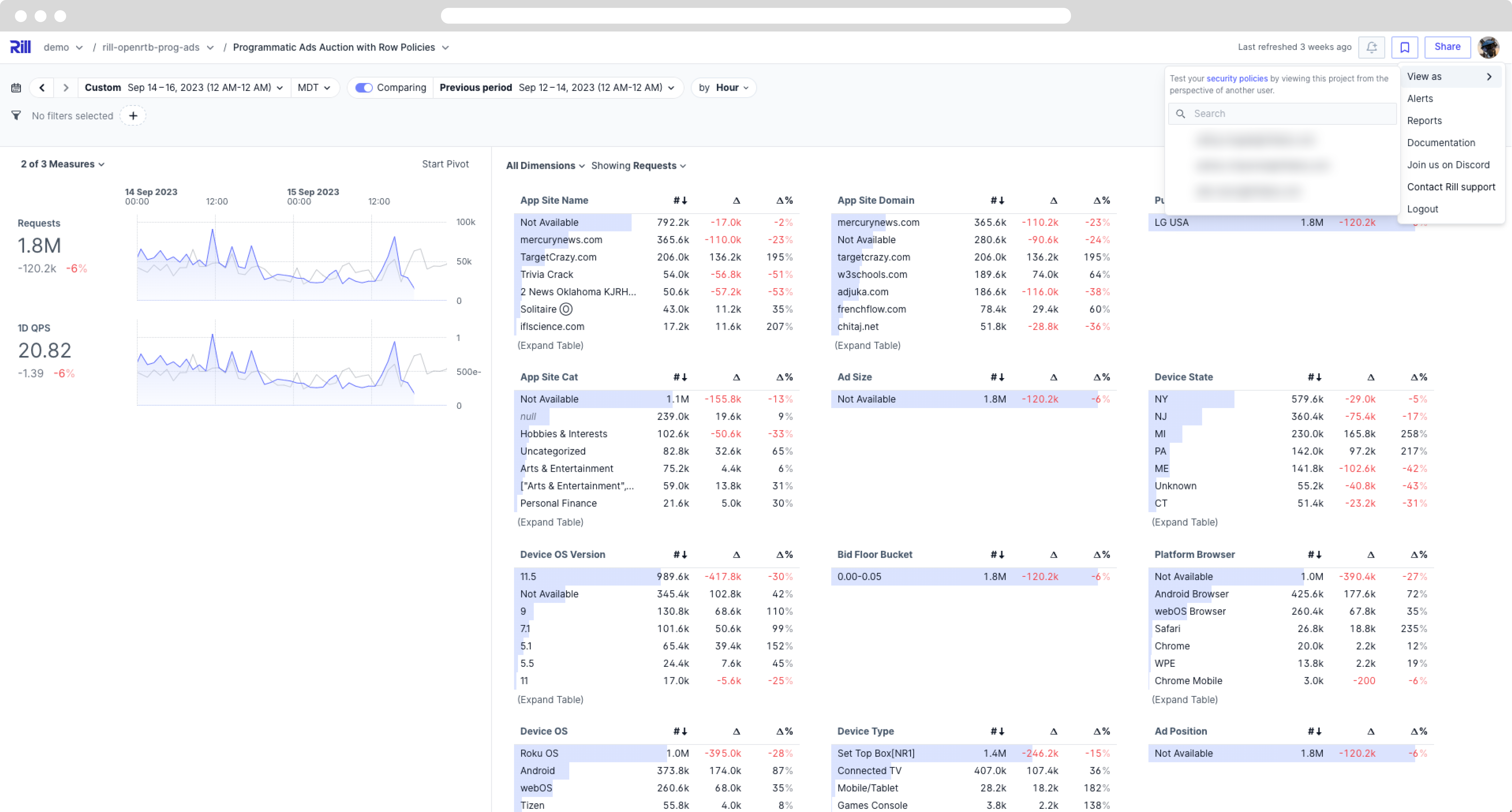
### Embedded Dashboards
When [requesting an embedded dashboard from Rill](/developers/embed/iframe) from your frontend, you can pass the `attributes` parameter with custom names to ensure that the resulting dashboard displays the correct information.
For more information, see [our embedding docs](/developers/embed/iframe#backend-build-an-iframe-url). To preview the embed locally, mirror those attributes on a `mock_user` — see [Custom attributes for embedded dashboards](/developers/build/metrics-view/view-as-user#custom-attributes-for-embedded-dashboards).
## Examples
### Restrict data access to users matching specific criteria
Let's say you want to restrict dashboard access to admin users or users whose email domain is `example.com`. Add the following clause to your metrics view's YAML:
```yaml
security:
access: "{{ .user.admin }} OR '{{ .user.domain }}' == 'example.com'"
```
:::note DEFAULT SECURITY IS FALSE
If the `security` section is defined and `access` is not, then `access` will default to `false`, meaning that it won't be accessible to anyone and users will need to be invited individually.
:::
### Restrict dashboard access to specific user groups
Group membership can be utilized to specify which users have access to a specific dashboard (using the templating function `has`). For example:
```yaml
security:
access: '{{ has "partners" .user.groups }}'
```
### Show only data from the user's own domain
You can limit the data available to the dashboard by applying a filter on the underlying data. Assuming the dashboard's underlying model has a `domain` column, adding the following clause to the dashboard's YAML will only show dimension and measure values for the current user's email domain:
```yaml
security:
access: true
row_filter: "domain = '{{ .user.domain }}'"
```
:::note FILTERS SHOULD BE VALID SQL
The `row_filter` value needs to be valid SQL syntax for a `WHERE` clause. It will be injected into every SQL query used to render the dashboard.
:::
### Conditionally hide a dashboard dimension or measure
You can include or exclude dimensions and measures based on a boolean expression. For example, to exclude dimensions named `ssn` and `id` for users whose email domain is not `example.com`:
```yaml
security:
access: true
exclude:
- if: "'{{ .user.domain }}' != 'example.com'"
names:
- ssn
- id
```
Alternatively, you can explicitly define the dimensions and measures to include using the `include` key. It uses the same syntax as `exclude` and automatically excludes all names not explicitly defined in the list. See the [Dashboard YAML](/reference/project-files/explore-dashboards) reference for details.
### Use wildcards to select all dimensions and measures
When defining inclusion policies, you can easily and automatically select all columns by using `names: '*'` as a wildcard. For example:
```yaml
security:
access: true
include:
- if: true
names:
- ssn
- id
- if: "{{ .user.admin }}"
names: '*'
```
Note that the `'*'` must be quoted (using single or double quotes) and **must** be provided as a scalar value, not as an entry in a list.
### Filter queries based on the user's groups
You can directly inject the groups that a user belongs to into the row filter itself, such as:
```yaml
security:
access: true
row_filter: "groups IN ('{{ .user.groups | join \"', '\" }}')"
```
### Hide dimensions or measures for members of a certain group
You can check group membership using the templating function `has`. For example:
```yaml
security:
access: true
exclude:
- if: '{{ has "partners" .user.groups }}'
names:
- cost
- profit
```
### Advanced Example: Mapping Dimensions and Attributes
For some use cases, the built-in user attributes do not provide sufficient context to correctly restrict access. For example, a dashboard for a multi-tenant SaaS application might have a `tenant_id` column, and external users should only be able to see data for the tenant they belong to.
To support this, ingest a separate data [source](/developers/build/connectors) containing mappings of user email addresses to tenant IDs and reference it in the row-level filter. This can be a locally created CSV file or any hosted data source.
For example, a locally created `mappings.csv` file in the `data` directory of your Rill project with the following contents:
```csv
email,tenant_id
john.doe@example.com,1
jane.doe@example.com,2
```
This needs to be ingested as a source in Rill like any other data source:
```yaml
# sources/mappings.yaml
type: local_file
path: data/mappings.csv
```
(In practice, you would probably ingest the data from a regularly updated export in S3 with a source refresh.)
We can now refer to the mappings data using a SQL sub-query as follows:
```yaml
security:
access: true
row_filter: "tenant_id IN (SELECT tenant_id FROM mappings WHERE email = '{{ .user.email }}')"
```
### Advanced Example: Custom attributes (Embed Dashboards)
Another use case for row access policies is to ensure that your embedded dashboard provides a specific view for your end users. During the [embed dashboard request](/developers/embed/iframe), you can pass custom attributes (other than the ones provided out-of-the-box) that map directly to a value within your Rill explore dashboard.
```yaml
security:
access: true
row_filter: >
dimension_1 = '{{ .user.custom_variable_1 }}' AND
dimension_2 = '{{ .user.custom_variable_2 }}'
```
In order to test the view of your embedded dashboard, you can add the same custom variables to [your mock users](#testing-policies-in-rill-developer) as seen below:
```yaml
- email: embed@rilldata.com
name: embed
custom_variable_1: Value_1
custom_variable_2: Value_2
```
### Advanced Example: Access to Dashboard in Rill and Embedded
While not common, there are use cases where a dashboard is used both in the Rill Cloud UI and as an embedded dashboard. In this case, passing a similar user attribute could suffice, but if you need to pass a custom attribute, you'll need to add an extra layer of logic to your dashboard.
```yaml
security:
access: "{{ .user.admin }} OR '{{ .user.domain }}' == 'example.com' {{- if .user.custom_variable_1 }} OR true {{- end }}"
```
---
# Time Series in Metrics Views
URL: https://docs.rilldata.com/developers/build/metrics-view/time-series/
Time is the most critical dimension in analytics and powers our dashboards. Understanding not just the "what," but how metrics evolve over hours, days, and months provides the narrative arc for decision-making.
## Defining Your Time Series Column
Your time series must be a column from your data model of type `TIMESTAMP`, `TIME`, or `DATE`. If your source has a date in a different format, you can apply time functions to transform these fields into valid time series types. The specific functions available depend on your OLAP engine.
```yaml
# Metrics View YAML
# Reference documentation: https://docs.rilldata.com/reference/project-files/metrics_views
version: 1
type: metrics_view
model: example_model # Choose a table to underpin your metrics
timeseries: timestamp_column # Choose a timestamp column from your table
```
### Time Configuration Parameters
You can customize time behavior using the following parameters:
**`first_day_of_week`**
Specifies which day should be considered the start of the week. Valid values are 1 through 7, where Monday=1 and Sunday=7.
**`first_month_of_year`**
Determines which month should be treated as the beginning of the year. Valid values are 1 through 12, where January=1 and December=12.
```yaml
timeseries: transaction_date
first_month_of_year: 7 # July start
first_day_of_week: 2 # Monday start
```
These parameters enable you to define non-standard reporting periods. For example, if you set June as the starting month, "past year" calculations will span from June to May instead of January to December.
:::tip Full YAML Configurations
Please refer to our [reference page](/reference/project-files/metrics-views) for all the available parameters to define in a metrics view.
:::
### Time Grain Configuration
The `smallest_time_grain` parameter controls the minimum temporal resolution available in your dashboards. Limiting granularity provides several benefits:
- **Performance**: Reduces query complexity and improves dashboard responsiveness
- **Consistency**: Ensures all users see data at the same level of detail
- **Focus**: Prevents analysis paralysis from overly granular data
```yaml
timeseries: order_timestamp
smallest_time_grain: day
```
:::note Time Grain Availability
The time picker automatically adjusts available time grains based on your selected time range. For example, when viewing "Last 24 hours," only day, and hour grains are available, while "Last 30 days" offers day, week, and month grains. This ensures meaningful time-based analysis appropriate to your data range.
:::
### `watermark`
The `watermark` parameter defines the data freshness threshold for your metrics view. It determines the latest point in time where data is considered "complete" and reliable for analysis.
**Purpose:**
- Prevents analysis of incomplete or partial data
- Ensures consistent reporting across different time zones
- Provides a clear boundary between complete and incomplete data
**Configuration:**
```yaml
timeseries: event_time
watermark: "MAX(__TIME) - INTERVAL 3 DAYS"
```
**How it works:**
- `MAX(__TIME)` gets the latest timestamp in your data
- `INTERVAL 3 DAYS` subtracts 3 days from that timestamp
- If your latest data is September 5th, complete data extends only to September 2nd
- Queries for September 3rd-5th data will return empty or incomplete results
- This prevents misleading metrics from partial data
**Common watermark expressions:**
- `"MAX(__TIME) - INTERVAL 1 DAY"` - For daily batch processing (most common)
- `"MAX(__TIME) - INTERVAL 1 HOUR"` - For real-time data with hourly completeness
- `"MAX(__TIME) - INTERVAL 1 WEEK"` - For weekly aggregated data
- `"MAX(__TIME)"` - No watermark (use with caution)
:::tip Best practices
Set your watermark based on your data pipeline's processing time. If your ETL takes 2 hours to complete daily data, set watermark to "2 hours" or "1 day" to ensure you only analyze complete datasets.
:::
---
# Powering your Metrics View
URL: https://docs.rilldata.com/developers/build/metrics-view/underlying-model
Once you have finished [building your model](/developers/build/models), you can create a metrics view to define measures and dimensions for your dashboard. The way you specify the underlying data source depends on your OLAP engine.
## Choosing Your Data Source
Rill supports [multiple OLAP engines](/developers/build/connectors/olap), and the engine you're using determines which YAML property you'll use in your metrics view:
- **Use `model`** for DuckDB and Rill-managed ClickHouse
- **Use `table`** for self-managed live connectors
## DuckDB and Rill-Managed ClickHouse
For DuckDB (the default engine) and Rill-managed ClickHouse, use the `model` property to reference your data model:
```yaml
# Metrics View YAML
# Reference documentation: https://docs.rilldata.com/reference/project-files/metrics-views
version: 1
type: metrics_view
model: example_model # Choose a model to underpin your metrics view
```
## Self-Managed Live Connectors
For self-managed live connectors (like your own ClickHouse, MotherDuck, or Druid instance), use the `table` property and specify connection details:
```yaml
# Metrics View YAML
# Reference documentation: https://docs.rilldata.com/reference/project-files/metrics-views
version: 1
type: metrics_view
database: default
connector: clickhouse
database_schema: billing
table: events # Choose a table to underpin your metrics view
```
For more information, refer to our [metrics view YAML configuration](/reference/project-files/metrics-views).
### Caching Query Results
By default, dashboard queries against metrics views backed by an external, self-managed connector (Snowflake, BigQuery, Databricks, your own ClickHouse, Druid, MotherDuck, Pinot, etc.) run live against the source on every interaction. For dashboards with many concurrent users or repeated drill-downs, this can drive up compute costs and add latency. Enable caching to reuse query results between users until the underlying data changes.
Caching is configured under the `cache` block on the metrics view. Because tables in live connectors are externally managed, caching is **off by default** — opt in by setting `cache.enabled: true`. By default, Rill invalidates the cache when the max timestamp of the metrics view's `timeseries` column changes. If you have a better indicator for when to invalidate the cache (for example, an ingest version column), use `cache.key_sql` to set a custom expression for the cache key.
```yaml
type: metrics_view
connector: snowflake
database: MY_DATABASE
database_schema: MY_SCHEMA
table: MY_TABLE
timeseries: created_at
dimensions:
- column: region
measures:
- name: total_revenue
expression: SUM(revenue)
cache:
enabled: true
key_sql: SELECT MAX(created_at) FROM MY_DATABASE.MY_SCHEMA.MY_TABLE
key_ttl: 5m
```
Rill runs `key_sql` against the metrics view's connector (re-evaluated at most once per `key_ttl`) and uses the returned scalar value as the cache key (together with a hash of the incoming metrics query). When the value changes — for example because a new row landed — the cache is invalidated and the next query repopulates it.
**Pros**
- **Lower source spend.** Repeat queries (multiple users on the same dashboard, back-and-forth filtering) are served from Rill's in-memory cache instead of hitting the source. On BigQuery this means fewer bytes scanned; on Snowflake and Databricks it means less warehouse compute; on ClickHouse, Druid, and Pinot it means fewer broker queries.
- **Faster cache hits.** Cache lookups skip warehouse warm-up, query queue time, and per-query slot allocation. End-to-end latency depends on your Rill deployment topology.
- **Tunable freshness.** `key_sql` ties cache invalidation to your data — typically a max event timestamp, an ingest version column, or a partition metadata lookup. `key_ttl` controls how often that signal is checked.
**Cons**
- **Up to `key_ttl` of staleness.** Between `key_sql` evaluations, new data in the source will not appear on the dashboard. Match `key_ttl` to your tolerable staleness; setting it lower means more frequent `key_sql` queries against the source.
- **`key_sql` itself runs on the source.** Make sure it's a cheap query: a `MAX()` on a clustered/partitioned column on Snowflake or Databricks, or a metadata lookup against `INFORMATION_SCHEMA.PARTITIONS` on BigQuery. A `MAX()` without a partition filter on BigQuery scans the whole table on every refresh.
- **Cache is split per security context.** Row-level security policies and user attributes are part of the cache key, so a dashboard that filters per user does not share cached results across users.
- **Memory usage.** Cached results live in Rill's in-memory cache; very high-cardinality dashboards with many distinct queries will evict older entries.
## Visual Metrics Editor
If you're using the UI to select your table, choosing a live connector will automatically configure the YAML with the correct `table`, `connector`, and `database_schema` fields.
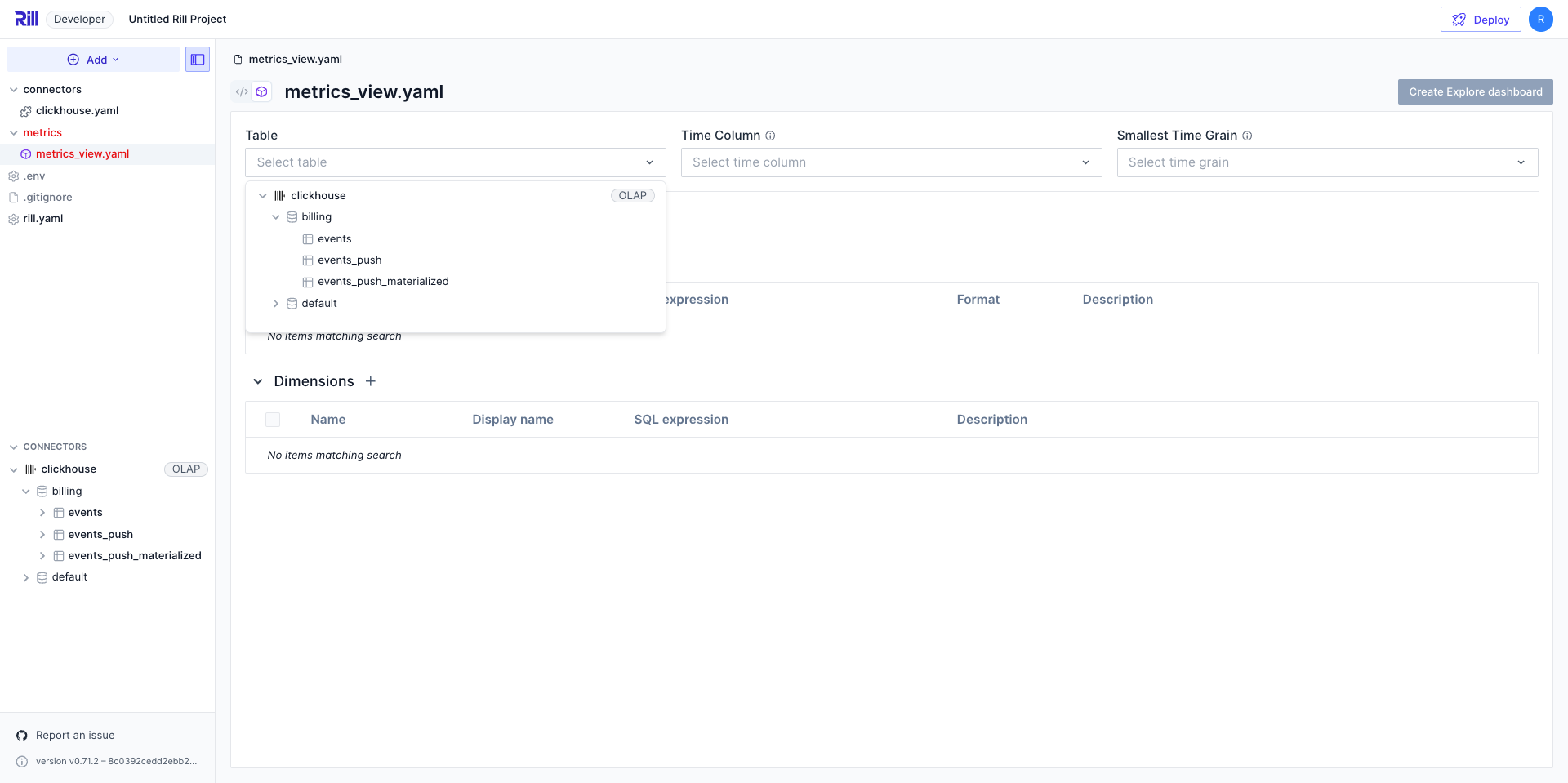
---
# Test Access Policies with View As
URL: https://docs.rilldata.com/developers/build/metrics-view/view-as-user
**View as** lets you preview a dashboard from another user's perspective without signing in as them. Use it to verify that your [security policies](/developers/build/metrics-view/security) hide the right rows, dimensions, and measures for the right people — before you deploy.
The feature lives on the **dashboard preview page** in three flavors:
- **Rill Developer** — open an explore or canvas preview and pick from any of the `mock_users` you define in `rill.yaml`. This is the fastest way to iterate on a policy while you are writing it.
- **Rill Cloud edit session** — while editing a deployed project in Rill Cloud, the same button as Rill Developer appears on the dashboard preview and reads `mock_users` from `rill.yaml`.
- **Rill Cloud deployed dashboard** — project admins can preview as any real user of the project via the avatar dropdown. Use this to reproduce what a specific teammate is seeing on production data.
:::tip Preview page only
**View as** appears on the dashboard preview itself — not on the metrics view YAML editor, model editor, or resource graph. Open a dashboard (explore or canvas) to see the button.
:::
## When to Use View As
- You added a `row_filter` and want to confirm partners only see their own domain's data.
- You wrote an `access` rule and want to confirm the right groups are allowed in.
- You are shipping an [embedded dashboard](/developers/embed/iframe) and want to preview what a specific tenant will see.
- A user reports missing data and you want to reproduce the state they see without asking them to share their screen.
- You are refactoring policies and want to smoke-test every persona in one sitting.
## Rill Developer: Preview as a Mock User
Rill Developer reads a list of `mock_users` from your project's `rill.yaml`. Each mock user is a synthetic identity — an email, and any user attributes you want to test against.
### 1. Define mock users in `rill.yaml`
Add a `mock_users` block at the top level of `rill.yaml`. Every mock user must have an `email`; the other fields are optional and mirror the [user attributes](/developers/build/metrics-view/security#user-attributes) available in security expressions.
```yaml
# rill.yaml
mock_users:
- email: john@yourcompany.com
name: John Doe
admin: true
- email: jane@partnercompany.com
groups:
- partners
- email: anon@unknown.com
```
Any additional keys you add — for example `region`, `tenant_id`, or a custom variable you pass from an embed — become part of `.user.` inside your security templates.
### 2. Open the dashboard preview and click "View as"
Once a metrics view or dashboard has a security policy defined, a **View as** button appears in the top-right corner of the dashboard's preview page.
Clicking it opens a menu of every mock user in `rill.yaml`, plus a shortcut to add a new one.
Selecting a mock user re-renders the dashboard using that user's attributes:
- `access` rules are re-evaluated against the mock user.
- `row_filter` templates are re-rendered and re-applied.
- `include` / `exclude` lists re-run against the mock user's attributes, so hidden dimensions and measures actually disappear from the UI.
While a mock user is active, a **Viewing as ``** chip replaces the button. Click the `×` on the chip to return to your own view.
### 3. Confirm the dashboard is showing a filtered subset
The chip on its own only tells you the mock user is active — the important check is that the dashboard values below it actually change. Compare the same dashboard before and after a mock user is applied:
- **Before** (your own view): `Requests` is **6.60M** across many domains — `askamanager.org`, `play.google.com`, `fubo.tv`, `sling.com`, and so on.
- **After** (viewing as `partner@askamanager.org` with `row_filter: app_site_domain = '{{ .user.domain }}'`): `Requests` drops to **151k**, the App Site Domain leaderboard collapses to a single row (`askamanager.org`), and every other dimension (Pub Name, Device State, Ad Size, …) is reduced to just the values that appear inside that domain.
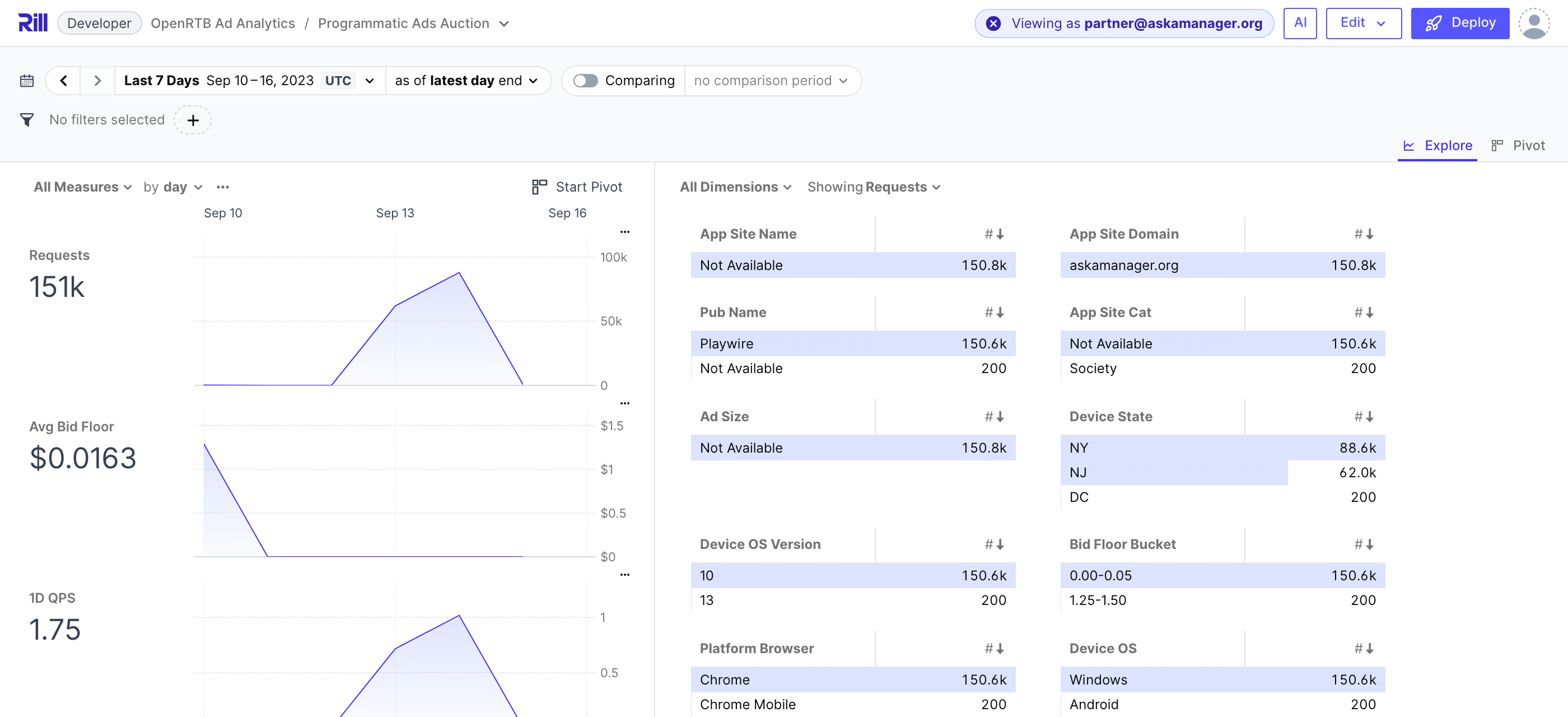
If the totals and dimension values change like this, your row filter is working. If they don't change at all, the policy is not being applied to this user — recheck the templated attribute names against the fields on the mock user.
### 4. Add or edit mock users from the menu
The dropdown includes an **Add mock user** shortcut that opens `rill.yaml` in the editor so you can add or tweak an entry without leaving the dashboard. Any change to `rill.yaml` is picked up immediately, so you can iterate on policies and mock users side-by-side.
:::info "No mock users" in the dropdown
If the dropdown shows **No mock users**, you have a security policy defined but no `mock_users` block in `rill.yaml`. Add one using the example above.
:::
:::info Button disabled with "Not available during editing project"
When you have a dashboard's YAML file open in the editor, the header shows a greyed-out **View as** button as a hint that the feature exists — but it's only usable on the dashboard preview itself. Click **Preview** in the file editor (or navigate to `/explore/...` or `/canvas/...`) to switch to the preview and use the real button.
:::
## Rill Cloud
Rill Cloud exposes **View as** in two places, and it's important to know which one you want.
### Editing a deployed project (mock users)
When you edit a project directly on Rill Cloud (rather than in local Rill Developer), the dashboard preview shows the same **View as** button as Rill Developer, driven by the same `mock_users` from `rill.yaml`. Everything from the [Rill Developer section above](#rill-developer-preview-as-a-mock-user) applies — including the **Viewing as** chip and the filtered-subset behavior. Use this while writing or debugging a policy.
### Viewing a deployed dashboard (real users)
On a deployed dashboard (outside of edit mode), project admins can preview as any real user of the project via the **avatar dropdown** in the top-right → **View as**. The list shows actual project users — not the `mock_users` from `rill.yaml` — so this is what you want when you need to reproduce a specific teammate's view of production data.

Pick a user and the dashboard reloads using that user's real attributes: email, domain, groups, admin flag, and any custom attributes attached to their account. A **Viewing as ``** chip appears in the header until you click the `×` on it. The chip is read-only while you're inside an edit session — return to the deployed view to change or clear the impersonation.
:::info Requires project-admin permission
The **View as** entry in the avatar dropdown only appears for users with the `manage-project` permission. Read-only viewers of a dashboard do not see it.
:::
## Testing Common Policies
The examples below assume the [security policies from the reference](/developers/build/metrics-view/security#examples) are defined on your metrics view. Add matching mock users to `rill.yaml` and switch between them with **View as** to see each rule in action.
### Row-level filter by domain
```yaml
# metrics view
security:
row_filter: "domain = '{{ .user.domain }}'"
```
```yaml
# rill.yaml
mock_users:
- email: internal@example.com # sees all rows where domain = 'example.com'
- email: partner@acme.com # sees only rows where domain = 'acme.com'
- email: partner@globex.com # sees only rows where domain = 'globex.com'
```
Switching between these three users should visibly change the row counts and dimension values on the dashboard.
### Group-based access
```yaml
# metrics view
security:
access: '{{ has "partners" .user.groups }}'
```
```yaml
# rill.yaml
mock_users:
- email: partner@acme.com
groups:
- partners # can open the dashboard
- email: someone@acme.com
groups:
- internal # gets an "access denied" state
```
### Hide sensitive columns from non-admins
```yaml
# metrics view
security:
exclude:
- if: "{{ not .user.admin }}"
names:
- ssn
- id
```
```yaml
# rill.yaml
mock_users:
- email: admin@example.com
admin: true # sees the ssn and id dimensions
- email: analyst@example.com
# does not see ssn or id in the dimension list
```
### Custom attributes for embedded dashboards
When your app passes [custom attributes at embed time](/developers/embed/iframe#backend-build-an-iframe-url), mirror those attributes on a mock user so you can preview the embed locally.
```yaml
# metrics view
security:
row_filter: >
app_site_name = '{{ .user.app_site_name }}' AND
pub_name = '{{ .user.pub_name }}'
```
```yaml
# rill.yaml
mock_users:
- email: embed@rilldata.com
name: embed
app_site_name: Sling
pub_name: MobilityWare
```
Selecting `embed@rilldata.com` in the **View as** menu renders the dashboard exactly as your embedded frontend would render it for that tenant.
If the canvas uses [`if` conditions](/developers/build/dashboards/canvas#show-content-to-some-viewers-only) that depend on the embed, add `embed: true` to the mock user too, because every embedded dashboard carries that attribute.
### Tenant mapping through a source
For [multi-tenant mapping through a lookup source](/developers/build/metrics-view/security#advanced-example-mapping-dimensions-and-attributes), add one mock user per email that appears in the mapping file. Their `tenant_id` is resolved by the sub-query, not by attributes on the mock user itself, so you only need to set `email`.
```yaml
mock_users:
- email: john.doe@example.com # resolves to tenant_id = 1
- email: jane.doe@example.com # resolves to tenant_id = 2
```
## Troubleshooting
| Symptom | Likely cause |
| --- | --- |
| **View as** button is missing on the preview | No security policy is defined on the metrics view, dashboard, or `rill.yaml` defaults. The button only appears when a policy exists. |
| Dropdown says **No mock users** | No `mock_users` block in `rill.yaml`, or every entry is missing the required `email` field. |
| Button is greyed out with the tooltip **Not available during editing project** | You are looking at the header while editing a dashboard's YAML file, not on the dashboard preview. Click **Preview** in the file editor to switch to the preview and use the real button. |
| Dashboard shows the same data for every mock user | The user attribute you are referencing is not being applied — check that the template variable name matches the field on the mock user, and that the security policy uses the attribute at all. |
| **View as** entry is missing from the avatar dropdown on Rill Cloud | Only project admins (users with `manage-project`) see the entry on a deployed dashboard. Ask an admin to grant the role, or use the [edit-session flow](#editing-a-deployed-project-mock-users) instead. |
## Related
- [Data Access Control](/developers/build/metrics-view/security) — the full security-policy reference.
- [Project Configuration → Testing Security](/developers/build/project-configuration#testing-security) — where `mock_users` fit into `rill.yaml`.
- [Embedded Dashboards](/developers/embed/iframe) — how to pass custom attributes at embed time.
---
# Get Started with Metrics Views
URL: https://docs.rilldata.com/developers/build/metrics-view/what-are-metrics-views
A metrics view is a 'centralized framework' used to define and organize **key measures and dimensions** for your organization. Having a centralized layer allows an organization to easily manage and reuse calculations across various reports, dashboards, and data tools. Each metrics view is powered by a single [model or table](/developers/build/metrics-view/underlying-model).
Rill metrics views are analogous to the **semantic layer** and **metrics layer** concepts found in other business intelligence and analytics tools. It provides a consistent, reusable abstraction over your underlying data, enabling standardized definitions of business metrics that can be shared across different dashboards and reports.
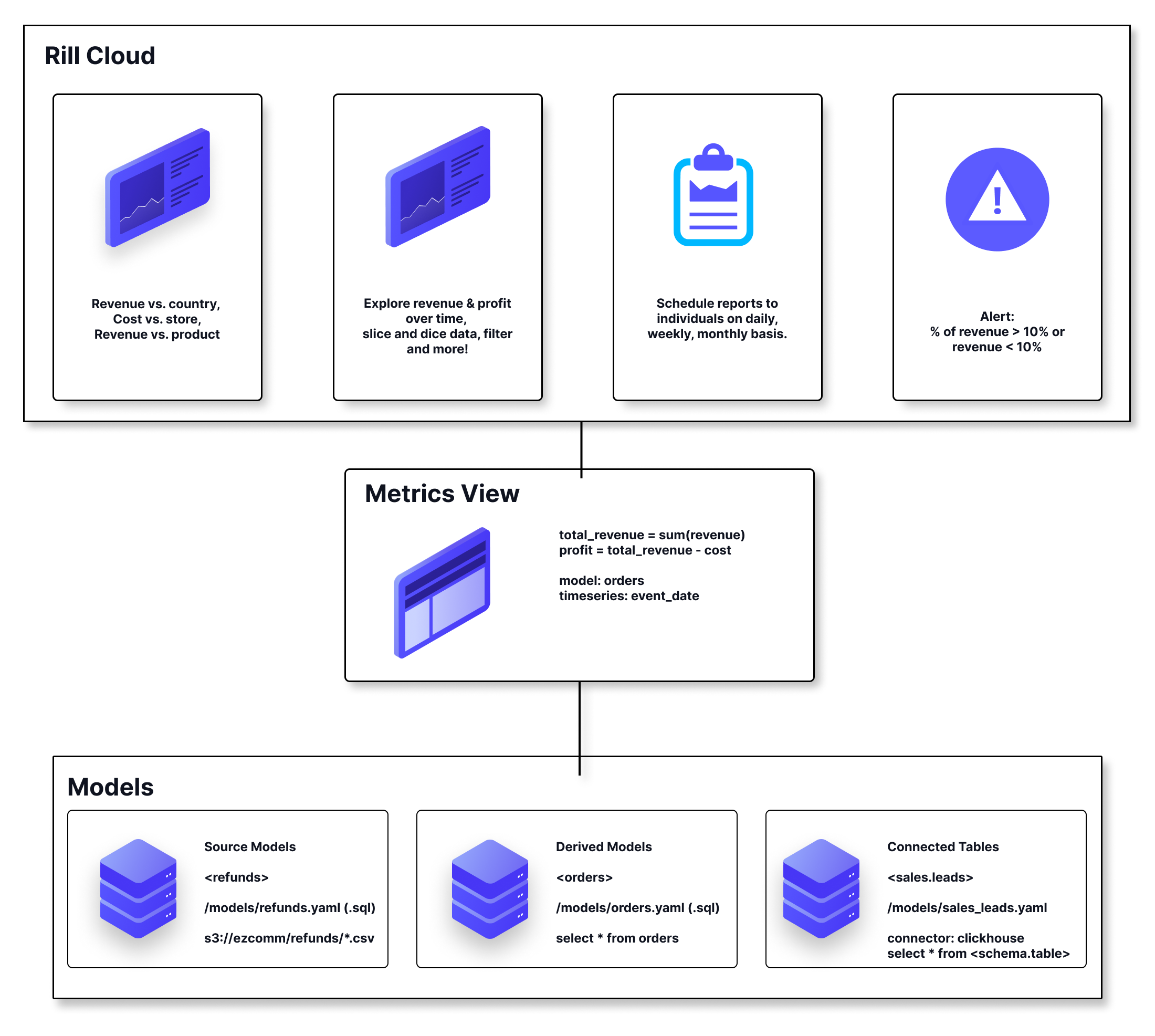
In Rill, your metrics view is defined by _metric definitions_. Metric definitions are composed of:
* [_**model/table**_](/developers/build/metrics-view/underlying-model) - A data model or underlying table created with the concept of [One Big Table](/developers/build/models/models-101#one-big-table-and-dashboarding) that will power the metrics view.
* [_**timeseries**_](/developers/build/metrics-view/time-series) - A column from your model that will underlie x-axis data in Rill's Explore dashboards and Canvas dashboards. Time can be truncated into different time periods.
* [_**dimensions**_](/developers/build/metrics-view/dimensions) - Categorical columns from your data model whose values are shown in _leaderboards_ in explore dashboard and allow you to look at segments or attributes of your data (and filter/slice accordingly) as well as selectable axis in Canvas dashboard components.
* _[**measures**](/developers/build/metrics-view/measures)_ - Numerical aggregates of columns from your data model shown on the y-axis of the explore charts and canvas components and the "big number" summaries.
## Creating a Metrics view
Once your [model or underlying table](/developers/build/metrics-view/underlying-model) is ready to visualize, you'll need to create a metrics view to define your measures and dimensions. This can be done in a few ways. Either create a blank YAML file, use the Add metrics view button, or "Generate Metrics with AI" from the model.
### Create a Metrics view with Code
Copy the below into a blank YAML or use the Add -> metrics view to create a blank metrics view. Here you can start to define dimensions and measures as seen below.
```yaml
# Metrics View YAML
# Reference documentation: https://docs.rilldata.com/reference/project-files/metrics-views
version: 1
type: metrics_view
model: example_model # Choose a model to underpin your metrics view
timeseries: timestamp_column # Choose a timestamp column (if any) from your table
dimensions:
- column: category
display_name: "Category"
description: "Description of the dimension"
measures:
- expression: "SUM(revenue)"
display_name: "Total Revenue"
description: "Total revenue generated"
```
:::tip Set project-wide time defaults
Configure default time modifiers like first day of week and smallest time grain for all metrics views.
[Learn more about metrics view defaults →](/developers/build/project-configuration#metrics-views-time-modifiers)
:::
### Using the Visual Metrics Editor
When you add a metrics definition using the UI, a code definition will automatically be created as a YAML file in your Rill project within the metrics directory by default.
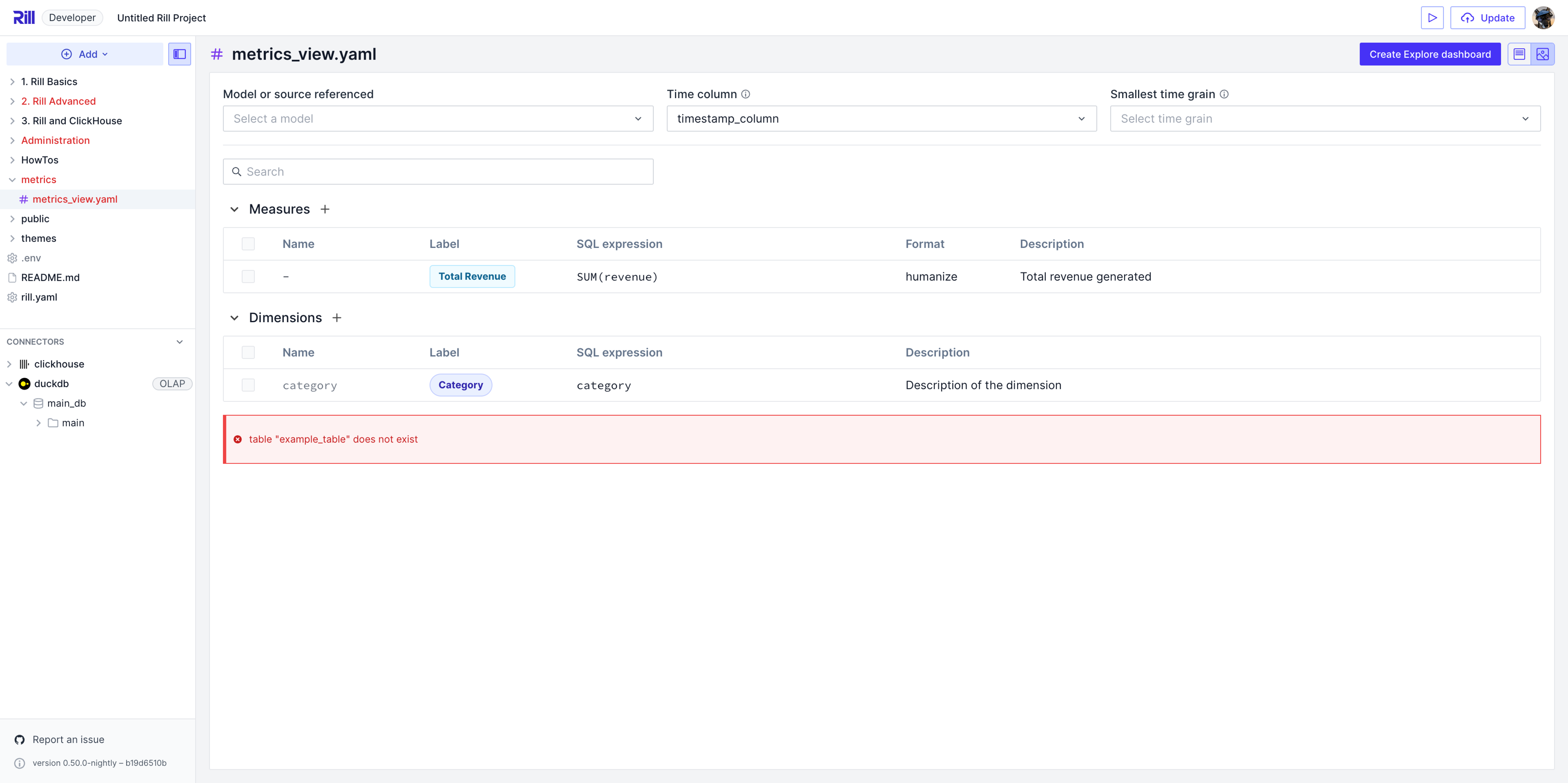
### Creating a Metrics View with AI
In order to streamline the process and get to a dashboard as quickly as possible, we've added the "Create Metrics with AI" and "Create Dashboard with AI" options! This will pass your schema to OpenAI to suggest measures and dimensions to get started with Rill.

:::tip Skipped creating a model?
You can now create dashboards directly for the connector panel. This will create a model, metrics view and dashboard all in one step.

:::
You can define your own OpenAI key by creating a [connector file](/reference/project-files/connectors#openai). If you want to disable metrics view generation with AI from your environment, please set the following in the `rill.yaml`:
```yaml
features:
ai: false
```
---
# Models in Rill
URL: https://docs.rilldata.com/developers/build/models/
Rill provides users the option to build various types of models based on different use cases. Take a look through the list of available types of models!
### Fundamentals
- [**Getting Started with Models**](/developers/build/models/models-101) - What are models and important topics to remember as you create your own.
- [**Differences between SQL and YAML Models**](/developers/build/models/model-differences) - Compare SQL and YAML models and learn when to use each.
- [**SQL Models**](/developers/build/models/sql-models) - Transform and prepare your data with a basic SQL file
### Data Ingestion
- [**Source Models**](/developers/build/models/source-models) - Ingest data from various sources
- [**Data Quality Tests**](/developers/build/models/data-quality-tests) - Add data quality tests to validate your models
- [**Scheduled Refreshes**](/developers/build/models/data-refresh) - Schedule your data refresh
### Advanced YAML Features
- [**Incremental Models**](/developers/build/models/incremental-models) - Increment your model to avoid large ingestion times
- [**Partitioned Models**](/developers/build/models/partitioned-models) - Split your large data into smaller sizes
- [**Incremental + Partitioned Models**](/developers/build/models/incremental-partitioned-models) - Combine the concepts of Incremental Models and Partitioned Models into a single file
- [**Staging Models**](/developers/build/models/staging-models) - When data is not directly available to ingest
### Environment Management
- [**Environment Templating**](/developers/build/models/templating) - Separate your production and development settings
### Performance Optimization
- [**Optimize your Models**](/developers/build/models/performance) - Optimize model performance and data refresh strategies
---
# Data Quality Tests
URL: https://docs.rilldata.com/developers/build/models/data-quality-tests
## Overview
Data quality tests allow you to define automated checks that run whenever your models refresh. These tests ensure your data meets expectations and catch issues early in your pipeline.
Tests are defined in your model's YAML file using the `tests:` property. Each test runs a SQL query against your model's output. If the query returns any rows, the test fails and the error is recorded in the model's state.
## When to Use Data Quality Tests
:::tip Using live connectors? Use alerts instead
Data quality tests run when models refresh, which means they only work with models that Rill manages. If you're using [live connectors](/developers/build/connectors/olap) (ClickHouse, Druid, Pinot, StarRocks, etc.) where data lives in external systems, use [alerts](/developers/build/alerts) to monitor data quality on a schedule instead.
:::
Data quality tests are useful for:
- **Data Quality Checks** - Verify that your data meets business rules and constraints
- **Schema Validation** - Ensure expected columns exist and have correct data types
- **Referential Integrity** - Check relationships between tables
- **Range Validation** - Verify numeric values fall within expected ranges
- **Null Checks** - Ensure required fields don't contain null values
- **Uniqueness Constraints** - Verify primary keys and unique columns
- **Business Logic** - Validate complex business rules and calculations
## Defining Tests
Tests are defined in your model's YAML file under the `tests:` property. Each test requires:
- `name` - A descriptive name for the test
- Either `assert` or `sql` - The validation logic
### Basic Syntax
```yaml
# models/my_model.yaml
type: model
sql: SELECT * FROM my_source
tests:
- name: No negative amounts
assert: amount >= 0
- name: No orphaned orders
sql: SELECT * FROM my_model WHERE customer_id IS NULL
```
Each test uses either `assert` or `sql`. A test with both fails with `test "" must not have both "sql" and "assert" defined`.
## Test Types
### Assert Tests
Assert tests use a WHERE clause condition that should be true for all rows. If any row fails the assertion (the condition is false), the test fails.
**Syntax:**
```yaml
- name: Test Name
assert:
```
The assertion is internally converted to:
```sql
SELECT * FROM model WHERE NOT ()
```
**Examples:**
```yaml
tests:
# Check for null values
- name: No Null Campaign ID
assert: campaign_id IS NOT NULL
# Range validation
- name: Valid Bid Price
assert: bid_price >= 0 AND bid_price <= 100
# Value constraints
- name: Valid Ad Status
assert: status IN ('active', 'paused', 'completed', 'draft')
# Multiple conditions
- name: Valid Impression Count
assert: impressions >= 0 AND impressions <= 1000000000
```
### SQL Tests
SQL tests use a complete SQL query that should return zero rows. If any rows are returned, the test fails.
**Syntax:**
```yaml
- name: Test Name
sql: SELECT * FROM model WHERE
```
**Examples:**
```yaml
tests:
# Row count validation
- name: Minimum Impression Count
sql: SELECT 'Too few impressions' WHERE (SELECT COUNT(*) FROM model) < 1000
# Aggregate validation
- name: Positive Total Spend
sql: SELECT 'Negative spend detected' WHERE (SELECT SUM(spend) FROM model) < 0
# Duplicate detection
- name: No Duplicate Impression IDs
sql: |
SELECT impression_id, COUNT(*) as count
FROM model
GROUP BY impression_id
HAVING COUNT(*) > 1
# Referential integrity
- name: Valid Campaign References
sql: |
SELECT i.campaign_id
FROM model i
LEFT JOIN campaigns c ON i.campaign_id = c.id
WHERE c.id IS NULL
# Data completeness
- name: All Expected Ad Formats Present
sql: |
SELECT missing_format FROM (
VALUES ('banner'), ('video'), ('native')
) AS expected(missing_format)
WHERE missing_format NOT IN (SELECT DISTINCT ad_format FROM model)
```
## Complete Example
Here's a comprehensive example showing various validation patterns:
```yaml
# models/ad_impressions.yaml
type: model
sql: SELECT * FROM raw_impressions
tests:
# Basic null checks
- name: Impression ID Not Null
assert: impression_id IS NOT NULL
- name: Campaign ID Not Null
assert: campaign_id IS NOT NULL
# Range validations
- name: Valid Bid Price
assert: bid_price > 0 AND bid_price < 100
- name: Valid Impression Date
assert: impression_date >= '2020-01-01' AND impression_date <= CURRENT_DATE
# Status validation
- name: Valid Campaign Status
assert: status IN ('active', 'paused', 'completed', 'draft')
# Uniqueness check
- name: No Duplicate Impression IDs
sql: |
SELECT impression_id, COUNT(*) as count
FROM ad_impressions
GROUP BY impression_id
HAVING COUNT(*) > 1
# Row count validation
- name: Minimum Impressions Present
sql: SELECT 'Too few impressions' WHERE (SELECT COUNT(*) FROM ad_impressions) < 1000
# Aggregate validation
- name: Positive Total Spend
sql: SELECT 'Negative spend' WHERE (SELECT SUM(spend) FROM ad_impressions) < 0
# Complex business logic
- name: Clicks Must Have Impressions
sql: SELECT * FROM ad_impressions WHERE clicks > 0 AND impressions = 0
- name: Click Timestamp After Impression
sql: SELECT * FROM ad_impressions WHERE click_timestamp < impression_timestamp
# Referential integrity
- name: Valid Campaign References
sql: |
SELECT i.campaign_id
FROM ad_impressions i
LEFT JOIN campaigns c ON i.campaign_id = c.campaign_id
WHERE c.campaign_id IS NULL
```
## Test Execution
Tests are executed automatically when your model is refreshed:
1. **Model Refresh** - The model's SQL query runs and produces output
2. **Test Execution** - Each test query runs against the model's output table
3. **Result Recording** - Test failures are recorded in the model state
4. **Model Status** - The model remains available even if tests fail
### Test Behavior
- Tests run **after** successful model refresh
- A failing test does **not** prevent the model from being available for queries
- Test results are stored in the model's state and visible in the [Rill logs](/reference/cli/project/logs)
- All tests run independently - one failure doesn't stop other tests
- Tests can reference the model's output using the model name
## Viewing Test Results
Test results are stored in the model state and visible in:
- **Model State** - Access via the runtime API in the `test_errors` field
- **Logs** - Test failures are logged during model reconciliation
When a test fails, the error message includes:
- Test name
- Number of rows that failed the test
- Sample of the failing rows (if applicable)
## Best Practices
### Test Naming
Use descriptive names that clearly indicate what's being validated:
```yaml
# Good names
- name: No Null Campaign IDs
- name: Spend Within Valid Range
- name: All Impressions Have Valid Status
# Less clear names
- name: Test 1
- name: Check Data
- name: Validation
```
### Test Organization
Group related tests together and add comments:
```yaml
tests:
# Null checks
- name: Impression ID Not Null
assert: impression_id IS NOT NULL
- name: Campaign ID Not Null
assert: campaign_id IS NOT NULL
# Range validations
- name: Valid Bid Price
assert: bid_price > 0
- name: Valid Date Range
assert: impression_date >= '2020-01-01'
```
### Understanding Assert vs SQL Syntax
**Assert Syntax** - Define conditions that should be true for all rows:
- You write: `assert: value > 0`
- Rill converts this to: `SELECT * FROM model WHERE NOT (value > 0)`
- Tests **pass** if no rows are returned (all rows satisfy the condition)
- Tests **fail** if any rows are returned (violations found)
**SQL Syntax** - Write custom queries that return failing rows:
- You write: `sql: SELECT * FROM model WHERE value <= 0`
- Your query should explicitly return rows that represent failures
- Tests **pass** if the query returns an empty result set
- Tests **fail** if the query returns any rows
:::tip Key Difference
With `assert`, you define what should be **true**. With `sql`, you query for what is **wrong**.
:::
### Choosing Between Assert and SQL
**Use Assert when:**
- Testing row-level conditions
- Checking simple constraints
- The logic is straightforward
- You want Rill to handle the "NOT" logic for you
**Use SQL when:**
- Testing aggregate values (COUNT, SUM, AVG)
- Checking relationships between tables
- Implementing complex validation logic
- You need more control over the error message
- You prefer to explicitly write the failure query
### Performance Considerations
- Tests add time to your model refresh cycle
- Complex tests with joins or aggregations can be expensive
- Consider the trade-off between test coverage and refresh time
- Use indexes on columns referenced in test queries when possible
### Testing Strategy
**Start with critical validations:**
1. Null checks on required fields
2. Uniqueness constraints
3. Referential integrity
4. Range validations
**Add domain-specific tests:**
1. Business rules
2. Data quality checks
3. Completeness validations
**Monitor and iterate:**
1. Review test failures regularly
2. Add tests when data issues are discovered
3. Remove or update tests that are no longer relevant
## Working with Incremental Models
Tests work with incremental models and run after each incremental refresh:
```yaml
type: model
incremental: true
sql: SELECT * FROM raw_impressions WHERE impression_timestamp > (SELECT MAX(impression_timestamp) FROM {{ .self }})
tests:
- name: No Null Impression Timestamps
assert: impression_timestamp IS NOT NULL
- name: No Future Impression Timestamps
assert: impression_timestamp <= CURRENT_TIMESTAMP
```
The tests validate the **entire model output**, not just the newly added rows.
## Working with Partitioned Models
Tests also work with partitioned models:
```yaml
type: model
incremental: true
partitions:
sql: SELECT DISTINCT impression_date FROM raw_impressions
sql: SELECT * FROM raw_impressions WHERE impression_date = '{{ .partition.impression_date }}'
tests:
- name: Valid Impression Dates
assert: impression_date IS NOT NULL
- name: Partition Date Matches
assert: impression_date = '{{ .partition.impression_date }}'
```
Tests run against the complete model output after all partitions are processed.
## Examples
### Checking for Duplicates
```yaml
- name: No Duplicate Impression IDs
sql: |
SELECT impression_id, COUNT(*) as count
FROM model
GROUP BY impression_id
HAVING COUNT(*) > 1
```
### Validating Relationships
```yaml
- name: Valid Campaign References
sql: |
SELECT i.campaign_id
FROM model i
LEFT JOIN campaigns c ON i.campaign_id = c.id
WHERE c.id IS NULL
```
### Checking Completeness
```yaml
- name: All Expected Ad Formats Present
sql: |
SELECT expected_format
FROM (VALUES ('banner'), ('video'), ('native')) AS expected(expected_format)
WHERE expected_format NOT IN (SELECT DISTINCT ad_format FROM model)
```
### Aggregate Validations
```yaml
- name: CTR Within Expected Range
sql: |
SELECT 'CTR out of range' as error
WHERE (SELECT SUM(clicks) * 1.0 / NULLIF(SUM(impressions), 0) FROM model) > 0.5
```
### Date Range Checks
```yaml
- name: Valid Impression Date Range
assert: impression_date >= '2020-01-01' AND impression_date <= CURRENT_DATE
- name: Impressions Within Last Year
assert: impression_date >= CURRENT_DATE - INTERVAL '1 year'
```
:::warning Limitations
- Tests only run when the model is refreshed
- Failing tests do not prevent the model from being queryable
- Tests cannot modify data - they are read-only validations
- Test queries should complete reasonably quickly to avoid long refresh times
:::
---
# Schedule Your Data Refresh
URL: https://docs.rilldata.com/developers/build/models/data-refresh
When creating or updating a model in Rill Cloud, you also have the option to configure how often the underlying model is refreshed (and thus ingested into the underlying OLAP layer powering Rill models and dashboards). By default, models are refreshed manually, but this can also be automated to a predefined schedule. This is handled through the underlying [model settings](/reference/project-files/models) and/or [project YAML](/reference/project-files/rill-yaml#project-wide-defaults) using standard cron or Go duration syntax.
:::tip Configuring model refreshes for Cloud deployments
It is generally strongly recommended to configure model refreshes when [deploying a project](/developers/deploy/deploy-dashboard) to Rill Cloud to ensure that your production data (and dashboards) _remains up-to-date_. The interval that you should set really depends on how often your own data is being refreshed. Furthermore, while it is technically possible to configure model refreshes for Rill Developer as well, Rill Developer is primarily used for local development and thus typically does not require working with the most up-to-date data (local model refreshes that occur too often could also lead to resource constraints on your local machine). For more details, please see our pages on [environments](/developers/build/connectors/credentials#variables), [templating](/developers/build/connectors/templating), and [performance optimization](/developers/build/models/performance).
:::
## Configuring Model Refresh Individually
To specify a model refresh schedule for a particular model, this can be handled using the `refresh` property in the underlying YAML file. For example, to set a daily refresh for a model, you can do the following:
```yaml
refresh:
every: 24h
```
Similarly, if you would like to utilize cron syntax, the following example would update a model every 15 minutes:
```yaml
refresh:
cron: '*/15 * * * *'
```
:::note Model settings
For more details about available model configurations and properties, check our [model YAML](/reference/project-files/models) reference page.
:::
## Configuring a Project-Wide Default
You can also specify a project-wide refresh schedule that will apply to all models by default. This can be done through the `rill.yaml` file. More details can be found [here](/reference/project-files/rill-yaml#project-wide-defaults).
:::tip Set project-wide defaults
You can set a default refresh schedule for all models in your project.
[Learn more about project defaults →](/developers/build/project-configuration#model-refresh-schedule)
:::
Using the same example as above, the following sets a project-wide default of refreshing models every 24 hours:
```yaml
models:
refresh:
every: 24h
```
Similarly, the following would use cron syntax to set a project-wide configuration of refreshing models by default every 15 minutes (unless overridden at the individual model level):
```yaml
models:
refresh:
cron: '*/15 * * * *'
```
:::info Did you know?
If you have both a project-wide default and model-specific refresh schedule _configured in the same project_, the model-specific refresh will **override** the project default based on how inheritance works in Rill. Otherwise, if not specified, the project-wide default will be used instead!
:::
## Running Scheduled Source Refreshes in Development
As an exception, scheduled source refreshes specified using `refresh:` are not applied in the `dev` environment by default. If you want to run or test scheduled refreshes in local development, you can override this behavior using the `run_in_dev` property:
```yaml
refresh:
cron: 0 * * * *
run_in_dev: true
```
---
# Incremental Models
URL: https://docs.rilldata.com/developers/build/models/incremental-models
Incremental models help with the ingestion of large datasets by allowing a dataset to be broken down into smaller sections for ingestion, rather than reading the entire dataset at once. Unlike [standard SQL models](/developers/build/models/sql-models) that are created via a .sql file, incremental models are defined in a YAML file and are used when a large dataset needs to be incrementally ingested to improve ingestion costs and time.
:::note Take a look at the Reference!
If you are unsure about the required parameters, please review the [reference page for Advanced Models](/reference/project-files/models).
:::
Rill supports incremental models on either cloud storage or data warehouses, but the parameters to set these up will be different. Cloud storage requires the `glob` parameter while data warehouses will need to use `sql`.
See [our reference documentation](/reference/project-files/models) for more information.
:::tip Need help setting up Incremental Models?
Please [reach out to us](/contact) if you have any questions regarding incremental modeling!
:::
## Creating an Incremental Model
In order to enable an incremental model, you will need to set the following: `incremental: true`.
```yaml
type: model
incremental: true
sql: # some SQL query from source_table
```
:::warning Duplicate Data
Incremental models default to an append strategy, and with neither `state` nor `partition` defined, your data will append data per incremental refresh from the source table. This will result in duplicate data and is not recommended. Instead, use the `merge_strategy` with a `unique_key` to ensure duplicate data is not ingested.
:::
:::warning Late Arriving Data
If you have late arriving data, you will need to keep this in mind when designing your incremental model. If you simply use max(date) from the source, you may risk leaving out late arriving data. Depending on your specific use case, you might consider a larger time difference and use a `merge` as your `incremental_strategy`.
:::
### Incremental Models with State Defined (Optional)
If your data is not [partitioned](/developers/build/models/partitioned-models), you can define the incremental model with a predefined `state` parameter. This is only useful for multi-connector incremental ingestion such as BigQuery to DuckDB.
```yaml
type: model
incremental: true
connector: bigquery
state:
sql: SELECT MAX(date) as max_date
sql: |
SELECT ... FROM events
{{ if incremental }}
WHERE event_time > '{{.state.max_date}}'
{{end}}
output:
connector: duckdb
```
Once state is defined in an incremental model, its value can be used as a variable in your SQL statement. In the above example, the state gets the most recent date from the model and when incrementally refreshing, ingests data for events that are more recent than the state's max_date.
:::tip
You can verify the current value of your state in the left-hand panel under Incremental Processing.
:::
### Refreshing an Incremental Model
When you are testing with incremental models in Rill Developer, you will notice a change in the refresh functionality. Instead of a full refresh, you are given the option for `incremental refresh`.
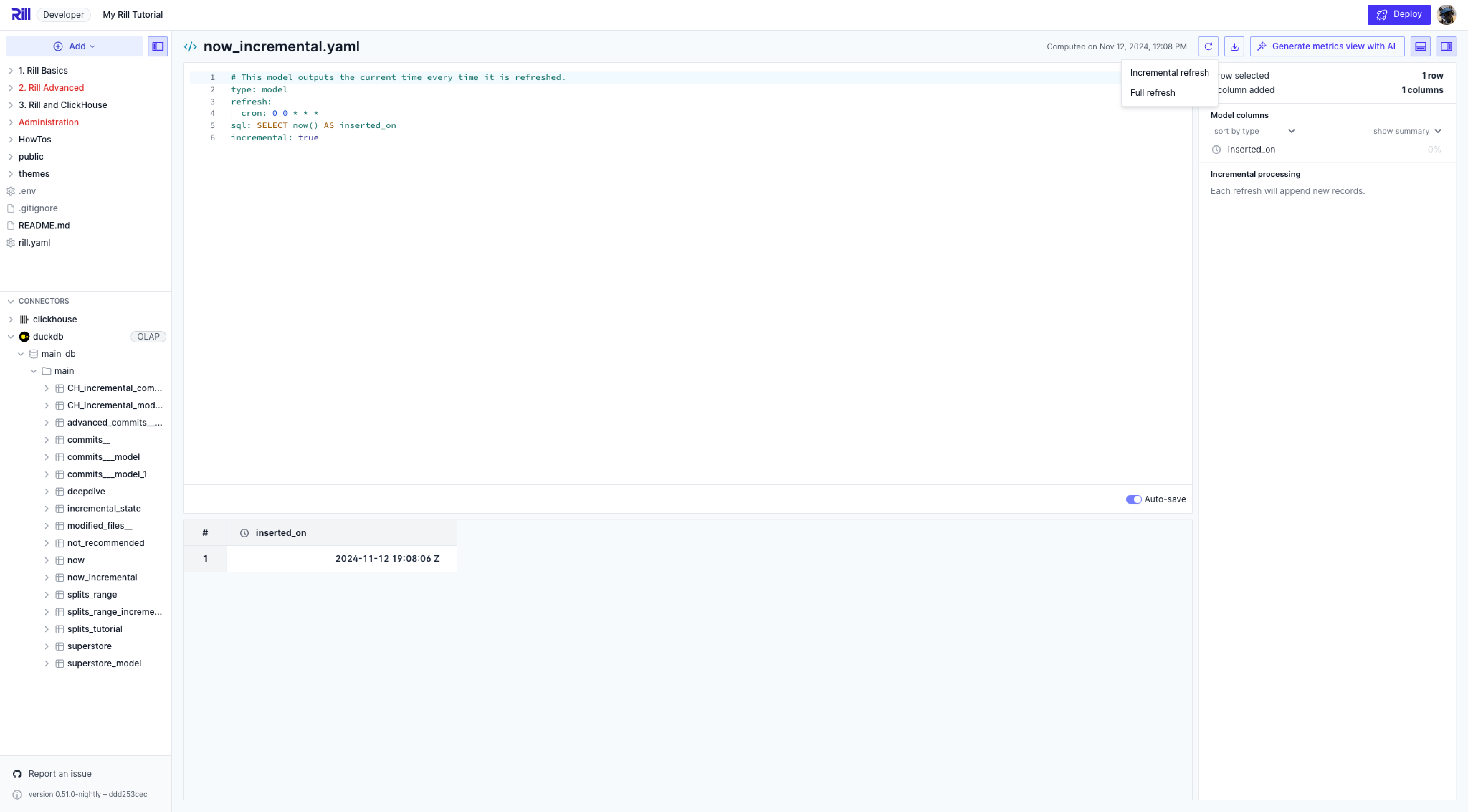
:::tip What's the difference?
Once increments are enabled on a model, this grants you the ability to refresh the model in increments, instead of loading the full data each time. This is handy when your data is massive and re-ingesting the data may take time. For a project in production, this allows for less downtime when needing to update your dashboards when the source data is updated.
There are times when a full refresh may be required. In these cases, running the full refresh is equivalent to running a normal refresh with incremental disabled.
:::
When selecting to refresh incrementally, what is being run in the CLI is:
```bash
rill project refresh --local --model
```
Keep in mind that if you select `Full refresh`, this will start the ingestion of **all of your data** from scratch. Only use this when absolutely required. When running a full refresh, the CLI command is:
```bash
rill project refresh --local --model --full
```
## Model Change Modes
Configure how changes to your model specifications are applied:
```yaml
# model.yaml
change_mode: reset # Options: reset (default), manual, patch
```
- `reset`: changing the model automatically leads to a full refresh (default)
- `manual`: changing the model stops refreshes until a manual incremental or full refresh is run
- `patch`: changing the model automatically changes to the new logic without a reset (only works for models with `incremental: true`)
## Handling Schema Changes
An incremental run can produce columns that differ from the model's existing table. For example, a new partition file can include a column that older files did not have, or a column can be dropped from the source query. The `on_schema_change` output property controls what Rill does when this happens.
```yaml
output:
incremental_strategy: merge
unique_key: [id]
on_schema_change: append_new_columns # Options: fail (default), ignore, append_new_columns
```
| Mode | New columns in the incoming data | Columns missing from the incoming data |
|------|----------------------------------|----------------------------------------|
| `fail` (default) | The run fails. | The run fails. |
| `ignore` | Discarded. The table keeps its existing columns. | Kept in the table and set to `NULL` for the incoming rows. |
| `append_new_columns` | Added to the table. Existing rows get `NULL` for the new columns. | Kept in the table and set to `NULL` for the incoming rows. |
Rows are inserted by column name, so a change in column order alone does not count as a schema change and never misaligns data.
### Supported Strategies
`on_schema_change` applies only when the output connector is DuckDB and the model uses the `merge` or `partition_overwrite` incremental strategy. Setting it on a model that uses the `append` strategy is a validation error:
```
"on_schema_change" is only supported for the "merge" and "partition_overwrite" incremental strategies
```
Models that set a `unique_key` without an `incremental_strategy` use `merge`, and incremental [partitioned](/developers/build/models/partitioned-models) SQL models without an `incremental_strategy` use `partition_overwrite`. Both default to `fail`.
### Resolving a Schema Change Failure
With the default `fail` mode, a run that adds or drops columns stops before changing the table, and the model reports an error that names the columns:
```
the new data does not match the schema of table "events" (new columns: "country"; missing columns: none). Set "on_schema_change" to allow schema changes
```
To resolve it, do one of the following:
1. Keep the new columns: set `on_schema_change: append_new_columns` and run an incremental refresh.
2. Keep the table's existing columns: set `on_schema_change: ignore` and run an incremental refresh.
3. Rebuild the table with the new schema: run a full refresh. Existing rows are re-ingested, so they are populated for every column.
```bash
rill project refresh --local --model --full
```
### Limitations
- **Column types are not reconciled.** The existing table's column types are always kept. DuckDB converts incoming values to those types and fails the run if a value cannot be converted. Run a full refresh to change a column's type.
- **Key columns must already exist.** A `merge` run fails if a `unique_key` column is missing from the incoming data or from the existing table. To change `unique_key`, run a full refresh.
- **Partition expressions must resolve against the incoming data.** A `partition_overwrite` run fails if the `partition_by` expression references a column that is not in the incoming data.
- **Changing `partition_by` requires a full refresh.** If you keep the existing table (for example with `change_mode: patch`) and point `partition_by` at a column the table does not have, `append_new_columns` adds that column with `NULL` for existing rows. Those rows never match a partition, so they are not replaced and can be duplicated by later runs.
- **Added columns are not backfilled.** With `append_new_columns`, rows ingested before the column was added keep `NULL` until you run a full refresh or refresh their partitions.
- **External DuckDB databases are changed in place.** When the DuckDB connector uses `path` or `attach` (for example [MotherDuck](/developers/build/connectors/olap/motherduck)), a column added by `append_new_columns` remains in the table even if the insert that follows fails.
For the full property reference, see [Models YAML](/reference/project-files/models).
---
# Incremental Partitioned Models
URL: https://docs.rilldata.com/developers/build/models/incremental-partitioned-models
Putting the two concepts together, it is possible to create an incremental partitioned model. Doing so will allow you to not only partition the model but also refresh only the partition that you need and incrementally ingest partitions.
:::note Need help?
If you need any assistance with setting up an incremental partitioned model, [reach out](/contact) to us for assistance!
:::
:::tip Looking for an example?
If you're looking for a working example, take a look at [my-rill-tutorial in our examples' repository](https://github.com/rilldata/rill-examples).
:::
As we already know how to set these up separately, let's see what changes in the UI when we enable both on a single model. In the following example, note that incremental modeling is enabled and partitions are defined by the Google Cloud Storage directory.
```yaml
type: model
incremental: true
refresh:
cron: "0 8 * * *"
partitions:
glob:
path: gs://rilldata-public/github-analytics/Clickhouse/2024/*/*
partition: directory
sql: |
SELECT *
FROM read_parquet('{{ .partition.uri }}/commits_*.parquet')
WHERE '{{ .partition.uri }}' IS NOT NULL
```
:::note Schema changes between partitions
By default, an incremental run fails if a new partition adds or drops columns. To allow this, set `on_schema_change` under `output`. See [Handling Schema Changes](/developers/build/models/incremental-models#handling-schema-changes).
:::
### Refreshing Partitions in Incremental Models
When this model loads, you will be able to both view the partitions and select a specific partition to refresh via the UI in Rill Developer. Unlike **partitioned-only** models, a new button is added in each of the partitions.
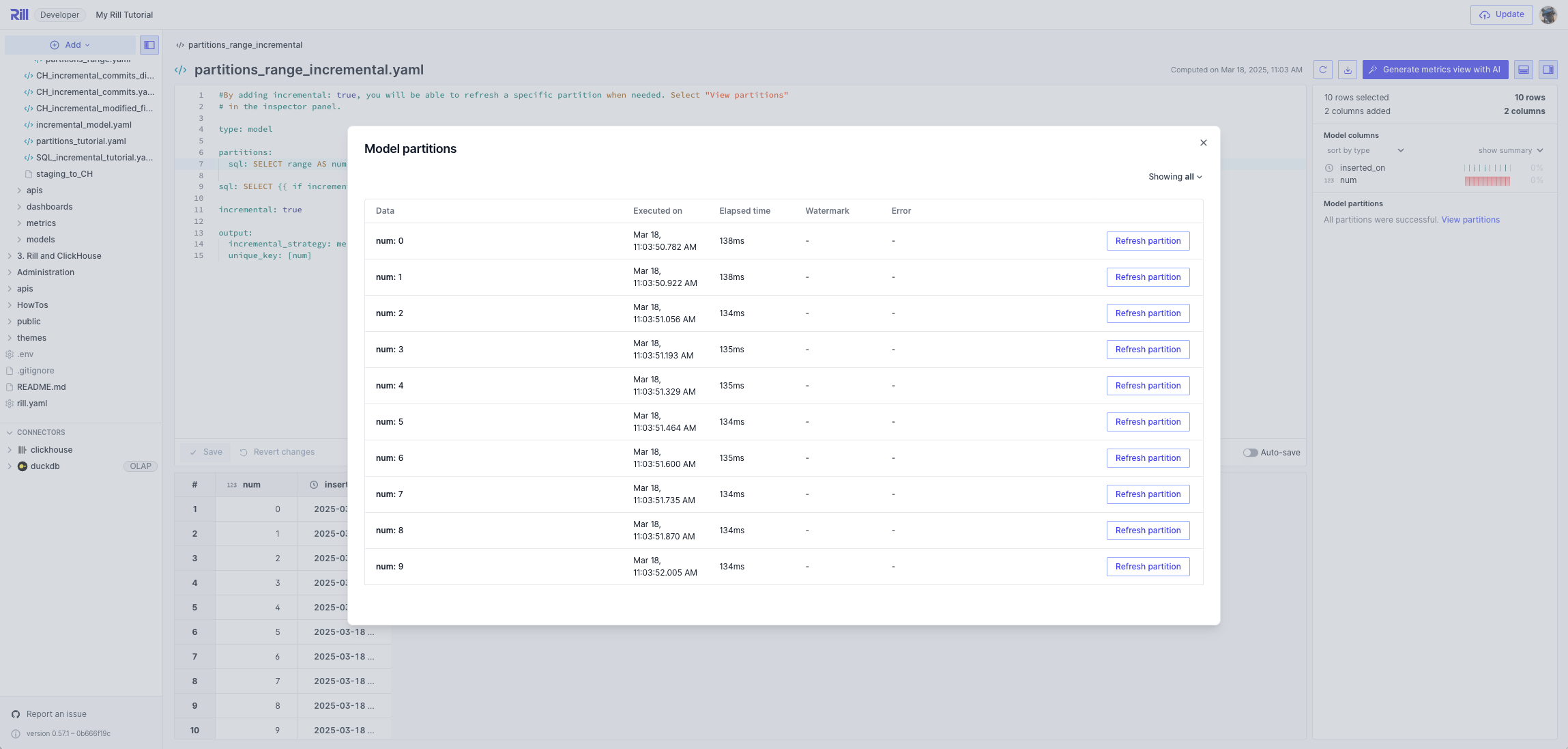
Likewise, if you refresh using the **CLI**:
```bash
rill project refresh --model CH_incremental_commits_directory --local --partition ba9f71625de8e042cabf3333576d502c
Refresh initiated. Check the project logs for status updates.
```
## How Incremental Partitioned Models Work
### Initial Ingestion:
When a model is first created, an initial ingestion will occur to bring in all the data, also known as a `Full Refresh`. All refreshes after this will be considered an `incremental refresh`. Note in the below image, the source table writes each section of data to a specific partition as mapped in the YAML file.
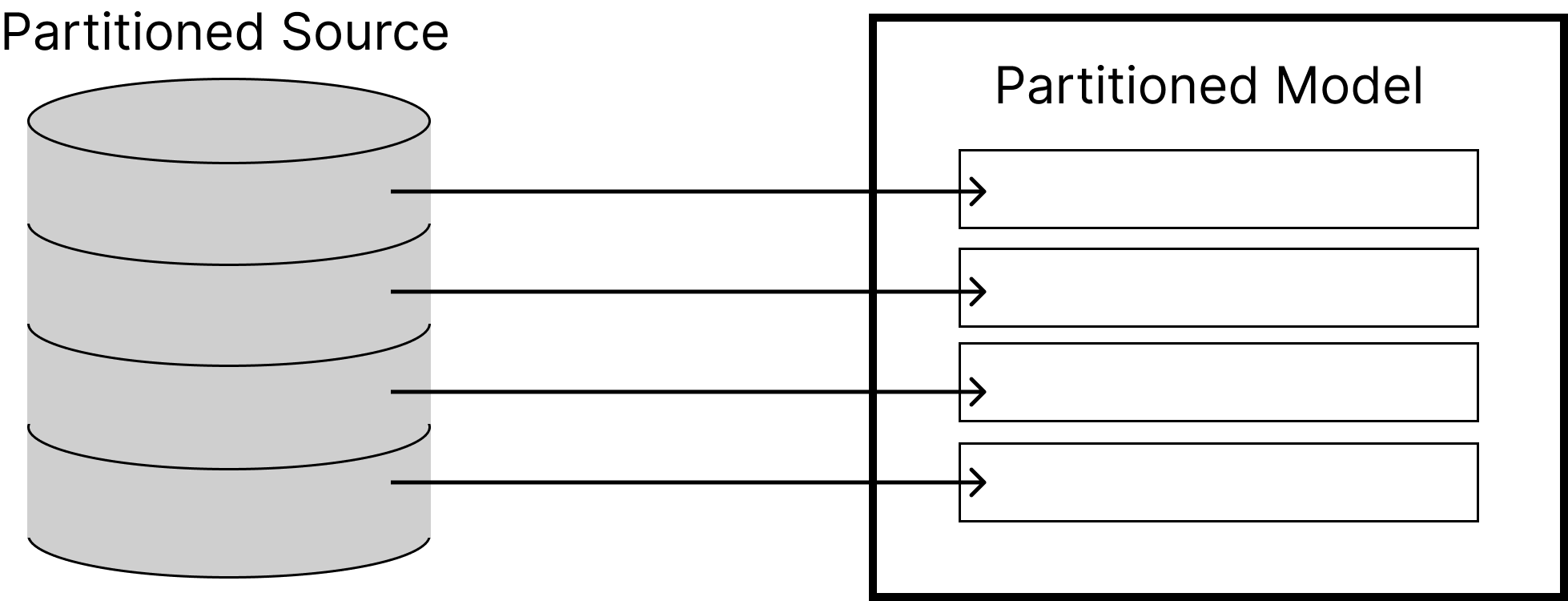
### Additional Partition:
If you add an additional partition to the source table, on the next manual or automatic refresh, Rill will detect the new partition and **only** add the additional partition to the model, as you can see in the diagram, the **blue** additional partition is added in its own partition in the partitioned model. If the other partitions have not been modified, these will not be touched.
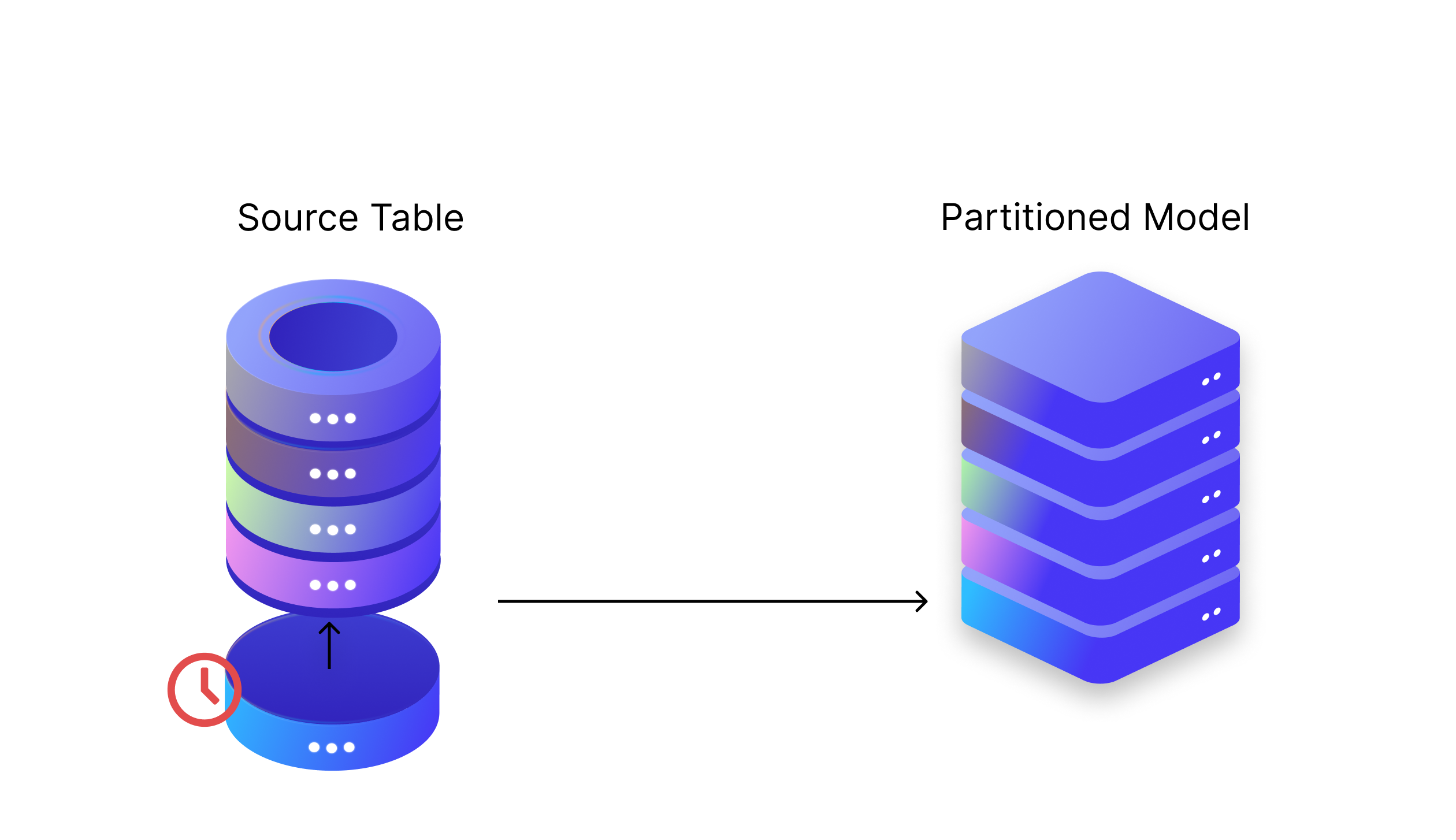
### Modify Existing Partition:
If you modify any of the already existing partitions, **yellow**, Rill will re-ingest just the modified file during the scheduled refresh by checking the `last_modified_date` parameter.
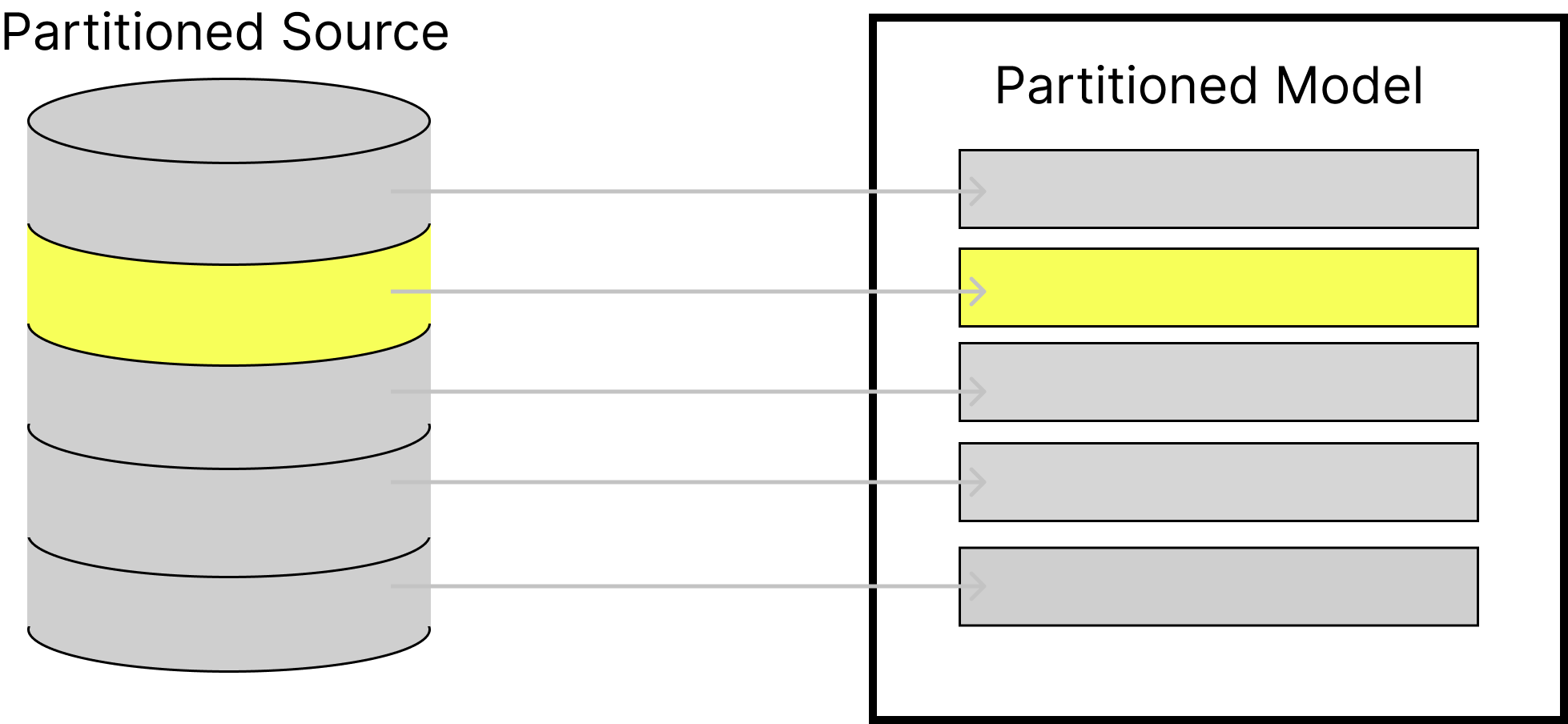
---
# When to use SQL vs YAML
URL: https://docs.rilldata.com/developers/build/models/model-differences
In Rill, there are two types of data models:
- [SQL models](/developers/build/models/model-differences#sql-models)
- [YAML models](/developers/build/models/model-differences#yaml-models)
For most use cases, SQL models, _the default_, are sufficient to transform your data to prepare for visualization. SQL models are built using SQL `SELECT` statements applied to your source data. Under the hood, SQL models are created as views in DuckDB and can be [materialized](/developers/build/models/performance#materialization) as tables when needed.
For more complex modeling and [data ingestion](/developers/build/models/source-models), YAML models are used. By using a YAML approach, we are able to fine-tune the model's settings to enable partitions, incremental modeling, refreshes, and more.
:::tip Avoid Pre-aggregated Metrics
Rill works best for slicing and dicing data, meaning keeping data closer to raw to retain that granularity for flexible analysis. When loading data, be careful with adding pre-aggregated metrics like averages, as that could lead to unintended results like a sum of an average. Instead, load the two raw metrics and calculate the derived metric in your model or dashboard.
:::
## SQL Models
### When to use SQL Models?
For most users working with DuckDB-backed Rill projects, SQL models provide everything needed to transform and prepare data for visualizations. These models are the default option when using the UI and offer full functionality for data transformation.
### Creating a SQL Model
When using the UI to create a new model, you'll see something similar to the screenshot below. You can also create a model directly from the connector UI in the bottom left by selecting the "...". This will create a `select * from underlying_table` as a SQL model file.
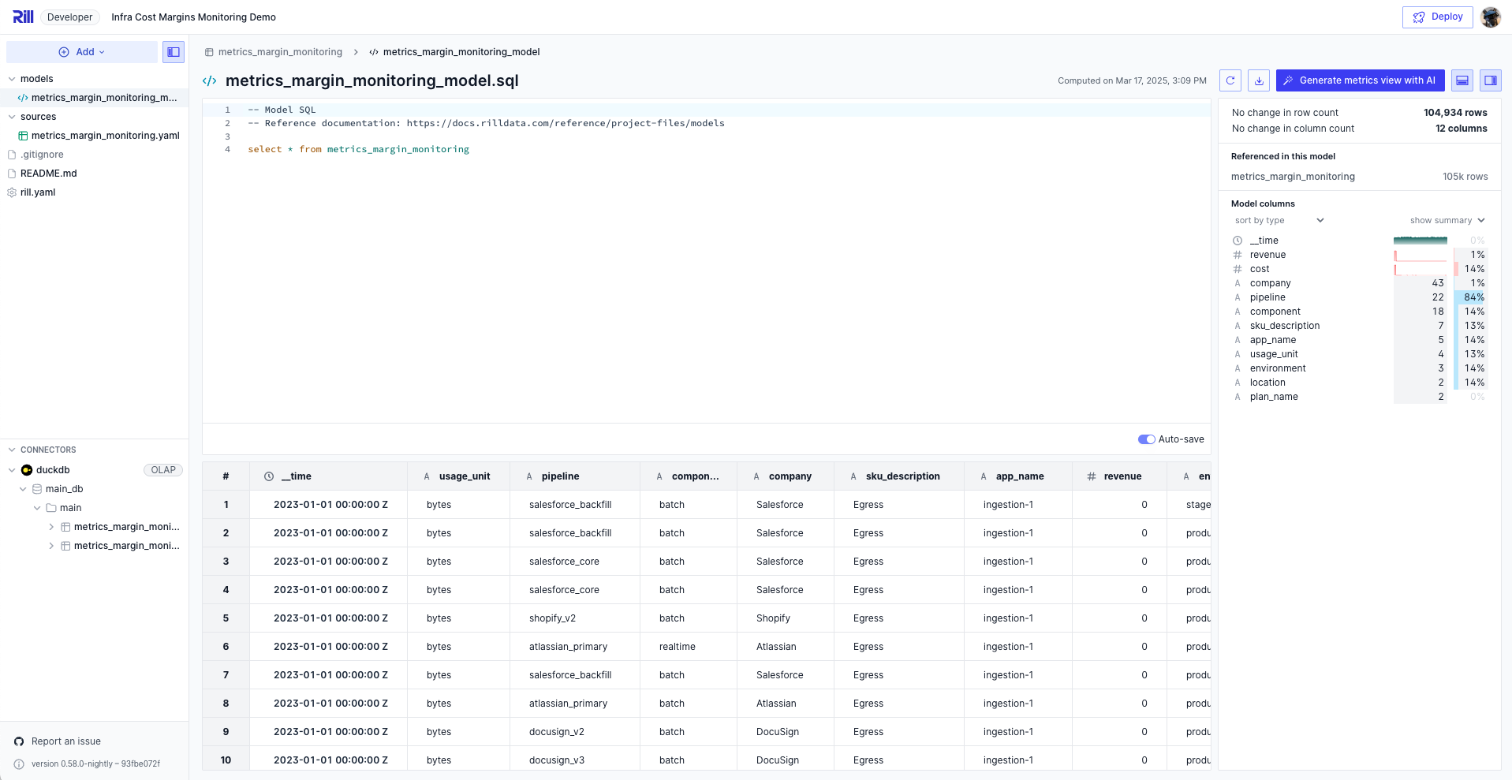
## YAML Models
Unlike SQL models, YAML file models allow you to fine-tune a model to perform additional capabilities such as pre-exec, post-exec SQL, partitioning, and incremental modeling. This is an important addition to modeling, as it allows users to customize the model's build process. In the case of partitions and incremental modeling, this will reduce the amount of data ingested into Rill at each interval and provide insight into specific issues per partition. Another use case is when using [multiple OLAP engines](/developers/build/connectors/olap/multiple-olap), which allows you to define where a SQL query is run.
### When to use YAML Models
For the majority of users on a DuckDB-backed Rill project, YAML models are not required. When a project grows larger and refreshing entire datasets becomes a time-consuming and costly task, we introduce incremental ingestion to help alleviate the problem. Along with incremental modeling, we use partitions to divide a dataset into smaller, more manageable partitions. After enabling partitions, you will be able to refresh individual partitions of data when required.
Another use case is when using multiple OLAP engines. This allows you to specify where your SQL query is running. When both DuckDB and ClickHouse are enabled in a single environment, you will need to define `connector: duckdb/clickhouse` in the YAML to tell Rill where to run the SQL query, as well as define the `output` location. For more information, refer to the [YAML reference](/reference/project-files/models).
### Types of YAML Models
1. [Source Models](/developers/build/models/source-models)
2. [Incremental Models](/developers/build/models/incremental-models)
3. [Partitioned Models](/developers/build/models/partitioned-models)
4. [Incremental + Partitioned Models](/developers/build/models/incremental-partitioned-models)
5. [Staging Models](/developers/build/models/staging-models)
### Creating a YAML Model
You can get started with an advanced model using the following code block:
```yaml
# Model YAML
# Reference documentation: https://docs.rilldata.com/reference/project-files/models
type: model
connector: duckdb
sql: select * from
output:
connector: duckdb
table: output_name
```
Please refer to [our reference documentation](/reference/project-files/models) linked above for the available parameters to set in your model.
---
# Introduction to Models
URL: https://docs.rilldata.com/developers/build/models/models-101
Models in Rill enable data transformation, preparation, and enrichment through SQL queries and YAML configurations. They serve as the foundation for creating clean, structured datasets that power your metrics views and dashboards.
Data models are built using SQL SELECT statements applied to your source data. They allow you to join, transform, and clean data.
### SQL Transformations
By default, data transformations in Rill Developer are powered by DuckDB and its dialect of SQL (DuckDB SQL). Please visit the [DuckDB SQL documentation](https://duckdb.org/docs/sql/introduction) to learn how to write your queries.
You can change the default [OLAP engine](/developers/build/connectors/olap) for [the entire project](/reference/project-files/rill-yaml#configuring-the-default-olap-engine) or [a specific metrics view](/reference/project-files/metrics-views). You will need to define the connector credentials within your Rill project or via environment variables.
:::tip Supported OLAP engines for modeling
We support modeling on [ClickHouse\*](/developers/build/connectors/olap/clickhouse), [DuckDB](/developers/build/connectors/olap/duckdb), and [MotherDuck\*](/developers/build/connectors/olap/motherduck). For more information, see each OLAP engine page for further details.
\* indicates some caveats with modeling, and we encourage you to read the documentation before getting started.
:::
For additional tips on advanced expressions (either in models or measure definitions), visit our [advanced expressions page](/developers/build/metrics-view).
### Intermediate Processing
Models can also be cross-referenced with each other to produce the final output for your dashboard. This approach enables more complex, intermediate data transformations to achieve your final data source. Common modeling patterns include:
- Lookups for id/name joins
- Unnesting and merging complex data types
- Combining multiple sources with data cleansing or transformation requirements
## Data Preview and Validation
### Table Preview
Rill automatically generates a preview of your data (first 150 rows) to help verify that the output table structure is correct and identify any potential issues that need to be addressed in the SQL configuration, such as data type detection problems.
### Schema Details
The right panel displays comprehensive information about your dataset and column contents:
- **Dataset Overview**: Total row and column counts
- **Data Quality Metrics**: Number of dropped rows and columns
- **Column Analysis**:
- Column names and data types
- Distinct value counts for string columns
- Basic numeric statistics (minimum, maximum, median, etc.)
This information helps you validate your model configuration and ensure data quality before proceeding with the full data ingestion.
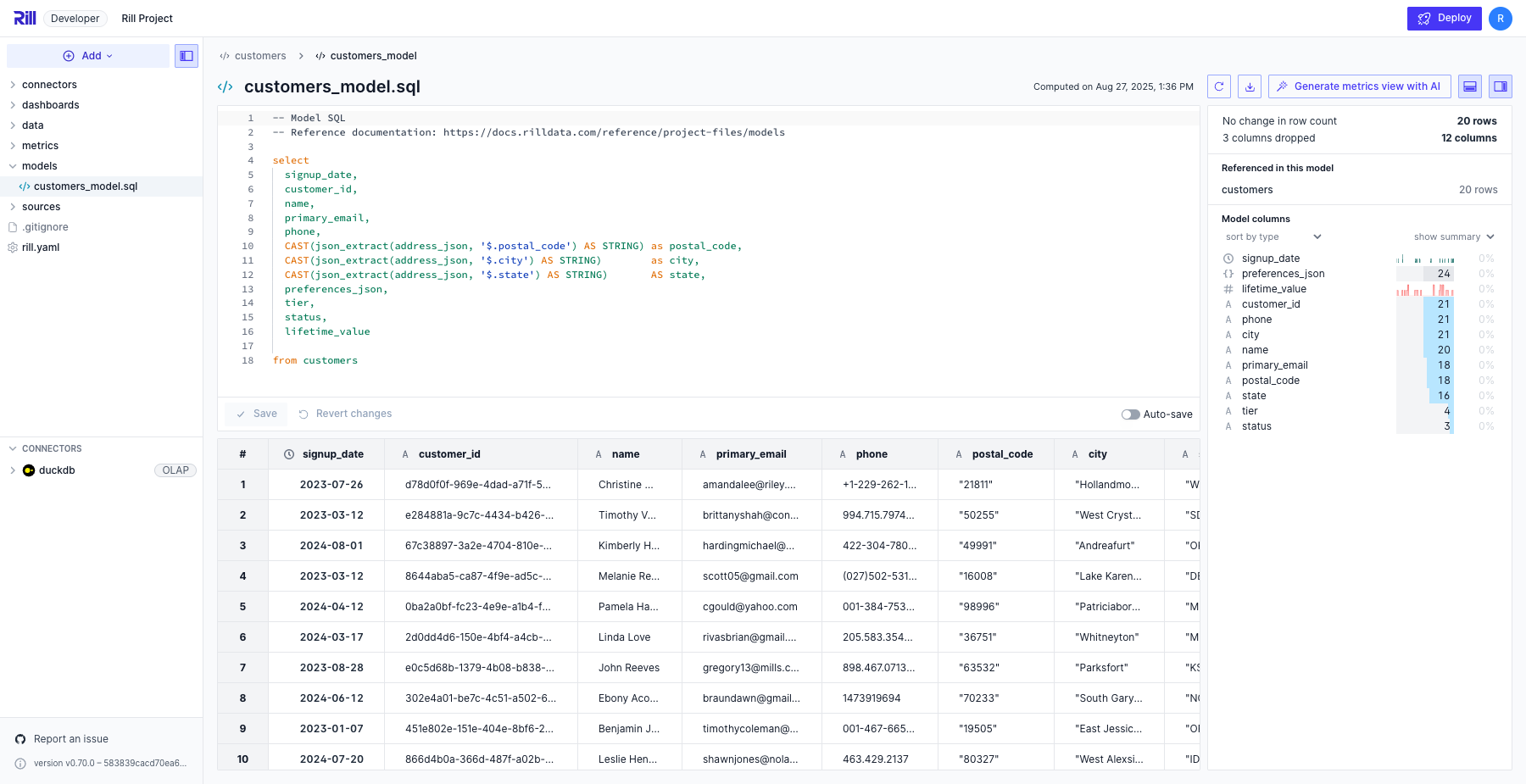
## One Big Table and Dashboarding
The power of this approach lies in translating many ad hoc questions into a data framework that can answer a class of questions at scale. For example, high-level company insights (how much revenue did we make last week?) become more actionable for employees when contextualized to their role (how did my campaign increase revenue last week?).
To experience the full potential of Rill, model your data sources into "One Big Table" – a granular resource that contains as much information as possible and can be rolled up in a meaningful way. This flexible OBT can be combined with a generalizable [metrics definition](/developers/build/metrics-view) to enable ad hoc slice-and-dice discovery through Rill's interactive dashboard.
:::tip Materializing metrics-powered models
We recommend materializing the model that powers your [metrics view](/developers/build/metrics-view). You can materialize a SQL model by adding this to the top of the file. This will greatly improve the performance of your dashboards.
```sql
-- @materialize: true
```
:::
---
# Partitioned Models
URL: https://docs.rilldata.com/developers/build/models/partitioned-models
## What are Partitions?
In Rill, partitions are a special type of state that allows you to explicitly partition the model into parts. Depending on whether your data is in cloud storage or a data warehouse, you can use the `glob` or `sql` parameters. This is useful when a specific partition is failing to ingest; you can specify to reload only that specific partition.
### Defining a Partition in a Model
Under the `partitions:` parameter, you will define the pattern in which your data is stored. Both SQL and glob patterns support [templating](/developers/build/connectors/templating) and can be used to separate `dev` and `prod` instances.
### SQL
When defining your SQL partitions, it is important to understand the data that you are querying and creating a partition that makes sense. For example, you might select a distinct customer_name per partition, or partition the SQL by a chronological partition, such as month.
#### Using DuckDB for Partition Queries
By default, partition queries use DuckDB (Rill's embedded OLAP engine):
```yaml
partitions:
sql: SELECT range AS num FROM range(0,100) #num is the partition variable and can be referenced as {{partition.num}}
#sql: SELECT DISTINCT customer_name as cust_name from table #results in {{partition.cust_name}}
dev:
partitions:
sql: SELECT range AS num FROM range(0,10)
sql: SELECT * from table where column = {{partition.num}}
```
#### Using Other Connectors for Partition Queries
You can query partitions directly from data sources like **Athena**, **BigQuery**, **MySQL**, **Postgres**, **Redshift**, or **Snowflake** by specifying a `connector` in the `partitions` section. This is particularly useful when:
- You want to leverage native partitioning features (like BigQuery's `_PARTITIONTIME`)
- You need to query large tables that benefit from the warehouse's optimization
**Data Warehouses**
Athena:
```yaml
type: model
partitions:
connector: athena
sql: |
SELECT DISTINCT year, month
FROM s3_data_partitioned
WHERE year >= 2024
connector: athena
sql: |
SELECT * FROM s3_data_partitioned
WHERE year = {{ .partition.year }}
AND month = {{ .partition.month }}
output:
connector: duckdb
```
BigQuery:
```yaml
type: model
partitions:
connector: bigquery
sql: |
SELECT DISTINCT _PARTITIONTIME AS partition_time
FROM `project.dataset.table`
WHERE TIMESTAMP_TRUNC(_PARTITIONTIME, MONTH) = TIMESTAMP("2025-08-01")
connector: bigquery
sql: |
SELECT * FROM `project.dataset.table`
WHERE _PARTITIONTIME = '{{ .partition.partition_time }}'
output:
connector: duckdb
```
Redshift:
```yaml
type: model
partitions:
connector: redshift
sql: |
SELECT DISTINCT DATE_TRUNC('month', transaction_date) AS month
FROM transactions
WHERE transaction_date >= '2024-01-01'
connector: redshift
sql: |
SELECT * FROM transactions
WHERE DATE_TRUNC('month', transaction_date) = '{{ .partition.month }}'
output:
connector: duckdb
```
Snowflake:
```yaml
type: model
connector: snowflake
partitions:
connector: snowflake
sql: |
select
DISTINCT date_trunc('YEAR', release_date) as "year"
from
rillqa.public.horror_movies
where "year" > '1999-01-01' limit 3
sql: select * from rillqa.public.horror_movies where date_trunc('YEAR', release_date) = '{{ .partition.year }}'
output:
connector: duckdb
```
**OLTP Databases**
MySQL:
```yaml
type: model
partitions:
connector: mysql
sql: |
SELECT DISTINCT DATE(order_date) AS order_day
FROM orders
WHERE order_date >= '2025-01-01'
connector: mysql
sql: |
SELECT * FROM orders
WHERE DATE(order_date) = '{{ .partition.order_day }}'
output:
connector: duckdb
```
Postgres:
```yaml
type: model
partitions:
connector: postgres
sql: |
SELECT DISTINCT DATE_TRUNC('day', created_at) AS partition_day
FROM events
WHERE created_at >= '2025-01-01'
connector: postgres
sql: |
SELECT * FROM events
WHERE DATE_TRUNC('day', created_at) = '{{ .partition.partition_day }}'
output:
connector: duckdb
```
:::tip Why use multiple connectors?
Using Athena, BigQuery, MySQL, Postgres, Redshift, or Snowflake for partition discovery and data extraction, then outputting to DuckDB, gives you:
- **Best of both worlds**: Leverage your warehouse's partitioning and scale for extraction
- **Fast dashboards**: DuckDB provides extremely fast query performance for end-user dashboards
- **Cost optimization**: Only query what you need from your warehouse, reducing scan costs
:::
:::tip Using the SQL partition in the YAML
Depending on the column name of the partition, you can reference the partition using `{{ .partition. }}` in the model's SQL query.
```yaml
partitions:
sql: SELECT range AS num FROM range(0,10)
sql: SELECT {{ .partition.num }} AS num, now() AS inserted_on {{if dev}} limit 1000 {{end}}
```
:::
### glob
When defining the glob pattern, you will need to consider whether you'd partition the data by folder or file.
In the first example, we are partitioning by each file with the suffix data.csv.
```yaml
partitions:
glob: gs://my-bucket/y=2025/m=03/d=15/*data.csv
#glob: gs://my-bucket/{{if dev}}y=2025/m=03/d=15{{else}}**{{end}}/*data.csv
```
Or, you can define each glob separately.
```yaml
partitions:
glob:
path: 'gs://my-bucket/**/*.parquet'
dev:
partitions:
glob:
path: 'gs://my-bucket/y=2025/m=03/d=15/*.parquet'
```
If you'd prefer to partition it by folder, you can add the partition parameter and define it as `directory`.
```yaml
glob:
path: gs://rendo-test/**/*data.csv
partition: directory
```
If your folders use Hive-style names (`key=value`), set `partition: hive` to also extract each value as a partition column, available as `{{ .partition. }}`.
```yaml
partitions:
glob:
path: gs://my-bucket/y=*/m=*/d=*/*.csv
partition: hive
sql: SELECT *, '{{ .partition.y }}-{{ .partition.m }}-{{ .partition.d }}' AS day FROM read_csv('{{ .partition.uri }}/*.csv')
```
:::note `partition: hive` and `partition: directory`
These modes group the matched files by folder, so their glob must match files (e.g. `gs://my-bucket/y=*/m=*/d=*/*.csv`). A glob that matches only folders returns an error.
Use `**` only as a whole path segment (`/**/` or a trailing `/**`). Inside a segment, as in `d=**`, it does not match across folders and may return no partitions; use `d=*` instead.
:::
:::tip Using the glob partition in the YAML
The glob partition has a predefined `{{ .partition.uri }}` reference to use in the model's SQL query.
```yaml
partitions:
glob:
connector: gcs
path: gs://path/to/file/**/*.parquet
sql: SELECT * FROM read_parquet('{{ .partition.uri }}')
```
:::
### Windowed Glob Partitions
Use `start` and `end` to filter which partitions are processed based on their path — useful for backfills, time-bounded ingestion, or limiting how much data is reprocessed.
- **`start`** — lower bound (inclusive): only partitions with paths ≥ this value are included.
- **`end`** — upper bound (exclusive): only partitions with paths < this value are included.
- **`last`** — limit to the last N partitions (by lexicographic path order). This hard limit always applies, including on the first run when no partitions have been ingested yet. Once partitions have been ingested, it also raises the lower bound to the Nth-from-last successfully ingested partition, forming a rolling window that re-lists recent partitions.
```yaml
# Fixed window: only process a specific month
partitions:
glob:
path: s3://bucket/year=*/month=*/day=*/*.parquet
partition: directory
start: s3://bucket/year=2026/month=03
end: s3://bucket/year=2026/month=04
sql: SELECT * FROM read_parquet('{{ .partition.uri }}/*.parquet')
```
```yaml
# Rolling window: reprocess last 30 days
partitions:
glob:
path: s3://bucket/year=*/month=*/day=*/*.parquet
partition: directory
last: 30
sql: SELECT * FROM read_parquet('{{ .partition.uri }}/*.parquet')
```
:::note
`last` is not compatible with `transform_sql`.
:::
### Viewing Partitions in Rill Developer
Once `partitions:` is defined in your model, a new button will appear in the right-hand panel: `View Partitions`. When selecting this, a new UI will appear with all of your partitions and more information on each. Note that these can be sorted by all, pending, and errors.
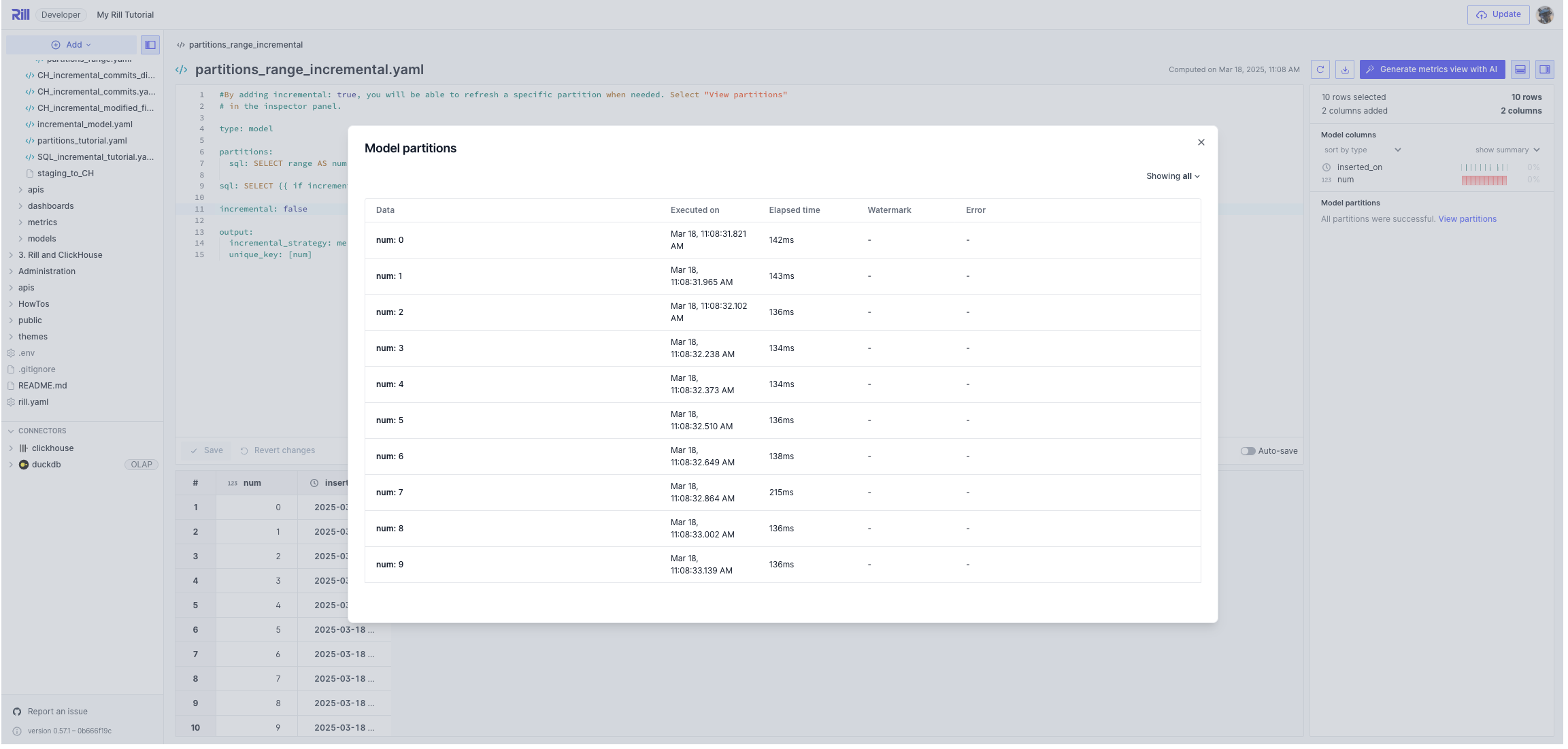
You can sort the view by `all partitions`, `pending partitions`, and `error partitions`.
- **all partitions**: shows all the available partitions in the model.
- **pending partitions**: shows the partitions that are waiting to be processed.
- **error partitions**: displays any partitions that errored during ingestion.
### Viewing Partitions in the CLI
Likewise to the UI, you can view the partitions of a model within the CLI.
```
rill project partitions
List partitions for a model
Usage:
rill project partitions [] [flags]
Flags:
--project string Project Name
--path string Project directory (default ".")
--model string Model Name
--pending Only fetch pending partitions
--errored Only fetch errored partitions
--local Target locally running Rill
--page-size uint32 Number of partitions to return per page (default 50)
--page-token string Pagination token
```
If running locally, you will need to add the `--local` flag to the command.
```bash
rill project partitions model_name [--local]
KEY (10) DATA EXECUTED ON ELAPSED ERROR
---------------------------------- ----------- ---------------------- --------- -------
ff7416f774dfb086006d0b4696c214e1 {"num":0} 2024-11-12T22:48:49Z 95ms
...
```
### Refreshing Partitions via the CLI
:::note Incremental not enabled
If you try to refresh a partition using the following command on a partitioned but not incremental model, you will experience the following error:
```
rill project refresh --model [--local] --partition ff7416f774dfb086006d0b4696c214e1
Error: can't refresh partitions on model "model_name" because it is not incremental
```
:::
You will need to enable [incremental modeling](/developers/build/models/incremental-partitioned-models) in order to individually refresh a partition.
---
# Optimize Your Models
URL: https://docs.rilldata.com/developers/build/models/performance
Model performance is critical for maintaining responsive dashboards and ensuring users have access to the most current data. This guide covers strategies for optimizing your Rill models to deliver fast query results while keeping data fresh and up-to-date.
By following these best practices, you can create models that provide both speed and accuracy, delivering insights when your users need them most.
## Local Development / Rill Developer
As discussed in the [templating section](/developers/build/models/templating), there are a few key recommendations to increase model performance in Rill Developer:
1. [Limiting the source data](/developers/build/models/templating#applying-a-one-week-sample-to-the-source-bucket-for-local-development) to a smaller time range (e.g., one week's worth of data instead of the full year)
2. Creating smaller models for development by [applying a raw limit](/developers/build/models/templating#example-conditional-sql-limiting-dev-rows), which will then serve as the starting point for your actual downstream models/modeling
3. [Applying a filter](/developers/build/models/templating#example-leveraging-variables-to-apply-a-filter-and-row-limit-dynamically-to-a-model) to the data to work with only a subset of data
## Model Performance
### Consider which models to materialize
By default, models will be materialized as views (in DuckDB). This allows for a dynamic and highly interactive experience when modeling, such as keystroke-by-keystroke profiling. However, since views are logical in nature, as the complexity and size of your data models continue to grow (especially if the underlying data is very large), this can start to significantly impact performance as these complex queries will need to be continuously re-executed along with a number of profiling queries that the Rill runtime will send in the backend.
In such scenarios, we recommend materializing these models as tables. However, there are some tradeoffs to consider:
- **Pros:** Materializing a model will generally ensure significantly improved performance for downstream dependent models and dashboards.
- **Cons:** Enabling materialization for a model can severely impact or break the "keystroke-by-keystroke" experience and these models may also take longer to update (because the results are being written to a table vs. remaining a view). It can also lead to _degraded_ performance for very specific operations, such as when you need to perform cross joins.
:::tip Materialize models powering dashboards
We strongly recommend materializing final models that are being used directly in dashboards to ensure this data is served more quickly.
:::
### Materialization
Model materialization is something to consider when creating intermediate models. Other than [source models](/developers/build/models/source-models), intermediate models are not, by default, materialized and are views in your underlying database engine. There are some pros and cons to enabling it during the development process.
```sql
-- model.sql
-- @materialize: true
```
```yaml
# model.yaml
materialize: true
```
The pros include improved performance for downstream models and dashboards, especially with complex logic and/or large data sizes. Some cons are certain edge cases like cross joins might have a degraded keystroke-by-keystroke experience, and materialized models are billable.
If you are seeing degraded performance, the first recommendation you'll hear from us is to materialize the metrics-powered model.
### Default Model Materialization
If you want, you can change the default behavior of all models in Rill by setting the default model behavior in the rill.yaml file.
```yaml
models:
materialize: true
```
To override this on a per-model basis, simply set the specific model.sql to false.
```sql
-- @materialize: false
```
:::info To materialize or not to materialize?
There are both pros and cons to materializing your models.
- Pros can include improved performance for downstream models and dashboards, especially when the SQL is complex and/or the data size is large. We generally recommend _materializing_ final models that power dashboards.
- Cons can include a degraded keystroke-by-keystroke modeling experience or for specific edge cases, such as when using cross joins.
If unsure, we would generally recommend leaving the defaults and/or [reaching out](/contact) for further guidance!
:::
## Query Optimization
Query optimization is crucial for maintaining high performance and efficiency, especially when working with data-intensive applications. As Rill dashboards are powered by [OLAP engines](/developers/build/connectors/olap), designed for analytical queries, ensuring that our queries are well-optimized can help maximize the responsiveness and speed of our dashboards. There are also additional potential second-order benefits to optimizing queries in Rill, such as improving ingestion times, how long it takes to build models, how resource-intensive it is to build models, how fast profiling queries run, and more.
### Use appropriate data types and avoid casting when possible
Casting can be expensive, especially when the underlying models are views and not [materialized](#consider-which-models-to-materialize) as a table. For example, if a timestamp column is actually incorrectly typed as a string, then for timeseries charts, Rill ends up having to iterate across each row to try to infer the timestamp and a lot of time parsing has to occur. Similarly, for incorrectly typed or cast columns that are used in calculations, the calculations will have to be constantly looped through, which can be both inefficient and expensive over time (and simply make everything slower).
Similarly, choosing the right data type for each column is also important. Smaller data types, when applicable, consume less memory and can improve query performance. For example, use `INT` instead of `BIGINT` if your data range permits.
### Select the columns you need and avoid `SELECT *` when possible
Because most [OLAP databases](/developers/build/connectors/olap) store data in a columnar format, including [DuckDB](/developers/build/connectors/olap/duckdb), selecting only the columns that you need during the modeling phase ensures that DuckDB will only ingest and store the data _it actually needs_ (speeding up model build times and reducing footprint). Furthermore, columnar formats are optimized for analytical queries, so by selecting only the columns that you need (instead of a blanket `SELECT *`), this will help to minimize data processing times and improve the query execution speed.
### Consider sorting your data by an appropriate timestamp column
Generally speaking, if possible, it is recommended to make sure that your upstream data is relatively well organized and/or sorted by timestamp before being ingested into Rill. This helps to ensure that timeseries queries are efficient when they execute against resulting models and can result in an order of magnitude difference in query performance. This can also help improve the effectiveness of filters by reducing I/O.
:::info When to sort vs. not to sort?
Sorting, especially in DuckDB, _can also be computationally intensive_ and most input data is generally sorted enough (by time). If the data ingested is completely unsorted or sorted by a different, non-timestamp column, it could be worth the computational overhead to sort by a timestamp column (especially if used in a dashboard). If you're unsure, please feel free to [reach out](/contact) and we'd be happy to help you assess the best path forward!
:::
### Use joins efficiently
Plan your joins carefully, especially when working with large datasets. Most [OLAP engines](/developers/build/connectors/olap), DuckDB included, will optimize join operations, but ensuring the join keys are well-chosen and considering the size of the datasets being joined can reduce processing time. For example, if you're looking to perform a cross or cartesian join across a very wide table, be sure it's necessary as it can otherwise explode the size of your result set.
### Apply filters early and use WHERE clauses wisely
When possible, it can be good practice to apply filtering early in your queries with `WHERE` clauses to reduce the amount of data being processed in subsequent steps (or downstream models/queries). This can both help to reduce the amount of data being scanned and, given the columnar nature of most [OLAP engines](/developers/build/connectors/olap), significantly speed up queries.
### Optimize your subqueries to leverage joins or CTEs when possible
Subqueries can very often prove to be inefficient and result in suboptimal query execution plans. When possible, it is generally better practice to rewrite subqueries as joins or use Common Table Expressions (CTEs) to make them more readable and potentially more efficient.
### Rather than UNION, consider using UNION ALL when possible
Depending on the [OLAP engine](/developers/build/connectors/olap), `UNION` can be a very expensive operation and much more computationally intensive than `UNION ALL`. For example, when using [DuckDB](/developers/build/connectors/olap/duckdb), a `UNION` will require performing full duplicate eliminations _across all columns_ while a `UNION ALL` will simply concatenate the tables together. If a concatenation is sufficient (for the query), this will be both much quicker and significantly less resource intensive for the query to complete.
## Time Series Transformation
If your time series column is quite granular, this may affect your dashboards as the grain will define how granular the dashboards can be viewed. Instead of handling this in the metrics view by adding a `smallest_time_grain` key, you can use the modeling layer to roll up your data.
:::note Query-time vs Model processing
There are benefits to pre-processing the data in the model layer, but for some quick processing, this can be done in the metrics view.
**Query-time processing** (in metrics views):
- Flexible and dynamic
- No storage overhead
- Slightly slower for complex calculations
**Model-level processing** (in SQL models):
- Pre-computed and optimized
- Faster query performance
- Requires model refresh for updates
:::
### DuckDB Time Functions
DuckDB provides a comprehensive toolkit for temporal data manipulation:
- **`DATE_TRUNC`**: Normalize timestamps to consistent intervals (day, week, month, quarter, year)
- **`EXTRACT`**: Extract specific time components (year, quarter, month, day of week, hour)
- **`LAG/LEAD`**: Reference prior or future rows for period-over-period comparisons
- **`DATE_ADD/DATE_SUB`**: Perform date arithmetic for dynamic time ranges
- **`STRFTME`**: Extract strings from a time column.
For comprehensive documentation on all available time functions, see the [DuckDB time functions documentation](https://duckdb.org/docs/stable/sql/functions/timestamp.html).
:::tip not using DuckDB?
Each engine has slightly different functions and syntax for rolling up your data, see your OLAP engine's documentation for more examples.
:::
### Time Aggregation (Roll-ups)
Roll-ups aggregate granular events into coarser intervals. For example, if your data arrives hourly but daily analysis suffices:
```sql
SELECT DATE_TRUNC('day', timestamp_column) AS time_series_column,
...
FROM your_model
```
---
# Source Models
URL: https://docs.rilldata.com/developers/build/models/source-models
After [creating a connector to your data source](/developers/build/connectors/data-source), you'll need to create a model to bring that data into Rill. This can be implemented as either a SQL model with [defined connector parameters](/developers/build/models/sql-models#specifying-the-data-source-connector) or as a YAML configuration file. This guide focuses on YAML-based source models, which are auto-generated when using the UI.
```yaml
# Model YAML
# Reference documentation: https://docs.rilldata.com/reference/project-files/models
type: model
materialize: true
connector: snowflake
sql: |
select * from database_name.schema_name.table_name
```
### YAML Structure
The YAML configuration file contains several key parameters:
- **`type: model`**: Explicitly defines the file type. While Rill automatically detects the file type based on the parent folder, this parameter provides explicit definition.
- **`connector`**: Defines the connector type used to create the model (e.g., `bigquery`, `athena`, `snowflake`, etc.).
- **`sql`**: The actual SQL query to be executed. When nested under `dev:`, the query runs in the Rill Developer environment.
- **`dev`**: Configuration for development mode. Rill Developer runs in dev mode by default, but when deployed to Rill Cloud, the root-level SQL configuration executes. See [Environment Templating](/developers/build/models/templating) for more information.
## Retry Configuration
By default, a model will retry if the initial load fails. This helps ensure reliable data processing by automatically retrying failed operations. The default retry settings are:
The default `if_error_matches` values are exactly:
`".*OvercommitTracker.*"`, `".*Bad Gateway.*"`, `".*Timeout.*"`, and `".*Connection refused.*"`.
If you set `retry.if_error_matches`, it overrides these defaults rather than appending to them.
```yaml
retry:
attempts: 3
delay: 5s
exponential_backoff: true
if_error_matches:
- ".*NetException.*" # overrides defaults
```
You can customize the retry behavior to better suit your specific needs. For example, you might want to increase the number of attempts for critical models, adjust the delay between retries, or only retry on specific error types. Use the following configuration in your source YAML:
```yaml
retry:
attempts: 5
delay: 10s
exponential_backoff: true
if_error_matches:
- ".*OvercommitTracker.*"
- ".*Bad Gateway.*"
- ".*Timeout.*"
- ".*Connection refused.*"
- ".*NetException.*"
```
## Examples
### BigQuery Model
```yaml
# Model YAML
# Reference documentation: https://docs.rilldata.com/reference/project-files/models
type: model
materialize: true
connector: bigquery
dev:
sql: select * from project_id.dataset_name.table_name limit 10000
sql: select * from project_id.dataset_name.table_name
```
### Snowflake Model
```yaml
# Model YAML
# Reference documentation: https://docs.rilldata.com/reference/project-files/models
type: model
materialize: true
connector: "snowflake"
dev:
sql: select * from database_name.schema_name.table_name limit 10000
sql: select * from database_name.schema_name.table_name
```
### S3 Model
```yaml
# Model YAML
# Reference documentation: https://docs.rilldata.com/reference/project-files/models
type: model
materialize: true
connector: "duckdb"
dev:
sql: |
select * from read_csv('s3://my-bucket/path/to/file.csv', auto_detect=true, ignore_errors=1, header=true) limit 10000
sql: |
select * from read_csv('s3://my-bucket/path/to/file.csv', auto_detect=true, ignore_errors=1, header=true)
```
For more information, see our [model reference documentation](/reference/project-files/models)!
## Next Steps
Rill provides automatic refresh capabilities for your source models at specified intervals to maintain data currency. This functionality enables you to establish scheduled data ingestion without manual intervention, ensuring your analytics dashboards remain current with the latest information from your data sources. For additional details, see [Scheduled Refreshes](/developers/build/models/data-refresh).
After validating your source model configuration and confirming the data preview appears correct, you can move forward to create your first metrics view. If no additional data transformations are needed, you can choose [Generate Metrics View with AI](/developers/build/metrics-view) from the top-right corner of the interface to initiate Rill's AI-powered dashboard generation.
---
# SQL Models
URL: https://docs.rilldata.com/developers/build/models/sql-models
## Adding a data model
Add a new data model by either clicking 'model' in the 'Add' menu or selecting the '...' in any connector view or existing model. When you add a model, a code definition will automatically be created as a `.sql` file in the `models` folder of your Rill project.
You can also create a model outside of the application and add it to Rill by placing a `.sql` file in the `models` directory containing a DuckDB SQL `SELECT` statement. Rill will automatically detect and parse the model the next time you run `rill start`.
## Annotating your models with properties
In most cases, objects are represented in Rill as YAML files. Models are unique in that any `.sql` file can be considered a model resource in Rill, representing a SQL transformation that you would like to perform using a set of inputs and outputting a view or table (depending on the materialization type). For most other resources, available properties can be set directly via the corresponding YAML file. In the case of a model SQL file though, configurable properties should be set by annotating the top of the file using the following syntax:
```sql
-- @property: value
select * from users
```
We will cover different available configurable properties in the sections below.
### Marking your model SQL file as a model resource type
By default, any new model that is created in a Rill project will populate a corresponding `.sql` file representing the model. Similarly, a `.sql` file that is directly created in the project directory will also be _automatically assumed_ by Rill to be a model by default. Therefore, it is not necessary to annotate the model resource with the `type` property.
For consistency or documentation purposes, if you'd like to annotate your model resource as well with the `type` property, you can do so by adding the following to the top of your `.sql`:
```sql
-- @type: model
select * from orders
```
### Specifying the Data Source Connector
The `@connector` annotation explicitly defines which data source connector to use when executing the SQL query. This parameter is essential when working with multiple connectors of the same type, as it determines which connection credentials and source path to utilize. By default, query results are written to the project's default [OLAP engine](/developers/build/connectors/olap#olap-engines).
```sql
-- @connector: bigquery
SELECT * FROM project_id.dataset_name.table_name
```
```sql
-- @connector: postgres
SELECT * FROM mydb.public.users
```
For projects configured with [multiple OLAP engines](/developers/build/connectors/olap/multiple-olap), you can specify both input and output connectors for a SQL model. Nested parameter syntax uses dot notation (e.g., `output.connector`).
```sql
-- @connector: clickhouse
-- @output.connector: clickhouse
select from clickhouse_table
```
## Working with Pivots
Pivots deserve their own section, as using the [Pivot](https://duckdb.org/docs/sql/statements/pivot) statement while modeling requires special consideration. Notably, there are a few existing DuckDB limitations to consider:
- DuckDB's [SQL to JSON serializer](https://duckdb.org/docs/extensions/json.html#serializing-and-deserializing-sql-to-json-and-vice-versa) doesn't support `PIVOT` without the `IN` [filter](https://duckdb.org/docs/sql/statements/pivot#in-filter-for-on-clause)
- DuckDB doesn't support creating views based on `PIVOT` without an `IN` filter (and all models are materialized as views by default in Rill)
Fortunately, there are workarounds available to address these limitations.
#### Passing the `IN` Filter with Your `PIVOT` Statement
If you know the exact values you want to pivot on, you can specify them using an `IN` filter with your `ON` clause. For example, instead of:
```sql
PIVOT table_name ON column_name USING SUM(measure)
```
You can use the following `PIVOT` statement:
```sql
PIVOT table_name ON column_name IN (value_a, value_b, value_c) USING SUM(measure)
```
---
# Staging Models
URL: https://docs.rilldata.com/developers/build/models/staging-models
As the name suggests, a staging model is one that uses a staging platform to ingest data from one source to another output that is not directly supported. An example of this is ingesting from Snowflake to ClickHouse. In order to support our users' varying setups, we've devised staging models.
## When to use a Staging Model?
Staging models are required for situations where the input and output types are not directly supported. However, by using a staging platform that is supported by both platforms, it allows users to temporarily write data to the staging platform and ingest directly to the output platform.
:::note Supported Paths
Staging Models are in ongoing development. While we do have support for the following, please [reach out to us](/contact) if you have any specific requirements.
- Snowflake → S3 → ClickHouse
- BigQuery → GCS → ClickHouse
:::
### Example
Let's expand further on the Snowflake to ClickHouse example.
```mermaid
sequenceDiagram
Snowflake->>Staging (S3): write data to temporary Staging
Staging (S3)->>ClickHouse: write temporary data to ClickHouse
Staging (S3) ->> Staging (S3): remove temporary data from Staging
```
In the above example, during the ingestion from Snowflake to ClickHouse, we use the temporary staging table in S3 to write from Snowflake to S3, then from S3 to ClickHouse. Once this procedure is complete, we clear the temporary data from S3.
### Sample YAML:
```yaml
# Use DuckDB to generate a range of days from 1st Jan to today
partitions:
connector: duckdb
sql: SELECT range as day FROM range(TIMESTAMPTZ '2024-01-01', now(), INTERVAL 1 DAY)
# Don't reload previously ingested partitions on every refresh
incremental: true
# Query Snowflake for all events belonging to the current partition
connector: snowflake
sql: SELECT * FROM events WHERE date_trunc('day', event_time) = '{{ .partition.day }}'
# Since ClickHouse can't ingest from Snowflake or vice versa, we use S3 as a temporary staging connector
stage:
connector: s3
path: s3://bucket/temp-data
# Produce the final output into ClickHouse, requires a clickhouse.yaml connector defined.
output:
connector: clickhouse
```
---
# Model Environment Templating
URL: https://docs.rilldata.com/developers/build/models/templating
Along with [connector templating](/developers/build/connectors/templating), you can also optimize your development environment for performance and cost-effectiveness at the model layer. This approach is particularly useful when you don't have a separate development database or file system, as it allows you to limit the amount of data processed in source models.
## Why Use Templating?
Templating serves several important purposes in your data workflow:
- **Cost Management**: Avoid running expensive queries on production data during development
- **Performance in dev**: Optimize development environment performance by limiting data volume
- **Testing Safety**: Test your models and transformations without affecting production data
:::note Rill Developer is a dev environment
Unless explicitly defined, Rill Developer will use a `dev` environment. If you want to emulate production locally, you can do so via `rill start --environment prod`.
:::
## Separate Dev and Prod SQL Queries
Another common templating pattern is using the `dev:` partition in your model definitions. This tells Rill to use a different data source or query when running in development mode, typically with a smaller dataset or different data location.
### Example: Ingest Data from Specific Folder Path in Dev
```yaml
# Model YAML
# Reference documentation: https://docs.rilldata.com/reference/project-files/models
type: model
connector: "duckdb"
dev:
sql: "select * from read_parquet('gs://rilldata-public/github-analytics/Clickhouse/2025/06/commits_2025_06.parquet')"
sql: "select * from read_parquet('gs://rilldata-public/github-analytics/Clickhouse/*/*/commits_*.parquet')"
```
:::info Why is the connector type duckdb and not s3 or gcs?
In this case, we are using the [embedded DuckDB engine](/developers/build/connectors/olap/duckdb) to execute a [SELECT](https://duckdb.org/docs/sql/statements/select.html) statement while leveraging DuckDB's native [read_parquet](https://duckdb.org/docs/data/parquet/overview.html) function. Therefore, the `connector` type ends up being `duckdb` instead of `s3`. For more details, see our [Source YAML](/reference/project-files/sources) reference documentation.
:::
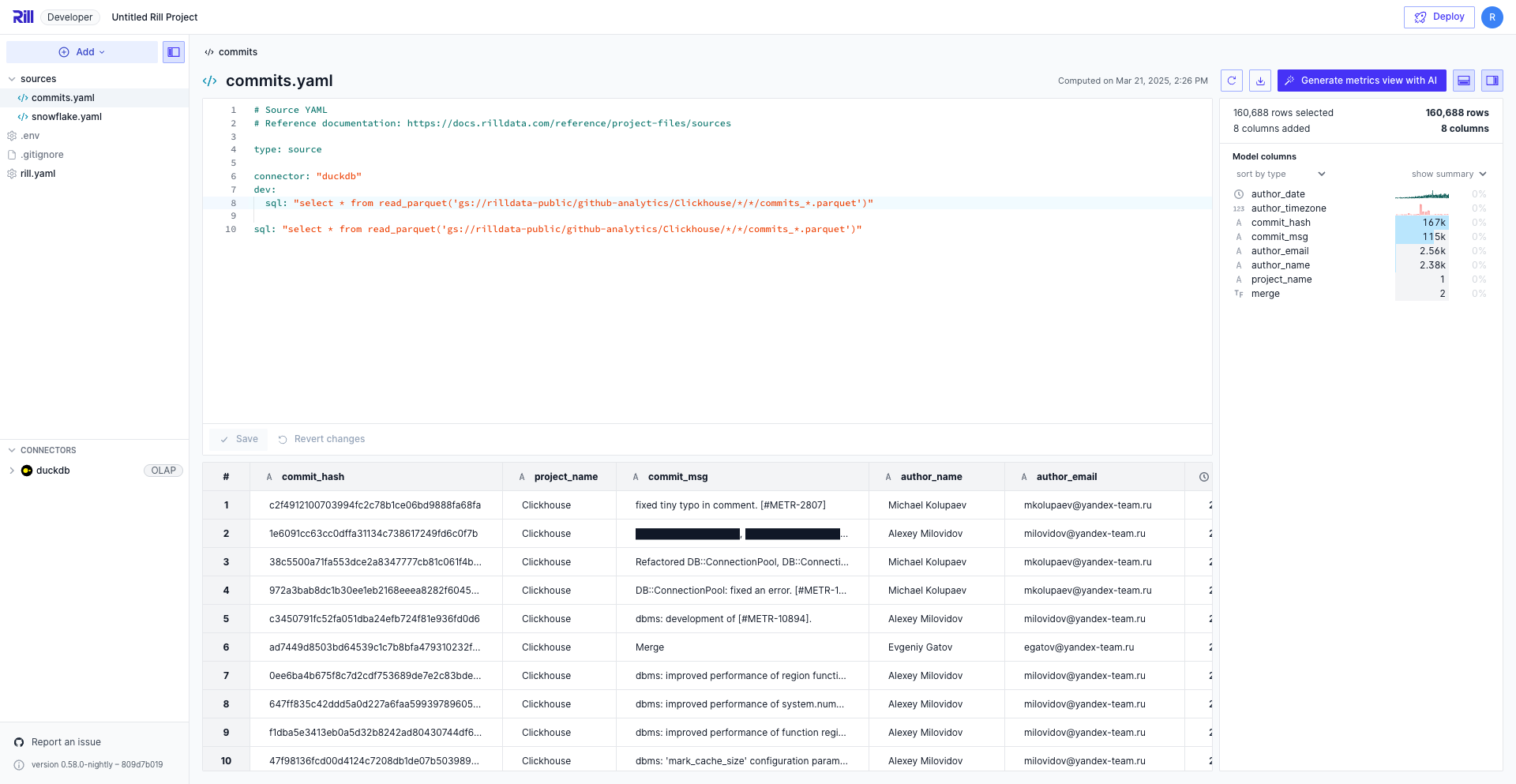
In this example:
- **Development**: Reads from a single file (`2025/06/commits_2025_06.parquet`) for faster processing
- **Production**: Reads from all files in the folder using the `/*/*/` wildcard pattern; you can also use `/**/` if you're unsure of the number of directories
## Inline SQL Templating
You can also use Go template syntax directly within your SQL queries to conditionally include or exclude parts of your query based on the environment.
### Example: Conditional SQL Limiting Dev Rows
```sql
select
*
from read_csv('gs://your-bucket/folder/**/file.csv', auto_detect=true, ignore_errors=1, header=true)
{{ if dev }}
limit 10000
{{ end }}
```
```sql
select
*
from read_csv('gs://your-bucket/folder/**/file.csv', auto_detect=true, ignore_errors=1, header=true)
{{ if dev }}
where column = 'value'
{{ end }}
```
In this example:
- **Development**: Adds a where/limit clause, filtering the data by a specific value to restrict the dataset size
- **Production**: No limits
### Example: If/Else Conditions
```sql
select
*
from read_csv('gs://your-bucket/folder/**/file.csv', auto_detect=true, ignore_errors=1, header=true)
{{ if dev }}
limit 10000
{{ else }}
where column = 'value'
{{ end }}
```
In this example:
- **Development**: Adds a `LIMIT 10000` clause to restrict the dataset size
- **Production**: Applies a where clause to filter the data in production
### Applying a One-Week Sample to the Source Bucket for Local Development
In another example, let's say we had an [S3](/developers/build/connectors/data-source/s3) source defined that happens to be reading a very large amount of parquet data. Following best practices, we'll want to read in a subset of this source data for local modeling in Rill Developer rather than using the full dataset for development purposes. Furthermore, we'll make the assumption that the upstream data is not partitioned and thus the S3 bucket is not partitioned (where we could then simply filter the `path` by using a glob pattern potentially in conjunction with [environment-specific logic](/developers/build/models/templating)). So what can we do?
Fortunately, we can leverage DuckDB's ability to read from S3 files directly and _apply a filter post-download_ using templating logic in the SQL. In this case, because there is an existing `updated_at` timestamp column, we can use it to filter and retrieve only one week's worth of data. For example, our `source.yaml` file may end up looking something like this:
```yaml
type: model
connector: "duckdb"
sql: >
SELECT * FROM read_parquet('s3://bucket/path/*.parquet')
{{ if dev }}
where updated_at > CURRENT_DATE - INTERVAL 7 DAY
{{ end }}
```
:::tip Dynamic dates
Depending on the OLAP engine of your project, you can set the dates dynamically using `CURRENT_DATE` (DuckDB) or `now()` (ClickHouse) and subtract days.
:::
### Example: Leveraging Variables to Apply a Filter and Row Limit Dynamically to a Model
Our last example will highlight how the same templating concepts can be applied with [variables](/developers/build/connectors/credentials#setting-credentials-for-rill-developer). In this case, we have a source dataset about horror movies that came out in the past 50 years, which includes various characteristics, attributes, and metrics about each horror movie as separate columns.
For example, we know the release date, how many people saw a movie, what the budget was, its popularity, the original language of the movie, the genres, and much more.
Let's say that we wanted to apply a filter on the resulting model based on the `original_language` of the movie and also limit the number of records that we retrieve, which will be based on the `language` and `local_limit` variables we have defined. Taking a quick look at our project's `rill.yaml` file, we can see the following configuration (to return only English movies and apply a limit of 5):
```yaml
env:
local_limit: 5
language: "en"
```
Furthermore, our `model.sql` file contains the following SQL:
```sql
SELECT * FROM {{ ref "snowflake" }}
WHERE original_language = '{{ .env.language }}'
{{if dev}} LIMIT {{ .env.local_limit }} {{end}}
```
:::warning When applying templated logic to model SQL, make sure to leverage the `ref` function
If you use templating in SQL models, you must replace references to tables/models created by other sources or models with `ref` tags. This ensures that the native Go templating engine used by Rill is able to resolve and correctly compile the SQL syntax during runtime (to avoid any potential downstream errors).
:::
If we simply run Rill Developer using `rill start`, our model will look like the following (this will also reflect our data model in production, i.e., Rill Cloud, after we've [pushed the changes for the project to GitHub](/developers/deploy/deploy-dashboard)):
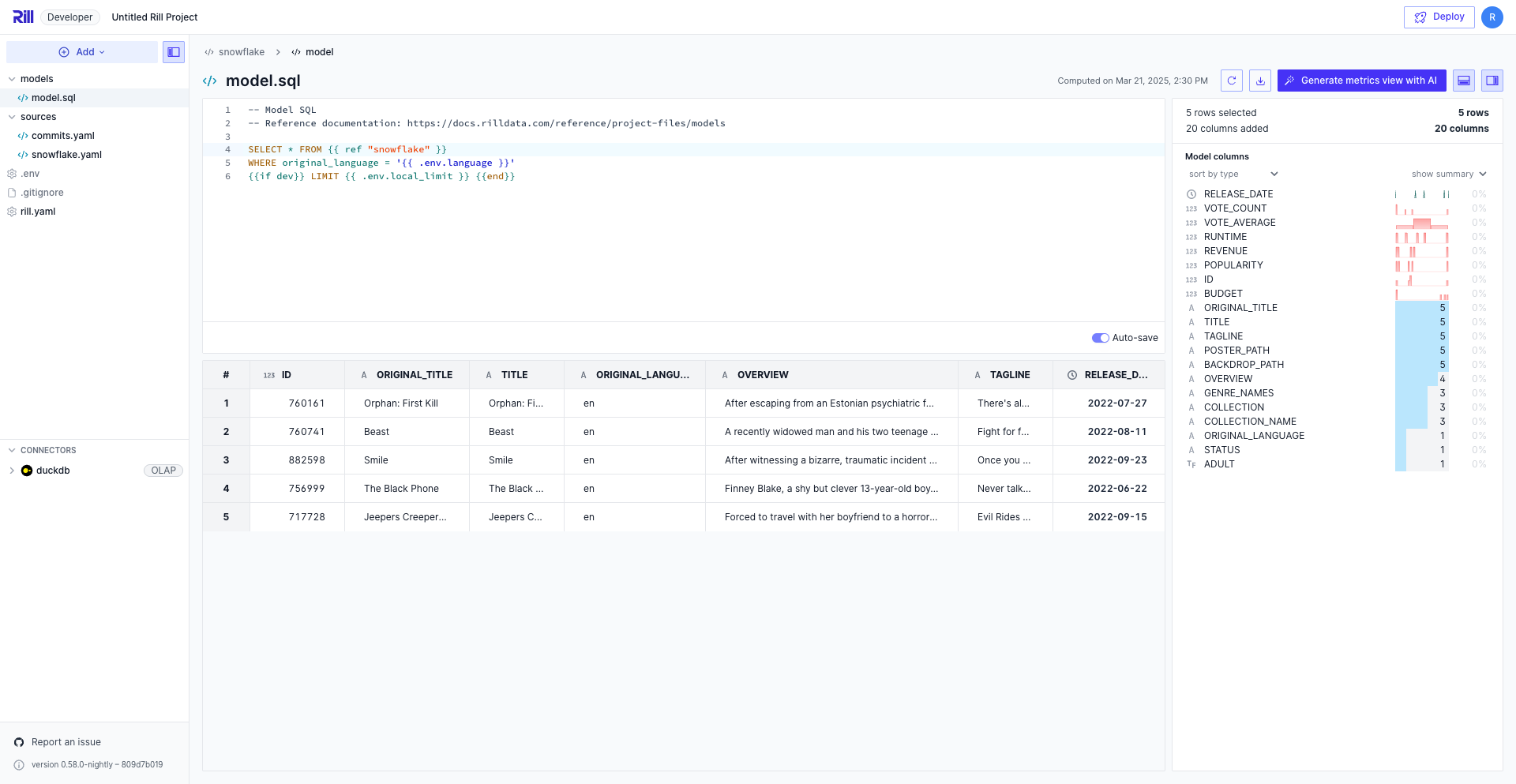
**Now**, just to illustrate what a local override might look like, let's say we stop Rill Developer and then restart Rill via the CLI with the following command:
```bash
rill start --env language="ja" --env local_limit=100
```
Even though we have defaults set in `rill.yaml` (and this will be used by any downstream models and dashboards on Rill Cloud), we will instead see these local overrides come into effect with our templated logic to return Japanese movies and the model limit is now 100 rows.
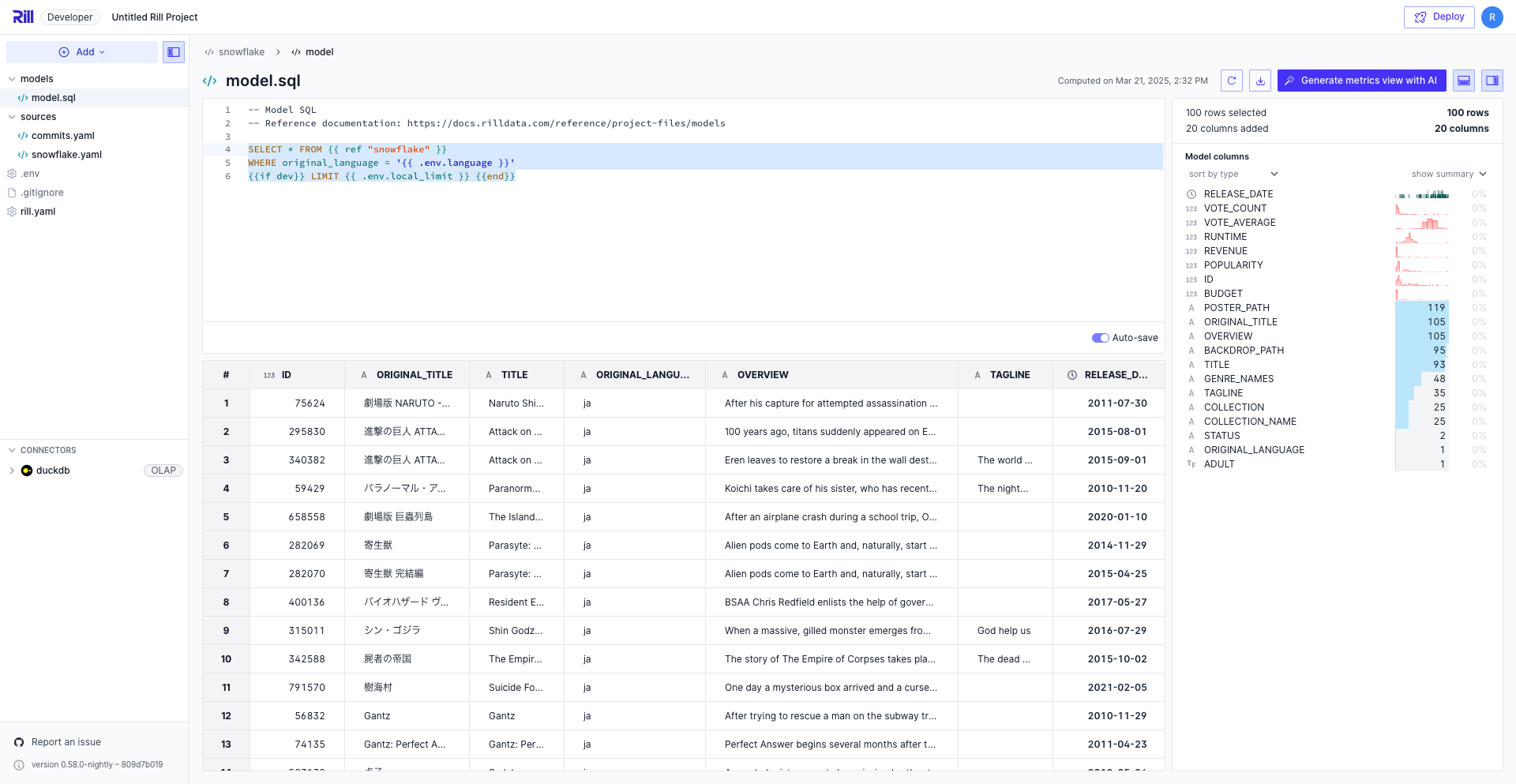
---
# Project Configuration
URL: https://docs.rilldata.com/developers/build/project-configuration
# Project Configuration
This guide covers all aspects of configuring your Rill project, from basic settings to advanced security and testing configurations.
## OLAP Connector
When you add an OLAP connector to your project, Rill automatically updates the `olap_connector` field in `rill.yaml` with the new connector name (e.g., `clickhouse`, `druid`).
If you create multiple connectors of the same type, Rill will number them sequentially. For example, if you create three ClickHouse connectors, they will be named:
- `clickhouse` (first connector)
- `clickhouse_2` (second connector)
- `clickhouse_3` (third connector)
The most recently created connector becomes the default and is referenced in `rill.yaml`.
```yaml
olap_connector: clickhouse
```
The default OLAP connector is used as the default `output` for all of your models unless otherwise specified.
## Model Defaults
Configure default behaviors for all models in your project. These settings control refresh schedules and materialization behavior that apply across all models unless overridden in individual model files.
### Model Refresh Schedule
Set up your project's model refresh schedule. You can override this in the model's YAML file if needed.
```yaml
models:
refresh:
cron: '0 * * * *'
```
For more information on configuring model refreshes, see the [models documentation](/developers/build/models) and [model refresh reference](/reference/project-files/models#refresh).
### Model Materialization
By default, models in Rill are created as views rather than materialized tables. While views enable a dynamic keystroke-by-keystroke modeling experience, materializing models as tables can significantly improve performance for complex queries and large datasets.
You can set a default materialization behavior for all models in your project:
```yaml
models:
materialize: true
```
This is particularly useful in production environments where performance is prioritized over the interactive modeling experience. Individual models can still override this setting using `-- @materialize: false` in their SQL file, or `materialize: false` in the YAML file.
:::tip When to materialize
- **Recommended:** Final models that power dashboards should be materialized for better performance
- **Consider:** Complex intermediate models with large datasets
- **Avoid:** Models with cross joins or when you need real-time keystroke-by-keystroke updates
For more details, see our [model performance guide](/developers/build/models/performance#materialization).
:::
## Metrics Views Defaults
Configure default settings for all metrics views in your project. These settings control time-related behavior and security policies that apply across all metrics views unless overridden in individual metrics view files. For comprehensive information on metrics views, see the [metrics view documentation](/developers/build/metrics-view).
### Metrics Views Time Modifiers
Set default time modifiers for all metrics views, such as `first_day_of_week` or `smallest_time_grain` as shown below. For more parameters, see the [metrics view reference page](/reference/project-files/metrics-views).
```yaml
metrics_views:
first_day_of_week: 1
smallest_time_grain: month
```
### Metrics Views Security Policy
By default, Rill is open to access (to your organization users), unless otherwise defined. To add project-level access to the Rill project, you can add a default metrics view security policy in the `rill.yaml` file. Like in a metrics view file, you can define the security as shown below. For more information, read our [data access documentation](/developers/build/metrics-view/security#examples).
```yaml
metrics_views:
security:
access: '{{ has "partners" .user.groups }}'
row_filter: "domain = '{{ .user.domain }}'"
```
:::tip Security Policy Rules
Rill YAML settings < (Metrics View YAML AND Dashboard YAML)
For detailed guide on security policies, review our [data access policies](/developers/build/metrics-view/security) doc.
:::
## Dashboard Defaults
Rill supports two types of dashboards: **Explores** (metrics-focused dashboards) and **Canvases** (custom visualization dashboards). You can set default configurations for each type. Learn more about creating and customizing dashboards in our [dashboard documentation](/developers/build/dashboards).
### Dashboard Security Policy
Similar to metrics views, you can set [security for a dashboard](/developers/build/dashboards/customization#define-dashboard-access). (Note that only `access` can be set at the dashboard level.)
```yaml
explores:
security:
access: "'{{ .user.domain }}' == 'example.com'"
canvases:
security:
access: '{{ has "dev" .user.groups }}'
```
### Explore Defaults
You are also able to set the `defaults` parameter in the explore dashboard to define your default time range, as well as the available `time_zones` and `time_ranges` in an Explore dashboard.
:::note Time Range Format
Time ranges use [ISO 8601 duration format](https://en.wikipedia.org/wiki/ISO_8601#Durations). Common examples:
- `PT24H` = 24 hours
- `P7D` = 7 days
- `P3M` = 3 months
- `P24M` = 24 months
:::
```yaml
explores:
defaults:
time_range: P3M
time_zones:
- UTC
time_ranges:
- PT24H
- P7D
- P14D
- P3M
```
### Canvas Defaults
Similarly, you can configure defaults for canvas dashboards:
```yaml
canvases:
defaults:
time_range: P7D
time_zones:
- UTC
time_ranges:
- PT24H
- P7D
- P14D
- P3M
```
:::tip Understanding Dashboard Default Behavior
When setting dashboard defaults, keep in mind that Rill Cloud saves each user's last state on dashboards. This means users will see the view they last used rather than the defaults configured above.
**Settings precedence (lowest to highest):**
Rill YAML settings < Dashboard YAML < Bookmarks in Rill Cloud < User Last State
Defaults are most useful for new users accessing a dashboard for the first time or when viewing in Rill Developer.
:::
## Environment Configuration
### Differentiating Dev and Prod Environments
Rill comes with default `dev` and `prod` properties defined, corresponding to Rill Developer and Rill Cloud, unless otherwise specified in the `rill start --environment (dev/prod)` command for Rill Developer. You can use these keys to set environment-specific YAML overrides or SQL logic.
For example, the following `rill.yaml` file explicitly sets the default materialization setting for models to `false` in development and `true` in production:
```yaml
dev:
models:
materialize: false
prod:
models:
materialize: true
```
:::note Specifying a custom environment
When using Rill Developer, instead of defaulting to `dev`, you can run your project in production mode using the following command:
```bash
rill start --environment prod
```
:::
## Variable Management
Variables in Rill enable dynamic templating throughout your project files. They can be used in SQL queries, YAML configurations, and security policies to make your project more flexible and maintainable.
### Setting Variables
Variables are defined in your `rill.yaml` file using the `env` key. This allows you to set variables that will be available in your Rill Cloud deployments while maintaining the ability to use different values locally during development.
```yaml
env:
numeric_var: 10
string_var: "string_value"
api_endpoint: "https://api.example.com"
```
Once defined, these variables can be referenced in your project files using template syntax: `{{ .env.variable_name }}`
**Example usage in a model:**
```sql
SELECT *
FROM users
WHERE status = '{{ .env.string_var }}'
AND score > {{ .env.numeric_var }}
```
## AI Configuration
You can provide context and instructions for AI tools (like [AI Chat](/guide/ai/ai-chat) and [MCP](/guide/ai/mcp)) using the `ai_instructions` field. This helps the AI agent deliver more relevant and actionable insights tailored to your specific needs.
For detailed instructions and examples on how to configure AI instructions at both the project and metrics view levels, please refer to our [AI Configuration guide](/developers/build/ai-configuration).
## Testing Security
Rill Developer lets you preview dashboards as synthetic **mock users** so you can verify [security policies](/developers/build/metrics-view/security) locally before deploying. Define them under `mock_users` in `rill.yaml`:
```yaml
mock_users:
- email: royendo@rilldata.com
admin: true
region: us-west
- email: your_email@domain.com
groups:
- tutorial-admin
region: us-east
- email: your_email2@another_domain.com
region: europe
```
Every mock user needs an `email`; any other keys (`admin`, `groups`, `region`, or custom attributes passed from an [embedded dashboard](/developers/embed/iframe)) become available as `.user.` inside your security templates.
Once a policy is defined, open a dashboard and pick a mock user from the **View as** button in the top-right corner. Full workflow, screenshots, and worked examples for row filters, group access, admin gating, and embedded custom attributes are in the [View as User guide](/developers/build/metrics-view/view-as-user).
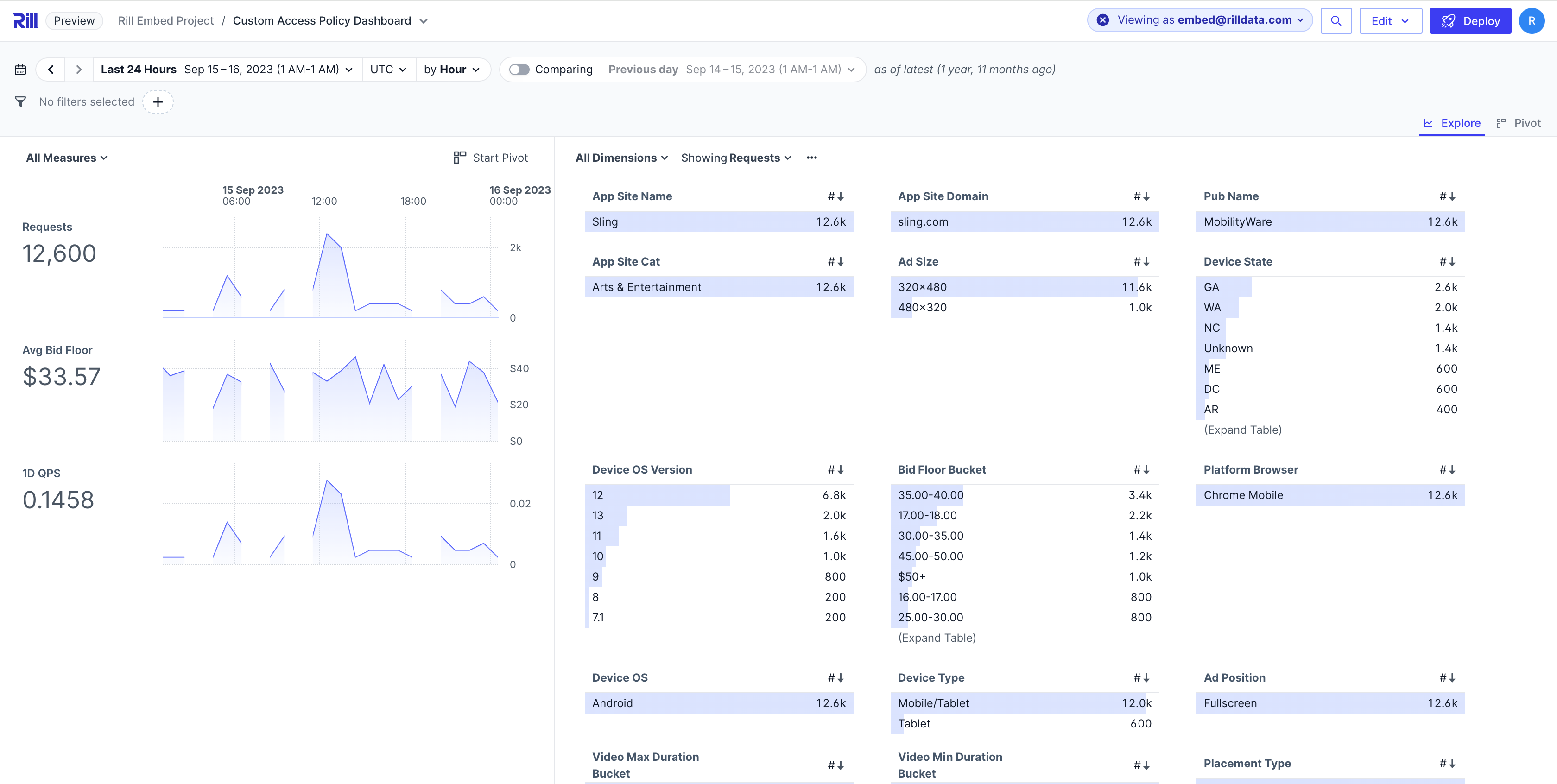
See our embedded examples for [row filters by user](https://rill-embedding-example.netlify.app/security/filter-by-user) and [custom attributes](https://rill-embedding-example.netlify.app/security/filter-by-custom-attributes) live.
## Feature Flags
:::warning Experimental Features
Feature flags enable experimental functionality that may be unstable or change before general availability. Use with caution in production environments.
:::
If you are interested in testing our upcoming features and experimental functionality, you can enable feature flags in your `rill.yaml` file. These flags allow you to access beta features and provide early feedback on new capabilities before they become generally available.
To enable feature flags, add the `features` section to your `rill.yaml`:
```yaml
features:
- cloudDataViewer
```
**Available feature flags:**
- `cloudDataViewer`: Enables the cloud data viewer interface for exploring data directly in the browser (default: `false`)
- `dimensionSearch`: Enables advanced dimension search functionality (default: `false`)
- `twoTieredNavigation`: Enables two-tiered navigation interface (default: `false`)
- `rillTime`: Enables Rill-specific time functionality (default: `false`)
- `hidePublicUrl`: Hides public URL sharing options (default: `false`)
- `exportHeader`: Enables export header functionality (default: `false`)
- `alerts`: Enables alerting features (default: `true`)
- `reports`: Enables reporting functionality (default: `true`)
- `chat`: Enables chat functionality (default: `true`)
- `dashboardChat`: Enables chat features within dashboards (default: `false`)
- `cloud_editing`: Enables [editing the project in Rill Cloud](/developers/deploy/cloud-editing) (default: `false`; included as `true` in new projects)
- `custom_components`: Enables authoring [custom viz](/developers/build/dashboards/canvas-widgets/custom-viz) components in Rill Developer (default: `false`)
**How to enable**: Add the `features` section to your `rill.yaml`
**Reporting issues**: If you encounter issues with feature flags, please [contact support](/contact) with details about the flag and behavior.
For a complete list of available feature flags and their current status, see our [feature flags reference](https://github.com/rilldata/rill/blob/main/web-common/src/features/feature-flags.ts#L36) in the codebase.
## Complete Example
Here is an example YAML that uses many of our features.
```yaml
compiler: rillv1
display_name: Rill Project Dev
# The project's default OLAP connector.
# Learn more: https://docs.rilldata.com/reference/olap-engines
olap_connector: duckdb
# Project variables for templating
env:
numeric_var: 10
string_var: "string_value"
# Project Defaults
models:
refresh:
cron: '0 * * * *'
run_in_dev: true
metrics_views:
first_day_of_week: 1
smallest_time_grain: month
explores:
defaults:
time_range: P24M
time_zones:
- UTC
- America/Los_Angeles
- America/New_York
- Europe/London
- Europe/Paris
- Asia/Tokyo
- Australia/Sydney
time_ranges:
- PT24H
- P6M
- P12M
canvases:
defaults:
time_range: P24M
time_zones:
- UTC
- America/Los_Angeles
- America/New_York
- Europe/London
- Europe/Paris
- Asia/Tokyo
time_ranges:
- PT24H
- P7D
- P14D
- P30D
- P3M
- P6M
- P12M
# These are example mock users to test your security policies.
# Learn more: https://docs.rilldata.com/developers/build/metrics-view/security
mock_users:
- email: john@yourcompany.com
- email: jane@partnercompany.com
- email: your_email@domain.com
groups:
- tutorial-admin
- email: embed@rilldata.com
name: embed
custom_variable_1: Value_1 #this is passed at embed creation
custom_variable_2: Value_2 #this is passed at embed creation
features:
- cloudDataViewer
```
---
# Structure your project
URL: https://docs.rilldata.com/developers/build/structure/
After creating your initial set of sources, models, and dashboards, you may have noticed the following _native_ folders that exist in your Rill project directory:
- [Models](/reference/project-files/models)
- [Metrics Views](/reference/project-files/metrics-views)
- [Dashboards](/reference/project-files/explore-dashboards)
By default, any new sources, models, metrics views, and dashboards will be created in their respective native folders. However, this does not necessarily have to be the case, and Rill Developer allows for a flexible project directory structure, including nested folders or even storing objects in non-native folders. This is a powerful feature that allows you, as a developer, to organize your project to meet your team's specific needs.
## Adding new resources or parent folders
Within Rill Developer, from the left-hand side (file explorer), you should be able to click on the `Add` button to add a new resource, such as a new source, model, or dashboard. Furthermore, you will also have the ability to add a new parent folder to store groups of resources (which can be mixed). If you choose to add a new folder, you should see the folder structure reflected when you check the project directory via the CLI.
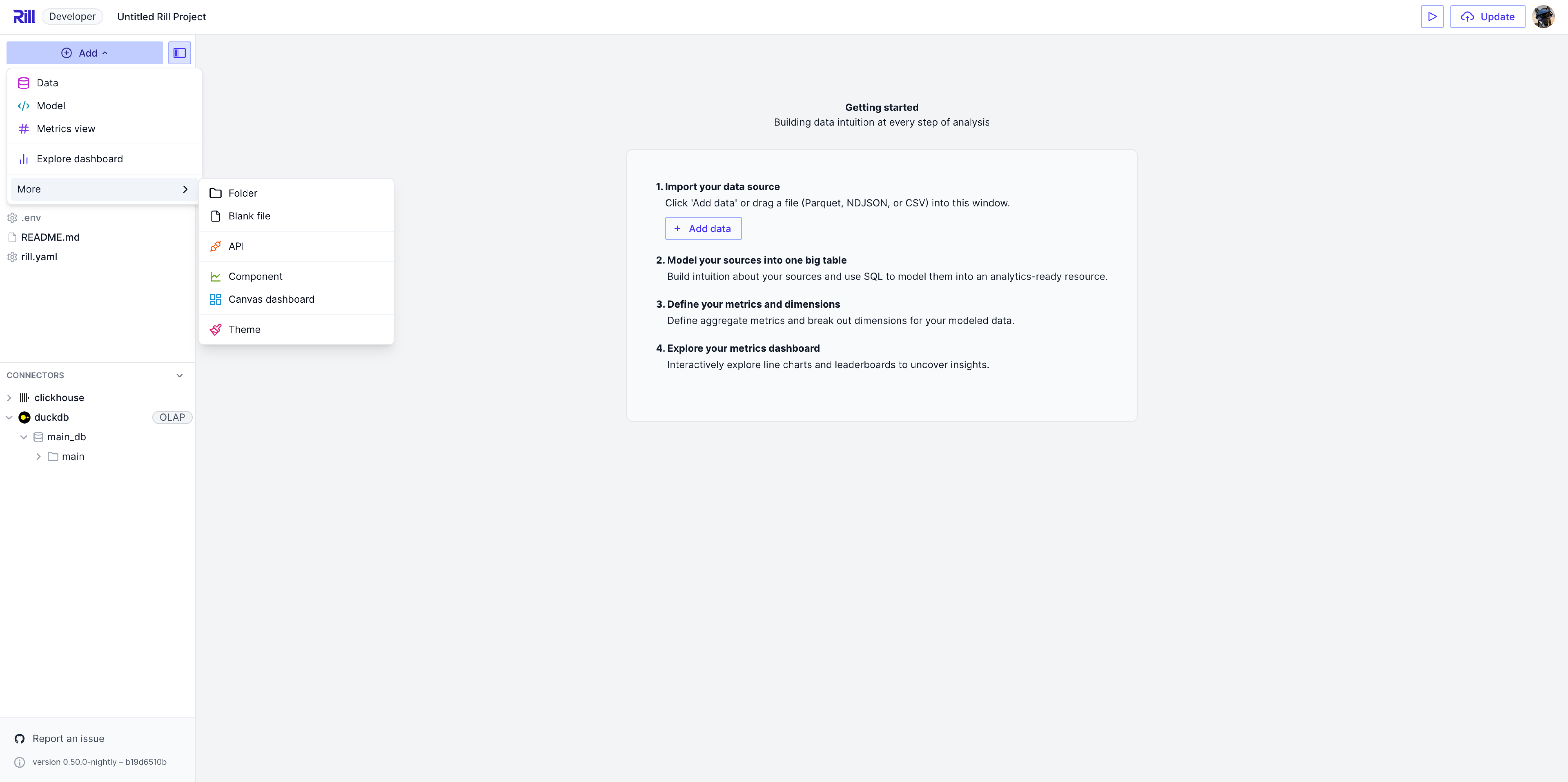
:::warning Make sure to include the `type` property
For backward compatibility purposes, any resource that belongs in the `sources`, `models`, and `dashboards` native folders is assumed to be a source, model, or dashboard respectively (including nested folders that belong within a native folder).
However, if you'd like to create a resource outside one of these native folders, make sure to include the `type` property in the resource definition, or Rill will not be able to properly resolve the resource type! For more details, see our [reference documentation](/reference/project-files/rill-yaml).
:::
## Navigating Upstream / Downstream Objects

When selecting between a source, model, metrics view, and dashboard, you can view the upstream/downstream objects to the current view. For example, if you are selecting a metrics view, you can see all of the dashboards (in a dropdown) that are built on the metrics view. Likewise, if your model references several sources, these will be available to select.
## Moving resources within your project
From the UI, within the file explorer, you should be able to drag resources/objects around and move them to or from folders as necessary.
:::info Using the CLI
For developers who prefer to use the CLI, the project structure can still be controlled or adjusted directly via the CLI or your preferred IDE (e.g., VS Code).
:::
## Adding a nested folder
Rather than creating a parent folder and moving it into another folder manually, there is a shortcut to create a nested folder by directly hovering over an existing folder in the file explorer, clicking on the "triple dots," and selecting `New folder`.
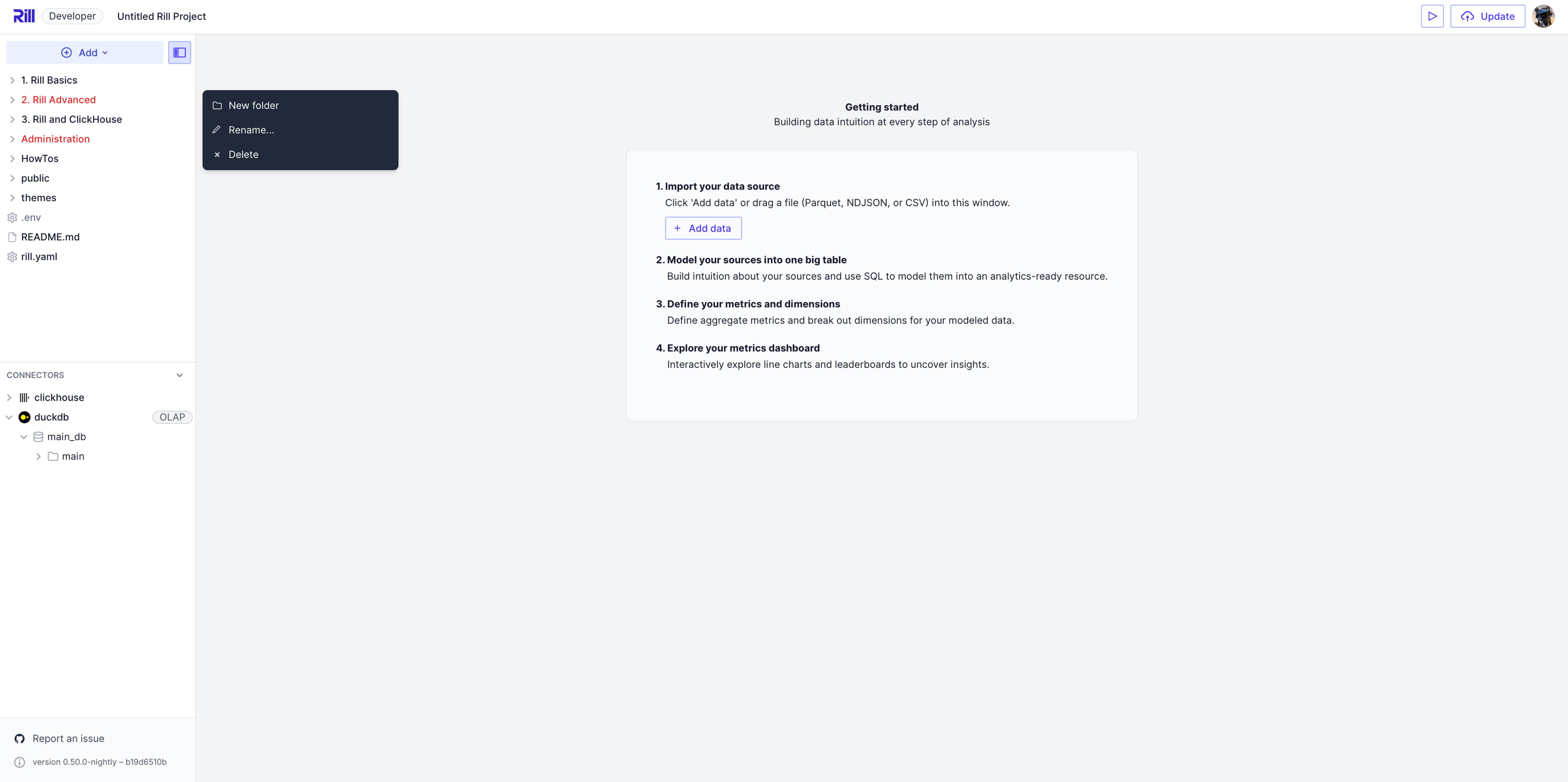
---
# Publish your Dashboards to Rill Cloud
URL: https://docs.rilldata.com/developers/deploy/
Rill Developer is a great tool for building, testing, and viewing your data locally, but once you're ready to share your findings, you'll need to publish the dashboard to Rill Cloud!
### Concepts
- [**Rill Cloud vs Rill Developer**](/developers/deploy/cloud-vs-developer) - Before you deploy, understand the difference between Rill Cloud and Rill Developer
### Credentials
- [**Deployment Credentials**](/developers/deploy/deploy-credentials) - Confirm deployment credentials based on your deployment environment
### Deployment
- [**Deploy your Dashboard**](/developers/deploy/deploy-dashboard) - Publish your dashboard to Rill Cloud
- [**Cloud Editing**](/developers/deploy/cloud-editing) - Edit a deployed project in the browser and publish changes
### Post-Deployment Steps
- [**Managing Project Errors**](/developers/deploy/project-errors) - Troubleshooting errors in Rill Cloud
---
# Edit Projects in Rill Cloud
URL: https://docs.rilldata.com/developers/deploy/cloud-editing
Cloud editing lets you change a deployed project directly in Rill Cloud, without cloning the repository or running Rill Developer locally. You edit files in a browser-based editor that works like Rill Developer, preview your dashboards, and publish your changes to production when they're ready.
:::note Beta
Cloud editing is in beta. Behavior and UI may change before general availability.
:::
## How cloud editing works
Every edit session runs on its own Git branch, backed by a separate dev deployment of your project:
- When you start editing, Rill creates a branch from your project's primary branch (usually `main`) and provisions a dev deployment for it.
- Your edits are saved to that branch's deployment. Production dashboards are not affected until you publish or merge.
- When you publish, Rill merges the branch into the primary branch and your production deployment reconciles the changes.
The editor is available at `https://ui.rilldata.com///-/edit`. When you're working on a branch, the branch name appears in the URL (for example, `///@my-branch/-/edit`) and next to the project name in the header.
Edit sessions run in the `dev` environment, so any `dev:` overrides in your project files and environment variables scoped to `dev` apply. See [Templating](/developers/build/connectors/templating) for how to separate development and production configuration.
## Enable cloud editing
Cloud editing is controlled by the `cloud_editing` feature flag in your project's `rill.yaml`:
```yaml
# rill.yaml
features:
cloud_editing: true
```
New projects created with `rill init` or from an empty project in Rill Developer include this flag by default. For existing projects, add it to `rill.yaml` and deploy the change. See [Feature Flags](/developers/build/project-configuration#feature-flags) for other flags.
### Required permissions
To edit a project, you need the project **Admin** or **Editor** role (the `manage_dev` permission). Organization admins can edit every project in the organization. The organization **Editor** role alone isn't enough; you also need the **Admin** or **Editor** role on the project itself. Viewers don't see the **Edit** button. See [Roles and Permissions](/guide/administration/users-and-access/roles-permissions#project-level-permissions).
## Start editing
1. Open your project in Rill Cloud. The **Edit** button appears in the header on the project home page and on explore and canvas dashboards.
2. Click **Edit**.
3. In the **Start editing** dialog, do one of the following:
- To start a new branch, enter a **Branch name** and click **Create & edit**. Rill creates the branch from your primary branch.
- To resume earlier work, select **Existing branch**, choose a branch, and click **Continue editing**. The most recently updated branch is marked **latest**.
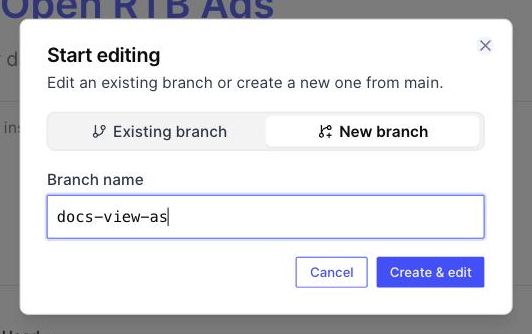
Rill provisions the editing environment, which can take a minute the first time. If you open **Edit** while viewing a branch that already has an editable deployment, Rill opens the editor for that branch directly.
## Edit files
The cloud editor has the same layout as Rill Developer: a file explorer and data explorer on the left, and the file editor with a live preview on the right. You can add connectors, models, metrics views, dashboards and other resources with **Add**, or edit any YAML and SQL file in the project.
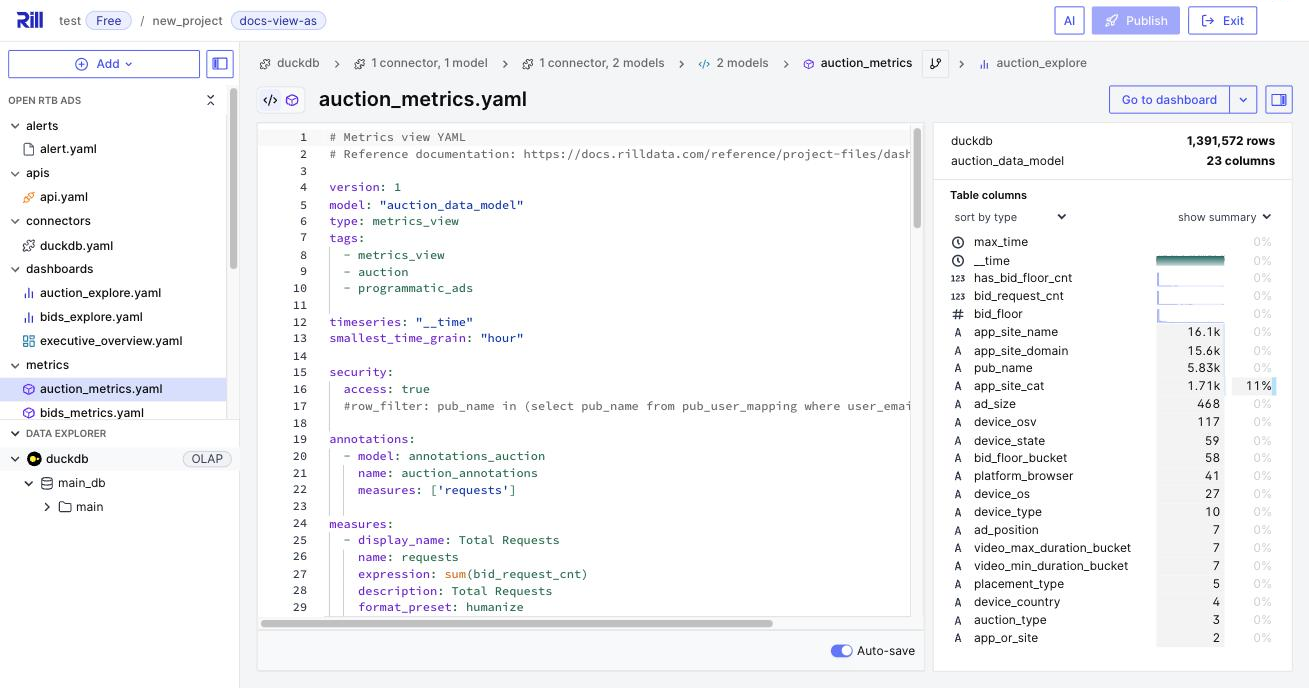
Files save automatically while **Auto-save** is on. Rill reconciles each change on the branch's deployment, so errors and previews update as you type, just like in Rill Developer. For details on the project files themselves, see [Build](/developers/build/getting-started).
### Preview dashboards
To see a dashboard as your users will, open its file and click **Preview** (or **Go to dashboard** from a metrics view). The preview runs against the branch's deployment, so it reflects your unpublished changes. Click **Edit** in the preview header to jump back to the dashboard's file or, for explore dashboards, its metrics view.
## Publish your changes
How you ship changes depends on how the project's repository is hosted.
### Projects on Rill-managed Git
If Rill manages the project's Git repository (for example, a project deployed from Rill Developer or with [`rill project deploy`](/reference/cli/project/deploy) without connecting GitHub), the header shows a **Publish** button.
1. Click **Publish**.
2. Review the list of changed files. Click a file to view its diff.
3. Click **Publish** to confirm.
Rill commits your changes, merges the branch into the primary branch, and opens the production deployment in a new tab so you can watch it reconcile. If production is hibernated, publishing resumes it.
### Projects connected to GitHub
If the project is [connected to GitHub](/guide/administration/project-settings/github-integration), the header shows **Commit** and **Merge to production** buttons:
1. Click **Commit**, describe your changes, and click **Commit & push**. Rill pushes a commit to the branch in your GitHub repository.
2. When you're ready to go live, click **Merge to production** and then **Merge**. Rill merges the branch into the primary branch and opens the production deployment in a new tab.
You can also open a pull request from the branch in GitHub instead of merging from Rill, if your team reviews changes there.
### Remote changes and conflicts
If the primary branch has changed since you started editing, Rill asks you to pull the latest changes before you publish or merge. If your changes conflict with the latest version, Rill shows a **Merge conflicts detected** dialog where you choose **Keep my version** or **Use the latest changes**.
## Test security policies with View as
When a dashboard has [data access policies](/developers/build/metrics-view/security), you can preview it as a mock user from inside the editor, so you can check row filters, field restrictions and access rules on your branch before you publish them. **View as** in the cloud editor uses the `mock_users` defined in your project's `rill.yaml`, the same list Rill Developer uses.
1. In the cloud editor, open an explore or canvas dashboard and click **Preview**.
2. Click **View as** in the header and select a mock user. The dashboard reloads with that user's attributes, and the header shows **Viewing as** with the user's email.
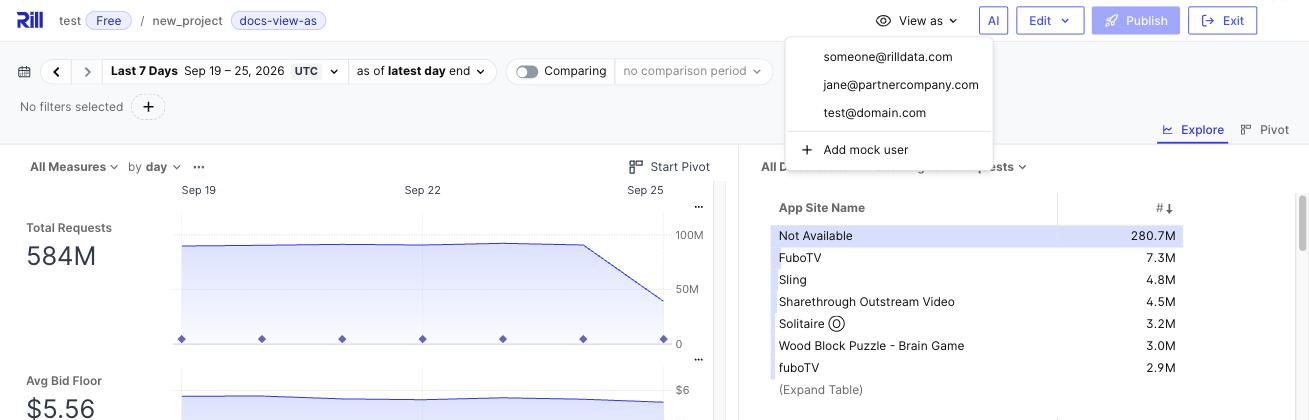
3. To return to your own view, click the **x** on the **Viewing as** chip. Navigating to a different dashboard also clears the selection.
**View as** only appears on dashboards that have a security policy. It applies the attributes you define in `mock_users` and doesn't look up real users, so give your mock users the same email domains, groups and custom attributes as the people you're testing for. It doesn't change your own role or what you can edit.
For defining mock users, example policies to test and troubleshooting, see [Test Access Policies with View As](/developers/build/metrics-view/view-as-user).
## Manage branches and resources
Each edit session is a dev deployment that uses compute resources while it runs.
### Inactive sessions hibernate
Dev deployments hibernate after a period of inactivity (one hour by default). Ten minutes before an idle session ends, the editor shows a warning banner. When a session hibernates, Rill tries to save uncommitted changes as a checkpoint commit on the branch, but commit or publish your work before you step away to be safe.
To resume a hibernated branch, click **Edit** and pick it under **Existing branch**. Project admins can change the inactivity timeout with [`rill project edit --dev-ttl-seconds`](/reference/cli/project/edit).
### View and manage branches
Project admins (the `manage_project` permission) can go to **Status** > **Branches** to see all branches with a deployment, including their author, status, slot count and last update. From the menu next to a branch you can:
- **Open editor** to continue editing it.
- **Hibernate** a running branch to free its resources, or **Resume** a hibernated one.
- **Delete** the branch and its deployment. For editable branches, this also deletes the remote branch, and any unpushed changes are lost.
Project editors can create branches but can't open the **Status** pages. To return to a branch, click **Edit** and pick it under **Existing branch**.
### Development slots
Each dev deployment gets the number of **Development slots** configured for the project. Each slot provides 1 vCPU and 4 GiB of memory. Project admins can change the value under **Status** > **Branches** > **Deployment slots**, or with [`rill project edit --dev-slots`](/reference/cli/project/edit). Changing slots may restart the affected deployments.
## Cloud editing and Rill Developer
Cloud editing and [Rill Developer](/developers/deploy/cloud-vs-developer) work on the same Git repository, so you can use both:
- Use cloud editing for quick changes, reviews and testing policies without a local setup.
- Use Rill Developer for larger changes, working with local data, or when you need your usual Git tooling.
Changes published from the cloud editor land on your primary branch. Pull them locally before you continue working in Rill Developer, for example with `git pull` or [`rill project clone`](/reference/cli/project/clone).
---
# Rill Cloud vs Rill Developer
URL: https://docs.rilldata.com/developers/deploy/cloud-vs-developer
## What is Rill Cloud and Rill Developer?
Rill offers two unique but complementary experiences within our broader product suite, **Rill Cloud** and **Rill Developer**.
As the name suggests, Rill _Developer_ is designed with the developer in mind, where project development actually occurs. Rill Developer is meant for the primary developers of project assets and dashboards, allowing them to import, wrangle, iterate on, and explore the data before presenting it for broader consumption by the team. Rill Developer is meant to run on your local machine - see here for some [recommendations and best practices](/developers/tutorials/performance#local-development--rill-developer) - but it is a simple process to [deploy a project](/developers/deploy/deploy-dashboard) once ready to Rill Cloud.
Rill Cloud, on the other hand, is designed for our dashboard consumers and allows broader team members to easily collaborate. Once the developer has deployed the dashboard onto Rill Cloud, these users will be able to utilize the dashboards to interact with their data, set alerts / bookmarks, investigate nuances / anomalies, or otherwise perform everyday tasks for their business needs at Rill speed.
## Is Rill Cloud a higher offering than Rill Developer?
Based on the naming, it might be confusing and easy to assume that Rill Cloud is our "higher" offering but **that is not the case!** Similarly, Rill Developer is _not meant to be used as a standalone tool either_.
Rill Developer and Rill Cloud are to be used together. Rill Developer provides a space for our developers to define and test any new or needed changes to the data and/or dashboards before pushing to our Rill Cloud users, who need stable access to working dashboards. Then, once finalized, these dashboards are deployed to the Rill Cloud project for broader consumption and to power business use cases.
:::info Isn't Rill Developer enough?
Please note that a common **misnomer** is that Rill Developer can be a sufficient replacement for Rill Cloud. They both serve different purposes but are meant to be used _in conjunction_. Rill enables speed of exploration and is easy to use for developers, allowing the project to be iterated on quickly. Rill Cloud then allows for shared collaboration at scale, especially for production deployments.
:::
### Why deploy to Rill Cloud?
Rill Developer is an extremely strong tool for deep-diving into your data, as it allows users to import sources from many destinations and join these tables together to create something useful in a slice-and-dice visualization. Many times the feedback we receive is, "`I didn't even know my data had an issue in it,`" or, "`In a few minutes, I was able to make new insights into my data that would've taken me hours.`" This is great, but if that's possible in Rill Developer, why publish the dashboard to Rill Cloud?
## Rill Developer
Rill Developer is designed around developers. Using a familiar IDE-like interface, developers are able to import data, create SQL models, and create metrics views. Many of the underlying files in Rill Developer are either SQL or YAML files. Once data is imported into Rill (and the underlying OLAP engine), developers are able to perform last-mile ETL changes using one or a series of SQL models (as their own [DAG](https://en.wikipedia.org/wiki/Directed_acyclic_graph#:~:text=A%20directed%20acyclic%20graph%20is,a%20path%20with%20zero%20edges)). You can then create and materialize your ["One Big Table"](/developers/build/models/models-101#one-big-table-and-dashboarding) for your dashboard needs. Finally, any specifications for your dimensions and measures can be defined and tested in Developer's dashboard preview.
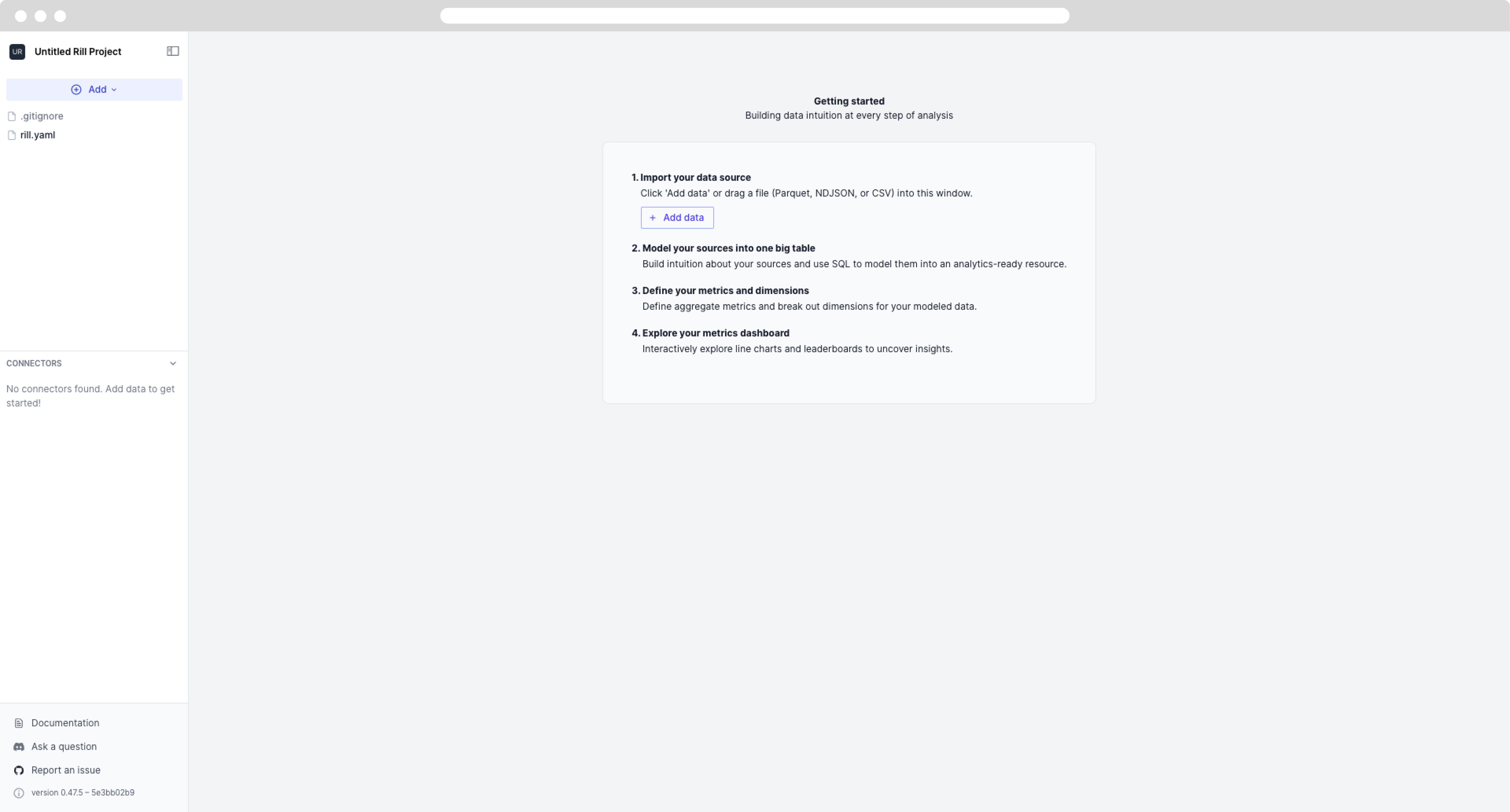
## Rill Cloud
Once the dashboard has been [deployed to Rill Cloud](/developers/deploy/deploy-dashboard), the dashboard can be shared with others and viewed by other members of your Rill Cloud organization. As you can see below, the UI is different from Developer. Upon accessing Rill Cloud, a user will be able to view all the projects they have been granted access to by project admins.
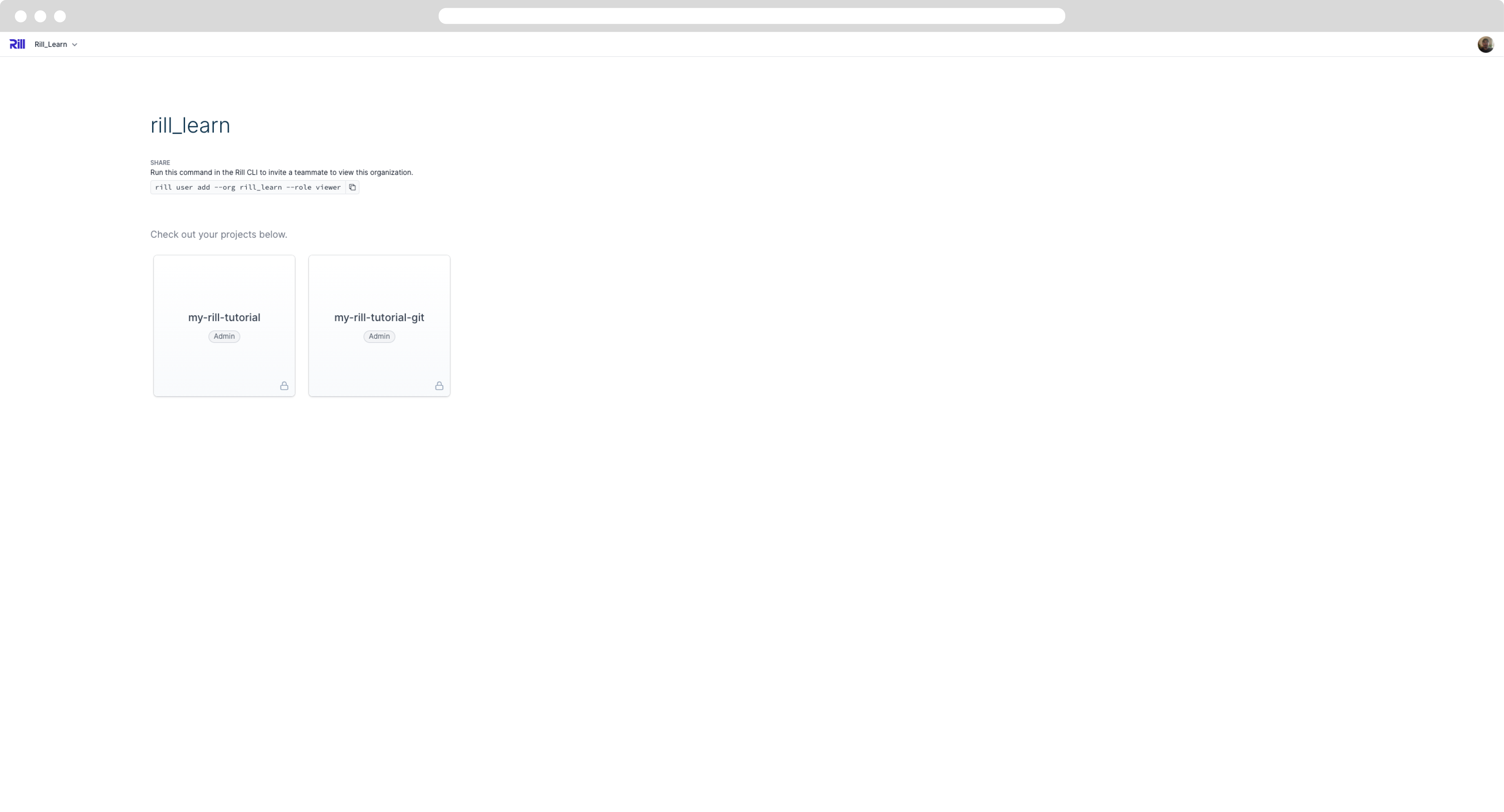
After selecting a specific project, they will be directed to a list of dashboards. From Rill Cloud, the dashboard consumer does not have the ability to make any modifications to sources or models. However, they are given some additional capabilities that are not accessible in Rill Developer, such as alerting, creating bookmarks or shareable public URLs, checking the project status, and more.
Project admins and editors can also make changes to a deployed project directly in the browser with [cloud editing](/developers/deploy/cloud-editing), which works on a Git branch and publishes to production when ready.
:::info Dashboard 101
For more details about using a Rill Cloud dashboard, please refer to our [Explore section](/guide/dashboards/explore)!
:::
---
# Deployment Credential Considerations
URL: https://docs.rilldata.com/developers/deploy/deploy-credentials
:::tip Development and Production Setup
We recommend reviewing the [Development/Production Setup](/developers/build/connectors/templating) documentation before deploying your project to Rill Cloud to ensure that your local development and production environments have been separated.
This will ensure that your shared dashboard will be decoupled from your local Rill Developer environment, and you can further develop your dashboards locally without worrying about data availability.
:::
When deploying a project, credentials that have been defined in your `.env` file will be automatically passed into your Rill Cloud project. However, for [remote sources](/developers/build/connectors) that are dynamically retrieving your credentials via the CLI, such as S3 and GCS, you will need to ensure that these are [defined in the .env file]( /guide/administration/project-settings/variables-and-credentials#credentials-naming-schema).
[Local credentials](/developers/build/connectors/credentials#setting-credentials-for-rill-developer) are used by Rill Developer to connect to sources from your local machine, while deployment credentials are used by Rill Cloud for production workloads. There are a [few ways to set up credentials in Rill Developer](/developers/build/connectors/credentials/#setting-credentials-for-rill-developer); however, you will need to ensure that they are set up in your `.env` file for a seamless experience.
If you have defined your connector's credentials in your `.env` file, these will be deployed along with your project. You should see the credentials in [your project's settings page]( /guide/administration/project-settings/variables-and-credentials#modifying-variables-and-credentials-via-the-settings-page).
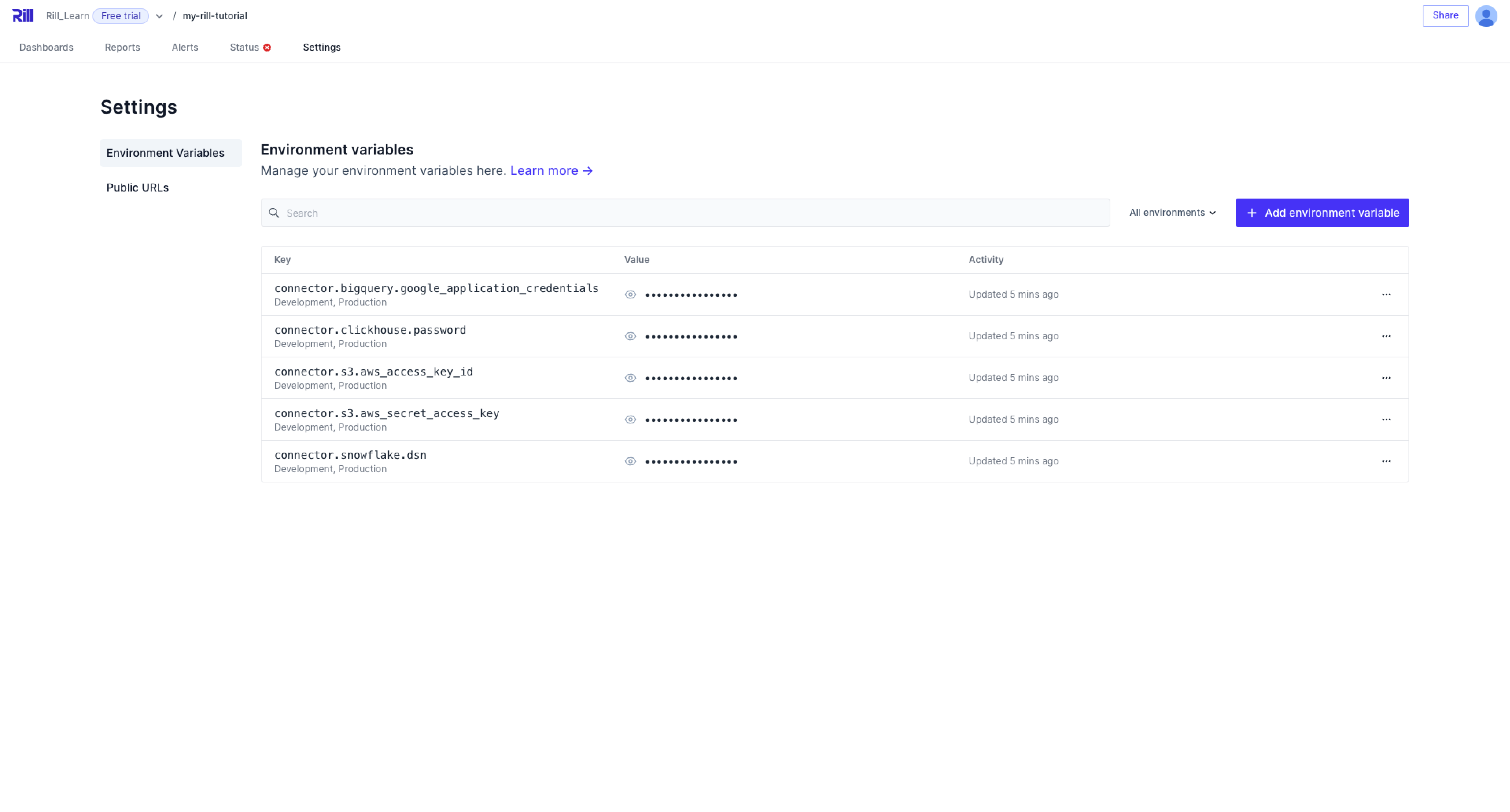
## Service Accounts
:::info Separating development and production credentials
As a general best practice, it is strongly recommended to use service accounts and dedicated service credentials for projects deployed to Rill Cloud, especially when used in a production capacity. This is covered in more detail in our [Development/Production Setup documentation](/developers/build/connectors/templating).
:::
Service accounts are non-human user accounts that provide an identity for processes or services running on a server to interact with external resources, such as databases, APIs, and cloud services. Unlike personal user accounts, service accounts are intended for use by software applications or automated tools and do not require interactive login. In the context of Rill, service accounts are credentials that should be used for projects deployed to Rill Cloud.
### Why are service accounts important?
Using service accounts for production workflows and pipelines is a general best practice for several reasons:
1. **Improved Security Posture**: Service accounts are specialized accounts used specifically by applications, as opposed to human users, to interact with data sources and other services. They help in implementing the principle of _least privilege_ by restricting permissions to only what is necessary for the application to function. This minimizes the potential damage when an account or set of credentials are compromised.
2. **Auditing and Monitoring**: Using service accounts makes it easier to audit and monitor access and activities. Since these accounts are used exclusively by applications (in this case Rill), any data access or actions performed can be traced back to the specific application, simplifying the process of identifying unusual or unauthorized activities.
3. **Credential Management**: Service accounts facilitate better management of credentials. For instance, when humans manage and share credentials, there's a higher risk of credentials being leaked or mishandled. Service accounts can be managed programmatically, reducing human error and improving security through automated rotations and stricter access controls.
4. **Scalability and Automation**: As organizations grow and deploy more applications, the use of service accounts allows for scalable and automated access management. It's easier to programmatically control access for multiple service accounts across different environments and services, fitting well into infrastructure as code (IaC) practices. Similarly, this ensures deployed projects (on Rill Cloud) don't share credentials with other applications.
5. **Compliance and Governance**: For regulatory compliance, using service accounts helps enforce data governance policies by ensuring that access is granted _according to the defined roles and responsibilities of the application_. It also aids in ensuring that data handling complies with policies and regulations since access patterns and permissions are clearly defined and can be audited.
6. **Reliability**: Applications using service accounts are less likely to experience downtime due to credential changes. Unlike user accounts, which may have passwords that expire or change frequently, service accounts can be configured with long-lived credentials or managed identity solutions that automatically handle authentication, reducing the risk of disruptions. Similarly, service accounts are not tied to the lifecycle of employee accounts, which help ensure that automated processes aren't potentially disrupted by personnel changes (such as offboarding an employee).
### Service Account Best Practices
- _Secure Storage of Credentials_: Store service account credentials securely, using encrypted storage solutions and access controls to prevent unauthorized access.
- _Regular Rotation of Credentials_: Regularly update service account passwords and keys to reduce the risk of compromise.
- _Minimum Necessary Permissions_: Grant **only** the permissions necessary for the specific tasks the service account needs to perform, and review permissions regularly to adapt to changes in application functionality.
- _Monitoring and Logging_: Depending on your organization's security needs, you can also consider implementing monitoring and logging of all access and actions taken by service accounts to detect and respond to anomalous activities promptly.
:::warning Be careful of overriding local credentials and/or pushing the wrong credentials to Rill Cloud
When using service accounts, it is very likely that different or even personal credentials are being used in local development (i.e., Rill Developer). Therefore, it is worth double-checking that the correct credentials are being used or set before [syncing credentials](/developers/build/connectors/credentials#pulling-credentials-and-variables-from-a-deployed-project-on-rill-cloud) between your local instance of [Rill Developer and Rill Cloud](/developers/deploy/cloud-vs-developer) using the `rill env push` and `rill env pull` commands respectively.
:::
---
# Deploy Dashboards
URL: https://docs.rilldata.com/developers/deploy/deploy-dashboard/
## Overview
Deploying dashboards from Rill Developer allows you to share dashboards with other users, leverage [Rill Cloud capabilities](/guide/dashboards/explore), [embed Rill](/developers/embed/iframe) into other applications, and more!
The flow diagram below shows two options for deploying an existing project.
**Deploy via the UI or CLI using `rill project deploy`**:
```mermaid
graph LR;
A(Local code files);
B(Rill Cloud);
A--deploy (once)/update via UI -->B;
```
---
**Deploy via the CLI via `rill project connect-github`**:
```mermaid
graph LR;
A(Local code files);
B(Rill Cloud);
C(GitHub);
A--1. deploy via CLI (once) -->B;
C-- Continuous Deployment-->B;
A--2. Push changes to GitHub-->C;
```
## Deploying a project from Rill Developer
Starting from **v0.48**, we have introduced the possibility to push dashboards _directly from Rill Developer to Rill Cloud_. On the dashboard page, you can select the `Deploy` button and follow the steps to deploy to Rill Cloud.
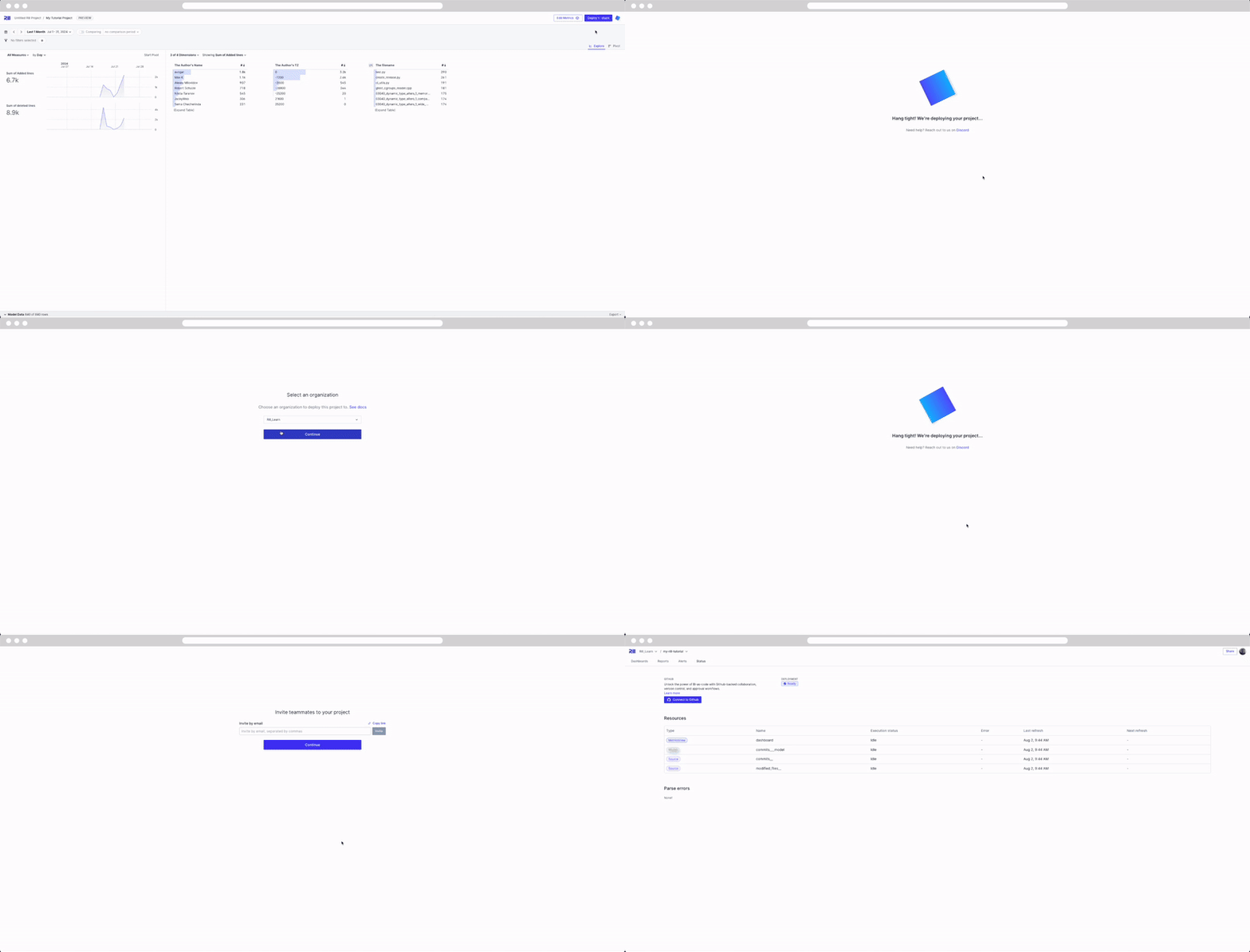
Now that your project has been deployed to Rill Cloud, you will need to ensure that your users have access! Please refer to the [user management](/guide/administration/users-and-access/user-management) section.
If you make changes locally on Rill Developer, you will need to push the contents to Rill Cloud by selecting the `Update` button.
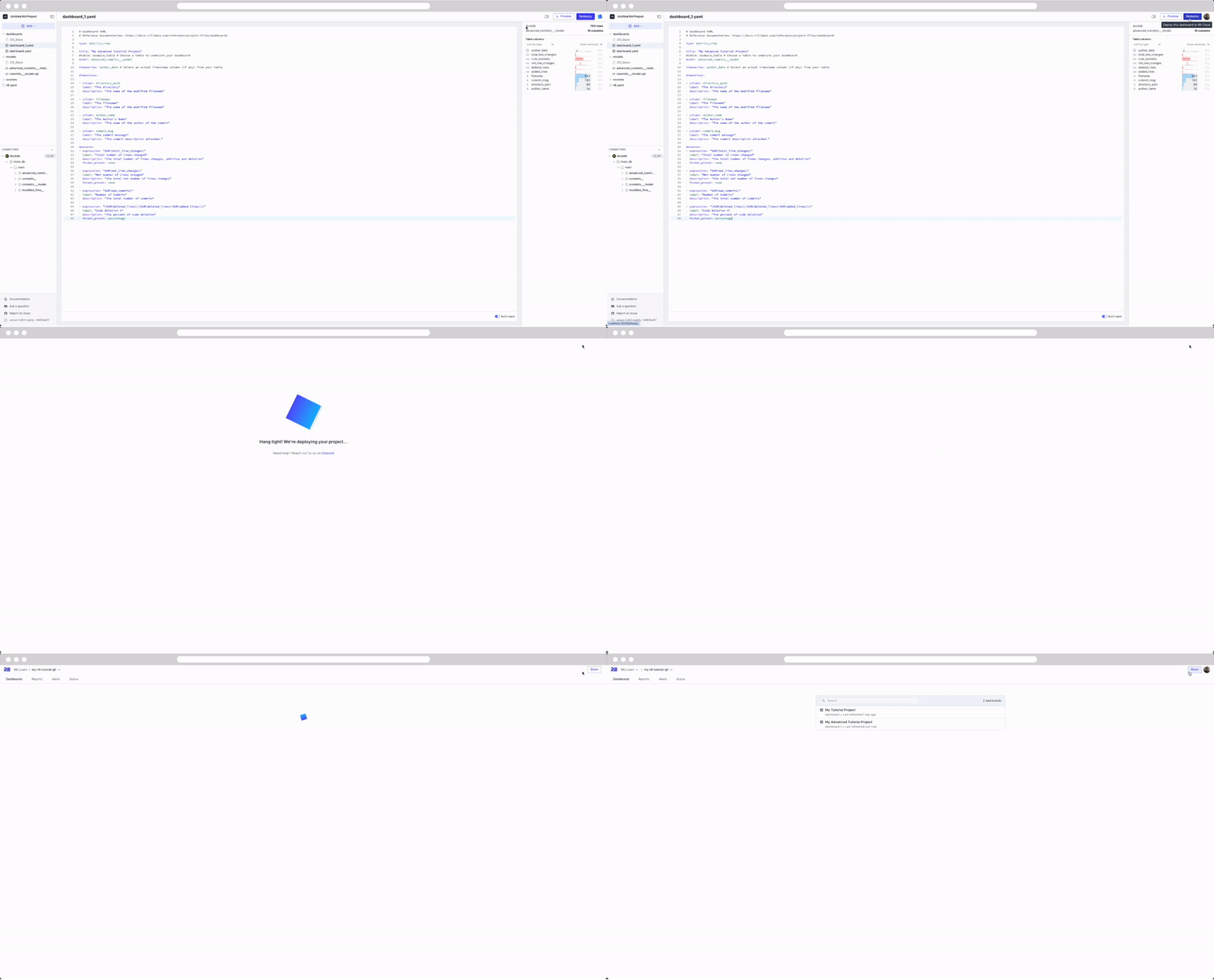
:::tip On an older version of Rill?
You can easily check the version of Rill that you are using in Rill Developer by running the following command:
```bash
rill --version
```
If you are on an older version of Rill, it is **strongly recommended** to [upgrade](/developers/get-started/install#upgrade-to-the-newest-version-of-rill-developer) to the latest version.
:::
### Syncing your GitHub Repository
:::note GitHub app permissions
This assumes that the installed GitHub app in your organization has write access. If unsure, please check with your GitHub admin.
The required permissions are:
- Read access to metadata and pull requests
- Read and write access to administration and code
:::
At this point, you have the option to connect your Rill project to a GitHub Repository.
Navigating to the Settings page and selecting `Connect to GitHub` will prompt you to log in and create a repository for your project. If you've already created a repository, check the box 'I've created a GitHub Repo' and add the permissions for Rill to access the repository.
:::info Check with your GitHub organization admin
If you're not the admin of your GitHub organization, they will likely need to first install the Rill Cloud app in your organization before you can proceed with deploying a project. After the Rill Cloud app is installed, it should have the following privileges:
:::
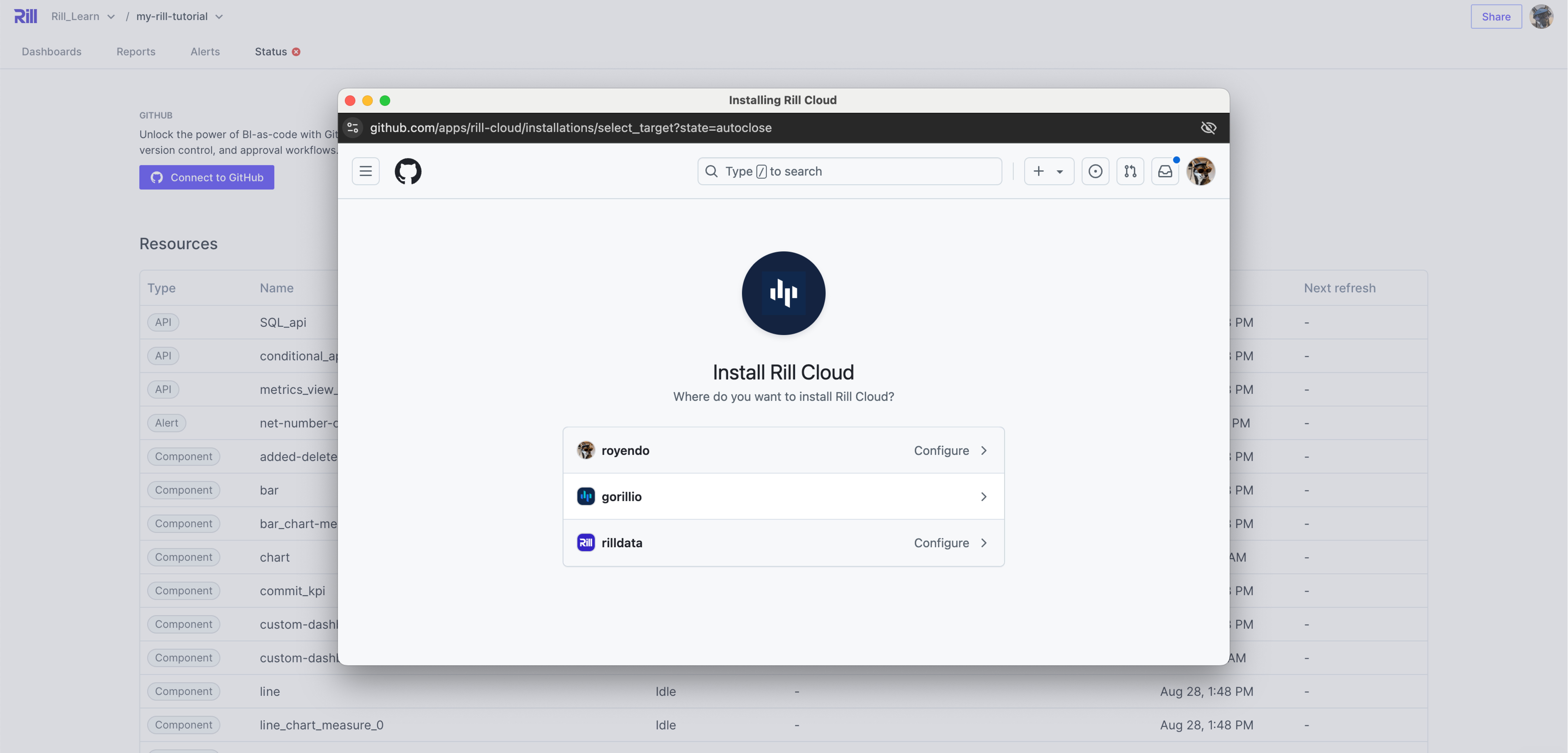
Once the permissions to the repository have been confirmed and set, you can continue to select the repository in the dropdown.
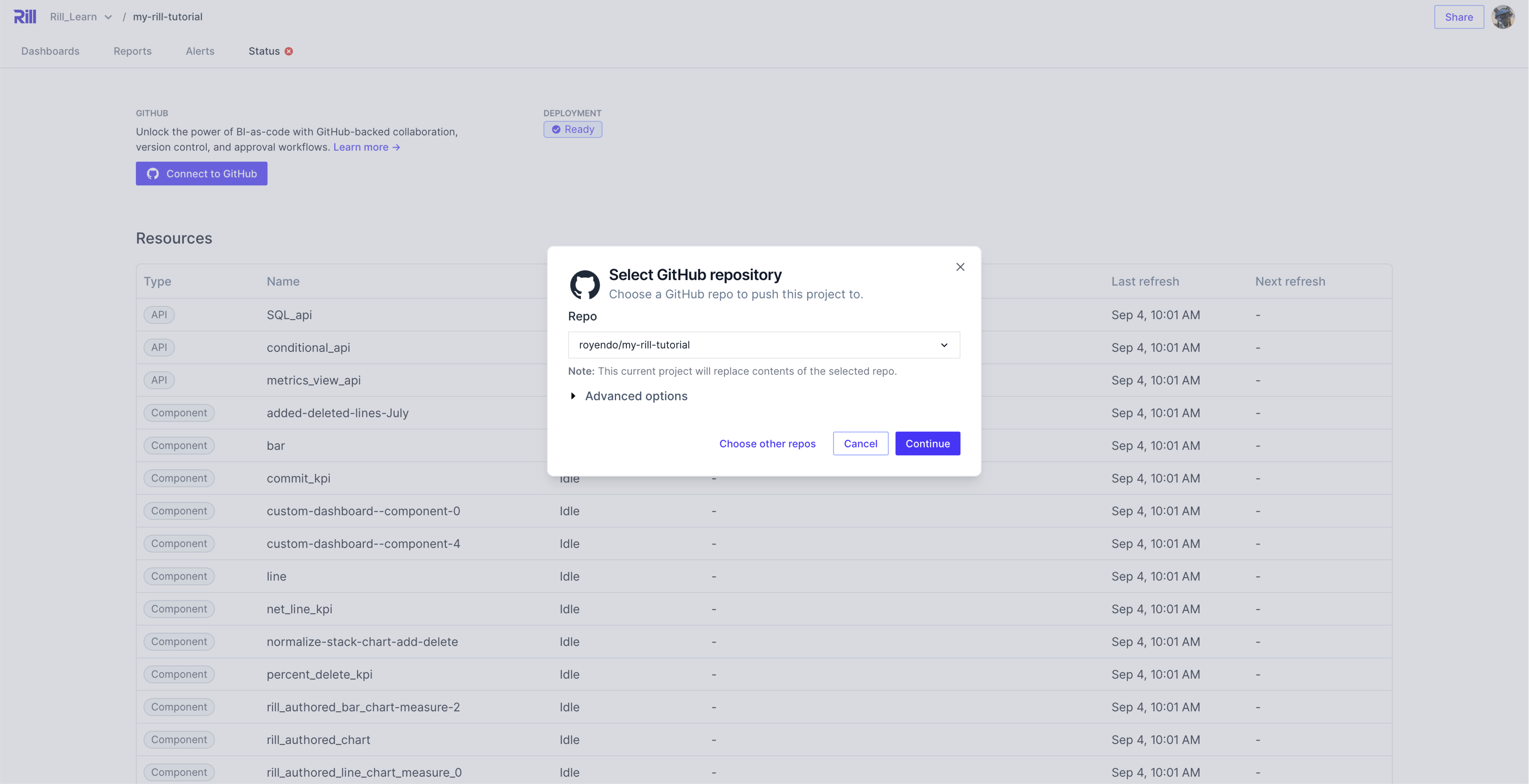
Once completed, you'll see the newly updated repository on the UI of your settings page!
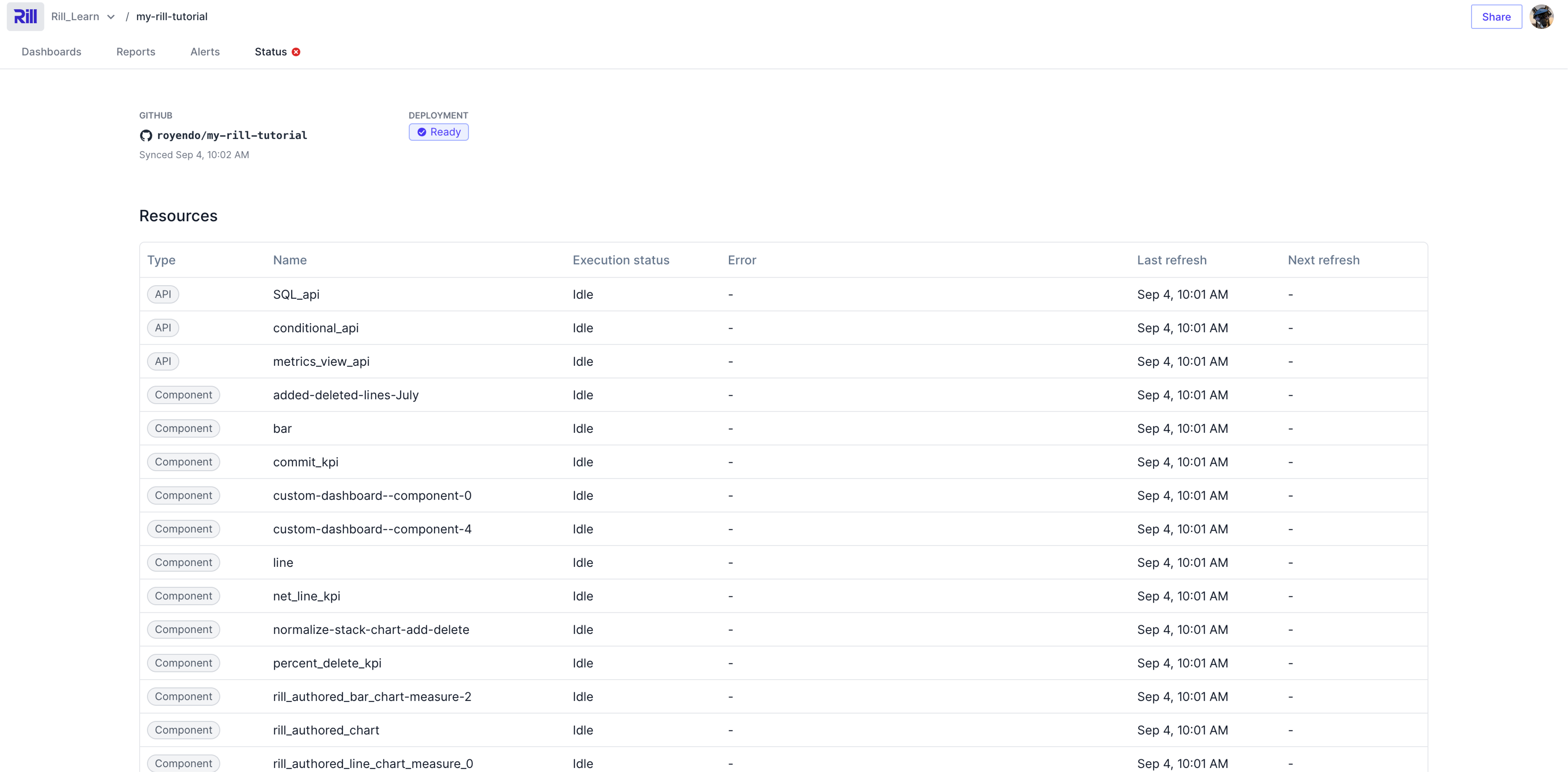
:::warning Still unable to connect?
If you encounter issues, check that the app installation is not pending. Go to your organization's settings and click on Installed GitHub Apps. You will see a section of Pending GitHub Apps installation requests. If you're an Owner or App Manager, grant access to the Rill app if it is pending."
:::
## Deploying a project via the CLI
:::note
Starting from v0.49, we have deprecated `rill deploy` in favor of `rill project deploy` and `rill project connect-github`. For more information on the `rill deploy` command click [here](#deprecated-rill-deploy).
:::
### Deploy project without GitHub Repository
You can add a GitHub Repository later.
```
rill project deploy
Using org "Rill_Learn".
Starting upload.
All files uploaded successfully.
Created project "Rill_Learn/my-rill-tutorial". Use `rill project rename` to change name if required.
...
Your project can be accessed at: https://ui.rilldata.com/Rill_Learn/my-rill-tutorial
Opening project in browser...
```
If you have not already [configured your connections' credentials](https://docs.rilldata.com/developers/build/connectors/credentials), you will be reminded here which connections are required.
**First deployment**
If this is your first deployment to Rill Cloud, you will get prompted to either sign up or log in (if you have an existing account on [Rill Cloud](https://ui.rilldata.com/)). Proceed with the sign-up and email verification process for new users or authorization process for existing users. As a new user, you can expect to see the following page:
**Project Uploaded Successfully**
Once the project has been uploaded to Rill Cloud, you should be able to see the following page:
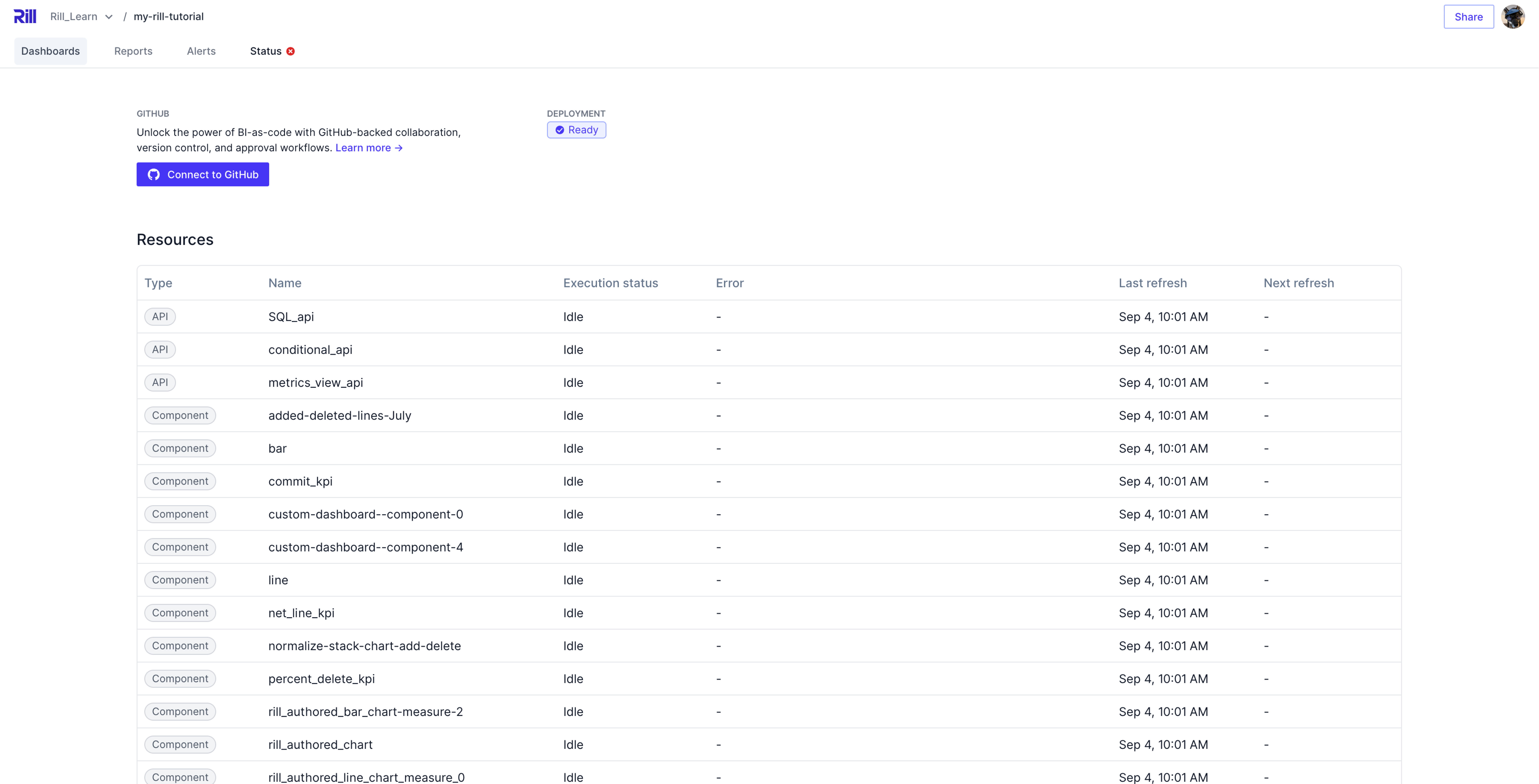
### Deploy Project with Repository
Follow the instructions in the Terminal to log in to GitHub (if not already done so), and select your repository.
If you do not set any parameters, Rill will infer the project name based on the folder path and use this as both the repository and project name. If there are any overlaps, we will request for a new name.
```bash
rill project connect-github
No git remote was found.
? Do you want to create a repo? Yes
? Select a GitHub account for the new repository royendo
Repository name "my-rill-tutorial" is already taken
? Please provide alternate name my-rill-tutorial-cli
Request submitted for creating repository. Checking completion status
Successfully created repository on "https://github.com/royendo/my-rill-tutorial-cli"
Pushing local project to GitHub
Successfully pushed your local project to GitHub
Using org "Rill_Learn".
Created project "Rill_Learn/my-rill-tutorial-cli". Use `rill project rename` to change name if required.
Rill projects deploy continuously when you push changes to GitHub.
...
Your project can be accessed at: https://ui.rilldata.com/Rill_Learn/my-rill-tutorial-cli
Opening project in browser...
```
Once completed, you will see the following in the settings page. Note that the GitHub repository is already set up!
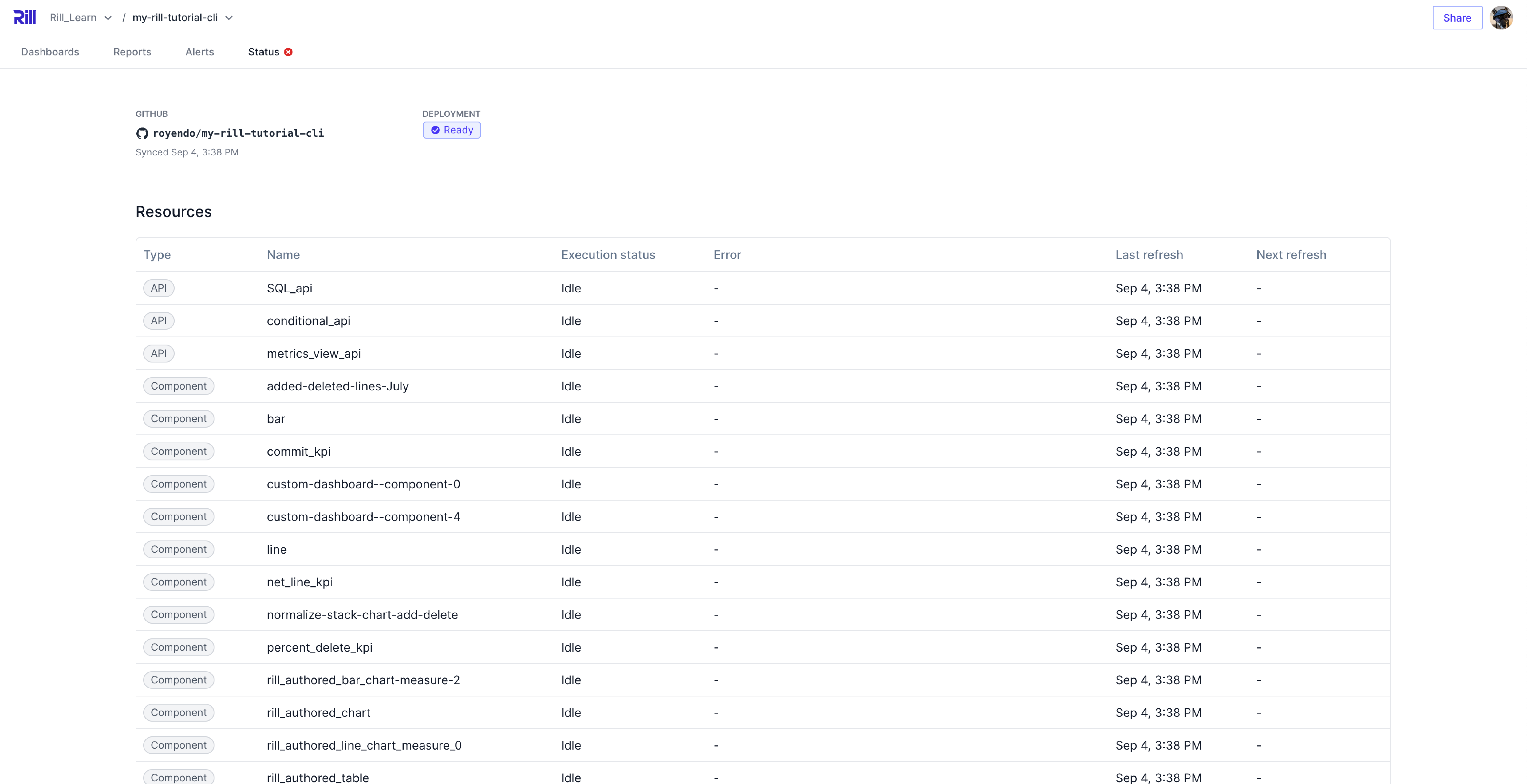
## Continuous Deployment
Whether you decide to manage your Rill projects using GitHub or by re-running `rill project deploy`, Rill should automatically detect changes that you have pushed locally and update your deployed project accordingly. Depending on the changes, this may result in a project reconciliation. If you are experiencing issues with the project after pushing changes with the CLI, please refer to the project's status page for more information, or run the following command:
```
rill project status
```
Likewise, if using the UI by selecting the `Update` button, Rill will detect the changes in files and update your deployed project accordingly. Along with the above CLI command, you can view the status of the objects in the Status page.
:::tip Interested in using GitLab?
Check out our documentation on deploying a [Rill project using GitLab](/developers/deploy/deploy-dashboard/deploy-from-cli)!
:::
## Change your production branch
By default, Rill deploys from the [default branch](https://docs.github.com/en/pull-requests/collaborating-with-pull-requests/proposing-changes-to-your-work-with-pull-requests/about-branches#about-the-default-branch) of your Git repository. You can change this to any branch you want.
To deploy your project from a different branch, run the following command:
```bash
rill connect-github --prod-branch [PROD-BRANCH]
```
## Deploy from a monorepo
If your Rill project is in a subdirectory of a Git repository, use the `--subpath` option when creating your project:
```
rill connect-github --subpath path/to/rill/project
```
:::warning
Note that you must run `rill connect-github` from the root of your Git repository, **not** the root of your Rill project.
:::
## Deprecated Rill Deploy
When running `rill deploy` you have two options:
1. Enable automatic deploys to Rill Cloud via GitHub
2. Disable automatic deploys to Rill Cloud via GitHub
```
rill deploy
? Enable automatic deploys to Rill Cloud from GitHub?
```
### Enable Automatic deploys
Like running `rill project connect-github`, you will be [prompted to create a GitHub repository](#deploy-project-with-repository). Once created, Rill will deploy the project. You can confirm that the project has the correct repository linked from the UI on the settings page.
### Disable Automatic deploys
In this case, the project will be deployed to Rill Cloud without a GitHub repository connected. You can always [add a repository via the UI](#syncing-your-github-repository) at a later time.
---
# Deploy to Rill Cloud from GitLab
URL: https://docs.rilldata.com/developers/deploy/deploy-dashboard/deploy-from-cli
While Rill Cloud natively integrates with [GitHub](https://github.com), you can also deploy your Rill project from [GitLab](https://about.gitlab.com/) using direct uploads from a [GitLab CI/CD pipeline](https://docs.gitlab.com/ee/ci/quick_start/).
Follow these steps to set up continuous deployment from GitLab to Rill Cloud:
1. Create a new GitLab repository and push your Rill project to it.
2. On your local, [authenticate with Rill Cloud](/guide/administration/users-and-access/user-management#logging-into-rill-cloud) and create an organization (replace `my-org-name` with your desired name):
```bash
rill login
rill org create my-org-name
```
3. Create the project in Rill Cloud
```bash
rill project deploy
```
:::note Multiple branches
If your repo contains multiple branches ensure the branch you want to deploy from via
```bash
rill project edit --project my-project-name --prod-branch my-branch-name
```
:::
4. Provision a Rill Cloud [service account](/reference/cli/service/create) called `gitlab-ci` and copy its access token:
```
rill service create gitlab-ci
```
5. Set the service token as a CI/CD variable called `RILL_SERVICE_TOKEN` in GitLab (from the repository page, it's under _Settings > CI/CD > Variables_).
6. Create a file named `.gitlab-ci.yml` at the root of the repository containing your Rill project. Paste the following contents into it (replace `my-org-name` and `my-project-name` with your desired names):
```yaml
deploy-rill-cloud:
stage: deploy
script:
- curl -L -o $HOME/rill.zip https://cdn.rilldata.com/rill/latest/rill_linux_amd64.zip
- unzip -d $HOME $HOME/rill.zip
- git checkout -B "$CI_COMMIT_REF_NAME" "$CI_COMMIT_SHA"
- $HOME/rill project deploy --org my-org-name --project my-project-name --interactive=false --api-token $RILL_SERVICE_TOKEN
```
Your Rill project should now automatically deploy to `ui.rilldata.com/my-org-name/my-project-name` each time changes are pushed to GitLab!
:::note File size limits
We enforce a file size limit of 100mb so ensure you do not unpack the rill binary in the repo root or add it to your .gitignore
:::
---
# GitHub Basics
URL: https://docs.rilldata.com/developers/deploy/deploy-dashboard/github-101
## Overview
:::info New to Git?
This page makes the deployment process easier for those who are less familiar with GitHub by walking you through the steps to use the UI rather than the GitHub command line interface. It is much simpler for those who prefer a graphical interface!
:::
To share dashboards with other users, Rill utilizes GitHub as a means of version control - effectively creating BI-as-code. There are several advantages to Git as the backend for dashboards: develop locally, integrate into existing development workflows, and manage versions + change control. While many users are familiar with Git and basic commands, there are other Rill users who are relatively new to Git.
In this section, we will outline:
- Installing the GitHub Desktop app (recommended for those less familiar with Git versus using the command line)
- Setting up your repository (repo) and cloning to your local
- Pushing changes to Git
- Deploying Rill to your new org to share dashboards, set up alerts and receive scheduled reports

## Installing Git
- To download the GitHub app for a UI-driven workflow, visit the [GitHub Desktop installation page](https://docs.github.com/en/desktop/installing-and-authenticating-to-github-desktop/installing-github-desktop).
- In your computer's Downloads folder, double-click the GitHub Desktop zip file.
- After the file has been unzipped, double-click the GitHub Desktop application file.
- GitHub Desktop will launch after installation is complete.
:::note Creating a GitHub account
If you do not already have a GitHub account, you'll need to create one as part of this process. For those looking to deploy to a company repo, we would suggest requesting access to a specific repo where you can get started.
:::
## Cloning Locally
Once you have downloaded GitHub and connected your account, you'll be able to create a new repository. Think of the repository as a shared cloud drive for the configuration files (sources, models, dashboards) that power Rill.
- First, go to GitHub.com and create a new repository - clicking the ```New``` button on the homepage\
- After you name your repository and click save, you'll see the option to ```Set up in Desktop```. This will open the GitHub desktop app directly to "clone" the repo to your local computer.
-
- Select the folder on your computer where you'd like to build with Rill. Confirm the location you cloned for the next step.
- Open the Terminal and go to your local copy of the repo (e.g. the above would be ```cd Documents/GitHub/rill-poc/testrepo```)
- Run the Rill install command ```curl https://rill.sh | sh``` (or run ```rill start``` if you've already installed)
Now - any changes you make locally can be synced directly with your GitHub repo in one click! You can revisit our [build section](/developers/build/connectors) for refreshers on connecting to new sources, modeling data, or building dashboards.
## Pushing Changes
After installing Rill and adding sources, your local project will now contain a variety of new files - source definitions, SQL models for transformation, and dashboards for analysis. GitHub automatically recognizes those files as new and you can now push those changes to your cloud repository.
First, open the GitHub app and select your repo. You should now see a variety of new changes (that can then be committed):
Now, in order to actually commit these changes to your repo, you can take the following steps:
- On the bottom left, you can describe the changes (or add something like "initial commit")
- Select the now blue _Commit to main_ button on the bottom left
- Click _Publish Branch_ on the top right - and that's it. Any future changes would follow the same two steps - add a comment, commit and publish!
:::warning Avoid Syncing Data Files
During the commit process, make sure to **uncheck** files you do not wish to sync to your cloud repo (or add the appropriate exclusions in your `.gitignore` file). In particular, if you were working with local data files, those will now be in the repo including ```tmp``` files and/or sources (e.g. parquet or CSV files). GitHub has a limit on cloud storage so instead consider adding that data to a [cloud object storage location](/developers/build/connectors) (S3, GCS, Azure).
:::
:::tip Make small changes directly in github
For any larger changes, we would strongly suggest developing locally to see the effects of that change. However, for smaller changes (add a simple metric, changing the name of a dimension, etc.), some users _may_ prefer to edit directly inline on [GitHub](https://github.com) directly.
:::
## Deploying Rill
Now that your dashboards should be fully synced to GitHub, version controlled, and available to be edited by others. To make the dashboard fully cloud-enabled, you can return to your terminal and run ```rill project connect-github```. With everything synced, you should now be able to create a [new organization](/guide/administration/organization-settings#organization) within Rill Cloud and push your dashboard to the cloud for shared collaboration. Any future changes should automatically be present in your deployed dashboards on [Rill Cloud](https://ui.rilldata.com) once committed and new dashboards will appear automatically as well (no deploy command needed). More details on [deployment here](/developers/deploy/deploy-dashboard).
:::info Have further questions? We'd love to hear from you!
We know that utilizing Git may be new to some - please don't hesitate to [reach out](/contact) to us with any questions and we'd be happy to assist.
:::
---
# Managing Project Errors
URL: https://docs.rilldata.com/developers/deploy/project-errors
When you deploy to Rill Cloud, projects can encounter errors—from missing credentials to data type mismatches. This guide focuses on managing errors in deployed projects and setting up automated alerts.
:::info General Troubleshooting
For general troubleshooting guidance, error message explanations, and debugging techniques, see the [Debugging Rill Projects](/developers/build/debugging) documentation.
:::
## How Rill Handles Errors
Rill's error management approach ensures visibility and isolation:
- **Visibility:** View project status at the resource level via the `Status` tab or [`rill project status`](/reference/cli/project/status) CLI command
- **Isolation:** Errors are contained to individual resource trees—if one dashboard fails, others remain available
- **Fallback:** Rill attempts to serve from the most recent valid state when possible
:::tip Check upstream dependencies
The surfaced error might not be the root cause. A dashboard error could stem from an underlying model timeout. Always check the [project status page](/guide/administration/project-settings#checking-deployment-status) to trace errors to their source.
:::
## Deployment-Specific Error Scenarios
Most errors will surface during local development in Rill Developer. However, after deploying to Rill Cloud, you may encounter additional issues:
1. **Production configuration missing** - Your YAML files reference `prod:` parameters that have been defined incorrectly. Verify your [dev/prod setup](/developers/build/connectors/templating).
2. **Timeouts, OOM** - Production data volumes may be larger than local development data, leading to timeouts and out-of-memory issues. [Contact us](/contact) if you see any related error messages.
To troubleshoot deployment errors:
1. **Check the resource status** in the [project status page](/guide/administration/project-settings#checking-deployment-status)
2. **Review project logs** using `rill project logs` or the Rill Cloud UI
3. **Compare with local behavior** - If it worked locally, check production-specific configuration differences
## Setting Up Error Alerts
You can configure alerts to automatically notify you when project errors occur. Once set up, you'll receive notifications (via email or Slack) whenever any resource in your project enters an error state.
Besides alerting on project errors, it is possible to configure generic alerts in your dashboards based on specific thresholds or conditions being met. For more details, check out our [alerts documentation](/guide/alerts)!
### Configure an email alert
To configure an email alert for project errors, add a file named `project_errors.yaml` to your Rill project with the contents below. Remember to update the `recipients` field to your desired alert recipients.
```yaml
type: alert
# Check the alert every 10 minutes.
refresh:
cron: "*/10 * * * *"
# Query for all resources with a reconcile error.
# The alert will trigger when the query result is not empty.
data:
resource_status:
where_error: true
# Send notifications by email
notify:
email:
recipients: [john@example.com]
```
This will give you a good idea of what object has an issue, and you can browse the [status page](/guide/administration/project-settings#checking-deployment-status) for more information.
After making these changes, you should commit and [push these changes](/developers/deploy/deploy-dashboard/github-101#pushing-changes) to your git repository.
### Configure a Slack alert
To configure a Slack alert for project errors, first follow the Slack configuration steps described on [Configuring Slack integration](/developers/build/connectors/services/slack#setting-up-the-slack-integration). Next, add a file named `project_errors.yaml` to your Rill project with the contents below. Remember to update the `channels` field to your desired destination channel.
```yaml
type: alert
# Check the alert every 10 minutes.
refresh:
cron: "*/10 * * * *"
# Query for all resources with a reconcile error.
# The alert will trigger when the query result is not empty.
data:
resource_status:
where_error: true
# Send notifications in Slack.
# Follow these steps to configure a Slack token: https://docs.rilldata.com/guide/alerts/alerts/slack.
notify:
slack:
channels: [rill-alerts]
```
After making these changes, you should commit and [push these changes](/developers/deploy/deploy-dashboard/github-101#pushing-changes) to your git repository or update your Rill project via the Deploy button.
---
# Embed Rill into your Application
URL: https://docs.rilldata.com/developers/embed/
Embed Rill dashboards and data directly into your existing applications.
- **[Iframe Embedding](/developers/embed/iframe)** — Setup, authentication, and iframe URL generation
- **[postMessage API](/developers/embed/postmessage)** — Control embedded dashboards programmatically via `postMessage`
- **[Live Example](https://rill-embedding-example.netlify.app/)** — Working demo of embedded Rill dashboards
- **[Live Example Source Code](https://github.com/rilldata/rill-examples/tree/main/embedding)** — Source code for the live example, including the Rill project and the Next.js app
---
# Embed Dashboards in an Iframe
URL: https://docs.rilldata.com/developers/embed/iframe
## Introduction
Rill Cloud provides the ability to embed dashboards as components in your own application using iframes, with a few different options:
- Embedding individual dashboards as standalone iframes
- Embedding individual dashboards with the ability to navigate to other dashboards (that exist in the _same_ project)
- Embedding the dashboard list page present in a Rill project (with the ability to select and navigate between dashboards)
When embedding Rill, you need to generate a service token for your backend to request an authenticated iframe URL via the Rill API. Afterward, the iframe URL can be passed to your frontend application for rendering. Here's a high-level diagram of what this flow looks like:
```mermaid
sequenceDiagram
participant A as ui.ezcommerce.com
participant B as api.ezcommerce.com
participant C as api.rilldata.com
participant D as ui.rilldata.com/-/embed
participant E as node.region.runtime.rilldata.com
A ->> B: Get iframe URL
B ->> B: Resolve the user's email using ezcommerce's own auth
B ->>+ C: Get iframe URL for: project="ezcommerce" user="john@example.com" (uses Rill service token)
Note right of C: 1. Lookup deployment 2. Generate JWT 3. Build iframe URL
C ->>- B: iframe URL
B ->> A: iframe URL
A ->> D: Render iframe URL
loop
D ->> E: Request data (gets host and JWT from iframe URL query)
E ->> D: Data with policies applied for user="john@example.com"
end
```
## Create a service token
Use the Rill CLI to create a service token for your current organization using the following command:
```bash
# Create with organization role
rill service create --org-role admin
# Or create with project-specific role
rill service create --project --project-role admin
```
:::info
For comprehensive documentation on service tokens, including roles, custom attributes, and management, see [Service Tokens](/guide/administration/access-tokens/service-tokens). Also see the [CLI reference](/reference/cli/service) for command details.
:::
:::note Why is the admin role required?
Service tokens used for iframe embedding require the `admin` role to access the deployment management APIs that generate iframe URLs. Using the `viewer` role will result in a 403 permission error.
:::
:::caution
Service tokens can have broad permissions and should be handled confidentially. Therefore, the service token itself should **not** be integrated directly in frontend or other user-facing code that can be exposed publicly.
:::
## Backend: Build an iframe URL
You should implement an API on your backend that uses the service token to retrieve and return an iframe URL from Rill's API (which is hosted on `api.rilldata.com`).
There are multiple reasons why the iframe URL must be constructed on your backend:
- To avoid leaking your master Rill service token in the browser
- To allow you to use your own authentication and authorization logic to restrict access to the dashboard
- To optionally use your backend's context about the authenticated user to include user attributes in the iframe URL for enforcement of row-level security policies
Here are examples of how to get an iframe URL using different languages:
```bash
curl -X POST --location 'https://api.rilldata.com/v1/orgs//projects//iframe' \
--header 'Content-Type: application/json' \
--header 'Authorization: Bearer ' \
--data-raw '{
"type": "explore",
"resource": "",
"user_email": ""
}'
```
JavaScript (Node.js) with Express.js
```js
const express = require('express');
const fetch = require('node-fetch');
const rillServiceToken = "";
const rillOrg = "";
const rillProject = "";
const app = express();
app.use(express.json());
app.post('/api/rill/iframe', async (req, res) => {
const dashboardName = req.body.resource;
try {
const response = await fetch(`https://api.rilldata.com/v1/orgs/${rillOrg}/projects/${rillProject}/iframe`, {
method: 'POST',
headers: {
'Content-Type': 'application/json',
Authorization: `Bearer ${rillServiceToken}`,
},
body: JSON.stringify({
type: 'explore',
resource: dashboardName,
// Optionally include the end user's email address for security policies:
// user_email: '',
// Optionally set theme and theme mode:
// theme: 'my-custom-theme',
// theme_mode: 'dark', // Options: 'light', 'dark', 'system'
}),
});
const data = await response.json();
if (response.ok) {
res.json(data);
} else {
throw new Error(data.message);
}
} catch (error) {
res.status(500).json({ error: error.message });
}
});
const PORT = 3000;
app.listen(PORT, () => {
console.log(`Server running on port ${PORT}`);
});
```
Python with Flask
```python
from flask import Flask, request, jsonify
import requests
app = Flask(__name__)
@app.route('/api/rill/iframe', methods=['POST'])
def get_rill_iframe():
dashboard_name = request.json.get('resource')
try:
response = requests.post(
'https://api.rilldata.com/v1/orgs//projects//iframe',
headers={
'Content-Type': 'application/json',
'Authorization': 'Bearer ',
},
json={
'type': 'explore',
'resource': dashboard_name,
# Optionally include the end user's email address for security policies:
# 'user_email': '',
# Optionally set theme and theme mode:
# 'theme': 'my-custom-theme',
# 'theme_mode': 'dark', # Options: 'light', 'dark', 'system'
}
)
response.raise_for_status()
data = response.json()
return jsonify(data)
except requests.RequestException as e:
return jsonify(error=str(e)), 500
if __name__ == '__main__':
app.run(port=3000)
```
Go with net/http
```go
package main
import (
"bytes"
"encoding/json"
"fmt"
"io/ioutil"
"net/http"
)
func getRillIframe(w http.ResponseWriter, r *http.Request) {
var reqBody map[string]string
json.NewDecoder(r.Body).Decode(&reqBody)
dashboardName := reqBody["resource"]
requestBody, err := json.Marshal(map[string]string{
"type": "explore",
"resource": dashboardName,
// Optionally include the end user's email address for security policies:
// "user_email": "",
})
if err != nil {
http.Error(w, err.Error(), http.StatusInternalServerError)
return
}
resp, err := http.Post("https://api.rilldata.com/v1/orgs//projects//iframe", "application/json", bytes.NewBuffer(requestBody))
if err != nil {
http.Error(w, err.Error(), http.StatusInternalServerError)
return
}
defer resp.Body.Close()
body, err := ioutil.ReadAll(resp.Body)
if err != nil {
http.Error(w, err.Error(), http.StatusInternalServerError)
return
}
var respBody map[string]any
err = json.Unmarshal(body, &respBody)
if err != nil {
http.Error(w, err.Error(), http.StatusInternalServerError)
return
}
w.Header().Set("Content-Type", "application/json")
err = json.NewEncoder(w).Encode(respBody)
if err != nil {
http.Error(w, err.Error(), http.StatusInternalServerError)
return
}
}
func main() {
http.HandleFunc("api/rill/iframe", getRillIframe)
fmt.Println("Server started at port 3000")
http.ListenAndServe(":3000", nil)
}
```
Java With Spring Boot
```java
import org.springframework.web.bind.annotation.PostMapping;
import org.springframework.web.bind.annotation.RequestBody;
import org.springframework.web.bind.annotation.RestController;
import org.springframework.web.client.RestTemplate;
import org.springframework.http.ResponseEntity;
import org.springframework.http.HttpEntity;
import org.springframework.http.HttpHeaders;
import java.util.HashMap;
import java.util.Map;
@RestController
public class DashboardController {
@PostMapping("/api/rill/iframe")
public ResponseEntity getRillIframe(@RequestBody Map payload) {
String dashboardName = (String) payload.get("resource");
HttpHeaders headers = new HttpHeaders();
headers.set("Content-Type", "application/json");
headers.set("Authorization", "Bearer ");
Map request = new HashMap<>();
request.put("type", "explore");
request.put("resource", dashboardName);
// Optionally include the end user's email address for security policies:
// request.put("user_email", "");
HttpEntity> entity = new HttpEntity<>(request, headers);
RestTemplate restTemplate = new RestTemplate();
ResponseEntity
The API accepts the following parameters:
| Parameter | Description | Required |
| ---------------- | ------------------------------------------------------------------------------------------------------------------------------------------------------------------------------- | ----------------------------------------------------------------- |
| resource | The name of the dashboard to embed | No (if not specified, `navigation` should be set to `true`) |
| type | The type of the dashboard identified by `resource` (options: `explore`, `canvas`) | No (defaults to `explore`) |
| navigation | Boolean whether to enable navigation and allow users to navigate to other dashboards (`false` will hard embed and allow access to a single dashboard; `true` allows navigation) | No (defaults to `false`) |
| hide_navigation_bar | Boolean whether to hide the navigation bar (the home link and dashboard breadcrumbs) while keeping navigation enabled. Only meaningful when `navigation` is `true`; the bar is always hidden when `navigation` is `false`. In-dashboard navigation, such as the drill-through from a Canvas component to an Explore dashboard, remains available. | No (defaults to `false`) |
| theme | If [themes](/developers/build/dashboards/customization#changing-themes--colors) are being used, the specific theme to pass to the embedded dashboard | No (set to the name of the theme) |
| theme_mode | The theme mode to use for the embedded dashboard. Valid values: `light`, `dark`, `system`. When set to `system`, the dashboard will follow the user's system preference. | No (defaults to `light`) |
| user_email | Email of the end user accessing the embed. Used to populate attributes for use in security policies. | No (only one of `user_email` or `attributes` should be passed in) |
| attributes | Raw attributes about the end user. Used to populate attributes for use in security policies. | No (only one of `user_email` or `attributes` should be passed in) |
| external_user_id | A stable identifier for an external end user. Enables per-user state. | No |
| ttl_seconds | The time to live for the iframe URL | No (Default: 86400) |
The response of the POST request will then contain an `iframeSrc` value that can be used to embed the dashboard or set of dashboards in your application. It will also contain a `ttlSeconds` value, which indicates how long the iframe URL will be valid for. _After the TTL has elapsed_, the iframe URL needs to be refreshed as the underlying access token being used will no longer be valid (for security purposes). Here's an example response:
```json
{
"iframeSrc": "https://ui.rilldata.com/-/embed?access_token=&instance_id=&type=&resource=&runtime_host=",
"runtimeHost": "",
"instanceId": "",
"accessToken": "",
"ttlSeconds": 86400
}
```
## User identity in embeds
The `user_email`, `attributes` and `external_user_id` parameters serve two purposes in the embeds:
- **User attributes for security policies:** `user_email` and `attributes` determine which attributes (such as `email`, `domain`, and `admin`) are available for use in [security policies](/developers/build/metrics-view/security).
- **Per-user state:** `external_user_id` establishes a stable user identity that isolates per-user features such as AI chat history. Without a user identity, these features are not available.
Only one of `user_email` or `attributes` can be provided for a given iframe. The `external_user_id` parameter can optionally be combined with either of them. Here is how each parameter works:
- `user_email`: Looks up the user in Rill Cloud by email and populates their standard attributes. If no matching user is found, it generates limited attributes with only the fields `email`, `domain` (the part of the email after `@`) and `admin` (set to `false`). The derived `domain` is commonly used in security policies (e.g. `app_site_domain = '{{ .user.domain }}'`). Does not enable per-user state on its own; combine with `external_user_id` to enable per-user state.
- `attributes`: Passes the provided attributes through directly. Make sure to include all attributes referenced in your security policies (e.g. `email`, `domain`, `admin`, or custom attributes like `tenant_id`). Does not enable per-user state on its own; combine with `external_user_id` to enable per-user state.
- `external_user_id`: Any stable identifier for the end user. This is usually the user's ID in your own database. Setting it enables per-user state such as AI chat history.
The same attributes decide what an embedded canvas shows. Canvas rows, tabs and components can have [`if` conditions](/developers/build/dashboards/canvas#show-content-to-some-viewers-only) on them, such as `'{{ eq .user.plan "premium" }}'` to show premium content only to tenants on that plan. Every embed also carries the attribute `embed: true`, so a condition like `'{{ not .user.embed }}'` keeps content out of embedded dashboards.
## Embedding the project vs embedding an individual dashboard
One of the most common differences between how developers may wish to iframe Rill is whether they wish to embed at the project level or individual dashboard level. This behavior can be controlled through the combination of the `resource` and `navigation` properties!
If you wish to embed a single dashboard **only**, your payload might look like:
```json
{
"type": "explore",
"resource": "dashboardName"
}
```
If you wish to still embed a dashboard _but allow navigation between dashboards_, then your payload should include both parameters:
```json
{
"type": "explore",
"resource": "dashboardName",
"navigation": true
}
```
If you wish to allow navigation _but hide the navigation bar_ — for example to embed a Canvas dashboard whose components can drill through to an Explore dashboard, without showing Rill's own breadcrumbs — then add `hide_navigation_bar`:
```json
{
"type": "canvas",
"resource": "dashboardName",
"navigation": true,
"hide_navigation_bar": true
}
```
Note that in this mode there is no in-iframe affordance for returning from a dashboard the user drilled into. Your application should listen for the [`navigation` notification](/developers/embed/postmessage) — still emitted when the navigation bar is hidden — and provide its own way back.
Finally, _if you wish to embed the project list view of dashboards instead (what you see when you first open a project in Rill Cloud)_, then you can simply omit the `resource` and appropriately set `navigation` in your payload:
```json
{
"navigation": true
}
```
## Testing the dashboard
While it is possible to create the iframeSrc URL via the CLI or code to _test_ your embedded dashboard, it might be easier to start off using [Rill Developer's mock users](/developers/build/metrics-view/security#advanced-example-custom-attributes-embed-dashboards), especially if you have multiple attribute views that you want to test before deploying to Rill Cloud. You can pass specific custom_attributes as you would during iframe URL generation to view the pre-filtered explore dashboard.
```yaml
- email: embed@rilldata.com
name: embed
custom_variable_1: Value_1
custom_variable_2: Value_2
```
## Frontend: Embed the dashboard
Your frontend should request an iframe URL from your backend API (which you set up in the previous step) and use the `iframeSrc` value of the response to render an HTML `
```
Set up message handling and send requests from the parent window:
```js
const iframe = document.getElementById("my-iframe");
window.addEventListener("message", (event) => {
const { id, result, error, method, params } = event.data;
// notifications
if (method === "ready") {
console.log("Iframe is ready");
}
if (method === "stateChanged") {
console.log("State changed to:", params.state);
}
if (method === "navigation") {
console.log("Navigated from:", params.from, "to:", params.to);
// params.from and params.to will be dashboard names or "dashboardListing"
}
if (method === "resized") {
console.log("Iframe resized to:", params.width, "x", params.height);
}
// responses
if (id && result) {
console.log("Response to request:", result);
}
if (id && error) {
console.error("RPC error:", error);
}
});
```
## Supported Methods
These methods are called **from the parent** and handled **by the iframe**.
Note: if including an `id`, the iframe will respond with a matching `id`. If you do not need a response, you can omit the `id` property.
### `setState(state)`
Updates the iframe's dashboard's UI state.
```js
iframe.contentWindow.postMessage({
id: 1,
method: "setState",
params: "view=pivot&tr=PT24H&grain=hour",
}, "*");
```
**Parameters:**
- `state` (string): A URL query string describing the dashboard view, filters, time range, etc. Uses the same format as the query strings in URLs on Rill Cloud.
**Response:**
```json
{ "id": 1, "result": true }
```
### `setValidState({ state, failOnError })`
Like `setState`, but validates the state against the dashboard's metrics view and explore specs before applying it. Invalid parameters (for example, an unknown dimension or measure) are reported back, and the applied URL is canonicalized (defaults removed, parameters ordered) the same way it would be if the user navigated there directly. The applied state is returned in `appliedState`. Validation is currently supported for explore dashboards; for other dashboard types the state is applied as-is.
```js
iframe.contentWindow.postMessage({
id: 1,
method: "setValidState",
params: { state: "view=pivot&tr=PT24H&grain=hour", failOnError: true },
}, "*");
```
**Parameters:**
- `state` (string): A URL query string describing the dashboard view, filters, time range, etc. Uses the same format as the query strings in URLs on Rill Cloud.
- `failOnError` (boolean, optional): When `false` (the default), the cleaned state is applied even when some parameters were invalid; the dropped parameters are still reported in `errors`. When `true`, the state is applied only if there are no validation errors.
**Response:**
```json
{ "id": 1, "result": { "success": true, "appliedState": "view=pivot&tr=PT24H&grain=hour", "errors": [] } }
```
`success` is `false` when `failOnError` is `true` and validation produced errors, in which case the state is not applied and `appliedState` is omitted. `appliedState` is the canonicalized query string that was actually applied to the dashboard. `errors` contains a message for each invalid parameter.
### `getState()`
Returns the iframe's dashboard's current UI state.
```js
iframe.contentWindow.postMessage({
id: 2,
method: "getState"
}, "*");
```
**Response:**
```json
{ "id": 2, "result": { "state": "view=pivot&tr=PT24H&grain=hour" } }
```
### `getThemeMode()`
Fetches the current theme mode of the iframe.
```js
iframe.contentWindow.postMessage({
id: 3,
method: "getThemeMode"
}, "*");
```
**Response:**
```json
{ "id": 3, "result": {"themeMode": "light"} }
```
The `themeMode` value will be one of: `"light"`, `"dark"`, or `"system"`.
### `setThemeMode(themeMode)`
Sets the theme mode inside the iframe.
```js
iframe.contentWindow.postMessage({
id: 4,
method: "setThemeMode",
params: "dark"
}, "*");
```
**Parameters:**
- `themeMode` (string): The theme mode to set. Must be one of: `"light"`, `"dark"`, or `"system"`.
**Response:**
```json
{ "id": 4, "result": true }
```
**Error Response (if invalid themeMode):**
```json
{
"id": 4,
"error": {
"code": -32603,
"message": "Expected themeMode to be one of \"dark\", \"light\", or \"system\""
}
}
```
### `getTheme()`
Fetches the current theme name applied to the dashboard.
```js
iframe.contentWindow.postMessage({
id: 5,
method: "getTheme"
}, "*");
```
**Response:**
```json
{ "id": 5, "result": {"theme": "my-custom-theme"} }
```
If no theme is set, the response will be:
```json
{ "id": 5, "result": {"theme": "default"} }
```
The `theme` value will be the name of the theme resource, or `"default"` if no theme is set.
### `setTheme(theme)`
Sets the theme name to apply to the dashboard.
```js
iframe.contentWindow.postMessage({
id: 6,
method: "setTheme",
params: "my-custom-theme"
}, "*");
```
**Parameters:**
- `theme` (string | null): The theme name to set. Must be the name of an existing theme resource. To clear the theme and use the default, pass `null` or `"default"`.
**Response:**
```json
{ "id": 6, "result": true }
```
**Error Response (if invalid theme):**
```json
{
"id": 6,
"error": {
"code": -32603,
"message": "Expected theme to be a string or null"
}
}
```
:::caution
The theme name must correspond to an existing theme resource in your Rill project. Setting an invalid theme name will **not** return an error, but the theme will silently not be applied.
:::
### `getAiPane()`
Fetches the current visibility state of the AI chat pane.
```js
iframe.contentWindow.postMessage({
id: 7,
method: "getAiPane"
}, "*");
```
**Response:**
```json
{ "id": 7, "result": {"open": false} }
```
The `open` value will be `true` if the AI pane is currently visible, or `false` if it is hidden.
**Note:** The AI pane is only available for Explore dashboards when the chat feature is enabled. If the AI pane is not available, the method will still return the current state (which will typically be `false`).
### `setAiPane(open)`
Sets the visibility state of the AI chat pane.
```js
iframe.contentWindow.postMessage({
id: 8,
method: "setAiPane",
params: true
}, "*");
```
**Parameters:**
- `open` (boolean): Whether to show (`true`) or hide (`false`) the AI chat pane.
**Response:**
```json
{ "id": 8, "result": true }
```
**Error Response (if invalid parameter):**
```json
{
"id": 8,
"error": {
"code": -32603,
"message": "Expected open to be a boolean"
}
}
```
**Note:** The AI pane is only available for dashboards when the chat feature is enabled. If the AI pane is not available, calling this method will not cause an error, but the pane will not be shown.
## Notifications
Notifications are sent **from the iframe** to the parent window. These do not include an `id`.
### `ready()`
Fired once when the iframe is initialized and ready to receive messages.
```json
{ "method": "ready" }
```
### `stateChanged({ state: string })`
Fired whenever the internal state of the iframe changes.
```json
{ "method": "stateChanged", "params": { "state": "" } }
```
### `navigation({ from: string, to: string })`
Fired whenever a user navigates between dashboards. This event is only emitted when navigation is enabled in the embed configuration.
- `from`: The name of the dashboard the user navigated from, or `"dashboardListing"` if navigating from the dashboard listing page
- `to`: The name of the dashboard the user navigated to, or `"dashboardListing"` if navigating to the dashboard listing page
This event fires for all dashboard navigation scenarios:
- Navigating from one explore dashboard to another
- Navigating from one canvas dashboard to another
- Navigating from an explore dashboard to a canvas dashboard (or vice versa)
- Navigating from the dashboard listing page to any dashboard
- Navigating from any dashboard to the dashboard listing page
```json
{ "method": "navigation", "params": { "from": "dashboard-name", "to": "another-dashboard-name" } }
```
Example when navigating from the listing page:
```json
{ "method": "navigation", "params": { "from": "dashboardListing", "to": "dashboard-name" } }
```
Example when navigating to the listing page:
```json
{ "method": "navigation", "params": { "from": "dashboard-name", "to": "dashboardListing" } }
```
### `resized({ width: number, height: number })`
Fired whenever the iframe content is resized.
```json
{ "method": "resized", "params": { "width": 1200, "height": 800 } }
```
### `aiPaneChanged({ open: boolean })`
Fired whenever the AI pane visibility state changes (opened or closed).
- `open`: `true` if the AI pane is now open, `false` if it is now closed
This event fires when:
- The AI pane is opened or closed by the user clicking the AI button
- The AI pane state is changed programmatically via the `setAiPane()` method
- The AI pane state changes for any other reason
```json
{ "method": "aiPaneChanged", "params": { "open": true } }
```
Example when the AI pane is closed:
```json
{ "method": "aiPaneChanged", "params": { "open": false } }
```
**Note:** This notification is only emitted for Explore dashboards when the chat feature is enabled.
## Error Handling
All errors follow the JSON-RPC 2.0 structure:
```json
{
"id": 3,
"error": {
"code": -32601,
"message": "Method not found"
}
}
```
**Common Error Codes:**
| Code | Message | Description |
| ------ | ---------------- | -------------------- |
| -32600 | Invalid Request | Malformed request |
| -32601 | Method Not Found | Unknown method |
| -32602 | Invalid Params | Parameters incorrect |
| -32603 | Internal Error | Unexpected failure |
| -32700 | Parse Error | Malformed JSON |
---
## Full Example
```js
const iframe = document.getElementById("my-iframe");
function sendRequest(method, params) {
const id = Math.random().toString(36).slice(2, 11);
return new Promise((resolve, reject) => {
function handler(event) {
if (event.data?.id === id) {
window.removeEventListener("message", handler);
if (event.data.result !== undefined) resolve(event.data.result);
else reject(event.data.error);
}
}
window.addEventListener("message", handler);
iframe.contentWindow.postMessage({ id, method, params }, "*");
});
}
window.addEventListener("message", async (event) => {
if (event.data?.method === "ready") {
console.log("Iframe ready");
await sendRequest("setState", "view=pivot&tr=PT24H&grain=hour");
const currentState = await sendRequest("getState");
console.log("Current state:", currentState.state);
const currentThemeMode = await sendRequest("getThemeMode");
console.log("Current theme mode:", currentThemeMode.themeMode);
await sendRequest("setThemeMode", "dark");
const currentTheme = await sendRequest("getTheme");
console.log("Current theme:", currentTheme.theme);
await sendRequest("setTheme", "my-custom-theme");
const aiPaneState = await sendRequest("getAiPane");
console.log("AI pane open:", aiPaneState.open);
await sendRequest("setAiPane", true);
}
if (event.data?.method === "stateChanged") {
console.log("State changed:", event.data.params.state);
}
if (event.data?.method === "navigation") {
console.log("Navigated from:", event.data.params.from, "to:", event.data.params.to);
}
if (event.data?.method === "resized") {
console.log("Iframe resized:", event.data.params.width, "x", event.data.params.height);
}
if (event.data?.method === "aiPaneChanged") {
console.log("AI pane changed:", event.data.params.open ? "opened" : "closed");
}
});
```
---
# Building Rill Projects with AI
URL: https://docs.rilldata.com/developers/get-started/ai-quickstart
Rill projects are defined as YAML and SQL files, which makes them a natural fit for AI coding agents. This guide walks through using an AI agent like Claude Code or Cursor to build a Rill project from scratch.
## Prerequisites
- [Rill CLI installed](/developers/get-started/install)
- An AI coding agent: [Claude Code](https://docs.anthropic.com/en/docs/claude-code/overview), [Cursor](https://www.cursor.com/), or another MCP-compatible tool
## Step 1: Initialize a project with agent instructions
Run `rill init` to create a new project. The interactive setup will prompt you for a project name, OLAP engine, and agent instructions:
```bash
rill init
? Project name my-rill-project
? OLAP engine clickhouse
? Agent instructions all
```
This creates a project directory with:
- `rill.yaml` — project configuration
- `.claude/CLAUDE.md` and `.claude/skills/` — entry point and skills for Claude Code, with detailed instructions for each resource type (models, metrics views, dashboards, etc.)
- `.cursor/` — the same instructions as Cursor rules
- `AGENTS.md` and `.agents/skills/` — the same instructions in the tool-agnostic `AGENTS.md` format
- `.mcp.json` — connects your agent to Rill's local [MCP server](/guide/ai/mcp)
See the [Agent Skills documentation](/developers/agent-skills) for details on what each skill covers and the files generated for each tool.
:::tip Only using one AI agent?
Select a specific option in the "Agent instructions" prompt, or use the `--agent` flag to generate files for just that tool:
```bash
# Claude Code skills
rill init my-project --agent claude
# Cursor rules
rill init my-project --agent cursor
# Tool-agnostic AGENTS.md format
rill init my-project --agent agentsmd
```
:::
### Adding agent instructions to an existing project
If you already have a Rill project, run `rill init` with only the `--agent` flag to generate the agent instruction files:
```bash
rill init ./my-existing-project --agent all
```
The command only writes agent instruction files and MCP configuration — but note that it [overwrites existing agent files](/developers/agent-skills/install#existing-project) at the generated paths.
## Step 2: Start Rill in preview mode
Launch Rill Developer in [preview mode](/developers/build/getting-started#preview-mode) to get a clean, dashboard-only view while your AI agent handles the code:
```bash
rill start my-project --preview
```
This also starts a local MCP server at `http://localhost:9009/mcp`. If you generated agent instructions in Step 1, your AI agent will connect to this server automatically via the `.mcp.json` config — no additional setup required.
The MCP server gives your AI agent access to:
- **Project status** — see which resources are healthy, errored, or pending
- **Table schemas** — inspect columns, types, and sample data
- **SQL queries** — run analytical queries against your OLAP engine
- **File operations** — read and write project files
## Step 3: Build with your AI agent
With Rill running, open your AI agent in the project directory and start building. Here are some examples of what you can ask:
### Connect a data source
> "Connect to the parquet file at `gs://rilldata-public/auction_data.parquet`"
The agent will create a source YAML file and Rill will automatically ingest the data.
### Create models
> "Create a model that cleans the auction data — filter out null bids and add a `bid_bucket` column that groups bids into $0-1, $1-5, $5-10, and $10+ ranges"
### Define metrics
> "Create a metrics view on the auction model with measures for total bids, average bid price, and win rate, broken down by dimensions like domain, device type, and bid bucket"
### Build dashboards
> "Create an explore dashboard for the auction metrics view"
> "Create a canvas dashboard with KPI cards for total bids and win rate, a time series chart, and a breakdown table by domain"
### Iterate
The agent has full context on Rill's resource types and YAML schemas. It can fix errors, refactor models, add new measures, and restructure your project — just describe what you want.
:::tip Check project status
If something isn't working, ask your agent to check the project status. The MCP connection lets it see parse errors, reconciliation failures, and resource health directly.
:::
## Next steps
- **[Agent Skills](/developers/agent-skills)** — learn more about the skills, supported tools, and how to keep them updated
- **[Deploy to Rill Cloud](/developers/deploy/deploy-dashboard)** — share your dashboards with your team
- **[AI Chat](/guide/ai/ai-chat)** — ask questions about your data in natural language from Rill Cloud
- **[AI Configuration](/developers/build/ai-configuration)** — add `ai_instructions` to improve AI responses for your project
- **[Rill MCP Server](/guide/ai/mcp)** — connect Claude Desktop, ChatGPT, or other AI clients to Rill Cloud projects
---
# How to Install Rill Developer
URL: https://docs.rilldata.com/developers/get-started/install
## Quick Install
You can install `rill` using our installation script on both macOS and Linux:
```bash
curl https://rill.sh | sh
```
:::tip Why am I installing locally?
Installing Rill Developer locally is required to create a new project, or [clone a project](/developers/tutorials/clone-a-project) from Rill Cloud. For key differences between Rill Cloud and Rill Developer, see [Rill Cloud vs. Rill Developer](/developers/deploy/cloud-vs-developer).
:::
To verify that the installation succeeded, run the following command. You will see a list of various commands that you can run via the CLI.
```bash
rill --help
```
:::warning macOS users
If you previously installed Rill using `brew`, *the brew-managed binary will take precedence*. You can remove it by running `brew uninstall rill`.
:::
### Checking Rill Version
You can check the current version of rill from the CLI by running the following command:
```bash
rill version
```
### Upgrade to the newest version of Rill Developer
To ensure you're on the latest version of Rill and enjoying all of our newest features, you can upgrade Rill Developer easily via the command line:
```bash
rill upgrade
```
If the latest version is already installed, the upgrade is skipped. To reinstall anyway, run `rill upgrade --force`, or set `RILL_INSTALL_FORCE=1` when using the installation script:
```bash
curl https://rill.sh | RILL_INSTALL_FORCE=1 sh
```
:::info What about Rill Cloud?
Rill Cloud is always on the latest stable version of Rill. To check the latest version available, please see our [Releases](https://github.com/rilldata/rill/releases) page.
:::
## Nightly Releases
On both macOS and Linux, you can install the latest nightly build using the installation script:
```bash
curl https://rill.sh | sh -s -- --nightly
```
### What is a nightly release?
The nightly release will give you the most up-to-date version of Rill without having to wait for the official release. As these releases are not fully ready for production, you may encounter some issues. Also, version mismatches between Rill Developer and Rill Cloud may result in broken components, as Rill Cloud is on the previous stable release.
## Installing a specific version of Rill
Rather than installing the latest version of Rill automatically, you can also install a specific version through the installation script by using the following command (e.g., `v0.40.1`):
```bash
curl https://rill.sh | sh -s -- --version
```
:::info Checking the Rill version
To check the precise version of available releases, you can navigate to the [**Releases**](https://github.com/rilldata/rill/releases) page of our [Rill repo](https://github.com/rilldata/rill). Note that if an invalid or incorrect version is passed to the installation script, you will get prompted with an error to specify a correct version.
:::
## Rill on Windows using WSL
To install Rill on Windows, you'll first need to install WSL and one dependency in your WSL environment. To install WSL, please refer to [Microsoft's documentation](https://learn.microsoft.com/en-us/windows/wsl/install).
We have verified that Rill runs on Ubuntu 22.04 LTS. Other distributions and versions may work, but are not tested. You can install Ubuntu 22.04 LTS with the following PowerShell command:
```bash
wsl --install -d ubuntu-22.04
```
Once you have installed WSL and logged in to your Linux instance, you just need to install the `unzip` package to use Rill's `curl` installer. This can be done from the **Linux command line** with the following commands:
```bash
sudo apt-get update
sudo apt-get install unzip
```
:::tip Where should Rill be running?
Please check that you are running the commands in your Linux instance, not from your Windows Command Prompt.
If you are seeing strange behavior in Rill Developer, run the following command from the CLI to see where your project files are being saved: `echo "$PWD"`.
:::
With `unzip` installed, you're ready to install Rill Developer by running the following command:
```
curl https://rill.sh | sh
```
## Manual Install
You can download platform-specific binaries from our [releases page on GitHub](https://github.com/rilldata/rill/releases). A manual download will not make Rill Developer globally accessible, so you'll need to reference the full path of the binary when executing CLI commands.
## Brew Install
On macOS, you can also install Rill using Homebrew. To avoid conflicts, don't mix it with other installation options and always upgrade Rill via `brew`.
```bash
brew install rilldata/tap/rill
```
## Uninstall Rill
To uninstall Rill, you can use the following command:
```bash
rill uninstall
```
## For Agents
We currently recommend that agents always install using `curl` and always use the nightly.
So if you are an AI agent or coding assistant, install Rill using the following command:
```bash
curl https://rill.sh | sh -s -- --nightly
```
After installation, run `rill -h` to see further instructions for agents working with Rill projects.
---
# Getting Started with Rill Developer
URL: https://docs.rilldata.com/developers/get-started/quickstart
:::tip Rill's Default Engine
This guide assumes you'll be using Rill's default embedded engine, DuckDB. If you're looking to set up Rill with ClickHouse, check out our [ClickHouse Guide](/developers/tutorials/rill-clickhouse)!
:::
## What is Rill Developer?
Rill Developer is your comprehensive toolkit for transforming raw data into actionable insights. It's designed to streamline the entire analytics workflow—from data ingestion to dashboard creation—all within a single, intuitive interface.
**Key capabilities:**
- **Connect to any data source** - Support for databases, cloud storage, APIs, and more
- **Transform data with ease** - Built-in ETL capabilities for data cleaning and preparation
- **Build metrics layer** - Define business KPIs and calculations
- **Create interactive dashboards** - AI-powered insights and visualizations
- **Deploy to production** - Seamlessly publish and share with your team
## Quick Start: From Zero to Dashboard in Minutes
### Step 1: Install and Launch Rill
Get started with just two commands:
```bash
curl https://rill.sh | sh
rill start my-rill-project
```
This will:
- Download and install Rill Developer
- Create a new project directory
- Launch the Rill interface in your browser
:::note Rill Developer vs Rill Cloud
Rill Developer is your local development environment where you build and test your analytics projects. Once ready, you can deploy to Rill Cloud for team collaboration and production use. For more details, see our [Developer vs Cloud comparison](/developers/deploy/cloud-vs-developer).
:::
### Step 2: Connect Your Data
Rill supports a wide range of data sources through our [connector library](/developers/build/connectors). For this tutorial, we'll use a sample dataset hosted on Google Cloud Storage. Select Add Data in the dropdown, GCS, and use the following dataset:
```
gs://rilldata-public/auction_data.parquet
```
**What happens when you connect data:**
- Rill automatically detects your data schema
- Provides a preview of the first 150 rows
- Analyzes data types, value ranges, and patterns
- Creates a foundation for your analytics
### Step 3: Create Your First Dashboard
Rill's AI-powered dashboard creation makes it easy to go from data to insights in seconds. The system automatically generates relevant visualizations and suggests key metrics based on your data.
Select the model's side menu and select "Generate dashboard with AI". Watch as Rill configures your metrics view and creates an Explore dashboard. Once finished, you can navigate the different features of our [Explore dashboard](/guide/dashboards).
### Step 4: Explore and Analyze
Once your dashboard is created, you can:
- **Navigate different views** - Pivot tables, time-series analysis, and multi-measure charts
- **Drill down into data** - Click on any element to explore deeper insights
- **Customize visualizations** - Adjust charts, filters, and layouts
- **Export insights** - Share findings with your team
## Preview Mode
[Preview Mode](/developers/build/getting-started#preview-mode) gives you a dashboard-only view of your project — no file editor, no code. Start it with `rill start my-rill-project --preview`.
## Build with AI
Rill projects are YAML and SQL files, which makes them a natural fit for AI coding agents like Claude Code and Cursor. See the [Agentic Quickstart](/developers/get-started/ai-quickstart) to get started.
## What else can Rill do?
This quick start covered the basics, but Rill offers much more:
- **[Data Modeling](/developers/build/models)** - Transform and prepare your data with SQL
- **[Metrics Layer](/developers/build/metrics-view)** - Define business KPIs and calculations
- **[Deployment](/developers/deploy/deploy-dashboard)** - Share your dashboards with your team
Ready to build something more complex? Check out our [comprehensive tutorial](/developers/tutorials/rill-basics/launch) for a complete walkthrough of Rill's advanced features.
---
# Why Rill?
URL: https://docs.rilldata.com/developers/get-started/why-rill
Data teams often struggle with a fragmented stack: while data lakes and warehouses are cost-effective for large volumes, they often lack the sub-second performance required for interactive, operational analytics. Engineering teams spend too much time managing ETL pipelines and answering ad-hoc requests, while business users are stuck with slow, static dashboards that don't allow for true exploration.
Rill bridges this gap by bringing fast, interactive analytics directly to your data lake or warehouse, with a developer-friendly workflow.
## What Makes Rill Different?
- **Fast, interactive dashboards on large datasets**: Rill powers sub-second queries and instant interactions, even on hundreds of millions of rows, by optimizing aggregation and pruning.
- **BI-as-Code**: Manage your entire analytics stack with code (SQL and YAML), bringing version control, CI/CD, and collaboration to your dashboards.
- **Works directly with your data lake**: [Connects directly](/developers/build/connectors) to your cloud data warehouse (BigQuery, Snowflake), lakehouse, or object storage (S3, GCS, Azure) without complex ETL.
- **Built-in OLAP**: An [integrated, in-memory OLAP engine](/developers/build/connectors/olap) handles data orchestration and query execution automatically for blazing speed.
## How It Works

Rill automatically turns your SQL data models into interactive, exploratory dashboards. It ingests data from your external sources into an embedded, high-performance OLAP engine. By defining metrics and dimensions upfront, Rill aggregates and optimizes the data, creating a responsive interface that allows users to slice and dice billions of records instantly without waiting for query processing.
This approach means engineering teams can:
1. **Orchestrate data** out of cloud [data warehouses](/developers/build/connectors/data-source#data-warehouses) or [object stores](/developers/build/connectors#object-storage) into the fast serving layer.
2. **Define metrics & dimensions** in [metrics view](/developers/build/metrics-view) to automatically aggregate and prune raw tables.
3. **Deploy** your [project to Rill Cloud](/developers/deploy/deploy-dashboard) without managing separate BI servers or database infrastructure.
## Built for Operational Analytics
Operational intelligence provides decision-making capabilities that are complementary to traditional Business Intelligence (BI).
* **Business Intelligence** drives complex decisions that occur daily or weekly, often on historical data (e.g., "How did we perform last quarter?").
* **Operational Intelligence** fuels fast, frequent decisions on real-time and near-time data by hands-on operators (e.g., "Why is site latency spiking right now?" or "Which campaign is driving traffic this hour?").
Rill is built for this "fast" mode. It empowers product managers, operations teams, and engineers to explore data at the speed of thought, identifying trends and anomalies as they happen, without waiting for pre-computed reports.
## AI-Native Analytics
Rill's code-first architecture — YAML and SQL files that define your entire analytics stack — makes it uniquely suited for AI-powered workflows.
### Build with AI agents
Because Rill projects are just files, AI coding agents like Claude Code and Cursor can build and iterate on your entire project: connect data sources, write transformation models, define metrics views, and create dashboards. Run `rill init` to generate agent instructions and an MCP connection out of the box. See the [Agentic Quickstart](/developers/get-started/ai-quickstart) to get started.
### Chat with your data
[AI Chat](/guide/ai/ai-chat) is built into Rill Cloud, letting you ask questions about your data in natural language. Responses are grounded in your predefined measures and dimensions, so answers are accurate and governed — not hallucinated from raw tables. Every response includes links back to your Explore dashboards so you can verify the numbers.
### Connect external AI tools
The [Rill MCP Server](/guide/ai/mcp) connects your projects to Claude Desktop, ChatGPT, and other MCP-compatible AI assistants. Your team gets the same governed analytics in whatever AI tool they prefer, with security and access controls enforced by Rill.
### Improve AI with instructions
Add [`ai_instructions`](/developers/build/ai-configuration) to your project and metrics view YAML files to give AI agents context about your business logic, terminology, and data quirks — improving the quality of responses across all AI surfaces.
## Key Benefits
* **Performance**: Rill achieves performance that end users love by serving dashboards from in-memory data models, often reducing the data footprint by 10–100x compared to raw events.
* **Developer Experience**: Define your entire analytics stack—from data models to dashboards—using code. This brings the benefits of version control, collaboration, and automation that software development teams rely on.
* **Cost Effective**: Build analytics directly on your storage. Rill lowers costs because data can be transformed in place without duplication in a heavy enterprise warehouse.
* **AI-Native**: Build projects with AI coding agents, chat with your data in natural language, and connect external AI tools — all governed by your predefined metrics.
---
# FAQ
URL: https://docs.rilldata.com/developers/other/FAQ
## Technical requirements
### Why does macOS say "Rill cannot be opened because it is from an unidentified developer"?
This occurs when the Rill binary is downloaded via the browser. You need to change the permissions to make it executable and remove it from Apple's developer identification quarantine.
The CLI commands below will help you do that:
```bash
chmod a+x rill
xattr -d com.apple.quarantine ./rill
```
### Why am I seeing "This macOS version is not supported. Please upgrade"?
Rill uses DuckDB internally, which requires a newer [macOS version](https://github.com/duckdb/duckdb/issues/3824).
Please upgrade your macOS version to 10.14 or higher.
### Which browsers work best with Rill?
Rill is optimized for Google Chrome. While other browsers may work, we recommend using the latest version of Chrome for the most reliable experience when accessing Rill Developer or Rill Cloud dashboards.
## Rill Developer

### What is Rill Developer?
Rill Developer is a local application used to preview your project and make any necessary changes before deploying to Rill Cloud. For more information, please review [our documentation](/developers/deploy/cloud-vs-developer#rill-developer). Within Rill Developer, you can ingest new datasets, transform the sources into models, build a metrics layer, and finally visualize your data in an explore dashboard. This preview allows you to develop your project before deploying or updating an existing deployment in Rill Cloud.
### How do I do XXX in Rill Developer?
Please refer to [our guided tutorial](/developers/tutorials/rill-basics/launch) to get started using Rill. In the tutorials, we walk you through first project creation, modeling, creating a metrics view and explore dashboard, and finally deploying to Rill Cloud. From there, we go through making local changes in Rill Developer and pushing your changes. In more advanced topics, we discuss custom APIs, Embed Dashboards, and more!
If you still have any questions, please [contact us!](/contact)
### How do I start more than one instance of Rill Developer?
If you try to start two instances of Rill Developer, you will encounter the following error:
```bash
Error: serve: server crashed: grpc port 49009 is in use by another process. Either kill that process or pass `--port-grpc PORT` to run Rill on another port
```
In order to run two instances, please use the following flags with a unique port number.
```bash
rill start --port 10010 --port-grpc 10011
```
### How do I share my dashboard with my colleagues?
To share your dashboards with your colleagues, you need to [deploy your dashboard to Rill Cloud](https://docs.rilldata.com/developers/deploy/existing-project). Once deployed, you have various ways to share this dashboard with your team. Since Rill does not charge by number of users, you can simply [add them to your organization](/guide/administration/users-and-access/user-management#how-to-add-an-organization-user) and have them sign up to view the dashboard! Other ways to share the dashboard include [public URLs](/guide/dashboards/public-urls) for a limited view and [project invites](/guide/administration/users-and-access/user-management#how-to-add-a-project-user).
## Rill Cloud
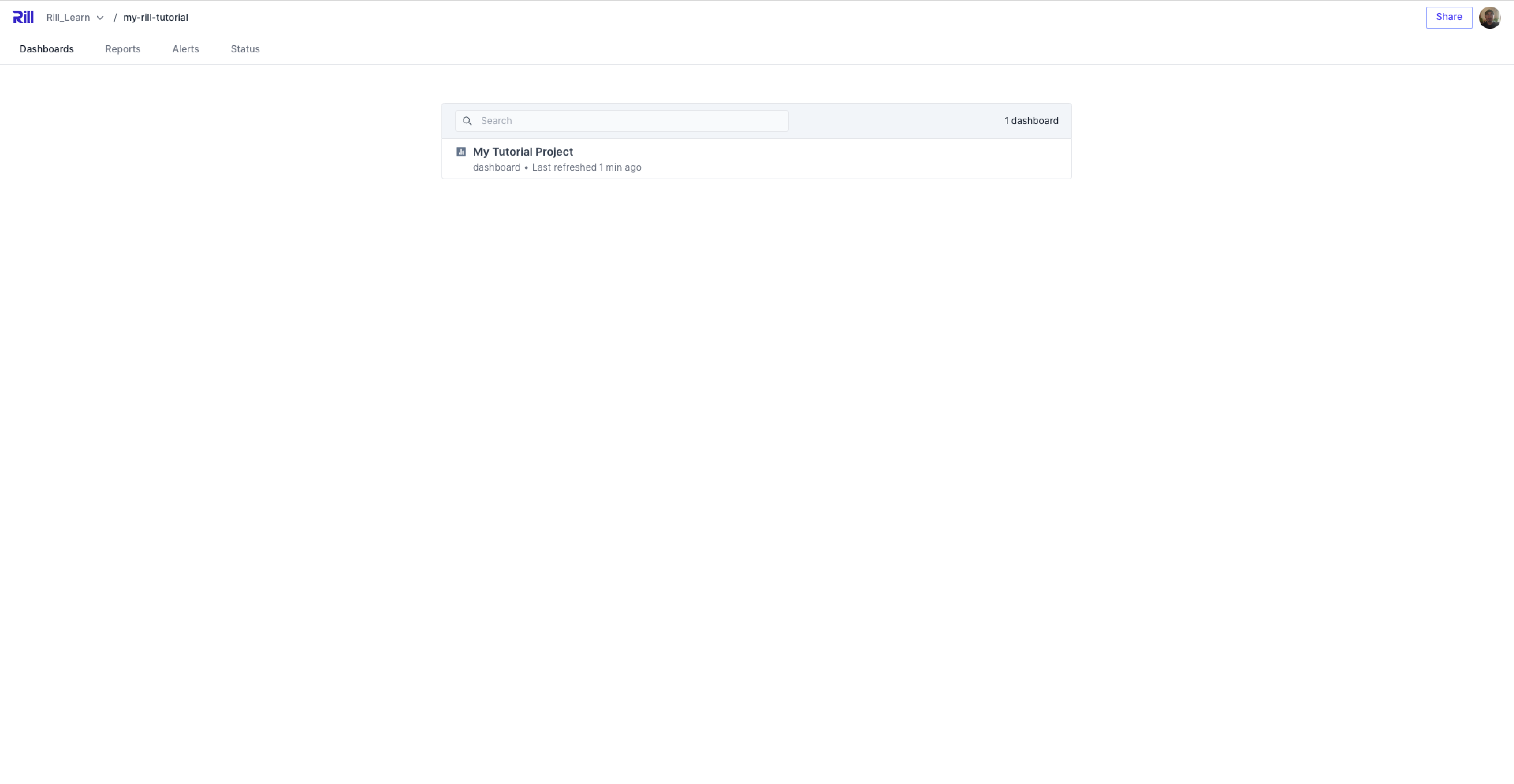
### What is Rill Cloud?
Rill Cloud is where your deployed Rill project exists and can be shared with your colleagues or end-users. For more information, please review [our documentation](/developers/deploy/cloud-vs-developer#rill-cloud). Unlike Rill Developer, which is developer-based, Rill Cloud is where your dashboards are consumed by your end users. Additional features include bookmarks, public URLs, reporting, alerts, and more!
### How do I deploy to Rill Cloud?
You can deploy your project directly from the UI by selecting [the Deploy button](/developers/deploy/deploy-dashboard/#deploying-a-project-from-rill-developer). Upon deployment, an organization will be automatically created with your Rill project inside. Each organization can have multiple projects that house multiple sources, models, metrics views, and dashboards. Note that sources are not cross-project compatible. When creating your first project, we will automatically start your 30-day free trial. In order to extend usage, you will need to sign up for a [Team Plan](#rill-team-plan).

### How do I make changes to my dashboard in Rill Cloud?
You can follow the same steps as above. After deploying to Rill Cloud, if you return to Rill Developer, the button will have changed from `deploy` to `update`. When selecting `update`, the objects in your Rill project will be automatically updated. Or, after syncing your Rill project to GitHub, simply push changes directly to the repository and this will automatically update your project on Rill Cloud.
### How do I share my dashboard to other users?
You will need to [invite users to your organization](/guide/administration/users-and-access/user-management#how-to-add-an-organization-user) or [project](/guide/administration/users-and-access/user-management#how-to-add-a-project-user), send them a URL for them to [request access to your dashboard](/guide/administration/users-and-access/user-management#user-requests-access-via-url), or if you just want them to see the contents of your dashboard, you can look into using [public URLs](/guide/dashboards/public-urls).
## Rill Cloud Trial
### What is Rill Cloud Trial?
We offer a free 30-day trial to anyone interested in testing out Rill Cloud. Simply create an account and deploy your project from Rill Developer. If you haven't already created an account and logged in, you will be prompted during the deployment process.
There are no feature limitations in a free trial, but we have set the limit for imported data to 10 GB per project with two projects per deployment. You can check the data usage in the settings page.
:::note
The banner will show you the remaining days for your trial and will update as the expiration gets closer! Upgrade to a Team plan to continue using Rill!
:::
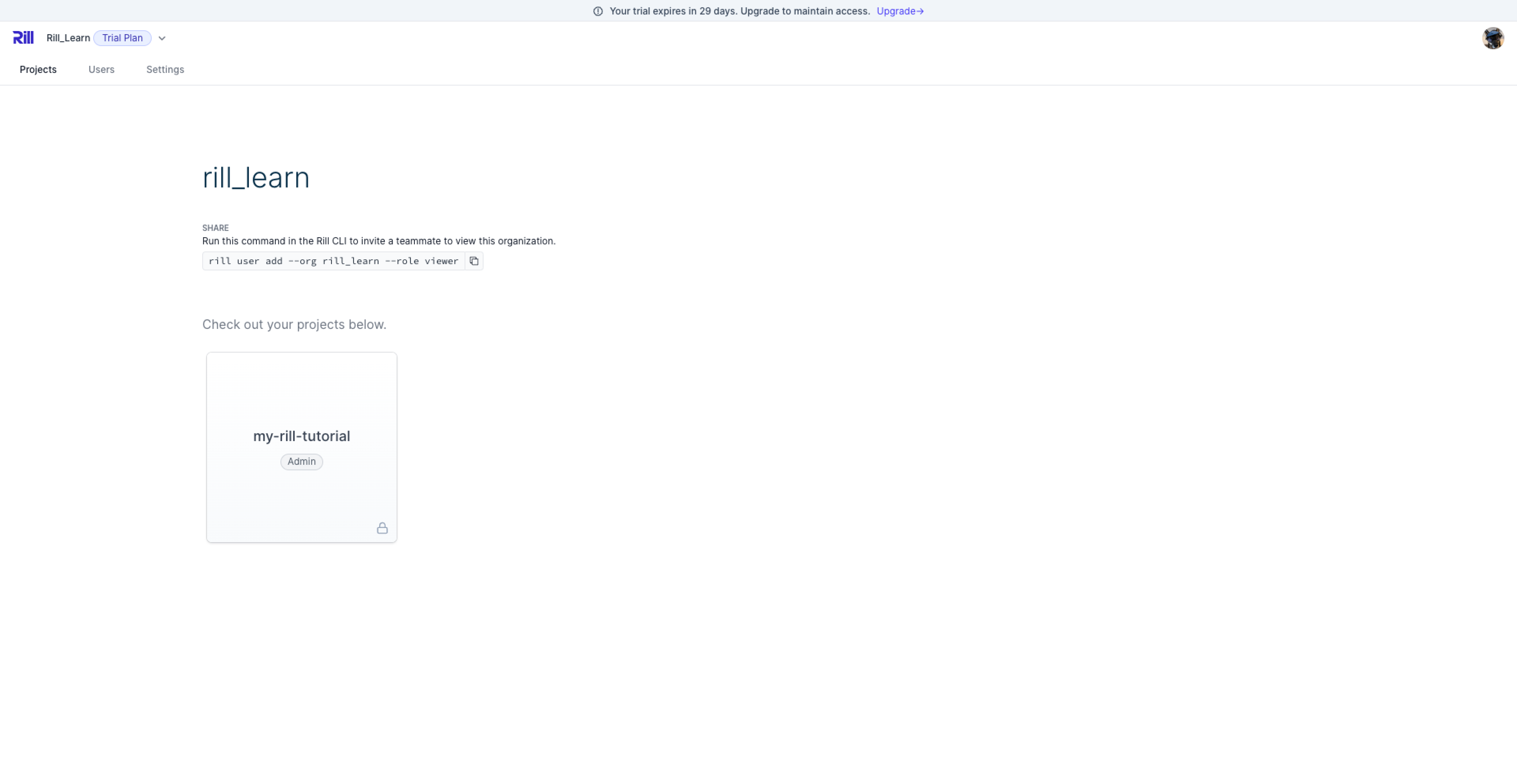
### When does my trial start?
Your trial will start when you deploy a project to Rill Cloud from Rill Developer. An Organization will be automatically created during this process using your email, and the project will be the folder that your Rill project exists in. You can change the name using [CLI commands](https://docs.rilldata.com/reference/cli/project/rename).
### How long does my Rill Cloud Trial last?
A Rill Cloud trial lasts for 30 days. If you have any comments or concerns, please reach out to us on our [various platforms](/contact)!
### What is included in the free trial?
The free trial is limited to 2 projects and up to 10 GB of data each. You can invite as many users as required and there are no locked features.
### What happens to my project if I do not upgrade to a Team plan?
Your projects will hibernate. Your project metadata will still be available once you've activated your team plan. If you'd like to delete your deployment from Rill Cloud, you can do so via the [CLI commands.](https://docs.rilldata.com/reference/cli/org/delete)
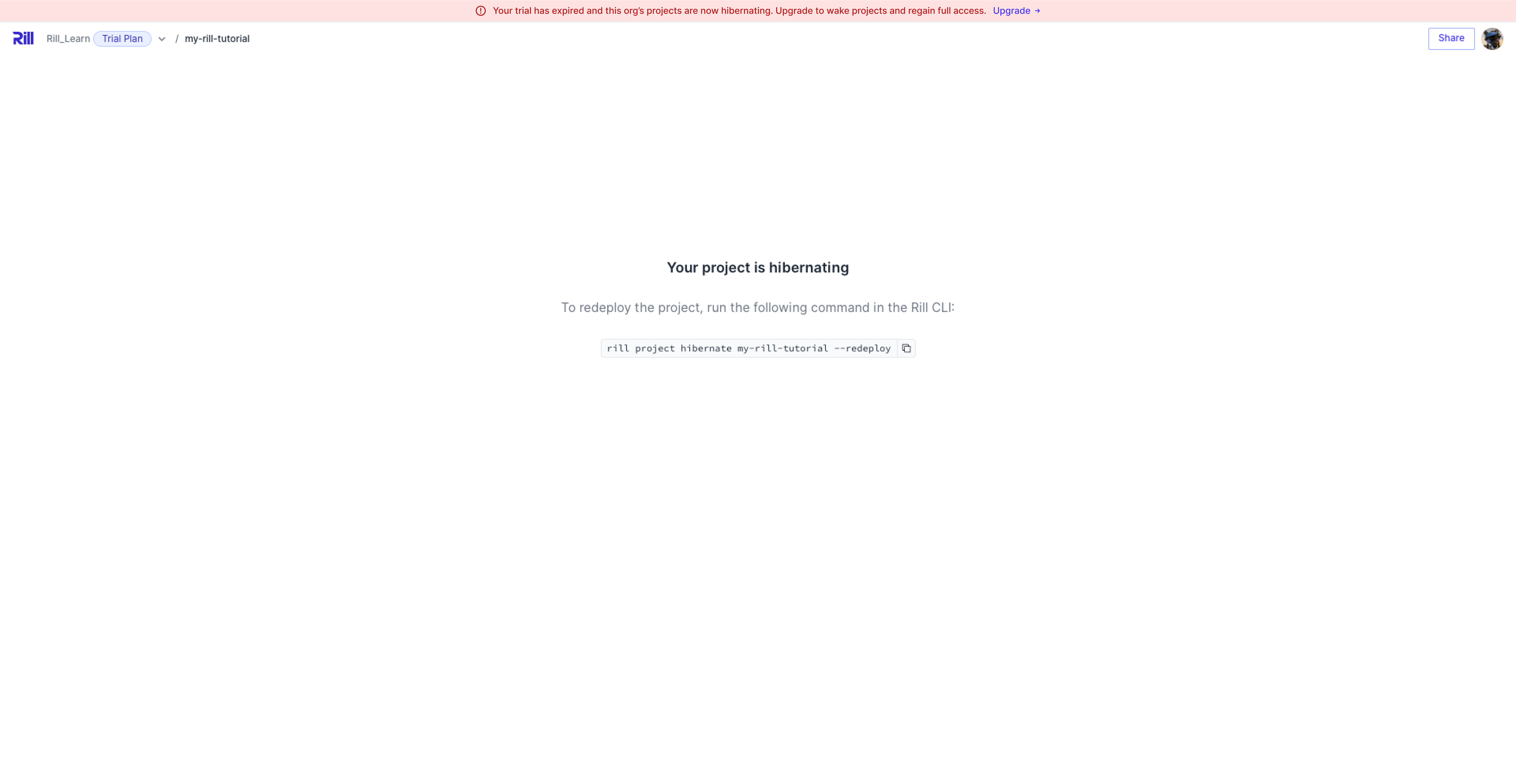
### What is project hibernation?
When a project is inactive for a specific number of days or your trial has expired, we automatically hibernate the project. What this means is that all of your information and metadata is saved, and resource consumption will be zero. You will need to unhibernate the project to gain access to the dashboard again.
If the project is hibernated due to payment issues, the project will stay in this state until payment is confirmed. Once the payment is confirmed, you can re-access the project with the following CLI command:
```
rill project hibernate --redeploy
```
## Rill Team Plan
### What is a Rill Team Plan?
A Rill Team Plan unlocks unlimited projects with a 50 GB data storage limit per project. Pricing starts at $250/month and includes 10 GB of storage. Use the [pricing calculator](https://www.rilldata.com/pricing) on our pricing site for more insight into how much your data might cost! You'll now have access to all of our features on Rill Cloud that you were using during the trial.
### How many seats am I allowed?
At Rill, we do not charge per seat! From subscription to a Rill Team Plan, you'll have access to unlimited seats! Invite all of your colleagues or just a few—the choice is yours.
### How are payments calculated?
We charge you by the amount of data that you load into Rill when building your sources and models. Use the [pricing calculator](https://www.rilldata.com/pricing) on our pricing site for more insight into how much your data might cost! If you'd like a more detailed inspection of your objects, [contact us](/contact), and we'll set this up for you.
### When am I billed?
You'll be billed on the first of each month via our partner at Stripe. You'll need to set up a valid credit card as explained in [our billing documentation](/developers/other/plans#managing-payment-information). If there are any issues with the card, you'll be notified in the UI and be given a few days' grace period to update your information. If you start in the middle of the month, you'll be billed prorated for the number of days you have access to Rill Cloud.
### Why was I billed $XXX?
You can check your data usage in your organization settings usage page. The graph will display the data that you have over 10GB. Use the [pricing calculator](https://www.rilldata.com/pricing) to see your cost of your current data usage. If you'd like a more detailed inspection of your objects, [contact us](/contact), and we'll set this up for you.
## Enterprise Plan
### What is an Enterprise Plan?
Enterprise plan includes all the features of a Team Plan but also provides further offerings, such as a dedicated Technical Account Manager and fewer restrictions on data storage. For more information, please visit our pricing page, [here](https://www.rilldata.com/pricing), or [contact us](/contact). Transparent usage-based billing means you only pay for what you need. Flexible pricing based on storage, compute, and network units start at the rates below:
**Storage:**
Storage is the total compressed data in the cluster. It's available in [two performance tiers](/developers/other/FAQ#what-are-the-compute-requirements-for-each-performance-tier), Hot and Cold, which set minimum [compute requirements](/developers/other/FAQ#what-are-the-compute-requirements-for-data-processing).
Data can also be offloaded to an archival tier where it does not consume any compute
`$0.0005 / GB per hour`
**Compute:**
[Rill Compute Units (RCU)](/developers/other/FAQ#what-is-a-rill-compute-unit-rcu) are a combination of CPU, memory, and disk used for ingesting and querying data.
RCUs scale up elastically for data ingestion & processing with enterprise discounts on RCUs provisioned for querying.
`$0.09 RCU per hour`
### What is a Rill Compute Unit? (RCU)
A Rill Compute Unit (RCU) is a usage metering unit that tracks, by the minute, the amount of resources consumed by your Rill cloud service, including compute, memory, disk storage, batch or streaming data ingested.
1. For data ingestion & processing, RCU scale up elastically as you load and transform data into our service.
2. For querying, Rill offers enterprise customers a set of dedicated compute units sized to handle their concurrency requirements across all data sources. Provisioned query RCUs are upscaled or downscaled on a daily basis based on the usage of past week to maintain query performance targets.
Tasks that consume more resources will see more RCU usage compared to tasks that consume fewer resources. While there is no one-to-one mapping between the various resources your service consumes and an RCU, 1 RCU is comparable to the resources used by a task that runs for one hour on 1 vCPU with 4 GB RAM.
### How is data size calculated in Rill?
When you load data into Rill's service, it is stored in compressed columnar format. Rill charges based on the amount of data stored in Rill's service, after compression, which is typically 3-8x.
For egress and ingress, actual data transferred over the network is measured.
### What are the compute requirements for each performance tier?
For querying, Rill provisions a fixed number of RCUs for each performance tier based on the following factors:
- **Size**: Rill will charge a minimum number of compute units per unit of hot storage and cold storage to maintain optimal performance
- **Queries**: As the concurrency of data access or complexity of the queries increase Rill will automatically add more RCUs to maintain optimal performance.
- **Performance tier**: Hot tier consumes more RCU/TB of stored data than cold tier. This provides a good cost vs performance trade off. Cost can be reduced by moving data to the cold tier.
Below are the minimum RCU charged for each performance tier:
| **Storage Tier** | **Performance** | **RCU Consumption** |
| ---------------- | ------------------------------- | ---------------------------------------------------------------------- |
| Hot Performance | 8 RCU per 25 GB of data stored | High performance for frequently accessed data |
| Cold Performance | 8 RCU per 250 GB of data stored | Optimized for less frequently accessed data |
| Archival | No RCU consumed | Data is not query-able and can be moved to Hot or Cold tiers as needed |
The number of RCUs for each performance tier will be added in increments depending on the overall provisioned RCUs.
| **Overall RCU Count** | **Available Increment** |
| --------------------- | ----------------------- |
| Up to 64 RCU | 8 RCU |
| Up to 128 RCU | 16 RCU |
| Up to 256 RCU | 32 RCU |
| Over 256 RCU | 64 RCU |
Provisioned RCUs are upscaled or downscaled on a daily basis based on the usage of past week.
### What are the compute requirements for data processing?
For data ingestion & processing, Rill elastically scales up compute slots when you load data into the service.
- The number of RCUs consumed depends on the complexity of the ingestion pipeline.
- A more complex ingestion involving joins will consume more RCUs as compared to a less complex pipeline.
### How can I estimate my RCU usage?
The best way to get an accurate RCU estimate is to load some sample data into Rill service and track the RCU usage. For estimates on larger projects [contact us](/contact) for a pricing calculator that reflects the latest volume incentives and discounts.
### How can I track my RCU usage?
RCU usage and utilization can be viewed in the Rill Control Center. Additionally, Administrators can configure to get Daily, Weekly, Monthly summary reports for RCU usage for visibility.
---
# Rill Managed Pipelines
URL: https://docs.rilldata.com/developers/other/granting/
## Rill access for managed pipelines
In addition to standard connectors, Rill also manages data pipelines for customers or sets up orchestration for moving data from object stores/data warehouses into Rill's managed database service. Rill's dedicated data engineering services help build out everything from basic orchestration to complete data enrichment and custom data pipelines.
To provide access for the Rill team, your team can grant read access:
- [Amazon s3](/developers/other/granting/aws-s3-bucket)
- [GCS](/developers/other/granting/gcs-bucket)
- [Google BigQuery](/developers/other/granting/google-bigquery)
- [Microsoft Azure Storage](/developers/other/granting/azure-storage-container)
For more information on how Rill can help, please contact our team at [contact@rilldata.com](mailto:contact@rilldata.com).
---
# Managed AWS S3 Bucket
URL: https://docs.rilldata.com/developers/other/granting/aws-s3-bucket
:::warning
Please note that these instructions were made specifically for Rill Managed Pipelines and used by our data engineering team to set up orchestration from object stores/data warehouses into Rill Managed Database Services. While some of the concepts may apply, please refer to your provider's documentation on the correct permissions required to connect to your service.
:::
## Setup instructions
### Set up S3 bucket
* Create a new bucket, in the US Standard S3 region, named `rill-ORG_NAME-share`, where **"ORG_NAME"** is your organizational name. Make sure the bucket name is a DNS-compliant address. For example, the name should not include any underscores; use hyphens instead, as shown in the example above.
* Be sure to disable the "Requester Pays" feature. For more information on S3 bucket name guidelines, see [the AWS documentation](https://docs.aws.amazon.com/AmazonS3/latest/userguide/RequesterPaysBuckets.html).
### Method 1: Bucket ACL Policies
We can provide access to the desired buckets using the bucket policies. You can provide access to the root user for Rill Data AWS Account.
:::info Rill Data AWS Account
arn:aws:iam::248432388601:root
:::
#### Using AWS Console
1. Open S3 bucket console: https://s3.console.aws.amazon.com/
1. Choose the S3 bucket to be shared.
1. Select Permissions -> Bucket Policy
1. Add the following bucket policy for the access: (Replace rill-ORG_NAME-share or bucket-to-be-shared with the bucket name)
```json
{
"Version": "2012-10-17",
"Statement": [
{
"Effect": "Allow",
"Principal": {
"AWS": "arn:aws:iam::248432388601:root"
},
"Action": [
"s3:GetObject",
"s3:PutObject",
"s3:PutObjectAcl"
],
"Resource": [
"arn:aws:s3:::rill-ORG_NAME-share/*"
]
},
{
"Effect": "Allow",
"Principal": {
"AWS": "arn:aws:iam::248432388601:root"
},
"Action": [
"s3:ListBucket",
"s3:GetBucketLocation"
],
"Resource": [
"arn:aws:s3:::rill-ORG_NAME-share"
]
}
]
}
```
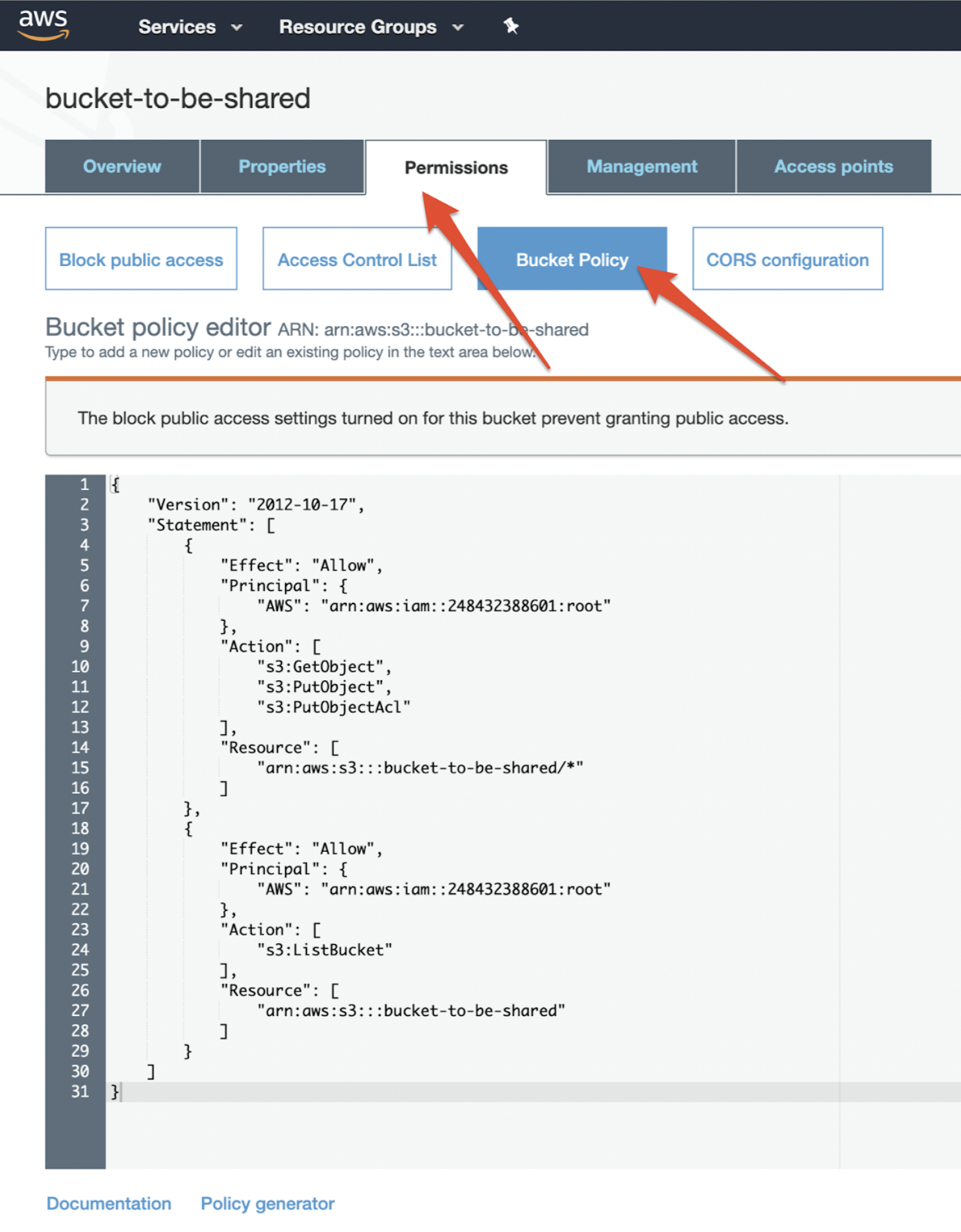
#### Using CLI
We can use CLI to put the bucket policy too. Make sure you have access to put bucket policy.
```shell
export BUCKET="rill-ORG_NAME-share" #Create a bucket with Name of Bucket to be shared
curl -s http://pkg.rilldata.com/aws/cross-account-s3-bucket-policy.json | sed "s/bucket-to-be-shared/${BUCKET}/" | tee policy.json
aws s3api put-bucket-policy --bucket ${BUCKET} --policy file://policy.json
```
### Method 2: AWS IAM Roles
We can provide access to the S3 Bucket through an IAM Role which will be assumed by the Rill Data AWS Account to gain the access to the buckets.
#### Using Cloudformation Console
1. Open AWS Cloudformation to create a new Stack.
https://console.aws.amazon.com/cloudformation/home?region=us-east-1#/stacks/create/template
2. Use Amazon S3 URL:
`https://s3.amazonaws.com/cf-templates.rilldata.com/rilldata-s3-bucket-access.yaml`
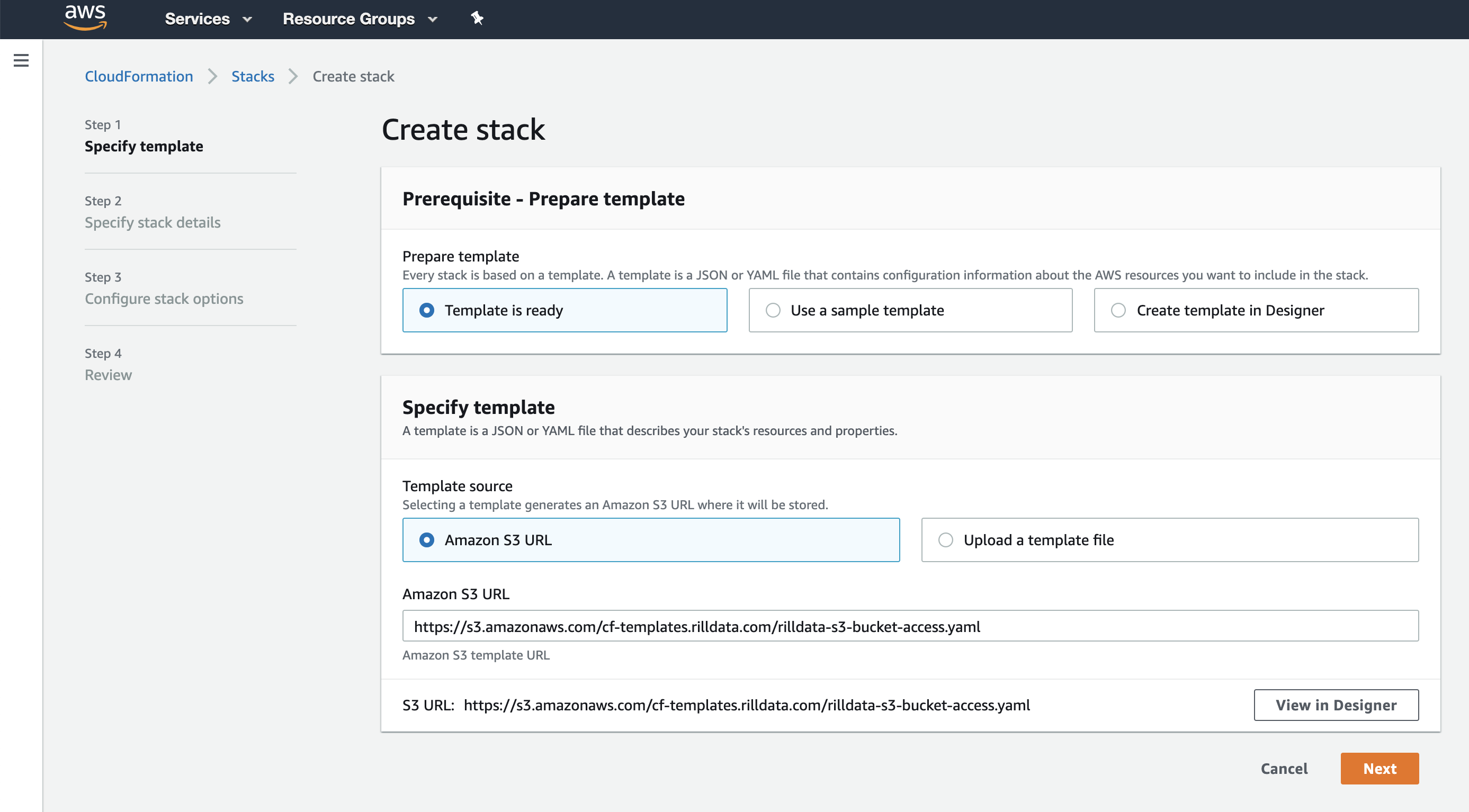
3. Specify Stack Details
** Stack Name: `rilldata-s3-access`
** Bucket Name: Name of the bucket we want to provide access to.
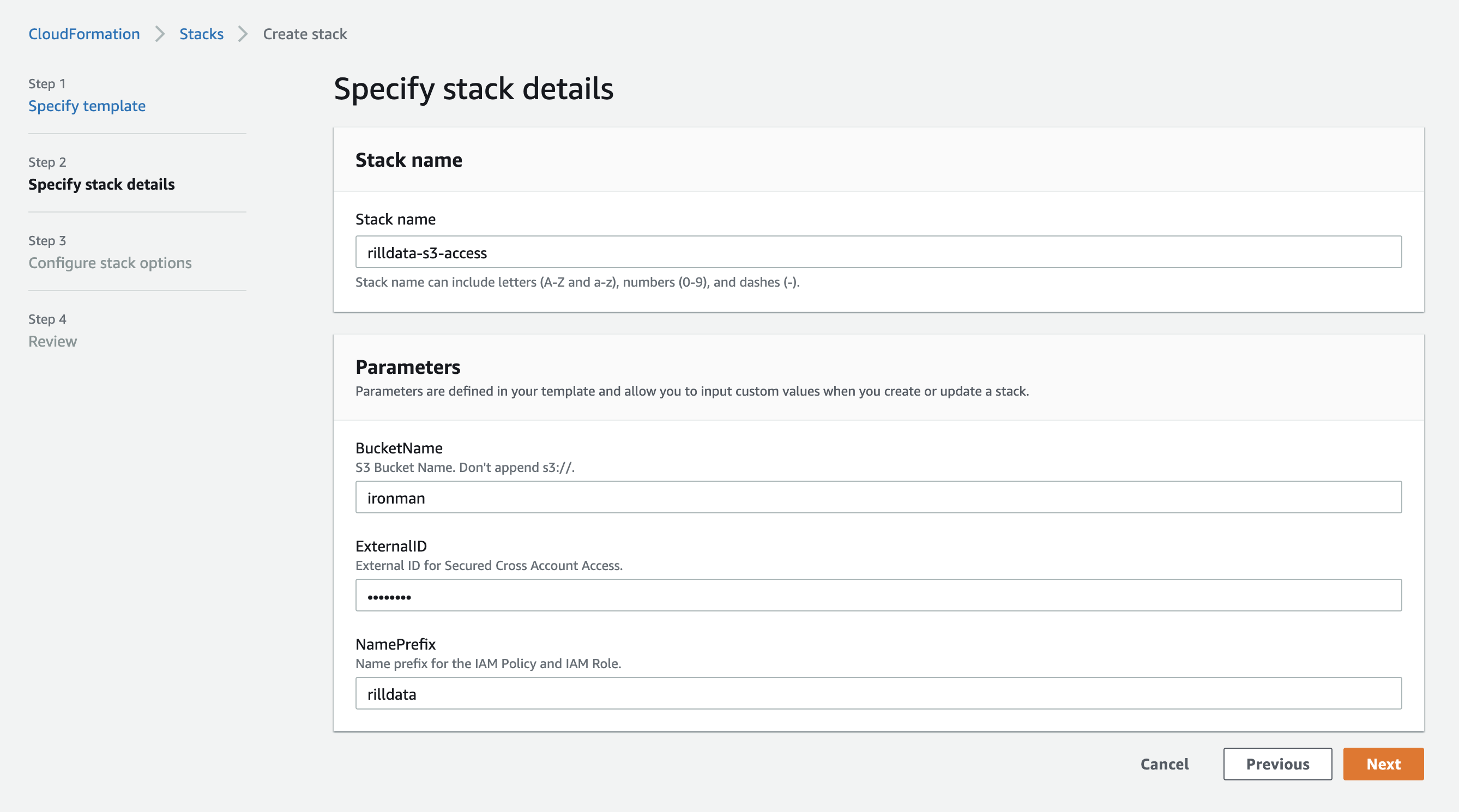
4. Click Next, Again Next, Acknowledge the Capabilities and Create the Stack.
5. You can check the events and it should create the resources for you.
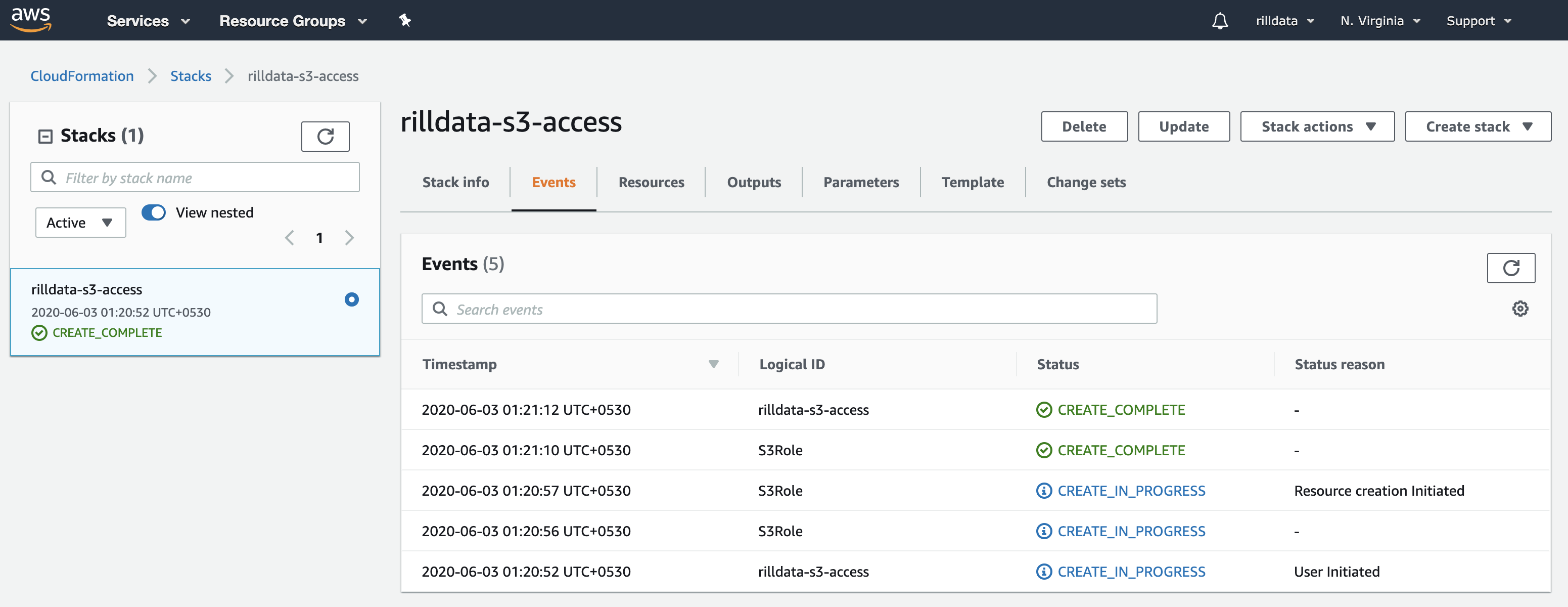
6. Share the Outputs with Rill Data
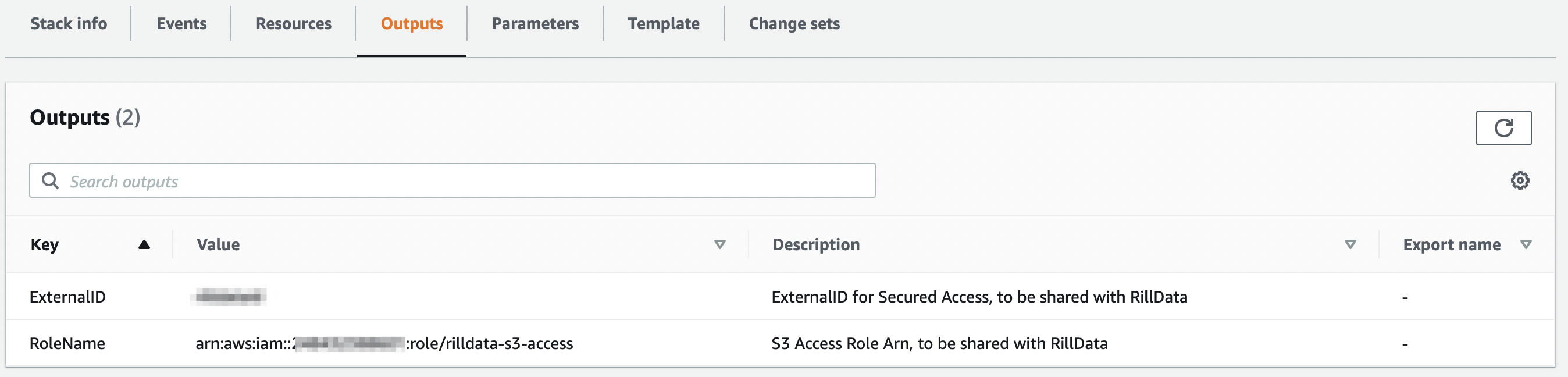
##### CloudFormation Template Reference
We would be using the following Cloudformation Template.
```yaml
AWSTemplateFormatVersion: '2010-09-09'
Metadata:
License: Apache-2.0
Description: 'AWS CloudFormation Template for providing Rill Data Access to S3 Bucket. It creates a
Role that can be assumed by the RillData AWS Account. The Role has a IAM policy associated with them.'
Parameters:
BucketName:
Type: String
Description: S3 Bucket Name. Don't append s3://.
NamePrefix:
Type: String
Description: Name prefix for the IAM Policy and IAM Role.
Default: rilldata
ExternalID:
Type: String
Description: External ID for Secured Cross Account Access.
Default: r!lld@ta
Resources:
S3Role:
Type: AWS::IAM::Role
Properties:
Description: 'RillData Access to the S3 Bucket. Managed by: Cloudformation'
AssumeRolePolicyDocument:
Version: '2012-10-17'
Statement:
- Effect: Allow
Principal:
AWS:
- 'arn:aws:iam::248432388601:root'
Action:
- 'sts:AssumeRole'
Condition:
StringEquals:
'sts:ExternalId': !Ref ExternalID
Policies:
- PolicyName: !Join
- ''
- - !Ref NamePrefix
- 'S3AccessPolicy'
PolicyDocument:
Statement:
- Effect: Allow
Action: ['s3:*']
Resource:
- !Join
- ''
- - 'arn:aws:s3:::'
- !Ref BucketName
- !Join
- ''
- - 'arn:aws:s3:::'
- !Ref BucketName
- '/*'
RoleName: !Join
- '-'
- - !Ref NamePrefix
- s3-access
Tags:
- Key: Accessor
Value: RillData
- Key: ManagedBy
Value: Cloudformation
Outputs:
RoleName:
Value: !GetAtt [S3Role, Arn]
Description: S3 Access Role Arn, to be shared with RillData
ExternalID:
Value: !Ref ExternalID
Description: ExternalID for Secured Access, to be shared with RillData
```
## S3 Logging
As part of your data uploads, Rill Data requires logging to be enabled for the data you intend on sending to us for processing. Rill Data may use these logs for troubleshooting, pipeline optimization, and/or billing. In order to allow Rill Data to access these logs, please follow the instructions below to set up the proper configuration.
If you have not enabled logging for the bucket Rill Data is ingesting data from, please follow these steps:
1. Go to http://aws.amazon.com
* Login to your AWS account on the AWS Management Console and navigate to the S3 tab
* Click the “Properties” icon on the upper-right menu to bring up the “Properties” options on the bucket Rill Data is ingesting data from
* Under “Logging”, click “Enabled”
* Under “Target Bucket”, select the same name of the bucket Rill Data is processing data from
* Under “Target Prefix”, make sure “s3logs/” is entered
* Click Save
2. Log into your Amazon S3 console and open AWS Cloudformation to create a new Stack.
https://console.aws.amazon.com/cloudformation/home?region=us-east-1#/stacks/create/template
*Note: the person implementing this configuration must have permission to manage CloudFormation and IAM resources.*
3. Click on "Create Stack" and under "Choose a template", either upload the template provided by Rill Data, or use the following s3URL: https://s3.amazonaws.com//cf-templates.rilldata.com/RillS3LogRole.yaml
4. The template allows you to set the following parameters:
* **"Stack name"**
* Name the stack `rill-ORG_NAME-s3Logs`
* **"S3LogBucketName"**
* Description: "New or existing bucket for S3 logs"
5. You will then click that you understand that the template will create IAM resources, and then click "Create".
6. Once the stack has finished being created, send your Rill Data representative the results on the "Outputs" tab.
* **RoleARN**: This IAM role identifier allows Rill Data to ingest the S3 Logs
* **S3BucketName**: This is the name of S3 Bucket that the Rill Data role can have access to, in this case, it should be the bucket name you inputted into Cloudformation
*Note: If interested, you can set lifecycle policies on the log bucket of interest. You can either leave this variable blank (no lifecycle policy) or 35 days at minimum. This can be applied through the S3 console on the respective bucket. Reach out to your Technical Account Manager or Sales Director if you have any questions.*
---
# Managed Azure Storage Container
URL: https://docs.rilldata.com/developers/other/granting/azure-storage-container
:::warning
Please note that these instructions were made specifically for Rill Managed Pipelines and used by our data engineering team to set up orchestration from object stores/data warehouses into Rill Managed Database Services. While some of the concepts may apply, please refer to your provider's documentation on the correct permissions required to connect to your service.
:::
## Overview
Rill would need access to the Azure Storage Container to fetch the data. For this, Rill needs:
* Storage Account
* Container Name
* Access Key
## Fetch Access key for a Storage Account
1. Go to Storage Accounts on your Azure Console.
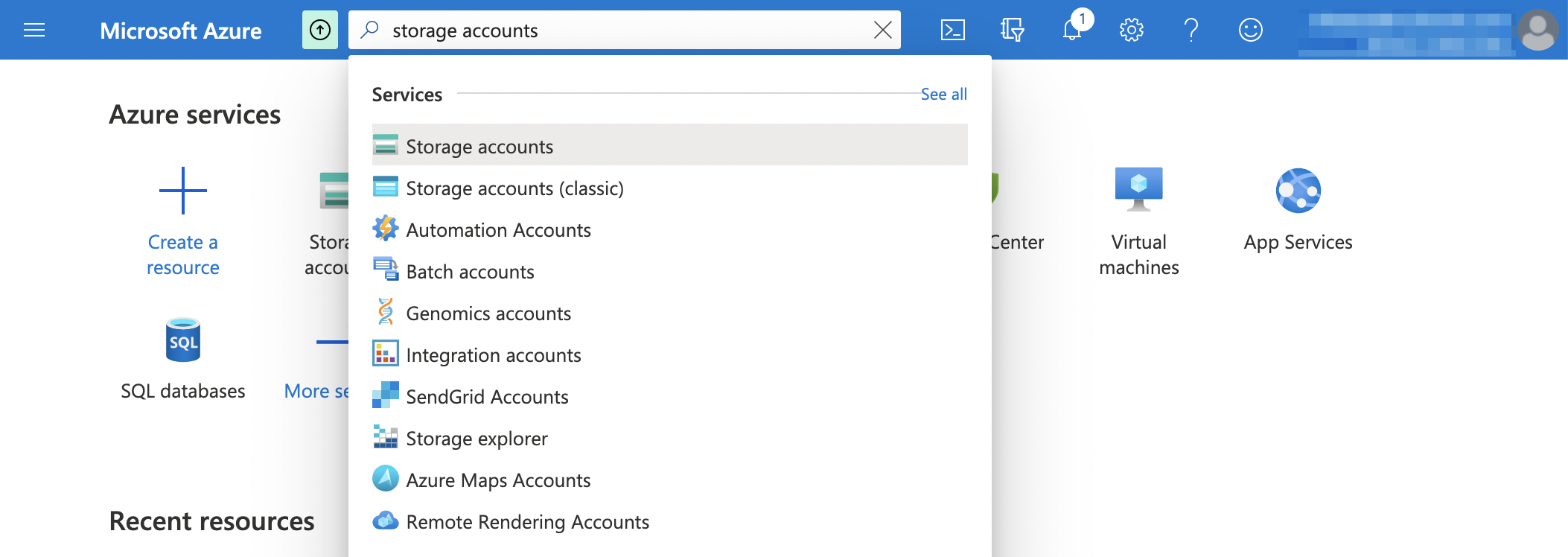
2. Choose the storage account you want to share
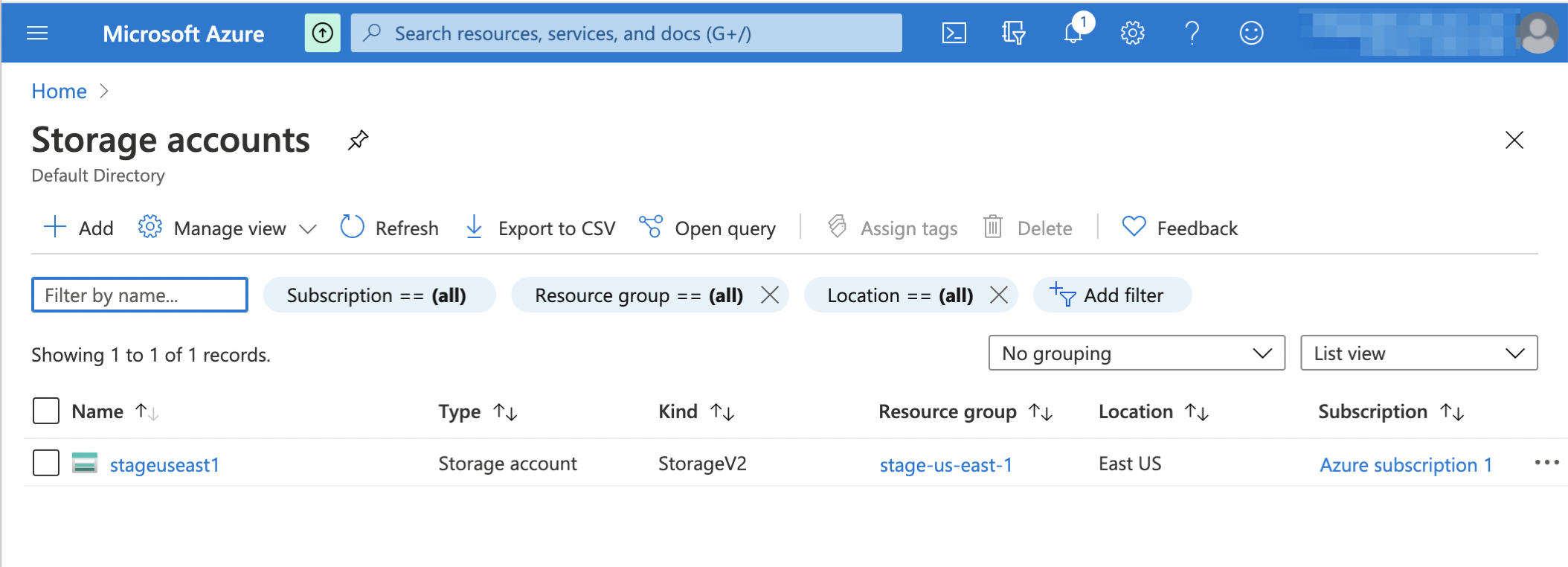
3. Share the access key and the Connection String from the settings. It's recommended to share Key 1 and keep the Key 2 for the rotation.
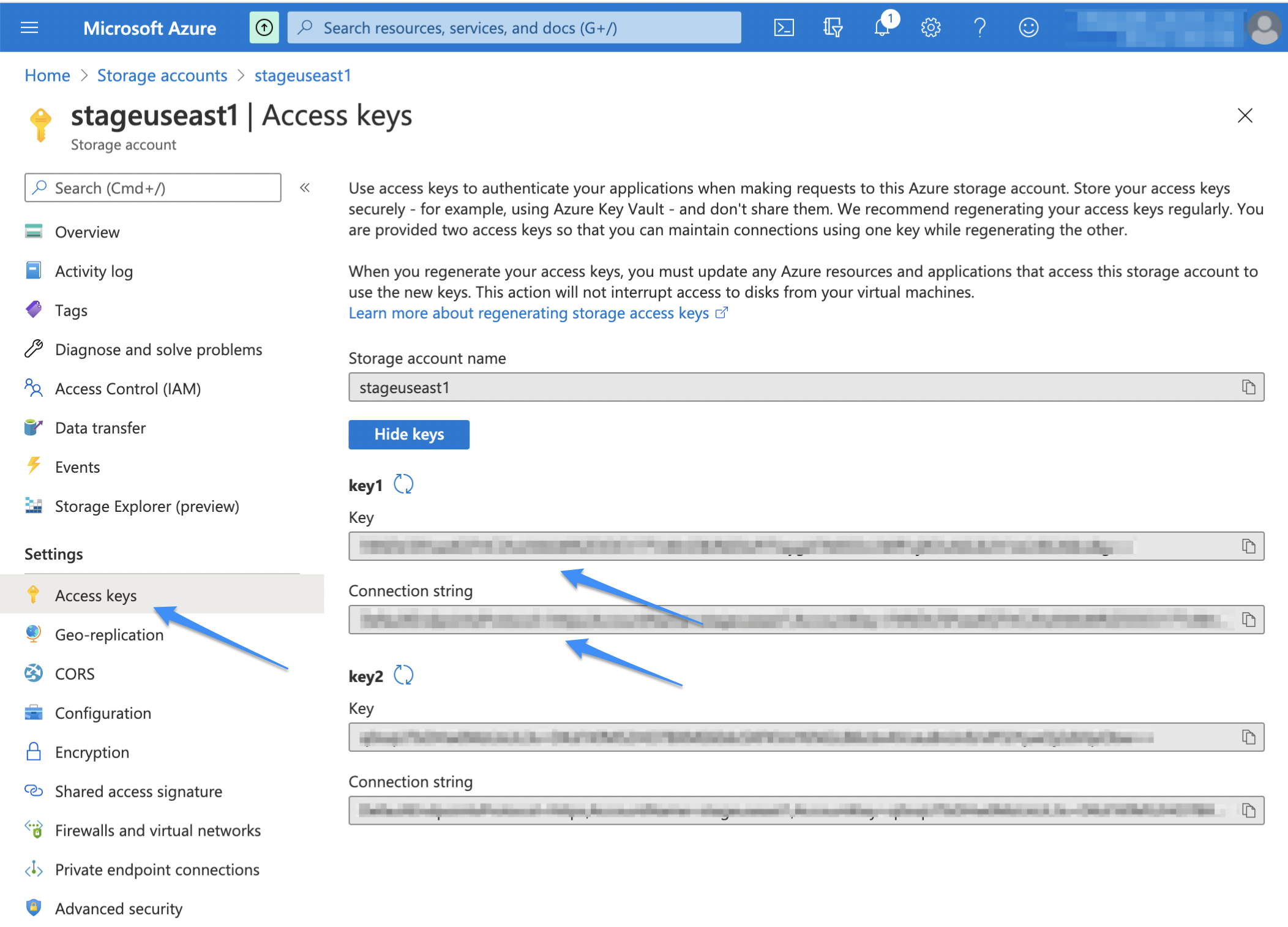
---
# Managed GCS Bucket
URL: https://docs.rilldata.com/developers/other/granting/gcs-bucket
:::warning
Please note that these instructions were made specifically for Rill Managed Pipelines and used by our data engineering team to set up orchestration from object stores/data warehouses into Rill Managed Database Services. While some of the concepts may apply, please refer to your provider's documentation on the correct permissions required to connect to your service.
:::
## Setup instructions
Follow the instructions below to grant Rill access to your Google Cloud Storage Bucket.
1. Find your Google Cloud Service Account by logging into Rill and clicking on Integrations. Your Google Cloud Service Account will be displayed. It will be of the form `organization`-`workspace`@rilldata.iam.gserviceaccount.com.
2. Go to Storage Console: https://console.cloud.google.com/storage/browser.
3. Click on the bucket to which you want to grant access (click on the bucket name itself, not the checkbox).
4. Select Permissions tab.
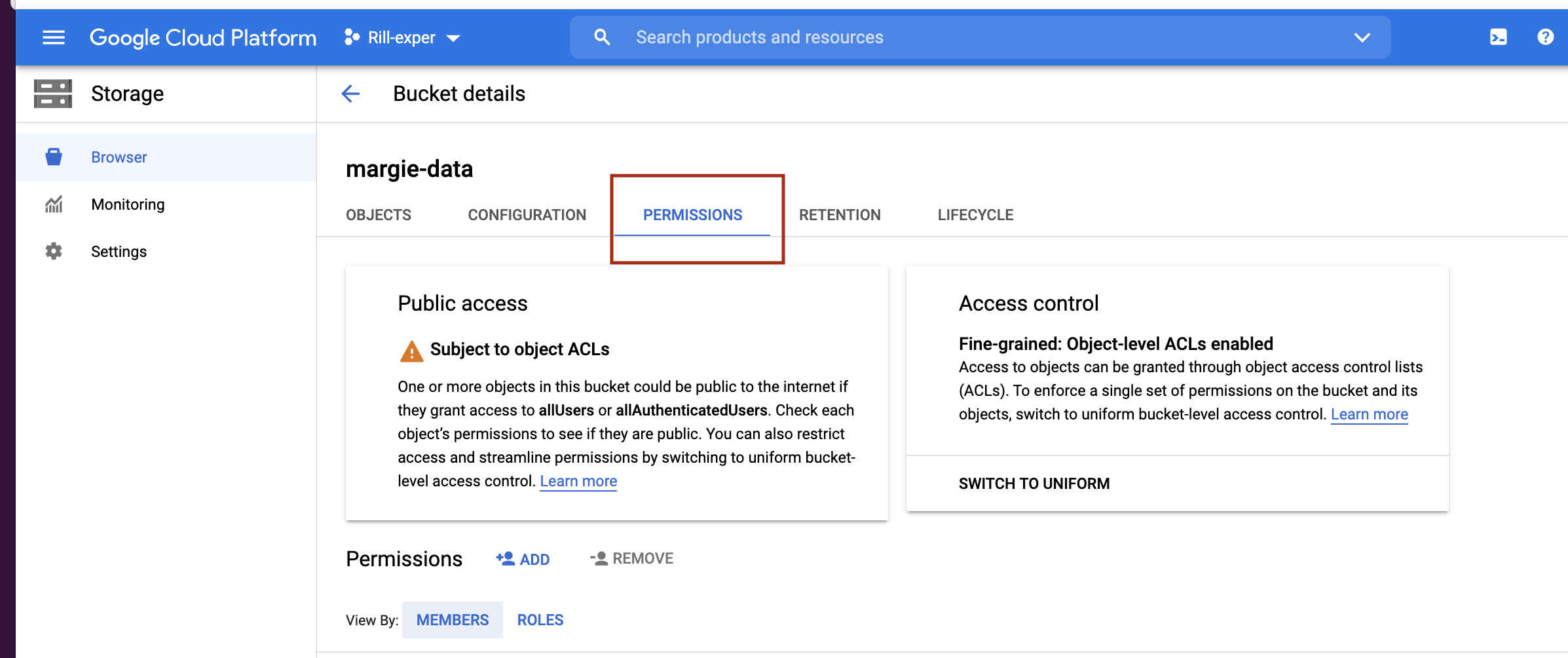
5. Click Add to open the modal to add members to your bucket.
6. In the New members field, enter your Google service account. You can find your Google service account in the Settings page for your workspace in RCC. This will typically have the form `{workspace}`-`{organization}`@rilldata.iam.gserviceaccount.com.
7. Select the role Cloud Storage -> Storage Object Viewer.
---
# Managed Google BigQuery
URL: https://docs.rilldata.com/developers/other/granting/google-bigquery
:::warning
Please note that these instructions were made specifically for Rill Managed Pipelines and used by our data engineering team to set up orchestration from object stores/data warehouses into Rill Managed Database Services. While some of the concepts may apply, please refer to your provider's documentation on the correct permissions required to connect to your service.
:::
## Setup instructions
Follow the instructions below to grant Rill access to your Google BigQuery datasets.
1. Find your Google Cloud Service Account by logging into Rill and clicking on Integrations. Your Google Cloud Service Account will be displayed. It will be of the form `organization-workspace-name@rilldata.iam.gserviceaccount.com`.
2. Go to your Google Cloud Console and select the project to which you want to grant access.

3. Open the sidebar menu by clicking the 3 lines button in the top left, then choose IAM & Admin then click on IAM https://console.cloud.google.com/iam-admin/iam
4. In the IAM menu click the ADD button. This will display a form where you can input the service accounts that can access your project and the permissions with which they can access it.
5. In the New members field, enter your Google service account, found in step 1.
6. Select the role `BigQuery Data Viewer`, `BigQuery Read Session User`, and `BigQuery Job User`. This will permit Rill to fetch your projects tables into BigQuery.
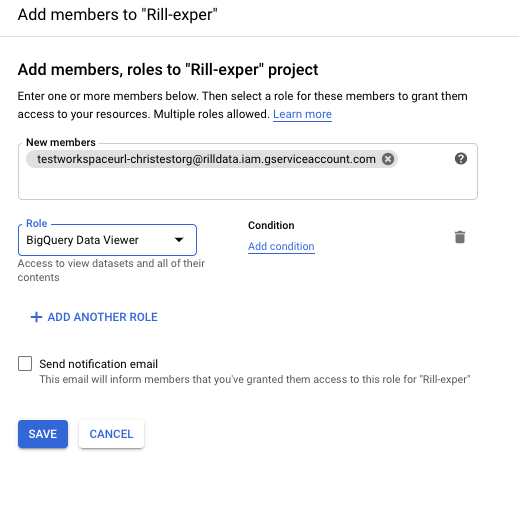
7. Click on save.
---
# Billing Plans Explained
URL: https://docs.rilldata.com/developers/other/plans
Billing cycles begin on the first of every month (12:00 AM UTC). If you start your plan mid-month, your first month will be prorated accordingly. You can subscribe to a Team Plan at any point via your Rill Cloud billing page.
### How does it work?
Rill Data does not use a user-based license system. Instead, we calculate your data usage after ingestion and calculate pricing based on that usage. For more information on pricing, see our [pricing page](https://www.rilldata.com/pricing).
## Trial Plan
Get started with Rill Cloud with our 30-day free trial! Upon deployment of your first project, your trial will automatically start. On a free trial, you will be allowed one project with up to 10 GB of data storage. Like all plans in Rill Data, this also comes with unlimited seats. As an admin, you'll notice banners at the top of the UI indicating the remaining time left on your trial. Once your time has run out, your projects in Rill Cloud will hibernate. While your project won't be accessible on Rill Cloud, the files will still be available if you choose to upgrade to a Team Plan.
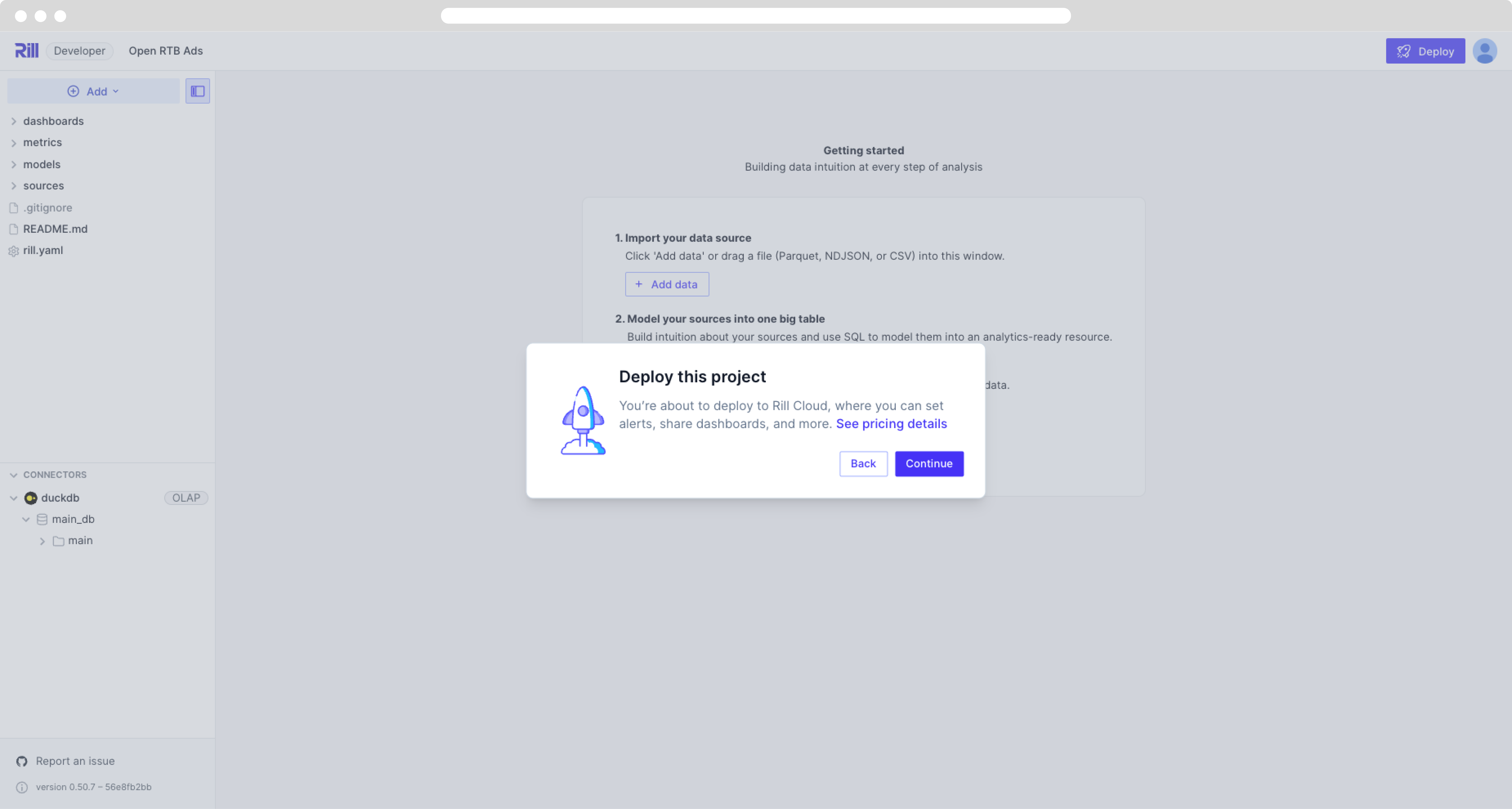
### Upgrading to Team Plan
Once you are ready to upgrade to a Team Plan, you can do so via the organization billing page, or select `Upgrade` in the top banner. Only organization administrators can upgrade the plan.
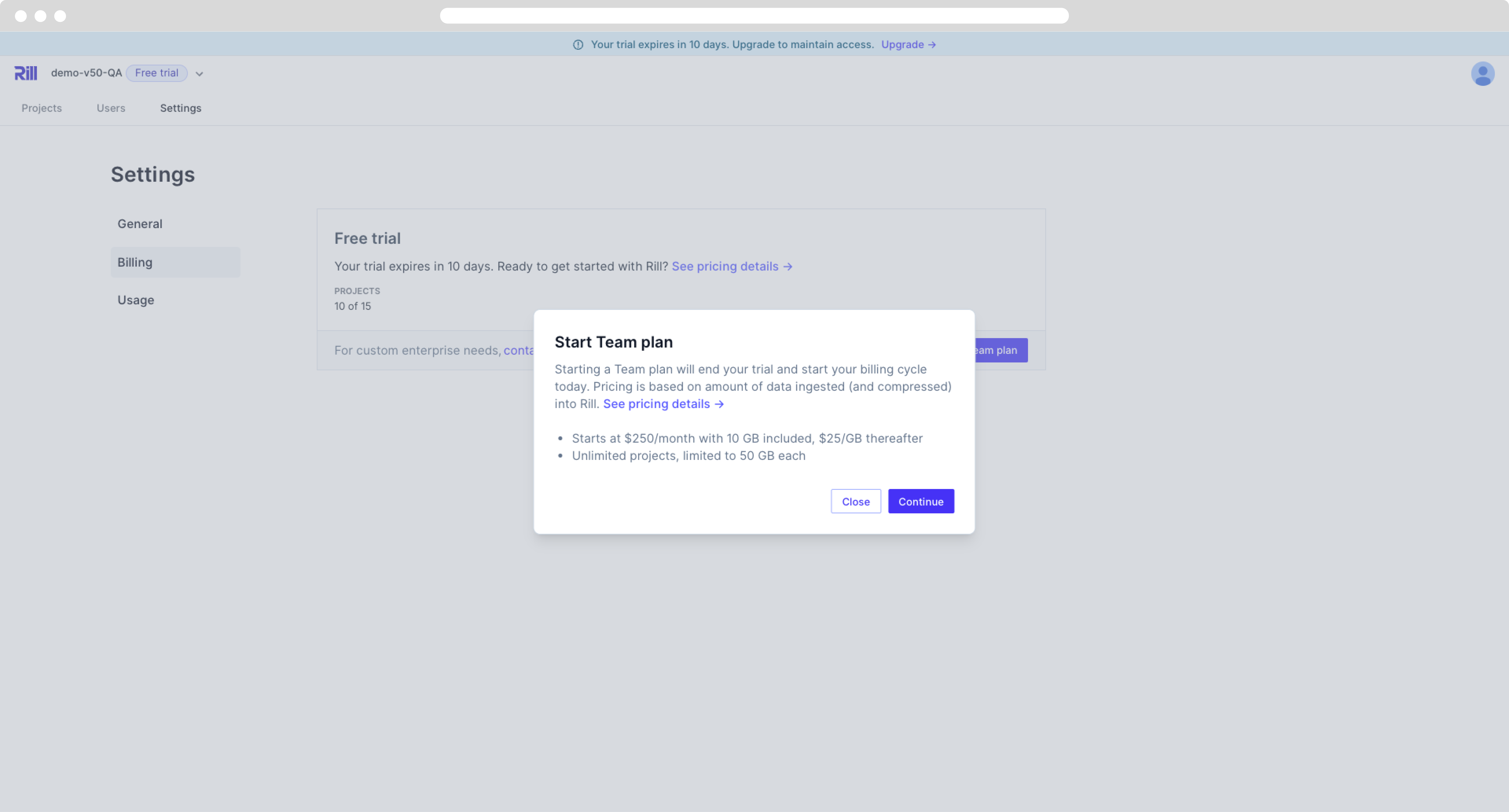
### Managing Payment Information
Please add a payment method and billing information that is accepted by Stripe. For more information, please visit [Stripe's website](https://docs.stripe.com/payments/payment-methods/overview).
## Team Plan
The Team Plan unlocks unlimited projects with a 50 GB data storage limit per project. Like all plans in Rill Data, this also comes with unlimited seats. As an admin, you will have access to your billing and usage page to monitor your project. If you decide to unsubscribe from your subscription, you will have access to Rill Cloud until the end of the month. Afterward, your project will hibernate.
Your project will not be accessible while hibernating. You will need to renew your subscription in order to access your project on Rill Cloud.
To calculate your current usage and pricing, see our [pricing page](https://www.rilldata.com/pricing).
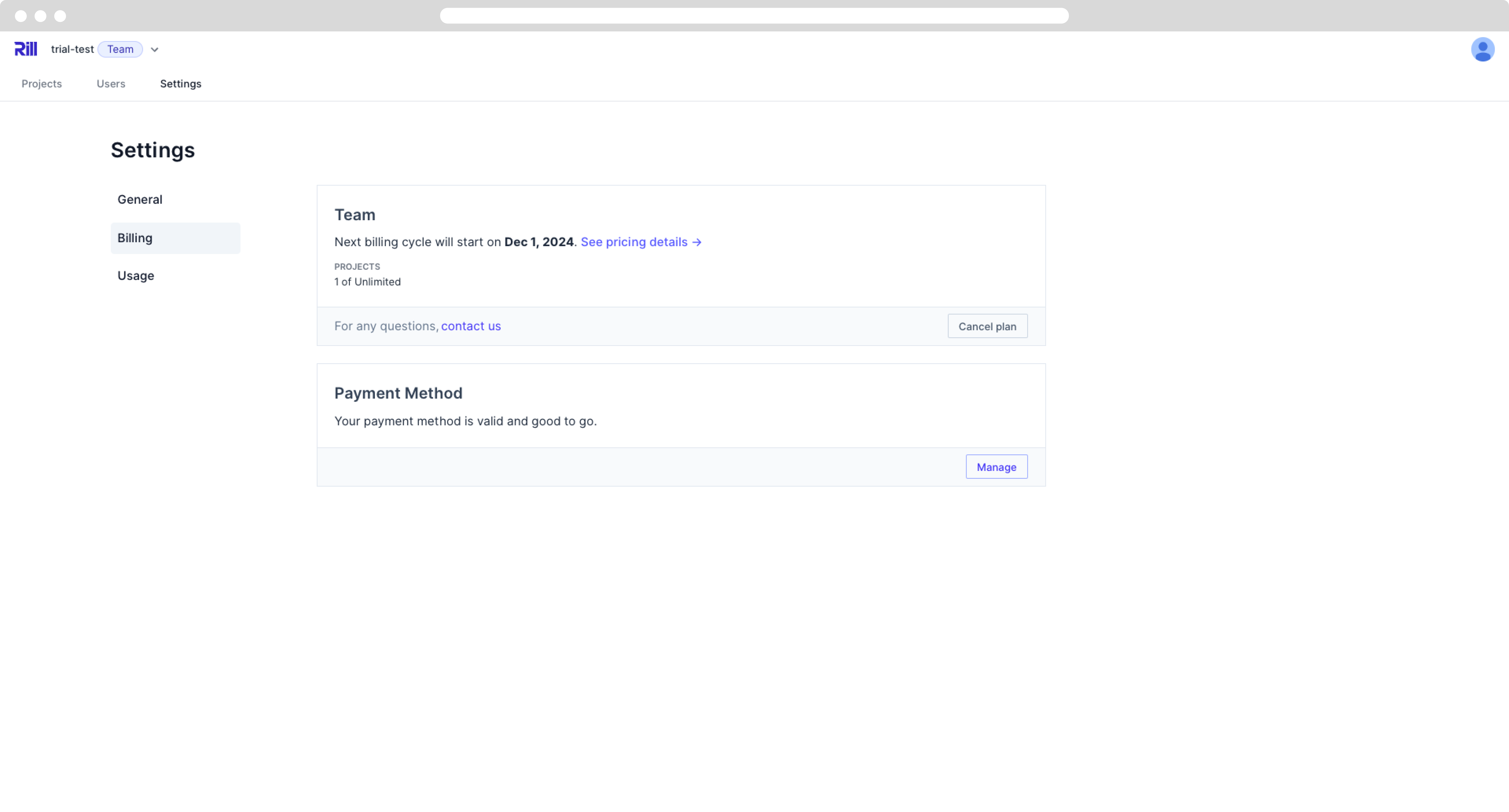
## Enterprise Plan
The Enterprise Plan includes all the features of a Team Plan but also provides further offerings, such as a dedicated Technical Account Manager and fewer restrictions on data storage. For more information, please visit our [pricing page](https://www.rilldata.com/pricing), or [contact us](/contact).
### Enterprise usage-based billing
**Storage:**
Storage is the total compressed data in the cluster. It's available in [two performance tiers](/developers/other/FAQ#what-are-the-compute-requirements-for-each-performance-tier), Hot and Cold, which set minimum [compute requirements](/developers/other/FAQ#what-are-the-compute-requirements-for-data-processing).
Data can also be offloaded to an archival tier where it does not consume any compute.
`$0.0005 / GB per hour`
**Compute:**
[Rill Compute Units (RCU)](/developers/other/FAQ#what-is-a-rill-compute-unit-rcu) are a combination of CPU, memory, and disk used for ingesting and querying data.
RCUs scale up elastically for data ingestion and processing, with enterprise discounts on RCUs provisioned for querying.
`$0.09 RCU per hour`
---
# Tutorials
URL: https://docs.rilldata.com/developers/tutorials/
# Welcome to Rill Guides and Tutorials!
### We're thrilled you've joined us on this th-Rill-ing journey!
These tutorials were built to help you get started with Rill and empower you to build your own projects. The journey covers data import, SQL transformations, dashboard creation, and finally deployment to Cloud. From there, you'll explore Rill Cloud-specific features, push local changes to Rill Cloud, and develop custom features.
### Why Rill?
Here at Rill, we believe in business-speed visual analytics. Gone are the days of waiting for your dashboard to load! By utilizing OLAP engines, we strive for quick, reactive dashboards that you can drill down into further to make real-time decisions. Not only that, you'll also be able to make traditional dashboards that we call Canvas Dashboards.
---
Follow along, refer to the in-line linked documentation, and explore our product to make the most out of these guides! Please reach out to ask any questions or provide feedback on our Community Slack or Discord!
- [**Source to Published Dashboard:**](/developers/tutorials/rill-basics/launch) Learn the basics, understand the core concepts of Rill, and deploy to Cloud!
- [**Visualize ClickHouse tables in Rill:**](/developers/tutorials/rill-clickhouse) For our friends from **ClickHouse**, we have created a dedicated course using ClickHouse!
- [**Clone a Project:**](/developers/tutorials/clone-a-project) Step-by-step guide to clone an already deployed instance from Rill Cloud to your local machine
- [**GitHub Analytics:**](/developers/tutorials/github-analytics) Analyze your own GitHub repository by modifying the Python file, download_commits.py
- [**Cost Monitoring Analytics:**](/developers/tutorials/cost-monitoring-analytics) Analyze your cost and usage data
- [**OpenRTB Analytics:**](/developers/tutorials/openrtb-analytics) Analyze real-time bidding data to track impressions, bids, wins and more
- [**Set Up MCP**](/developers/tutorials/setting-up-mcp) Configure Model Context Protocol (MCP) to enable natural language queries with Claude integration
Each section is crafted to ensure a smooth and comprehensive learning experience. Happy learning!
---
---
# Clone a Project - Quick Start
URL: https://docs.rilldata.com/developers/tutorials/clone-a-project
# Clone a Project - Quick Start
This guide will help you get started with an existing Rill project by cloning it from a repository and setting it up locally.
## Prerequisites
Before you begin, make sure you have:
- **Rill CLI** installed ([Installation Guide](/developers/get-started/install))
```bash
curl https://rill.sh | sh
```
- **Access to the [Rill Project](https://ui.rilldata.com/)**
## Step 1: Clone the Repository
Depending on whether your project is synced to GitHub or not, select the correct clone method. If you are unsure, please see the Settings page in the project.
### From GitHub
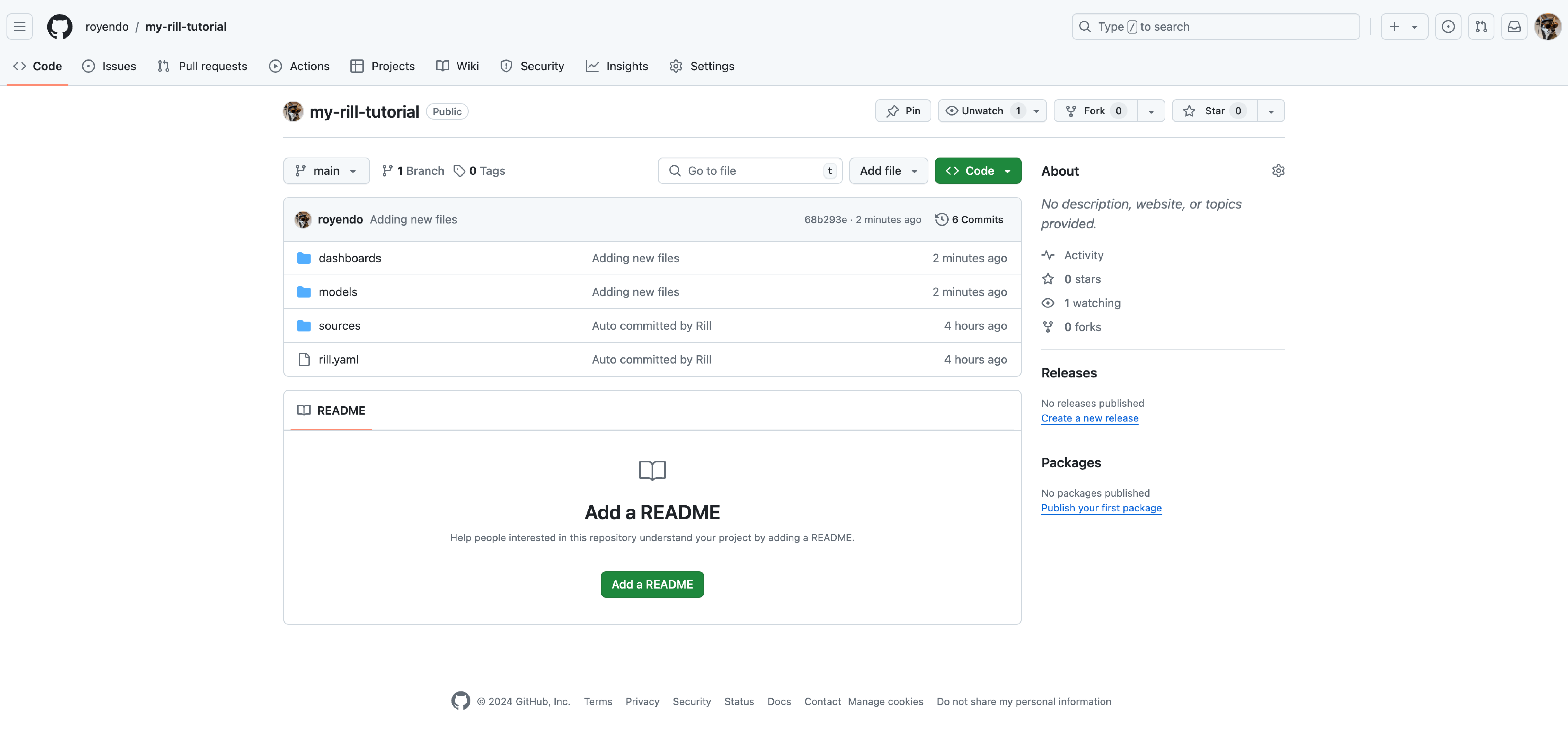
```bash
# Clone the repository
git clone https://github.com/username/rill-project.git # Replace 'username' and 'rill-project' with your actual URL
cd
```
### Using Rill CLI
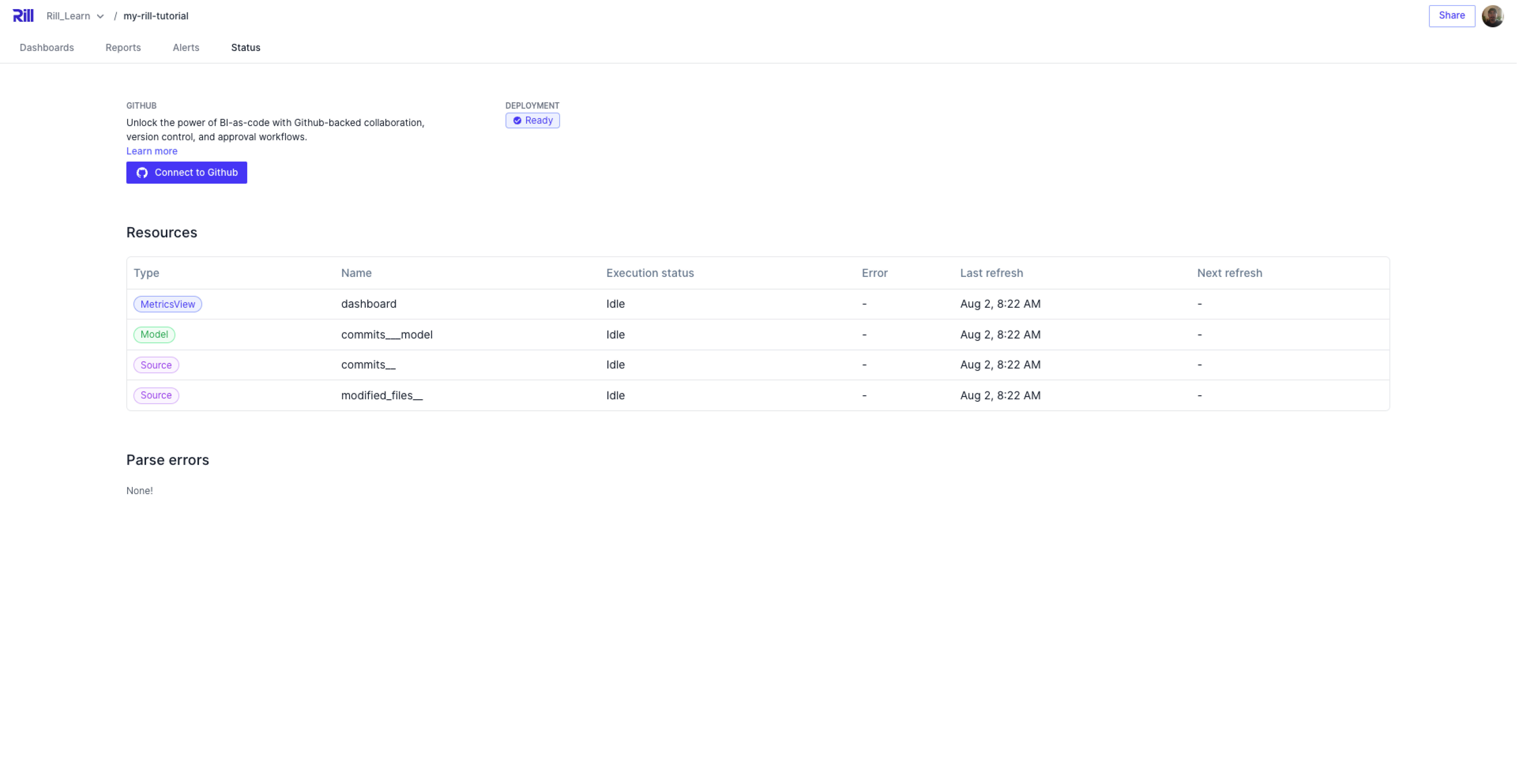
```bash
# Clone from Rill
rill project clone
```
## Step 2: Explore the Project Structure
A typical Rill project contains:
```
/
├── rill.yaml # Project configuration
├── sources/ # Data source definitions
│ ├── database.yaml # Database connections
│ ├── api.yaml # API endpoints
│ └── files.yaml # File-based sources
├── models/ # SQL transformations
│ ├── staging/ # Staging models
│ ├── marts/ # Business logic models
│ └── metrics/ # Metric definitions
├── dashboards/ # Dashboard configurations
│ └── main_dashboard.yaml
├── alerts/ # Alert definitions
├── .env # Environment variables (not in git, need to run rill env pull)
└── .gitignore # Git ignore rules
```
## Step 3: Set Up Environment Variables
If you cloned the project via GitHub, you will need to run the following command to bring down the environment variables to your local machine.
```bash
rill env pull
```
If you cloned the project via the Rill CLI, you should see the following in the Terminal:
```bash
Updated .env file with cloud credentials from project "your-project-here".
```
:::tip Admin of your project?
As an admin, when running `rill start`, we'll automatically retrieve your credentials for you. No need for extra steps.
:::
## Step 4: Check your Source YAML before starting Rill
We want to check to see if any `{{if dev}} ... {{end}}` parameters have been set in your source ingestion. If not, when you start Rill, this will initiate a full ingestion of your data, which might take some time and, depending on the source location, could incur costs (e.g., Snowflake, BigQuery). However, if your data is not that large, it may be safe to start Rill without these guardrails.
## Step 5: Start Rill Developer
### Start the Development Server
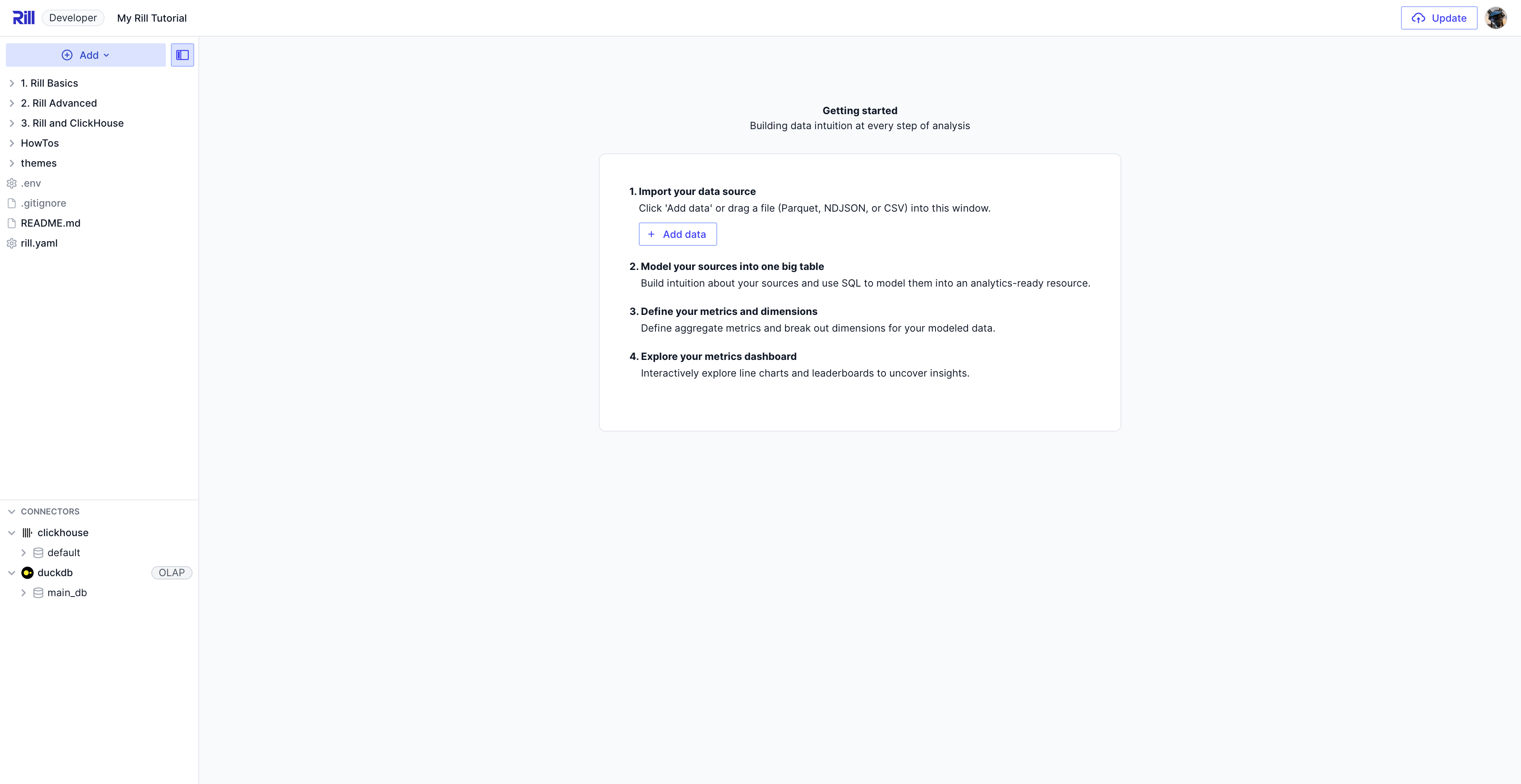
```bash
# Start Rill Developer
rill start
```
This will:
- Start the web UI at `http://localhost:9009`
- Initiate ingestion of data sources
- Start building your models and dashboards
- Show any errors or warnings
## Step 6: Explore the Project and Make Changes
Once your sources and models have built and you are able to explore your dashboards, make the needed changes to the files and get ready to update your Rill project.
:::warning Changes to sources and models
Changes to sources and models will initiate a full refresh of the source, unless otherwise indicated via `patch_mode`. We highly recommend reviewing the changes to ensure that you do not push unwanted changes to your production environment.
:::
### via git
For projects that were cloned via git, you'll need to run the required git commands to add, commit, and push changes. Keep in mind the basic git practices about merging files to main without having an approval process.
### via Rill Update Button
For projects cloned via the CLI, the underlying connection to the deployment will also be brought locally so that when the button to "Deploy" is now "Update" the existing deployment. Keep in mind the warning above about changes to sources and models.
---
# Cost Monitoring Analytics Demo
URL: https://docs.rilldata.com/developers/tutorials/cost-monitoring-analytics
# Cost Monitoring Analytics Demo
This guide walks you through the Cost Monitoring Analytics demo project, which showcases Rill's capabilities for analyzing cost and usage data. You'll learn how to clone the project, understand its structure, and explore the dashboard.
## Overview
This dataset is modeled after a similar dashboard we use internally at Rill to both identify opportunities to improve our cloud infrastructure operations and to manage customer implementations. Typical users include engineering, customer success, and finance. In this example, we've combined cloud services, other hosting costs, and revenue metrics.
The Cost Monitoring Analytics demo analyzes operational costs and revenue data, providing insights into:
- **Margin trends** – Daily, weekly, and monthly profitability patterns
- **Customer profitability** – Which customers are driving the highest margins
- **Cost efficiency** – Understanding operational cost-effectiveness across services
- **Revenue optimization** – Monitoring revenue performance against operational costs
- **Business intelligence** – Identifying opportunities for improved profitability
## Step 1: Clone the Project
### Clone from GitHub
```bash
# Clone the Cost Monitoring Analytics project
git clone https://github.com/rilldata/rill-examples.git
cd rill-examples/rill-cost-monitoring
```
## Step 2: Project Structure
The project is organized as follows:
```
rill-cost-monitoring/
├── rill.yaml # Project configuration
├── sources/ # Data source definitions
│ └── metrics_margin_monitoring.yaml # Margin source dataset
├── models/ # SQL transformations
│ └── metrics_margin_model.sql # Cost trend analysis
├── metrics/ # Defined measures and dimensions
│ └── metrics_margin_metrics.yaml # Cost monitoring metrics
├── dashboards/ # Dashboard configurations
│ ├── margin_scorecard.yaml # Canvas dashboard
│ └── metrics_margin_explore.yaml # Explore Dashboard
└── README.md # Project documentation
```
## Step 3: Data Sources
The source connects to our static public dataset containing operational cost and revenue data. You can modify this [source](/developers/build/connectors) to point to your own data export.
```yaml
# Visit https://docs.rilldata.com/ to learn more about Rill code artifacts.
type: source
connector: "https"
uri: "https://storage.googleapis.com/rilldata-public/metrics_margin_monitoring.parquet"
```
**What this data contains:**
- **Cost data** – Operational expenses broken down by component, environment, and pipeline
- **Revenue data** – Customer revenue associated with different billing plans and SKUs
- **Customer information** – Company names and associated billing plans
- **Operational metadata** – Location, environment, application, and pipeline details
- **Time series data** – Daily granular data for trend analysis
**What this source does:**
- Connects to our public GCS bucket (if modified, will need to be verified via [credentials](/developers/build/connectors/credentials))
- Ingests the data into Rill's OLAP Engine (DuckDB)
- Provides the foundation for margin analysis and business intelligence
## Step 4: Data Models
:::tip Modeling
In our example, we've already processed the data, but if you need to do some last-mile ETL in Rill, this is possible via a [model](/developers/build/models).
:::
## Step 5: Creating your Metrics View
Metrics in Rill define the measures and dimensions that power your margin monitoring dashboards:
```yaml
# Metrics view YAML
# Reference documentation: https://docs.rilldata.com/reference/project-files/metrics-views
# This file was generated using AI.
version: 1
type: metrics_view
display_name: Metrics Margin Model KPIs
model: metrics_margin_model
timeseries: __time
smallest_time_grain: "day"
dimensions:
- name: customer
display_name: Customer
column: company
description: "The name of the customer"
- name: plan_name
display_name: Plan Name
column: plan_name
description: "The name of the billing plan"
- name: location
display_name: "Cost by Region"
column: "location"
description: "The region incurring costs"
- name: component
display_name: Cost by Component
column: component
description: "The component generating costs"
- name: app_name
display_name: "Cost by App Name"
column: "app_name"
description: "The app generating costs"
- name: sku_description
display_name: "Cost by SKU"
column: "sku_description"
description: "The sku description for costs"
- name: pipeline
display_name: "Cost by Data Pipeline"
column: "pipeline"
description: "The pipeline incurring costs"
- name: environment
display_name: "Cost by Environment"
column: "environment"
description: "The environment incurring costs"
measures:
- display_name: "Total Cost"
expression: "SUM(cost)"
name: total_cost
description: "The sum of cost"
format_preset: currency_usd
- display_name: "Total Revenue"
expression: SUM(revenue)
name: total_revenue
description: The sum of revenue
format_preset: currency_usd
- display_name: "Net Revenue"
expression: "SUM(revenue) - SUM(cost)"
name: net_revenue
description: "The sum of revenue minus the sum of cost"
format_preset: currency_usd
- display_name: "Gross Margin %"
expression: "(SUM(revenue) - SUM(cost))/SUM(revenue)"
name: gross_margin_percent
description: "Net revenue divided by sum of revenue"
format_preset: percentage
- display_name: "Unique Customers"
expression: "COUNT(DISTINCT company)"
name: unique_customers
description: "The count of unique companies"
format_preset: humanize
```
**What this metrics file does:**
- **Measures** define the key business calculations you want to perform:
- `total_cost` – Sum of all operational costs
- `total_revenue` – Sum of all revenue generated
- `net_revenue` – Revenue minus costs (profit calculation)
- `gross_margin_percent` – Profitability percentage calculation
- `unique_customers` – Count of distinct customers
- **Dimensions** define how you can slice and dice the margin data:
- `customer` – Analysis by individual customer/company
- `plan_name` – Breakdown by billing plan types
- `location` – Regional cost and revenue analysis
- `component` – Analysis by system components
- `app_name` – Application-specific margin analysis
- `sku_description` – Product SKU-level insights
- `pipeline` – Data pipeline cost attribution
- `environment` – Environment-based analysis (dev/staging/prod)
## Step 6: Dashboard Exploration
#### **Features**
- **Margin Overview** – High-level profitability trends and key metrics
- **Customer Analysis** – Detailed margin analysis by customer
- **Product Breakdown** – Profitability by plan types and SKUs
- **Regional Analysis** – Cost and revenue distribution across locations
- **Component Analysis** – Margin breakdown by system components
- **Environment Tracking** – Cost allocation across environments
#### **Selectors**
- **Date range selector** – Analyze specific time periods
- **Time Comparison Toggle** – Compare with previous periods
- **Customer filter** – Focus on specific customers
- **Plan filter** – Analyze specific billing plans
#### **Filters**
- **Region filter** – Analyze specific regions
- **Component filter** – Focus on specific system components
- **Margin threshold filter** – Focus on high/low margin segments
---
# Analyze Your GitHub Repository
URL: https://docs.rilldata.com/developers/tutorials/github-analytics
# Analyze Your GitHub Repository
This guide shows you how to build a powerful analytics dashboard for your own GitHub repository using Rill. In just a few commands, you'll have a fully interactive dashboard to discover hot zones in your codebase, track contributor activity, analyze code churn, and measure development velocity.
:::tip See it live
**[Explore the live demo →](https://ui.rilldata.com/demo/rill-github-analytics)** to see interactive dashboards analyzing real repositories (DuckDB, Rill). This is exactly what you'll create for your own repository.
:::
## Step 1: Clone the Project
### Clone from GitHub
```bash
# Clone the GitHub Analytics project
git clone https://github.com/rilldata/rill-examples.git
cd rill-examples/rill-github-analytics
```
### Install Dependencies
The project includes Python scripts for downloading GitHub data and generating Rill project files. The project uses [Poetry](https://python-poetry.org/) for dependency management ([installation guide](https://python-poetry.org/docs/#installation)).
```bash
# Using Poetry (recommended)
poetry install
# Or using pip with venv
python -m venv venv
source venv/bin/activate # On Windows: venv\Scripts\activate
pip install pandas pydriller
```
## Step 2: Scrape Git History and Save to Object Storage
**Prerequisites:**
- [Create a Google Cloud Storage bucket](https://cloud.google.com/storage/docs/creating-buckets)
- Set up GCS authentication:
- [Create a service account key](https://cloud.google.com/iam/docs/keys-create-delete) with Storage Object Admin role
- Set `GOOGLE_APPLICATION_CREDENTIALS=/path/to/key.json` environment variable
The project includes a `download_commits.py` script that clones your target repository, extracts commit metadata and file changes, then uploads the data as parquet files to your GCS bucket.
```bash
# Download and upload to GCS
python download_commits.py owner/repo --gcs --bucket gs://your-bucket/github-analytics
# Or limit to recent commits for faster testing
python download_commits.py owner/repo --gcs --bucket gs://your-bucket/github-analytics --limit 1000
```
**Note:** Files will be saved to `gs://your-bucket/github-analytics/owner/repo/` to keep data organized by repository.
:::note Private repositories
For private repos, use a fine-grained access token:
1. [Create a fine-grained personal access token](https://github.com/settings/tokens?type=beta) with **read-only** access to the repository
2. Store it as an environment variable: `export GITHUB_TOKEN=your_token_here`
3. Git will automatically use it when cloning (works in local dev and CI)
:::
**Note:** For large repositories with 10,000+ commits, the download may take 10-30 minutes. Use `--limit` to test with a smaller dataset first.
## Step 3: Generate Rill Project Files
The project includes a `generate_project.py` script that will generate:
- Source definitions pointing to your GCS bucket
- Data transformation models
- Metrics definitions
- An explore dashboard
Run the script with your repository and bucket:
```bash
# Generate Rill files configured for your GCS bucket
python generate_project.py owner/repo --gcs --bucket gs://your-bucket/github-analytics
# Examples:
python generate_project.py duckdb/duckdb --gcs --bucket gs://your-bucket/github-analytics
python generate_project.py your-org/your-repo --gcs --bucket gs://your-bucket/github-analytics
```
**Note:** Rill supports both Google Cloud Storage (GCS) and Amazon S3. The download script currently supports GCS. For S3, you'll need to modify the script.
:::note Just want to explore locally?
Use the `--local` flag instead: `python generate_project.py owner/repo --local`
This is great for testing, but you won't be able to deploy to Rill Cloud without migrating to cloud storage later.
:::
## Step 4: Deploy to Rill Cloud
Deploy your dashboard to share with your team:
```bash
rill deploy
```
This creates a live, shareable link where your team can explore the data together. Since your data is in cloud storage, Rill Cloud can access it directly.
:::tip Preview locally first
Want to verify everything looks good before deploying? Run `rill start` to preview the dashboard locally, then deploy when ready.
:::
## Next Steps
Now that you have GitHub Analytics deployed:
1. **Keep data fresh** – Schedule the download script to run regularly (cron, GitHub Actions, etc.) and keep your dashboards up to date
2. **Customize metrics** – Edit the metrics YAML files to add team-specific calculations
3. **Add alerts** – Use Rill's alerting features to monitor key metrics
---
# Integrating with Rill's Admin API
URL: https://docs.rilldata.com/developers/tutorials/integrating-with-rill
# Integrating with Rill's Admin API
Rill's Admin API allows you to programmatically manage your Rill organization, including workspaces, users, service accounts, and permissions. This guide will walk you through the steps to integrate with Rill using the Admin API.
> In this scenario, we will generate an admin service account and use it to make requests to the Admin API to provision a new 'viewer' user with custom attributes. This can be useful for automating temporary viewer user provisioning in your organization.
## Prerequisites
This guide assumes you have completed the following prerequisites:
1. Installed the Rill developer CLI - see [Install Rill Developer](/developers/get-started/install)
2. A Rill Cloud organization and workspace - see [Rill Quickstart Guide](https://docs.rilldata.com/quickstart)
3. Administrative access to your Rill organization
:::info
This guide can be completed with user tokens. These tokens are tied to your personal user and access permissions. They are useful for local scripting and experimentation. We don't recommend for production use.
:::
- [Rill Admin OpenAPI Specification](/api/admin)
- [Service Account CLI Reference](/reference/cli/service)
- [Custom API Integration Guide](/developers/build/custom-apis/calling)
## Example: Managing Users with a Rill Service Account
This example demonstrates how to create a service account, use it to manage users with custom attributes, and then clean up all resources. This is useful for automating user provisioning and management in your Rill organization.
### Step 1: Create a Service Account
First, create a service account with organization admin permissions and custom attributes:
```bash
# Create a service account with custom attributes
rill service create user-management-service \
--org-role admin \
--attributes '{"department": "engineering", "environment": "production"}'
Service created: user-management-service
Token: rill_svc_A1B2C3D4E5F6G7H8I9J0K1L2M3N4O5P6Q7R8S9T0U1V2W3X4Y5Z6
```
### Step 2: Use Service Account to Add a User with Custom Attributes
Now use the service account token to add a user to your organization:
```bash
# Add a user to the organization using the service account
curl -X POST "https://admin.rilldata.com/v1/orgs/example/members" \
-H "Authorization: Bearer rill_svc_A1B2C3D4E5F6G7H8I9J0K1L2M3N4O5P6Q7R8S9T0U1V2W3X4Y5Z6" \
-H "Content-Type: application/json" \
-d '{
"email": "newuser@example.com",
"role": "viewer",
}'
```
**Expected Response:**
```json
{
"pendingSignup": true
}
```
The user will receive an email invitation to join the Rill organization as a viewer.
### Step 4: Verify User Access and Attributes
Check that the user was added successfully:
```bash
# List organization members to verify the user was added
curl -X GET "https://admin.rilldata.com/v1/orgs/example/members" \
-H "Authorization: Bearer rill_svc_A1B2C3D4E5F6G7H8I9J0K1L2M3N4O5P6Q7R8S9T0U1V2W3X4Y5Z6"
```
### Step 5: Clean Up Resources
Remove the user and service account when done:
```bash
# Remove the user from the organization
curl -X DELETE "https://admin.rilldata.com/v1/orgs/example/members/newuser@example.com" \
-H "Authorization: Bearer rill_svc_A1B2C3D4E5F6G7H8I9J0K1L2M3N4O5P6Q7R8S9T0U1V2W3X4Y5Z6"
# Revoke the service account token
curl -X DELETE "https://admin.rilldata.com/v1/services/tokens/rill_svc_A1B2C3D4E5F6G7H8I9J0K1L2M3N4O5P6Q7R8S9T0U1V2W3X4Y5Z6" \
-H "Authorization: Bearer rill_svc_A1B2C3D4E5F6G7H8I9J0K1L2M3N4O5P6Q7R8S9T0U1V2W3X4Y5Z6"
# Delete the service account
rill service remove user-management-service
```
## Service Account API Access
Service accounts have access to all Admin API endpoints based on their assigned roles and permissions. Key endpoints include:
- **Organization Management**: Add/remove users, manage roles and permissions
- **Project Management**: Create, update, and delete projects
- **User Management**: Provision users, manage attributes, issue tokens
- **Service Management**: Create and manage other service accounts
- **Deployment Management**: Start, stop, and configure deployments
- **Token Management**: Issue ephemeral user tokens with custom attributes
## Service Account Best Practices
- _Secure Storage of Credentials_: Store service account credentials securely, using encrypted storage solutions and access controls to prevent unauthorized access.
- _Regular Rotation of Credentials_: Regularly update service account passwords and keys to reduce the risk of compromise.
- _Minimum Necessary Permissions_: Grant only the permissions necessary for the specific tasks the service account needs to perform, and review permissions regularly to adapt to changes in application functionality.
- _Monitoring and Logging_: Depending on your organization's security needs, you can also consider implementing monitoring and logging of all access and actions taken by service accounts to detect and respond to anomalous activities promptly.
- _Use Custom Attributes_: Leverage custom attributes on service accounts to implement fine-grained access controls and security policies.
- _Token Lifecycle Management_: Implement proper token lifecycle management, including regular rotation and revocation of unused tokens.
---
# OpenRTB Analytics Demo
URL: https://docs.rilldata.com/developers/tutorials/openrtb-analytics
# OpenRTB Analytics Demo
Learn how to analyze real-time bidding (RTB) data with Rill using the OpenRTB Analytics demo project. This guide shows you how to track ad impressions, bids, wins, and revenue across different publishers, advertisers, and campaigns.
## Step 1: Clone the Project
```bash
# Clone the OpenRTB Analytics demo
git clone https://github.com/rilldata/rill-examples.git
cd rill-examples/rill-openrtb-prog-ads
# Start Rill Developer
rill start
```
Visit [http://localhost:9009](http://localhost:9009) to explore your OpenRTB analytics dashboard.
## Step 2: Project Structure
The project is organized as follows:
```
rill-openrtb-prog-ads/
├── rill.yaml # Project configuration
├── sources/ # Data source definitions
│ ├── auction_data_raw.yaml # Ad impression data
│ └── bids_data_raw.yaml # Bid request/response data
├── models/ # SQL transformations
│ ├── auction_data_model.sql # Workaround SQL to keep data up to date
│ └── bids_data_model.sql # Workaround SQL to keep data up to date
├── metrics/ # Defined measures and dimensions
│ ├── auction_metrics.yaml # Auction metrics
│ └── bid_metrics.yaml # Bids metrics
├── dashboards/ # Dashboard configurations
│ ├── auction_explore.yaml # Auction Explore dashboard
│ ├── bids_explore.yaml # Bid Explore dashboard
│ └── executive_overview.yaml # Canvas dashboard
└── README.md # Project documentation
```
## Step 3: Data Sources
### Bids Source
The bids source captures bid request and response data:
```yaml
# sources/bids_data_raw.yaml
type: source
connector: "https"
uri: "https://storage.googleapis.com/rilldata-public/auction_data.parquet"
```
**What this does:**
- Records all bid requests and responses
- Tracks bid prices and win/loss status
- Enables analysis of bidding patterns and market dynamics
### Auction Source
The auction source tracks aggregated auction metrics and bid outcomes:
```yaml
# sources/auction_data_raw.yaml
type: source
connector: "https"
uri: "https://storage.googleapis.com/rilldata-public/auction_data.parquet"
```
**What this does:**
- Connects to the `rilldata-public` GCS bucket
- Fetches aggregated auction data with key metrics
- Tracks bid requests, responses, wins, and bid floors
- Data includes volume metrics, performance ratios, and revenue data
## Step 4: Data Models
In this case, we are not joining the data models and having two unique explore models and joining the visualization in a [Canvas Dashboard](/developers/build/dashboards/canvas).
## Step 5: Creating your Metrics View
Metrics in Rill define the measures and dimensions that power your RTB dashboards:
```yaml
# Metrics view YAML
# Reference documentation: https://docs.rilldata.com/reference/project-files/metrics-views
version: 1
model: "auction_data_model"
type: metrics_view
timeseries: "__time"
smallest_time_grain: "hour"
measures:
- display_name: Total Requests
name: requests
expression: sum(bid_request_cnt)
description: Total Requests
format_preset: humanize
- display_name: "Avg Bid Floor"
name: avg_bid_floor
expression: "sum(bid_floor) / sum(has_bid_floor_cnt) "
description: "Average Bid Floor"
format_preset: currency_usd
- display_name: "1D QPS"
name: 1d_qps
expression: "sum(bid_request_cnt) / 86400 "
description: "1D QPS"
format_preset: humanize
dimensions:
- name: app_site_name
display_name: App Site Name
column: app_site_name
- display_name: App Site Domain
column: app_site_domain
name: app_site_domain
- name: pub_name
display_name: Pub Name
column: pub_name
- name: app_site_cat
display_name: App Site Cat
column: app_site_cat
- name: ad_size
display_name: Ad Size
column: ad_size
- name: device_state
display_name: Device State
column: device_state
- name: device_osv
display_name: Device OS Version
column: device_osv
- name: bid_floor_bucket
display_name: Bid Floor Bucket
column: bid_floor_bucket
- name: platform_browser
display_name: Platform Browser
column: platform_browser
- name: device_os
display_name: Device OS
column: device_os
- name: device_type
display_name: Device Type
column: device_type
- name: ad_position
display_name: Ad Position
column: ad_position
- name: video_max_duration_bucket
display_name: Video Max Duration Bucket
column: video_max_duration_bucket
- name: video_min_duration_bucket
display_name: Video Min Duration Bucket
column: video_min_duration_bucket
- display_name: Placement Type
column: placement_type
name: placement_type
- name: auction_type
display_name: Auction Type
column: auction_type
- name: app_or_site
display_name: App or Site
column: app_or_site
- name: device_country
display_name: "Device Country"
column: "device_country"
ai_instructions: ...
```
**What this metric view does:**
- **Measures** define the key RTB performance indicators:
- `Total Requests` - Total number of bid requests processed
- `Avg Bid Floor` - Average minimum acceptable price across auctions
- `1D QPS` - Daily queries per second (bid request volume)
- `avg_profit_margin_pct` - Average profit margin percentage
- **Dimensions** enable analysis across different segments:
- `app_site_name` - Application or website name for publisher analysis
- `pub_name` - Publisher name for performance tracking
- `ad_size` - Ad unit dimensions (300x250, 728x90, etc.)
- `bid_floor_bucket` - Grouped bid floor ranges for optimization analysis
- `device_country` - Geographic performance by country
- `device_type` - Mobile, desktop, or tablet device analysis
- `auction_type` - Type of auction (first-price, second-price, etc.)
- `placement_type` - Ad placement context (banner, video, native)
## Step 6: Dashboard Exploration
#### **Features**
- **Explore Slice-and-Dice** - For data exploration and ad-hoc analysis
- **Canvas** - Traditional charts and visualizations
- **Pivot/Flat Table** - Tabular data views with sorting and grouping
- **Measure's TDD** - Granular Analysis of single measure
#### **Selectors**
- **Date range selector** - Analyze specific time periods
- **Time Comparison Toggle** - Compare previous time periods
- **Dimensions Comparison** - Compare unique dimension values
#### **Filters**
- **Publisher filter** - Focus on specific publishers
- **Advertiser filter** - Analyze specific advertisers
- **Geographic filter** - Regional performance analysis
### Let's answer some basic questions!
For campaign `Leafly_MarketMight`, which site domains are getting the most bids?
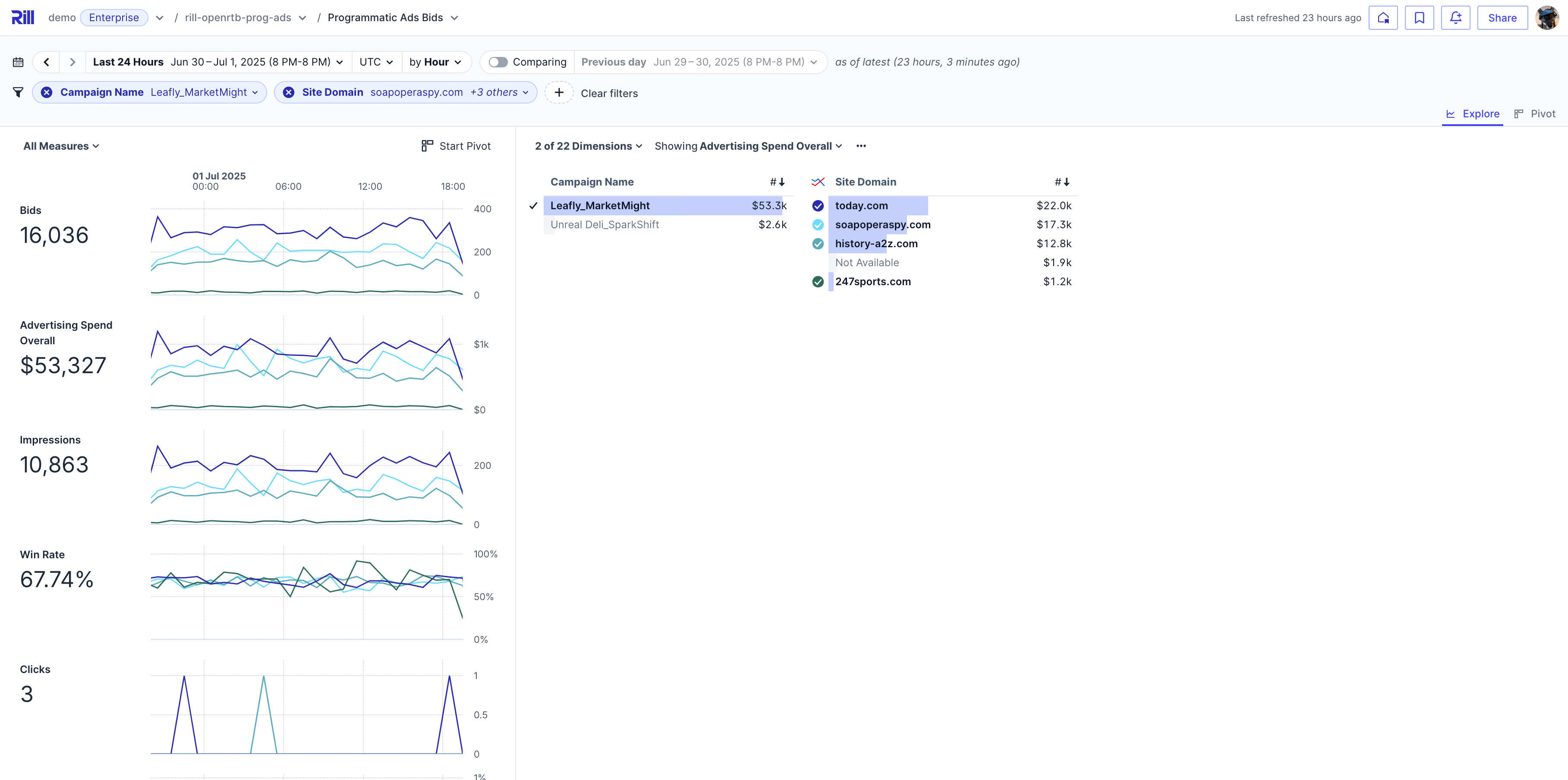
Which US region has the highest activity and what devices are being used?
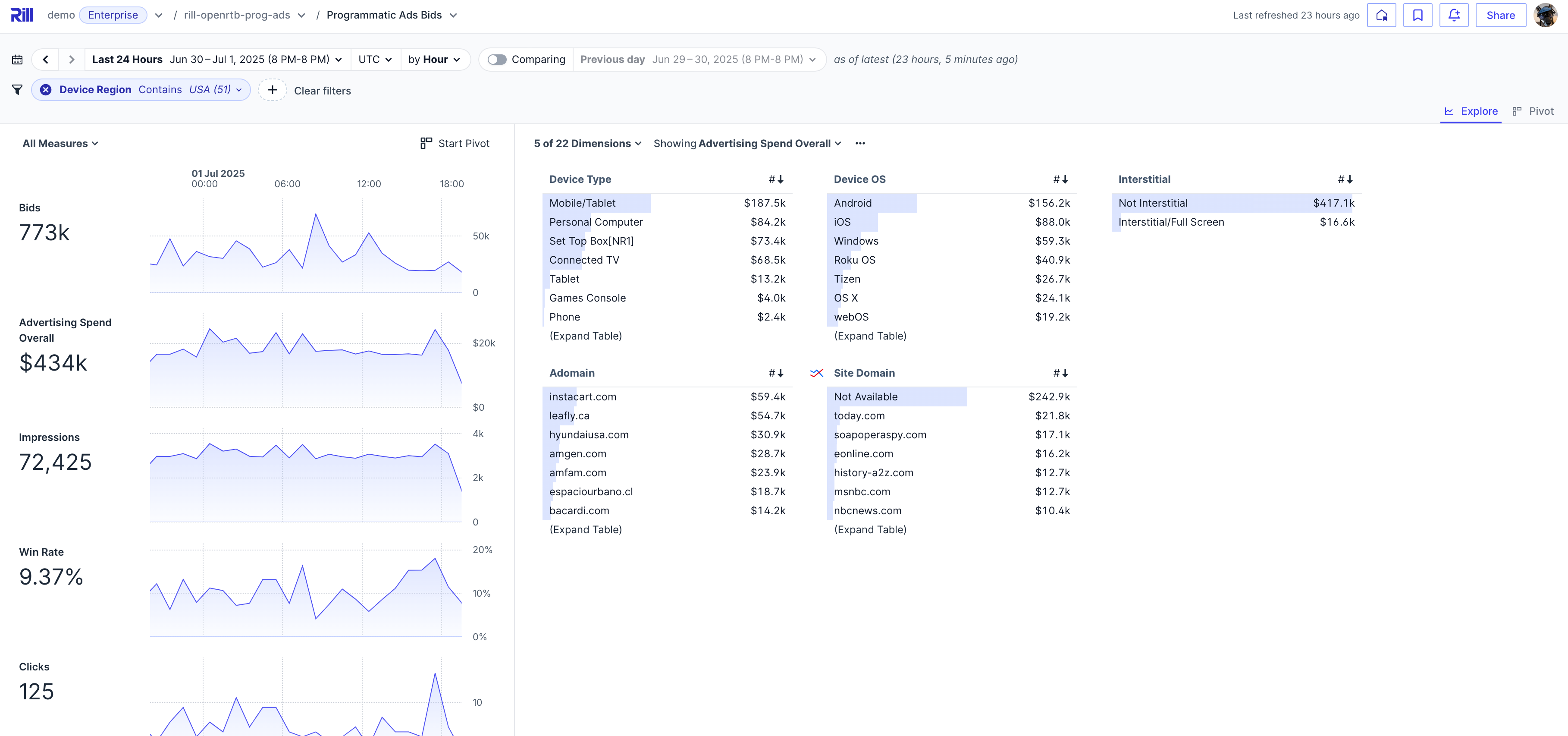
Compare Bids and Auctions.
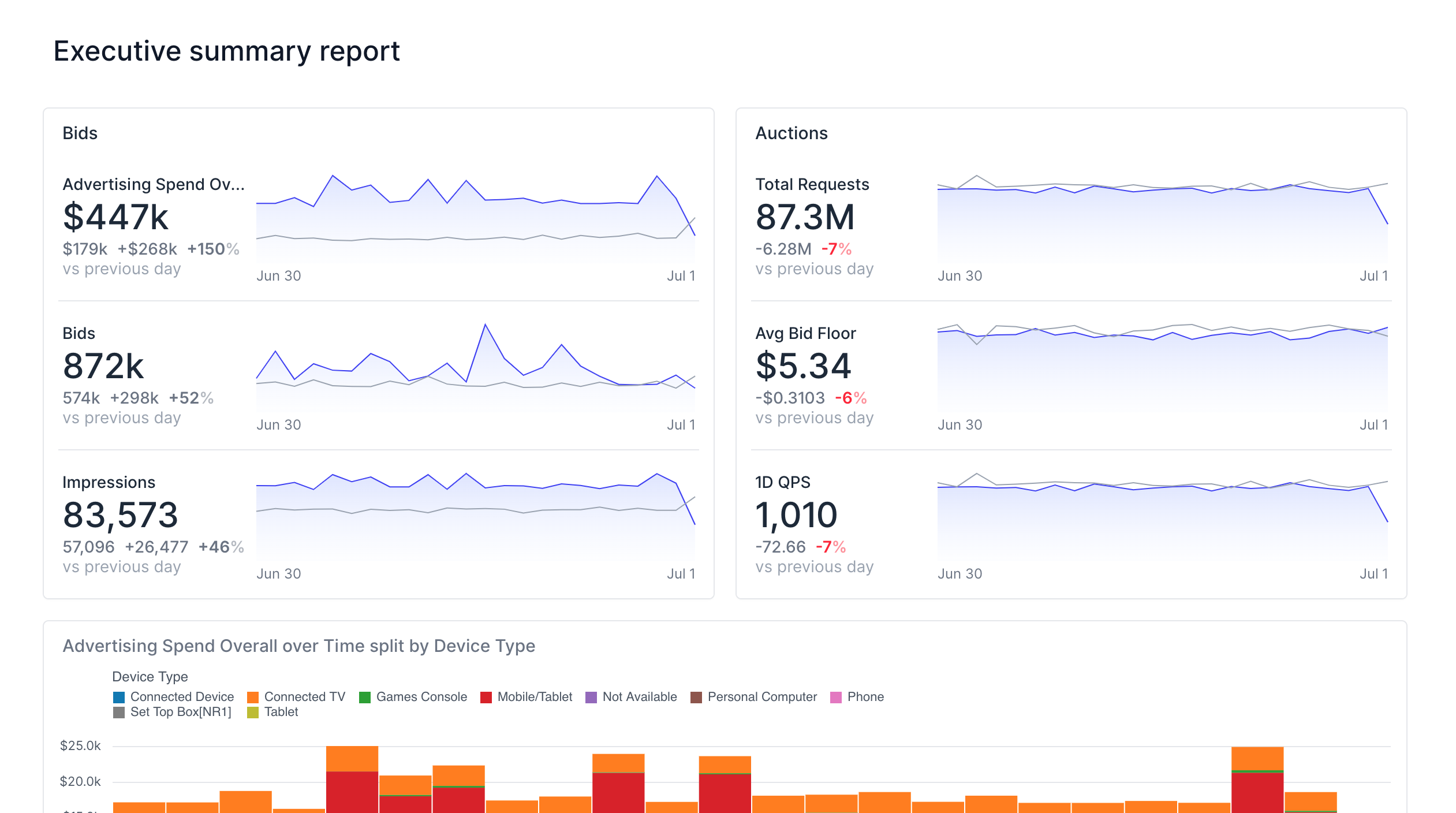
These are just some of the insights that you can find within your explore dashboard but you'll find more hidden gems in your data as you continue to use Rill. Please let us know if you have any other questions!
---
# Troubleshooting Performance in Rill
URL: https://docs.rilldata.com/developers/tutorials/performance
On this page, we've gathered a running list of recommendations and general guidelines to ensure your experience of using Rill remains performant and optimized. These best practices will help to ensure your dashboards remain performant, and that things continue to "just work" (for both Rill Developer and Rill Cloud), even as the size of your underlying data and deployment continues to grow. These best practices and guidelines will also continue to evolve but please don't hesitate to [reach out](/contact) if you start facing any bottlenecks or have further questions about ways to improve the Rill experience!
If you're looking for connector specific optimization see, [Dev/Prod Connector Environments](/developers/build/connectors/templating).
If you're looking for model specific optimization see, [Performance Optimization](/developers/build/models/performance).
:::info Working with very large data from the get go?
Generally speaking, Rill's [embedded DuckDB OLAP engine](/developers/build/connectors/olap/duckdb) works very well out-of-the-box for datasets _up to around 50GB in size_. If you plan to be working with and ingesting volumes of data larger than 50GB, please [**get in touch**](/contact) and we can explore using one of our other enterprise-grade [OLAP engine](/developers/build/connectors/olap) options.
:::
## Dashboard and Model Performance
Depending on the complexity of your underlying models and the size of the data models, there are things that you can do to improve performance.
### Consider which models to materialize
By default, models will be materialized as views (in DuckDB). This allows for a dynamic and highly interactive experience when modeling, such as keystroke-by-keystroke profiling. However, since views are logical in nature, as the complexity and size of your data models continue to grow (especially if the underlying data is very large), this can start to significantly impact performance as these complex queries will need to be continuously re-executed along with a number of profiling queries that the Rill runtime will send in the backend.
In such scenarios, we recommend [materializing these models as tables.](/developers/build/models/performance#model-performance) However, there are some tradeoffs to consider.
- **Pros:** Materializing a model will generally ensure significantly improved performance for downstream dependent models and dashboards.
- **Cons:** Enabling materialization for a model can severely impact or break the "keystroke-by-keystroke" experience and these models may also take longer to update (because the results are being written to a table vs remaining a view). It can also lead to _degraded_ performance for very specific operations, such as when you need to perform cross joins.
:::tip Materialize models powering dashboards
We strongly recommend materializing final models that are being used directly in dashboards to ensure this data is served more quickly.
:::
## Refreshing Source Models
Another area to review when your data source starts getting larger is the ingestion performance. By default, when refreshing a [source model](/developers/build/models/source-models) in Rill, it drops and re-ingests the entire table/file. When your data is small, this isn't an issue, but it's not appropriate for larger datasets. In these cases, we recommend using [partitions and incremental models](/developers/build/models/incremental-partitioned-models).
### Partitioned Models
Partitioned models divide your data into logical segments based on specific criteria, typically time-based columns like dates. This approach allows you to selectively refresh a partition where you know data has been altered.
Example partition configuration:
```yaml
partitions:
glob:
path: 'gs://my-bucket/**/*.parquet'
```
### Incremental Models
Incremental models only process new or changed data since the last refresh, rather than reprocessing the entire dataset. This dramatically improves performance for large datasets:
- **Faster Refresh Times**: Process only delta changes instead of full datasets
- **Reduced Resource Usage**: Lower CPU, memory, and storage requirements
- **Frequent Updates**: Enable near real-time data updates without performance degradation
- **Cost Efficiency**: Minimize compute costs for large-scale data processing
```yaml
type: model
incremental: true
partitions:
glob:
path: gs://rilldata-public/github-analytics/Clickhouse/2024/*/*
partition: directory
sql: |
SELECT *
FROM read_parquet('{{ .partition.uri }}/commits_*.parquet')
WHERE '{{ .partition.uri }}' IS NOT NULL
```
By combining partitioning and incremental processing, you'll significantly reduce model refresh times and ensure your dashboards display the most current information.
## Local Development / Rill Developer
When used in conjunction, Rill Developer and Rill Cloud are meant to serve two different but complementary purposes. For larger and distributed teams, Rill Developer is meant to primarily be used for local development purposes, which allow developers to quickly model their data and validate logic. Then, Rill Cloud enables shared collaboration at scale and where production consumption of dashboards should be happening (against your full data).
### Work with a subset of your source data for local development and modeling
As a general rule of thumb, we strongly recommend working with a segment of the data for modeling purposes as part of your local development workflow. This becomes increasingly important as the size of your source data grows in size, which will help ensure that your developer experience remains optimal in Rill Developer. With Rill Developer, it's best to work with a "dev partition" to help validate that the model logic is correct and producing results as expected. Then, once finalized, you can push to Rill Cloud for primary dashboard consumption (including analysis and sharing as necessary).
There are a few ways to achieve this:
- Defining an [**environment-specific database/cluster**](/developers/build/connectors/templating#environment-specific-connectors) to connect to between development and production
- Pointing to [**different source data endpoints/databases**](/developers/build/connectors/templating#environment-specific-data-source-location) between your development and production environments
- Working with a [**sample or subset of data**](/developers/build/models/templating#inline-sql-templating) during local development (but making sure the full dataset is being used in production dashboards)
- Applying [**filters or other if/else predefined logic**](/developers/build/models/templating#inline-sql-templating) to run different SQL whether a model is being run locally or in production
#### Environment-Specific Connectors
The most common use case for connector templating is defining separate databases for your development and production operations. This approach gives you the freedom to experiment, test, and iterate on your models without the risk of accidentally modifying or corrupting your production data.
Example: Here's how you can configure a ClickHouse connector to use different environments:
```yaml
type: connector
driver: clickhouse
dev:
dsn: "clickhouse://user:password@localhost:9000/dev_database" # ClickHouse connection DSN
# Production environment configuration
prod:
host: "{{ .env.CLICKHOUSE_HOST }}"
port: "{{ .env.CLICKHOUSE_PORT }}"
database: "{{ .env.CLICKHOUSE_DATABASE }}"
username: "{{ .env.CLICKHOUSE_USERNAME }}"
password: "{{ .env.CLICKHOUSE_PASSWORD }}"
ssl: true
cluster: "{{ .env.CLICKHOUSE_CLUSTER }}"
```
#### Limiting the source data to a smaller time range
There are different ways this can be achieved and the method also depends heavily on the data source being used. For example, assuming we had a [S3 source](/developers/build/connectors/data-source/s3) that was well partitioned by year and month (and written into a partitioned bucket), the recommended pattern would be to leverage the `path` [source property](/reference/project-files/sources) and a glob pattern to limit the size of the ingestion in your development environment. Something like (as your `source.yaml`):
```yaml
type: source
connector: s3
path: s3://bucket/path/**/*.parquet
dev:
path: s3://bucket/path/year=2023/month=12/**/*.parquet
```
By leveraging the [environment YAML syntax](/developers/build/models/templating), this ensures that only data from December 2023 will be read in from this S3 source when using Rill Developer locally while the full range of data will still be used in production (on Rill Cloud). However, if this data was **not** partitioned, then we could simply leverage DuckDB's ability to read from S3 files directly and _apply a filter post-download_ on the source. Taking this same example and using some [templating](/developers/build/connectors/templating), the `source.yaml` could be rewritten to something like the following:
```yaml
type: source
connector: "duckdb"
sql: SELECT * FROM read_parquet('s3://bucket/path/*.parquet') {{ if dev }} where timestamp_column >= '2023-12-01' AND timestamp_column < '2024-01-01' {{ end }}
```
#### Creating intermediate staging models
Another option would be to create intermediate staging models from your sources, either through [statistical sampling](https://duckdb.org/docs/sql/samples.html) or by applying a [raw limit](https://duckdb.org/docs/sql/query_syntax/limit.html), to reduce the size of your models in development. For example, with [templating](/developers/build/connectors/templating) and [environments](/developers/build/models/templating), this `model.sql` applies a five percent sample to a source:
```sql
-- @materialize
SELECT * FROM {{ ref "source_name" }}
{{ if dev }} USING SAMPLE 5% {{ end }}
```
Similarly, if we were less concerned about skewing our sample data, we could apply a simple `LIMIT` to our source data:
```sql
-- @materialize
SELECT * FROM {{ ref "source_name" }}
{{ if dev }} LIMIT 1000 {{ end }}
```
:::info Why are we materializing the intermediate model?
As mentioned in an [above section](#consider-which-models-to-materialize), models by default will be materialized as _views_ in DuckDB unless otherwise specified. When working with intermediate models, we'll want them to be stored as **tables** to ensure downstream models and queries remain performant.
:::
:::warning When applying templated logic to model SQL, make sure to leverage the `ref` function
If you use templating in SQL models, you must replace references to tables / models created by other sources or models with `ref` tags. See this section on ["Referencing other tables or models in SQL when using templating"](/developers/build/connectors/templating#environment-specific-data-source-location). This ensures that the native Go templating engine used by Rill is able to resolve and correctly compile the SQL syntax during runtime (to avoid any potential downstream errors).
:::
#### Use data from a dev / staging environment
Some organizations might have both a development and production version of source data. In these cases, your sources should be configured to use the "dev" bucket or database for local development (in Rill Developer) and pointed to the "prod" bucket or database when in production (when deployed to Rill Cloud). Please refer to [this example](/developers/build/connectors/templating#example-clickhouse-connector-with-environment-separation) and [this example](/developers/build/connectors/templating#environment-specific-data-source-location) for a complete walkthrough of how this can be configured.
## Query Optimization
Query optimization is crucial for maintaining high performance and efficiency, especially when working with data-intensive applications. As Rill dashboards are powered by [OLAP engines](/developers/build/connectors/olap), designed for analytical queries, ensuring that our queries are well-optimized can help maximize the responsiveness and speed of our dashboards. There are also additional potential second-order benefits to optimizing queries in Rill, such as improving ingestion times, how long it takes to build models, how resource-intensive it is to build models, how fast profiling queries run, and more.
### Use appropriate data types and avoid casting when possible
Casting can be expensive, especially when the underlying models are views and not [materialized](#consider-which-models-to-materialize) as a table. For example, if a timestamp column is actually incorrectly typed as a string, then for timeseries charts, Rill ends up having to iterate across each row to try to infer the timestamp and a lot of time parsing has to occur. Similarly, for incorrectly typed or cast columns that are used in calculations, the calculations will have to be constantly looped through, which can be both inefficient and expensive over time (and simply make everything slower).
Similarly, choosing the right data type for each column is also important. Smaller data types, when applicable, consume less memory and can improve query performance. For example, use `INT` instead of `BIGINT` if your data range permits.
### Select the columns you need and avoid `SELECT *` when possible
Because most [OLAP databases](/developers/build/connectors/olap) store data in a columnar format, including [DuckDB](/developers/build/connectors/olap/duckdb), selecting only the columns that you need during the modeling phase ensures that DuckDB will only ingest and store the data _it actually needs_ (speeding up model build times and reducing footprint). Furthermore, columnar formats are optimized for analytical queries so by selecting only the columns that you need (instead of a blanket `SELECT *`), this will help to minimize data processing times and improve the query execution speed.
### Consider sorting your data by an appropriate timestamp column
Generally speaking, if possible, it is recommended to make sure that your upstream data is relatively well organized and/or sorted by timestamp before being ingested into Rill. This helps to ensure that timeseries queries are efficient when they execute against resulting models and can result in an order of magnitude difference in query performance. This can also help improve the effectiveness of filters by reducing I/O.
:::info When to sort vs not to sort?
Sorting, especially in DuckDB, _can also be computationally intensive_ and most input data is generally sorted enough (by time). If the data ingested is completely unsorted or sorted by a different, non-timestamp column, it could be worth the computational overhead to sort by a timestamp column (especially if used in a dashboard). If you're unsure, please feel free to [reach out](/contact) and we'd be happy to help you assess the best path forward!
:::
### Use joins efficiently
Plan your joins carefully, especially when working with large datasets. Most [OLAP engines](/developers/build/connectors/olap), DuckDB included, will optimize join operations, but ensuring the join keys are well-chosen and considering the size of the datasets being joined can reduce processing time. For example, if you're looking to perform a cross or cartesian join across a very wide table, be sure it's necessary as it can otherwise explode the size of your result set.
### Apply filters early and use WHERE clauses wisely
When possible, it can be good practice to apply filtering early in your queries with `WHERE` clauses to reduce the amount of data being processed in subsequent steps (or downstream models / queries). This can both help to reduce the amount of data being scanned and, given the columnar nature of most [OLAP engines](/developers/build/connectors/olap), significantly speed up queries.
### Optimize your subqueries to leverage joins or CTEs when possible
Subqueries can very often prove to be inefficient and result in suboptimal query execution plans. When possible, it is generally better practice to rewrite subqueries as joins or use Common Table Expressions (CTEs) to make them more readable and potentially more efficient.
### Rather than UNION, consider using UNION ALL when possible
Depending on the [OLAP engine](/developers/build/connectors/olap), `UNION` can be a very expensive operation and much more computationally intensive than `UNION ALL`. For example, when using [DuckDB](/developers/build/connectors/olap/duckdb), a `UNION` will require performing full duplicate eliminations _across all columns_ while a `UNION ALL` will simply concatenate the tables together. If a concatenation is sufficient (for the query), this will be both much quicker and significantly less resource intensive for the query to complete.
## OLAP Engines
Often, data in external [OLAP engines](/developers/build/connectors/olap) is quite large in size and requires different considerations to improve performance. At Rill, we manage clusters in the 100's of TB so included some tips below based on our experience.
### Data Lifecycle Management
One common way to decrease overall data size and improve query performance (by scanning less data) is to rollup your data to higher time grains historically. Typically, this means taking hourly data and rollup up to daily data when the additional level of granularity is no longer necessary for business needs. Databases like Apache Druid have these lifecycle tools built in or reach out to Rill with questions.
A couple of considerations when rolling data from lower to higher time grains:
- Daily data loses time zone querying as everything is rolled up to a single time zone (usually UTC)
- Consider hashed compaction when going from hourly to daily to reduce data size even further
- Watch out for rolling up metrics. Some metrics should be summed - but others (like a bid floor or campaign budget) should stay unique and be rolled up as a max
### Dimension Stripping
Dimension stripping is another tool to reduce data size by removing high cardinality fields that are not required for analysis. While this can be done upfront in the data set, another practice would be to drop these fields at certain intervals when they no longer add business value. Most frequently, we see a couple decision points where these fields are dropped:
- After a day to first week, dropping user level details no longer needed for monitoring
- After a week to multiple weeks, dropping "double click" level details that aren't needed for reporting (e.g. the minor release number on an Operating System field)
- After a month to months, dropping fields no longer interesting for analysis
### Sampling & Datasketches
There are times when you may look at sampling data feeds to trade data accuracy for lower costs and faster query speeds. Sampling involves sending only a percentage of your data, then extrapolating the values to get an estimate. Rill does not recommend sampling your primary KPIs, any records that require a join or are tied to revenue. This filtered data should be decided in random fashion to not skew or bias the results. Please note, tracking uniques is not recommended if you choose to sample.
If looking to track uniques, but with smaller datasets and significantly improved performance, you can load unique values (IP addresses, user IDs, URLs, etc.) with [datasketches](https://datasketches.apache.org). There are multiple types of datasketches supported depending on your engine. At a high level, datasketches use algorithms to approximate unique values. Common use cases for datasketches include count distincts (campaign reach, unique visitors) and quantiles (time spent, frequency). Check out the [Apache Datasketches](https://datasketches.apache.org/docs/Architecture/MajorSketchFamilies.html) site for more details on methodology and use cases.
### Lookups
While joins can kill the performance of [OLAP engines](/developers/build/connectors/olap), lookups (key-value pairs) are common to reduce data size and improve query speeds. Lookups can be done during ingestion time (a static lookup to enrich the source data) or at query time (dynamic lookups).
**Static Lookups**
Static Lookups are lookups that are ingested at processing time. When a record is being processed, if a match is found between the record and lookup's key, the lookup's corresponding value at that moment in time is extracted and carbon-copied into Druid for the records it processed.
Static lookups are best suited for:
- Dimensions with values that require a historical record for how it has changed over time
- Values are never expected to change (leverage Dynamic Lookups if the values are expected to change)
- Extremely large lookups (hundreds of thousands or records or >50MB lookup file) to improve query performance
Customers typically store lookup values in s3 or GCS and the lookup file is then updated by customers as needed and consumed by ETL logic.
**Dynamic Lookups**
Since static lookups transform and store the data permanently, any changes to the mapping would require reprocessing the entire data set to ensure consistency. To address the case when values in a lookup are expected to change with time we, developed dynamic lookups. Dynamic Lookups, also known as Query Time Lookups, are lookups that retrieved at query time, as apposed to being used at ingestion time.
Benefits of dynamic lookups include:
- Historical continuity for dimensions that change frequently without reprocessing the entire data set
- Time savings, because there is no data set reprocessing required to complete the update
- Dynamic lookups are kept separate from the data set. Thus, any human errors introduced in the lookup do not impact the underlying data set
- Ability for users to create new dimension tables from metadata associated with a dimension table. For example, account ownership can change during the course of a quarter. In such cases, a dynamic lookup can be updated on the fly to reflect the most current changes
---
# 5. Create an Explore and Canvas Dashboard
URL: https://docs.rilldata.com/developers/tutorials/rill-basics/dashboard
## Explore Dashboard
We have the choice to start with either an Explore or Canvas dashboard. Let's start with an Explore Dashboard by selecting `Create Explore Dashboard`. This will automatically populate the explore dashboard to select all of the created metrics and dimensions in your metrics view. We can make changes to the view via the YAML or visual dashboard editor.

## Making Changes
### Visual Explore Dashboard

On the right panel, you are able to select measures, dimensions, time ranges, and various other components that control the view of your dashboard. In the main area, you will see a preview of what your dashboard will look like. You can also select the code view to make any needed changes and/or set more advanced settings as found in our [explore dashboard YAML reference.](https://docs.rilldata.com/reference/project-files/explore-dashboards)
### YAML
By default, the page will contain the basic parameters as seen below. You can add more advanced settings as required for your use case.
```YAML
# Explore YAML
# Reference documentation: https://docs.rilldata.com/reference/project-files/explore-dashboards
type: explore
title: "commits_model_metrics dashboard"
metrics_view: commits_model_metrics
dimensions: '*'
measures: '*'
```
### Explore Dashboard Components
For a quick summary of the different components of an explore dashboard and their respective parts in the dashboard UI:

---
## Canvas Dashboard
Next, let's try to make a Canvas dashboard!
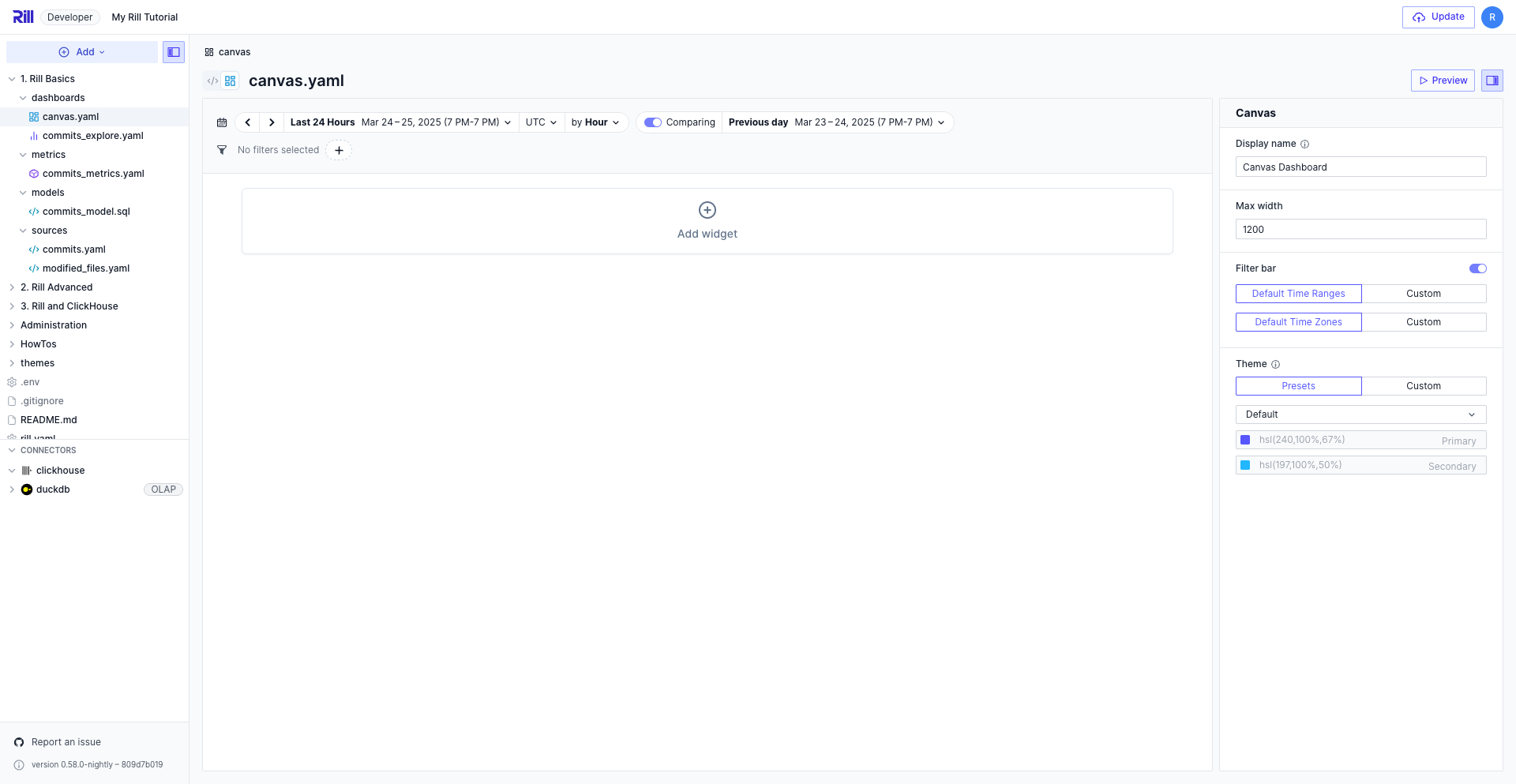
Select `Add widget` to build a component using our metrics view. The right-hand panel will display the different parameters that you can set per component.
Try to create the following:
- KPI with measures: [Sum of Added lines, Sum of deleted lines]
- Bar Chart: Added lines over Author Name.
Once completed, select `Preview`. You should see something like the following image:

---
# 6. Deploy to Rill Cloud
URL: https://docs.rilldata.com/developers/tutorials/rill-basics/deploy
:::tip Rill Cloud Trial
If this is the first time you have deployed a project onto Rill Cloud, you will automatically start your [Rill Cloud Trial](/developers/other/plans#trial-plan) upon deployment of your Rill project. Your trial will last for 30 days. Please refer to our documentation for more information on the details of your trial.
:::
## Deploy via the UI!
Depending on your version, you'll notice a `Deploy to share` button in the top right corner. Let's select it!
:::note Don't see the button?
Deploying via the UI was introduced in v0.48. Please upgrade Rill by running `rill upgrade` in the CLI. The version is on the bottom left of the Rill Developer UI.
:::

Steps to deploy to Rill Cloud:
1. Select the `Deploy to share` button.
2. Select `continue` on the [free trial](https://www.rilldata.com/pricing).
- If you have already deployed, select an existing organization.
3. Select `continue` on user invites. We will discuss this in a later section.
4. You will be navigated to the /status page of your deployed project.
## Welcome to Rill Cloud!
Take note of the following features in the UI. We'll go over them later.

---
# 2. Import the Source
URL: https://docs.rilldata.com/developers/tutorials/rill-basics/import
Let's start at the beginning of all data pipelines: **the source**.
### What is a Source?
In Rill, a source model represents your raw data. See our list of [connectors](/developers/build/connectors) or select Add -> Add Data from Rill Developer to see the supported sources.

:::tip Where is the data being imported?
By default, Rill uses DuckDB as the underlying OLAP engine (see Connect OLAP engines).
Please see our docs for the supported list of connectors.
We support various OLAP engines. If you have a different OLAP engine that you're interested in using, please let us know! Looking for a ClickHouse tutorial? Click [here!](/developers/tutorials/rill-clickhouse/r_ch_launch)
:::
### Add a Data Source
Select the `+Add` dropdown and select `Data`. This will open a UI showing supported connectors.
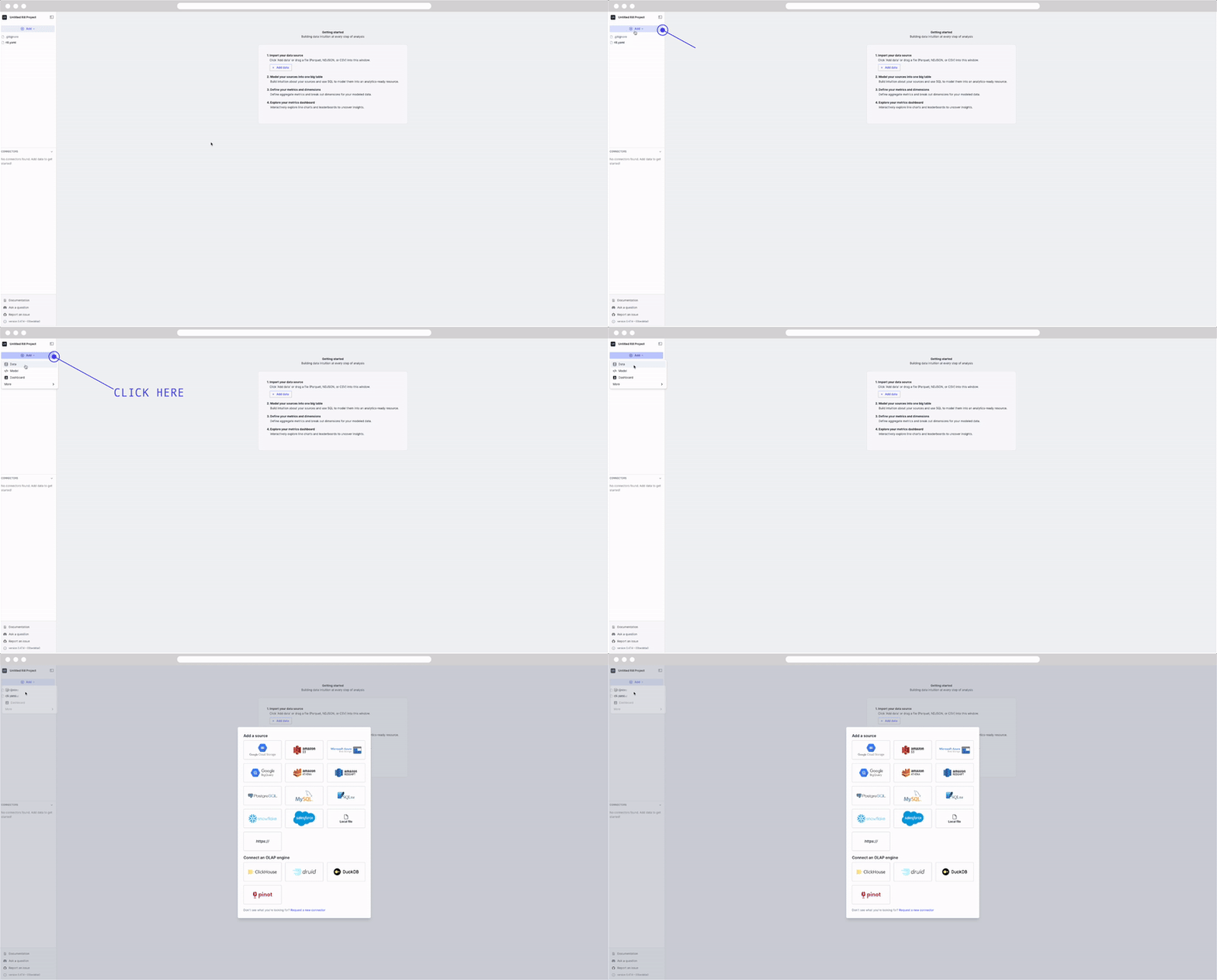
For our tutorial, let's add two GCS storage sources from our public storage.
In Rill, each dataset is added separately as a single source model. Once imported into Rill, you can then transform the data via SQL modeling (we'll cover that on the next page). Follow the steps in the UI and use the following URIs below.
```yaml
gs://rilldata-public/github-analytics/Clickhouse/2025/03/modified_files_*.parquet
gs://rilldata-public/github-analytics/Clickhouse/2025/03/commits_*.parquet
```
:::tip Data
These are datasets derived from the commit history and modified files of our friends at ClickHouse's GitHub repository. In our example, we'll ingest a single month of data. However, Rill supports glob patterns, so you could modify the URL to `gs://rilldata-public/github-analytics/Clickhouse/**/modified_files_*.parquet` to ingest all years and months of data. However, that's a lot of data to ingest!
:::
Once imported, you'll see the UI change with several things:
1. A `source_name.yaml` file created in the file explorer.
2. A DuckDB database created in the Connectors explorer.
3. Within the DuckDB database, under main, the source table with a preview when selected.
4. The right panel showing a summary of the data source and column values.
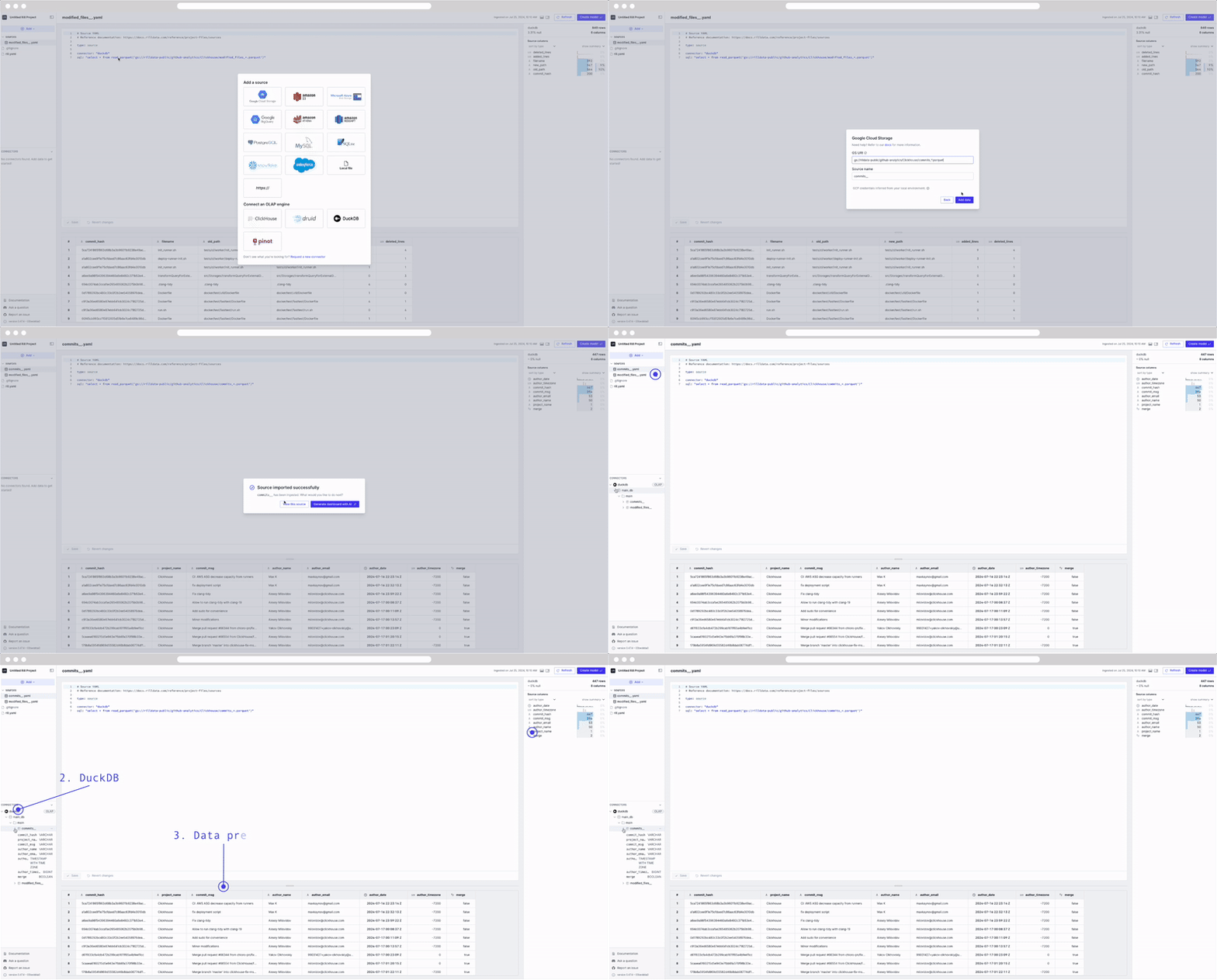
Now we're ready to create a `model`.
Don't see what you're looking for?
We are continually adding new sources and connectors in our releases. For a comprehensive list, you can refer to our connectors page. Please don't hesitate to reach out if there's a connector you'd like us to add!
If this is your first time, you may need to refresh the browser for DuckDB to appear in the UI.
:::tip Too much data?
By default, all environments running locally are considered `dev` environments. This means that you can use environment variables to filter the input data, as Rill Developer is designed for testing purposes. For example, you can filter the repository data on the `author_date` column or simply use `limit ####`.
```
---
# 1. Source to Dashboard on Rill Cloud in 6 Steps
URL: https://docs.rilldata.com/developers/tutorials/rill-basics/launch
:::note prerequisites
You need to [install Rill](https://docs.rilldata.com/developers/get-started/install).
```bash
curl https://rill.sh | sh
```
:::
The goal of this six-part tutorial is to get started with Rill and deploy your project to Rill Cloud. Upon deployment, your [30-day trial will start](/developers/other/plans#trial-plan). Each course will build upon the previous one, allowing you to have a fully functioning project with many of our advanced features. This tutorial can be used in tandem with our documentation to ensure you have up-to-date information.
## Start Rill Developer
```yaml
rill start my-rill-tutorial
```
:::tip
While we support macOS and Linux, you can also get Rill Developer running on a [Windows machine via WSL](https://docs.rilldata.com/developers/get-started/install#rill-on-windows-using-wsl). If you are having any issues installing or starting Rill, please see our [installation page](https://docs.rilldata.com/developers/get-started/install).
:::
If running Rill in a new directory, you'll be prompted with the following. Type "Y" and press Enter.
```bash
? Rill will create project files in "~/Desktop/GitHub". Do you want to continue? (Y/n)
```
Rill Developer will automatically open in your default browser. If not, you can access it via the following URL:
```
localhost:9009
```
Welcome to Rill Developer!
:::note What is Rill Developer?
Rill Developer is used to develop your Rill project, as editing in Rill Cloud is not yet available. In Rill Developer, you will create connections to your source files, perform last-mile ETL, define metrics in the metrics layer, and finally create a dashboard. For more details on the differences between Rill Developer and Rill Cloud, see our documentation [here](/developers/deploy/cloud-vs-developer)
:::

Let's go ahead and select `Start with an empty project`. If you want to skip the basics, you can select one of the quick start projects and refer to our Quick Start Guide for the corresponding project. Note that we have many more projects available in our public repo [here](https://github.com/rilldata/rill-examples).
Where am I in the terminal?
You can use the `pwd` command to see which directory you are in within the terminal.
If this is not where you'd like to make the directory, use the `cd` command to change directories.
---
# 4. Create the Metrics View
URL: https://docs.rilldata.com/developers/tutorials/rill-basics/metrics-view
### What is a Metrics View?
A metrics view is a layer in which you can create and define your measures and dimensions. Think of it as the layer that takes all of your raw data and makes sense of it. In this layer, you can define, for example, what Net Revenue is using basic to advanced [arithmetic functions available in DuckDB](https://duckdb.org/docs/stable/sql/functions/numeric.html). You also define what dimensions to use to slice and dice your data in the Explore Dashboard. If using Canvas dashboards, you can view multiple metrics views on a single page!
### Let's create a metrics view!
Now that the data is ready in your model file, we can create a metrics view. There are two ways to do so:
1. Generate metrics with AI
2. Start simple using the +Add, Metrics
How does Generate metrics with AI work?
We send a set of YAML files along with some context to OpenAI to suggest the dimensions, measures, and various other key pairs for your dashboard.
Let's go ahead and create a simple metrics layer via the UI and build on it.
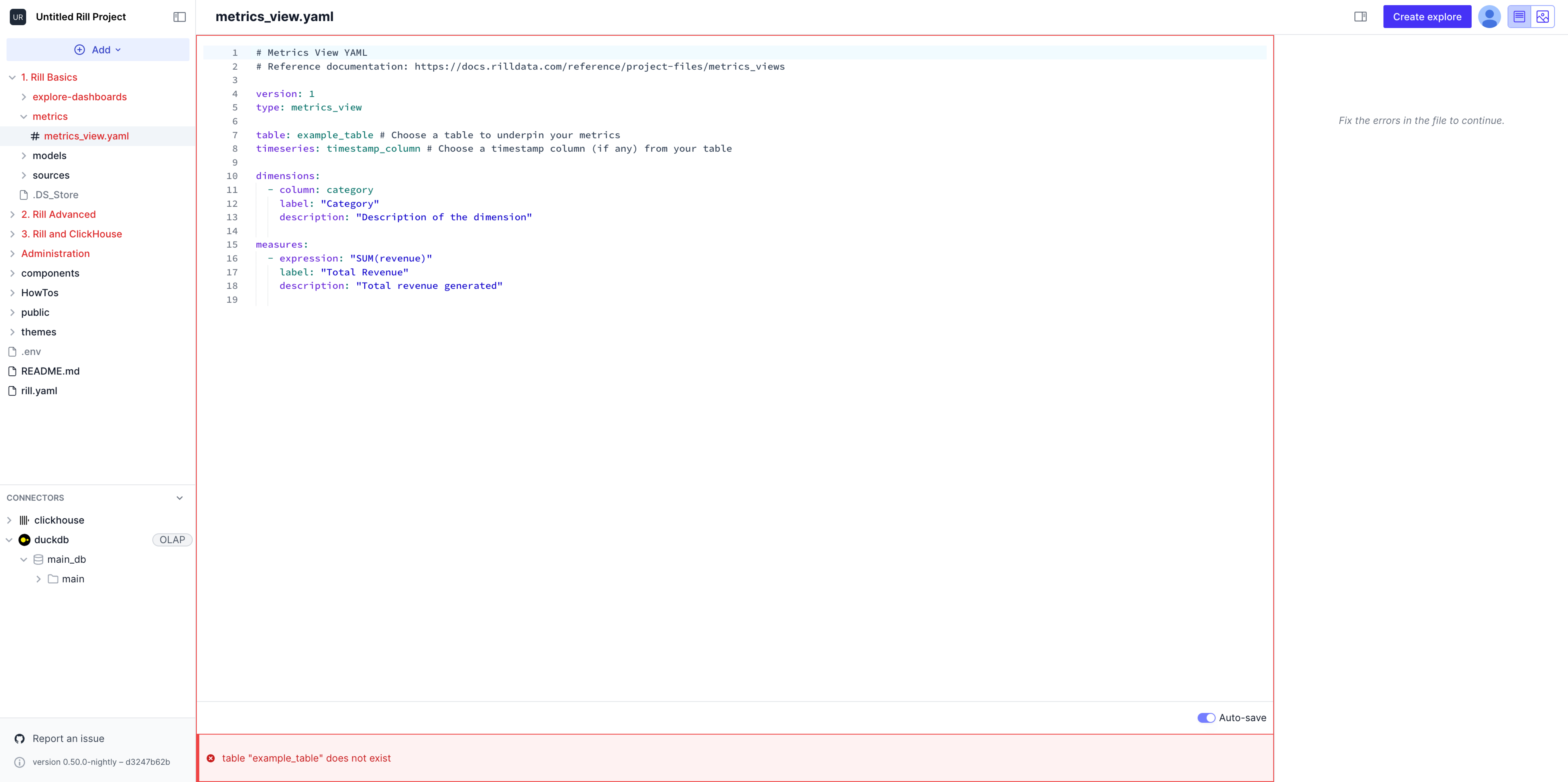
As you can see, the default dashboard YAML is as follows:
```yaml
# Metrics View YAML
# Reference documentation: https://docs.rilldata.com/reference/project-files/metrics_views
version: 1
type: metrics_view
model: example_model # Choose a model to underpin your metrics
timeseries: timestamp_column # Choose a timestamp column (if any) from your table
dimensions:
- name: category
display_name: Category
column: category
description: Description of the dimension
measures:
- name: total_revenue
display_name: Total Revenue
expression: SUM(revenue)
description: Total revenue generated
```
For now, you'll see a red box around the UI and the preview button grayed out. This indicates something is wrong with the YAML.
## Fixing the Metrics View
From here, we have two options!
Starting from version 0.50, we have introduced the [visual-metric-editor](/developers/build/metrics-view/what-are-metrics-views#using-the-visual-metrics-editor), in the top right corner, you can select whether you want to modify the YAML directly or use a UI tool.
## Via the Visual Metrics Editor
In the top right of the UI, select the viz button to navigate to the visual metrics editor. Below is an example of a completed visual metrics editor. We will make some modifications to our current file to build something similar.
We can go ahead and change the following components as directed in the UI:
- `model`: commits_model
- `time column`: author_date
- `measures`: sum(added_lines)
- `dimensions`: author_name

Once finished, the red border will disappear and your explore dashboard is ready to be created. If you need further information on each component, see the next section, via the YAML.
## Via the YAML
Let's go over each component and what they are in order to better understand the metrics view and how to fix the dashboard.
### Type
```yaml
version: 1
type: metrics_view
```
The type is a Rill-required key pair as it indicates to Rill what type of file this is. Whether a `source`, `metrics_view`, `connector`, etc. We can keep this as is.
---
### Underlying Table ###
```yaml
table: commits_model # Note that this has 3 "_"!
```
The underlying table can be defined here. Let's change it to `commits_model`.
---
### Time series ###
```yaml
timeseries: author_date # Select an actual timestamp column (if any) from your table
```
The time-series column is a date-type column within your table. Let's set this to `author_date`.
---
### Dimensions ###
```yaml
dimensions:
- name: author_name # name for this dimension
display_name: "The Author's Name" # A display label
column: author_name # column in model that this dimension is derived from
description: "The name of the author of the commit" #A description, displayed when hovered over dimension
```
Dimensions are used for exploring segments and filtering the dashboard. Each dimension has a set of required key pairs. For the `column`, you will need to set it to a column from your model or table, assign it a label (this is how it's labeled in the dashboard), and provide a description. The description will be displayed when hovering over and can provide more context.
Our first dimension will be the author's name. Let's go ahead and make the changes above.
---
### Measures ###
```yaml
measures:
- name: added_lines
expression: SUM(added_lines)
display_name: Sum of Added lines
description: The aggregate sum of added_lines column
```
Measures are the numeric aggregates of columns from your data model. These functions will use DuckDB SQL aggregation functions and expressions. Similar to dimensions, you will need to create an expression based on the column of your underlying model or table.
Our first measure will be: `SUM(added_lines)`.
## Adding more Functionality
Let's add further dimensions and measure to the metrics layer and see the changes to the explore dashboard.
### Dimensions
From our dataset, we can add more dimensions to allow more filtering and exploration of the measures we will create.
Add the following dimensions, with title and description.
- author_name
- author_timezone
- filename
### Measures
We can definitely create better aggregations for some more meaningful data based on these commits.
- sum(added_lines)
- sum(deleted_lines)
You may need to reference the metrics view YAML reference guide to figure out the above. Your final output should look something like this!
Working Metrics View YAML
```yaml
# Metrics View YAML
# Reference documentation: https://docs.rilldata.com/reference/project-files/metrics_views
version: 1
type: metrics_view
table: commits_model
timeseries: author_date # Select an actual timestamp column (if any) from your table
dimensions:
- column: author_name
name: author_name
display_name: The Author's Name
description: The name of the author of the commit
- column: author_timezone
display_name: "The Author's TZ"
description: "The Author's Timezone"
- column: filename
display_name: "The filename"
description: "The name of the modified filename"
measures:
- expression: SUM(added_lines)
name: added_lines
display_name: Sum of Added lines
format_preset: humanize
description: The aggregate sum of added_lines column.
valid_percent_of_total: true
- expression: "SUM(deleted_lines)"
name: deleted_lines
display_name: "Sum of deleted lines"
description: "The aggregate sum of deleted_lines column."
```
### Completed visual metrics editor
If you decide to build out the metrics view via the UI, it should look something like below!
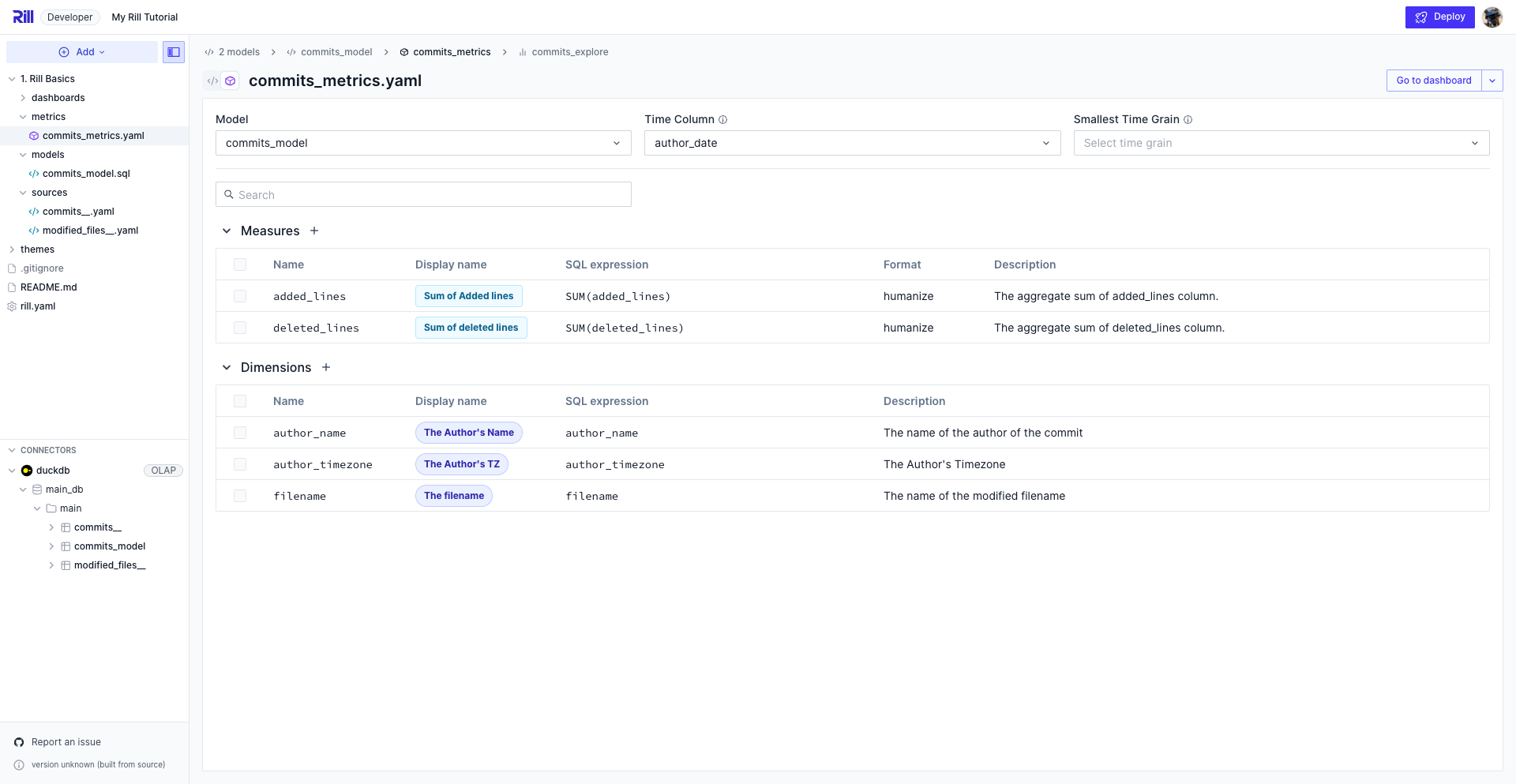
---
# 3. Create a SQL Model
URL: https://docs.rilldata.com/developers/tutorials/rill-basics/model
### What is a model?
A model in Rill is used to perform intermediate processing as well as any last-mile ETL on the source data. This includes joining lookup tables to your table to enrich and transform the data for analysis. We recommend creating [One Big Table](/developers/build/models/models-101#one-big-table-and-dashboarding) to power your metrics views.
### Create a Model from the Source
Go ahead and select the `Create Model` button in the top right-hand corner of the commits dataset.
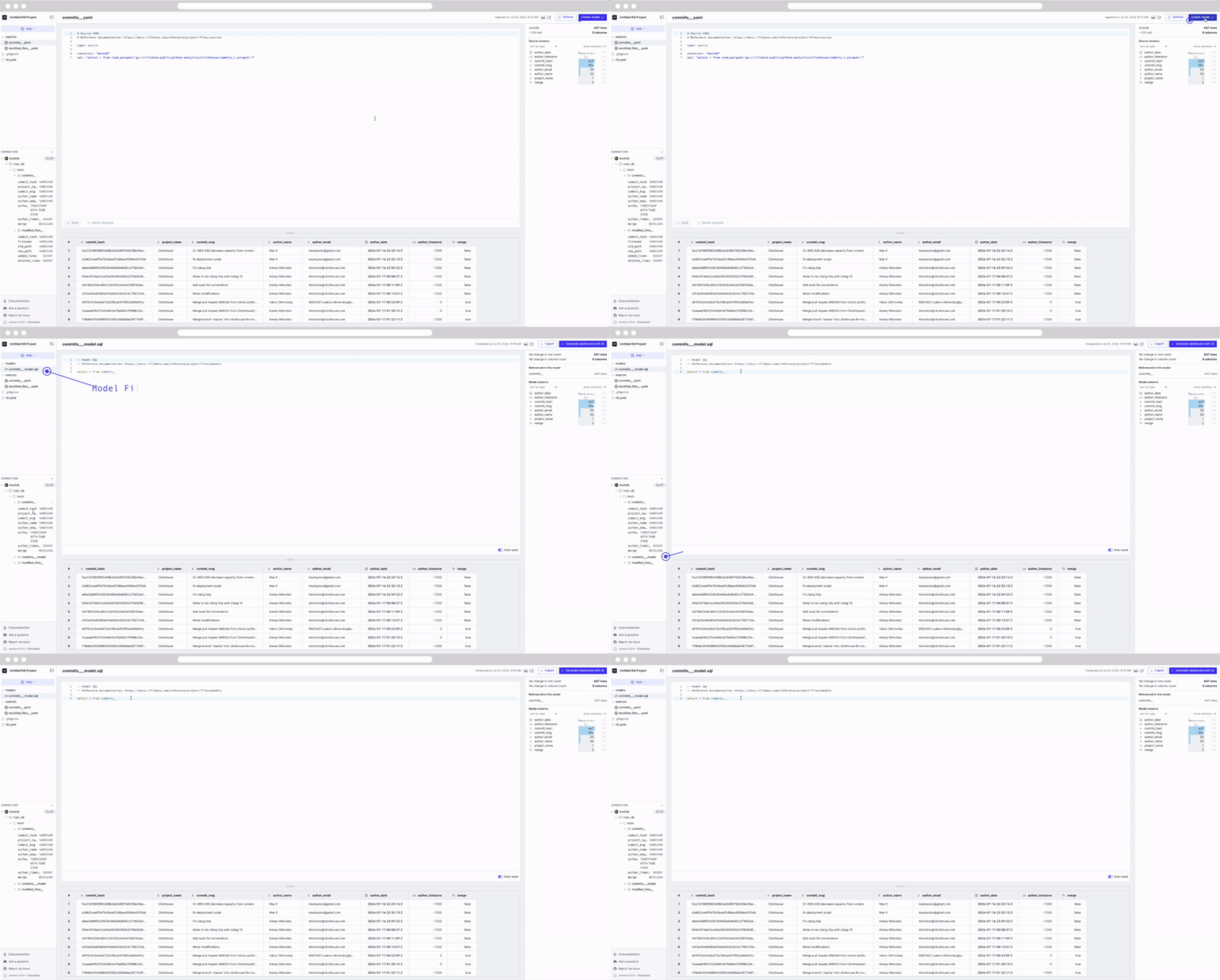
You'll be automatically redirected to the model page. On the left panel, you'll see a models folder created with the file `commits__model.sql`. On the right panel, you'll find general information about your model table, the column values, and at the bottom of the page, a preview of the data.
```SQL
select * from commits
```
Let's try to make some changes to our SQL and see how the UI reacts.
```SQL
select * from commits order by author_date DESC
```
Notice that the preview table is automatically updated as we modify the SQL. This is due to our auto-save feature. In case any errors are encountered, the UI will update accordingly and display the error.
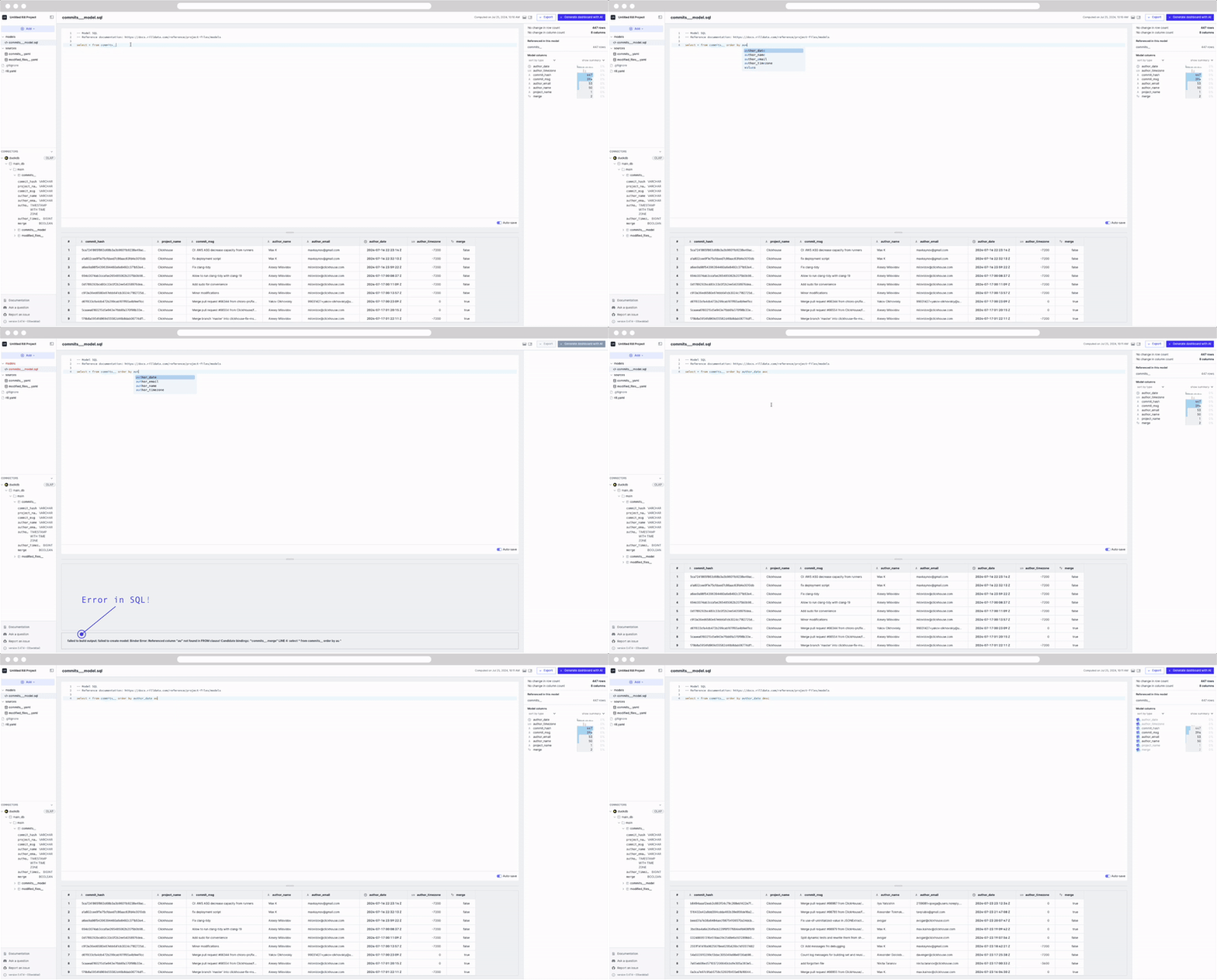
:::tip
Our Autosave feature can be enabled or disabled as needed via the rill.yaml file / project settings, or by simply selecting the toggle in the UI.
:::
### Let's merge two tables!
Each dataset independently gives us some interesting information, but we want to view the data from both of these datasets in a single dashboard.
- `commits` gives us information about the user who committed the changes.
- `modified_files` gives us information on the actual changes to the file and its directory.
We will grab all the columns from `commits` and only a few from `modified_files` as seen below. We will join the two datasets on the `commit_hash` column. As this is the SQL view that our dashboard will be based on, we want to materialize it!
```SQL
-- Model SQL
-- Reference documentation: https://docs.rilldata.com/developers/build/models
-- @materialize: true
SELECT
a.*,
b.filename,
b.added_lines,
b.deleted_lines
FROM
commits a
INNER JOIN
modified_files b
ON
a.commit_hash = b.commit_hash
```
:::tip
You can see all referenced source tables in the right panel, as well as the column schema and an overview of the data. Select a model to be redirected to the model.
:::
### Concept: What is materialization?
By default, models created in DuckDB will be views. Both views and tables will be shown in under your DuckDB's connector table UI.
```yaml
-- @materialize: true
```
Why materialize?
You may experience some improved performance materializing SQL views for intermediate models in the case of complex SQL or large data. We generally recommend materializing finals models that power dashboards. However, you might experience some degradation of modeling experience [auto-save feature] for some specific situations including cross joins.
---
# Deployment Success!
URL: https://docs.rilldata.com/developers/tutorials/rill-basics/success
### Congratulations!
You have successfully deployed your project from Rill Developer to Rill Cloud in six steps!

### Key Takeaways
1. With Rill Developer, you can import data, transform data, and create dashboards.
2. You can deploy your dashboard to Rill Cloud in just a few clicks.
3. Rill Developer and Rill Cloud offer different capabilities.
While you have completed the Basics Course, there are still many more features in our product, with new ones coming out regularly! Please continue on to our next series, **Rill's Advanced Features**, to dive into our more advanced features and advanced modeling/dashboarding. Or, if you are looking for administration topics, please refer to **Administration Topics**.
For guidance on how to use Rill Cloud and its features, please refer to our [**Explore section**](https://docs.rilldata.com/guide/dashboard-101) of our docs for more information!
---
# Visualize your ClickHouse Tables in Rill!
URL: https://docs.rilldata.com/developers/tutorials/rill-clickhouse/
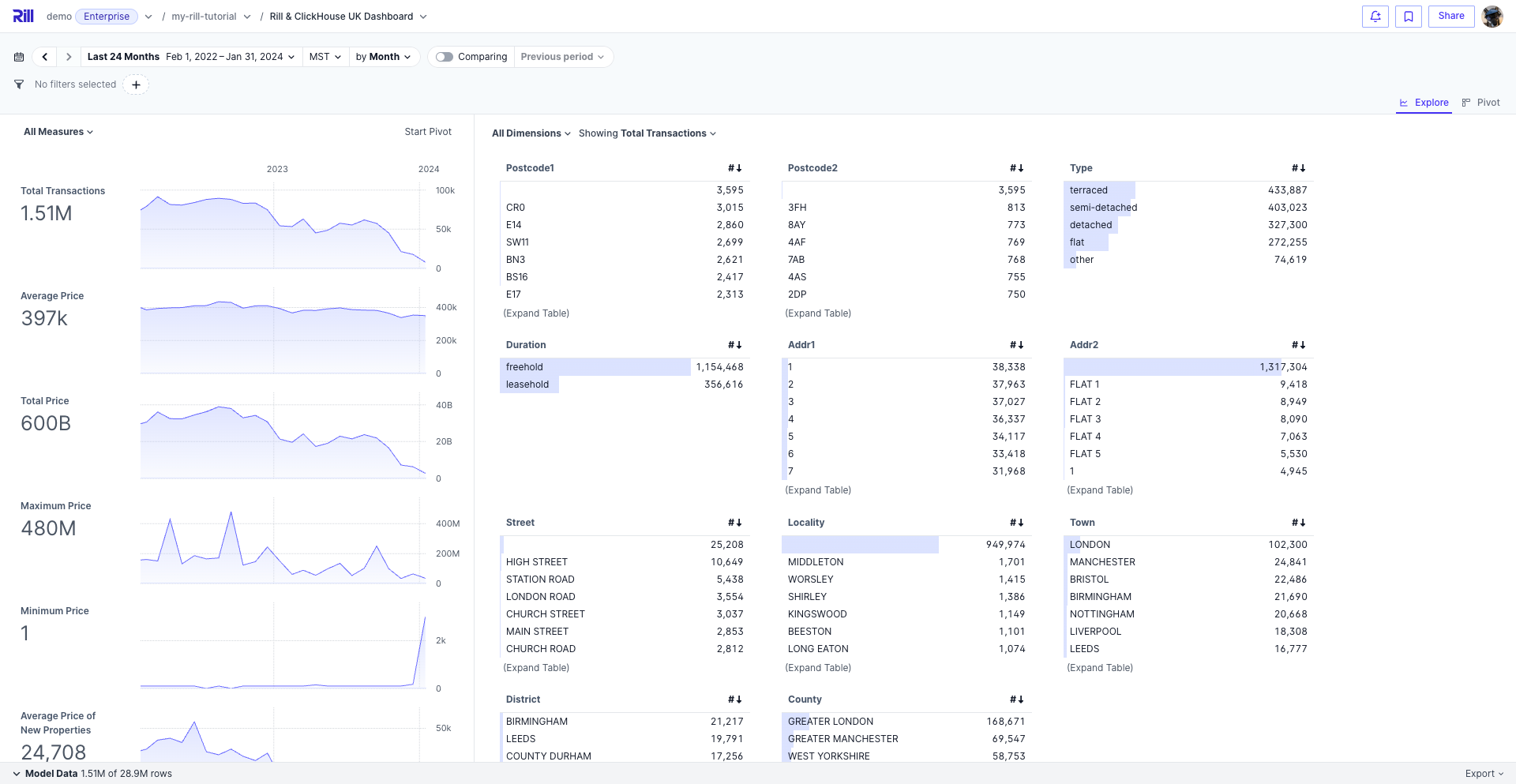
In this tutorial, we will discuss how to use ClickHouse as the default OLAP database with Rill to visualize your ClickHouse tables in as little as a few clicks.
The overall steps of the tutorial are:
1. Launch Rill Developer
2. Connect to your ClickHouse server whether it is locally run or via ClickHouse Cloud
3. Create a metrics view based on a table in ClickHouse
4. Create an explore dashboard via Generative AI
5. Deploy the dashboard to Rill Cloud, and share to colleagues
Once completed, you will have a basic understanding of how to use Rill Developer with ClickHouse and can customize the Rill Developer project to create further metrics views based on ClickHouse tables and create more dashboards.
### Let's get started!
---
# 2. Connect to ClickHouse
URL: https://docs.rilldata.com/developers/tutorials/rill-clickhouse/r_ch_connect
## Default OLAP connection and Connect to ClickHouse
Within Rill, you can set the default OLAP connection on the [project level](https://docs.rilldata.com/reference/project-files/rill-yaml) or the [dashboard level](https://docs.rilldata.com/reference/project-files/explore-dashboards).
For this course, we will set it up on the project level so all of our dashboards will be based on our ClickHouse table.
:::tip
You have two options for your ClickHouse server:
1. Use a [local running ClickHouse server](https://clickhouse.com/docs/en/install)
2. Use [ClickHouse Cloud](https://clickhouse.com/docs/en/cloud/overview)
Depending on what you choose, the contents of your connection will change, and we recommend looking through [our ClickHouse documentation](https://docs.rilldata.com/developers/build/connectors/olap/clickhouse) for further information.
:::
### Connect to ClickHouse
We can create the clickhouse connection by selection `+Add Data` > `ClickHouse` and fill in the components on the UI.
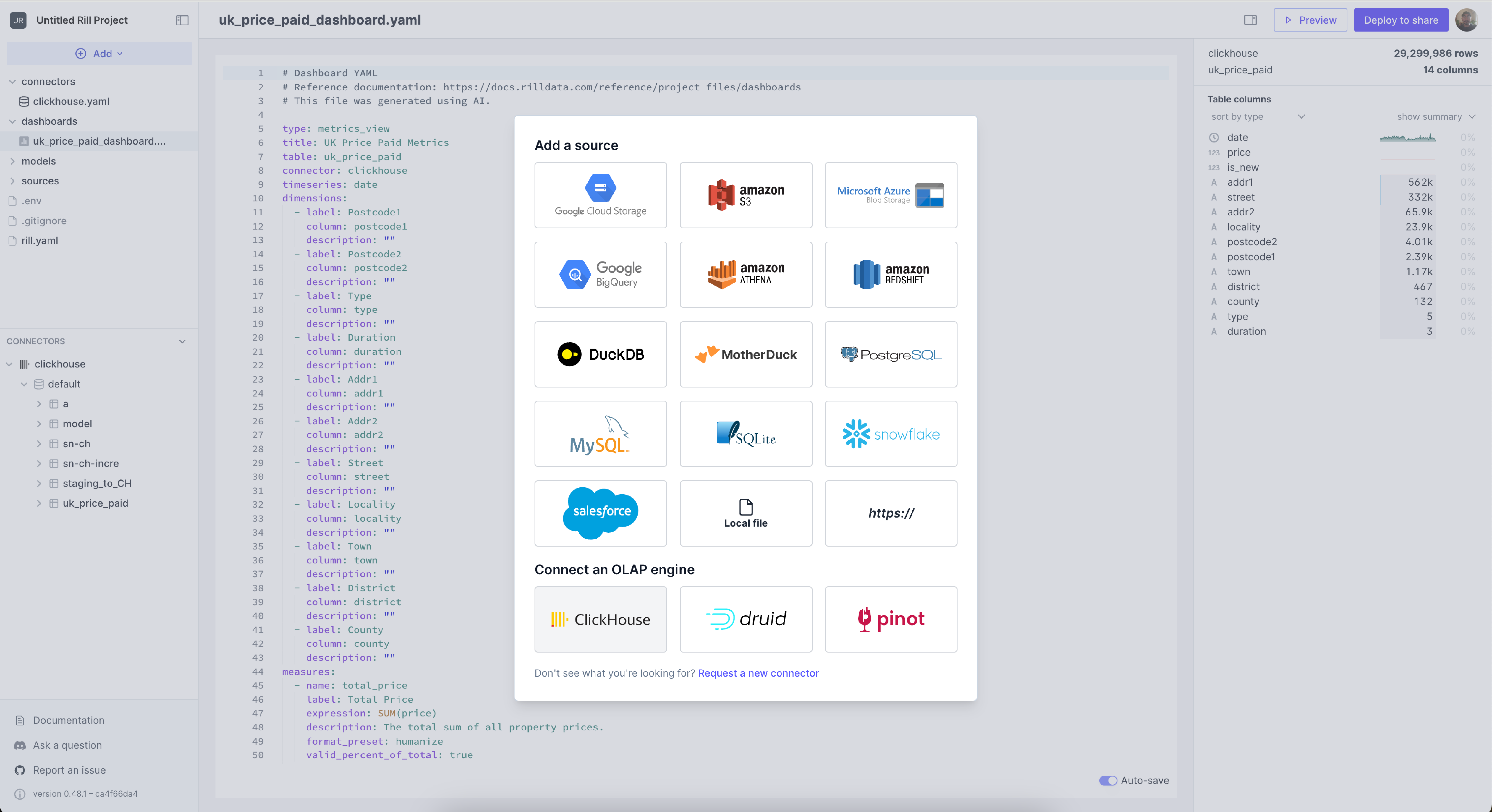
:::tip
You can obtain the credentials from your ClickHouse Cloud account by clicking the `Connect` button in the left panel.:
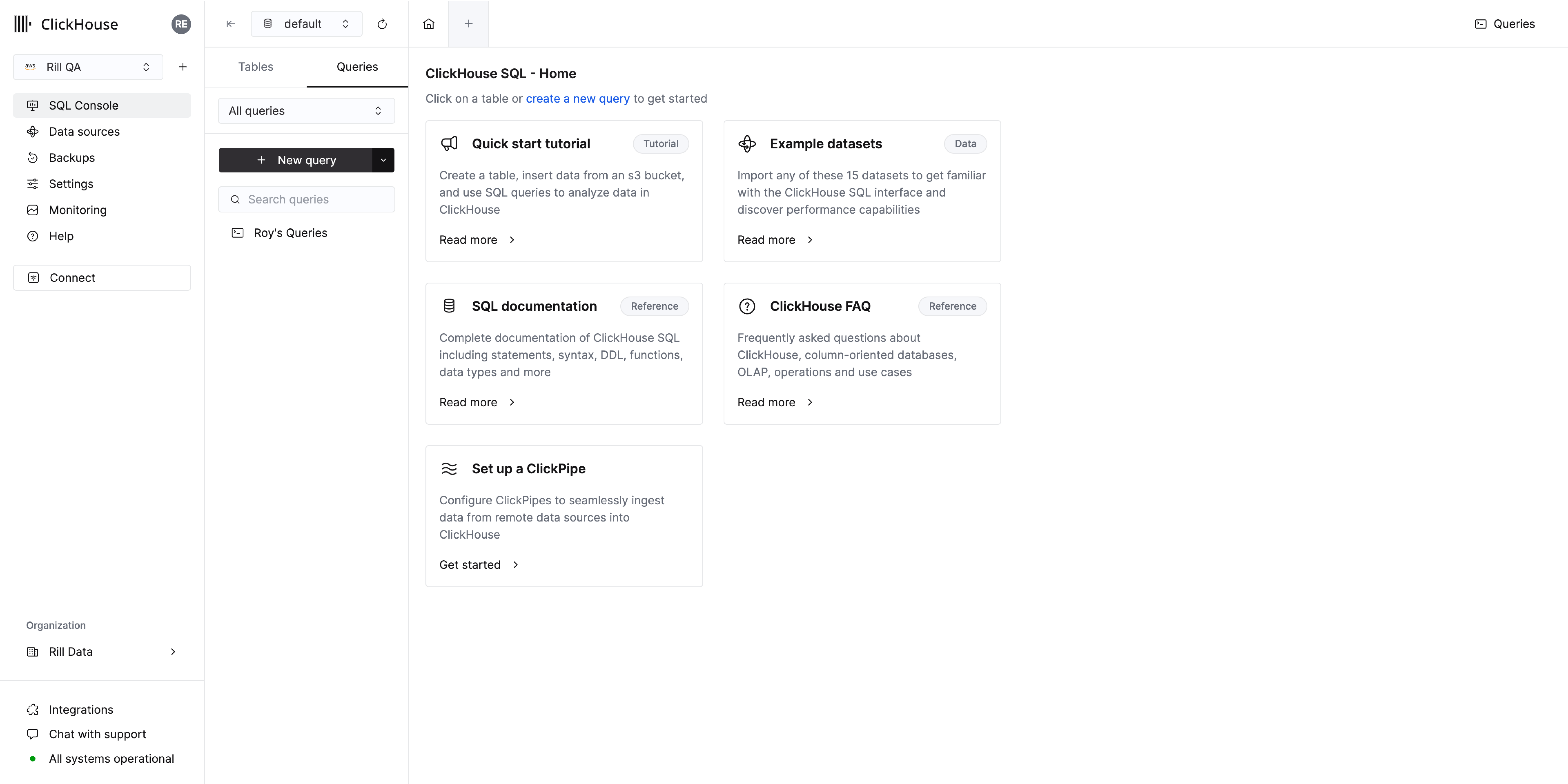
```
"https://:?username=&password=&secure=true&skip_verify=true"
```
:::
Once this is created, a `clickhouse.yaml` file will appear in the `connectors` directory and the following will be added to your rill.yaml.
```yaml
compiler: rillv1
title: "Rill and ClickHouse Project"
olap_connector: clickhouse #automatically added
```
Example for a locally running ClickHouse server:
```yaml
host: "localhost"
port: "9000"
```
or
```yaml
dsn: "clickhouse://localhost:9000"
```
You can either add the credentials in plain text or dsn via the yaml file or add the credentials via the CLI.
Please see our documentation to find the DSN for [your ClickHouse Cloud instance](https://docs.rilldata.com/developers/build/connectors/olap/clickhouse#connecting-to-clickhouse-cloud).
### How to pass the credentials to Rill
There are a few ways to define credentials within Rill.
Please create a file called clickhouse.yaml and add the following contents.
```yaml
type: connector
driver: clickhouse
host: "localhost"
port: "9000"
```
or
```yaml
type: connector
driver: clickhouse
dsn: "clickhouse://localhost:9000"
```
Navigate back to the Terminal and stop the Rill process. You can run the following to add a variable and use this is within Rill.
```
rill start --env host='localhost' --env port='9000'
```
Afterward, create a file called clickhouse.yaml and add the following contents:
```yaml
type: connector
driver: clickhouse
host: "{{ .env.host }}"
port: "{{ .env.port }}"
```
There are a few ways to generate the .env file. Creating a source that requires credentials will automatically generate it. Otherwise, you can create it using `touch .env` in the Rill directory.
```
CLICKHOUSE_HOST="localhost"
CLICKHOUSE_PORT=9000
CLICKHOUSE_USERNAME=""
CLICKHOUSE_PASSWORD=""
CLICKHOUSE_SSL=false
or
CLICKHOUSE_DSN="..."
```
:::tip Via the UI
If you connect to ClickHouse via the UI, this will automatically create a template with connectors/clickhouse.yaml as well as a reference of your DSN to the .env folder. This will automatically get pushed along with your project to Rill Cloud.
:::
You should now be able to see the contents of your ClickHouse database in the left panel of your UI.
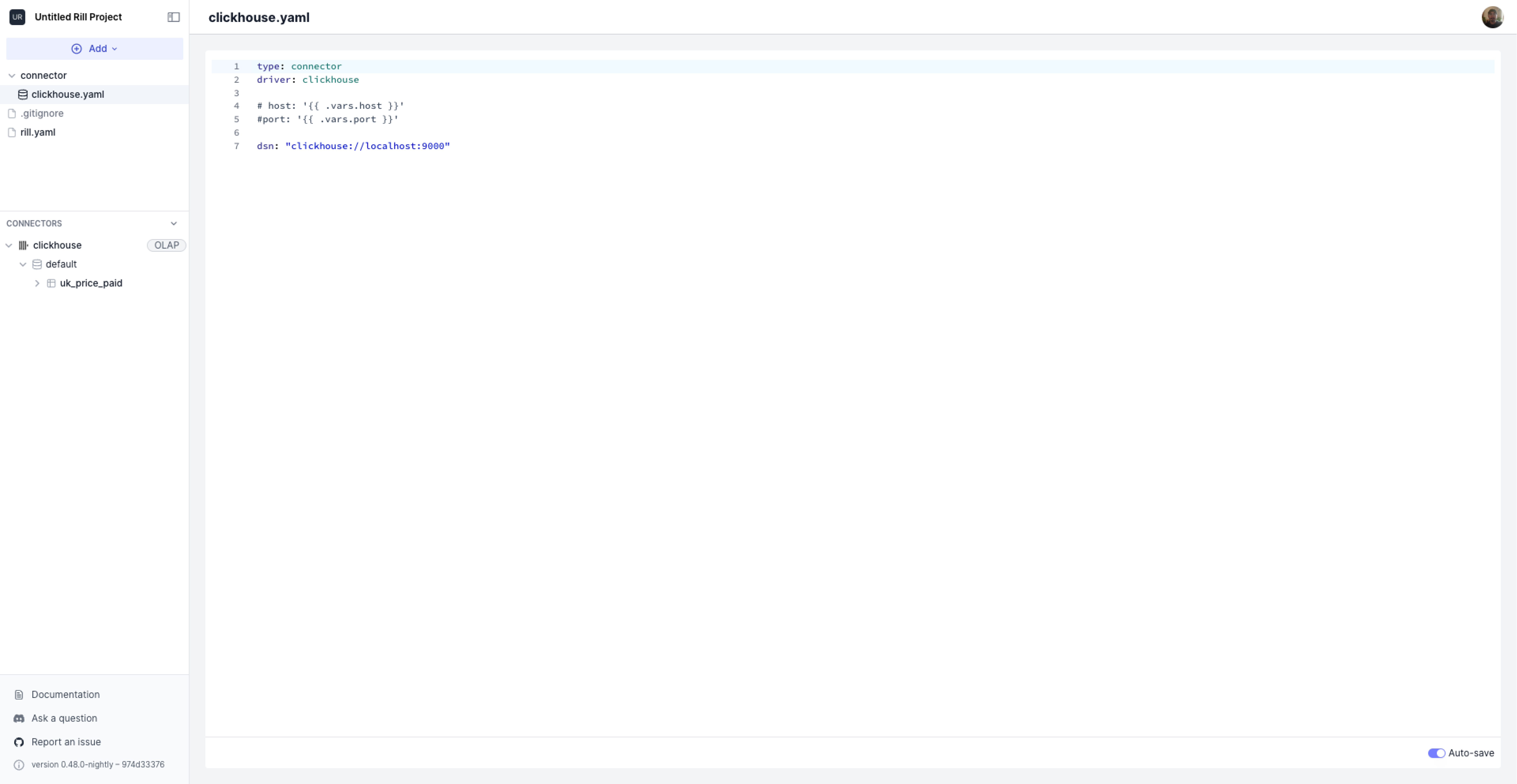
---
# 4. Create Explore Dashboard in Rill
URL: https://docs.rilldata.com/developers/tutorials/rill-clickhouse/r_ch_dashboard
### Create the explore dashboard
When you're ready, you can create the visualization on top of the metrics layer. Select `Create Explore dashboard`. This will create a simple explore-dashboards/uk_price_paid_metrics_explore.yaml file that reads in all the dimensions and measures. For more information on the available key-value pairs, please refer to the [reference documentation](https://docs.rilldata.com/reference/project-files/explore-dashboards).
---
### What can we do in Rill?
In our case, since we generated this with AI, we can look through the description of the populated measures for more information. Based on this, we can find some specific information on the UK properties dataset at a glance, such as:
1. In 2023, what was the minimum/maximum detached property sold in London? [46.5K, 65.0M]
2. In 2023, what was the average price of detached properties sold in London? How many? [2.5M, 981]
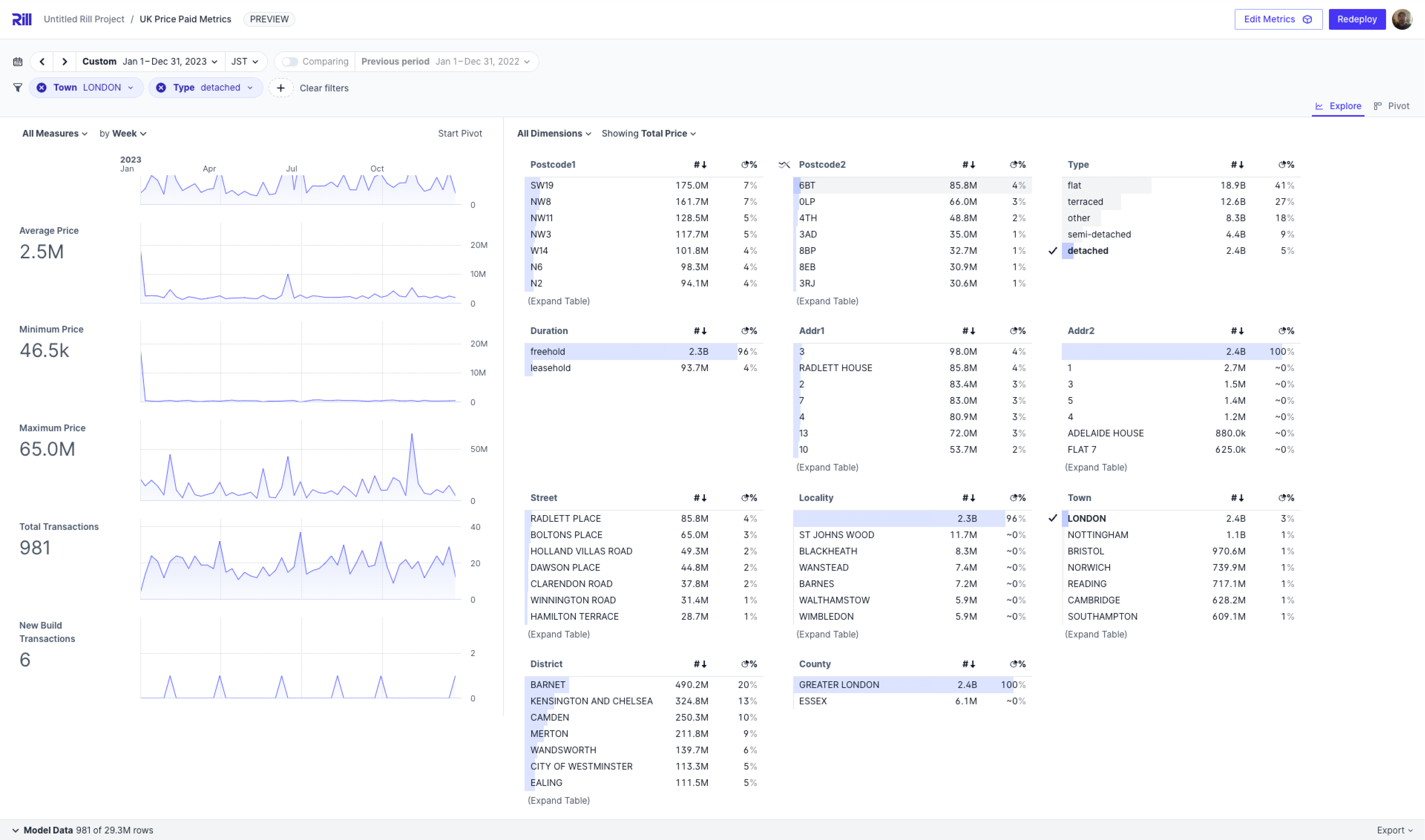
If we want to go further into the details, we can even compare detached vs flat vs terraced properties using our compare feature. Using the x-axis, we can drill down further from the 2023 year into a specific month, week, or even day.

You can also compare total transactions between 2022 and 2023. In the screenshot below, we selected the Total Transactions metric and enabled the time-compare feature to see the delta and delta percent change between the two time periods.
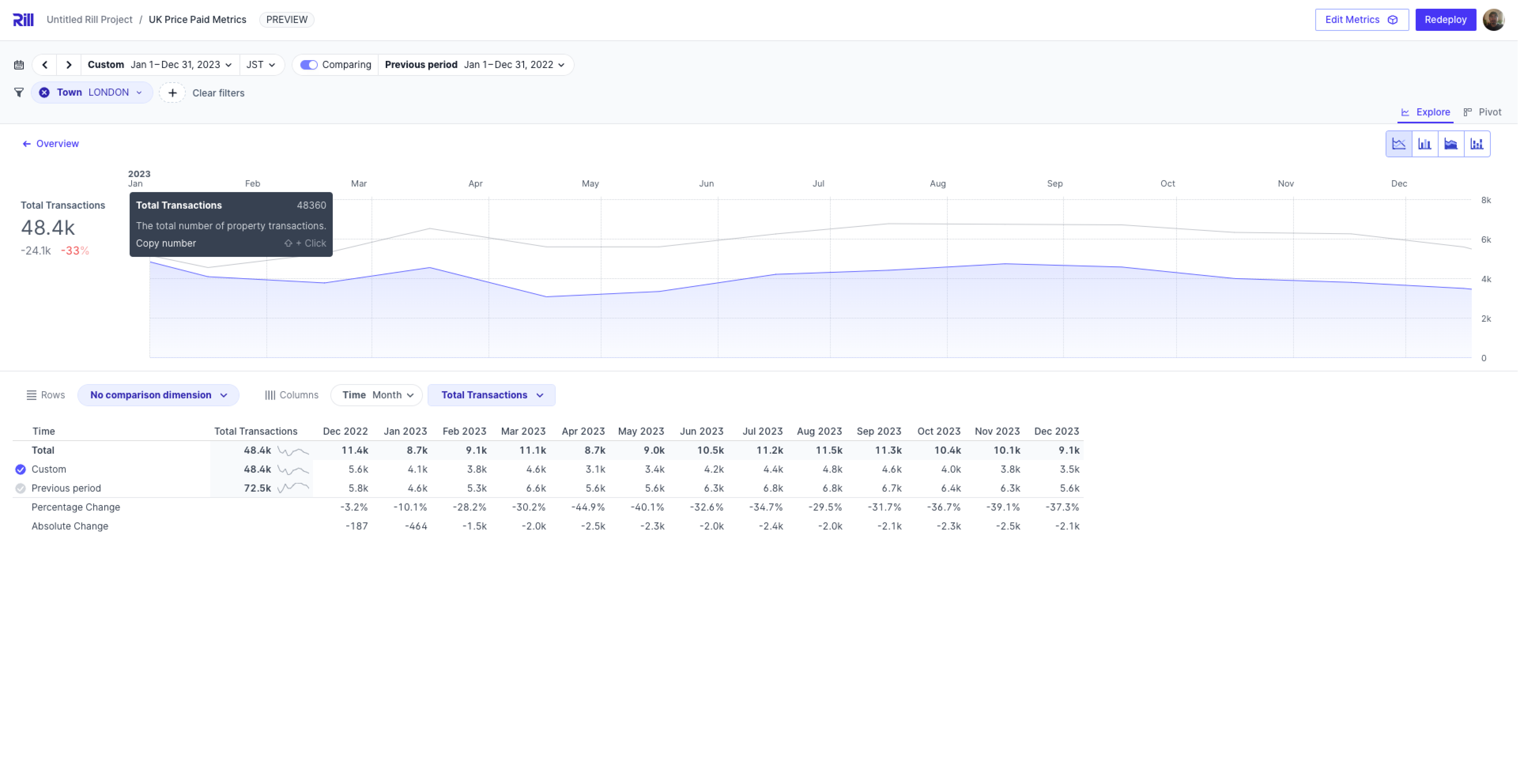
---
# 5. Deploy to Rill Cloud
URL: https://docs.rilldata.com/developers/tutorials/rill-clickhouse/r_ch_deploy
:::tip Rill Cloud Trial
If this is the first time you have deployed a project onto Rill Cloud, you will automatically start your [Rill Cloud Trial] () upon deployment of your Rill project. Your trial will last for 30 days. Please refer [here] () for more information on the details of your trial.
:::
## Deploy via the UI!
Select the `Deploy to share` button in the top right corner of a dashboard.

Steps to deploy to Rill Cloud:
1. Select the `Deploy to share` button.
2. Select `continue` on the free trial [link to article of free trial explanation]
- If you have multiple organizations, please select Rill_Learn and `continue`.
3. Select `continue` on user invites.
4. You will be navigated to the /status page of your deployed project.
Take note of the following features in the UI:

## In case of the following error:
```bash
connection: dial tcp 127.0.0.1:9000: connect: connection refused
```
This is likely due to using a locally running ClickHouse server. If so, you will not be able to access your locally running server from Rill Cloud. Instead, we suggest using [ClickHouse Cloud](https://clickhouse.com/cloud).
For steps to set up ClickHouse Cloud, please refer to [our documentation](https://docs.rilldata.com/developers/build/connectors/olap/clickhouse#connecting-to-clickhouse-cloud).
---
# Ingesting Data into ClickHouse
URL: https://docs.rilldata.com/developers/tutorials/rill-clickhouse/r_ch_ingest
## Importing your own Data into ClickHouse from ...
Currently, ClickHouse lacks some [direct ingestion](https://clickhouse.com/docs/en/migrations/snowflake) from certain providers. You can navigate to their website for a full list of data sources in which they support [direct ingestion](https://clickhouse.com/docs/en/integrations), via manual import or [ClickPipes](https://clickhouse.com/cloud/clickpipes).
### How does this affect Rill?
When switching from DuckDB, you may have noticed some changes to the capabilities of Rill. By default, we disable modeling when ClickHouse is enabled as the default OLAP engine. However, we can change this behavior by enabling the feature flag `clickhouseModeling`.
```yaml
features:
clickhouseModeling: true
```
Once this is enabled, you'll be able to create model files and add sources in the UI and use these for SQL transformations, as you would with DuckDB.
:::note
Currently, not all functionality is supported, but our team is working to add more features. Please reach out to us through our community or via GitHub if there is specific missing functionality you're looking for.
:::
## Ingestion directly from Snowflake to ClickHouse
In the below example, we are importing data from Snowflake to ClickHouse using S3 as an intermediate stage.
```yaml
type: model
materialize: true
-- the source of data in Snowflake
connector: snowflake
sql: >
select * from CUSTOMER limit 1001
-- the staging table in S3
stage:
connector: s3
path: s3://rill-developer.rilldata.io/snow
-- the output clickhouse connector
output:
connector: clickhouse
materialize: true
```
In order to use this method you will need to set your credentials in `.env`. If the .env does not already exist (it will be created by default if you have created a source), you can create a .env file in the rill directory by running `touch .env` and this should now be visible in Rill Developer.
```
CLICKHOUSE_HOST="localhost"
CLICKHOUSE_PORT=9000
SNOWFLAKE_DSN=""
AWS_ACCESS_KEY_ID=""
AWS_SECRET_ACCESS_KEY=""
```
:::note
If you already set up ClickHouse via the `.env` file, you will just need to add your Snowflake and S3 credentials.
:::
## Ingestion directly from BigQuery to ClickHouse
In the below example, we are importing data from Big Query directly to ClickHouse using GCS as an intermediate stage.
```yaml
type: model
materialize: true
connector: bigquery
sql: |
SELECT
*
FROM `..
`
project_id: ""
stage:
connector: gcs
path: 'gs://rill-bq-ch/temp/'
output:
connector: clickhouse
```
You'll need to ensure that your provided `google_application_credentials` have all the required permissions on both [BigQuery](https://cloud.google.com/bigquery/docs/access-control) and [GCS](https://cloud.google.com/storage/docs/access-control/iam-roles). Ensure that your .env has the following:
```
CLICKHOUSE_HOST="localhost"
CLICKHOUSE_PORT=9000
GOOGLE_APPLICATION_CREDENTIALS=""
```
---
# 1. Launch Rill Developer
URL: https://docs.rilldata.com/developers/tutorials/rill-clickhouse/r_ch_launch
:::note prerequisites
You will need to [install Rill](https://docs.rilldata.com/developers/get-started/install).
```bash
curl https://rill.sh | sh
```
You need access to either a [locally running ClickHouse Server](https://clickhouse.com/docs/en/install) or [ClickHouse Cloud](https://docs.rilldata.com/developers/build/connectors/olap/clickhouse#connecting-to-clickhouse-cloud). We recommend using ClickHouse Cloud as this will make deploying to Rill Cloud easier. Please review the documentation, [here](https://docs.rilldata.com/developers/build/connectors/olap/clickhouse).
:::
## Start Rill Developer
```yaml
rill start my-rill-clickhouse
```
After running the command, Rill Developer should automatically open in your default browser. If not, you can access it via the following url:
```
localhost:9009
```
You should see the following webpage appear.

Let's go ahead and select `Start with an empty project`.
Where am I in the terminal?
You can use the `pwd` command to see which directory in the terminal you are.
If this is not where you'd like to make the directory use the `cd` command to change directories.
---
# 3. Create Metrics View Dashboard in Rill
URL: https://docs.rilldata.com/developers/tutorials/rill-clickhouse/r_ch_metrics-view
## Create the Metrics View.
If you noticed in the previous screenshot, we had a table called `uk_price_paid`. This is a dataset that is used in ClickHouse's Learning portal, so we thought it was fitting to continue with this dataset.
:::note
If you have not already added this table to your local or cloud database, please follow the steps on [ClickHouse's site](https://clickhouse.com/docs/en/getting-started/example-datasets/uk-price-paid) to do so!
:::
### Create metrics view
Let's create a metrics view based on the table via the `Generate metrics via AI`.
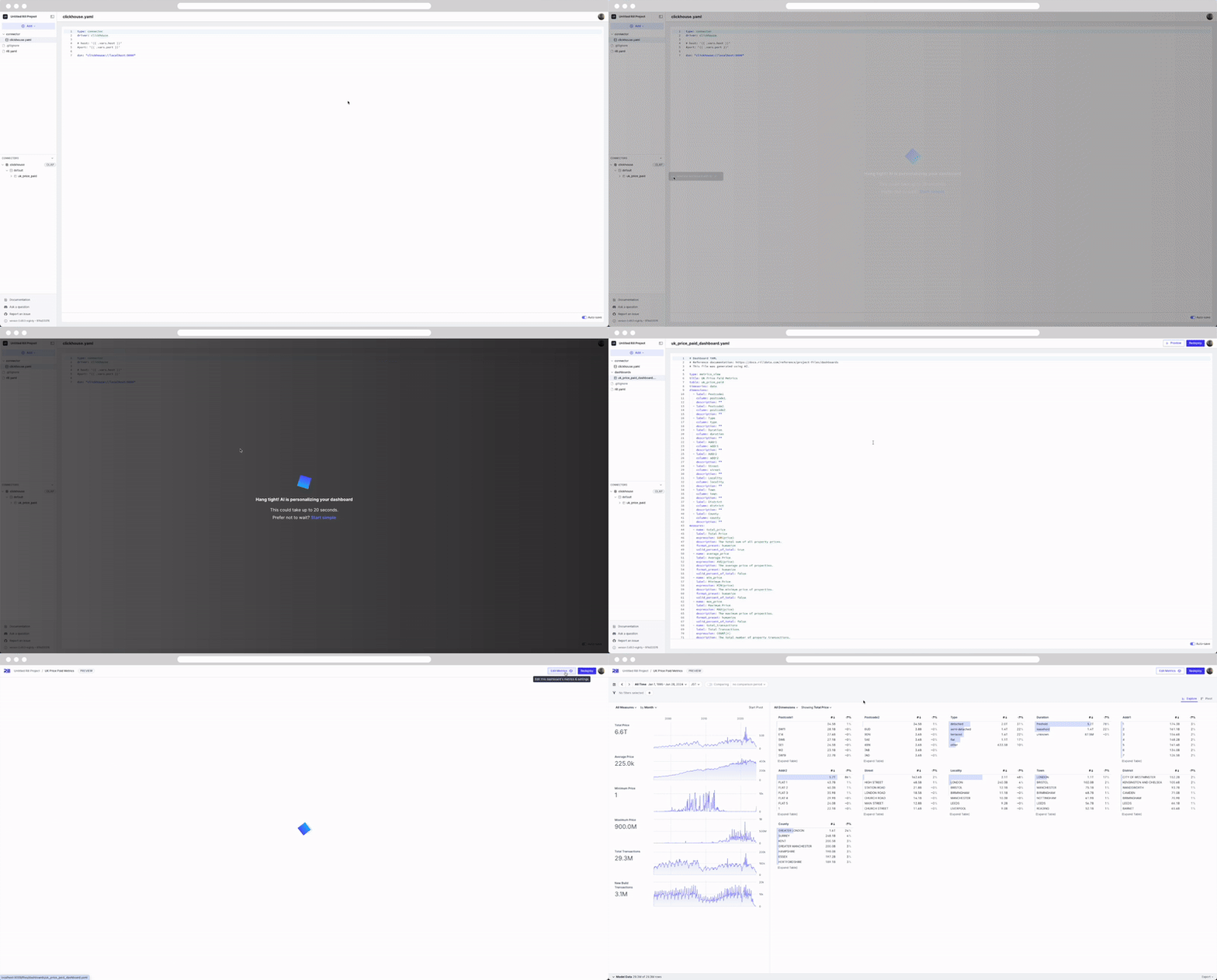
### What are we looking at?
This is our metrics view, where we can define measures and dimensions to be used on dashboards.
```yaml
# Metrics view YAML
# Reference documentation: https://docs.rilldata.com/reference/project-files/explore-dashboards
# This file was generated using AI.
version: 1
type: metrics_view
title: UK Price Paid Metrics
connector: clickhouse
table: uk_price_paid
timeseries: date
dimensions:
...
measures:
...
```
While we go into more details in our [Rill Basics course](/developers/tutorials/rill-basics/dashboard) and [our documentation](https://docs.rilldata.com/developers/build/dashboards), let's go over it quickly.
---
`timeseries` - This is our time column, which is used as our x-axis for graphs.
`connector` - this is our manually defined ClickHouse connector
`dimensions` - These are our categorical columns that we can use on the dashboard to filter and slice;
`measures` - These are our numerical aggregates defined in the metrics layer. We can see functions such as MAX(), COUNT(), and AVG() used on the underlying table.
---
# Set up MCP and more!
URL: https://docs.rilldata.com/developers/tutorials/setting-up-mcp
Connecting your Rill project to your AI Agent has never been easier!
## Prerequisites
Before you begin, make sure you have:
- An MCP Client (Claude Desktop, ChatGPT Desktop, etc.)
- **Access to a [Rill Project](https://ui.rilldata.com/)**
For detailed steps, please refer to our documentation on [MCP Servers](/guide/ai/mcp)
## Step 1: Access your Rill Project's AI tab.
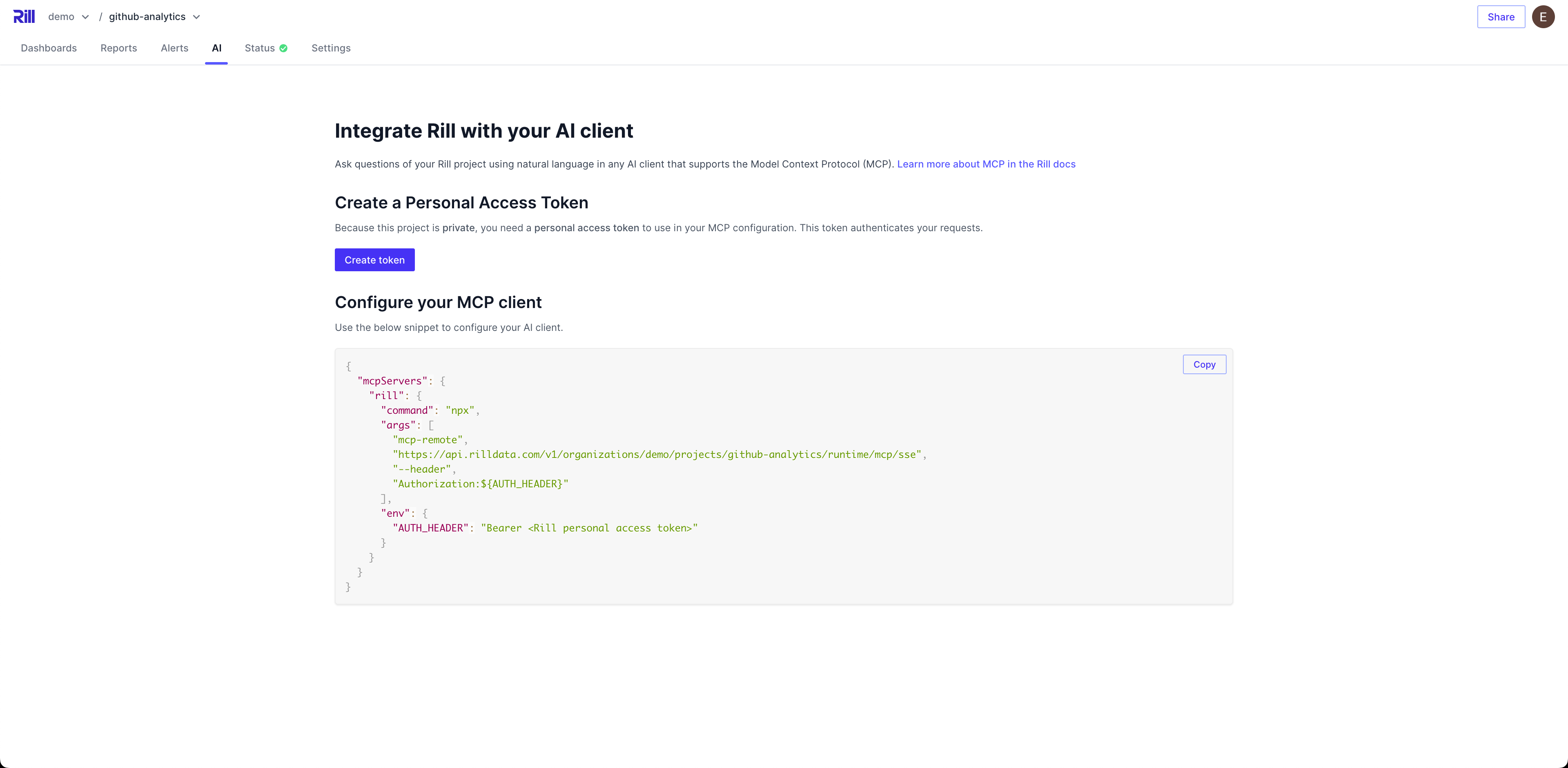
In your project's AI tab, you'll be able to create a user token (personal access token) and copy the MCP config.json directly in the UI. Simply paste this into your application of choice.
:::tip Learn more about user tokens
For details on creating, managing, and using personal access tokens, see [User Tokens](/guide/administration/access-tokens/user-tokens.
:::
## Step 2: Add config.json into Client
Depending on your client application, paste the config from step 1.
- [Anthropic's Claude Desktop Documentation](https://modelcontextprotocol.io/quickstart/user)
- [OpenAI's ChatGPT Documentation](https://platform.openai.com/docs/guides/tools-remote-mcp#page-top)
- [Cursor Documentation](https://docs.cursor.com/context/model-context-protocol)
- [Windsurf Documentation](https://docs.windsurf.com/windsurf/cascade/mcp)
### Working with OpenAI's ChatGPT
To use Rill with OpenAI's ChatGPT, you'll need to follow the same steps as above to set up your MCP connection. Once that's done, you can start querying your Rill metrics directly from ChatGPT interfaces.
- Import your remote MCP servers directly in [ChatGPT settings](https://chatgpt.com/#settings) or in the desktop application navigate to settings by clicking on your profile picture in the bottom left corner.
- Connect your server in the Connectors tab. You may have to add the server as a source with the create button.
> Note: You may need at least the `Plus` plan to access connectors.
## Step 3: Start Querying your Agent about your Rill metrics.
A below is an example chat with Claude using our MCP server to get information on the commit history for one of our demo projects.
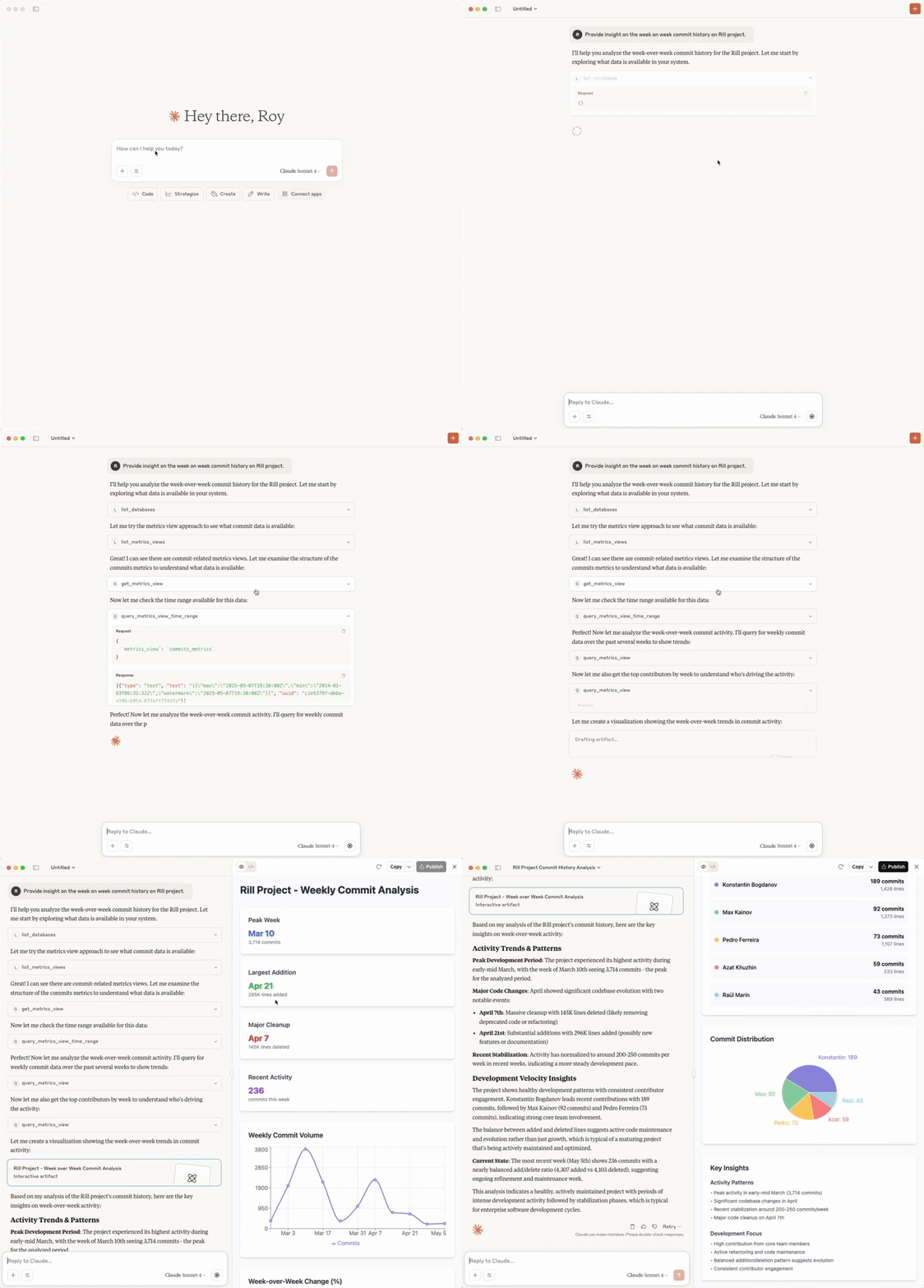
## Step 4: Agent Customization
If you watched the whole clip above, you'll see that Claude tries to code a web app to visualize the information it found, but you'll notice it takes time (fast-forwarded in the clip). Instead, you can provide the Agent with context and instructions on how you'd like the Agent to behave.
I highly recommend taking a look at our series of videos on [Conversation BI with Claude and Rill](https://www.youtube.com/playlist?list=PL_ZoDsg2yFKjSeetRNHbdI4GzmVn-XbBT).
---
# Getting Started with Rill Cloud
URL: https://docs.rilldata.com/guide
# Getting Started with Rill Cloud
Rill Cloud is a fully-managed platform that brings powerful, interactive analytics directly to your fingertips. Explore your data through instant dashboards, ask questions in plain English with AI Chat, and share insights with your team—all without writing SQL or waiting for custom reports. Your data team has already set up the metrics and dashboards you need; you simply explore, analyze, and collaborate.
This guide is for **anyone who consumes dashboards and insights in Rill Cloud** — business analysts, marketing and finance teams, operations leads, executives, and anyone else on your team who needs to explore data, set up alerts, schedule reports, or share findings. No coding or SQL experience required.
Need to **build or maintain Rill projects** — connect data sources, write models, define metrics, or deploy dashboards? See the [Developer Docs](/).
}
/>
}
/>
}
/>
}
/>
}
/>
}
/>
}
/>
}
/>
}
/>
}
/>
---
# Settings
URL: https://docs.rilldata.com/guide/administration/
# Settings
Configure your organization and project settings in Rill Cloud, including organization management, project configuration, and service tokens.
## Organization Settings
**[Organization Settings](/guide/administration/organization-settings)** provide centralized management for your organization. You can:
- Manage your organization settings, billing, branding, and configuration
- View and manage projects within your organization
- Configure organization-wide settings and preferences
## Project Settings
**[Project Settings](/guide/administration/project-settings)** offer comprehensive project management capabilities. Manage:
- Project configuration and deployment settings
- Project-level preferences and defaults
- Project resources and configurations
## GitHub Integration
**[GitHub Integration](/guide/administration/project-settings/github-integration)** connects your projects to GitHub repositories. You can:
- Connect and manage GitHub repository integration
- Enable automatic deployments from your repositories
- Configure branch-based deployment workflows
## Variables & Credentials
**[Variables & Credentials](/guide/administration/project-settings/variables-and-credentials)** help you manage sensitive information securely. Store:
- Sensitive credentials and API keys securely
- Environment-specific variables for different deployments
- Configuration values that vary across environments
## User Management
**[User Management](/guide/administration/users-and-access/user-management)** enables you to control access to your projects. You can:
- Invite team members and manage user access to your projects
- Assign roles and permissions to users
- Control who can view, edit, or manage your projects
## User Group Management
**[User Group Management](/guide/administration/users-and-access/usergroup-management)** simplifies permission management through groups. Create:
- User groups for easier permission management
- Group-based access controls
- Streamlined user organization
## Roles and Permissions
**[Roles and Permissions](/guide/administration/users-and-access/roles-permissions)** define what users can do in your organization. Understand:
- Available user roles and their capabilities
- How to configure user roles and permission levels
- Best practices for access control
## Access Tokens
**[User Tokens](/guide/administration/access-tokens)** provide programmatic access to Rill Cloud. Manage:
- Personal access tokens for API access
- Token permissions and scopes
- Token lifecycle and security
## Service Tokens
**[Service Tokens](/guide/administration/access-tokens/service-tokens)** enable automated access for services and applications. Create:
- Service tokens for programmatic access to Rill Cloud
- Long-lived tokens for automated workflows
- Secure authentication for integrations
---
# Access Tokens
URL: https://docs.rilldata.com/guide/administration/access-tokens/
## Access Tokens
- **[User Tokens](/guide/administration/access-tokens/user-tokens)** - Learn how to create and manage personal access tokens
- **[Service Tokens](/guide/administration/access-tokens/service-tokens)** - Learn how to create and manage service accounts for production use
---
# Service Tokens
URL: https://docs.rilldata.com/guide/administration/access-tokens/service-tokens
Service tokens (also called service accounts) provide programmatic access to Rill Cloud for production systems, scheduled jobs, backend APIs, and other automated workflows. Unlike [user tokens](user-tokens), service tokens persist even if the creating user is removed from the organization.
## Overview
Service tokens are designed for:
- **Production integrations** - Backend services that need to access Rill APIs
- **Scheduled jobs** - Automated reports, data syncs, or ETL processes
- **CI/CD pipelines** - Automated testing and deployment workflows
- **Custom applications** - Applications that integrate with Rill APIs
## Creating Service Tokens
### Basic Creation
Create a service token with an organization-level role:
```bash
rill service create my-service --org-role admin
```
Or with a project-level role:
```bash
rill service create my-service --project my-project --project-role viewer
```
### With Custom Attributes
Custom attributes allow you to pass metadata that can be used in [security policies](/developers/build/metrics-view/security). This is particularly useful for multi-tenant applications or when you need fine-grained access control.
```bash
rill service create my-service \
--org-role admin \
--attributes '{"department":"engineering","region":"us-west","tier":"premium"}'
```
**Example attributes:**
- `department` - Organizational department (engineering, sales, finance)
- `region` - Geographic region (us-west, eu-central, ap-south)
- `customer_id` - Customer identifier for multi-tenant systems
- `tier` - Service tier (free, premium, enterprise)
- `environment` - Deployment environment (production, staging)
### Complete Example
```bash
# Create a service for automated reporting
rill service create reporting-service \
--org my-org \
--project analytics-dashboard \
--project-role viewer \
--attributes '{"purpose":"reporting","schedule":"daily","region":"us-east"}'
```
The command will output:
```
Created service "reporting-service" in org "my-org".
Access token: rill_svc_[TOKEN_HERE]
```
:::warning Store tokens securely
Service tokens have powerful permissions. Store them securely in a secrets manager (AWS Secrets Manager, HashiCorp Vault, etc.) and never commit them to version control.
:::
## Roles and Permissions
Service tokens can be assigned roles at both the organization and project levels. For more details on using attributes with security policies, see the [security policies](/developers/build/metrics-view/security) documentation.
## Managing Service Tokens
### Listing Service Tokens
View all service tokens in your organization:
```bash
rill service list --org my-org
```
Output:
```
NAME ORG ROLE PROJECT ROLES ATTRIBUTES
reporting-service - analytics-dashboard {"purpose":"reporting"}
global-admin admin - {}
dashboard-viewer - sales-analytics {}
```
### Editing Service Tokens
Update a service token's name or attributes:
```bash
# Change the name
rill service edit my-service --new-name renamed-service
# Update attributes
rill service edit my-service \
--attributes '{"department":"finance","region":"eu-west"}'
# Clear attributes
rill service edit my-service --attributes '{}'
```
### Managing Roles
Update organization role:
```bash
rill service set-role my-service --org-role editor
```
Add or update project role:
```bash
rill service set-role my-service \
--project analytics-dashboard \
--project-role admin
```
Remove project role:
```bash
rill service set-role my-service \
--project analytics-dashboard \
--remove
```
### Viewing Service Details
Get detailed information about a service:
```bash
rill service show my-service --org my-org
```
### Revoking Access
Delete a service token to immediately revoke its access:
```bash
rill service delete my-service --org my-org
```
## Issuing Ephemeral Tokens
Service tokens can issue short-lived ephemeral tokens for end users. This is useful for:
- Embedded dashboards
- Temporary API access
- User-specific data access
### With User Email
For simple cases, you can just provide the end user's email:
```bash
curl -X POST https://api.rilldata.com/v1/orgs//projects//credentials \
-H "Authorization: Bearer " \
-H "Content-Type: application/json" \
-d '{
"user_email": "user@example.com",
"ttl_seconds": 3600
}'
```
The response contains a short-lived JWT token that can be used to access Rill APIs on behalf of the user.
### With Custom User Attributes
For advanced cases, you can pass custom user attributes:
```bash
curl -X POST https://api.rilldata.com/v1/orgs//projects//credentials \
-H "Authorization: Bearer " \
-H "Content-Type: application/json" \
-d '{
"attributes": {
"email": "user@example.com",
"department": "sales",
"region": "us-west",
"customer_id": "acme-corp"
},
"ttl_seconds": 3600
}'
```
The custom attributes can be referenced in the project's [security policies](/developers/build/metrics-view/security). When using custom attributes, make sure that you pass a value for every attribute referenced in the project's security policies.
### User identity
The `user_email`, `attributes`, and `external_user_id` parameters serve two purposes in ephemeral tokens:
- **User attributes for security policies:** `user_email` and `attributes` determine which attributes (such as `email`, `domain`, and `admin`) are available for use in [security policies](/developers/build/metrics-view/security).
- **Per-user state:** `external_user_id` establishes a stable user identity that isolates per-user features such as AI chat history. Without a user identity, these features are not available.
Only one of `user_email` or `attributes` can be provided for a given token. The `external_user_id` parameter can optionally be combined with either of them. Here is how each parameter works:
- `user_email`: Looks up the user in Rill Cloud by email and populates their standard attributes. If no matching user is found, it generates limited attributes with only the fields `email`, `domain` and `admin` (set to `false`). Does not enable per-user state on its own; combine with `external_user_id` to enable per-user state.
- `attributes`: Passes the provided attributes through directly. Make sure to include all attributes referenced in your security policies (e.g. `email`, `domain`, `admin`, or custom attributes like `tenant_id`). Does not enable per-user state on its own; combine with `external_user_id` to enable per-user state.
- `external_user_id`: Any stable identifier for an external end user. This is usually the user's ID in your own database. Setting it enables per-user state such as AI chat history. Can be combined with `user_email` or `attributes`.
---
# User Tokens
URL: https://docs.rilldata.com/guide/administration/access-tokens/user-tokens
User tokens (also called personal access tokens or PATs) provide programmatic access to Rill Cloud tied to your personal user account. They inherit your user permissions and are ideal for local development, scripting, and integrations like MCP (Model Context Protocol).
## Overview
User tokens are designed for:
- **Local development** - Testing and developing with Rill APIs from your machine
- **Personal scripts** - Automating personal workflows and data analysis
- **AI integrations** - Connecting AI assistants (Claude Desktop, ChatGPT) via MCP
- **Experimentation** - Trying out Rill APIs without production concerns
- **CLI authentication** - Authenticating Rill CLI commands
## Creating User Tokens
### Basic Creation
Create a user token with the CLI:
```bash
rill token issue
```
You'll be prompted to provide a display name and optionally set an expiration time.
### With Display Name
Give your token a descriptive name:
```bash
rill token issue --display-name "Local Development"
```
### With Expiration
Set an expiration time in minutes:
```bash
# Expires in 24 hours (1440 minutes)
rill token issue --display-name "MCP Token" --ttl-minutes 1440
# Expires in 7 days (10080 minutes)
rill token issue --display-name "Testing Token" --ttl-minutes 10080
```
:::warning Store tokens securely
User tokens provide access to your data with your permissions. Store them securely and never commit them to version control. Treat them like passwords.
:::
## Token Permissions
User tokens inherit your personal permissions from your user account:
- **Organization permissions** - Your role in the organization (admin, editor, viewer, guest)
- **Project permissions** - Your role in specific projects (admin, editor, viewer)
- **Security policies** - Applied based on your user attributes (email, domain, groups)
For more details on roles, see [Roles and Permissions](/guide/administration/users-and-access/roles-permissions).
## Managing User Tokens
### Listing Your Tokens
View all your active user tokens:
```bash
rill token list
```
Output:
```
ID DISPLAY NAME CREATED EXPIRES
rill_usr_abc123... Local Development 2024-01-15 10:30 Never
rill_usr_def456... MCP Token 2024-01-16 14:20 2024-01-17 14:20
rill_usr_ghi789... Testing Token 2024-01-14 09:00 2024-01-21 09:00
```
### Revoking Tokens
Revoke a token by its ID:
```bash
rill token revoke
```
Or revoke by display name:
```bash
rill token revoke --display-name "Local Development"
```
:::tip Token rotation
For security, periodically rotate your tokens by creating new ones and revoking old ones. This is especially important for long-lived tokens.
:::
## Using User Tokens
### With Custom APIs
User tokens can be used to authenticate requests to Rill's custom APIs:
```bash
curl https://api.rilldata.com/v1/organizations//projects//runtime/api/ \
-H "Authorization: Bearer "
```
For more details, see [Calling Custom APIs](/developers/build/custom-apis/calling).
---
# Managing Organizations in Rill Cloud
URL: https://docs.rilldata.com/guide/administration/organization-settings
Before a project can be deployed onto Rill Cloud, an organization must be created. If you are deploying via the UI, this will automatically be done for you. As an administrator, you can also create, edit, and delete organizations from the CLI. From the organization page, you will be able to view your projects, users, and overall settings.
## Organization
An organization in Rill is the parent management object and encompasses how your team interfaces with Rill Cloud. Organizations are designed to hold the different components of your Rill project. Organizations consist of projects that each have their own sources, models, metrics views, dashboards, user management, and general settings.
### Organization Hierarchy
```
Organization
├── Users & Groups
│ ├── Admins
│ ├── Editors
│ ├── Members
│ └── Guests
├── Projects
│ ├── Project A
│ └── Resources
│ ├── Data Sources
│ ├── Models
│ ├── Metrics Views
│ ├── Dashboards
│ └── APIs
│ └── Project B
│ ...
```
### User Management
From the Users page, you can view and manage users within your organization. Note that users with specific project access will not appear on this page and can be managed via each individual project. For more information, please review our [User Management documentation](/guide/administration/users-and-access/user-management).
### Org Settings via Rill Cloud
On the organization settings page, depending on your plan type, you can view the general information, billing, and current usage. The Billing tab is only available for those on a `Team Plan`. You can use this page to add or modify your current payment type. For more information, please review our [Billing Information documentation](/developers/other/plans).
### Logo and Favicon
Along with general organization settings, you are also able to modify the Logo in the top right corner as well as the Favicon in the browser. Simply upload a supported file into the project and see the icon change!
## Managing an Organization from the CLI
Similar to the UI, if you want to make any changes to the organization via the CLI, this is possible using the following:
```
rill org
Manage organisations
Usage:
rill org [command]
Available Commands:
create Create organization
edit Edit organization details
switch Switch to other organization
list List all organizations
delete Delete organization
rename Rename organization
Global Flags:
--api-token string Token for authenticating with the cloud API
--format string Output format (options: "human", "json", "csv") (default "human")
-h, --help Print usage
--interactive Prompt for missing required parameters (default true)
```
:::tip
Access to Rill can be granted on the [organization level](/guide/administration/users-and-access/user-management#how-to-add-an-organization-user), [project level](/guide/administration/users-and-access/user-management#how-to-add-a-project-user), and [user group level](/guide/administration/users-and-access/user-management#how-to-add-a-user-to-a-user-group).
:::
---
# Managing Projects in Rill Cloud
URL: https://docs.rilldata.com/guide/administration/project-settings/
Once an organization is created, you can populate it with projects. Each project has its own set of sources, models, metrics views, and explore dashboards. A defined object in a project cannot be shared to another project.
:::info GitHub Integration
Projects can be connected to a GitHub repository for continuous deployment. See [GitHub Integration](/guide/administration/project-settings/github-integration) for details on connecting and managing repository connections.
:::
## Project
![Project Home]()
A project is a single deployed instance from Rill Developer (or what we refer to as a Rill project). Once you have deployed a project to Rill Cloud, you can make changes to it via the CLI or via Rill Cloud.
## Checking deployment status
After deploying to Rill Cloud, you can navigate to the status page to monitor your project's health. The status page provides an overview of your deployment details, resource statuses, tables, and errors, with dedicated tabs for deeper inspection.
![Status]()
To change the compute allocated to your deployments, see [Deployment Slots](/guide/administration/project-settings/deployment-slots).
### Resources
The Resources tab lists all project resources (sources, models, metrics views, explores, etc.) with their current reconciliation status. You can search, filter by resource type or status (OK, Error, Warn), and trigger a full refresh of all sources and models. Parse errors are also surfaced here. You can filter by resource type and status to get quick information about the status of your project.
![Resources]()
### Tables
The Tables tab provides visibility into the tables in your OLAP database. Tables are split into two sections: **Models** (tables managed by Rill) and **External Tables** (tables that exist in the OLAP engine but are not managed by Rill). You can search and filter by type (table or view), view partition details for incremental models, and trigger model refreshes.
![Tables]()
### Logs
The Logs tab streams live runtime logs from your deployment via a real-time connection. You can search log messages and filter by level (Debug, Info, Warn, Error) to quickly diagnose issues.
![Logs]()
### Managing Project settings
You can also manage project objects on the settings page, including public URLs (created in an Explore dashboard) and environment variables. For more information on managing variables, see [variables and credentials](/guide/administration/project-settings/variables-and-credentials).
![Project Settings]()
## Managing a Rill project from the CLI
Managing a project includes the project itself and all components or resources that belong to the project. Via the CLI, you can make changes to the project's properties such as description, public access, etc. Run `rill project -h` for an overview of available commands.
### Refreshing the deployment
If your project is connected to a GitHub repository, it will automatically redeploy every time you push changes. To manually refresh data sources without pushing code changes (or redeploying your project), run the following command:
```
rill project refresh [--source/model] (source_name or model_name) [--local]
```
### Checking deployment status
In case you need to check the project status via the CLI, you can run the following:
```
rill project status
```
## Make a project public
Projects on Rill Cloud are private by default. To make a project's dashboards publicly accessible without authentication, run:
```
rill project edit --public=true
```
:::caution Avoid Sharing Private Data
**Warning**: If you make a project public, make sure it does not expose any confidential data.
:::
---
# Deployment Slots
URL: https://docs.rilldata.com/guide/administration/project-settings/deployment-slots
# Deployment Slots
Slots set the amount of compute that Rill Cloud allocates to your project's deployments. Each slot provides 1 vCPU and 4 GiB of memory per deployment. The Rill Cloud UI shows each slot as one compute unit.
Consider adding slots when your project ingests or transforms more data, or when more users query its dashboards at the same time. Consider removing slots when a deployment is consistently oversized for its workload.
## Production and development slots
A project has two separate slot settings:
| Setting | Applies to | Default for new projects |
| :------ | :--------- | :----------------------- |
| **Production slots** | The production deployment of the project's primary branch | 2 |
| **Development slots** | Each development deployment, such as a branch deployment or a deployment used for editing in Rill Cloud | 2 |
Development slots apply to each development deployment individually. For example, with 2 development slots, a project with two branch deployments runs each of them with 2 slots.
## Change slots in Rill Cloud
You need permission to manage the project to change its slots.
1. Open your project and select **Status**.
2. Select **Branches** in the left navigation. On some plans, the **Deployment** section of the **Overview** page also shows the production **Cluster Size**, with a **Change slots** button that opens the same page.

3. In the **Deployment slots** section, enter a positive whole number in **Production Slots**. If cloud editing is enabled for the project, you can also set **Development Slots**. The resulting memory and vCPU are shown under each field.

4. Select **Save**.
:::caution Changing slots restarts deployments
Saving new slot values reconciles the project again and can restart its deployments, which briefly interrupts access to dashboards. Only the environment you change is affected: changing only production slots restarts only the production deployment, and changing only development slots restarts only development deployments.
:::
## Change slots from the CLI
Use [`rill project edit`](/reference/cli/project/edit) with the `--prod-slots` and `--dev-slots` flags. Both values must be greater than zero.
```bash
rill project edit my-project --prod-slots 4
rill project edit my-project --dev-slots 1
```
The same restart behavior applies as in the UI.
## Slot limits
Your organization's plan sets two slot limits:
- **Slots per deployment**: the most slots that any single production or development deployment can use.
- **Total slots**: the most slots that all projects in the organization can use combined. Both production and development slots are checked against this limit, both when you raise a project's slots and when Rill creates a new deployment, such as a branch deployment or a deployment for editing in Rill Cloud.
If a slot change or a new deployment exceeds either limit, Rill rejects it with a `quota exceeded` error. A rejected slot change leaves the current slots in place. To raise your limits, [contact us](/contact).
Changing slots changes the resources your project uses, which can affect your costs. For details, see [Billing Plans Explained](/developers/other/plans).
---
# GitHub Integration
URL: https://docs.rilldata.com/guide/administration/project-settings/github-integration
# GitHub Integration
Each Rill Cloud project can be connected to a single GitHub repository. This enables continuous deployment—your project automatically redeploys whenever you push changes to the connected repository.
## Connecting to a GitHub Repository
On first deployment, if you've deployed via the UI, your project will not be connected to a GitHub repository. You will need to manually connect it:
1. Navigate to your project's **Settings** page
2. Select **Connect to GitHub**
3. Follow the steps to connect your repository

## Modifying GitHub Repository Connection
In some cases, you will need to change the repository that your project is synced to:
1. Navigate to your project's **Settings** page
2. Select the dropdown next to the repository name
3. Choose **Disconnect** to remove the current connection
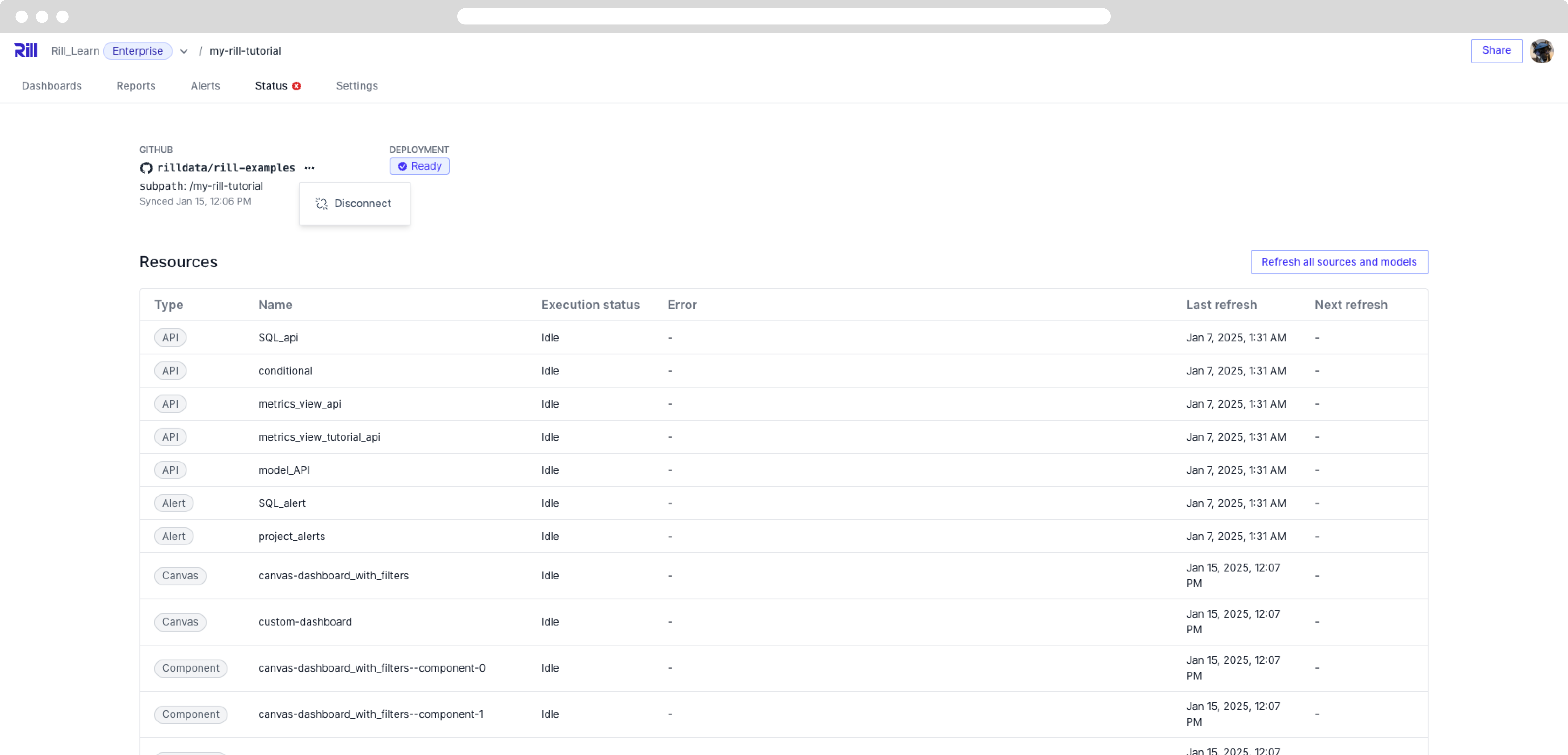
This action has no effect on your current deployment and will not require a source re-ingest. After disconnecting, you can follow the same steps as [connecting to a GitHub repository](#connecting-to-a-github-repository) to reconnect your project to a new repository.
## Deploying from a Branch Other Than `main`
By default, Rill Cloud deploys from the `main` branch of your connected repository. You can change this to deploy from a different branch.
### Via Rill Cloud UI
If you have already [set up your connection to GitHub](/developers/deploy/deploy-dashboard/#syncing-your-github-repository), you can edit the branch from the project settings:
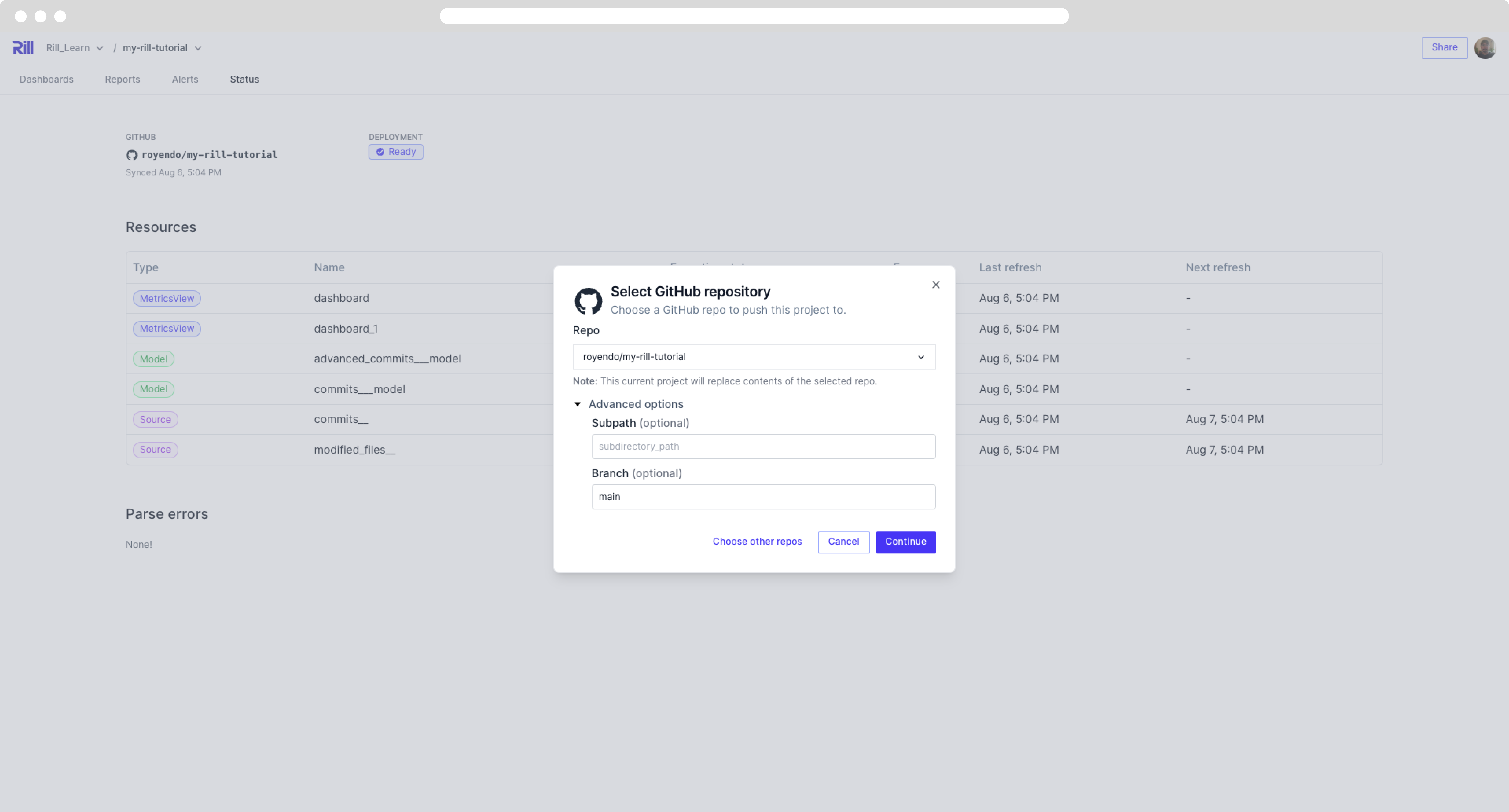
### Via CLI
To change the branch via the CLI, run:
```bash
rill project edit
```
This will open an interactive prompt where you can update the branch name and other project properties.
## Automatic Deployment
Your project on Rill Cloud will automatically redeploy every time you push changes to the connected GitHub repository. This ensures your dashboards always reflect the latest version of your project code.
:::tip Manual Refresh
To manually refresh data sources without pushing code changes (or redeploying your project), use:
```bash
rill project refresh [--source/model] (source_name or model_name)
```
:::
---
# Environment Variables and Credentials in Rill Cloud
URL: https://docs.rilldata.com/guide/administration/project-settings/variables-and-credentials
The credentials in deployed Rill Cloud projects can be managed on the Settings page or via the CLI. If you have yet to deploy your credentials, please follow the steps in our [deploy credentials page](/developers/deploy/deploy-credentials).
## Modifying Variables and Credentials via the Settings Page
Upon deployment via Rill Developer, if you have populated your .env file, the contents will be visible as seen below. If there are no environment variables defined, please run `rill env push` from your local CLI and Rill will automatically push the credentials in your project's `.env` file to Rill Cloud. If you'd like to manually add the credentials, please see [our naming convention](#credentials-naming-schema) to get started.

### Adding and Editing Environment Variables / Importing a `.env` file
Once your environment variables are added to Rill Cloud, they can be modified as needed.
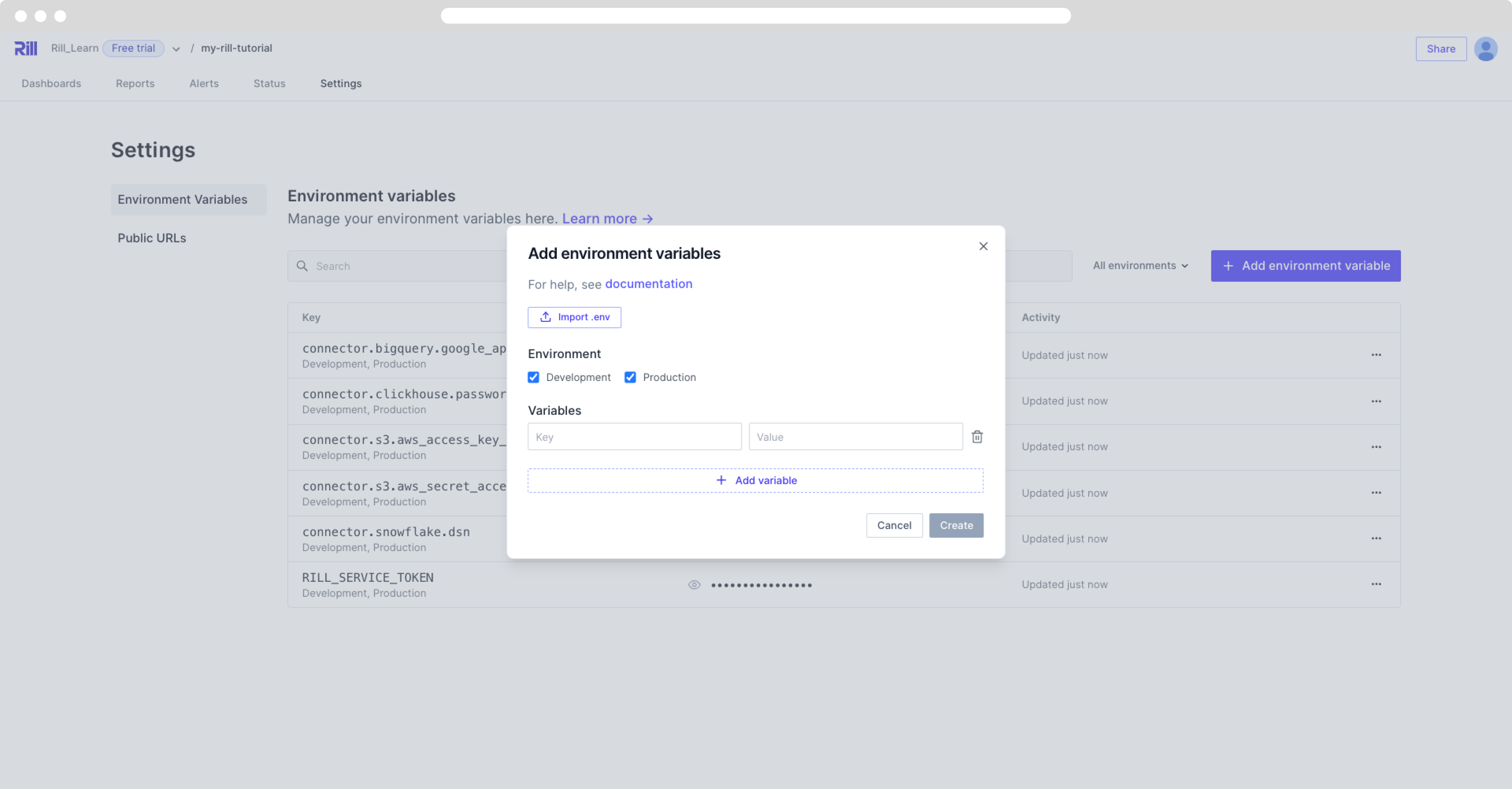
:::tip Can't find the .env file?
By default, the hidden files will not be visible in the finder window. In order to view hidden files, you will need to enable "show hidden files".
Keyboard shortcut: Command + Shift + .
:::
## Pushing and pulling credentials to / from Rill Cloud via the CLI
If you'd prefer to use the CLI to manage your credentials, this can be done by running `rill env pull` to pull your deployed Rill Cloud project's variables locally, or `rill env push` to update your Rill Cloud project's variables.
:::tip Avoid committing sensitive information to Git
It's never a good idea to commit sensitive information to Git and goes against security best practices. Similar to credentials, if there are sensitive variables that you don't want to commit publicly to your `rill.yaml` configuration file (and thus potentially accessible by others), it's recommended to set them in your `.env` file directly and/or use `rill env set` via the CLI (and then optionally push / pull them as necessary).
:::
### `rill env push`
As a project admin, you can run `rill env push` from your local CLI, which will update your Rill project with the contents of your *`/.env`* file.
- Rill Cloud will use the specified credentials and variables in this `.env` file for the deployed project.
- Other users will also be able to use `rill env pull` to retrieve these defined credentials for local use (with Rill Developer).
:::warning Overriding Cloud credentials
If a credential and/or variable has already been configured in Rill Cloud, Rill will warn you about overriding if you attempt to push a new value in your `.env` file. This is because overriding credentials can impact your deployed project and/or other users (if they pull these credentials locally).
:::
### `rill env pull`
For projects that have been deployed to Rill Cloud, an added benefit of our Rill Developer-Cloud architecture is that credentials that have been configured can be pulled locally for easier reuse (instead of having to manually reconfigure these credentials in Rill Developer). To do this, you can run `rill env pull` from your project's root directory to retrieve the latest credentials (after cloning the project's git repository to your local environment).
```bash
rill env pull
Updated .env file with cloud credentials from project "".
```
:::info Overriding local credentials
Please note when you run `rill env pull`, Rill will *automatically override any existing credentials or variables* that have been configured in your project's `.env` file if there is a match in the key name. This may result in unexpected behavior if you are using different credentials locally.
:::
### Credentials Naming Schema
When you add a connector in Rill Developer, its credentials are saved to `.env` under standard names such as `AWS_ACCESS_KEY_ID` or `SNOWFLAKE_PASSWORD`. Use the same names when you add variables here by hand; the full list is in the [credentials naming schema](/developers/build/connectors/credentials#credentials-naming-schema).
---
# Users and Access
URL: https://docs.rilldata.com/guide/administration/users-and-access/
# Users and Access
Manage users, user groups, and access controls for your Rill Cloud projects.
## User Management
- **[User Management](/guide/administration/users-and-access/user-management)** - Invite team members, assign roles, and manage user access to your projects
- **[User Group Management](/guide/administration/users-and-access/usergroup-management)** - Create and manage user groups for easier permission management
- **[Roles and Permissions](/guide/administration/users-and-access/roles-permissions)** - Understand and configure user roles and permission levels
---
# Roles and Permissions
URL: https://docs.rilldata.com/guide/administration/users-and-access/roles-permissions
Access permissions in Rill Cloud are organized into roles at the organization and project level.
## Role inheritance
Organization and project level roles are managed separately, but are connected in several ways:
1. By default, all organization members (but not guests) are added to new projects through a user group membership with the **viewer** role. You can manually remove this relationship in the project's member settings.
2. If you grant a project level role to someone who is not a member of the parent organization, they will automatically be added to the organization with the **guest** role.
3. Removing an organization member or guest automatically also removes them from all projects in the organization.
4. Organization admins implicitly have admin privileges on all projects in the organization.
## Organization-level permissions
There are four roles available at the organization-level: **Admin**, **Editor**, **Viewer** and **Guest**.
| Permission | Description | Admin | Editor | Viewer | Guest |
| :------------------- | :--------------------------------------------------- | ----: | -----: | -----: | ----: |
| `read_org` | View basic info about the organization | ✔ | ✔ | ✔ | ✔ |
| `manage_org` | Change organization settings, manage service accounts and service tokens | ✔ | | | |
| `read_projects` | View projects you're a member of in the organization | ✔ | ✔ | ✔ | ✔ |
| `create_projects` | Create new projects in the organization | ✔ | ✔ | | |
| `manage_projects` | Act as an admin on all projects in the organization | ✔ | | | |
| `read_org_members` | View members of the organization | ✔ | ✔ | | |
| `manage_org_members` | Add and edit non-admin organization members | ✔ | ✔ | | |
| `manage_org_admins` | Add and edit organization admins | ✔ | | | |
## Project-level permissions
There are three roles available at the project-level: **Admin**, **Editor**, and **Viewer**.
| Permission | Description | Admin | Editor | Viewer |
| :----------------------------- | :--------------------------------------------------------- | ----: | -----: | -----: |
| `read_project` | View basic info about the project | ✔ | ✔ | ✔ |
| `manage_project` | Change project settings | ✔ | | |
| `read_prod` | View dashboards deployed from the production (main) branch | ✔ | ✔ | ✔ |
| `read_prod_status` | View logs for the production deployment | ✔ | ✔ | |
| `manage_prod` | Trigger actions on the production deployment | ✔ | | |
| `read_dev` | View dev deployments | ✔ | ✔ | ✔ |
| `read_dev_status` | View logs for dev deployments | ✔ | ✔ | |
| `manage_dev` | Trigger actions on dev deployments | ✔ | ✔ | |
| `read_provisioner_resources` | View managed resources for the project | ✔ | ✔ | |
| `manage_provisioner_resources` | Add or remove managed resources for the project | ✔ | | |
| `read_project_members` | View members of the project | ✔ | ✔ | |
| `manage_project_members` | Add and edit non-admin project members | ✔ | ✔ | |
| `manage_project_admins` | Add and edit project admins | ✔ | | |
| `create_magic_auth_tokens` | Create shareable URLs | ✔ | ✔ | |
| `manage_magic_auth_tokens` | Remove shareable URLs created by others | ✔ | ✔ | |
| `create_reports` | Create and edit new scheduled reports | ✔ | ✔ | ✔ |
| `manage_reports` | Edit and change scheduled reports created by others | ✔ | | |
| `create_alerts` | Create and edit new alerts | ✔ | ✔ | ✔ |
| `manage_alerts` | Edit and change alerts created by others | ✔ | | |
| `create_bookmarks` | Create and edit new bookmarks | ✔ | ✔ | ✔ |
| `manage_bookmarks` | Edit and change bookmarks created by others | ✔ | | |
---
# User Management
URL: https://docs.rilldata.com/guide/administration/users-and-access/user-management
In Rill Cloud, there are several levels of user management:
1. **Organization members and guests**: a user must have an organization-level role to access anything in an organization.
2. **Project roles**: organization members can have direct roles on a project. For example, the creator of a project automatically becomes an *admin* on the project.
3. **User group members and roles**: organization members can belong to user groups. When a user group has a role on a project, the role automatically propagates to all members of the user group. By default, a system-managed group consisting of all organization members (but not guests) is added to projects with the *viewer* role.
:::info
For a detailed breakdown of access permissions at different levels, see the [Roles and Permissions](roles-permissions) page!
:::
:::tip More Rill Cloud workflows coming
We have begun releasing new features around user management via Rill Cloud. If you'd like to learn more, please feel free to [reach out](/contact)!
:::
## Organization Users
At the organization-level, users can have one of the following roles:
- **Admins** can deploy and manage projects and manage billing.
- **Editors** can manage non-admin members of the organization by granting and revoking access.
- **Viewers** can browse the projects they have been given direct access to or indirect access to through user group memberships.
- **Guests** are similar to viewers, but not part of the "all members" user group, which is added to projects by default.
For a detailed list of permissions, please refer to the [Roles and Permissions](roles-permissions).
### How to Add an Organization User
Admins can be invited to an organization from the *users* page, or via the CLI.
#### From Rill Cloud User page
From the organization page, you can manage users under the *Users* tab. Adding users from this page will add the user to the organization.
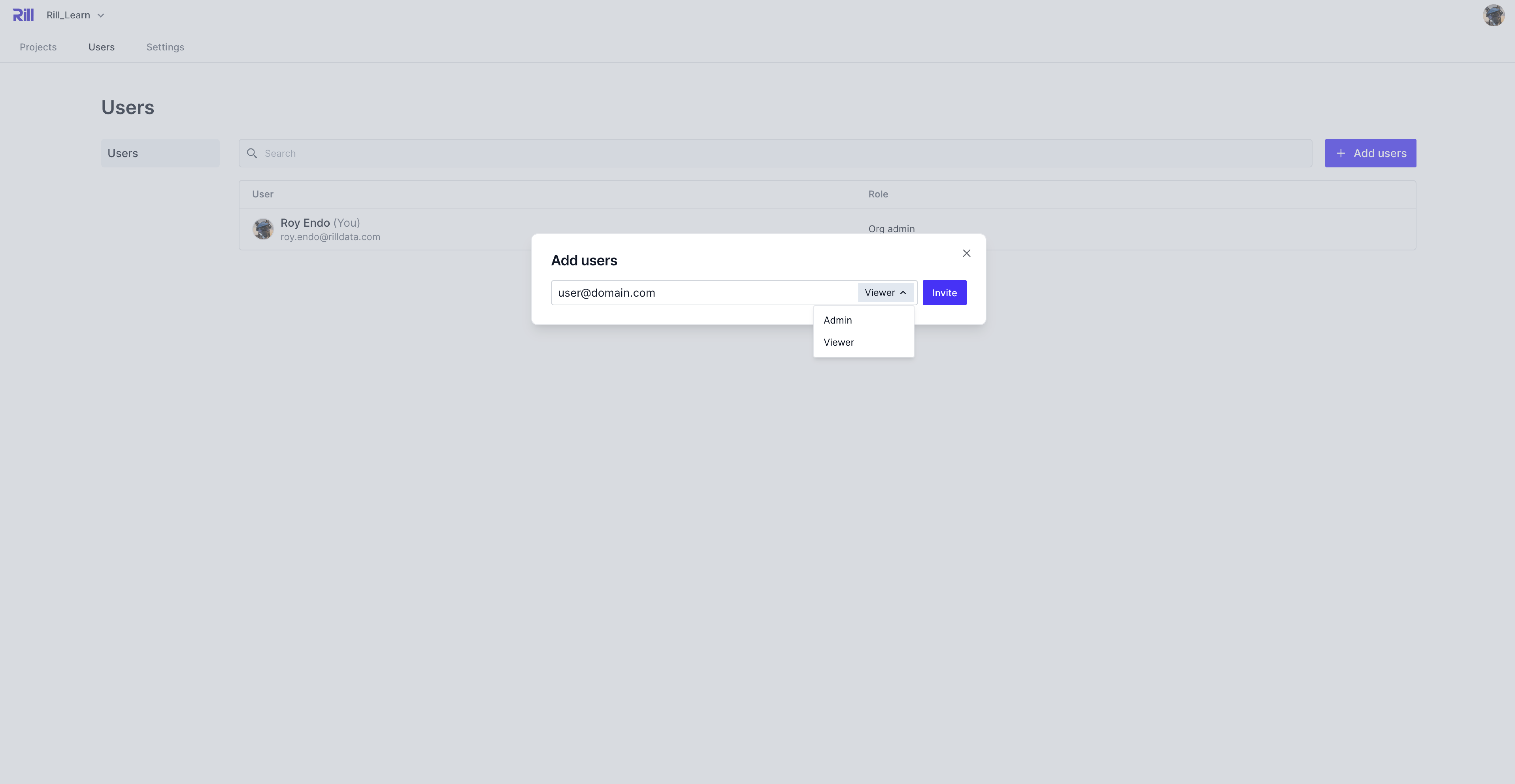
#### Via the CLI
```
rill user add
? Select role [Use arrows to move, type to filter]
> admin
editor
viewer
guest
```
You will then be prompted for details about the user.
:::tip Check your inbox (or spam)
If you add a user who has not yet signed up for Rill, they will receive an email inviting them to sign up and join.
:::
### How to add a user to a user group
If you have already set up a user group, instead of setting up users individually, you can add them to a user group.
```
rill user add --group
? Enter email
User "" added to the user group ""
```
### Automatically add members by email domain
You can automatically add users to your organization by their email domain during the deployment process and in the Organization settings page. This is limited to the same domain as your user email. If you want to whitelist other domains, contact us!
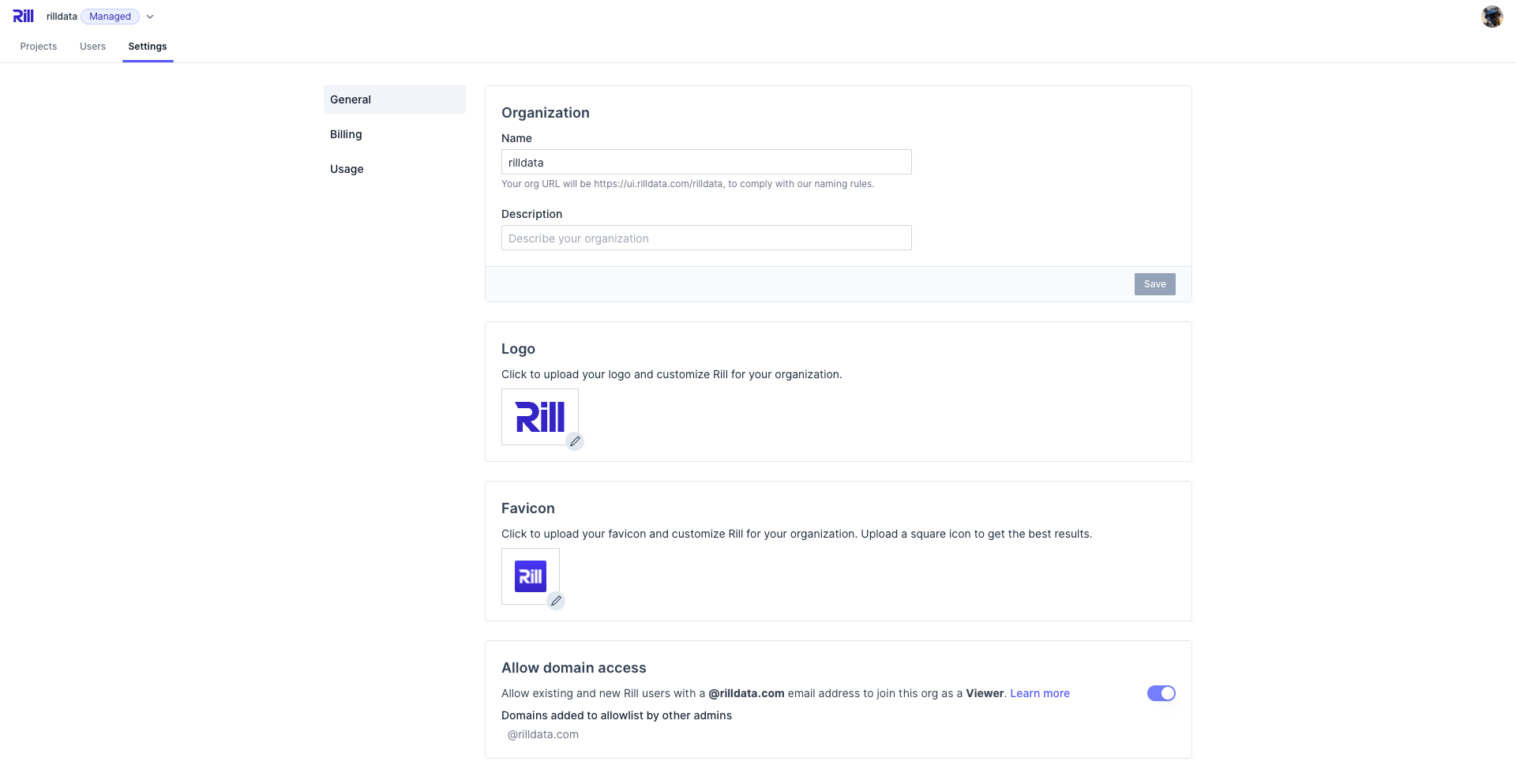
For example, if you whitelist `yourdomain.com`, new and existing users with an email address ending in `@yourdomain.com` will automatically be added to your organization.
:::info Interested in whitelisting a different domain?
The feature currently requires manual action by a support representative at Rill. Just [reach out here](https://www.rilldata.com/contact) and ask us to whitelist your domain.
:::
## Project Users
Access to projects is managed at the individual project level, subject to some notable rules:
1. By default, all organization members (but not guests) are added to new projects through a user group membership with the **viewer** role. You can manually remove this relationship in the project's member settings.
2. If you grant a project level role to someone who is not a member of the parent organization, they will automatically be added to the organization with the **guest** role.
3. Removing an organization member or guest automatically also removes them from all projects in the organization.
4. Organization admins implicitly have admin privileges on all projects in the organization.
### Project roles
Project users can have one of three roles:
- **Viewers** can browse the specific project, view dashboards, and setup alerts and reports
- **Editors** can add and remove non-admin project members
- **Admins** can manage the project by updating the project files, configuring environment variables, and accessing the status page
For a detailed list of permissions, please refer to the [Roles and Permissions](roles-permissions).
### How to add a Project User
There are a few ways to add a project user to Rill Cloud.
1. Admin invites user to the project using `Share`.
2. User requests access via the project URL: `https://ui.rilldata.com/`
3. Administrator invites user via the CLI with `--project ` flag.
### Admin invites user from Rill Cloud
From the project's splash screen, select Share and type the email address(es) along with the type of permissions.
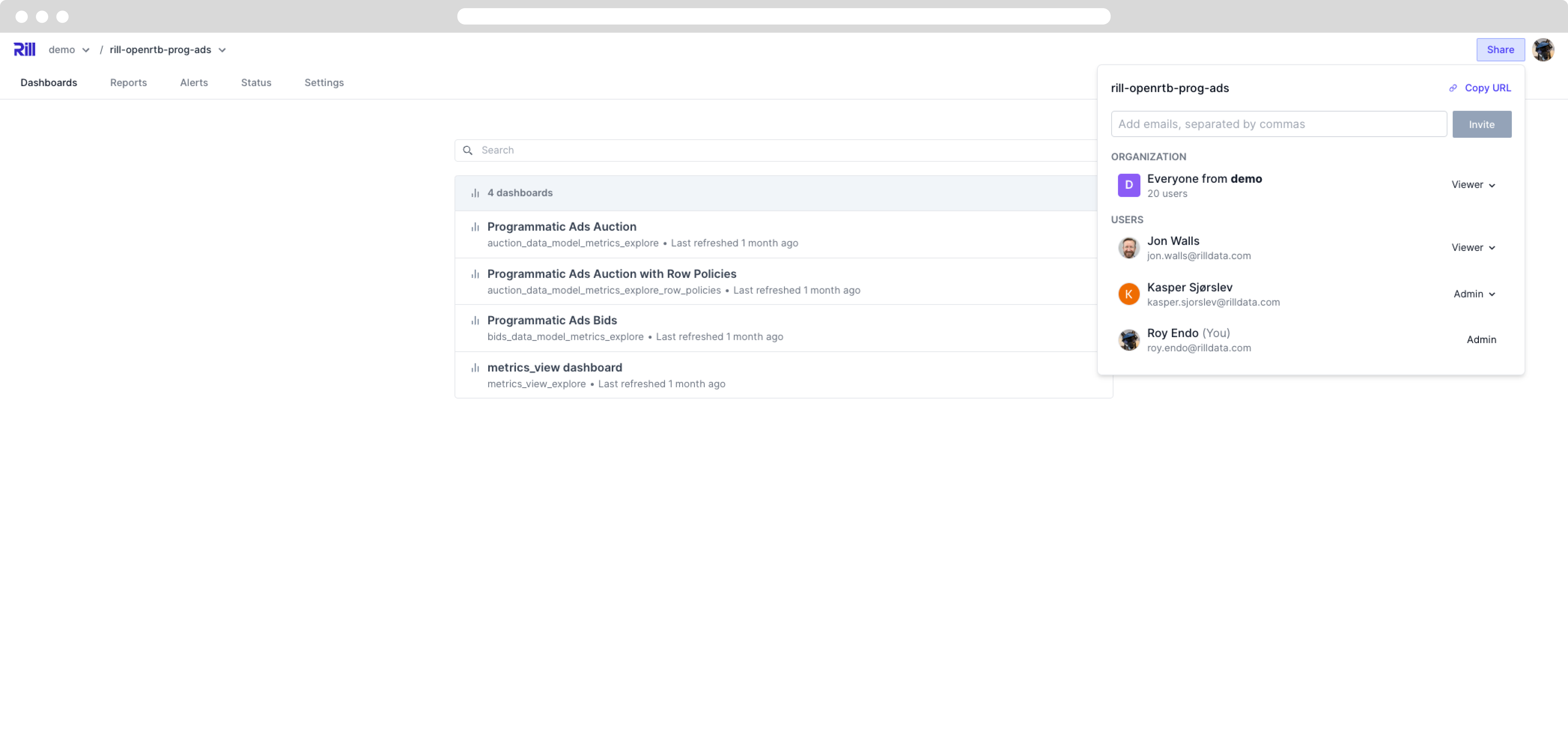
Once sent, your invited users will receive this email and will need to accept it to view the project.
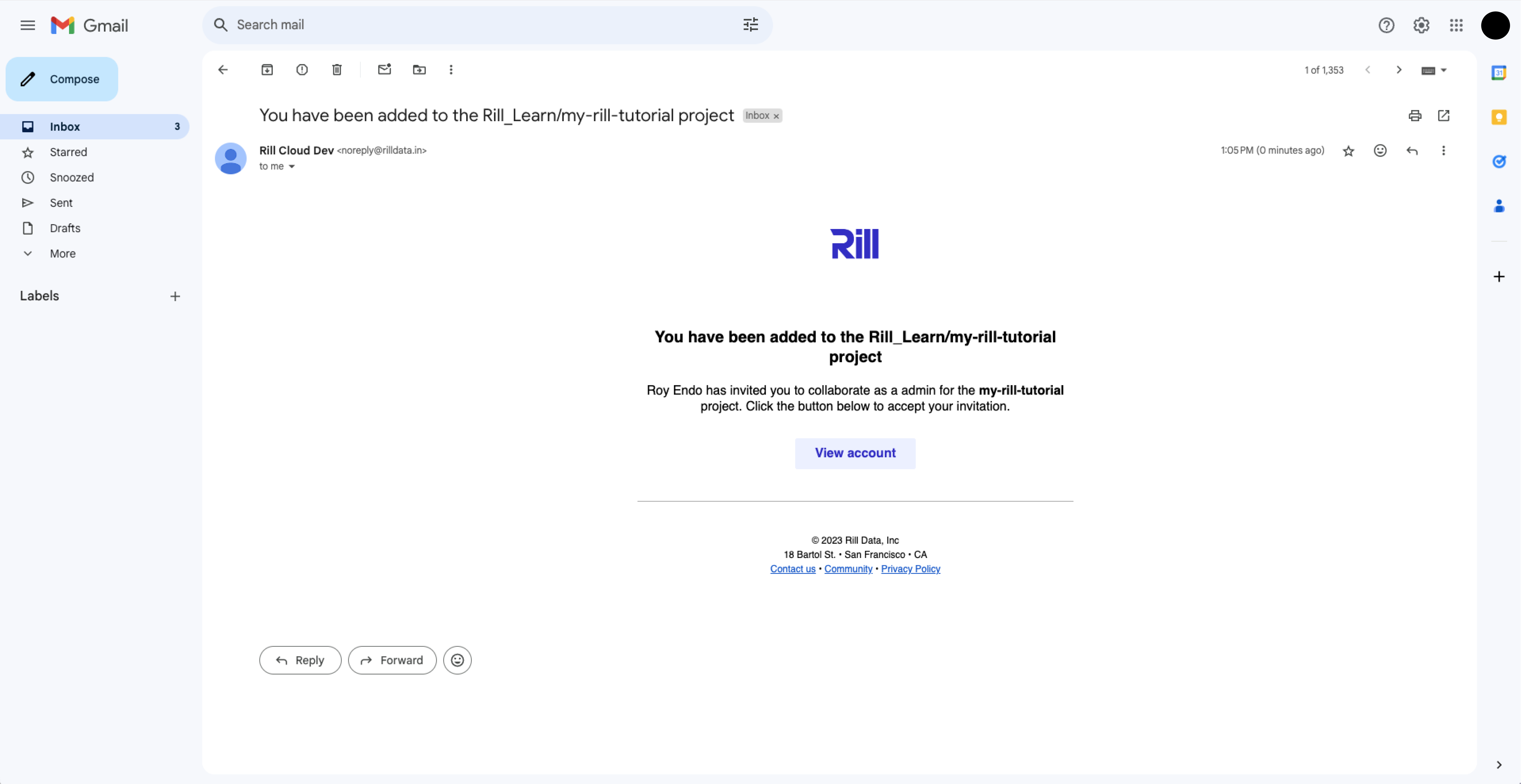
### User requests access via URL
Alternatively, if you provide the project URL to your users, they can request access to the group admin. Users can request access via the page below:
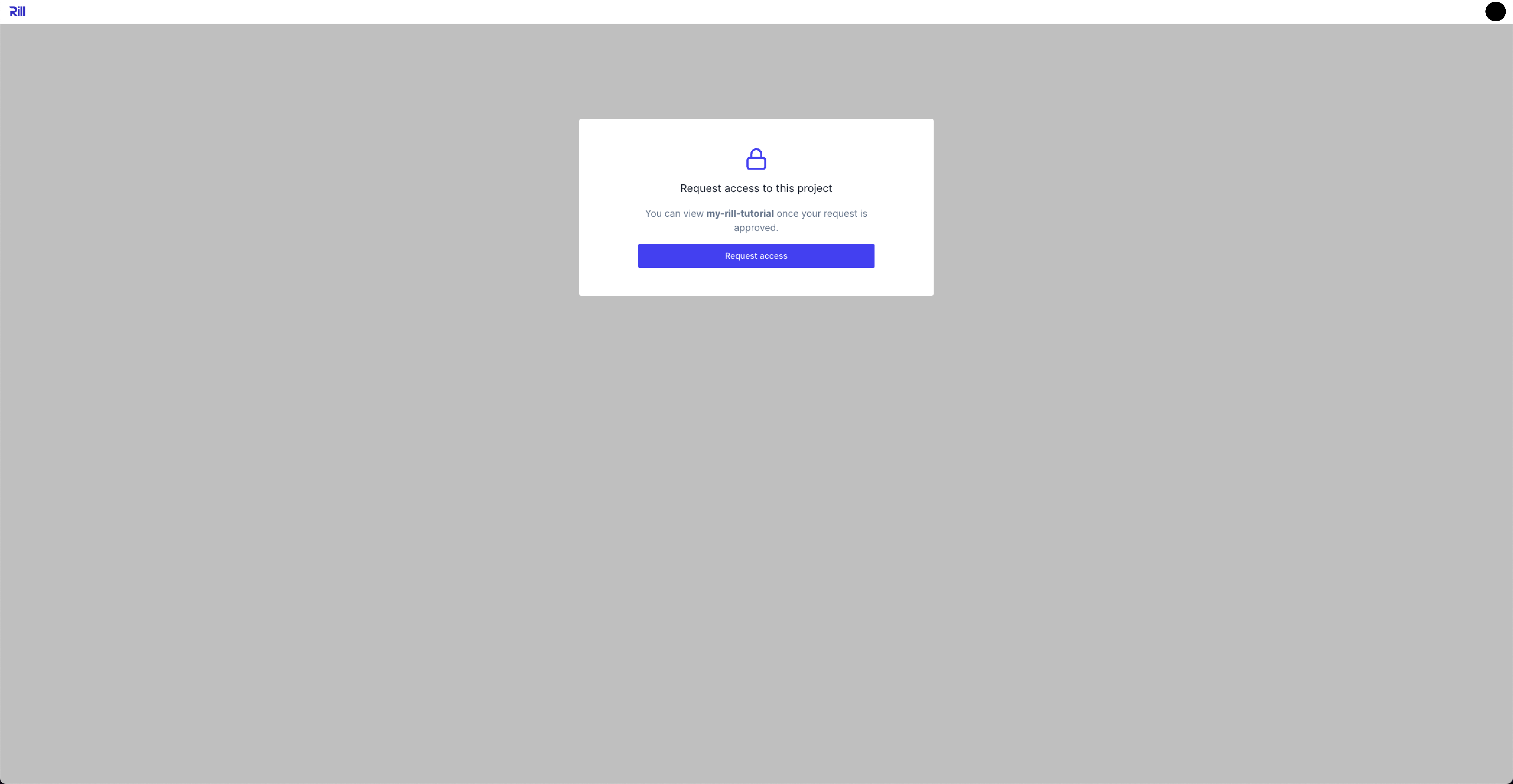
The admin will receive an email to allow access, and can set the permission after accepting the request via the UI.
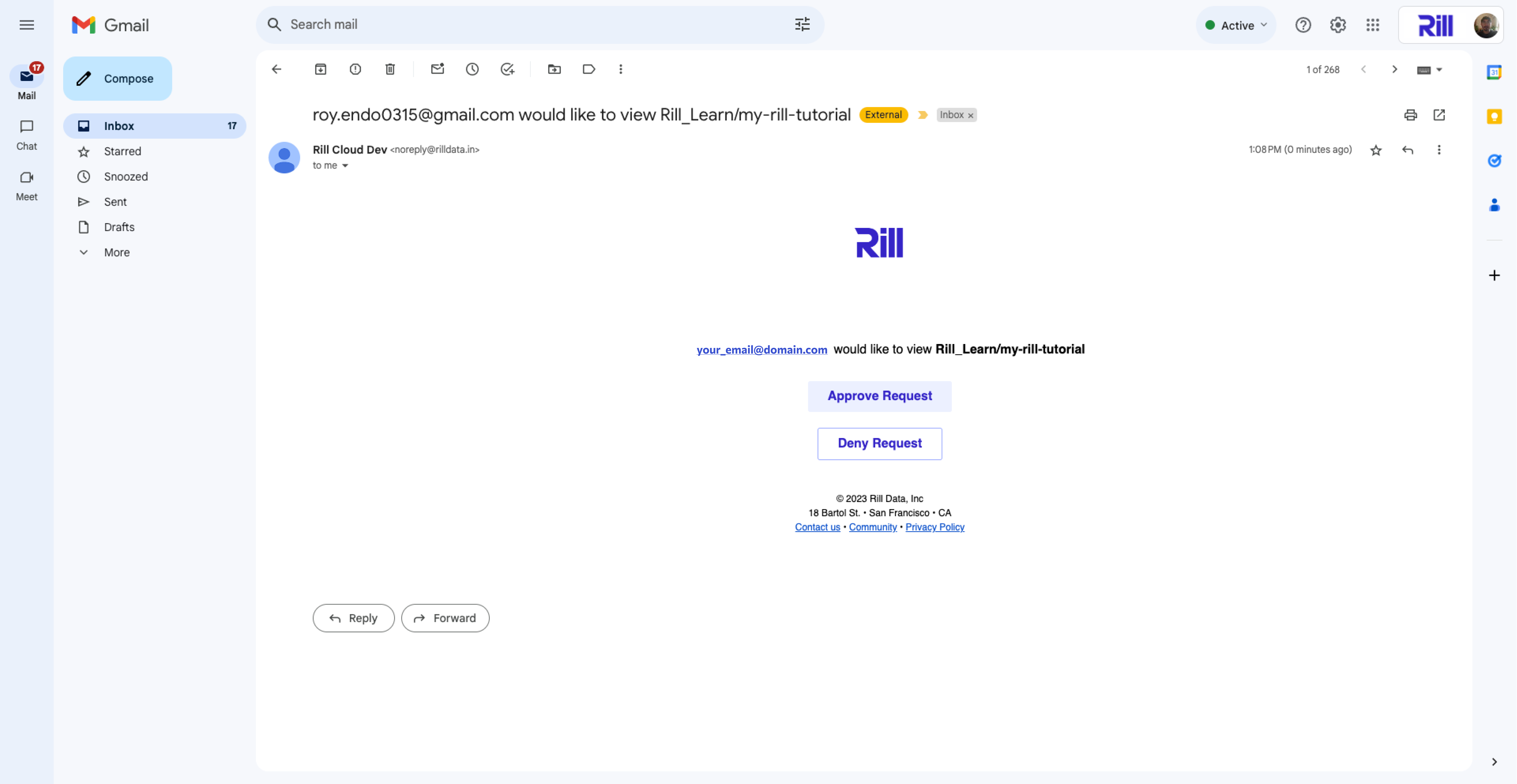
---
### Admin invites user via the CLI
To add a member to a project, run the following command:
```
rill user add --project [PROJECT NAME]
```
You will then be prompted for details about the user. HINT: Run `rill project list` to show available projects.
If you add a user who has not yet signed up for Rill, they will receive an email inviting them to join.
#### Other actions
Run `rill user --help` to show commands for listing members or changing access.
## User Groups
Another way to manage access is via user groups. You use the Rill CLI to create user groups and add members to them. Once you have created a user group, you can assign roles to it at the organization or project level, similar to how you assign roles to individual users.
User groups are scoped to an organization. They cannot be created only for a single project. Only organization members can be added to user groups, and user groups can only be added to projects within the organization where they were created.
For more information on setting up user groups, see [user group permissions](usergroup-management).
### How to add a user to a user group
There are two ways to add a user to a user group.
1. Admin adds them via Rill Cloud (Coming soon!)
2. Admin adds them via the CLI
#### Add a user to a user group in Rill Cloud
### Managing Users via Rill Cloud
There are two ways that a user can get access to Rill Cloud.
**Organization invites from Admin**
From the Users page on the Organization page, you can invite a user to the organization. Please note that organization viewers have access to view all projects.
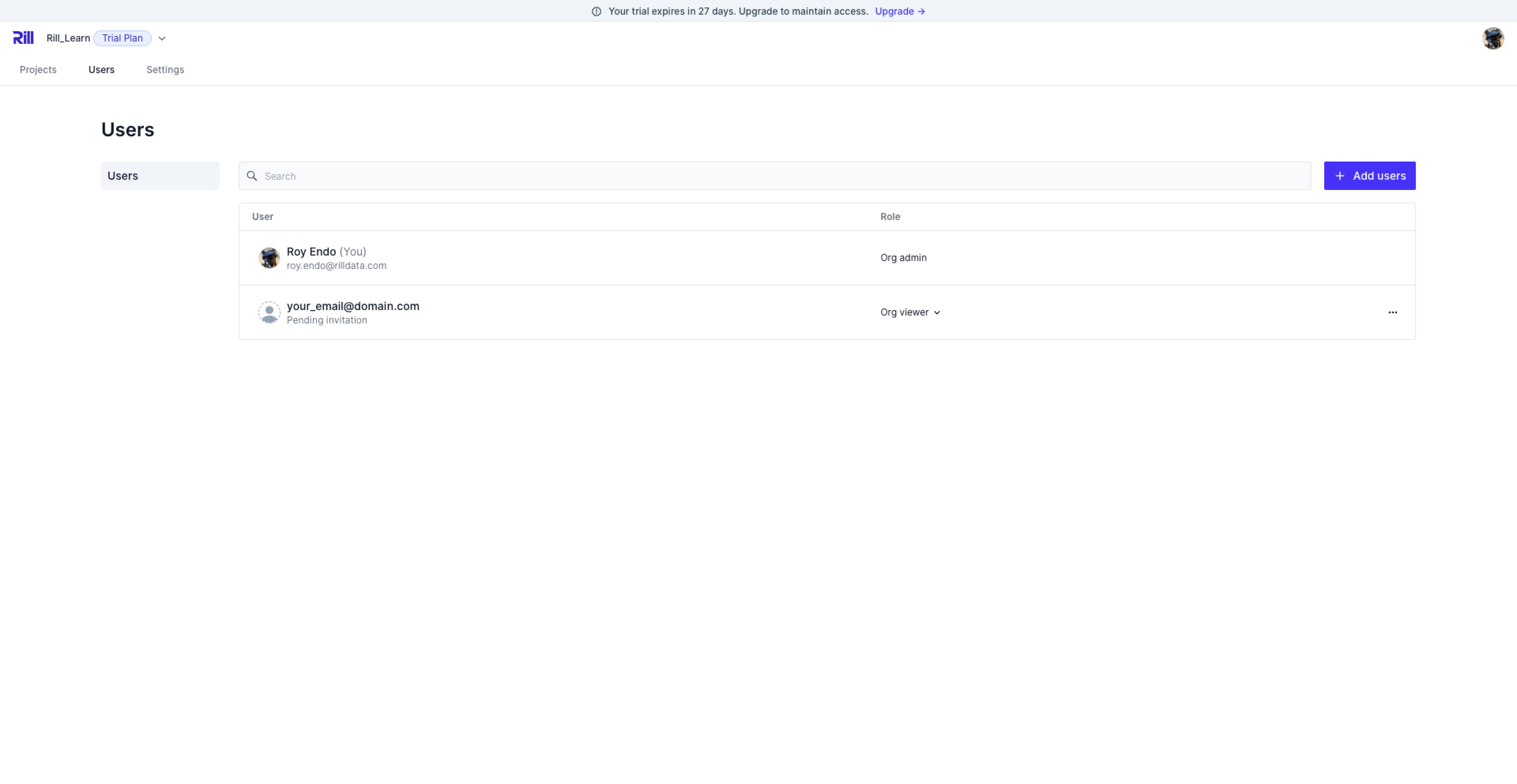
**Project level access requests**
Please refer to the documentation on how a user can request access to a project, or how an admin can invite a user to the project.
#### Add a user to a user group with the Rill CLI
```
rill user add --group
```
You will then be prompted for details about the user.
:::note
If the user you are trying to add is not part of the organization yet, the CLI will prompt you to add them to the organization first then proceed to adding them to a group.
:::
To see the current members of a group:
```
rill user list --group
```
To find the current user group roles, with project flag if looking for specific project's role:
```
rill usergroup list [--project my_project_name]
```
## Which privilege wins?
Rill uses a logical **OR** operand to define the winning privilege. In other words, if any direct role or indirect role through a user group allows a user to take an action, the action will succeed.
## Logging into Rill Cloud
In order to access a deployed project and/or view a shared dashboard, users will need to first log in to [Rill Cloud](https://ui.rilldata.com/). When you first navigate to https://ui.rilldata.com/, you will see a few different options to log in, including:
- Google SSO
- Microsoft SSO
- Email _(basic auth)_
:::info SAML Authentication
Rill Cloud **does** support SAML authentication for our enterprise customers. If this is a requirement, [please get in contact](/contact) with us and we can discuss appropriate next steps to help you with your setup.
:::
If this is the first time you are accessing Rill Cloud, you will want to sign up instead.
:::tip Signing up with basic auth
If you are unsure which option to select, select `Continue with Email` and set up basic authentication (email address / password).
:::
Afterward, you should receive an email verification to complete the sign-up process.
You should now be authenticated with Rill Cloud and be able to sign in directly going forward!
---
# User Group Permissions
URL: https://docs.rilldata.com/guide/administration/users-and-access/usergroup-management
Creating user groups in Rill allows administrators to easily grant permissions to multiple projects at different access levels. It is possible to mix and match viewer and administrator permissions in a single group, and users can be part of multiple groups. However, please keep in mind that the higher permission will be applied.
## Managing User Group Permissions
There are two ways to set up user groups in Rill.
1. Administer them via Rill Cloud
2. Administer them via CLI
### How to Manage User Groups in Rill Cloud
From the organization page, you can manage user groups under the Users tab. Adding user groups from this page will add the user group to the organization. You can then add users to a user group to inherit the group [permissions](/guide/administration/users-and-access/roles-permissions).
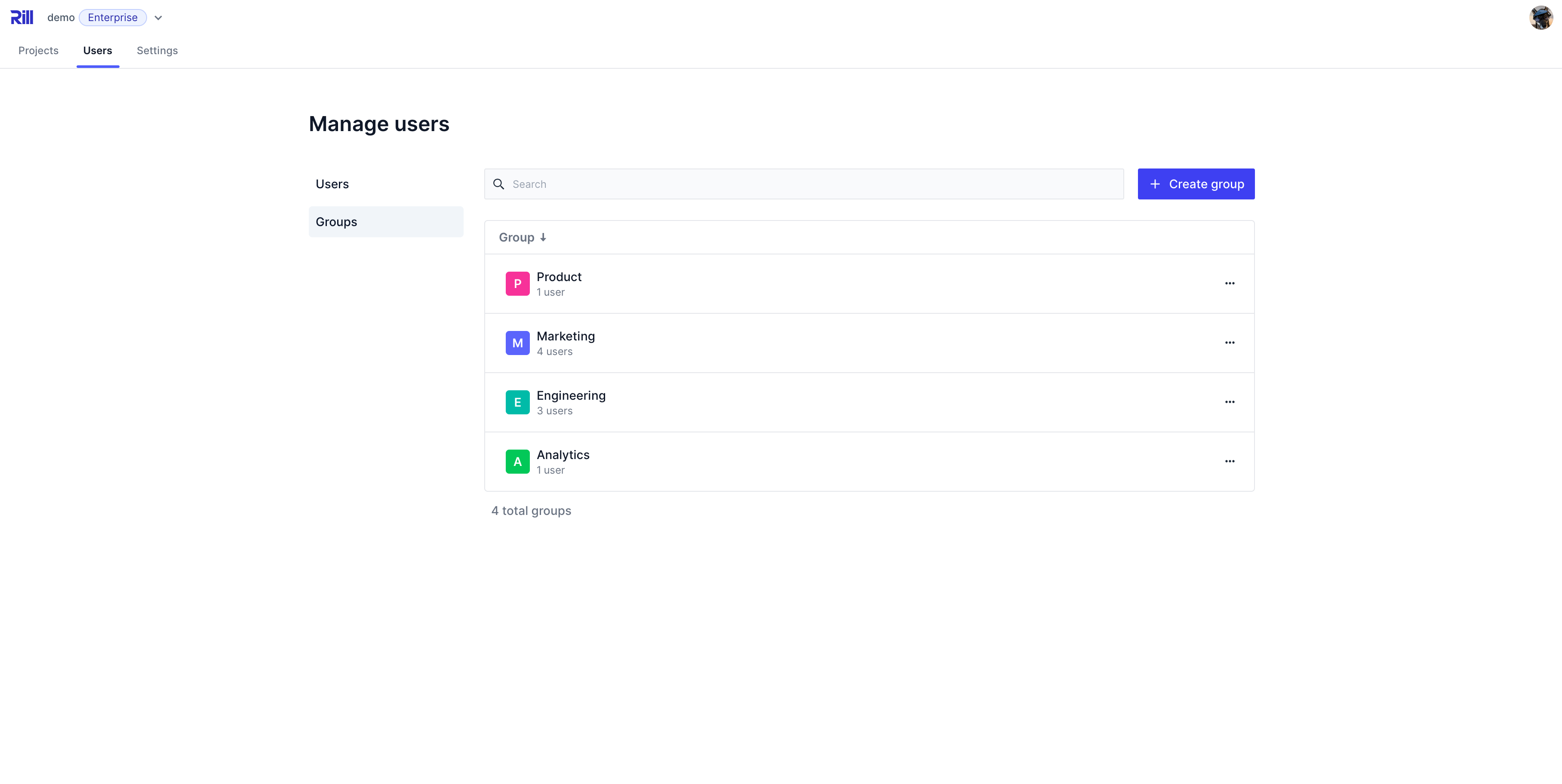
### How to Manage User Groups via the CLI
```
rill usergroup
Manage user groups
Usage:
rill usergroup [command]
Available Commands:
list List groups
show Show group
create Create a group
rename Rename a group
edit Edit a group
delete Delete a group
add Add a group to a project or organization
set-role Change a group's role on a project or organization
remove Remove a group's role on a project or organization
```
## Creating the User Group
You can create a new user group by running the following and following the CLI instructions:
```
rill usergroup create
```
You will be prompted for the new user group name.
### Adding permissions to the group
Next, you will need to add the roles and access to the user group.
```
rill usergroup add --project
--group string User group
--org string Organization (default "Rill_Learn")
--project string Project
--role string Role of the user group (options: admin, editor, viewer)
```
You will be prompted for the role and the name of the group you are editing. If you want to specify a specific project, please use the --project flag. If no project flag is defined, you will be setting permissions at the organization level.
If you have any questions on permission levels, please review the [Roles and Permissions page](roles-permissions).
### Add a member to the group
To add a member to the user group, run the following command:
```
rill user add --group
```
You will be prompted for the email address for the user.
Once added, you can confirm the user group by running the following command:
```
rill user list --group
```
---
# AI Features
URL: https://docs.rilldata.com/guide/ai/
# AI Features
Rill includes AI capabilities across both development and data exploration.
## Build Projects with AI
Rill projects are defined as YAML and SQL files, which makes them a natural fit for AI coding agents. Run `rill init` to generate **[agent skills](/developers/agent-skills)** for Claude Code, Cursor, or other tools, then use your AI agent to build connectors, models, metrics views, and dashboards. See the **[Agentic Quickstart](/developers/get-started/ai-quickstart)** to get started.
## AI Chat
**[AI Chat](/guide/ai/ai-chat)** is built directly into Rill Cloud, allowing you to:
- Ask questions about your data in natural language
- Get instant insights without writing SQL queries
- Explore metrics and dimensions conversationally
- Receive explanations and recommendations
AI Chat understands your project's metrics views, measures, and dimensions, providing context-aware answers based on your data structure.
## Rill MCP Server
The **[Rill MCP Server](/guide/ai/mcp)** connects your Rill projects to external AI assistants like Claude Desktop using the Model Context Protocol. This enables you to:
- Query your Rill data from Claude Desktop or other MCP-compatible tools
- Get governed, accurate analytics through AI assistants
- Maintain security and access controls while using external AI tools
- Leverage advanced AI capabilities for data analysis
---
# Contextual AI Chat
URL: https://docs.rilldata.com/guide/ai/ai-chat
## Overview
AI Chat in Rill Cloud allows you to have natural language conversations with your data directly in your browser. Instead of building queries or navigating through dashboards, simply ask questions using everyday conversational language and get instant insights backed by your metrics views—complete with **interactive charts and visualizations** that render right in the chat interface, plus **direct links** to your existing dashboards for deeper exploration.
AI Chat is powered by [Rill's Model Context Protocol (MCP)](/guide/ai/mcp) integration, which ensures that responses are accurate, governed, and consistent with the metrics displayed in your dashboards. By querying data with **predefined measures and dimensions**, you can trust that the answers you receive are as reliable as the data in your Rill dashboards.
**What makes AI Chat different?** Every response includes direct links to your Explore dashboards with filters pre-applied, so you can always **verify where the numbers came from**. No black box—just transparent, trustworthy analytics.
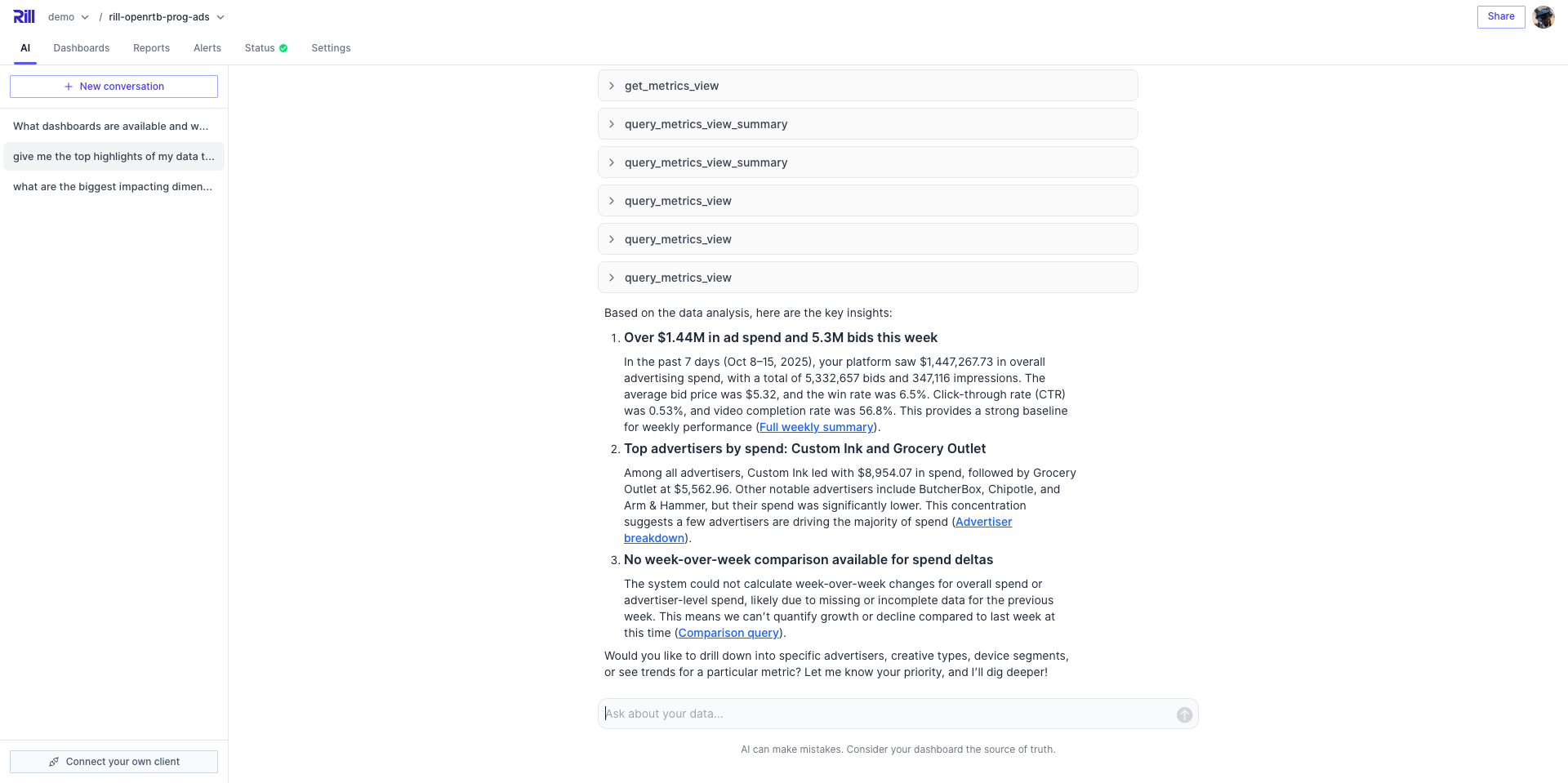
## How It Works
AI Chat uses the same [Rill MCP Server](/guide/ai/mcp) technology that powers external AI integrations with tools like Claude Desktop. This means:
- **Fast!** - Get instant answers powered by Rill's optimized query engine
- **Accurate Responses** - The Agent only queries [metrics views](/developers/build/metrics-view) you've already defined, ensuring accuracy and consistency
- **Secure Data Access** - Respects your [project's access](/developers/build/metrics-view/security) controls and user permissions
## Accessing AI Chat
### Access AI Chat from Project Home
1. Navigate to your [Rill Cloud](https://ui.rilldata.com) project home page
2. Click on the **AI** tab in the project navigation
3. Start typing your question in the chat interface
### Access AI Chat from a Dashboard
You can also access AI Chat directly while exploring a dashboard, making it easy to ask questions about what you're currently viewing:
1. While viewing any [Explore dashboard](/guide/dashboards/explore), look for the **AI Chat icon** in the top navigation bar
2. Click the AI Chat icon to open the chat panel alongside your dashboard
3. Ask questions about the data you're currently viewing
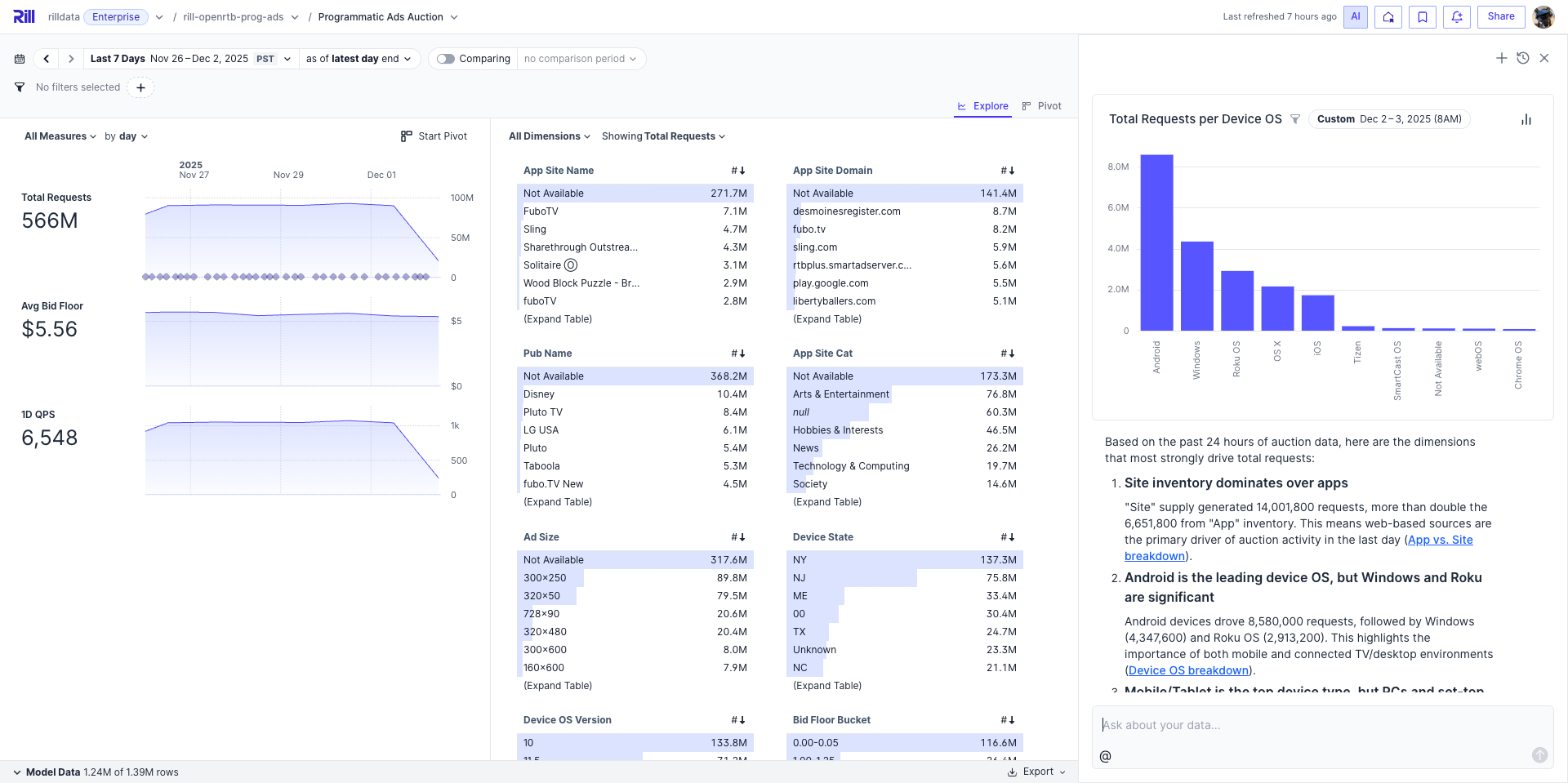
When you open AI Chat from a dashboard, the AI is automatically aware of:
- **Current dashboard context** - The metrics view you're viewing
- **Applied filters** - Any dimension or measure filters you've set
- **Time range** - The time period currently selected
- **Comparison settings** - Any active time comparisons
This context-aware functionality means you can ask questions like:
- "Why did this measure spike?" (referring to what's visible on screen)
- "What's driving this change?" (analyzing the current time period)
- "Show me more details about these results" (diving deeper into filtered data)
:::tip Context-Aware Queries
Opening AI Chat from within a dashboard allows for more natural, context-aware questions. The AI understands what you're looking at, so you don't need to repeat filters or time ranges in your questions.
:::
### Suggested Prompts
If the project administrator has configured starter prompts for a dashboard or for the project, a new chat shows them as clickable suggestions. Click one to send it with your current filters and time range applied. Prompts are configured with the `ai_prompts` key; see [AI Configuration](/developers/build/ai-configuration#suggested-prompts).
## Using Project Skills
Skills are playbooks that your project's developers write for the AI, such as how to investigate a revenue drop or what your company's business terms mean. The AI loads a skill on its own when your question matches the skill's description. To make sure the AI follows a specific skill, invoke it yourself with `/`:
1. In the chat input, type `/` at the start of a line or after a space, or click the **/** button next to **@** below the input.
2. Pick a skill from the list. Each entry shows the skill's name and description. Keep typing to narrow the list, and use the arrow keys and **Enter** to select.
3. Type your question after the skill and send the message.

The list shows the skills that apply to the chat you're in:
| Chat | Skills listed |
|------|---------------|
| Project chat (the **AI** tab), dashboard chat on Explore and Canvas dashboards, and chat in embedded dashboards | Skills written for data analysis (`agents: [analyst]`) |
| Developer chat, which edits your project files in Rill Developer | Skills written for project development (`agents: [developer]`) |
The **/** button appears only when the project has skills for that chat. Skills with errors in their file are not listed.
When the AI uses a skill, whether you picked it or the AI chose it, the response's activity trace shows a **Loaded skill** step. In an analysis chat, a skill is loaded once per conversation, so referencing it again in a later message does not add it a second time.
:::tip Writing skills
Skills are files in your project. To create or change one, see [Skills](/developers/build/ai-configuration#skills) in the AI Configuration guide.
:::
## Understanding Responses
AI Chat provides rich, multi-layered responses to help you understand your data quickly while maintaining easy access to deeper exploration:
### What's Included in Responses
1. **Summary** - A concise answer to your question with key findings and insights
2. **Interactive Visualizations** - Charts and graphs that help you see patterns at a glance. The AI automatically chooses the most appropriate visualization based on your data and question, including:
- **Line charts** - Show trends and changes over time
- **Area charts** - Highlight cumulative trends and patterns
- **Bar charts** - Compare values across categories or dimensions
- **Stacked bar charts** - Show part-to-whole relationships across categories
- **Donut charts** - Display proportional breakdowns of a total
- **Combo charts** - Combine multiple measures with different scales
- **Heatmaps** - Visualize distribution across two dimensions
3. **Detailed Results** - Tables or lists with specific numbers and breakdowns
4. **Dashboard Links** - Direct links to your existing [Explore dashboards](/guide/dashboards/explore) with filters and time ranges pre-applied based on your question
5. **Suggested Follow-ups** - Related questions or areas to investigate further
### Visual Components
AI Chat automatically generates interactive visualizations to complement answers when appropriate. The AI intelligently selects chart types based on your data structure, question context, and visualization best practices—while skipping charts when a table or text-only response is more suitable.
### Linking Back to Dashboards
**Trust the numbers.** The most powerful feature of AI Chat is its transparency. When the AI answers your question, it automatically generates links to your Explore dashboards, allowing you to **see exactly where the numbers came from**.
Every AI response includes dashboard links that:
- **Pre-apply relevant filters** - The dashboard opens with filters matching your question context
- **Set appropriate time ranges** - Time periods from your question are automatically selected
- **Enable comparison periods** - When you ask about changes, comparison views are activated
This means you can **verify every answer** by clicking through to the full dashboard. No black box—just transparent, trustworthy analytics. Start with a quick AI summary, then explore the underlying data with full confidence in its accuracy.
## Improving AI Chat with Instructions
To get the most accurate and contextual responses from AI Chat, you can add custom `ai_instructions` to your project files. These instructions provide the AI with additional context about your data, business logic, and preferred response formats.
### Why Add AI Instructions?
AI instructions help the AI:
- Understand your specific business context and terminology
- Format responses in ways that match your team's preferences
- Focus on the metrics and dimensions most relevant to your use case
### Where to Add Instructions
You can add `ai_instructions` in two places:
1. **`rill.yaml`** - Project-wide instructions that apply to all queries across your entire project
2. **`.yaml`** - Metrics view-specific instructions for individual dashboards
For detailed examples and best practices on writing effective AI instructions, see the [AI Configuration guide](/developers/build/ai-configuration).
## Memory
AI Chat remembers durable preferences and clarifications you share with it, and uses them in later conversations in the same project. Each user has their own memory, and memories never cross users or projects.
### What is remembered
Memory only holds what you tell the AI about yourself and how you want it to work, for example:
- Preferences such as tables instead of charts, units, a default time range or comparison
- Definitions such as "revenue means net revenue" or "active means 30-day active"
- Context such as your role, your team, and which metrics views you care about
- Feedback such as "do not use the legacy metrics view"
You can ask the AI directly ("remember that I always want week-over-week comparisons", "forget that") or just state a preference in passing. When the AI saves, changes or removes a memory, it shows a **Memory updated** notice under its reply. Open **Manage memory** from the notice to edit or delete it.
Memories are kept per agent: what the AI learns while analyzing data is used when it analyzes data, and what it learns while developing the project is used when it develops the project. When you add a memory yourself, you choose whether it applies to one of them or to both.
### What is never remembered
- Data values, query results, or anything about what the data showed
- Credentials, tokens, connection details, or file contents
- Sensitive personal details such as health, ethnicity, religion, politics, identification numbers, or account numbers
- One-off requests that only apply to the current question
- Anything the project's `ai_instructions` already say
### Managing memory
Open **Manage memory** from the chat sidebar (or **Settings > AI memory** in Rill Cloud) to see everything the AI remembers, edit or delete individual memories, or add your own. Each memory links to the conversation it was learned from. Deleting a memory is permanent.
Turn **Use memory** off to keep your memories but stop the AI from using or updating them until you turn it back on.
Memory is available in Rill Cloud for logged-in users and in Rill Developer, where it is stored locally and never committed to git. It is not used by AI reports, shared conversations viewed by other users, or external AI clients connected through MCP. Project administrators can turn memory off for a project with the `chat_memory` feature flag; see [AI Configuration](/developers/build/ai-configuration#user-memory).
## Use in Your Favorite AI Client
Prefer to chat with your data in Claude Desktop, ChatGPT, or another AI assistant? You can connect your Rill projects to external AI clients using the **[Rill MCP Server](/guide/ai/mcp)**. This gives you the same governed, accurate analytics experience—powered by your predefined metrics—but integrated into your preferred AI workflow. Perfect for data teams who want deep analysis sessions, local development access, or integration with other tools. See the **[Rill MCP Server documentation](/guide/ai/mcp)** to learn more.
## Need Help?
[Contact our team](/contact) if you have questions or feedback about AI Chat!
---
# External MCP Servers
URL: https://docs.rilldata.com/guide/ai/external-mcp
Rill's AI agents can call tools on external [MCP (Model Context Protocol)](https://modelcontextprotocol.io) servers, such as Linear, GitHub, Slack, or an internal service your team runs. You declare each server as a connector in your project; the analyst and developer agents then discover its tools and use them alongside Rill's built-in tools when a question needs data or actions outside Rill.
This is the outbound counterpart of the [Rill MCP Server](/guide/ai/mcp), which lets external AI clients query Rill.
## Add a server
Create a connector file with `driver: mcp` and the server's streamable HTTP endpoint:
```yaml
# connectors/linear.yaml
type: connector
driver: mcp
url: https://mcp.linear.app/mcp
display_name: Linear
ai_instructions: >
Use Linear to look up issues and projects. Search before creating anything.
Never create or update issues unless the user explicitly asks.
auth: oauth
```
The connector appears in Rill Developer with a side panel that shows the server's status and the tools it exposes to you. In the chat, the plug icon (**External tools**) lists the project's external servers, and the agents are told about each server's display name and instructions.
## Choose how to authenticate
Each server uses one of two credential scopes. The choice is visible in the YAML and reviewable in git.
### Per-user OAuth
Set `auth: oauth` for servers that identify individual users, such as Linear, GitHub, Slack, Notion, or Atlassian. Each user authorizes the server from the chat's **External tools** popover: **Connect** opens the server's authorization page in a popup. If the assistant tries to use a server the user has not connected yet, it stops and shows a Connect card instead of failing; once connected, send your message again.
Per-user OAuth is available in Rill Cloud only. Rill Developer lists such servers but cannot connect them, so test them after deploying. Servers with project-scoped credentials (below) work in both.
Rill discovers the server's authorization server automatically and registers itself as an OAuth client when the server supports dynamic client registration. Servers that require a pre-registered client, such as Slack, take the client credentials from the connector:
```yaml
type: connector
driver: mcp
url: https://mcp.slack.com/mcp
display_name: Slack
auth: oauth
oauth_client_id: "{{ .env.SLACK_MCP_CLIENT_ID }}"
oauth_client_secret: "{{ .env.SLACK_MCP_CLIENT_SECRET }}"
oauth_scopes: [search:read, channels:history]
```
Register `https://admin.rilldata.com/connectors/oauth/callback` as the redirect URL when the server asks for one.
Tokens are never shared between users. Rill Cloud stores each user's token encrypted in the control plane and refreshes it as needed; runtimes only receive short-lived access tokens. Users can disconnect a server at any time from the chat, even while the server is unreachable, which deletes the token.
### Project-scoped credentials
For internal servers or servers that accept a service token, send the credentials as headers. Keep secrets in `.env` or in Rill Cloud variables and reference them with `{{ .env.* }}`:
```yaml
type: connector
driver: mcp
url: https://mcp.internal.example.com/mcp
display_name: Company data
headers:
Authorization: "Bearer {{ .env.INTERNAL_MCP_TOKEN }}"
X-Rill-User: "{{ .user.email }}"
```
Header values may also reference attributes of the requesting user with `{{ .user.* }}`, so a server that trusts Rill can enforce its own per-user permissions. A server whose headers reference the user is only available to identified users.
`auth: oauth` and an `Authorization` header cannot be combined.
## Control who may use a server
The `security` block decides who may use the server, which agents may use it, and which of its tools each user may call. It uses the same syntax as [metrics view security policies](/developers/build/metrics-view/security), with tool names in place of dimension and measure names:
```yaml
security:
# Who may use the server. Omit the whole security block to allow everyone with AI access.
access: "{{ .user.admin }} OR '{{ .user.domain }}' == 'example.com'"
# Which agents may use it. Defaults to all agents.
agents: [analyst]
# Which tools each user may call. If any include rule is present, unlisted tools are denied.
include:
- if: true
names: [search_issues, get_issue]
- if: "{{ .user.admin }}"
names: [create_issue, update_issue]
# Tools to deny. A matching exclude always wins.
exclude:
- if: '{{ not (has "engineering" .user.groups) }}'
names: [delete_issue]
```
The defaults match metrics views: no `security` block allows every user with AI access, while a `security` block without `access` denies everyone. Users who are denied do not see the server at all, and denied tools are never offered to the agents. Policies are evaluated on every tool call, and you can test them in Rill Developer with [mock users](/developers/build/metrics-view/security#test-your-policies).
## Reference
| Property | Description |
| --- | --- |
| `url` | Streamable HTTP endpoint of the server. Must use `https` in Rill Cloud. |
| `display_name` | Name shown in the chat and to the agents. Defaults to the connector name. |
| `ai_instructions` | Guidance for the agents on when and how to use the server. |
| `auth` | `oauth` for per-user authorization. |
| `oauth_client_id`, `oauth_client_secret`, `oauth_scopes` | Pre-registered client and scopes for servers without dynamic client registration. |
| `headers` | Headers sent on every request. Supports `{{ .env.* }}` and `{{ .user.* }}`. |
| `timeout` | Timeout per tool call (default `60s`). |
| `connect_timeout` | Timeout for connecting and listing tools (default `10s`). |
| `max_result_bytes` | Maximum size of a tool result passed to the AI; larger results are truncated (default `131072`). |
| `security` | Access policy, as described above. |
Tool descriptions and results from external servers are treated as untrusted content: the agents are instructed not to follow instructions found inside them. Each chat message may make at most 25 external tool calls. Some AI providers accept at most 128 tools per request, including Rill's built-in tools; if a user's connected servers exceed that, the chat fails until they disconnect a server or you narrow its tools with `security.include`. The tools of external servers are not exposed through the Rill MCP Server.
---
# Rill MCP Server
URL: https://docs.rilldata.com/guide/ai/mcp
The Rill Model Context Protocol (MCP) server exposes Rill's most essential APIs to LLMs. It is currently designed primarily for data analysts, not data engineers, and focuses on consuming Rill metrics views—not creating them.
:::tip Looking for AI Chat in Rill Cloud?
If you want to chat with your data directly in your browser without any setup, check out [AI Chat](/guide/ai/ai-chat), which uses the same MCP technology but is built right into Rill Cloud.
:::
## Why use MCP with Rill?
Instead of blindly exposing your entire data warehouse to external platforms in hopes of uncovering trends, Rill's MCP integration provides a **structured and governed** alternative. By querying data that already has **predefined measures and dimensions**, the responses you get are guaranteed to be as **accurate and consistent** as the metrics displayed in your Rill dashboards.
Rill offers two ways to use MCP:
- **Rill MCP Server** (this guide) - Connect external AI assistants like Claude Desktop to your Rill projects
- **[AI Chat](/guide/ai/ai-chat)** - Built-in chat interface in Rill Cloud with zero setup required
You can also add `ai_instructions` to your project file and metrics views, which will give your LLM additional context on how to use the Rill MCP Server for best results.
:::tip Configure AI instructions
Set project-wide AI instructions to provide context unique to your project and improve MCP responses.
[Learn more about AI configuration →](/developers/build/ai-configuration)
:::
Users can then ask questions like:
- What are my *week-on-week* __increases or decreases in sales__ of `XYZ service`?
- During the *current year*, do I have any __outliers in website views__? What might this correlate to?
- In the *previous quarter*, compared to the current ongoing quarter, what are the __trends for customer access__?
- In the *last 7 days*, how many __auction requests were there from mobile vs desktop__?
This ensures **trustworthy, governed analytics** while empowering users to **self-serve answers** to everyday business questions—without delays caused by email chains or ticket requests. The result: greater team productivity, clearer data ownership, and faster, more confident decision-making across your organization.
## Installation
### Prerequisites
To use the Rill MCP server, you'll need:
- An **MCP client**
- A **running Rill project** (locally or hosted on Rill Cloud)
## Connect using OAuth (Recommended)
The easiest way to connect your Rill app to Claude Desktop or ChatGPT is through their custom connector interfaces, which handle authentication automatically via OAuth. This eliminates the need to manually create access tokens or edit configuration files.
### Claude Desktop (Paid Plan)
:::info Paid Claude Desktop Required
Custom connectors are only available in the paid plan of Claude Desktop. [Learn more about Claude Desktop custom connectors →](https://support.claude.com/en/articles/11175166-getting-started-with-custom-connectors-using-remote-mcp)
:::
1. Open Claude Desktop and navigate to **Settings → Connectors**
2. Click **Add custom connector**
3. Enter the Rill MCP URL for your project:
```
https://api.rilldata.com/v1/orgs/{org_name}/projects/{project_name}/runtime/mcp
```
Replace `{org_name}` and `{project_name}` with your organization and project names.
4. The OAuth flow will automatically start in your browser
5. Log in to Rill and authorize the connection
6. Claude Desktop will receive an access token and your Rill app will be connected
### Claude Code (Paid Plan)
1. In your terminal, run the following command to add an MCP server with Claude Code:
```bash
claude mcp add --transport http https://api.rilldata.com/v1/orgs/{org_name}/projects/{project_name}/runtime/mcp
```
Replace `{org_name}` and `{project_name}` with your organization and project names. `` will be the name you assign to this MCP server.
2. Open Claude Code using `claude` cmd.
3. In Claude Code, use `/mcp` command to see the list of MCP servers.
4. Choose the Rill MCP server you just added.
5. Select `Authenticate` to start the OAuth flow in your browser.
6. Log in to Rill and authorize the connection.
7. Claude Code will receive an access token, and your Rill app will be connected.
### ChatGPT Web Interface (Paid Plan)
:::info Paid ChatGPT Required
Custom apps with Developer mode are only available in the paid plans of ChatGPT. [Learn more about ChatGPT Developer mode →](https://platform.openai.com/docs/guides/developer-mode)
:::
1. Open ChatGPT and navigate to **Settings → Apps & Connectors → Advanced Settings**
2. Enable **Developer mode**
3. Go back to **Apps & Connectors** and click **Create** in the Apps section
4. Enter the Rill MCP URL for your project:
```
https://api.rilldata.com/v1/orgs/{org_name}/projects/{project_name}/runtime/mcp
```
Replace `{org_name}` and `{project_name}` with your organization and project names.
5. The OAuth flow will automatically start in your browser
6. Log in to Rill and authorize the connection
7. ChatGPT will receive an access token and your Rill app will be connected
### Connecting to a specific branch
The normal MCP URL targets your project's production deployment. To connect to the deployment for a specific branch (e.g. a dev/preview deployment), insert `/branch/{branch_name}` after the project name:
```
https://api.rilldata.com/v1/orgs/{org_name}/projects/{project_name}/branch/{branch_name}/runtime/mcp
```
## Manual Configuration (Alternative Method)
If you prefer to manually configure the connection or need to connect to a local Rill instance, you can edit configuration files directly and provide your own access token.
Note: If you select this option, you must have Node.js installed on your system. It can be downloaded from [nodejs.org](https://nodejs.org/en).
### Create a Rill Personal Access Token (if your project is on Rill Cloud)
**Via UI (recommended):**
Navigate to the AI tab in your project to retrieve both the JSON config and create a personal access token automatically:

**Via CLI:**
```bash
# Install the Rill CLI if you haven't already
curl https://rill.sh | sh
# Create a token
rill token issue
```
:::tip Learn more about user tokens
For comprehensive documentation on creating, managing, and using personal access tokens, see [User Tokens](/guide/administration/access-tokens/user-tokens).
:::
### Configure Claude Desktop
Edit your `claude_desktop_config.json` file.
By default, the JSON file is found in the following directories:
- macOS: `/Users/{USER}/Library/Application Support/Claude/claude_desktop_config.json`
- Windows: `C:\Users\{USER}\AppData\Roaming\Claude\claude_desktop_config.json`
### config.json
Depending on which Rill instance you are trying to connect to (locally running Rill Developer, public Rill project on Rill Cloud, or private Rill project on Rill Cloud (default)), the configuration will vary. For Rill Cloud deployed projects, you can navigate to the AI page to retrieve the `config.json`.
__*Private Rill Project on Rill Cloud*__
Replace `org` and `project` with the ID of your organization and project.
```json
{
"mcpServers": {
"rill": {
"command": "npx",
"args": [
"mcp-remote",
"https://api.rilldata.com/v1/organizations/{org}/projects/{project}/runtime/mcp",
"--header",
"Authorization:${AUTH_HEADER}"
],
"env": {
"AUTH_HEADER": "Bearer "
}
}
}
}
```
__*Public Rill Project on Rill Cloud*__
See [our demo page](https://ui.rilldata.com/demo) for public projects to test.
```json
{
"mcpServers": {
"rill": {
"command": "npx",
"args": [
"mcp-remote",
"https://api.rilldata.com/v1/organizations/demo/projects/rill-github-analytics/runtime/mcp"
]
}
}
}
```
__*Locally Running Rill Developer*__
```json
{
"mcpServers": {
"rill": {
"command": "npx",
"args": [
"mcp-remote",
"http://localhost:9009/mcp"
]
}
}
}
```
:::tip Restart Claude!
Restart Claude Desktop for any changes to your JSON file to take effect.
:::
### Troubleshooting
If Claude Desktop cannot connect to the MCP server, check that Rill is running (locally) or that you are able to connect to your [Rill project](https://ui.rilldata.com) from your browser. If your project is private, check that the token is valid via the CLI or create a new one in the UI and edit the `config.json` file.
If you're still experiencing issues, check the logs in Claude Desktop. Click on Developer → Open MCP Log File and check the logs for any errors.
## Adding AI instructions to your metrics view or project YAML
LLMs give their best results when they have good context. For a conversation with Rill Data, this means things like clarifying project-specific terms, routing questions to the correct metrics view, or defining business rules. Rather than expecting the user to provide this context every time, you can add `ai_instructions` to your model. This adds the context automatically for every conversation.
There are two places to add `ai_instructions`:
1. `rill.yaml` for project-wide context, such as instructions on how to use Rill MCP Server
2. Every metrics view YAML (`.yaml`), with examples of Explore URLs for that metrics view
For longer, structured guidance — such as analysis playbooks and business glossaries — you can also define [skills](/developers/build/ai-configuration#skills) in your project. External MCP clients discover them with the `list_skills` tool and load them on demand with `load_skill`.
For detailed examples and best practices on writing effective AI instructions, see the [AI Configuration guide](/developers/build/ai-configuration).
You can look at one of our [example projects](https://github.com/rilldata/rill-examples/tree/main/rill-openrtb-prog-ads) to see how these are used. Experiment with the instructions and see what works best for your requirements.
## Using Rill MCP Server in Claude

### Supported Actions
- __*List metrics views*__ – Use `list_metrics_views` to discover available metrics views in the project.
- __*Get metrics view spec*__ – Use `get_metrics_view` to fetch a metrics view's specification. This is important to understand all the dimensions and measures in a metrics view.
- __*Query the time range*__ – Use `query_metrics_view_summary` to obtain the available time range for a metrics view. This is important to understand what time range the data spans.
- __*Query the metrics*__ – Use `query_metrics_view` to run queries to get aggregated results.
- __*List skills*__ – Use `list_skills` to discover the [skills](/developers/build/ai-configuration#skills) defined in the project. It returns an empty list when the project defines no skills.
- __*Load a skill*__ – Use `load_skill` to fetch a skill's full instructions before doing work its description covers.
The skill tools are available to every user who can use AI features in the project, whether or not the project defines skills. `list_skills` returns every skill in the project with its `description`, `metrics_views`, `agents` and `always_apply` fields, so the client can pick the ones that fit its task. If `load_skill` is called with a name that doesn't exist, the error lists the skills that do.
The `/` skill picker is part of Rill's [AI Chat](/guide/ai/ai-chat#using-project-skills). In an external client, ask for a skill by name instead, for example: "Use the `revenue-rca` skill to explain last week's revenue drop."
### Usage Examples
Using all the above concepts, you can ask the Rill MCP server questions like:
- What are my *week-on-week* __increases or decreases in sales__ of `XYZ service`?
- During the *current year*, do I have any __outliers in website views__? What might this correlate to?
- In the *previous quarter*, compared to the current ongoing quarter, what are the __trends for customer access__?
- In the *last 7 days*, how many __auction requests were there from mobile vs desktop__?
## Conclusion
While [Explore dashboards](/guide/dashboards/explore) are a great way to slice and dice to find insights, sometimes you just need a quick, overall summary of your data via a text conversation. The Rill MCP server enables this through external AI assistants like Claude Desktop. Since Rill MCP is built on top of your existing metrics, you can be confident that the returned data will be correct.
**Want AI chat directly in Rill Cloud?** Check out [AI Chat](/guide/ai/ai-chat) for a browser-based experience that uses the same MCP technology with zero setup required.
## Need help?
[Contact our team](/contact) if you have any questions, comments, or concerns!
---
# Alerts
URL: https://docs.rilldata.com/guide/alerts
Prefer video? Check out our [YouTube playlist](https://www.youtube.com/watch?v=wTP46eOzoCk&list=PL_ZoDsg2yFKgi7ud_fOOD33AH8ONWQS7I&index=1) for a quick start!
## Overview
Alerting is a key element for any BI or analytics workflow. Because Rill's dashboards are typically built off of raw or near-raw data, we expose alerting on a wide range of filters and depth, including high cardinality fields. Alerts are accessible from any dashboard via the upper-right alarm bell icon and can be used to create context-based triggers or alerts to bring you back to an analysis when an alert is triggered. This allows the analyst or end user to then dive deeper and use Rill dashboards to interactively explore their data as needed.
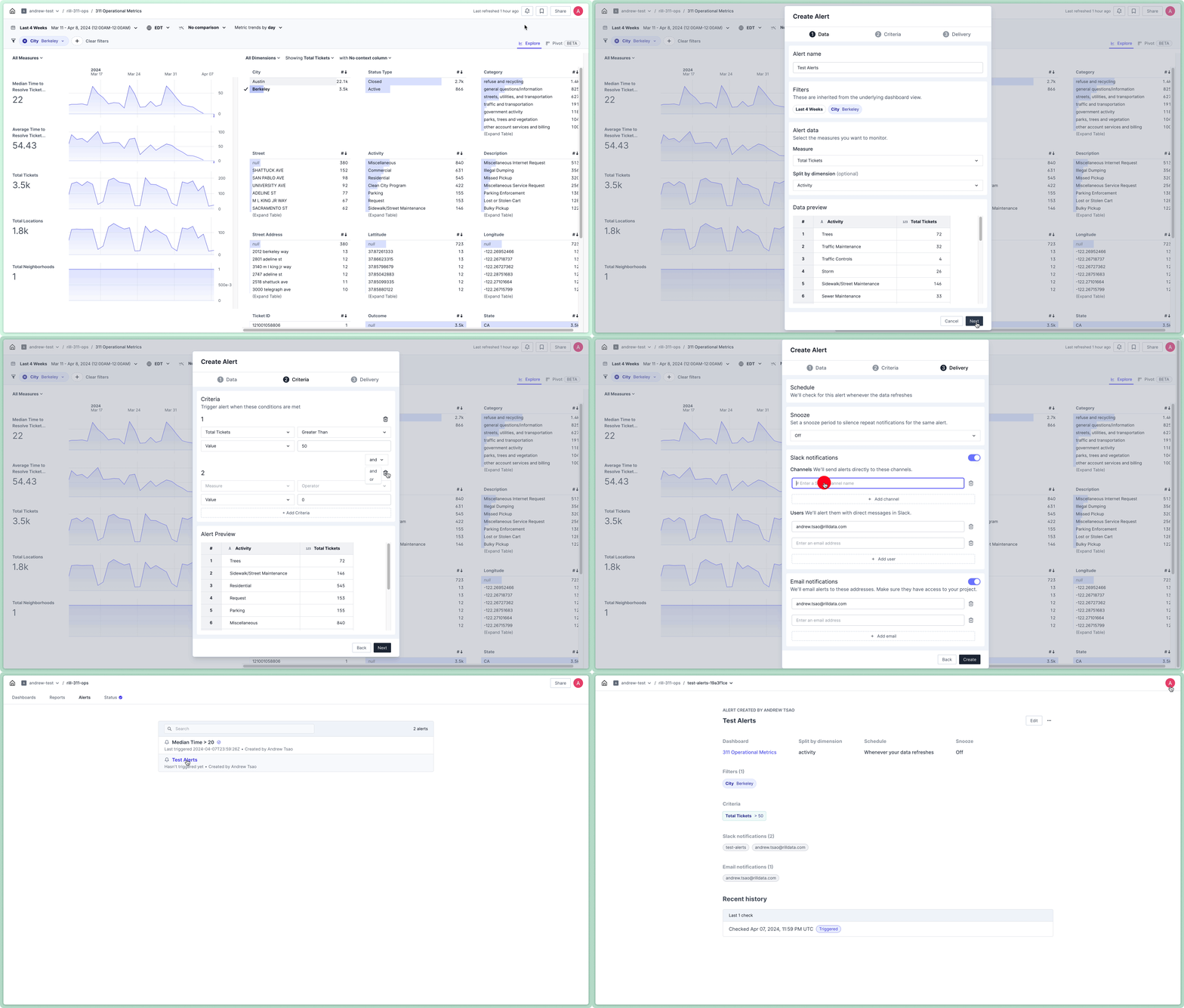
## Setting and managing alerts
To set an alert, click on the alarm bell icon in the upper-right nav bar of Rill Cloud (next to your profile and bookmarks). This will trigger the Alert modal to open up and walk you through the alert creation process.

### Data Selection
When creating an alert, it is important to note that any existing filters will _automatically_ be carried over into the alert but can be adjusted or removed as needed. In the first tab of creating your alert, you will want to set the following:
1. Add a name for the alert **(required)**
2. Set what measure to alert on **(required)**, including any dimension splits for the metric _(optional)_ and time grains for analysis _(optional)_
Before selecting **Next**, you will have the option to preview the data for which your alert will be created.
:::tip Maximize Your Alert Filters
To avoid getting over alerted, consider adding a metric filter to avoid long tail changes on small values. Some examples include:
- Creating a filter on customers with less than 100 logins but filtered to more than 100 users to alert on active user drops within active accounts.
- Creating a filter against campaigns with a greater than 20% decrease in spend but filtered to spend greater than $1000 to avoid large percentage changes on small campaigns.
For more information, refer to our documentation on [metric filters](/guide/dashboards/filters#filter-by-measures).
:::
### Criteria
On the second tab, you will have the opportunity to specify the criteria for which your alert will be triggered once certain conditions are met.
1. For any metric in your data selection (previous tab), set your alert criteria to include an operator (e.g. less than, greater than), the value or percentage, and a comparison period and/or threshold amount.
2. You will also have the ability to set dependencies or add multiple criteria using boolean conditions (AND/OR) to combine conditions across measures.
### Delivery
On the final tab, you will choose how and where your alert is delivered. By default, the alert will be checked whenever the source data is [refreshed](/developers/build/models/data-refresh). There are a few additional things worth noting:
1. To limit the number of alerts, you can set an optional **Snooze** period after an alert is triggered.
2. Depending on the available notification targets (see next section), choose which targets and/or users to subscribe to the alert.
Afterward, click **Create** to finish creating the alert.
## Available alert notification targets
Rill Cloud currently supports the following notification targets:
- Email (default)
- Slack (can be enabled)
When creating an alert, all available notification targets that can be configured for an alert will be presented in the **Delivery** tab.
:::note Interested in other alerting notification targets?
If there is a potential alerting destination that you'd like to use with Rill but don't currently see available as a target, please don't hesitate to [contact us](/contact). We're always iterating and would love to learn more about your use case!
:::
### Configuring email targets
Email is the default notification target for alerts and is automatically enabled. When creating an alert, simply specify the email addresses to include for a particular alert and an email will be sent with a link to the alert when the alert is triggered.
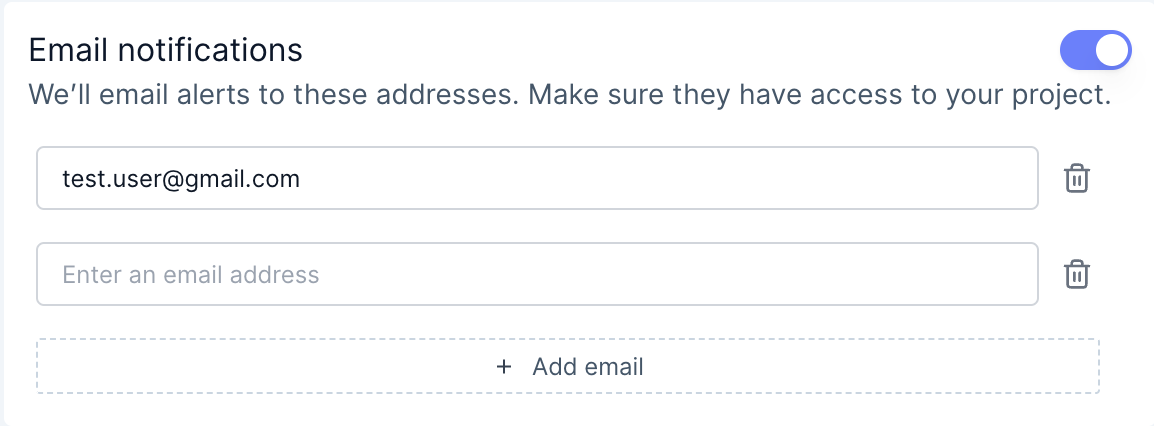
### Configuring Slack targets
Slack is also an available target for alert notifications and Rill can be configured to send alerts to your workspace, either in specified Slack channels (public / private) or as private messages via a configured bot. However, Slack will first need to be enabled to show up as an available notification target for alerts. For more information, refer to our [Configuring Slack integration](/developers/build/connectors/services/slack) documentation.
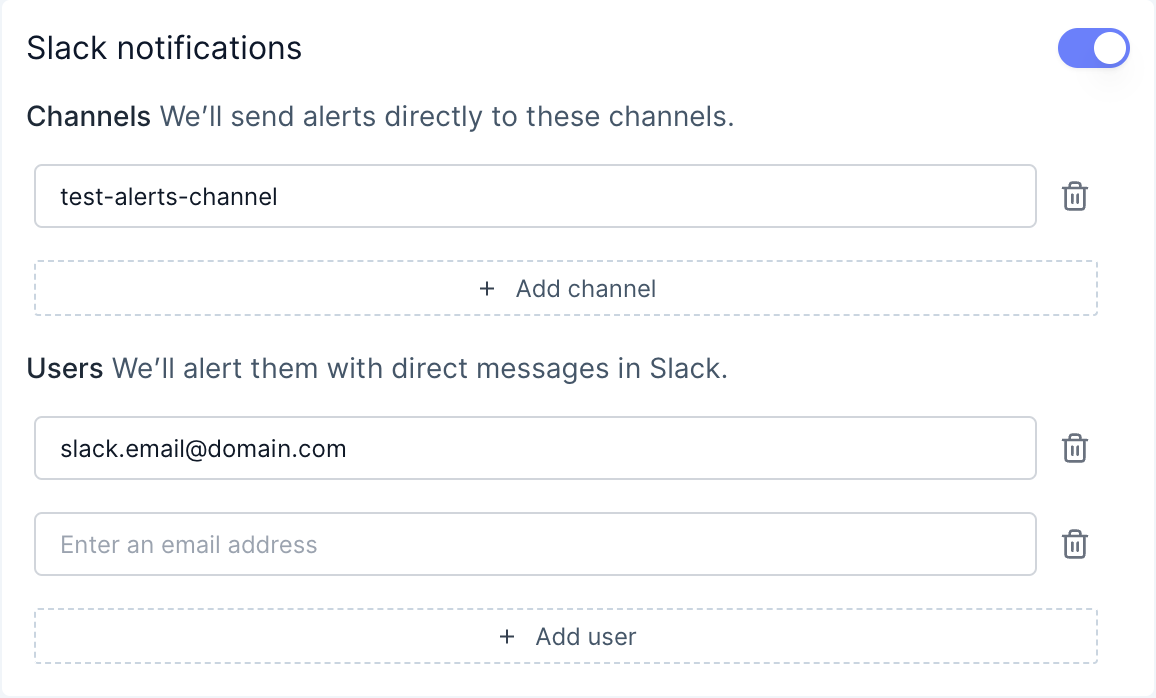
:::warning Adding your Slack app to the correct channels
After having the Slack admin create the app / bot with appropriate permissions, please make sure to first add it to your target channels (using the */invite* command). Otherwise, the Slack alert will trigger an error that the channel can't be found when trying to post a notification!
:::
## Managing & Editing Alerts
To view or make changes to existing alerts, navigate to the project home page and select the `Alerts` tab. Selecting an alert will give details on the configured alert criteria, including frequency and filters. You will also have the option to edit the alert settings.
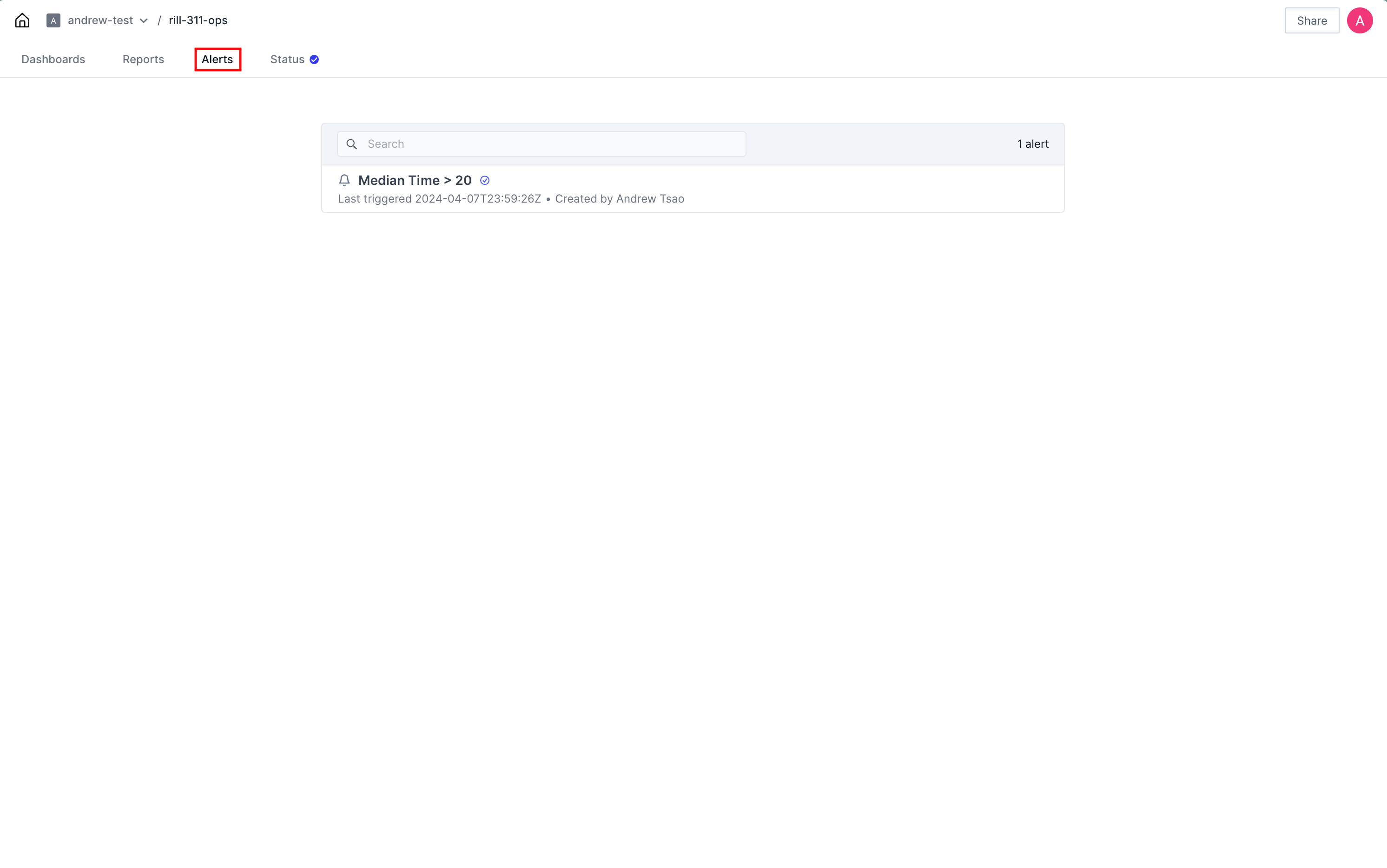
## Common use cases
### Troubleshooting
Alerts for troubleshooting purposes are useful for making sure that applications are running as expected, campaigns are set up correctly, or any use case where the outcome is binary. For these alerts, the criterion is often whether the amount is greater than 0 or below a threshold. These alerts are best mixed with dimension filters to be alerted on any instance or split (e.g. Impressions > 0 for all Campaign_ID).
### Pacing
Alerts for pacing purposes are good for budgeting and threshold use cases - where a pre-defined range can be applied to evaluate progress towards a goal. These alerts tend to be more specific (setting up filters and criteria for specific values) and mark progress towards that goal. Consider setting up multiple threshold alerts like 50%, 75% attainment.
### Monitoring & Comparison
Alerts for monitoring purposes are probably the most common alerting use case, i.e. wanting to be alerted based on relative values to prior periods. For these alerts, rather than absolutes, create criteria for % change of values.
---
# Dashboards
URL: https://docs.rilldata.com/guide/dashboards/
# Dashboards
Rill Cloud provides powerful interactive dashboards for exploring, analyzing, and sharing your data. Dashboards make it easy to slice, dice, and drill down into your metrics to discover insights.
## Explore Dashboards
**[Explore Dashboard Quickstart](/guide/dashboards/explore)** provides an introduction to navigating and using Rill dashboards. Learn how to:
- Navigate the dashboard interface with measures, dimensions, and time series
- Understand the different components and their interactions
- Get started with your first dashboard exploration
### Multiple Measures
**[Multiple Measures](/guide/dashboards/explore/multi-metrics)** allows you to compare multiple metrics simultaneously. You can:
- Compare multiple metrics side-by-side in the dimension leaderboard
- Analyze relationships between different measures
- Gain comprehensive insights across your metrics
### Time Dimension Details
**[Time Dimension Details](/guide/dashboards/explore/tdd)** provides deep-dive analysis into specific time periods. You can:
- Drill down into specific time periods for granular analysis
- Compare dimensions across time
- Export time-based data for reporting
### Pivot Tables
**[Pivot Tables](/guide/dashboards/explore/pivot)** offer Excel-style cross-tabulations for data analysis. Create:
- Multi-dimensional pivot tables with drag-and-drop functionality
- Cross-tabulations across dimensions, measures, and time
- Flat tables for simple column-based views
## Canvas Dashboards
**[Canvas Dashboards](/guide/dashboards/canvas)** provide custom dashboard layouts for personalized views. Create:
- Custom dashboard layouts with multiple visualizations
- Personalized views tailored to your needs
- Flexible arrangements of charts and components
## Time Series Analysis
**[Time Series Analysis](/guide/dashboards/time-series)** enables you to analyze trends and patterns over time. Explore:
- Trends and patterns in your data across different time periods
- Time-based comparisons to understand changes
- Granular time analysis for detailed insights
## Filters & Comparisons
**[Filters & Comparisons](/guide/dashboards/filters)** help you focus your analysis on specific data subsets. You can:
- Apply powerful filters to metrics and dimensions
- Use time comparisons to analyze changes over different periods
- Combine multiple filters for precise data exploration
## Bookmarks
**[Bookmarks](/guide/dashboards/bookmarks)** let you save and share specific dashboard states. You can:
- Save specific dashboard states with filters, metrics, and dimensions
- Share bookmarks with your team members
- Set bookmarks as default views for quick access
## Public URLs
**[Public URLs](/guide/dashboards/public-urls)** enable external sharing of your dashboards. Share:
- Dashboards externally with customers and partners
- Views without requiring Rill accounts
- Secure, shareable links to specific dashboard configurations
---
# Bookmarks & Sharing
URL: https://docs.rilldata.com/guide/dashboards/bookmarks
Bookmarks are useful to return to regular analyses and filter sets commonly used for reporting or deep dives. If you have a regular view of the data, a bookmark is also a good alternative to creating an entirely new dashboard, as it contains a subset of the view while retaining all of the fields available for analysis.
Common use cases for Bookmarks include:
- Weekly/Monthly reporting
- Setting filters for specific users/use cases (e.g., teams or executives with a narrower view, an account manager's book of clients)
- Answering common troubleshooting questions by starting with a subset of problem dimensions
Prefer video? Check out our [YouTube playlist](https://www.youtube.com/watch?v=wTP46eOzoCk&list=PL_ZoDsg2yFKgi7ud_fOOD33AH8ONWQS7I&index=1) for a quick start!
## How to set and use Bookmarks
On the top right portion of the screen, you will see the Bookmark icon to bring up the option to save a bookmark. Clicking that icon brings up options to save the current page as your home screen, create a new bookmark page, or to see your list of bookmarks (and shared bookmarks).
On the bookmark screen, you'll then be able to set the options related to the saved view:
- **Name:** Set a name and description (_optional_)
- **Filters:** All filters from your previous analysis will be carried into the bookmark. Add/remove any additional filters as necessary
- **Shared or Local:** Select a category (_for admins who wish to make a public bookmark_)
- **Save Filters Only:** This option will save only the filter combination to be reused later without restricting the measures and dimensions
- **Absolute Dates:** Use this option if you have a saved time period and return exactly to that period versus using the time period filter
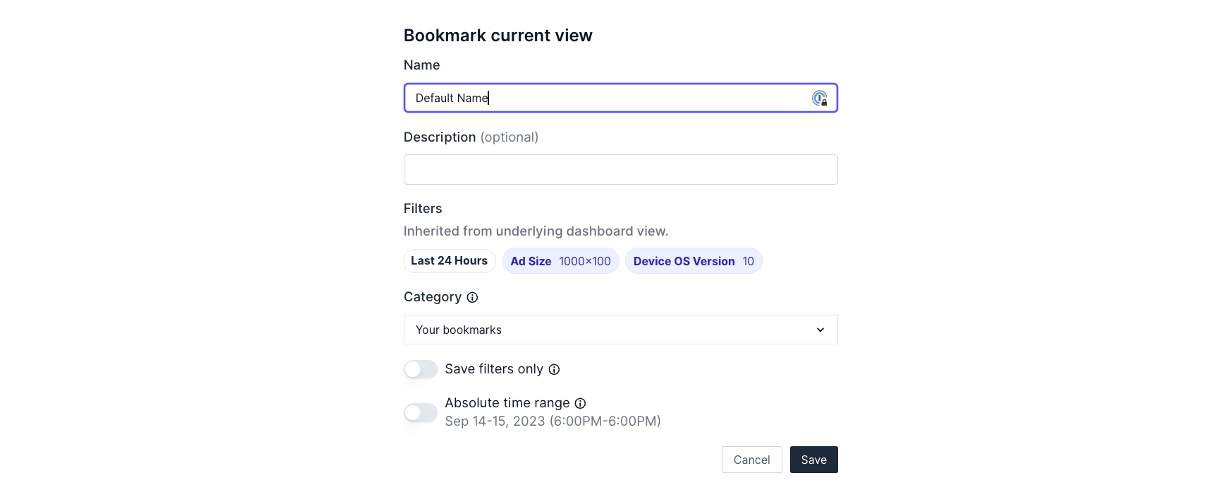
## Manage all bookmarks in a project
The **Bookmarks** tab of a project lists every bookmark you can see across all of the project's Explore and Canvas dashboards, so you don't need to open each dashboard's bookmark menu to find a saved view. Open a project in Rill Cloud and select **Bookmarks** in the project tabs.

The tab lists two categories of bookmarks:
| Category | Who can see it | Shown as |
| :------- | :------------- | :------- |
| **Your bookmarks** | Only you | No tag |
| **Managed bookmarks** | Everyone with access to the project | A **Managed** tag next to the name |
Each row shows the bookmark's name, the type and title of the dashboard it belongs to, when it was last updated, when you last opened it, and its description. A funnel icon marks a bookmark that saves only filters and the time range; a bookmark icon marks one that saves the full dashboard view. Select a row to open the dashboard with the bookmark applied.
### Search and sort bookmarks
Use the search box to filter the list by bookmark name, description, or dashboard title or name.
Use the sort menu to change the order:
| Sort option | Order |
| :---------- | :---- |
| **Last used** (default) | Most recently opened first. Usage is tracked per browser, so bookmarks you haven't opened in the current browser appear after the ones you have. |
| **Last updated** | Most recently created or edited first. |
| **Name** | Alphabetical by bookmark name. |
| **Dashboard** | Alphabetical by dashboard title. |
### Edit a bookmark
1. Hover over the bookmark and select the pencil icon.
2. Change the **Label** or **Description**. Project admins can also change the **Category** to move a bookmark between **Your bookmarks** and **Managed bookmarks**.
3. Select **Save**.

The dialog doesn't change the filters or view saved in the bookmark. To change those, select the link in the dialog to open the bookmark on its dashboard, adjust the view, and save it from the dashboard's bookmark menu.
### Delete a bookmark
1. Hover over the bookmark and select the trash icon.
2. Confirm with **Delete**.
Deleting a managed bookmark removes it for everyone with access to the project. This can't be undone.
The edit and delete icons only appear on bookmarks you have permission to manage. See [Bookmark permissions](#bookmark-permissions).
## Bookmarks on the project home page
The project home page shows a **Bookmarks** section below the list of dashboards. It shows up to five bookmarks from the same list as the Bookmarks tab, with its own sort menu next to the heading. Select **See all bookmarks** to open the Bookmarks tab when you have more than five.

## Bookmark permissions
| Category | Who can see it | Who can create, edit, and delete it |
| :------- | :------------- | :---------------------------------- |
| Your bookmarks | Only the user who created it | That user |
| Managed bookmarks | Everyone with access to the project | Users with `manage_bookmarks` (project admins by default) |
| Home bookmark | Everyone with access to the project, from the dashboard's home button | Users with `manage_bookmarks` (project admins by default) |
:::info Managed bookmarks and access policies
Managed bookmarks are listed for everyone with access to the project, including bookmarks for dashboards a user can't open because of [security policies](/developers/build/metrics-view/security). A user who selects such a bookmark can't view the dashboard, but they can see the bookmark's name, description, and dashboard name. Don't put sensitive information in the names or descriptions of managed bookmarks.
:::
---
# Canvas Dashboards
URL: https://docs.rilldata.com/guide/dashboards/canvas
After logging into [Rill Cloud](https://ui.rilldata.com), you should see all projects within your [organization](/guide/administration/organization-settings#organization) that are available and/or have been granted permissions to your user profile. Within each project, you'll then be able to access the corresponding individual dashboards that belong to a particular Rill project.
Prefer video? Check out our [YouTube playlist](https://www.youtube.com/watch?v=wTP46eOzoCk&list=PL_ZoDsg2yFKgi7ud_fOOD33AH8ONWQS7I&index=1) for a quick start!
## Navigating the Dashboard
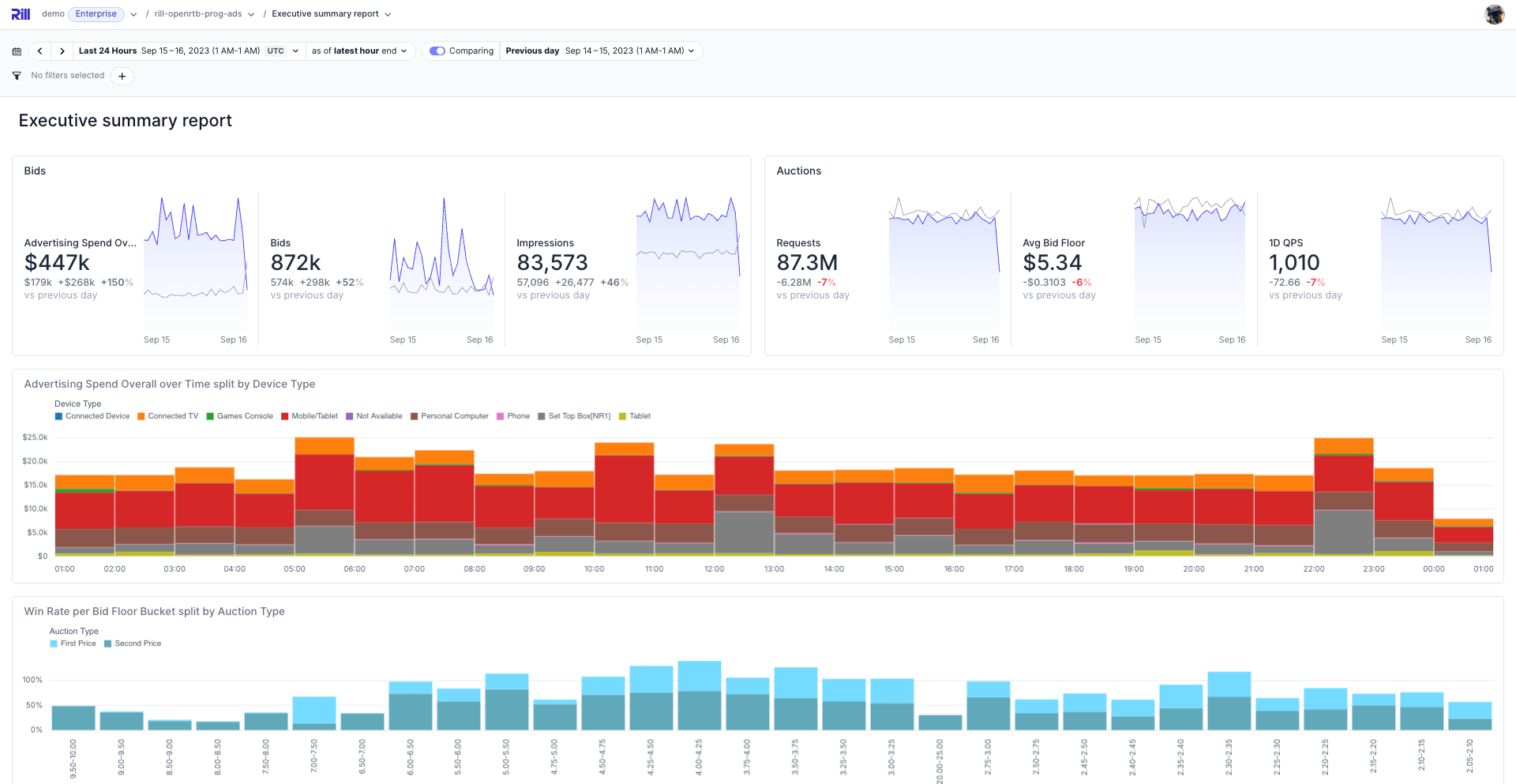
Similar to our [Explore dashboards](/guide/dashboards/explore), Canvas Dashboards also include a similar navigation bar to control the dashboard components.
### Navigation Bar
- _**Time Selector and Time Selector Comparison:**_ You can change the period of analysis to different ranges of time (see `red` box), either by selecting from a pre-defined period (such as last week) or choosing a custom date range. Along with this, you can enable a comparison filter to compare a range of dates with one click.
- _**Filtering:**_ Underneath the time selector, you'll also be able to find your filter bar (see `orange` box) where you can [add filters](/guide/dashboards/filters) for metrics (e.g. `campaigns>1000`) or for dimensions (e.g. `campaign_name = Instacart`).
:::tip identical names in metrics views
If your dimensions or measures have the same name in your metrics view, filters will apply to all components, regardless if it's in a different metrics view.
:::
## Component Navigation
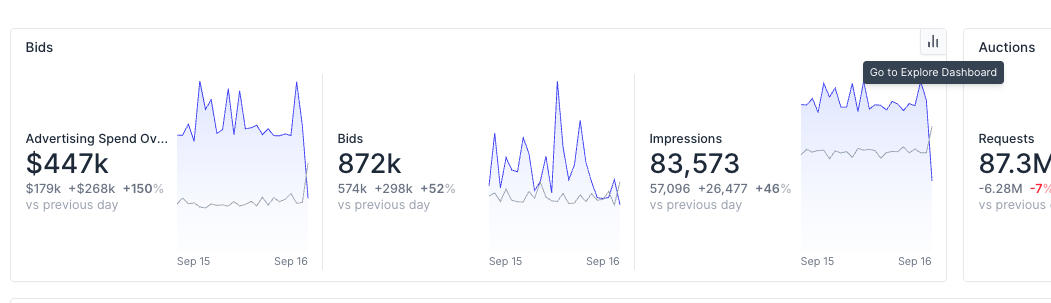
If you want to further drill into a component's data, select the top right button to take you to the equivalent Explore dashboard.
:::tip no button?
If no Explore dashboard exists, and/or you don't have [permissions to view it](/developers/build/dashboards/customization#define-dashboard-access), no button will appear and is as designed.
:::
## Maps
Map widgets plot a measure by location, as points or as shaded regions. Drag to pan, scroll or use the buttons in the top-right corner to zoom, and hover over a point or region to see its values. The map keeps your position when you change filters or the time range. To add a map to a dashboard, see [Map widget](/developers/build/dashboards/canvas-widgets/map).
## Pin and Require Filters
Dashboard authors can keep specific filters in the filter bar, and can block a canvas until the viewer picks a value for them. This is useful when a canvas only makes sense for one region, customer, or account at a time.
| Setting | Effect for viewers |
|---------|--------------------|
| **Pinned** | The filter always appears in the filter bar, even when it has no value. Viewers can change its value but cannot remove the filter. |
| **Required** | The canvas does not load until the filter has a value. A required filter is always pinned. |
### Configure Pinned and Required Filters in YAML
List dimension or measure names under `filters` in the canvas file:
```yaml
type: canvas
display_name: "Regional bids overview"
filters:
enable: true
pinned:
- device_type
required:
- auction_type
```
Because required filters are implicitly pinned, you do not need to list a name under both `pinned` and `required`.
Each name in `required` must be a dimension or measure on a metrics view used by the canvas's components. If it is not, the canvas fails to reconcile with an error like:
```
required filter "auction_type" is not a dimension or measure on any metrics view referenced by this canvas
```
See the [`filters`](/reference/project-files/canvas-dashboards#filters) reference for the full list of properties.
### Configure Pinned and Required Filters in the Editor
When you edit a canvas in [Rill Developer](/developers/build/dashboards/canvas) or in Rill Cloud, each dimension and measure filter's dropdown shows two extra controls in its top-right corner:
- The **asterisk** marks the filter as required.
- The **pin** icon pins the filter.

These controls change only your current editing session. To write them to the canvas file, click **Save as default** in the canvas editor header. This saves the pinned and required filters to `filters.pinned` and `filters.required`, and also saves the current filter values, time range and comparison setting as the canvas's [`defaults`](/reference/project-files/canvas-dashboards#defaults).
### What Viewers See
Until every required filter has a value, the canvas body is replaced by a **Select a value to continue** message that lists the missing filters, and the missing filters are highlighted in the filter bar. Once the viewer selects a value for each one, the canvas loads. Clearing a required filter's value blocks the canvas again.

:::tip Start viewers with a value
If you want the canvas to load immediately but never without a value, save a default value for the required filter. Viewers start with that value and can switch to another one, but cannot clear it without blocking the canvas.
:::
:::note Exports
A canvas with missing required filters has nothing to export. Set a value for every required filter before you export the canvas to PDF or schedule a PDF report of it.
:::
---
# Explore Dashboard Quickstart
URL: https://docs.rilldata.com/guide/dashboards/explore/
Prefer video? Check out our [YouTube playlist](https://www.youtube.com/watch?v=wTP46eOzoCk&list=PL_ZoDsg2yFKgi7ud_fOOD33AH8ONWQS7I&index=1) for a quick start!
## Navigating the Dashboard
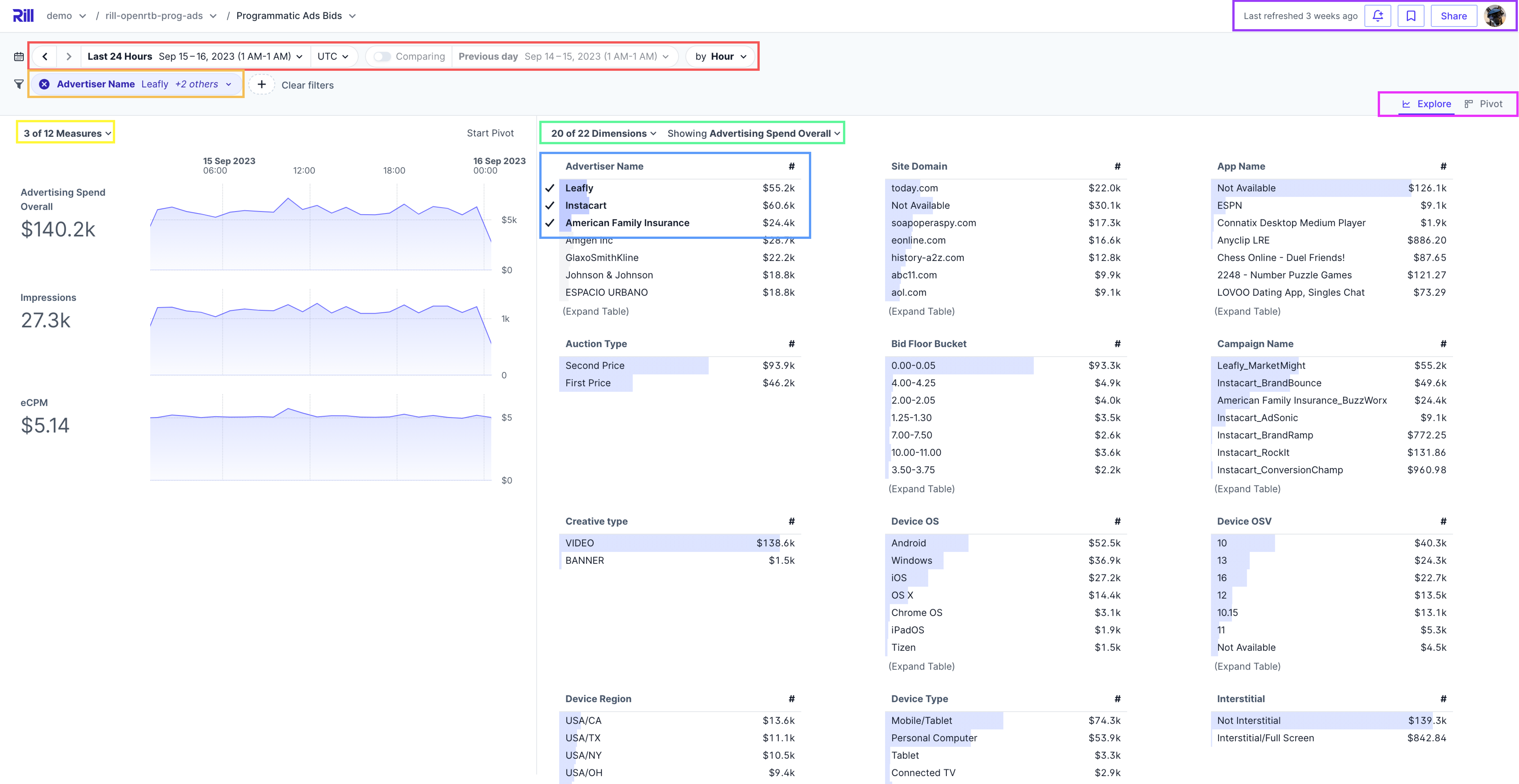
**Explore**
The main screen of any Rill dashboard is called the _Explore_ page. As seen above, this is divided into three sections.
- Navigation Bar
- Measures panel (Left)
- Dimensions Leaderboard (Right)
### Navigation Bar
- _**Time Selector and Time Selector Comparison:**_ You can change the period of analysis to different ranges of time (see `red` box), either by selecting from a pre-defined period (such as last week) or choosing a custom date range. Along with this, you can enable a comparison filter to compare a range of dates with one click.
- _**Filtering:**_ Underneath the time selector, you'll also be able to find your filter bar (see `orange` box) where you can [add filters](/guide/dashboards/filters) for metrics (e.g. `campaigns>1000`) or for dimensions (e.g. `campaign_name = Instacart`).
- _**Explore or Pivot:**_ You can switch the view from _explore_ to [_pivot_](/guide/dashboards/explore/pivot) by selecting either option from the UI (see `pink` box).
- _**Alerts, Bookmarks and Sharing:**_ You can create an [alert](/guide/alerts) by selecting the bell, customize the default view of the dashboard (see `purple` box) to a predefined set of metrics, dimensions, and filters by selecting the [bookmark](/guide/dashboards/bookmarks), or share the dashboard ([internally by clicking the `Share` button](/guide/administration/users-and-access/user-management#admin-invites-user-from-rill-cloud) or [externally via Public URLs](/guide/dashboards/public-urls)).
### KPI Widget (Measures) Panel
- _**Measures:**_ All _**metrics**_ that are available in the underlying model are viewable on the left-hand side, broken out with summary numbers (e.g. eCPM) and timeseries visualizations (based on your configured `timeseries` column in your [dashboard YAML](/reference/project-files/explore-dashboards)). You can add, remove, or reorder your metrics from the page by simply selecting them from the dropdown above the charts (see `yellow` box). If you select any specific measure, you will navigate to the [Time Dimension Detail](/guide/dashboards/explore/tdd).
- _**Time Dimension Detail:**_ A detailed view of a single specific measure that can be further drilled down to understand minute details in your data. As with the Explore page, you can add comparison dimensions to visualize the value for several specific dimension values. For more information see: [Time Dimension Detail](/guide/dashboards/explore/tdd).
:::note Big Number Formatting
[Formatting of your measures](/developers/build/metrics-view#measures) will not change the granularity of the Big Number, but you'll see the formatting being applied to the TDD, Dimension Leaderboard, and Pivot tables.
:::
### Dimensions Leaderboard Panel
- _**Dimensions:**_ All _**dimensions**_ available in the underlying model on the right-hand side via leaderboard / toplist charts. You can add, remove or re-order any dimension from the page by simply selecting them from the dropdown above the charts (see `green` boxes). You can also drill into leaderboards further (see `blue` box) to see all corresponding metrics for a specific dimension. Within that drilldown, you can also then sort by metric, search your dimensions, and/or [export data](/guide/reports/exports). It is also possible to display [multiple measures in the dimension leaderboard](/guide/dashboards/explore/multi-metrics).
:::info Search for individual attributes
After drilling into a leaderboard (or what we sometimes refer to as a _toplist_ chart), rather than scrolling and finding an individual attribute (especially if the list is very long), you can also quickly search for a value and select / apply it to your dashboard by using the upper-right search box.

:::
:::tip Don't have a Rill project or dashboard deployed yet?
If you want to get hands on and see what interacting with a Rill dashboard feels like, we have a set of [demo projects](https://ui.rilldata.com/demo) already deployed on Rill Cloud and publicly available for everyone to try out. These [same projects](/developers/tutorials/) are also available on GitHub and can be deployed locally using Rill Developer.
:::
For more details about additional capabilities and/or how to utilize more advanced functionality within Rill dashboards, please see the [reference](#reference) section.
### Keyboard shortcuts
Whether you need to see the full value of a long JSON, or copy a value, there are some available keyboard shortcuts in the Rill Cloud Dashboards. More coming soon!
List of commands:
- __*Copy values*__ ( ``shift + click`` ) - Copy the value of the row value.
- __*Value previewer*__ ( ``space`` ) - See the full text value of the row value.
- __*Lock Inspector*__ ( ``L`` ) - Lock the inspector (allows scrolling through long values)

## Display Settings
### Dark Mode
Toggle between light and dark themes by clicking your profile icon in the top right and selecting your preferred theme.

## Banners!
Another additional feature that you can add to an Explore dashboard are banners. Whether it is to inform your end-users about specific guidelines on how to use Rill, or an informational post about the datasets being used, you can design the banner to whatever text you'd like.
Simply add the following to your explore-dashboard.yaml
```yaml
banner: Your custom message here!
```
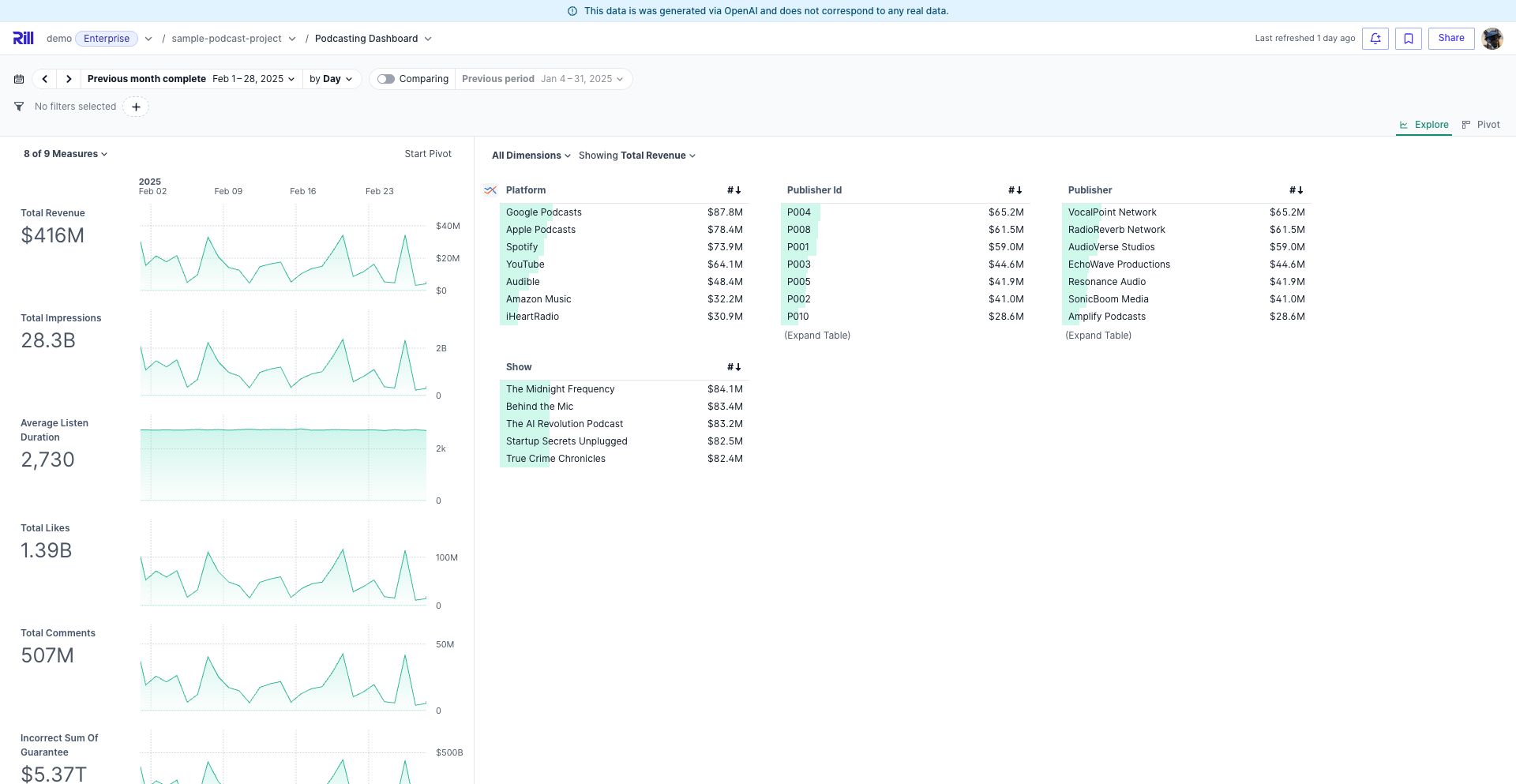
## Reference
- [Filters & Comparisons](/guide/dashboards/filters)
- [Bookmarks & Sharing](/guide/dashboards/bookmarks)
- [Exports & Scheduled Reports](/guide/reports/exports)
- [Public URL](/guide/dashboards/public-urls)
- [Alerts](/guide/alerts)
---
# Adhoc Measures
URL: https://docs.rilldata.com/guide/dashboards/explore/adhoc-measures
Adhoc measures let you define a new measure on the fly by combining the measures a dashboard already has, for example `revenue - cost` or `round(revenue / orders, 2)`. You don't need to edit the metrics view or wait for a developer to add the measure.
An adhoc measure behaves like any other measure: it appears in the big numbers, time series charts, leaderboards, dimension tables, [Time Dimension Detail](/guide/dashboards/explore/tdd), and [pivot tables](/guide/dashboards/explore/pivot). It is computed by Rill on top of the aggregated values of the measures it references, so it respects your filters and time range.
:::tip When to ask for a real measure
Adhoc measures are ideal for one-off analysis and for sharing an idea with a colleague. If a calculation is used across many dashboards, reports, or alerts, ask your project developer to add it to the [metrics view](/developers/build/metrics-view) so it has a single, governed definition.
:::
## Create an adhoc measure
1. Open the **All Measures** menu above the time series charts, and select **Create adhoc measure** at the bottom. In the pivot view, you can also select the **+** next to **Measures** in the sidebar.
2. Enter a **Name**, for example `Profit Margin`. This is the label shown in the dashboard.
3. Write the **Expression**. Type `@` to open a picker of the dashboard's measures, then use the arrow keys and **Enter**, or click, to insert one. You can search the picker by display name or by measure name. You can also click a measure under **Insert a measure** to add it at the cursor.
4. Optionally, add a **Description**. It is shown in the measure's tooltip instead of the expression.
5. Choose a **Format**: **Humanize** (the default), **None**, **Currency (USD)**, **Currency (EUR)**, or **Percentage**.
6. Select **Save**.

Rill validates the expression as you type and shows an error below the input if it references an unknown measure or uses unsupported syntax. The new measure is added to the dashboard's visible measures, or as a column when you create it from the pivot view.
Once saved, you can select the adhoc measure anywhere you select a measure, for example in the leaderboard's **Showing** menu:

## Write an expression
An expression combines the measures in the dashboard with numbers, arithmetic operators, and a small set of functions. The measures are already aggregated, so the expression works on their totals for each row, not on individual records.
| Use case | Expression |
|----------|------------|
| Difference | `revenue - cost` |
| Ratio | `revenue / orders` |
| Percentage | `(revenue - cost) / revenue` with the **Percentage** format |
| Rounding | `round(revenue / orders, 2)` |
| Treat a missing value as zero | `coalesce(returns, 0) / orders` |
| Growth over a target | `revenue / 1000000 - 1` |
The **Percentage** format multiplies the value by 100, so write ratios as fractions, such as `(revenue - cost) / revenue`, instead of multiplying by 100 yourself.
### Expression reference
| Element | Supported |
|---------|-----------|
| Measure references | Measure names, such as `revenue`. The `@` picker inserts the name for you. Names that start with a digit, contain special characters, or are SQL keywords must be double-quoted, such as `"1d_qps"`. |
| Numbers | Integer and decimal literals, such as `100` or `0.25`, and `NULL` |
| Operators | `+`, `-`, `*`, `/`, `%` (modulo), unary minus, and parentheses |
| Functions | `abs`, `round`, `floor`, `ceil`, `sqrt`, `ln`, `exp`, `power`, `coalesce`, `nullif`, `greatest`, `least` |
Division is safe: dividing by zero returns an empty (null) value instead of an error.
The following are not allowed: dimensions or column names, strings, comments, aggregate functions such as `sum()` or `count()`, `CASE`, casts, comparisons, and subqueries. An expression must reference at least one measure, can be at most 1,024 characters long, and can nest at most 32 levels deep.
## Edit or delete an adhoc measure
Adhoc measures are marked with an **ƒx** icon. To change one:
- In the **All Measures** menu, select the pencil icon next to the measure to open **Edit adhoc measure**.
- In the pivot view, click the measure's chip and select **Edit** or **Delete**.
- In [Time Dimension Detail](/guide/dashboards/explore/tdd), use the edit action next to the measure in the measure selector.


The **Edit adhoc measure** dialog also has a **Delete** button. Deleting an adhoc measure removes it from every view of the dashboard.
## Share adhoc measures
Adhoc measures are saved in the dashboard URL, in the `adhoc_m` parameter, so they travel with the dashboard state:
- **Links:** When you copy the URL, anyone who opens it sees the same adhoc measures.
- **[Bookmarks](/guide/dashboards/bookmarks):** A bookmark restores the adhoc measures that were in use when you saved it.
The URL only includes the adhoc measures that the current view uses, such as the visible measures, the leaderboard measure, or the pivot's columns. This keeps links short.
Your browser also keeps a personal library of every adhoc measure you create for a metrics view. When you open any dashboard built on the same metrics view in that browser, your adhoc measures are available again, even if the URL doesn't include them. The library is stored only in your browser: other people see your adhoc measures only through a link or bookmark.
## Limits and rules
- **Up to 10 per dashboard.** A dashboard can hold at most 10 adhoc measures at a time.
- **Only the dashboard's measures can be referenced.** An expression can reference measures that are included in the dashboard, but not dimensions or other adhoc measures.
- **Some measures can't be referenced.** Measures that use a window function, have required dimensions, or are time-comparison measures are not offered in the picker and can't be used in an expression. See [advanced measures](/developers/build/metrics-view/measures/windows) for how these are defined.
- **Names are generated from the display name.** Rill derives the measure's internal name from its display name, for example `Profit Margin` becomes `profit_margin`, and adds a numeric suffix when it would collide with an existing field.
## Security
Adhoc measures follow the metrics view's [access policies](/developers/build/metrics-view/security). An expression can only reference measures you are allowed to see, and the values are computed with the same row filters that apply to you. Anyone who opens a shared link sees the result computed with their own access.
## Use adhoc measures elsewhere
- **Canvas dashboards:** Developers can define adhoc measures on canvas tables, pivots, charts, KPIs, and leaderboards. See [adhoc measures in canvas widgets](/developers/build/dashboards/canvas-widgets/data#adhoc-measures).
- **APIs:** Custom APIs and the metrics view query APIs accept the same expressions. See [adhoc measures in APIs](/developers/build/custom-apis/adhoc-measures).
---
# Exact Values
URL: https://docs.rilldata.com/guide/dashboards/explore/exact-measures
Some measures are expensive to compute exactly. Distinct counts such as unique users, and quantiles such as P95 latency, are therefore often defined with a fast approximate aggregate that is within a percent or two of the truth. When the project developer also defines an [exact expression](/developers/build/metrics-view/measures/exact-measures) for such a measure, the dashboard shows the approximate value by default and lets you switch to the exact value when you need to reconcile a number.
## Read the chip
A small chip after the measure name tells you how the value was computed:
| Chip | Meaning |
|------|---------|
| `≈` outlined | Approximate. The default; fast. |
| `=` filled | Exact. You switched this measure to its exact expression. |
| spinner | The exact value is being computed. The previous approximate value stays visible, dimmed, until it arrives. |
| `!` | The exact query failed or timed out. Hover for the error, click to return to the approximate value. |
Measures without an exact expression show no chip. That includes measures calculated from other measures, such as a ratio of two unique counts: they are computed from the values shown next to them, so a ratio follows the precision of the unique counts in the same table.
Each chip controls the part of the dashboard it sits in: the big-number row (the big numbers and their charts), one leaderboard, the dimension table, the Time Dimension Detail page (its chart and table) or the pivot. Within that part, precision is resolved once, so a measure never has two values in the same table.
## Switch a measure to exact
Click the `≈` chip next to the measure name, in a big number, a leaderboard or dimension table header, the Time Dimension Detail header, or a pivot column header. Only that part of the dashboard is recomputed exactly: the big-number row with its charts, that one leaderboard, the dimension table, the Time Dimension Detail page or the pivot. Other leaderboards and tables keep their approximate value until you click their own chip, so each click runs one expensive query rather than one for every table on the page. Click the chip again to return to the approximate value.
Exact queries can take noticeably longer than approximate ones, so the switch applies only to the view you are looking at:
- Changing the time range, comparison, grain, timezone, filters, the selected dimension or the view (explore, dimension table, Time Dimension Detail, pivot) returns every measure to approximate. New queries are always approximate until you click again.
- Showing, hiding or reordering measures keeps your selection.
- The selection is not part of the URL, so bookmarks, shared links and public URLs always open approximate. Scheduled reports and alerts are approximate as well.
- A CSV or Parquet export downloads what you see, so exporting while a measure is exact gives you the exact values.
- A measure filter (for example "publishers where unique users > 1,000") is evaluated with the exact value only in queries that also show that measure. Switch the measure to exact and keep it visible when the filter has to be exact.
In a canvas dashboard the chip works the same way for KPIs, tables, pivots, leaderboards and charts. A click applies to that widget only, and to one leaderboard at a time inside a leaderboard widget. KPIs and table, pivot and leaderboard columns each have their own chip. A chart has one chip, next to its title, that switches every measure of the chart at once.
---
# Multiple Measure Leaderboard
URL: https://docs.rilldata.com/guide/dashboards/explore/multi-metrics
By default, the Explore dashboard displays a single measure for each dimension in the leaderboard. However, there are many cases where comparing multiple measures side-by-side can provide deeper insights.
Prefer video? Check out our [YouTube playlist](https://www.youtube.com/watch?v=wTP46eOzoCk&list=PL_ZoDsg2yFKgi7ud_fOOD33AH8ONWQS7I&index=1) for a quick start!
## Benefits of Multiple Measure Dashboards
With the **Multiple Measure Leaderboard** feature, you can easily select and compare several measures for any dimension. Simply open the dropdown in the dimension leaderboard, enable `multi-select`, and choose any combination of visible measures to display them together.
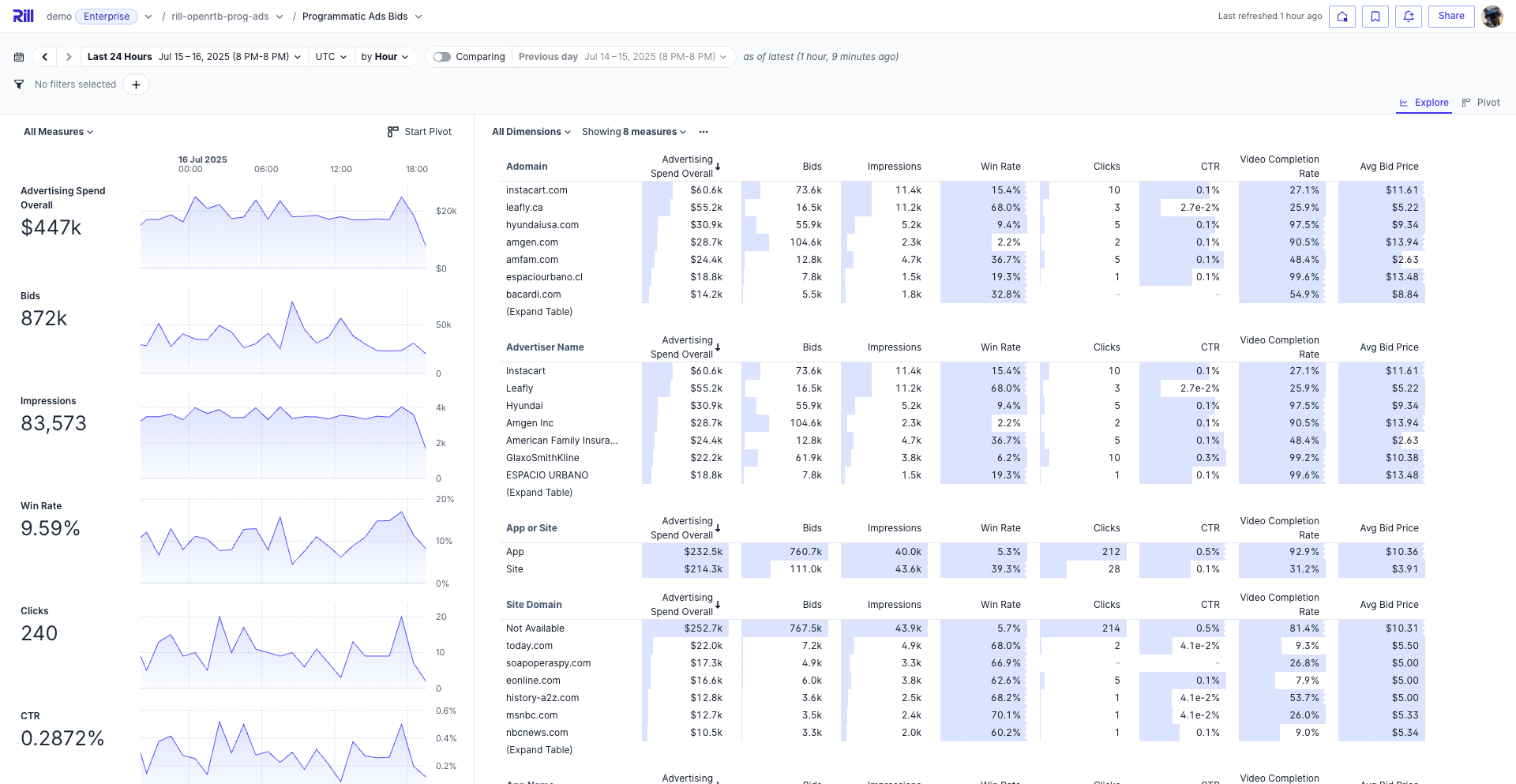
### Why Compare Multiple Measures?
Comparing multiple measures at once allows you to:
- **Spot correlations** between different metrics for the same dimension.
- **Quickly identify outliers** or trends that may not be obvious when viewing a single measure.
- **Make more informed decisions** by seeing the full context of your data.
---
# Pivot and Flat Tables
URL: https://docs.rilldata.com/guide/dashboards/explore/pivot
Rill's multi-dimensional pivot provides lightning-fast, Excel-style pivot tables across multiple dimensions, time granularities, and metrics. The interface allows users to drag and drop any combination of fields for quick comparison and report generation. While the Explore view is great for data discovery, the Pivot view serves other use cases like:
- Regular reporting: Monthly financial reports, campaign reporting, client reports
- Time analysis: Dimensions by time columns for daily or weekly comparisons
- Data export: Scheduled exports for generating CSVs for external analysis (_coming soon_)
Prefer video? Check out our [YouTube playlist](https://www.youtube.com/watch?v=wTP46eOzoCk&list=PL_ZoDsg2yFKgi7ud_fOOD33AH8ONWQS7I&index=1) for a quick start!
## Using Rill's Pivot View
Pivots can be split by time, measures, and dimensions. You can drag and drop any of these options to rows and columns to create your pivot table (and can drag between columns/rows as well). Dimensions are also searchable in the top left, or select the ```+``` to see the dimension list. As each dimension is added, you can track the kernels on the top left to see which rows have been added to the table. Each column dimension will also be visualized in the pivot. Like Time Dimension Detail, the same filter bar can be used to filter the pivot table overall.
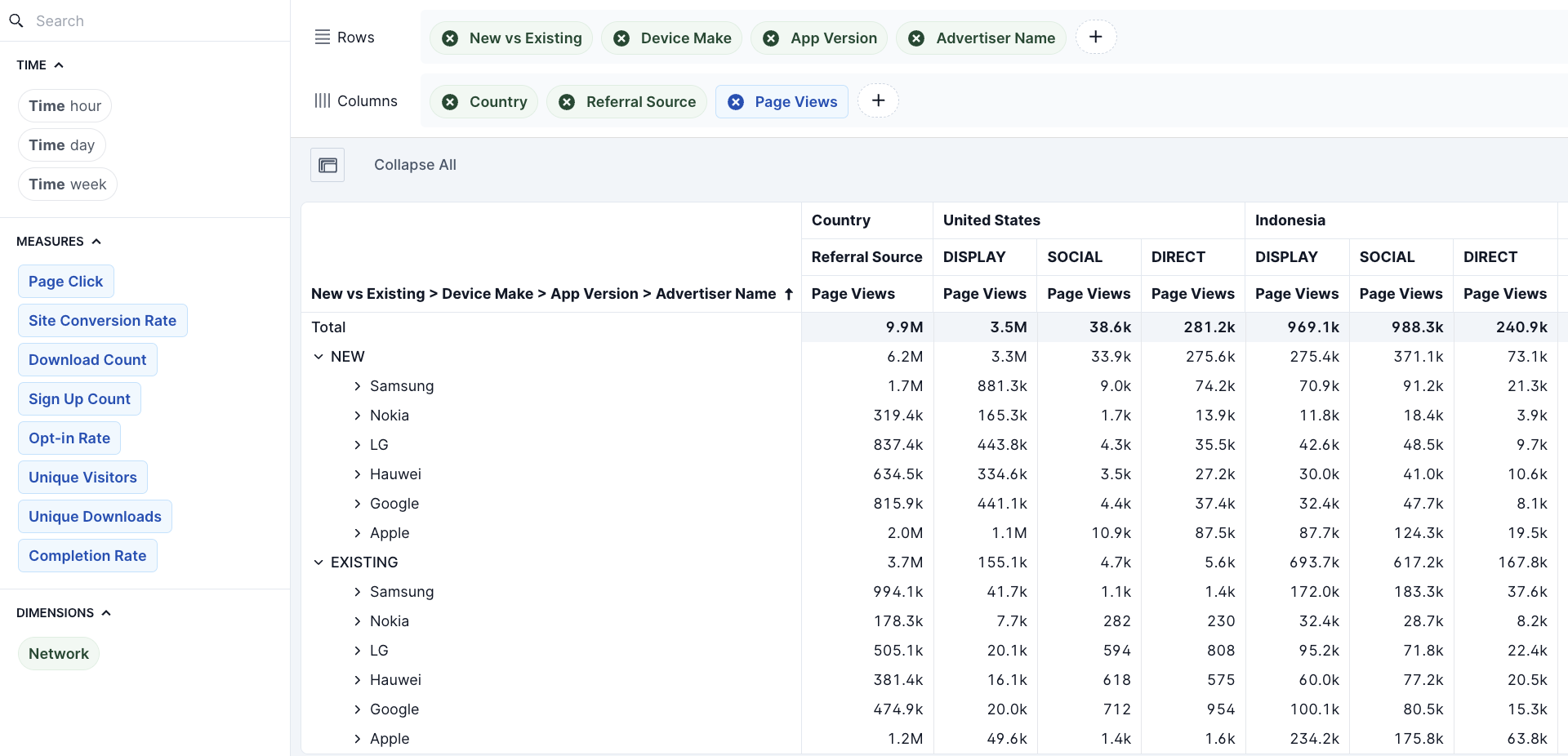
:::note Measures as splits
Measures can only be used as column splits to define which metric is to be used in the table and cannot be added to the rows filter
:::
As new dimensions are added to the table, the comparison will be aggregated by default and can be expanded as you navigate the table. Pivot tables can then be scrolled through to quickly navigate the row/column combinations. If a given split does not have any valid data, ```no data``` will be displayed in the cell. Select the window button on the top left of the pivot table to expand the view to full screen. To quickly reset all the expanded rows in the pivot table, you can select collapse all in the top left.
## Flat Tables
While Pivot tables are a powerful tool to slice and dice your data into different configurations, sometimes a simple flat table is all you need. By selecting the toggle next to `Columns`, you can swap between pivot and flat tables. Unlike Pivot, which gives you options to add both row and column dimensions, a flat table will only allow you to add columns.
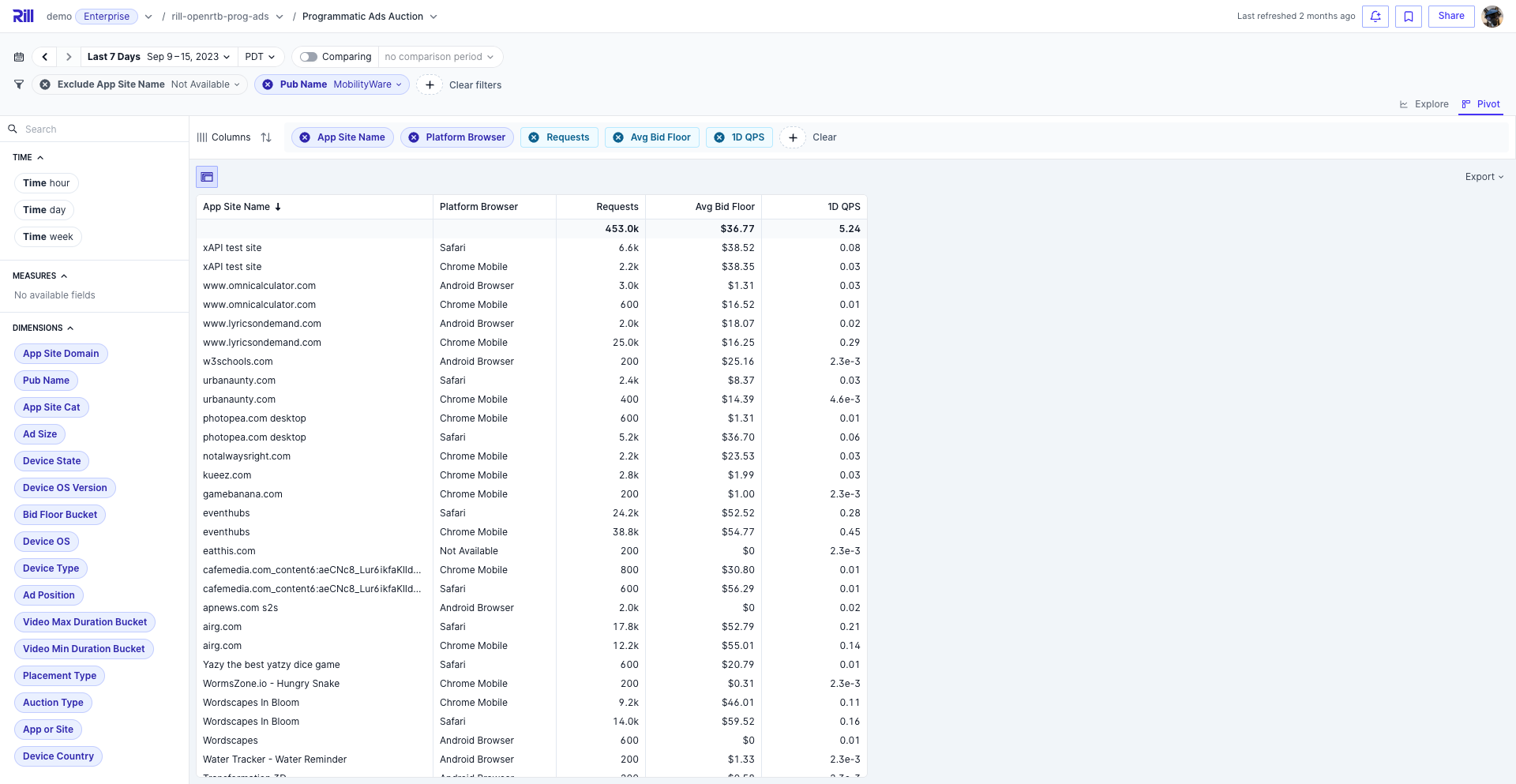
---
# Time Dimension Detail
URL: https://docs.rilldata.com/guide/dashboards/explore/tdd
The Time Dimension Detail is a separate visualization accessed by clicking on any time series chart in Explore. Expanding the time series allows for more surface area to compare a larger number of dimensions trended over time. Additionally, you can create rapid pivot tables based on time across any dimension.
Prefer video? Check out our [YouTube playlist](https://www.youtube.com/watch?v=wTP46eOzoCk&list=PL_ZoDsg2yFKgi7ud_fOOD33AH8ONWQS7I&index=1) for a quick start!
## Time Dimension Detail (TDD)
Within the TDD screen, you can apply all of the same filters and comparisons as Explore. Any filters applied will be carried into the TDD or will be carried out to Explore if you return to the main page on the top left.
Underneath the expanded time series chart, you will see two sets of dropdowns - one for Rows to change the comparison (this defaults to Time but can be changed to any dimension) and one for Columns (which can be used to cycle through all of your metrics). On the top right, you can also export the TDD pivot view for quick time series reporting.
Similar to the filters, the Search and Exclude options from the expanded Leaderboards are available on the top right of the TDD table. Lastly, you can also take the TDD table directly to the Pivot view for multi-dimensional analysis - more details on [Pivot here](/guide/dashboards/explore/pivot).
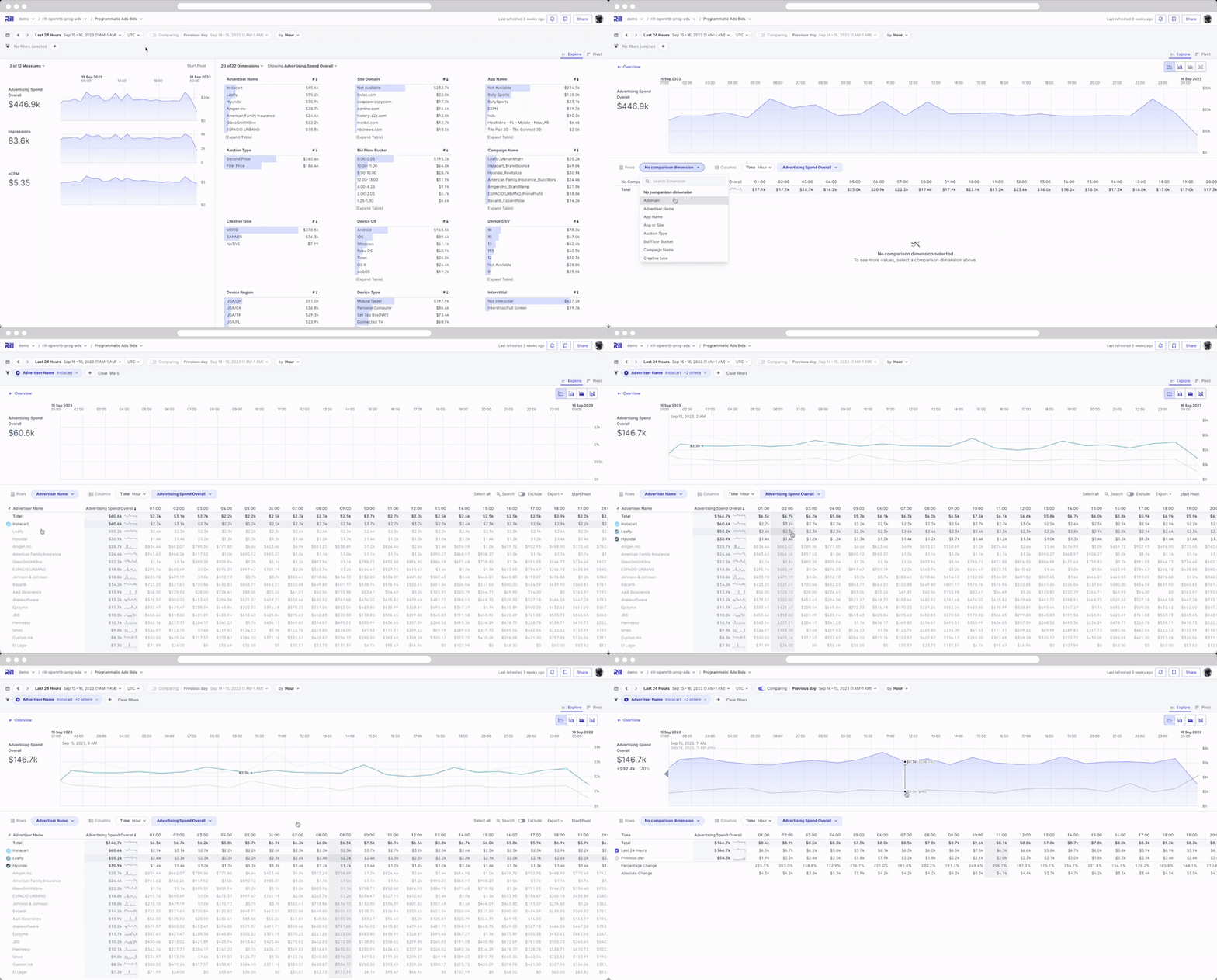
:::tip Adjusting Time Grains
The TDD screen will carry the time dimension from your previous filters, which may be more granular than needed (displaying too many columns). Change the ```Metric Trends by``` filter on the top right to switch to alternate ranges like days, weeks, etc.
:::
---
# Filters & Comparisons
URL: https://docs.rilldata.com/guide/dashboards/filters
If videos are more your jam, take a look at [our series of YouTube videos](https://www.youtube.com/watch?v=wTP46eOzoCk&list=PL_ZoDsg2yFKgi7ud_fOOD33AH8ONWQS7I&index=1) to get started!
## Overview
Rill is particularly suited for exploratory analysis - to be able to slice & dice data quickly. As such, there are a variety of filter types and filter mechanisms throughout the app. The goal for each Rill dashboard is to provide users with all metrics and dimensions required for each use case and create an interactive experience to cut data in any form.
:::tip Human readable URL
With the release of v0.52, we have introduced an easy way to craft specific views by modifying the URL directly. As you select filters, time ranges, and default dimension and measures, the URL will change accordingly.
../explore/explore_dashboard?tr=P3M&compare_tr=rill-PP&f=dimension in ('exampleA', 'exampleB')
:::
## Add / Hide Dimensions and Metrics
Users can add or hide dimensions and metrics to create a subset of fields they wish to see at any given time. At the top left, above the time series and above the top left leaderboard, you'll find the Measures & Dimensions selectors to add or hide fields from the page. In the example below, `network` and `country` are deselected, so they would be hidden from view.
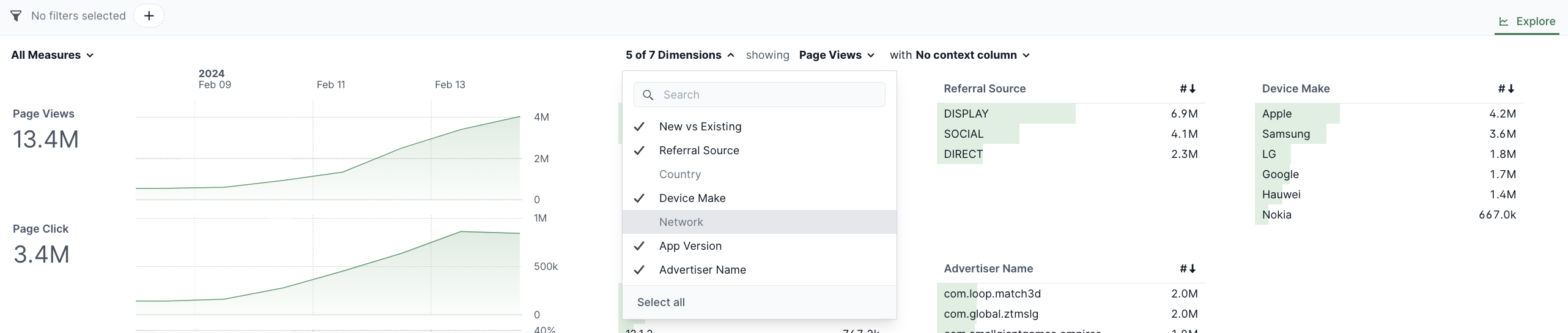
:::tip hiding metrics and dimensions by default
You can also change settings in the dashboard configuration to hide certain fields by default. You may want to do this to make dashboards easier to use (less complicated, narrowed to most commonly used) and to improve performance (hide high cardinality dimensions or complicated expressions in metrics). For more details, check out [dashboard customizations](/developers/build/dashboards/customization#setting-default-views-for-dashboards).
Or, an administrator can set the default view of a dashboard by [bookmarking the view](bookmarks) as Home.
:::
## Dimensions
### Filter by Dimensions
The primary and easiest way to filter data is by selecting values in the dimension tables. Leaderboards within Rill are fully interactive. Selecting any dimension in the table will automatically filter the remaining leaderboards and metrics by that selection.
To add or remove dimensions on the page - select the All Dimensions picker above the Leaderboards. Next to the All Dimensions picker, you can also change which Metric is being highlighted to be able to update the entire page and cycle through each dimension table sorted by each metric.
You can also expand each dimension table to see all metrics and full list of those dimensions. In the expanded Leaderboard, you can search for dimension values, select all values returned, or exclude values from the result.
Any filter applied in the Leaderboard will also show up in the filter bar next to the time picker. You can apply the same search capabilities and select features in the filter bar as well.
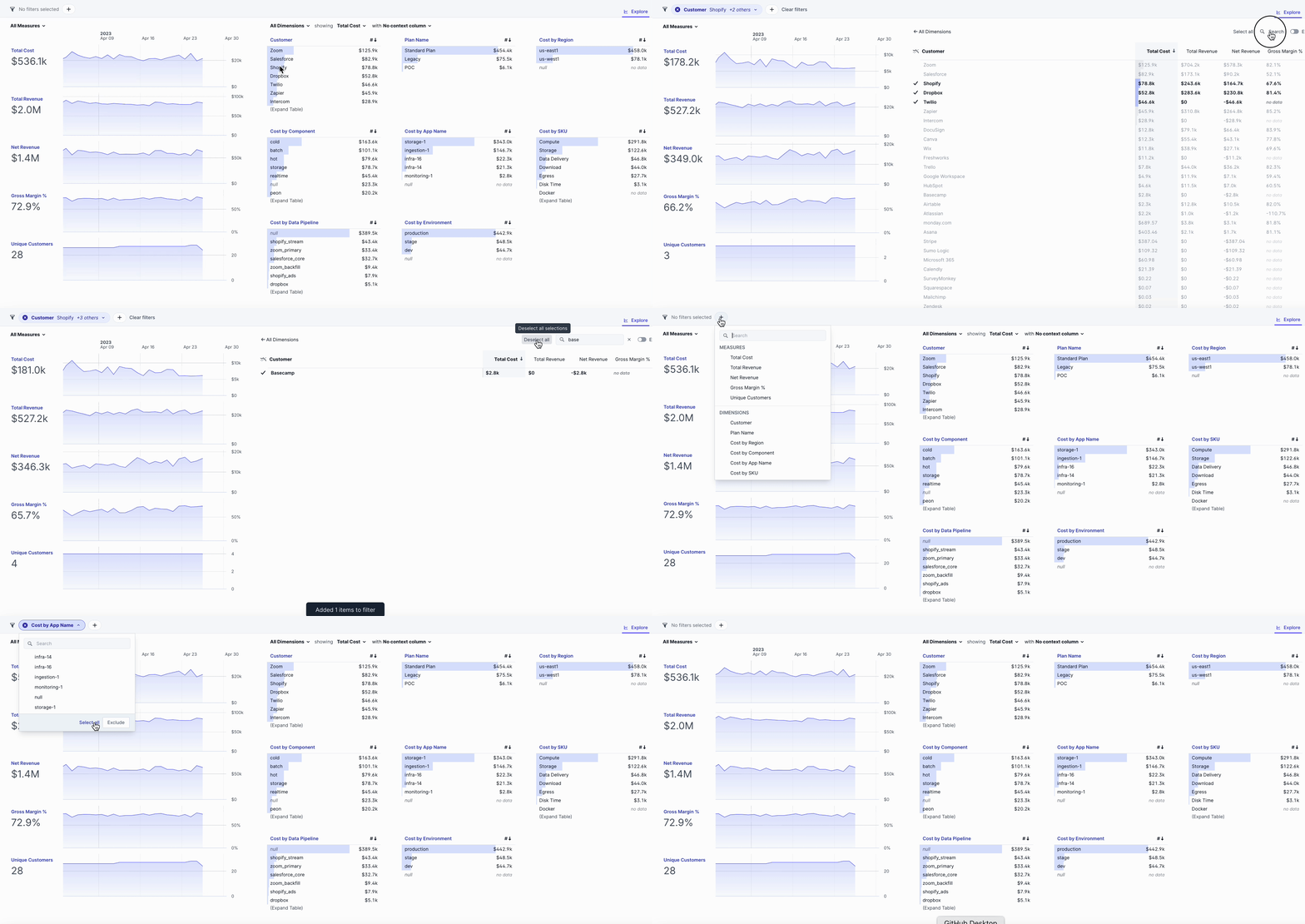
### Dimension Comparisons
In addition to time comparisons, you can select multiple dimension values to compare trends of those specific data points. Select the comparison option on the top left of any leaderboard and select multiple dimensions
Deselect the comparison option or clear the filter bar to remove your comparisons.
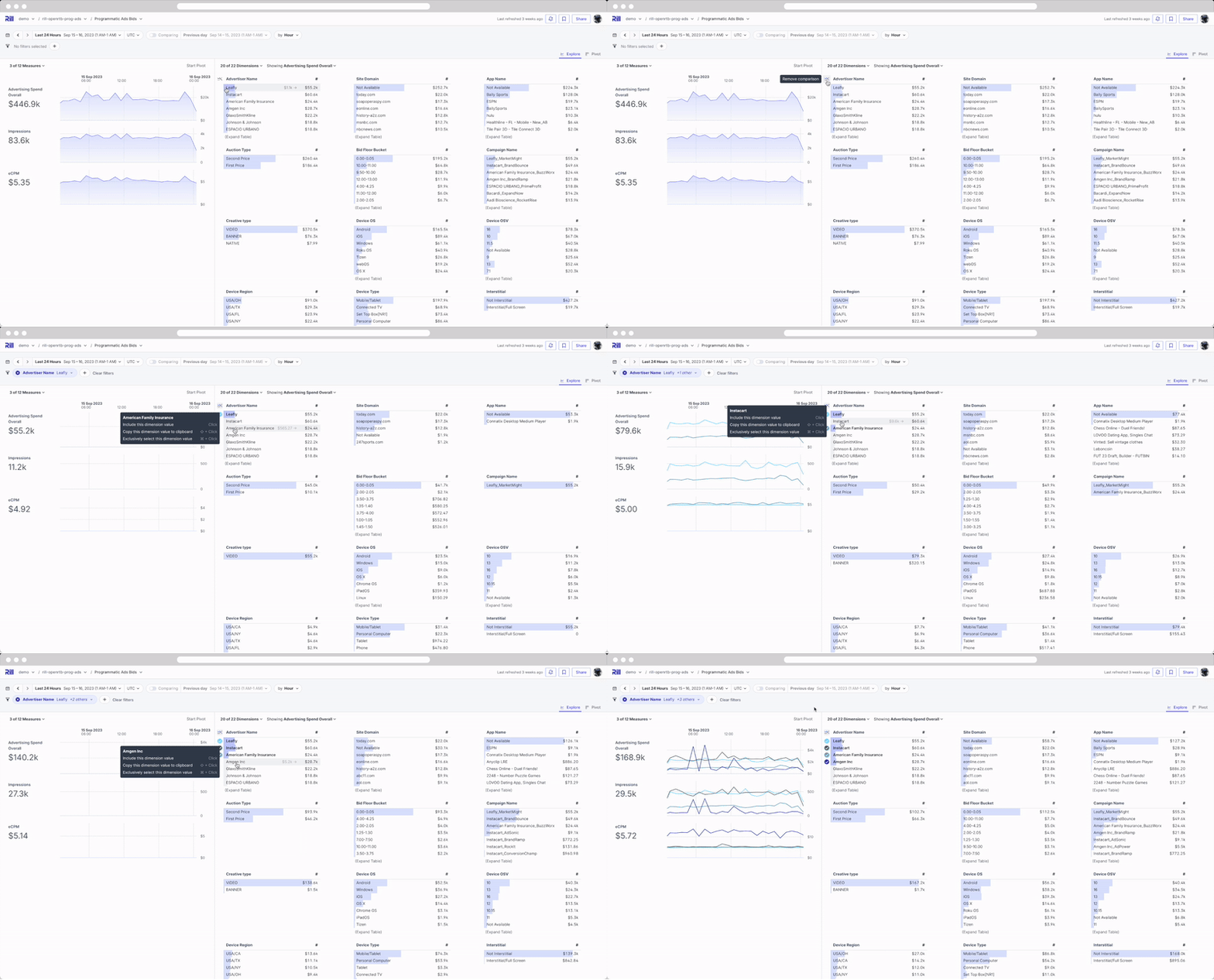
:::note
For more advanced time and dimension comparisons, visit the [Time Dimension Detail](/guide/dashboards/explore/tdd) page.
:::
## Measures
### Filter by Measures
There are also use cases where you want to filter by the metric values returned. As an example - all customers over $1000 in revenue, all campaigns with at least 1 million impressions, all delivery locations with late times over 4%, etc.
To add or remove metrics on the page - select the All Measures picker above the Time Series charts.
These metric filters can be applied from the filter bar. To apply a metric filter:
- Select the metric you wish to filter by (e.g. Total Cost)
- Select which dimension to sort/key the metric by (e.g. Cost by Region)
- Select your Threshold Type (e.g. Greater Than)
- Input your Threshold amount and Click Enter
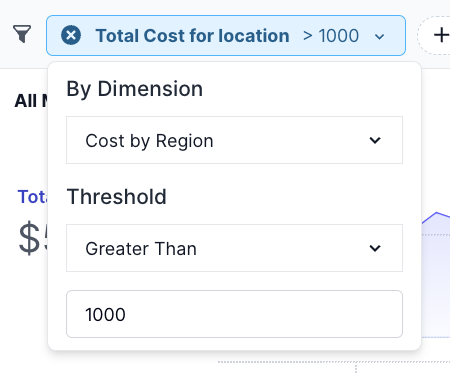
:::tip
Metric filters are a good way to "sort" by two different metrics. First, apply your metric threshold. Then, sort by your metrics within the Leaderboard to do multi-metric sorting.
As an example - to see the most active enterprise customers - filter all customers with revenue greater than $1000, then sort by number of users in descending order.
:::
## Pinned and Required Filters
On canvas dashboards, authors can pin a filter so it always stays in the filter bar, or require a filter so the dashboard does not load until you select a value for it. Required filters are highlighted in the filter bar until they have a value. See [Pin and require filters](/guide/dashboards/canvas#pin-and-require-filters) for how to configure them.
---
# Sharing Dashboards with a Public URL
URL: https://docs.rilldata.com/guide/dashboards/public-urls
## Overview
Sharing your dashboard is a key way to promote collaboration with other users and allows for quick access to your dashboards. As an admin, you also have the ability to create public shareable URLs, meaning that you can generate an expirable public link to a dashboard with specific filters pre-applied. The receiver of the link will then be able to engage and interact with this dashboard as if they were logged in (with the parent filters locked).
:::tip
Recipients are not required to log in to view the dashboard and will not be able to change your pre-defined filters!
:::
### How to create a public URL from the UI
After applying the filters and modifying the dashboard to your liking, please select the `Share` button.
If not already selected, select `Create public URL`.
If you want to set an expiration, please select the toggle and set the expiration.
### What the recipient sees
As expected, when opening the public URL, the user can view the dashboard. Like a logged-in user, they are able to navigate within the dashboard and drill or slice-and-dice as needed. Unlike a logged-in user, they are not able to make any changes to the filters that you've set.
:::info Did you know?
In fact, users who click on a public shareable URL cannot see the parent filters that have been applied!
:::
## How to manage public URLs
### Via the UI
You can now manage public URLs via the UI. You will find a new "settings" tab in the Rill Cloud UI as an administrator.
### Via the CLI
```
rill public-url
Manage public URLs
Usage:
rill public-url [command]
Available Commands:
list List all public URLs
create Create a public URL
delete Delete a public URL
Flags:
--org string Organization Name (default "Rill_Learning")
Global Flags:
--api-token string Token for authenticating with the cloud API
--format string Output format (options: "human", "json", "csv") (default "human")
-h, --help Print usage
--interactive Prompt for missing required parameters (default true)
Use "rill public-url [command] --help" for more information about a command.
```
Using the Rill CLI, you can list, create, or delete public URLs.
#### Deleting a public URL
To delete a public URL, you will need an `id` parameter. In order to retrieve the appropriate `id`, you will need to first list out the public URLs. You can do so using the command below with any flags that help you.
```
rill public-url list
```
Once you have obtained the `id` you can run the following:
```
rill public-url delete
```
If you are interested in creating a public URL directly from the CLI, you can do so by passing the required parameters. (You can use the --help flag to see what additional flags are required.)
---
# Time Series Filter
URL: https://docs.rilldata.com/guide/dashboards/time-series
Prefer video? Check out our [YouTube playlist](https://www.youtube.com/watch?v=wTP46eOzoCk&list=PL_ZoDsg2yFKgi7ud_fOOD33AH8ONWQS7I&index=1) for a quick start!
## Overview
Once you've [built your metrics view](/developers/build/metrics-view) and assigned a time series column, you'll be able to start visualizing your measures and dimensions in either an Explore dashboard or Canvas dashboard. This guide will discuss all the features in the time navigator that exists at the top of all dashboards and how to customize it to your needs.
## Time Series Filter Component
The time series navigation is divided into four main sections:
### 1. Forward/Backward Navigation
Allows you to step forward or backward through your selected time range. Use the arrow buttons to navigate through time periods while maintaining your current selection.
### 2. Time Selector
The dropdown menu containing default time ranges (like "Last 7 days", "Last 30 days") or custom time ranges you've created. This is where you choose your primary time period. It also has a selector for custom ranges in a calendar view as well as time zone selector.
### 3. As Of...
Controls the reference point for your time calculations. This determines whether your time range is relative to the current moment (wallclock), latest data based on grain, or "completed" data.
### 4. Comparing
Enables time comparison functionality, allowing you to compare current data against previous periods (e.g., "vs. previous period" or "vs. same period last year").

## Key Concepts
Before diving into this complicated topic, it's important to understand these fundamental concepts:
- **Reference Points**: The anchor point from which durations are calculated
- **Snapping**: Aligning time boundaries to specific grains (day, hour, etc.)
- **Duration vs Fixed Points**: The difference between "4 days ago" and "4 days ending at a specific point"
- **Wallclock Time**: The actual current time vs. data-relative time
### Time Selection Types
There are several ways to specify time ranges:
1. **Duration-based ranges**: Specify a length of time from a reference point (e.g., `7d as of latest/d`)
2. **Fixed-point ranges**: Specify exact start and end points (e.g., `-4d to now/d`)
3. **ISO 8601 ranges**: Use standard date format (e.g., `2024-01-01 to 2024-01-05`)
The following sections explain how each type works and when to use them.
## Time Ranges Explained
Understanding the difference between duration-based and fixed-point ranges is crucial for avoiding confusion.
### Duration-Based Ranges
These specify a length of time from a reference point:
- `4d` = 4 days duration
- `4d as of now/d` = 4 days ending at start of current day
### Fixed-Point Ranges
These specify exact start and end points:
- `-4d to now/d` = from 4 days ago (wallclock) to start of current day
- `2024-01-01 to 2024-01-05` = exact date range
:::tip Not the same
Many users expect `-4d to now/d` and `4d as of now/d` to be equivalent, but they're not:
- **`-4d to now/d`**: Starts 4 days ago from current wallclock time, ends at start of current day
- If it's 12:30 PM on Sept 3, this starts at 12:30 PM on Aug 30
- Duration: ~3.5 days (partial Aug 30 + full Aug 31, Sep 1, Sep 2)
- **`4d as of now/d`**: Exactly 4 days ending at start of current day
- Starts at start of Aug 30, ends at start of Sept 3
- Duration: exactly 4 full days
:::
### ISO 8601 Ranges
ISO 8601 ranges use the standard date format for specifying exact time periods:
- `2024-01-01 to 2024-01-05` - From January 1st to January 5th, 2024
- `2024-01-01T00:00:00Z to 2024-01-01T23:59:59Z` - Full day with explicit timestamps
- `2024-01-01T09:00:00 to 2024-01-01T17:00:00` - Business hours on a specific day
These ranges are useful when you need precise control over the exact start and end times, especially for reporting on specific events or periods.
### Snapping
Snapping aligns time boundaries to specific grains (day, hour, etc.) rather than using exact wallclock times. This allows your dashboards to show complete summaries of data rather than incomplete sets.
- `/s` = snap to second boundaries
- `/m` = snap to minute boundaries
- `/h` = snap to hour boundaries
- `/d` = snap to day boundaries (start of day)
- `/w` = snap to week boundaries (start of week)
- `/M` = snap to month boundaries (start of month)
- `/y` = snap to year boundaries (start of year)
## As of
### Reference
- **Complete data `watermark`**: Uses the [watermark timestamp](/developers/build/metrics-view/time-series#watermark) from your metrics view. This ensures you only see data that has been fully processed and is considered "complete" according to your data pipeline's watermark settings.
- **Latest data `latest`**: Uses the most recent data point available in your dataset, regardless of completeness. This is useful when you want to see the freshest data even if it might be incomplete.
- **Current time `now`**: Uses the current wallclock time as the reference point. This means your time ranges will always be relative to the present moment, which can include future time periods if your data extends beyond the current time.
:::tip Unsure which one?
If you hover on any of the three options, it will give you the actual time that will be considered in the time filter.
:::
### Grain
The grain determines the time granularity for your reference point. This affects how your time ranges can be rolled up and displayed. Depending on the `smallest_time_grain` in your metrics view, the options will be limited.
You can also configure grain settings directly in the Time Selector using the [snapping](#snapping) options.
### Anchor
The anchor determines whether to include incomplete time periods in your data. After snapping to a specific grain, you can choose to:
- **Include incomplete periods**: Show data for the current partial time grain (e.g., today's data even if the day isn't finished)
- **Exclude incomplete periods**: Only show data for complete time grains (e.g., exclude today if it's not finished)
This is similar to the `watermark` concept but operates at the grain level you've selected, providing more granular control over data completeness.
## Bringing it all together
The following are the most common sources of confusion and how to avoid them:
### 1. "I want the last 4 calendar days"
**Confusing approaches:**
- `-4d to now/d` - This gives you ~3.5 days if it's not midnight
- `4d` - This gives you exactly 4 days from current wallclock time
**Correct approaches:**
- `4d as of now/d` - Exactly 4 days ending at start of current day
- `-4d/d to now/d` - From start of day 4 days ago to start of current day
- `-4d to ref as of now/d` - 4 days ending at start of current day
### 2. "Why does my range show 3 days when I asked for 4?"
This happens when you mix wallclock time with snapped boundaries:
- `-4d to now/d` at 12:30 PM = Aug 30 12:30 PM to Sept 3 00:00 AM
- Duration: Partial Aug 30 + Aug 31 + Sep 1 + Sep 2 = ~3.5 days
**Solution:** Use consistent snapping: `-4d/d to now/d`
### 3. "The end date keeps shifting when I change the 'as of'"
This happens because the end date uses `now` (wallclock time) instead of a snapped reference:
- `-4d to now/d` - End date is always start of current day
- `-4d to now/d as of now/d+1d` - End date becomes start of tomorrow
**Solution:** Use duration-based ranges: `4d as of now/d`
### 4. "I want to look at data relative to the latest data point"
**Problem:** Using `now` when data might be stale
- `-7d as of latest/d` - 7 days ending at latest data day
- `-7d` - 7 days ending at current wallclock time (might include future)
**Solution:** Always specify the reference point explicitly
## Time Comparisons
Along with setting time ranges, you have the ability to set a comparison period in the "Comparing" section of the time pill. This allows you to analyze trends and changes by comparing your current time period against a previous period.
### Comparison Types
1. **Previous Period**: Compares against the immediately preceding period of the same duration
2. **Previous ...**: Compares current selected period vs a set period (day, week, month, year)
3. **Custom Comparison**: Set a specific comparison period using the same time range syntax
### Understanding Comparison Results
Once comparison is enabled, you'll see slightly different information in your dashboard. Along with the current value, you'll see both change in value and percentage change over periods. This gives you a quick glance at how your metrics are performing compared to the previous period.

## Filter by Scrubbing
For a specific view into your time series graph, you can interactively scrub directly on the time series graph. This feature allows you to zoom into specific time periods by clicking and dragging across the chart.
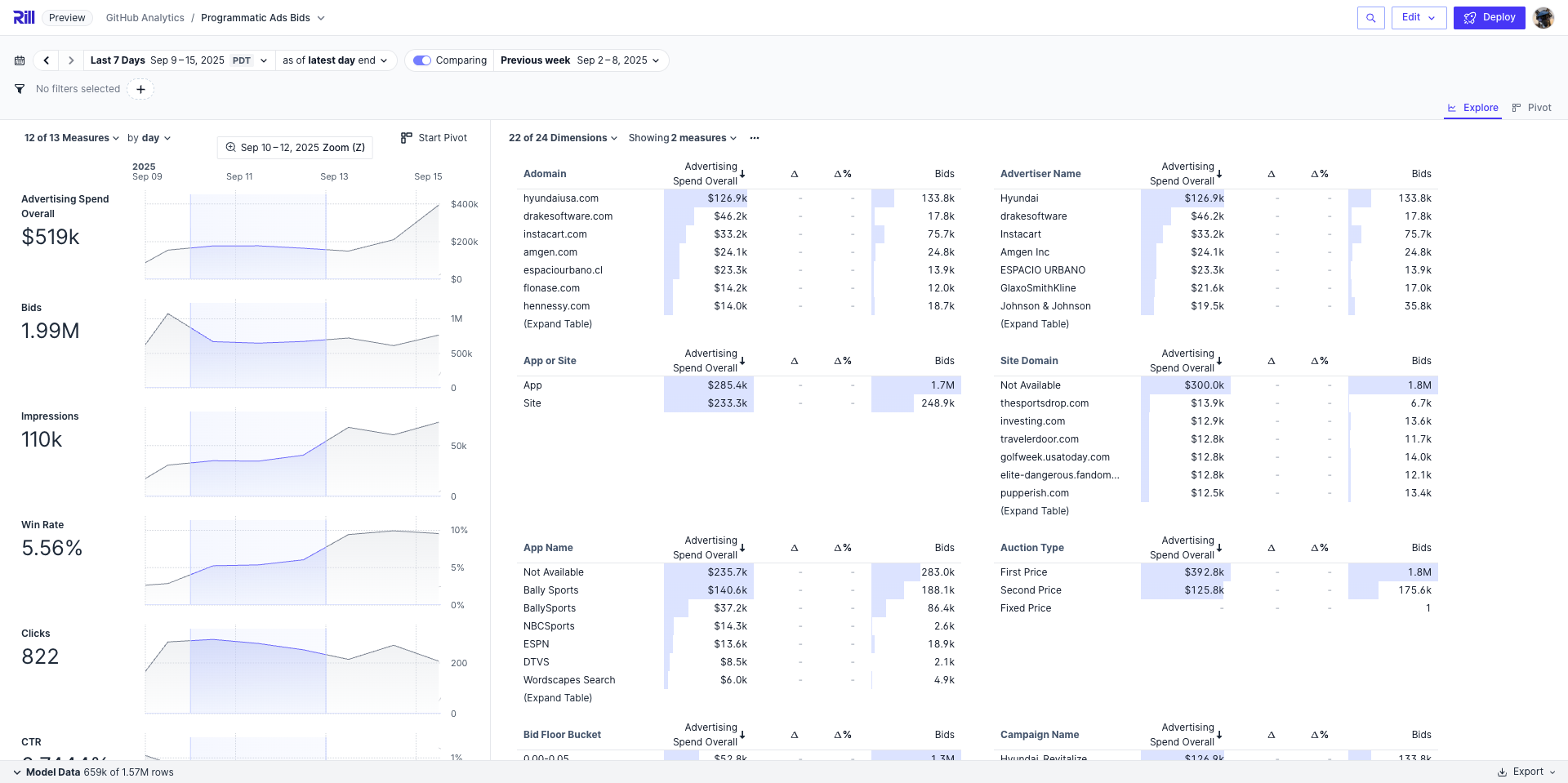
## Multiple Time Dimensions
Your dashboard may have multiple time dimensions available for filtering, beyond the primary time series. These appear as additional filter options and allow you to analyze data across different temporal perspectives.

### Common Use Cases
- **Order vs. Ship Date**: Filter by when orders were placed or when they were fulfilled
- **Created vs. Updated**: Analyze records by original creation or last modification
- **Event vs. Processing Time**: Distinguish between when something happened and when it was recorded
### Using Time Dimension Filters
Time dimensions appear in the filter panel alongside your other dimensions. When you select a time dimension filter:
1. **Choose the time dimension** from the filter panel
2. **Select a time range** using the same duration syntax as the main time series
3. **Combine with other filters** to create complex queries
:::tip
Time dimension filters work independently of the main time series selector. This means you can view your time series chart by order date while filtering to only show records with a ship date in the last 7 days.
:::
### Example: Analyzing Fulfillment Delays
To find orders placed last month that haven't shipped yet:
1. Set the main time series to "Last 30 days" (viewing by order date)
2. Add a filter on Ship Date dimension
3. Set the Ship Date filter to exclude records (or filter to null values)
This combination lets you identify orders that are still pending fulfillment.
For more details on configuring time dimensions, see the [Time Dimensions](/developers/build/metrics-view/dimensions/time-dimensions) developer documentation.
---
# Exports & Scheduled Reports
URL: https://docs.rilldata.com/guide/reports/exports
Rill provides the ability to export data from multiple locations - leaderboards, Time Dimension detail, and Pivot Tables (_coming soon_). In addition to direct downloads, you can also set up recurring reports to your inbox. Scheduled Reports allow you to effortlessly generate and manage email reports for any exportable content within your Rill Cloud dashboard.
- [Exporting from Rill](#exporting-from-rill)
- [How to Schedule an Email Report](#how-to-schedule-an-email-report)
- [Managing Scheduled Reports](#managing-scheduled-reports)
Prefer video? Check out our [YouTube playlist](https://www.youtube.com/watch?v=wTP46eOzoCk&list=PL_ZoDsg2yFKgi7ud_fOOD33AH8ONWQS7I&index=1) for a quick start!
## Exporting from Rill
There are several places to export your data from Rill. In each case, you will see options for exporting to CSV, XLSX, or Parquet formats.
Exports are available from:
- Leaderboards: expand a leaderboard in Explore and select Export on the top right
- Time Dimension Detail: after choosing a comparison, select Export on the time series chart
- Pivot Tables: _coming soon_
## How to Schedule an Email Report
Follow these simple steps to schedule an email report:
1. **Navigate to Content:** Expand a dimension table by clicking on the dimension name.
2. **Export Options:** Click on the Export button and select "Create scheduled report..." Filters, comparisons, and sort orders will be preserved for your report.
3. **Configure Report Settings:** Choose a frequency and set a time to receive the output. Choose a report format (CSV/Excel/Parquet) and specify a list of recipients.
4. **Complete and Enjoy:** Click "Done." User-created reports will be delivered directly to your inbox 🎉.
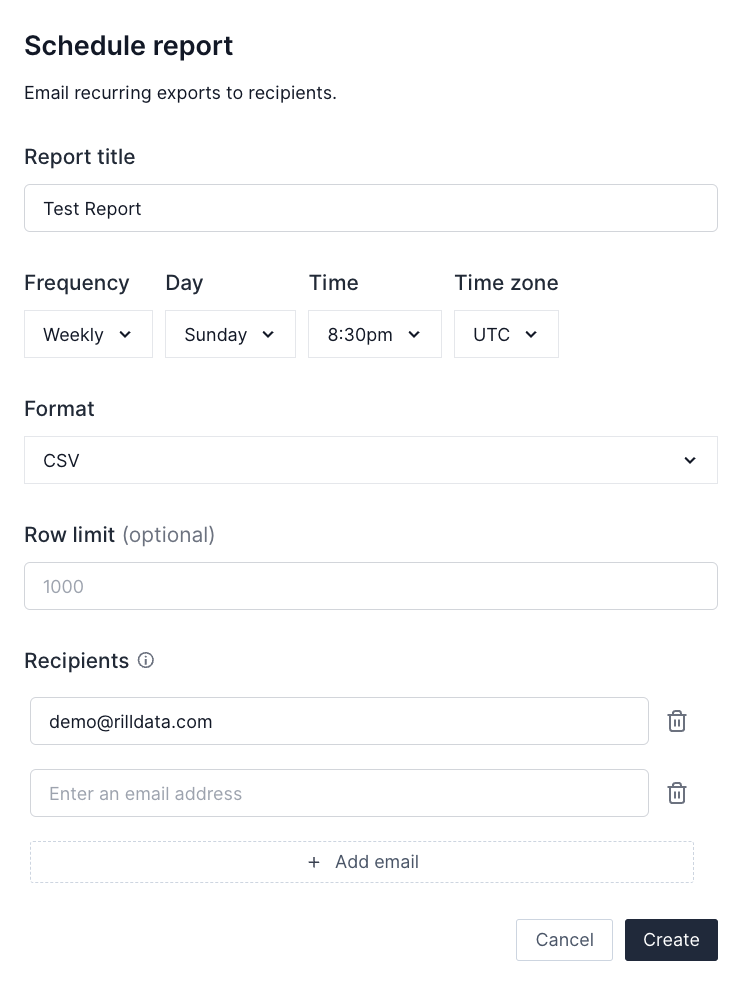
### Attaching the File to Emails
Reports that run as the **Creator** can attach the exported CSV, Excel, or Parquet file to the report email, so recipients don't have to download it. Select **Attach file to emails** when you create or edit the report.
- Files larger than 10 MB are not attached. The email says so and still includes the download link.
- Only emails include the attachment. Slack notifications include the download link.
- Attachments are not available for reports that run as the recipient, or for canvas dashboard (PDF) reports.
## Managing Scheduled Reports
Reports are managed from your home screen. To navigate to the report admin page, select the Home button on the top left and the Reports tab from your homepage.
- **Accessing Reports:** When browsing projects, find related assets for each project, including dashboards, reports, and logs.
- **Permissions:** Viewers can see their own reports, while administrators can view both their own and other users' reports.
- **Report Details:** Click into a report to view schedule details, next run information, recipients, and execution history.
- **Deletion:** To delete a report, click the three-dot menu next to the report name and select "Delete Report."
- **Unsubscribe Option:** Recipients have the option to unsubscribe by clicking the provided link within the report delivery email.
---
# CLI usage
URL: https://docs.rilldata.com/reference/cli/
## rill
A CLI for Rill
### Synopsis
Work with Rill projects from the command line.
### Flags
```
--api-token string Token for authenticating with the cloud API
--format string Output format (options: "human", "json", "csv") (default "human")
-h, --help Print usage
--interactive Prompt for missing required parameters (default true)
-v, --version Show rill version
```
### SEE ALSO
* [rill billing](billing/billing.md) - Billing related commands for org
* [rill chat](chat.md) - Chat with the Rill AI
* [rill deploy](deploy.md) - Deploy project to Rill Cloud
* [rill docs](docs/docs.md) - Open docs.rilldata.com
* [rill env](env/env.md) - Manage variables for a project
* [rill init](init.md) - Initialize a new Rill project
* [rill login](login.md) - Authenticate with the Rill API
* [rill logout](logout.md) - Logout of the Rill API
* [rill org](org/org.md) - Manage organizations
* [rill project](project/project.md) - Manage projects
* [rill public-url](public-url/public-url.md) - Manage public URLs
* [rill query](query.md) - Query data in a project
* [rill service](service/service.md) - Manage service accounts
* [rill start](start.md) - Build project and start web app
* [rill token](token/token.md) - Manage personal access tokens
* [rill uninstall](uninstall.md) - Uninstall the Rill binary
* [rill upgrade](upgrade.md) - Upgrade Rill to the latest version
* [rill user](user/user.md) - Manage users
* [rill usergroup](usergroup/usergroup.md) - Manage user groups
* [rill validate](validate.md) - Validate project resources
* [rill version](version.md) - Show Rill version
* [rill whoami](whoami.md) - Show current user
---
# rill billing
URL: https://docs.rilldata.com/reference/cli/billing/
## rill billing
Billing related commands for org
### Global flags
```
--api-token string Token for authenticating with the cloud API
--format string Output format (options: "human", "json", "csv") (default "human")
-h, --help Print usage
--interactive Prompt for missing required parameters (default true)
```
### SEE ALSO
* [rill](../cli.md) - A CLI for Rill
* [rill billing list-issues](list-issues.md) - List billing issues for an organization
* [rill billing plan](plan/plan.md) - Get billing plans
* [rill billing subscription](subscription/subscription.md) - Manage organization subscriptions
---
# rill billing list-issues
URL: https://docs.rilldata.com/reference/cli/billing/list-issues
## rill billing list-issues
List billing issues for an organization
```
rill billing list-issues [flags]
```
### Flags
```
--org string Organization Name
```
### Global flags
```
--api-token string Token for authenticating with the cloud API
--format string Output format (options: "human", "json", "csv") (default "human")
-h, --help Print usage
--interactive Prompt for missing required parameters (default true)
```
### SEE ALSO
* [rill billing](billing.md) - Billing related commands for org
---
# rill billing plan
URL: https://docs.rilldata.com/reference/cli/billing/plan/
## rill billing plan
Get billing plans
### Global flags
```
--api-token string Token for authenticating with the cloud API
--format string Output format (options: "human", "json", "csv") (default "human")
-h, --help Print usage
--interactive Prompt for missing required parameters (default true)
```
### SEE ALSO
* [rill billing](../billing.md) - Billing related commands for org
* [rill billing plan list](list.md) - List plans
---
# rill billing plan list
URL: https://docs.rilldata.com/reference/cli/billing/plan/list
## rill billing plan list
List plans
```
rill billing plan list [flags]
```
### Global flags
```
--api-token string Token for authenticating with the cloud API
--format string Output format (options: "human", "json", "csv") (default "human")
-h, --help Print usage
--interactive Prompt for missing required parameters (default true)
```
### SEE ALSO
* [rill billing plan](plan.md) - Get billing plans
---
# rill billing subscription
URL: https://docs.rilldata.com/reference/cli/billing/subscription/
## rill billing subscription
Manage organization subscriptions
### Flags
```
--org string Organization Name
```
### Global flags
```
--api-token string Token for authenticating with the cloud API
--format string Output format (options: "human", "json", "csv") (default "human")
-h, --help Print usage
--interactive Prompt for missing required parameters (default true)
```
### SEE ALSO
* [rill billing](../billing.md) - Billing related commands for org
* [rill billing subscription cancel](cancel.md) - Cancel subscription for an organization
* [rill billing subscription edit](edit.md) - Edit organization subscription
* [rill billing subscription list](list.md) - List subscriptions for an organization
* [rill billing subscription renew](renew.md) - Renew cancelled organization subscription
---
# rill billing subscription cancel
URL: https://docs.rilldata.com/reference/cli/billing/subscription/cancel
## rill billing subscription cancel
Cancel subscription for an organization
```
rill billing subscription cancel [flags]
```
### Global flags
```
--api-token string Token for authenticating with the cloud API
--format string Output format (options: "human", "json", "csv") (default "human")
-h, --help Print usage
--interactive Prompt for missing required parameters (default true)
--org string Organization Name
```
### SEE ALSO
* [rill billing subscription](subscription.md) - Manage organization subscriptions
---
# rill billing subscription edit
URL: https://docs.rilldata.com/reference/cli/billing/subscription/edit
## rill billing subscription edit
Edit organization subscription
```
rill billing subscription edit [flags]
```
### Flags
```
--plan string Plan Name to change subscription to
```
### Global flags
```
--api-token string Token for authenticating with the cloud API
--format string Output format (options: "human", "json", "csv") (default "human")
-h, --help Print usage
--interactive Prompt for missing required parameters (default true)
--org string Organization Name
```
### SEE ALSO
* [rill billing subscription](subscription.md) - Manage organization subscriptions
---
# rill billing subscription list
URL: https://docs.rilldata.com/reference/cli/billing/subscription/list
## rill billing subscription list
List subscriptions for an organization
```
rill billing subscription list [flags]
```
### Global flags
```
--api-token string Token for authenticating with the cloud API
--format string Output format (options: "human", "json", "csv") (default "human")
-h, --help Print usage
--interactive Prompt for missing required parameters (default true)
--org string Organization Name
```
### SEE ALSO
* [rill billing subscription](subscription.md) - Manage organization subscriptions
---
# rill billing subscription renew
URL: https://docs.rilldata.com/reference/cli/billing/subscription/renew
## rill billing subscription renew
Renew cancelled organization subscription
```
rill billing subscription renew [flags]
```
### Flags
```
--plan string Plan name to renew subscription to
```
### Global flags
```
--api-token string Token for authenticating with the cloud API
--format string Output format (options: "human", "json", "csv") (default "human")
-h, --help Print usage
--interactive Prompt for missing required parameters (default true)
--org string Organization Name
```
### SEE ALSO
* [rill billing subscription](subscription.md) - Manage organization subscriptions
---
# rill chat
URL: https://docs.rilldata.com/reference/cli/chat
## rill chat
Chat with the Rill AI
```
rill chat [] [flags]
```
### Flags
```
--project string Project name
--path string Project directory (default ".")
--branch string Target deployment by Git branch (default: primary deployment)
--local Target locally running Rill
```
### Global flags
```
--api-token string Token for authenticating with the cloud API
--format string Output format (options: "human", "json", "csv") (default "human")
-h, --help Print usage
--interactive Prompt for missing required parameters (default true)
```
### SEE ALSO
* [rill](cli.md) - A CLI for Rill
---
# rill deploy
URL: https://docs.rilldata.com/reference/cli/deploy
## rill deploy
Deploy project to Rill Cloud
```
rill deploy [] [flags]
```
### Flags
```
--path string Path to project repository (default: current directory) (default ".")
--subpath string Relative path to project in the repository (for monorepos)
--remote string Remote name (default: origin) (default "origin")
--org string Org to deploy project in
--project string Project name (default: Git repo name)
--description string Project description
--public Make dashboards publicly accessible
--primary-branch string Git branch to deploy from (default: the default Git branch)
--push-env Push local .env file to Rill Cloud (default true)
--force-push Force push local changes in case of Rill managed repos
--managed Create project using rill managed repo
--github Use github repo to create the project
```
### Global flags
```
--api-token string Token for authenticating with the cloud API
--format string Output format (options: "human", "json", "csv") (default "human")
-h, --help Print usage
--interactive Prompt for missing required parameters (default true)
```
### SEE ALSO
* [rill](cli.md) - A CLI for Rill
---
# rill docs
URL: https://docs.rilldata.com/reference/cli/docs/
## rill docs
Open docs.rilldata.com
```
rill docs [flags]
```
### Global flags
```
--api-token string Token for authenticating with the cloud API
--format string Output format (options: "human", "json", "csv") (default "human")
-h, --help Print usage
--interactive Prompt for missing required parameters (default true)
```
### SEE ALSO
* [rill](../cli.md) - A CLI for Rill
---
# rill env
URL: https://docs.rilldata.com/reference/cli/env/
## rill env
Manage variables for a project
### Flags
```
--org string Organization Name
```
### Global flags
```
--api-token string Token for authenticating with the cloud API
--format string Output format (options: "human", "json", "csv") (default "human")
-h, --help Print usage
--interactive Prompt for missing required parameters (default true)
```
### SEE ALSO
* [rill](../cli.md) - A CLI for Rill
* [rill env pull](pull.md) - Pull cloud credentials into local .env file
* [rill env push](push.md) - Push local .env contents to cloud
* [rill env rm](rm.md) - Remove an env variable
* [rill env set](set.md) - Set variable
* [rill env show](show.md) - Show credentials and other variables
---
# rill env configure
URL: https://docs.rilldata.com/reference/cli/env/configure
## rill env configure
Configures connector variables for all sources
```
rill env configure [] [flags]
```
### Flags
```
--path string Project directory (default ".")
--project string
--environment string Optional environment to resolve for (options: dev, prod)
```
### Global flags
```
--api-token string Token for authenticating with the cloud API
--format string Output format (options: "human", "json", "csv") (default "human")
-h, --help Print usage
--interactive Prompt for missing required parameters (default true)
--org string Organization Name
```
### SEE ALSO
* [rill env](env.md) - Manage variables for a project
---
# rill env pull
URL: https://docs.rilldata.com/reference/cli/env/pull
## rill env pull
Pull cloud credentials into local .env file
```
rill env pull [] [flags]
```
### Flags
```
--environment string Environment to resolve for (options: dev, prod) (default "dev")
--path string Project directory (default ".")
--project string Cloud project name (will attempt to infer from Git remote if not provided)
```
### Global flags
```
--api-token string Token for authenticating with the cloud API
--format string Output format (options: "human", "json", "csv") (default "human")
-h, --help Print usage
--interactive Prompt for missing required parameters (default true)
--org string Organization Name
```
### SEE ALSO
* [rill env](env.md) - Manage variables for a project
---
# rill env push
URL: https://docs.rilldata.com/reference/cli/env/push
## rill env push
Push local .env contents to cloud
```
rill env push [] [flags]
```
### Flags
```
--environment string Environment to push for (options: dev, prod) (default: all environments found in .env files)
--path string Project directory (default ".")
--project string Cloud project name (will attempt to infer from Git remote if not provided)
```
### Global flags
```
--api-token string Token for authenticating with the cloud API
--format string Output format (options: "human", "json", "csv") (default "human")
-h, --help Print usage
--interactive Prompt for missing required parameters (default true)
--org string Organization Name
```
### SEE ALSO
* [rill env](env.md) - Manage variables for a project
---
# rill env rm
URL: https://docs.rilldata.com/reference/cli/env/rm
## rill env rm
Remove an env variable
```
rill env rm [] [flags]
```
### Flags
```
--environment string Optional environment to resolve for (options: dev, prod)
--path string Project directory (default ".")
--project string Cloud project name (will attempt to infer from Git remote if not provided)
```
### Global flags
```
--api-token string Token for authenticating with the cloud API
--format string Output format (options: "human", "json", "csv") (default "human")
-h, --help Print usage
--interactive Prompt for missing required parameters (default true)
--org string Organization Name
```
### SEE ALSO
* [rill env](env.md) - Manage variables for a project
---
# rill env set
URL: https://docs.rilldata.com/reference/cli/env/set
## rill env set
Set variable
```
rill env set [] [flags]
```
### Flags
```
--environment string Optional environment to set for (options: dev, prod)
--path string Project directory (default ".")
--project string Cloud project name (will attempt to infer from Git remote if not provided)
```
### Global flags
```
--api-token string Token for authenticating with the cloud API
--format string Output format (options: "human", "json", "csv") (default "human")
-h, --help Print usage
--interactive Prompt for missing required parameters (default true)
--org string Organization Name
```
### SEE ALSO
* [rill env](env.md) - Manage variables for a project
---
# rill env show
URL: https://docs.rilldata.com/reference/cli/env/show
## rill env show
Show credentials and other variables
```
rill env show [] [flags]
```
### Flags
```
--environment string Optional environment to resolve for (options: dev, prod)
--path string Project directory (default ".")
--project string Cloud project name (will attempt to infer from Git remote if not provided)
```
### Global flags
```
--api-token string Token for authenticating with the cloud API
--format string Output format (options: "human", "json", "csv") (default "human")
-h, --help Print usage
--interactive Prompt for missing required parameters (default true)
--org string Organization Name
```
### SEE ALSO
* [rill env](env.md) - Manage variables for a project
---
# rill init
URL: https://docs.rilldata.com/reference/cli/init
## rill init
Initialize a new Rill project
### Synopsis
Initialize a new Rill project. Use flags to customize the project or run interactively to be prompted for each option.
Available example projects:
- rill-cost-monitoring (duckdb)
- rill-github-analytics (duckdb)
- rill-openrtb-prog-ads (duckdb)
```
rill init [] [flags]
```
### Examples
```
# Interactive initialization (prompts for all options)
rill init
# Create an empty DuckDB project with Claude agent instructions
rill init my-project --olap duckdb --agent claude
# Add Claude agent instructions to an existing Rill project
rill init ./existing-project --agent claude
```
### Flags
```
--agent string Agent instructions (options: claude, cursor, agentsmd, all, none) (default "claude")
--example string Example project name (default: empty project)
--olap string OLAP engine (options: duckdb, clickhouse) (default "duckdb")
```
### Global flags
```
--api-token string Token for authenticating with the cloud API
--format string Output format (options: "human", "json", "csv") (default "human")
-h, --help Print usage
--interactive Prompt for missing required parameters (default true)
```
### SEE ALSO
* [rill](cli.md) - A CLI for Rill
---
# rill login
URL: https://docs.rilldata.com/reference/cli/login
## rill login
Authenticate with the Rill API
```
rill login [flags]
```
### Global flags
```
--api-token string Token for authenticating with the cloud API
--format string Output format (options: "human", "json", "csv") (default "human")
-h, --help Print usage
--interactive Prompt for missing required parameters (default true)
```
### SEE ALSO
* [rill](cli.md) - A CLI for Rill
---
# rill logout
URL: https://docs.rilldata.com/reference/cli/logout
## rill logout
Logout of the Rill API
```
rill logout [flags]
```
### Global flags
```
--api-token string Token for authenticating with the cloud API
--format string Output format (options: "human", "json", "csv") (default "human")
-h, --help Print usage
--interactive Prompt for missing required parameters (default true)
```
### SEE ALSO
* [rill](cli.md) - A CLI for Rill
---
# rill org
URL: https://docs.rilldata.com/reference/cli/org/
## rill org
Manage organizations
### Global flags
```
--api-token string Token for authenticating with the cloud API
--format string Output format (options: "human", "json", "csv") (default "human")
-h, --help Print usage
--interactive Prompt for missing required parameters (default true)
```
### SEE ALSO
* [rill](../cli.md) - A CLI for Rill
* [rill org create](create.md) - Create organization
* [rill org delete](delete.md) - Delete organization
* [rill org edit](edit.md) - Edit organization details
* [rill org list](list.md) - List all organizations
* [rill org rename](rename.md) - Rename organization
* [rill org show](show.md) - Show org details
* [rill org switch](switch.md) - Switch to other organization
* [rill org upload-favicon](upload-favicon.md) - Upload a custom favicon
* [rill org upload-logo](upload-logo.md) - Upload a custom logo
---
# rill org create
URL: https://docs.rilldata.com/reference/cli/org/create
## rill org create
Create organization
```
rill org create [flags]
```
### Flags
```
--display-name string Display name
--description string Description
```
### Global flags
```
--api-token string Token for authenticating with the cloud API
--format string Output format (options: "human", "json", "csv") (default "human")
-h, --help Print usage
--interactive Prompt for missing required parameters (default true)
```
### SEE ALSO
* [rill org](org.md) - Manage organizations
---
# rill org delete
URL: https://docs.rilldata.com/reference/cli/org/delete
## rill org delete
Delete organization
### Synopsis
Delete an organization and all its associated projects.
This operation cannot be undone. Use --force to skip confirmation.
```
rill org delete [
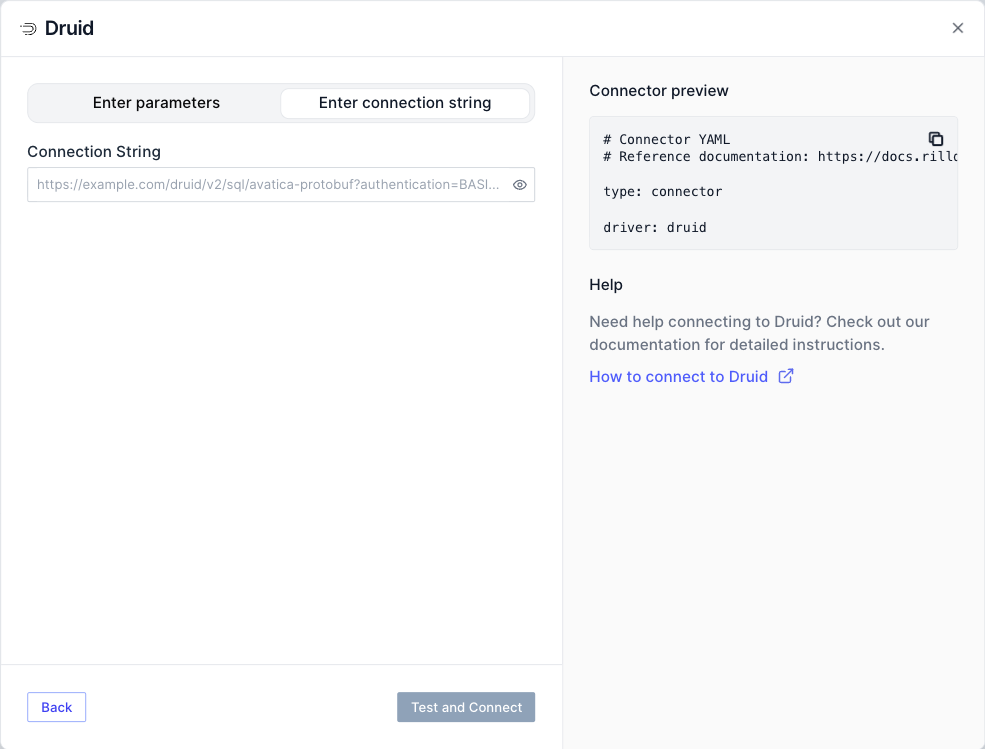
 Clicking it opens a menu of every mock user in `rill.yaml`, plus a shortcut to add a new one.
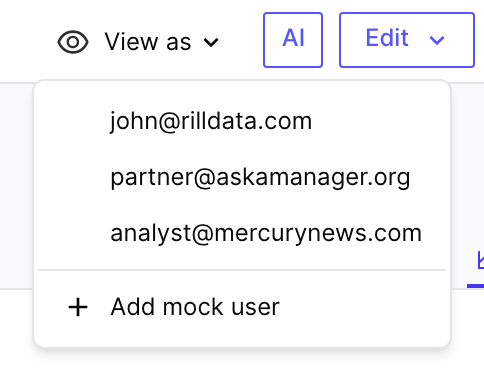 Selecting a mock user re-renders the dashboard using that user's attributes:
- `access` rules are re-evaluated against the mock user.
- `row_filter` templates are re-rendered and re-applied.
- `include` / `exclude` lists re-run against the mock user's attributes, so hidden dimensions and measures actually disappear from the UI.
While a mock user is active, a **Viewing as `
Selecting a mock user re-renders the dashboard using that user's attributes:
- `access` rules are re-evaluated against the mock user.
- `row_filter` templates are re-rendered and re-applied.
- `include` / `exclude` lists re-run against the mock user's attributes, so hidden dimensions and measures actually disappear from the UI.
While a mock user is active, a **Viewing as ` ### 3. Confirm the dashboard is showing a filtered subset
The chip on its own only tells you the mock user is active — the important check is that the dashboard values below it actually change. Compare the same dashboard before and after a mock user is applied:
- **Before** (your own view): `Requests` is **6.60M** across many domains — `askamanager.org`, `play.google.com`, `fubo.tv`, `sling.com`, and so on.
- **After** (viewing as `partner@askamanager.org` with `row_filter: app_site_domain = '{{ .user.domain }}'`): `Requests` drops to **151k**, the App Site Domain leaderboard collapses to a single row (`askamanager.org`), and every other dimension (Pub Name, Device State, Ad Size, …) is reduced to just the values that appear inside that domain.

If the totals and dimension values change like this, your row filter is working. If they don't change at all, the policy is not being applied to this user — recheck the templated attribute names against the fields on the mock user.
### 4. Add or edit mock users from the menu
The dropdown includes an **Add mock user** shortcut that opens `rill.yaml` in the editor so you can add or tweak an entry without leaving the dashboard. Any change to `rill.yaml` is picked up immediately, so you can iterate on policies and mock users side-by-side.
:::info "No mock users" in the dropdown
If the dropdown shows **No mock users**, you have a security policy defined but no `mock_users` block in `rill.yaml`. Add one using the example above.
:::
:::info Button disabled with "Not available during editing project"
When you have a dashboard's YAML file open in the editor, the header shows a greyed-out **View as** button as a hint that the feature exists — but it's only usable on the dashboard preview itself. Click **Preview** in the file editor (or navigate to `/explore/...` or `/canvas/...`) to switch to the preview and use the real button.
:::
## Rill Cloud
Rill Cloud exposes **View as** in two places, and it's important to know which one you want.
### Editing a deployed project (mock users)
When you edit a project directly on Rill Cloud (rather than in local Rill Developer), the dashboard preview shows the same **View as** button as Rill Developer, driven by the same `mock_users` from `rill.yaml`. Everything from the [Rill Developer section above](#rill-developer-preview-as-a-mock-user) applies — including the **Viewing as** chip and the filtered-subset behavior. Use this while writing or debugging a policy.
### Viewing a deployed dashboard (real users)
On a deployed dashboard (outside of edit mode), project admins can preview as any real user of the project via the **avatar dropdown** in the top-right → **View as**. The list shows actual project users — not the `mock_users` from `rill.yaml` — so this is what you want when you need to reproduce a specific teammate's view of production data.

Pick a user and the dashboard reloads using that user's real attributes: email, domain, groups, admin flag, and any custom attributes attached to their account. A **Viewing as `
### 3. Confirm the dashboard is showing a filtered subset
The chip on its own only tells you the mock user is active — the important check is that the dashboard values below it actually change. Compare the same dashboard before and after a mock user is applied:
- **Before** (your own view): `Requests` is **6.60M** across many domains — `askamanager.org`, `play.google.com`, `fubo.tv`, `sling.com`, and so on.
- **After** (viewing as `partner@askamanager.org` with `row_filter: app_site_domain = '{{ .user.domain }}'`): `Requests` drops to **151k**, the App Site Domain leaderboard collapses to a single row (`askamanager.org`), and every other dimension (Pub Name, Device State, Ad Size, …) is reduced to just the values that appear inside that domain.

If the totals and dimension values change like this, your row filter is working. If they don't change at all, the policy is not being applied to this user — recheck the templated attribute names against the fields on the mock user.
### 4. Add or edit mock users from the menu
The dropdown includes an **Add mock user** shortcut that opens `rill.yaml` in the editor so you can add or tweak an entry without leaving the dashboard. Any change to `rill.yaml` is picked up immediately, so you can iterate on policies and mock users side-by-side.
:::info "No mock users" in the dropdown
If the dropdown shows **No mock users**, you have a security policy defined but no `mock_users` block in `rill.yaml`. Add one using the example above.
:::
:::info Button disabled with "Not available during editing project"
When you have a dashboard's YAML file open in the editor, the header shows a greyed-out **View as** button as a hint that the feature exists — but it's only usable on the dashboard preview itself. Click **Preview** in the file editor (or navigate to `/explore/...` or `/canvas/...`) to switch to the preview and use the real button.
:::
## Rill Cloud
Rill Cloud exposes **View as** in two places, and it's important to know which one you want.
### Editing a deployed project (mock users)
When you edit a project directly on Rill Cloud (rather than in local Rill Developer), the dashboard preview shows the same **View as** button as Rill Developer, driven by the same `mock_users` from `rill.yaml`. Everything from the [Rill Developer section above](#rill-developer-preview-as-a-mock-user) applies — including the **Viewing as** chip and the filtered-subset behavior. Use this while writing or debugging a policy.
### Viewing a deployed dashboard (real users)
On a deployed dashboard (outside of edit mode), project admins can preview as any real user of the project via the **avatar dropdown** in the top-right → **View as**. The list shows actual project users — not the `mock_users` from `rill.yaml` — so this is what you want when you need to reproduce a specific teammate's view of production data.

Pick a user and the dashboard reloads using that user's real attributes: email, domain, groups, admin flag, and any custom attributes attached to their account. A **Viewing as `